Troubleshooting
This guide covers common issues and their solutions when using LinFIR.
For issues with the update process itself (interrupted update, corrupted install), see Updating LinFIR.
Sweep Measurement Issues
Capture Rejected - Clipping Detected
Error Message: Capture rejected: Clipping detected! Reduce input gain and try again.
Cause: The recorded signal exceeded 0 dBFS (digital full scale), causing clipping/distortion.
Solutions:
- Reduce input gain on your audio interface
- Lower driver volume or move microphone further away from the speaker
- Check gain staging throughout the signal chain:
- Audio interface preamp gain
- Mixer/console levels (if used)
- Microphone sensitivity
- Verify microphone input isn’t overloading (check interface clip indicators)
- Use pad/attenuation if your microphone or interface has this option
Prevention: Start with low input gain and gradually increase while monitoring level meters during test sweeps.
Low Signal Level Warning
What you’ll see: An always-on-top Low Signal Level Warning dialog with Keep Anyway / Discard buttons, instead of the capture being discarded automatically.
Cause: The recorded signal is below -25 dBFS, resulting in poor signal-to-noise ratio. This no longer rejects the capture outright — click Keep Anyway if the level is acceptable for your purposes, or Discard and apply the solutions below. Settings → General → Always keep low-SNR measurements skips this dialog and keeps low-level captures automatically (see General Settings).
During an unattended auto-scan, a low level still produces the
Capture rejected: Signal too low (-XX.X dB)! Increase input gain and try again.error and aborts the scan immediately, unless the setting above is enabled — see Auto-Scan with a Rotation Table.
Solutions:
- Increase input gain on your audio interface
- Raise driver volume or move microphone closer to the speaker
- Check microphone connection:
- Ensure cable is properly connected
- Verify phantom power is enabled (for condenser microphones)
- Test microphone with other software to confirm it’s working
- Verify audio routing:
- Confirm correct input channel is selected in Audio Settings
- Check that no mute or pad switches are engaged
- Ensure audio interface is set as the active input device
Target Level: Aim for peak levels between -12 dBFS and -6 dBFS for optimal signal-to-noise ratio.
Timing Reference Issues
Error Message: Timing reference not detected (correlation too low: -XX.X dB). Check channels and levels.
Cause: LinFIR cannot detect the timing reference signal (Acoustic or Loopback mode).
Solutions:
For Acoustic Timing Reference:
- Verify microphone positioning: Timing reference speaker must be within the microphone’s field
- Check timing reference level: Signal should be audible
- Increase output level of the timing reference channel
- Verify channel routing: Ensure timing reference is sent to the correct output
For Loopback Timing Reference:
- Verify physical loopback cable is properly connected
- Check loopback input channel selection in Audio Settings
- Ensure loopback signal isn’t attenuated (no pads, no gain reduction)
- Test loopback path independently (send signal and monitor input)
Error Message: Timing reference signal is CLIPPING (≥ 0 dBFS). Reduce timing reference output level or input gain to prevent distortion.
Solution: Reduce output level or input gain for the timing reference channel until clipping stops.
No Audio During Sweep
Symptoms: Sweep doesn’t play, or plays but no sound is heard.
Solutions:
- Verify device selection in Audio Settings tab:
- Output device is correct
- Input device is correct
- Channels are properly mapped
- Check hardware connections:
- Audio interface is powered on
- Speakers/amplifiers are connected and powered
- Cables are properly seated
- System audio settings:
- Ensure audio interface is not muted in system settings
- Check exclusive mode settings (Windows)
- Verify sample rate compatibility
- Try different buffer sizes:
- Start with 512 or 1024 samples
- Increase if experiencing dropouts
- Test with another application to confirm audio interface is functioning
Windows Specific: Disable exclusive mode for the audio device in Windows Sound Settings if LinFIR cannot access it.
Poor Quality Measurements
Symptoms: Noisy frequency response, irregular impulse response, inconsistent results.
Solutions:
- Use longer sweep duration:
- Minimum 5 seconds for small rooms
- 10+ seconds for large rooms or outdoor measurements
- Longer sweeps improve signal-to-noise ratio
- Minimize background noise:
- Turn off HVAC systems during measurement
- Close windows and doors
- Avoid traffic noise or other environmental sounds
- Choose quiet times of day
- Ensure stable microphone positioning:
- Use a sturdy microphone stand
- Avoid vibrations from speakers at high SPL
- Mark microphone position for repeatability
- Check for electrical interference:
- Use balanced cables (XLR) where possible
- Avoid running audio cables parallel to power cables
- Check for ground loops (hum at 50/60 Hz and harmonics)
- Use isolated/clean power for sensitive equipment
- Use multiple averages:
- 3-5 averages reduce random noise
- More averages improve consistency at the cost of time
- Verify measurement environment:
- Avoid highly reflective surfaces near microphone
- Ensure speaker is properly positioned
- Check for loose objects that might rattle
Unstable Audio Scheduling (Windows)
Error Message: Recording rejected: unstable Windows audio scheduling.
Cause: Windows audio subsystem experienced excessive timing jitter during capture.
Solutions:
- Close other applications using audio or consuming CPU
- Increase buffer size in Audio Settings (try 1024 or 2048 samples)
- Disable audio enhancements in Windows Sound Settings
- Update audio interface drivers to latest version
- Use ASIO drivers if available for your interface (more stable than WASAPI)
- Disable background services:
- Windows Update
- Antivirus real-time scanning
- Other system services during measurement
- Check power settings: Set to “High Performance” mode
IR Management Issues
File Import Problems
Symptoms: Cannot import WAV or TXT files, or imported data appears incorrect.
Solutions:
WAV Files:
- Verify file format: Only WAV files are supported (16/24/32-bit PCM or float)
- Check file integrity: Ensure file isn’t corrupted or truncated
- Try opening in another audio application
- Re-export from source if needed
- Sample rate must be reasonable: 44.1 kHz to 192 kHz
- Stereo files: LinFIR uses left channel only (mono conversion)
- Check file permissions: Ensure LinFIR has read access to the file
TXT (IR) Files:
- Format must be simple: One sample per line, decimal values
- Sample rate prompt: LinFIR will ask for sample rate (not stored in TXT)
- Check for non-numeric characters: Remove headers, comments, or invalid data
- Use proper decimal separator: Period (
.) not comma (,)
FRD (.frd or .txt) Files (REW format):
- Two-column format: Frequency (Hz) and Magnitude (dB)
- Tab or space delimited
- Check frequency range: Should cover at least 20 Hz to 20 kHz
- Phase column: Optional third column for phase (degrees)
Windowing Not Working
Symptoms: IR windowing doesn’t change the impulse response, or produces unexpected results.
Solutions:
- Verify time values:
- Stop Time must be > Start Time
- Times must be within IR duration
- Window times are in milliseconds, not samples
- Preview impulse response to verify window placement:
- Open Driver IR window
- Check impulse response plot
- Adjust Start/Stop times visually
- Common windowing scenarios:
- Early reflections removal: Set Stop Time before first strong reflection
- Noise truncation: Set Stop Time when IR decays into noise floor
- Leading silence removal: Set Start Time just before main impulse peak
IR Names Not Showing
Symptoms: Imported or measured impulse responses don’t have names, or show default names.
Explanation: LinFIR does not automatically set IR names based on filenames or measurements.
Solutions:
- Manually enter IR name:
- Open Driver IR window
- Type name in “IR Name” field
- Press Enter or click outside field to confirm
- Import and measurement operations:
- WAV import: No automatic naming
- Sweep measurement: No automatic naming
- FRD import: No automatic naming
- Save project to persist custom names:
- Use Cmd+S / Ctrl+S to save
- IR names are stored in project file
Best Practice: Name impulses immediately after import/measurement to avoid confusion later.
Audio Settings Issues
Device Not Listed
Symptoms: Expected audio interface doesn’t appear in device dropdown menus.
Solutions:
- Click “Refresh Devices” to rescan audio hardware
- Check audio interface:
- Ensure interface is powered on
- Verify USB/Thunderbolt connection is secure
- Try different USB port or cable
- Verify drivers are installed:
- Mac OS: Core Audio drivers (usually automatic)
- Windows: ASIO or manufacturer-specific drivers
- Close other applications using the audio interface:
- DAWs (Pro Tools, Logic, Ableton, etc.)
- Media players
- Communication apps (Zoom, Microsoft Teams, etc.)
- Try different sample rates or buffer sizes in LinFIR settings
- Restart LinFIR after connecting/disconnecting devices
- System permissions (Mac OS):
- Go to System Settings > Privacy & Security > Microphone
- Ensure LinFIR has microphone access
Configuration Invalid
Error: Audio configuration shows as invalid or cannot be applied.
Causes and Solutions:
-
Device disconnected:
- Selected input/output device is no longer available
- Click “Refresh Devices” and reselect devices
-
Channel count exceeds device capabilities:
- Verify device has enough input/output channels
- Check channel mapping (e.g., selecting channel 8 on a 2-channel interface)
-
Sample rate not supported:
- Audio interface may not support selected sample rate
- Try common rates: 48 kHz, 96 kHz, 44.1 kHz
- Check interface specifications
-
Buffer size incompatible:
- Some devices have minimum/maximum buffer size limits
- Try 512 or 1024 samples as a safe default
-
Exclusive mode conflicts (Windows):
- Another application may have exclusive control
- Disable exclusive mode in Windows Sound Settings
- Close competing applications
Recovery Steps:
- Click “Refresh Devices”
- Select “Default” input and output devices
- Choose a common sample rate (48 kHz)
- Set buffer size to 1024 samples
Filter Processing Issues
FIR Correction Not Applying
Symptoms: Enabling FIR correction doesn’t change frequency response.
Solutions:
- Check correction is enabled:
- Magnitude and/or Phase correction must be toggled ON
- Verify correction range (Max. Attenuation) is non-zero (e.g., 10 dB)
- Check frequency range covers desired bandwidth
- Verify target curve:
- Check that your reference points are defined correctly
- Reference shouldn’t be identical to measurement (no correction needed)
- Check causality setting:
- Linear phase (causality = 0): Maximum pre-ringing
- Minimum phase (causality = 1): No pre-ringing, phase distortion
- Mixed causality (0 < causality < 1): Balanced trade-off
- Increase filter length if correction is insufficient:
- Longer FIR = better correction accuracy
- Try doubling N taps (e.g., 2048 → 4096)
- View FIR filter response in Filters mode (F key):
- Switch to display mode “FIR Filters”
- Verify correction filter shape matches expectation
- Check FIR time alignment:
- Verify that the FIR coefficients are properly centered within the available taps
- Try changing FIR Offset Delay value to recenter FIR’s energy
- Enable Auto Causal Alignment in Settings and let LinFIR handle this process for you
Cannot See IIR Filter Effects
Symptoms: IIR filters are defined but don’t affect the frequency response.
Causes and Solutions:
-
IIR toggle is disabled:
- Click the “IIR Filters” toggle in the driver toolbar to enable it
- Both Manual IIR and Auto-EQ tabs share this same master toggle
-
Wrong tab is active:
- LinFIR has two separate IIR filter tabs: Manual and Auto-EQ
- Only the active tab’s filters are applied
- Click the tab you want to use to make it active
- You can have filters in both tabs, but only one tab is active at a time
-
No filters are enabled:
- In the active tab, verify that individual filters have their “Enabled” toggle ON
- Disabled filters are ignored even if the tab is active
-
Switching between Manual and Auto-EQ:
- Manual IIR tab: Manually configured filters (HP, LP, PEQ, shelves, etc.)
- Auto-EQ tab: Auto-generated or manually tweaked parametric EQ filters
- Use “Clone from Auto EQ” button to copy Auto-EQ filters to Manual tab
- Both tabs can coexist with different filter sets, but only one is active
Auto-EQ Not Matching Target
Symptoms: Auto-EQ result doesn’t match target curve well.
Solutions:
- Increase max filters allowed:
- More filters = better target matching
- Try 8-12 filters for complex targets
- Check frequency range:
- Auto-EQ only operates within specified f_min to f_max
- Reduce range if needed (e.g., 80 Hz to 16 kHz)
- Verify target curve is reasonable:
- Avoid extreme target shapes requiring >20 dB boost
- Use smooth target curves for better results
- Check smoothing:
- Over-smoothed measurements may prevent accurate matching
- Try 1/12 or 1/24 octave smoothing
- Run Auto-EQ again:
- Click “Run Auto EQ” to recompute
- Different starting conditions may produce better results
HFD Export Issues
Sample Rate Error
Error: HFD export requires 93.75 kHz sampling rate. Current: 96000 Hz
Solution: Hypex FA series amplifiers operate at 93.75 kHz internally.
Steps:
- Go to Target DSP Settings in the left column of the main window
- Change Sampling Frequency to 93.75 kHz
- Retry HFD export
Note: Changing sample rate will trigger re-processing of all filters.
Biquad Limit Exceeded
Error: Tweeter has 18 biquads but HFD supports max 15 biquads per channel
Cause: The sum of global IIR + driver IIR exceeds 15 biquads per output channel.
Solutions:
- Reduce IIR filter count:
- Remove unnecessary PEQ filters
- Combine shelves into broader adjustments
- Use fewer global IIR filters
- Reduce Auto-EQ filter count:
- Lower “Max Filters” setting in Auto-EQ
- Simplify target curve to require fewer filters
- Move filters to FIR domain:
- FIR crossovers instead of IIR (if tap budget allows)
- FIR correction instead of many PEQ filters
- Check biquad count for each filter type (see table in Export documentation)
Example:
- Driver IIR: LR4 HP, LR4 LP, 12× PEQ
- Total: 16 biquads ❌ Exceeds limit
Solution: Reduce PEQs to 11 filters → Total: 15 biquads ✅
FIR Length Exceeded
Error:
Global FIR has 6000 taps but Input position supports max 4500 tapsWoofer has 2000 taps but Output position supports max 1500 taps per channel
Cause: FIR filter length exceeds Hypex hardware limits.
Solutions:
For Input FIR (Global, 4500 taps max):
- Reduce Global FIR N taps in Global FIR Correction settings
For Output FIR (Per-channel, 1500 taps max):
- Reduce Driver N taps in driver settings
Decision Guide:
- Input FIR: Best for global room correction shared across all channels
- Output FIR: Best for per-driver crossovers and correction
Performance Issues
Slow Processing / UI Lag
Symptoms: LinFIR feels sluggish, filters take long to compute, UI updates are delayed.
Solutions:
- Reduce filter complexity:
- Lower FIR tap count (e.g., 4096 → 2048)
- Fewer IIR filters
- Disable unused filters
- Reduce graph resolution:
- Settings > Graphs > Plot Resolution
- Lower resolution = faster rendering
- Disable unnecessary graphs:
- Hide graphs you’re not using (M, P, G, I, T, K keys)
- Fewer visible graphs = less computation
- Close detached graph windows when not needed
- Check system resources:
- Close other CPU-intensive applications
- Ensure sufficient RAM available
- Reduce angle step in polar measurements:
- Try 10° or 15° steps instead of 5°
High Memory Usage
Symptoms: LinFIR consumes excessive RAM, system becomes slow.
Causes:
- Many drivers with long IRs: Each driver stores full impulse responses
- Many polar measurements: Full impulse responses are also stored for each measurement angle
- High-resolution graphs: More points = more memory
Solutions:
- Reduce IR length re-import externally generated IRs with proper windowing and truncation
- Use lower sample rates if 192 kHz is not needed
- Reduce N taps for FIR filters
- Reduce graph resolution Settings > Graphs > Plot Resolution
Project File Issues
Cannot Load Project
Error: Failed to load project or similar error when opening .lnf file.
Solutions:
- Check file integrity:
- Verify file size is reasonable (not 0 bytes)
- Legacy format migration:
- Older LinFIR versions may use incompatible format
- LinFIR attempts automatic migration, but may fail
- Try opening in latest LinFIR version
- Corrupted project:
- If file was saved during a crash, it may be incomplete
- Restore from a backup
- File permissions:
- Ensure LinFIR has read access to the file
- Try copying file to a different location
Prevention: Enable auto-save to save every 60 seconds.
Auto-Save Not Working
Symptoms: Projects don’t auto-save, or auto-save notifications don’t appear.
Verification:
- Auto-save is enabled by default
- Auto-save runs every 60 seconds in the background
- Auto-save only works if project has a saved path (use Cmd+S first time)
Troubleshooting:
- Save project manually first (Cmd+S) to establish a file path
- Check for errors: Look for error notifications in top-right corner
- Verify file permissions: Ensure LinFIR can write to project directory
- Check disk space: Ensure sufficient free space on drive
Note: Auto-save interval cannot be configured (fixed at 60 seconds).
License & Activation Issues
Directivity Features Locked
Symptoms: Cannot access the directivity analysis window (R key doesn’t work), directivity features grayed out.
Cause: Directivity analysis requires a valid license.
Solutions:
- Verify license status: Settings > License tab
- Activate license: Enter license key if you have one
- Check license expiration: Licenses may have time limits (trial)
- Mode requirement: Directivity is only available in Loudspeaker Design mode (not Room Calibration)
- Check internet connectivity: First activation (or deactivation) requires internet connectivity
Note: Free version includes all core loudspeaker design features but excludes advanced directivity analysis.
Getting Help
Bug Reports
LinFIR includes a built-in bug report feature to help diagnose issues:

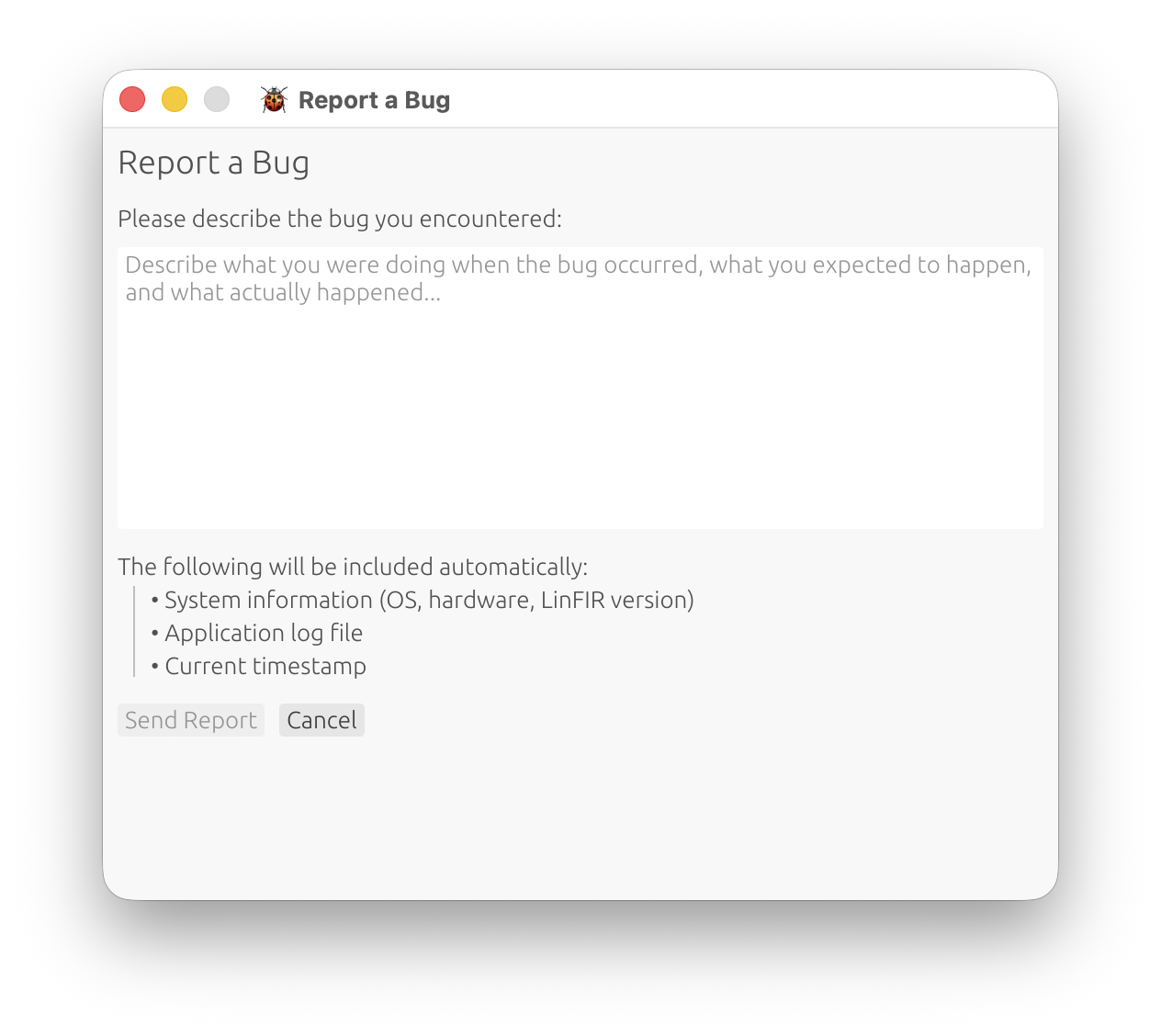
To Submit a Bug Report:
- Go to Help > Report a Bug
- Enter your email address - required, so we can follow up with you about the report
- Describe the issue clearly:
- What you were doing when the problem occurred
- What you expected to happen
- What actually happened
- Include steps to reproduce (if possible)
- Click “Submit”
For intermittent or hard-to-describe issues: if support asks for more detail than the default log captures, enable Verbose Logging (Settings → General → Diagnostics) first, reproduce the issue, then submit the bug report — the attached log file will include the extra detail. This setting isn’t saved between sessions (it always starts disabled), so there’s no need to remember to turn it off - though it’s still worth disabling once you’re done if you keep working in the same session, since it increases the log file’s size and how often it rotates.
Privacy:
- Your email address is transmitted, so we can reply to your report - no other personal information is
- No project data is included
- Only your email, relevant log information and system details are sent
What to Include:
- Clear description of the bug or unexpected behavior
- Exact steps to reproduce the issue
- Expected vs. actual outcome
- System information: OS version, audio interface model (if relevant)
- Error messages (if any appear)
Community & Support
Additional Resources:
- User Manual: Press H to open embedded documentation
- Release Notes: Check for known issues and recent fixes
- Email Support: Contact developer for persistent issues
Before Reporting:
- Check this troubleshooting guide
- Verify you’re using the latest LinFIR version
- Test with a fresh project to isolate the issue
- Try restarting LinFIR and your audio interface
Related Documentation
- Audio Configuration - Detailed audio settings and device configuration
- Sweep Measurements - Measurement procedures and best practices
- IR Management - Importing, windowing, and managing impulse responses
- HFD Export - HFD export requirements and validation
- Keyboard Shortcuts - Quick reference for all shortcuts