Sweep Measurements
LinFIR features a built-in exponential sine sweep generator for impulse response capture. This system provides high-quality measurements with automatic quality validation.
Overview
The sweep measurement system generates an exponential sine sweep that excites the system across a specified frequency range. After playback and recording, deconvolution with the inverse sweep extracts the impulse response.
Accessing Sweep Controls
Sweep controls are located in the IR Management window:
- To open the window: Driver → Manage IR
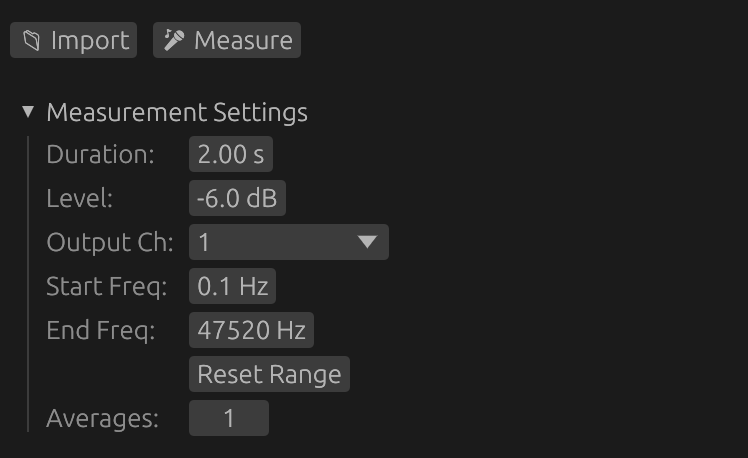
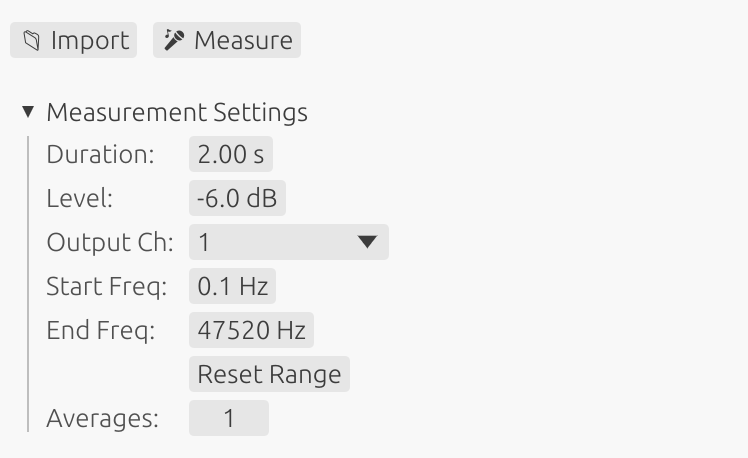
- Section: Measurement Settings
- Start button: 🎤 Measure
Sweep Parameters
⚠️ Safety Warning
Low frequency content can damage small drivers:
- Sweeps starting below 100 Hz contain high-energy bass content
- Never measure unprotected tweeters or midrange drivers with full-range sweeps
- High excursion at low frequencies can cause mechanical damage or voice coil failure
- For tweeters: Use start frequency >1000 Hz
- For midrange: Use start frequency >200-500 Hz (depending on driver specs)
- Always verify your driver’s rated frequency range before measurement
When measuring individual drivers, adjust the start frequency to match the driver’s safe operating range.
Important note on driver protection methods:
If you use an external high-pass filter (physical or DSP) to protect a driver during measurement instead of adjusting the sweep start frequency, be aware that:
- The filter will affect the phase response and group delay of the measurement
- This phase shift will be captured in the impulse response
- If you later remove or change the protection filter, the driver alignment will be incorrect
- Recommendation: Protect drivers by setting the appropriate sweep start frequency rather than using external filters
- This ensures accurate phase and timing measurements without filter-induced artifacts
Duration
Length of the sweep signal in seconds.
- Range: 1 to 15 seconds
- Shorter (1-3s): Faster measurements, lower frequency resolution, reduced harmonic distortion accuracy
- Longer (5-15s): Better low-frequency resolution, improved SNR, better harmonic distortion measurement
- Recommended: 5-7 seconds for full-range measurements
Benefits of longer sweeps:
- Improved signal-to-noise ratio for harmonic distortion analysis
- More reliable detection and measurement of weak harmonics
- Better frequency resolution in the bass region
⚠️ Important: Longer sweeps deliver more energy to the driver at low frequencies because exponential sweeps spend more time in the bass region. For drivers with limited excursion capability, longer sweeps may require:
- Raising the start frequency to avoid the lowest frequencies
- Reducing the sweep level (amplitude) to limit excursion
- Monitoring the driver during measurement to ensure it doesn’t bottom out
Amplitude
Output level of the sweep signal.
- Range: -50 to 0 dB
- Purpose: Control the acoustic level of the measurement
- Typical: -12 to -6 dB for moderate levels
- Maximum (0.0): Full digital scale output
Adjust amplitude based on driver sensitivity and desired measurement level. Too low may result in poor SNR; too high may cause clipping, distortion or damage.
Start Frequency
Cutoff frequency for the 4th-order Butterworth high-pass filter applied to the sweep for driver protection.
- Default: 1 Hz (captures near-DC response)
- Range: 1 Hz to 20 kHz
- Full-range: 20 Hz (typical for full-bandwidth measurements)
- Subwoofers: 10-20 Hz for low-frequency drivers
- Tweeters: >1000 Hz for high-frequency analysis only (protect from low frequency damage)
- Midrange: >200-500 Hz depending on driver specifications
Understanding the Butterworth Filter Protection
LinFIR applies a 4th-order Butterworth high-pass filter to the sweep signal with cutoff frequency fc = Start Frequency. This provides:
- Attenuation at cutoff: -3 dB at the Start Frequency
- Roll-off below cutoff: -24 dB/octave (deterministic, frequency-independent)
- Minimal pre-ringing: Butterworth maximally-flat passband characteristic
- Continuous protection: Applied across the entire sweep duration
⚠️ Critical positioning guideline:
Because of the -3 dB attenuation at the cutoff frequency, set Start Frequency slightly below your desired passband start, but always above driver safety limits:
- Example: For 80 Hz passband → set Start Frequency to 60-70 Hz
- This accounts for the -3 dB attenuation while ensuring full response in the desired band
- For tweeters: position above resonance frequency (fs) to avoid damage
- For woofers: set at a frequency that limits excursion to safe levels
⚠️ Important: Setting the start frequency too low for small drivers can cause mechanical damage. Always verify your driver’s rated frequency range and adjust accordingly.
For full-range measurements of complete speaker systems, 20 Hz is appropriate. For individual driver measurements, adjust to the driver’s safe operating range.
End Frequency
End of the full-amplitude band of the sweep.
- Default: Auto - 1/48 octave below the Nyquist frequency (~23.4 kHz at 48 kHz, ~47.3 kHz at 96 kHz). This is the previous fixed behaviour; leave it here for normal full-bandwidth measurements.
- Range: from half an octave above the Start Frequency, up to the Auto value.
- Effect: the sweep is flat at full amplitude up to the End Frequency, then a sin² fade-out runs to
min(Nyquist, End Frequency × 2), and the sweep excites nothing above that. - No filter, no roll-off: unlike the Start Frequency (which is a Butterworth cutoff, −3 dB at the frequency), the response stays flat right up to the End Frequency. Setting it to, say, 20 kHz gives a flat measurement to 20 kHz — it does not under-read the treble.
When to lower it. On a driver with severe cone breakup, the breakup resonance can be so loud that you have to drop the sweep level to avoid clipping — which wrecks the signal-to-noise ratio of the band you actually care about. Setting the End Frequency below the resonance stops the sweep from exciting it at all, so you can run full level into the useful band.
Harmonic distortion is not lost. Even with a low End Frequency, the deconvolution filter is still built over the full range up to Nyquist, so a harmonic that lands above the End Frequency (e.g. the 2nd harmonic of a 6 kHz tone at 12 kHz) is still captured in full — see Exponential Sine Sweep under Technical Details. The THD curves stop at the highest fundamental that was actually swept.
Why is the top not symmetric with the bottom?
The Start Frequency has two full octaves of fade-in headroom below it (start_freq / 4), always available because there is no hard limit near DC, which lets its 4th-order Butterworth roll-off develop smoothly.
The End Frequency gets only one octave (× 2, clamped to Nyquist), for two reasons:
- Nyquist is a hard wall.
End × 4would be above Nyquist for any End above a quarter of it; even× 2is clamped once End is past half of Nyquist. A larger margin would simply be clamped away. - High-frequency pre-ringing is far less harmful — a brief artefact spanning a couple of samples, versus the millisecond-long low-end smear a sharp bass cutoff produces. One octave of sin² fade-out is plenty on top.
At the Auto (maximum) position the × 2 margin is fully clamped, so the sweep is byte-identical to the automatic behaviour of earlier versions.
Reset Start Freq / Reset End Freq Buttons
Quickly restore Start Freq or End Freq to their default values (configured in Audio Settings). Use them to return to defaults after a restricted-range measurement.
Driver Protection and Automatic Windowing
LinFIR applies a sophisticated combination of 4th-order Butterworth high-pass filtering and frequency-domain cosine windowing to protect drivers while ensuring clean measurements.
Butterworth High-Pass Filter for Driver Protection
A 4th-order Butterworth high-pass filter with cutoff frequency fc = Start Frequency is continuously applied across the entire sweep for deterministic driver protection:
Filter Characteristics:
- Cutoff frequency (fc): Set by the Start Frequency parameter
- Attenuation at fc: -3 dB (Butterworth characteristic)
- Roll-off: -24 dB/octave below cutoff (4th order)
- Pre-ringing: Minimal (Butterworth provides best balance)
Why Butterworth?
- Provides deterministic, frequency-independent protection slope
- Minimal pre-ringing compared to steeper filters
- Smooth passband without ripple
- Predictable behavior for all driver types
Protection Mechanism:
- Exponentially reduces energy below the cutoff frequency
- Protects tweeters from low-frequency voltage (thermal damage)
- Limits woofer excursion at sub-bass frequencies (mechanical damage)
- Applied in frequency domain for continuous, artifact-free protection
Understanding the Need for Windowing
When a sweep signal starts or ends abruptly at specific frequencies, it creates discontinuities in the time domain. These discontinuities manifest as Gibbs oscillations in the frequency domain near sharp cutoffs.
These artifacts are not physical - they’re mathematical consequences of abrupt spectral transitions and can mask real acoustic behavior.
How Automatic Windowing Works
LinFIR combines the Butterworth filter with smooth cosine windowing at the boundaries:
Low-Frequency: Butterworth + Cosine Fade-In:
- Butterworth filter (fc = Start Frequency) provides continuous -24 dB/octave protection
- First 1/8 octave uses cosine taper combined with Butterworth to force clean 0 dB at sweep start
- Smooth transition eliminates pre-ringing artifacts
- Combined protection: cosine windowing × Butterworth filtering
High-Frequency Fade-Out:
- Begins at the automatically calculated high frequency (1/48 octave before Nyquist)
- Gradually decreases amplitude using a cosine taper
- Physical sweep extends up to 1/96 octave before Nyquist frequency
- Optimized to maximize harmonic distortion SNR
Adaptive Behavior:
- Fade-out is always applied for optimal high-frequency behavior
- This ensures the sweep always covers its full intended bandwidth with continuous protection
Benefits of Combined Protection
Driver Safety:
- Deterministic -24 dB/octave roll-off below Start Frequency
- Continuous protection without sudden energy changes
- Suitable for all driver types with appropriate frequency selection
Clean Impulse Responses:
- Well-defined peaks without oscillations
- Minimal pre-ringing and post-ringing
- Accurate representation of system behavior
Optimized for Distortion Analysis:
- High frequency chosen to maximize harmonic separation
- Better signal-to-noise ratio for harmonic distorsion detection
No Configuration Required:
- Works optimally for all measurement scenarios
- Eliminates need for user windowing decisions
- Consistent, predictable behavior
Best Practices for Frequency Range Selection
Start Frequency: Driver Protection
The Start Frequency is critical for protecting drivers from damage. Loudspeakers can be damaged by two mechanisms:
1. Over-excursion (mechanical damage)
- Occurs when the cone reaches its physical limits and “bottoms out”
- Results in distortion, mechanical stress, and potential permanent damage
- Most critical for medium to large woofers with high motor force
2. Voice coil overheating (thermal damage)
- Low frequencies behave like DC current, causing excessive heat buildup
- Most critical for midrange drivers and tweeters
- Sending bass frequencies to a tweeter is equivalent to feeding it DC current, which can burn the voice coil
- Small voice coils have limited thermal mass and dissipate heat poorly
Recommended approach by driver type:
Woofers and Subwoofers:
- Adjust Start Frequency to avoid over-excursion
- Use driver simulations to predict excursion limits (e.g., VituixCAD, WinISD)
- Start frequency should be below or at the driver’s resonance frequency for accurate measurement
- Example: 12“ woofer with 15mm Xmax → start at 20-30 Hz to avoid mechanical limits
Tweeters:
- Place Start Frequency well above the driver’s resonance frequency
- Avoid exciting the resonance peak which causes extreme excursion and heat
- Must still measure the useful passband including the crossover region
- Example: Tweeter with 800 Hz resonance and 2 kHz crossover → start at 1000-1500 Hz
- This captures the crossover transition while protecting against resonance excitation
Midrange drivers:
- Balance between capturing low-frequency rolloff and avoiding resonance excitation or over-excursion
- Typically start 100-300 Hz below the intended crossover frequency
- Monitor excursion if measuring near resonance frequency
- Example: Midrange crossing at 500 Hz with 200 Hz resonance → start at 300-400 Hz
General rule:
- Always verify your driver’s specifications before measurement
- When in doubt, start conservative (higher frequency) and lower gradually while monitoring
Starting a Measurement
Measure Button (🎤 Measure)
Clicking the 🎤 Measure button initiates the sweep measurement process.
Default behavior (confirmation enabled):
- Click 🎤 Measure
- Confirmation dialog appears with warnings:
- Check microphone and speaker positioning
- Set appropriate gain levels to avoid clipping
- The sweep will be audible
- Windows-specific timing warning (if applicable)
- Click Start Measurement to proceed or Cancel to abort
- Sweep plays and records automatically
- IR is processed and validated
Direct mode (confirmation disabled):
- Measurement starts immediately when clicking 🎤 Measure
- No confirmation dialog shown
- Useful for quick repeated measurements
Disabling Confirmation Dialog
To disable the confirmation dialog:
- Open Settings (Cmd/Ctrl + ,)
- Navigate to Audio Settings
- Enable “Skip confirmation dialog” option
- Measurements will now start immediately
Warning: Disabling confirmation means sweeps start instantly. Ensure your setup is ready before clicking the button to avoid unexpected loud sweeps.
Stopping a Measurement
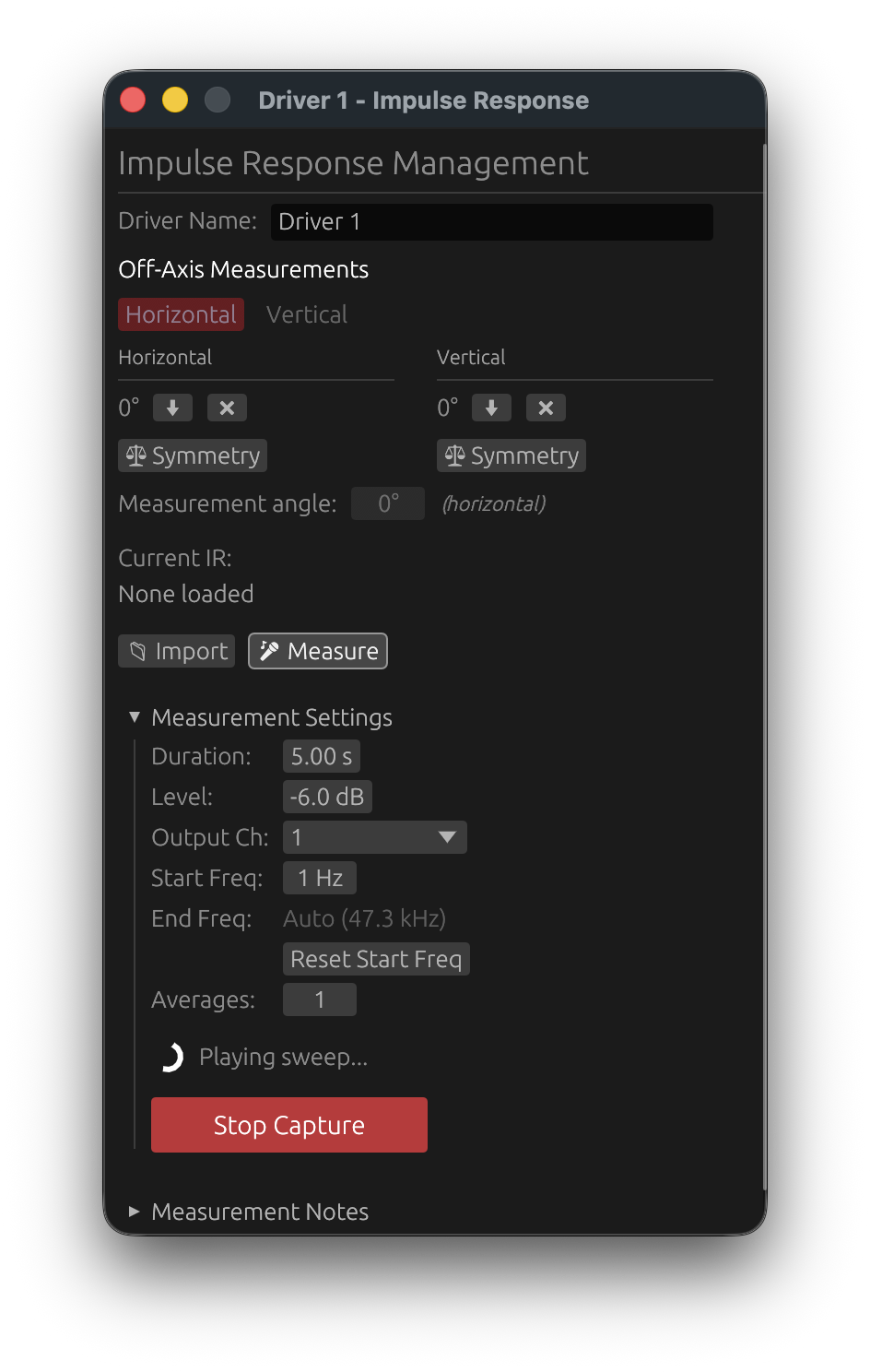
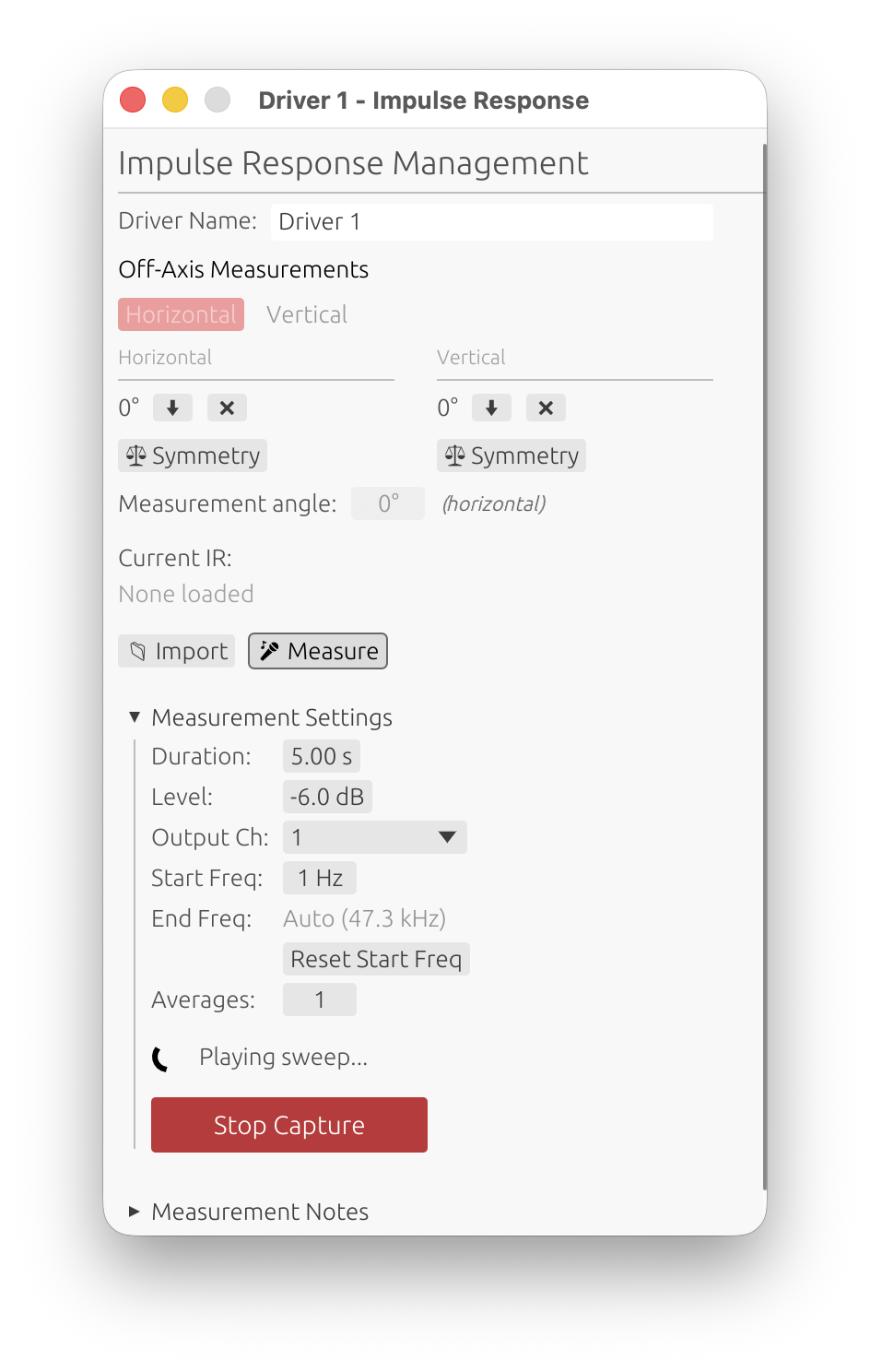
Emergency Stop
You can interrupt a sweep at any time during capture:
- Stop Capture button: Click the red button that appears during measurement
- Spacebar: Press the spacebar key for instant interruption
When to use emergency stop:
- Incorrect parameters: Realized the frequency range or level is inappropriate for the driver
- Excessive gain: Input signal is clipping or distorting
- Driver protection: Driver showing signs of stress (unusual sounds, excessive excursion)
- Environmental issues: Unexpected noise or interference occurred
The measurement will stop immediately when interrupted. You can then adjust parameters and start a new measurement.
Automatic Stop on Clipping
LinFIR monitors the input signal in real time during the entire sweep and will automatically cancel the measurement the moment clipping is detected — without waiting for the sweep to finish.
What happens:
- The input callback continuously tracks the peak level of every audio buffer
- As soon as any sample reaches digital full-scale (±1.0) - measured on the raw converter value, before the input gain compensation - the sweep is immediately faded out and stopped
- A notification toast identifies the cancellation as clipping-triggered
Toast messages:
- “Measurement cancelled: clipping detected! Reduce the output level or input gain and try again.” — clipping occurred on the main measurement channel
- “Measurement cancelled: clipping on the timing reference channel! Reduce the timing reference output level.” — clipping occurred on the timing reference channel (Electric or Acoustic mode); detected in the first ~1.2 s of the sweep, before the main sweep begins
Why this matters:
- Without real-time detection, clipping is only discovered at the end of the sweep after wasting the full measurement duration
- Immediate stop prevents unnecessary acoustic exposure of the driver to a potentially damaging clipped signal
- The automatic stop uses the same graceful fade-out as the manual Stop Capture button — no abrupt clicks
What to do:
- Reduce the audio interface input gain
- Lower the sweep amplitude
- Move the microphone farther from the driver
- For timing reference clipping: lower the timing reference output level in Audio Settings
Automatic Early Stop on Weak Timing Reference Signal
When a timing reference is active (Electric or Acoustic mode), LinFIR checks the level recorded on the timing reference channel shortly after the chirp ends, and cancels automatically if the signal was too weak to be reliable.
What happens:
- During the chirp window, the peak level on the timing reference input channel is continuously tracked
- After the end of the chirp, the accumulated peak is evaluated
- If the peak never exceeded −25 dBFS, the measurement is cancelled immediately (before the main sweep even begins)
- Toast message: “Measurement cancelled: timing reference signal too low (X.X dBFS < −25 dBFS). Check the timing reference channel connection and level.”
Why this matters:
- A weak timing reference signal makes latency detection unreliable or impossible
- Catching the problem immediately — before the full sweep — avoids wasting the measurement time
What to do:
- Check that the timing reference channel is connected correctly
- Increase the timing reference output level in Audio Settings
- For Acoustic mode, verify that the microphone can capture the high-frequency chirp (5–20 kHz)
Automatic Early Stop on Low Signal (Multi-Average)
When a measurement is configured with 2 or more averages, LinFIR checks the signal level at the end of the first sweep — before the second sweep begins — and cancels automatically if the signal was too weak.
What happens:
- During the first sweep, the peak input level is continuously tracked
- ~200 ms into the post-sweep silence (after the sweep signal has ended), the accumulated peak is evaluated
- If the peak never exceeded −25 dBFS, the measurement is cancelled before the second average starts
- Toast message: “Measurement cancelled: signal too low on first sweep (< −25 dBFS). Increase input gain or move the microphone closer.”
Why this matters:
- A low-level signal produces a poor signal-to-noise ratio; averaging more sweeps will not fix it
- Stopping after the first sweep avoids wasting time on subsequent averages that would yield unusable results
What to do:
- Increase the audio interface input gain
- Move the microphone closer to the driver
- Increase the sweep amplitude (Output Level in Sweep Parameters)
Note: The multi-average level check requires ≥ 2 averages. For single-sweep measurements (and for the final average of a multi-average one), the level check occurs after the full capture completes — see Quality Validation below for what happens then, which is no longer an automatic rejection. The timing reference level check (above) and the multi-average early-stop (above) are unaffected by this and still cancel the capture immediately, before a usable result even exists.
Window Behavior During Capture
To ensure reliable interruption, the IR Management window:
- Remains on top of all other windows during measurement
- Maintains keyboard focus throughout the capture
- Returns to normal window behavior when measurement completes or is stopped
This prevents accidental loss of control during the sweep. The spacebar shortcut will always work, even if you accidentally click elsewhere during measurement.
Level Recommendations
Target levels for best measurement quality:
- Optimal: -6 dB to -12 dB
- Acceptable: -12 dB to -20 dB
- Too low: Below -25 dB (poor SNR, noisy measurements — triggers the Low Signal Level Warning dialog, see Quality Validation)
- Too high: Above -3 dB (risk of clipping)
Quality Validation
LinFIR automatically validates each capture as it completes.
Clipping Detection
- Criteria: Any sample reaching digital full-scale (±1.0)
- Result: Capture rejected immediately, unconditionally
- Reason: Clipping introduces harmonic distortion that corrupts the impulse response — there’s nothing usable to keep
Solution: Reduce input gain or lower acoustic level (move microphone farther or reduce driver volume).
Level Check
- Criteria: Peak level must be ≥ -25 dB
- Result: An always-on-top Low Signal Level Warning dialog appears, offering Keep Anyway or Discard. Unlike clipping, a low level doesn’t corrupt the data — it’s just a poor signal-to-noise ratio — so the choice is left to you instead of the capture being discarded automatically.
- Reason: Low levels result in poor signal-to-noise ratio, which can produce inaccurate correction filters and skew phase visualization
Solution: Increase input gain, raise driver volume, or move microphone closer — then click Discard and re-measure. Or click Keep Anyway if the level is acceptable for your purposes (e.g. a quick reference capture).
💡 Settings → General → Measurement & Import Quality → Always keep low-SNR measurements skips this dialog entirely and keeps low-level captures automatically. See General Settings.
This check only applies on-axis — off-axis polar measurements are expected to be weaker (that’s the point of measuring directivity roll-off) and are never flagged.
During an unattended auto-scan, a low level still aborts the scan immediately instead of showing the dialog (nobody would be there to answer it) — unless the setting above is enabled, in which case the scan keeps going.
Best Practices
Microphone Positioning
- On-axis measurements: Position microphone directly in front of driver at typical listening distance
- Listening position: For room measurements, place microphone at primary listening position
- Height: Maintain consistent height, typically at seated ear level (90-150 cm)
- Distance:
- Farfield recommended: 0.5-1.5 meters with windowing (quasi-anechoic technique)
- Don’t use a raw near-field measurement as a driver’s response: on its own, a near-field capture (mic a few cm from the cone) is not a substitute for a far-field measurement — see below. The near-field / far-field splicing wizard is the supported way to use near-field captures, to extend a gated far-field measurement down into the bass.
- Consistency critical: Use the same microphone position for all drivers to maintain correct relative phase and amplitude relationships
Why a Raw Near-Field Measurement Isn’t a Driver Response
Physical limitations:
- A near-field capture is only valid below
c / (2·√(π·Sd))(a few hundred Hz for a large woofer, ~1 kHz for a small driver). Above that, the mic reads the reactive/evanescent field — air sloshing back and forth near the cone whose energy never radiates — so the response no longer matches what a far microphone would measure. - It carries no directivity and no baffle information: diffraction and the baffle step, which shape the real system response, are absent.
- The near-field pressure depends on the mic-to-cone distance and the cone’s emissive area, so captures of drivers of different sizes are not directly comparable without correcting for
Sdand distance.
Practical consequences of using it directly:
- Phase relationships corrupted: crossover alignment becomes unreliable when drivers are measured at different (near-field) distances.
- Baffle effects missed: the near field ignores the diffraction and baffle step that dominate the actual response.
- Wrong above the validity limit: the mid and high band reflect the reactive field, not the radiated one.
Recommended approach:
- For crossover design: measure at 0.5-1 m (same position for all drivers) and use time windowing (quasi-anechoic). This captures the correct far-field radiation, baffle interactions and inter-driver phase.
- When the far-field window is too short to trust the bass (almost always indoors): use the near-field / far-field splicing wizard. It captures each radiating element in the near field, corrects for
Sdand distance, caps the near-field contribution below its validity limit, and blends it with the far-field measurement in a physics-bounded transition band — addressing every limitation above by construction.
Acoustic Environment
- Minimize noise: Turn off HVAC, fans and noisy appliances during measurement
- Reduce reflections: For anechoic-like measurements, gate reflections using time windowing
- Room measurements: Accept reflections, use time windowing to exclude late reflections only
- Outdoor measurements: Recommended to avoid room gain and obtain better results at low frequencies
Measurement Microphone
- Type: Use calibrated measurement microphone (e.g., UMIK-1, Earthworks M23, Beyerdynamic MM-1)
- Calibration: Load manufacturer calibration file before measurements
- Quality: Consumer microphones lack flat frequency response and will give inaccurate results
Gain Staging
- Start with moderate input gain
- Run a test sweep
- Check peak level indicator
- Adjust gain to achieve -6 dB to -12 dB peaks
- Re-measure if clipping or too low
Sweep Duration
- Full-range (20 Hz - 20 kHz): 5-7 seconds recommended
- Limited bandwidth: Shorter sweeps acceptable (2-3 seconds)
- Very low frequencies (< 20 Hz): Use longer sweeps (7-10 seconds)
Capture Rejection Messages
“Capture Rejected - Clipping Detected”
Cause: Input signal exceeded digital full-scale.
Solutions:
- Reduce audio interface input gain
- Lower driver volume
- Move microphone farther from driver
- Check gain staging in signal chain
“Low Signal Level Warning” dialog (peak below -25 dB)
Cause: Peak level below -25 dB threshold.
A single measurement no longer gets discarded automatically for this — an always-on-top dialog appears with Keep Anyway / Discard instead (see Quality Validation). Click Discard and apply the solutions below, or Keep Anyway to accept the capture as-is.
During an unattended auto-scan, this still produces the old Capture rejected: Signal too low (...)! toast and aborts the scan automatically instead of showing the dialog — unless Settings → General → Always keep low-SNR measurements is enabled.
Solutions:
- Increase audio interface input gain
- Raise driver volume
- Move microphone closer to driver
- Verify microphone connection and phantom power
- Check audio routing and device selection
“h2 contamination detected”
Cause: The second harmonic (h2) of the exponential sine sweep falls inside the h1 (main impulse response) zone due to an excessive Manual offset setting or an audio interface with excessive latency. This means the total round-trip latency (audio interface + software buffer + manual offset) is too large, causing the deconvolution result to overlap distortion harmonics into the linear impulse response.
In an ESS measurement, distortion harmonics (h2, h3, etc.) appear at predictable time offsets before the main peak (h1). If the Manual offset is set too high, the truncation point that separates the distortion zone from the clean IR moves past h2, leaving it inside the h1 zone. The resulting impulse response is contaminated and unusable.
Solutions:
-
Reduce the Manual offset in the audio settings (IR Management → Audio Settings). The error message displays exactly how many milliseconds h2 protrudes into h1. Reduce the Manual offset by at least that amount.
Example: If the Manual offset is set to 100 ms and the toast shows “h2 is 25 ms past the truncation point”, set the Manual offset to 75 ms or less (100 ms − 25 ms = 75 ms).
-
Use an audio interface with lower latency — interfaces with smaller buffer sizes and lower driver latency produce cleaner results
-
For Airplay / wireless streaming devices: these introduce significant network latency (often 2+ seconds). The application automatically detects Airplay devices and adjusts timing constants (extended pre-silence, extended post-silence, and a 2500 ms delay for timing reference detection). If you still get h2 contamination, reduce the Manual offset further to compensate.
“Capture Rejected - h1 arrives before the truncation point”
Cause: The h1 peak (main impulse response) falls before the truncation point, meaning the start of the clean impulse response is cut off. This can happen for two reasons:
1. Manual offset too low — the Manual offset has been set to a value that is too low (e.g. close to 0 or a large negative value), so the truncation point is positioned after H1.
2. Acoustic distance mismatch (Acoustic timing reference mode) — the measured driver is farther from the microphone than the reference driver. In Acoustic mode, the timing reference is based on the acoustic arrival at the reference driver. If the measured driver is farther away, its IR arrives after the reference, but if the Manual offset isn’t large enough to compensate for this distance difference, the truncation point can still fall after H1.
When h1 is truncated, the resulting “H1” zone starts after the actual peak, capturing only the tail of the impulse response instead of the complete signal.
Solutions:
- Increase the Manual offset in the audio settings (IR Management → Audio Settings). Increase it in steps of 5-10 ms and retry the measurement
- Check acoustic distances when using Acoustic timing reference — if the measured driver is farther, increase the Manual offset to compensate for the distance difference (approximately 2.9 ms per 100 cm of additional distance)
Advanced Topics
Sweep Output Channel
In the IR Management window, you can select which output channel plays the sweep:
- Purpose: Direct sweep to specific amplifier channel
- Room Calibration: Select channel connected to main loudspeaker (excluding timing reference)
- Multi-way systems: Measure each driver individually by routing to appropriate channel
Multiple Measurements
For averaging or multi-position captures in Room Calibration mode:
- Configure timing reference (Electric or Acoustic) in Audio Settings
- Capture first measurement (this becomes the timing reference)
- Capture subsequent measurements at different positions or conditions
- In Room Calibration mode, measurements are automatically aligned using GCC-PHAT
Measurement Averaging
Averaging works on all platforms without requiring a timing reference:
- LinFIR uses a continuous capture approach: one recording containing N consecutive sweep segments
- After alignment, segments are extracted and averaged to reduce noise
- Operating system scheduler jitter only affects the initial timing, not the relative timing between segments
Timing reference recommendation:
- Not required for averaging (continuous capture eliminates timing inconsistency between segments)
- Still recommended on Windows for absolute timing accuracy if comparing measurements across drivers
- Mac OS: System clock is already reliable for all timing needs
Auto-Scan with a Rotation Table 🔒
Requires: a valid LinFIR license and a connected rotation table (Pololu Tic or GRBL/Arduino — see Rotation Table).
The auto-scan feature drives the rotation table through a configurable angle range and measures an impulse response at each step — fully automatically.
Starting Auto-Scan
In the IR Management window, when a rotation table is connected and a license is active, a ▶ Scan button appears alongside the standard 📁 Import and 🎤 Measure buttons.
Before clicking ▶ Scan, configure:
- Axis selector (Horizontal / Vertical) — determines whether measurements are stored as horizontal or vertical off-axis
- Auto-scan range — min angle, max angle (e.g. −90° to +90°)
- Step — angular increment between measurements (e.g. 10°)
| Parameter | Default | Description |
|---|---|---|
| Min angle | −90° | First off-axis angle (negative side) |
| Max angle | +90° | Last off-axis angle (positive side) |
| Step | 10° | Angular increment between captures |
What Happens
- If the table is a Pololu Tic and its motor isn’t already energized, LinFIR energizes it automatically so it can hold position while scanning (no-op for GRBL, which has no energize/de-energize concept)
- LinFIR builds a queue of angles:
0°, +step, +2×step, …, max, −step, −2×step, …, min - Already-measured angles are skipped automatically
- For each remaining angle:
- The table moves to the target angle
- LinFIR waits 500 ms for the table to settle after it stops moving
- A sweep capture starts (with your current sweep parameters)
- If the capture is rejected (clipping, signal too low — unless Always keep low-SNR measurements is enabled, in which case a low level no longer aborts the scan — or h1/h2 harmonic contamination), the whole scan is aborted immediately instead of continuing to the next angle — the underlying problem would very likely make every remaining angle fail the same way
- Otherwise, the next angle is queued
- A “Auto-scan complete” toast is shown when all angles are done
- Whatever the outcome — complete, aborted, or stopped (see below) — the table is sent back to 0°. Once it actually arrives there (not merely once the move command is sent), the motor is de-energized too, but only if De-energize motor after auto-scan is enabled in Settings → Rotation Table (see Rotation Table) — off by default.
State Machine
stateDiagram-v2
    [*] --> Moving : ▶ Scan clicked (energizes motor if needed)
    Moving --> Settling : table stopped at target
    Moving --> Homing : timeout (30 s)
    Settling --> Capturing : 500 ms elapsed
    Capturing --> Moving : capture done, angles remain
    Capturing --> Homing : all angles done, or capture rejected
    Homing --> [*] : table back at 0° (de-energize if enabled)
Progress Display
While auto-scan is running, a spinner and status line appears below the buttons:
⟳  Moving to 30°… (7 remaining)
⟳  Settling at 30°… (7 remaining)
⟳  Measuring 30°… (7 remaining)
Stopping Auto-Scan
- Click the ■ Stop button (replaces ▶ Scan while active)
- Press Space (also stops any capture in progress)
Both methods immediately halt the current capture and cancel the remaining queue, then trigger the same return-to-0°/de-energize sequence described above.
Timeout
If the table takes more than 30 seconds to reach a target angle, auto-scan is cancelled with an error toast. Check mechanical issues or increase the move speed on your controller.
For hardware setup, controller configuration, and troubleshooting, see Rotation Table.
Technical Details
Exponential Sine Sweep (Farina Method)
LinFIR uses an exponential sine sweep (ESS) for impulse response measurements, based on Angelo Farina’s method:
Basic ESS Properties:
- Frequency distribution: Equal energy per octave
- Low-frequency emphasis: More time spent at low frequencies
- Deconvolution: Analytical inverse filter applied to extract impulse response
Harmonic Distortion Detection:
The exponential sweep provides natural time separation of harmonic distortion products:
- Deterministic harmonic positions: All harmonic distortion products (H2, H3, H4) appear at predictable time positions in the deconvolved impulse response
- Time separation formula: Δt(Hₙ) = (T/ln(f₂/f₁)) × ln(n)
- h2 (2nd harmonic) appears at: Δt × ln(2) ≈ 0.693 Δt before the main peak
- H3 (3rd harmonic) appears at: Δt × ln(3) ≈ 1.099 Δt before the main peak
- H4 (4th harmonic) appears at: Δt × ln(4) ≈ 1.386 Δt before the main peak
End Frequency and harmonics. When you lower the End Frequency, the played sweep stops early, but the inverse (deconvolution) filter is still built over the full range up to Nyquist, at the same sweep rate. The n-th harmonic of a fundamental f sits at n·f — above the End Frequency — and a filter limited to the End Frequency would cut it off there. Extending the filter keeps every harmonic at full bandwidth. Because the sweep rate is unchanged, the harmonic time offsets Δt(Hₙ) are identical; only the main peak lands later, by the amount the filter was extended, and LinFIR compensates for that automatically. The THD curves themselves stop at the highest fundamental frequency that was actually swept.
Deconvolution
After recording the sweep response LinFIR automatically:
- Compute the inverse sweep signal
- Convolve recorded response with inverse sweep
- Extract impulse response from convolution result
- Apply microphone calibration (if loaded)
- Validate quality (clipping and level check)
Quality Criteria
- Clipping: Zero tolerance - any sample at ±1.0 rejects capture, unconditionally
- Minimum level: -25 dB peak threshold flags the capture for confirmation (Keep Anyway / Discard) rather than rejecting it outright — see Quality Validation
- These are conservative: Ensure high-quality measurements by default
Workflow Example
- Configure Audio: Set input/output devices, sample rate, buffer size
- Load Calibration: Import microphone calibration file (if available)
- Position Microphone: Place at measurement location
- Set Sweep Parameters: Duration = 5s, Amplitude = -6 dB, Full range (20 Hz - 22 kHz)
- Test Sweep: Run a test to check levels
- Adjust Gain: Aim for -6 dB to -12 dB peak levels
- Measure: Click 🎤 Measure button to record impulse response
- Confirm: Click Start Measurement in the confirmation dialog (or skip if disabled in settings)
- Verify: Check impulse response graph for quality
- Repeat: Capture additional measurements as needed