LinFIR Documentation
Welcome to the official LinFIR documentation. LinFIR is a professional tool for designing FIR filters for loudspeaker crossovers and frequency response corrections.
Quick Navigation
- New to LinFIR? Start with the Overview
- Setting up audio? See Audio Setup & Measurements
- Designing filters? Check Driver Processing
- Need help? Visit Troubleshooting
- Updating LinFIR? See Updating LinFIR
About This Documentation
This documentation covers all aspects of LinFIR, from basic setup to advanced directivity analysis. Use the sidebar to navigate through different topics, or use the search function (top-left) to find specific information.
Accessing Documentation
You can access this documentation in several ways:
- From within LinFIR: Select Help > Documentation from the menu bar or press H from any window
- Online: Visit https://demaudio.com/doc/linfir/ for the latest version
- Offline: LinFIR automatically serves embedded documentation locally when no internet connection is available
When you access documentation from within LinFIR, the application will:
- First attempt to open the online version
- If the online version is unreachable (no internet or timeout after 3 seconds), automatically fall back to the embedded local documentation server
- The local server runs on port 3030+ and serves the documentation directly from the application
This ensures you always have access to documentation, whether online or offline.
Safari Configuration (Mac OS)
⚠️ Important for Safari users on Mac OS: The local documentation server uses HTTP (not HTTPS) for localhost connections. To access the embedded local documentation in Safari, you need to:
- Open Safari > Settings (or Safari > Preferences)
- Go to the Security tab
- Disable the “Non-secure site connections” option
This allows Safari to connect to the local HTTP server running on http://localhost:3030+.
Alternative: If you prefer to keep Safari’s security settings unchanged, the online documentation at https://demaudio.com/doc/linfir/ is always available and uses HTTPS.
LinFIR - Precision FIR Filter Design for Speaker Crossovers and Corrections
Visit https://demaudio.com/linfir/ for updates and support
Release Notes
This page is generated automatically from the project’s CHANGELOG.md and always reflects the latest released version.
[1.4.11] - 2026-10-03
Added
-
Drag-and-drop reordering: drivers (and measurements in Room Calibration mode) can now be reordered by grabbing their header - the new ☰ grip or the name - and dropping it above or below another one. A line shows where it will land, and everything tied to the driver (its filter windows, IR management window, its position in the graphs, DI and exports) follows. Graphs can be reordered the same way: drag a graph’s title above or below another graph in the main view, or drag the rows of Settings → Graphs → Graph Order; hidden graphs keep their place in the order. The ⬆⬇ buttons still work, and clicking a driver’s name still folds and unfolds its section.
-
Auto-level: a new button next to Auto-align delays that sets every active driver’s Gain so the summed response is as flat as possible across the whole system pass band, crossover regions included. The drivers are time-aligned internally for the calculation (without changing their delays), the natural roll-offs at both ends of the system are left out of the fit, and the fit uses a robust criterion so a driver’s own ripple or the start of a roll-off can’t skew it. No driver is ever made louder - only the relative levels change - so the headroom against clipping never shrinks. The confirmation shows the gain changes and how far the summed response is from flat before and after.
-
Rotation center correction for off-axis measurements: when the turntable axis wasn’t at the front baffle - typically somewhere under the cabinet - the off-axis measurements were taken further from the speaker and at a wider angle than their nominal angle (with the axis 150 mm behind the baffle and the mic at 1 m, the 90° measurement is 0.47 ms late, 1.3 dB low and really 97° off axis), which skews the off-axis sums, the Listening Window and the directivity. Enter where the axis was (depth behind the baffle, sideways offset, mic distance - separately for the horizontal and vertical planes) and each driver’s position on the baffle under the measurement lists of the IR Management window: LinFIR rebuilds every off-axis response as if the speaker had turned about its baffle, correcting the time of flight, the level (1/r) and the angle (interpolating between neighboring measurements). The on-axis measurement is never changed, the measurement files aren’t modified, and the info icon shows a drawing of what to measure. Apply placement to all drivers copies the turntable placement to every driver, each keeping its own position on the baffle.
Changed
- A more modern look, in every window: the left column is now a set of cards - the target DSP settings in one, and each driver in its own card edged with its colour, with its filters, IIR filters and speaker settings grouped under small section titles - and every graph sits in its own card. Window, section and graph titles use the accent colour (red or blue, as set in Settings), tabs are segmented controls, buttons, toggles, status badges (such as “IR loaded”) and help icons look the same everywhere, and form labels no longer end with a colon. All the other windows follow the same style: IR management, FRD converter, LP/HP/correction filters, IIR and Auto-EQ, target curves, Hypex export, Settings (including the License tab), About, bug report, directivity, spectrogram, distortion IR and the near-field splicing wizard, in light and dark themes.
- Much lighter slider drags with several drivers: LinFIR recomputes live on every frame while a parameter is being dragged, and used to redo the whole filter chain and response analysis of every driver each time, even the ones the drag didn’t touch. Only the driver whose settings actually changed is recomputed now - the others are left exactly as they were - and the dashed raw (pre-filter) curves, which don’t depend on the filters, are no longer recomputed on a crossover or EQ edit.
- Clipping detection no longer slows down editing: the clipping test - the pink-noise test signal run through every driver’s filter chain and through the global filters - now runs in the background instead of on every recompute. With long filters it used to cost the interface tens of milliseconds on each frame of a slider drag; the graphs now follow the slider at full speed and the warnings update a moment later. Each filter chain is only re-tested when it actually changes (dragging one driver’s slider re-tests that driver alone), and a warning always stays on the right driver, even after reordering. The warnings also come in a stable order now, global first then drivers in order.
- Spectrogram CQT and Burst Decay up to 13× faster: each frequency band of the Morlet filter bank is now computed on its own bandwidth only, instead of a full-length transform of the whole spectrum for each of the thousands of bands. On the default 4096×4096 grid a 0.6 s loudspeaker IR drops from about 0.8 s to 0.12 s, and a 2.5 s room IR from 6.4 s to 0.5 s. The result is the same to within 0.01 dB.
- Faster IR windowing with many off-axis measurements: changing a driver’s time window used to re-window all its measurements one after another; they are now windowed in parallel, and the adaptive (frequency-dependent) window itself was streamlined - with the exact same result. Re-windowing 72 off-axis measurements is about 4× faster on a 4-core machine, more with more cores.
- Faster graph drawing, whatever the plot resolution: curves are now drawn at the graph’s actual pixel resolution instead of their full 16k-64k point spectrum, keeping the exact peak and dip of every pixel column, so the graphs look the same and auto-scaling is unchanged while drawing them costs a fraction of before. Zooming in reveals the full detail, as before.
Fixed
- Phase correction inverting a driver, and its guard tolerance not held: the phase correction brought the band’s mean phase to 0° whatever it was, so a driver - or the global sum - whose phase sat nearer 180° came out with its polarity inverted, flipping back and forth as the band, smoothing or guard settings changed. The correction filter now never inverts: its step response ends above where it starts and its main peak is positive (the whole filter is turned over when needed, which keeps the corrected impulse response symmetric). The magnitude guard also checked the filter on a grid too coarse to see the ripple between its points (over 1 dB at low frequency on a 4096-tap filter while 0.5 dB was asked): it now checks a finely sampled response, so the Guard Tolerance holds, on the drivers and on the global filter.
- Pololu Tic: Energize button out of step after a Go: sending the table to an angle from Settings energizes the motor, but the button kept offering Energize until clicked once; the move now energizes the motor explicitly and the button shows De-energize.
- Graphs overflowing the window, or an infinite graph height, with the HD graph: graph heights were computed by counting the HD graph and then subtracting it again, which went wrong whenever the two didn’t match - with HD detached in its own window the other graphs got a share too many and ran past the bottom of the panel, and with HD the only graph toggled on in the FIR, IIR or FIR+IIR views the count reached zero. Only the graphs actually drawn are counted now.
- Global correction filter not re-checked for clipping after an off-axis refresh: when the global FIR correction is redesigned from fresh off-axis data (Listening Window or Predicted In-Room reference), its new version was never tested for clipping, so a warning could be missing or out of date until some other change. It is checked like any other change now.
- FRD converter: driver offset delay had the wrong sign on one side of the axis: the time-of-flight difference added for a driver’s offset was always positive, so a woofer below the tweeter arrived later both above and below the axis - while below the axis, on its side, it is closer and must arrive earlier. Lobing predicted from FRD imports was therefore mirrored on one side. The delay is now signed (earlier on the driver’s side, later on the other side); X is counted toward positive horizontal angles and Y up. A ⚠ warns when the converter’s Delay is too short to leave room for the earliest angles.
- Saving and quitting could lose work: “Save” in the Unsaved Changes prompt now saves right away and only then quits, loads or creates a project (it used to queue a background save and go on, so a quit could kill the save mid-write, and a failed save was reported after the project was already gone). Quitting from that prompt now really closes LinFIR (it used to close only the prompt and leave the app half-quit), a second close request while the prompt is up no longer quits without saving, and queued background saves always finish before LinFIR exits. A failed auto-save is retried instead of being forgotten, and the final block of a project file is now checked and flushed to disk before it replaces the previous file. “Restart Now” after an update asks first when auto-save is off and there are unsaved changes. “Reset Application Settings” keeps the licence activation and closes the app as announced.
- Crashes: a driver, measurement, calibration or audio-device name with an accent or another non-ASCII character in the wrong place; two target-curve points at the same frequency (e.g. while typing 200 Hz); an Undo from an IR window that removes a driver; a Hypex project whose 15-biquad budget is full; a project file whose driver count does not match its drivers (it crashed at every launch); an impulse response or WAV file containing NaN or infinite samples (now refused with a message, instead of crashing or making the driver vanish from the graphs).
- Measurements and imports going to the wrong place: the angle and axis controls are locked while a capture, an auto-scan or the low-signal prompt is pending, so a measurement is stored where it was started; a single file with no angle in its name goes to the selected angle instead of replacing the on-axis measurement; closing the axis dialog cancels the import instead of importing every file at 0°; reordering drivers keeps every open IR window on its driver; in Room Calibration a stale off-axis angle no longer applies. A file, FRD conversion or capture at a sample rate different from the driver’s other measurements is refused instead of silently reinterpreting all of them (the TXT dialog no longer defaults to 8000 Hz after a restart).
- Measurement capture: clipping is detected on the real converter level, before the input gain compensation (no more false rejections with a positive compensation, or missed clipping with a negative one), and no longer on the start-up glitch the live check ignores; the last half-second of each capture is recorded again; the low-level check of the first sweep is no longer fooled by the loopback chirp; a timing reference that cannot be detected is reported as such instead of a misleading “h2 contaminates h1”; the sweep and timing-reference outputs on the same channel are refused; a negative manual offset no longer overflows; output-stream errors are reported as such. Closing the IR window - or deleting its driver, or opening or creating a project while it captures or scans - stops its capture and auto-scan (the table still returns to 0° and is de-energized), an auto-scan stops when a capture cannot start, Measure is disabled during a capture or scan, and starting a scan cancels the previous scan’s pending de-energize. In the near-field splice wizard, a second capture can no longer be started and saved into the wrong element, and auto-splicing new captures works again after reopening a project.
- Directivity, AutoEQ and exports: the Directivity Index is computed from the acoustic sum of the drivers, like the other directivity curves (it ignored phase and could drop a driver entirely); the AutoEQ optimizer actually optimizes now (it stopped after the first step and returned its initial guess); near-field splice levels follow the piston radius, not its area (vents and passive radiators came out several dB too quiet - re-run Match level to far-field); the global FIR correction in post-IIR mode follows the Auto-EQ tab when it is the active one; MiniDSP biquad exports have the sign miniDSP expects for a1/a2; the HFD export refuses filters it cannot carry instead of dropping them, and follows the device model set from the menu.
- Rotation table and audio devices: with GRBL 1.1, the angle now accounts for “Set 0°”, so the auto-scan no longer times out; plugging in an audio interface updates the device list again; waking an ASIO computer from sleep keeps the selected interface; choosing “None” as timing reference is remembered.
- Smaller fixes: the “What’s new” note no longer covers the update notification; dialogs open centred on the LinFIR window, also on a second screen; the update check no longer hides the download progress or “Restart Now”; the N shortcut recomputes like the toolbar toggle; “HD”, “(horizontal)/(vertical)” and “Plot” are translated; the bug-report window closes on Cancel; graph legends list the drivers in their order, top to bottom (they were sorted by name, and upside down in the bottom corners); the spectrogram explains when it cannot be computed instead of showing “Computing” forever; FIR export padding and the reports follow the per-driver taps setting.
- Performance: a connected turntable no longer redraws the whole interface every frame; renaming a driver no longer recomputes every IR; DI, Sound Power and Predicted In-Room integrate the sphere far faster; no per-frame copy of every driver in the driver list and the distortion IR window; faster phase alignment; the spectrogram runs one computation at a time instead of piling up workers during a drag; the directivity sonogram no longer recomputes forever with horizontal-only measurements; timing-reference detection only analyses the start of a long multi-average capture; stale off-axis results are dropped and the global FIR correction is only redesigned after an off-axis update when it depends on it; the Listening Window and Predicted In-Room curves (and Early Reflections, Sound Power, ER DI) are only computed while shown with a valid license, instead of after every edit (turning one on computes it); a spectrogram computation abandoned for a new setting stops at once instead of finishing its transform.
[1.4.10] - 2026-09-30
Fixed
- Sweep confirmation buttons cut off in French: the “Start sweep measurement?” window was too short for the French text, which wraps onto more lines, so its Start Measurement / Cancel buttons ran past the bottom of the window. The window is now tall enough.
- “+ Add Point” slightly cut off in the target curve window: in every language, the button below the control point list ran a few pixels past the bottom of the window. The list now leaves room for it, whatever the window size and the number of points.
[1.4.9] - 2026-09-26
Added
- LinFIR in French: the whole interface - menus, windows, settings, tooltips, graph titles and legends, notifications and error messages - is now available in French, using the usual French terms of signal processing and acoustics (réponse impulsionnelle, retard de groupe, passe-haut, fenêtrage, directivité…). Pick it in Settings → General → Appearance → Language: Automatic (the default) follows the language of your operating system, or force English or Français. The switch is immediate, no restart needed. The documentation, exported files and bug reports stay in English.
Changed
- Graph toolbar wraps when it needs to: the toolbar above the graphs moves its second half to a new row based on the actual width of its controls instead of a fixed window width, so it never runs off the edge - whatever the language - and stays on one row whenever it fits.
- Save as… moved to the File menu, right below Save: File → Export → LinFIR Project is gone, replaced by File → Save as… where you’d expect to find it. It works as before: you choose a new name and location, and LinFIR then keeps working on that new file (Save and Auto-save go to it from then on), leaving the original file as it was.
- Cmd/Ctrl+E now does Save as…: this shortcut used to write a copy of the project while you kept working on the original file - not the same thing as the menu entry it was paired with. It now does exactly what File → Save as… does, so saving under a new name always behaves the same way and you always know which file you are editing.
Fixed
- License deactivated on some networks: some networks (a home router, a hotel or office Wi-Fi) give the computer another name - a Mac called “MacBook-Air-de-…” becomes “mac.home” - and LinFIR took that for another machine and cleared the license. The license is now tied to the machine’s hardware identifier and its own name, whatever the network calls it. Existing activations keep working, including ones made while the network had renamed the computer, and nothing needs to be reactivated.
- Tooltips could run past the edge of narrow windows: long hover texts were wrapped at a fixed width, wider than some small windows (filter settings, IR management, export dialogs), so part of the text was cut off. Tooltips now wrap to fit the window they appear in.
[1.4.8] - 2026-09-24
Changed
- Raw pre-filter curves follow the focused filter window: the dashed raw (pre-filter) curves on the frequency, phase and group delay graphs are now drawn only for the driver whose filter window (LP, HP, FIR correction or IIR) is in the foreground - or for the sum when a global filter window is. With several filter windows open, you only see the curves of the one you are working in, and nothing when they are all in the background, the same way the IIR Auto EQ target overlay already behaved.
- FIR correction target overlay follows focus too: the green correction target overlay (per driver and global) is now shown only while its FIR correction window is in the foreground, like the IIR Auto EQ target.
- Bug Report now requires your email address: Help → Report a Bug has a new, required email field so we can follow up on your report. It’s remembered between sessions and used as the report email’s Reply-To, so a reply from support reaches you directly.
- Extended project backward compatibility to LinFIR 1.2.0: projects created with version 1.2.0 or later can now be opened directly without requiring a pre-conversion re-save.
Fixed
- Bug reports always claimed LinFIR v0.9.9: the emailed report’s “Application Version” line was a hardcoded placeholder instead of the actual running version - fixed to report the real version.
- “Save As…” and “Export Project” could produce a corrupted project file: unlike the regular Save path, these wrote a plain, uncompressed
.lnfdirectly to the target path - an interruption partway through (crash, force-quit, power loss) could leave a truncated or empty file that fails to reopen (“Invalid JSON: expected value at line 1 column 1”). Both now use the same compressed, atomic (temp file + rename) write as every other save path, so an interruption leaves either the previous file intact or the fully-written new one.
[1.4.7] - 2026-09-23
Changed
- Target Curve Configuration window colored by filter type: the window opened via a filter’s Configure button now plots its curve in green for a FIR magnitude correction filter, matching that filter’s own target overlay on the frequency graph - Auto EQ keeps the existing blue.
Fixed
- Correction target overlay didn’t refresh on a Gain change: the FIR magnitude correction target overlay (new in 1.4.6) stayed at its last position after changing a driver’s Gain - it only caught up once some other correction parameter was touched, forcing a recompute. The overlay’s cache-invalidation check now also watches Gain.
[1.4.6] - 2026-09-23
Added
- Early Reflections, Sound Power and Early Reflections DI curves: the remaining pieces of the CTA-2034-A (“CEA-2034”) spinorama suite are now available as their own curves on the sum’s frequency graph, not just as internal ingredients of Predicted In-Room Response - Early Reflections (purple, dashed), Sound Power (teal, dashed) and Early Reflections DI (dark orange, the on-axis-minus-Early-Reflections ratio, offset alongside DI). Each has its own toggle in the Graphs dropdown’s Overlays section (Settings → Graphs → Default Overlays sets what a new project starts with) - all three are hidden by default, unlike the existing overlays.
- Listening Window / Predicted In-Room as a per-driver reference: the driver-level FIR correction filter and driver Auto EQ each gain the same Reference selector as their global counterparts - On-axis, Listening Window or Predicted In-Room - now computed from that driver’s own polar measurements alone instead of the summed system. Useful for voicing a driver’s own off-axis trends (tweeter beaming, baffle diffraction); a crossover region’s interference with a neighboring driver is still only visible to the global filters’ own Reference, which sees the summed system. Same license requirement and On-axis fallback behavior as the global version.
- Magnitude correction FIR filter: target curve overlay: same idea as the existing Auto EQ target overlay - while a driver or global correction filter window is open, a green overlay on the frequency response graph shows what the response converges to at 100% Strength (target curve shape, level-matched to the response’s own average - including the driver’s own Gain, for a driver correction filter - plus Correction Gain). Not shown with Use legacy FIR correction tuning enabled, since that algorithm has no equivalent fixed curve to converge to.
Changed
- Listening Window and Predicted In-Room no longer need a second driver or a global filter: they used to only appear once at least two drivers had measurement data, or a global IIR/FIR correction filter was active - even though DI already showed for a single, unfiltered driver. All three overlays now follow the same rule: available as soon as there’s enough off-axis angle coverage, regardless of driver count or filters. The Show Listening Window / Show Predicted In-Room Response toggles in the Graphs dropdown still let you hide them, unchanged.
- Magnitude correction FIR filter (driver and global): Max. Attenuation + Correction Gain replaced by a single Strength slider: instead of tuning “how much attenuation” and “how much compensating gain” as two separate, manually-balanced fields, a single Strength slider (0-100%, styled like the Phase section’s Intensity) now controls how far the correction goes, from untouched (0%) to fully matching the target within the configured frequency range (100%). The new algorithm references response and target to their own average level within that range (not their peak), so correction is symmetric - bumps get tamed, dips get filled in - instead of only ever boosting, and it’s no longer thrown off by a peak or dip outside the configured range: Strength now always has an immediate, visible effect the moment you move it. Correction Gain is kept, now as a plain, independent broadband offset on top of the Strength correction (default changed from 4 dB to 0 dB, since it’s no longer compensating for anything) rather than the sole gain control. A new Use legacy FIR correction tuning toggle (Settings → General → Filter Processing, off by default) brings back the exact original two-field algorithm, project-wide, when needed.
Breaking Changes
- Magnitude correction filters may sound different after this update: the algorithm change above is not backward-compatible at the numeric level - a project’s existing
Max. Attenuation/Correction Gainvalues are reinterpreted under the new Strength model rather than converted, since the two algorithms don’t correspond via a simple formula. Check any correction filter you’re relying on after upgrading (the FIR display mode, press F, shows the actual result) and re-tune Strength/Correction Gain as needed, or enable Use legacy FIR correction tuning (Settings → General → Filter Processing) to recover the exact previous behavior.
[1.4.5] - 2026-09-20
Added
- Predicted In-Room Response (PIR) curve: a new PIR curve (cherry red, dashed) on the sum’s frequency graph, computed per the ANSI/CTA-2034-A (“CEA-2034”) spinorama standard -
0.12·Listening Window + 0.44·Early Reflections + 0.44·Sound Power. Early Reflections and Sound Power are new too: Early Reflections averages the standard Floor/Ceiling/Front Wall/Side Wall/Rear Wall bounce angle sets. Together with the existing DI and Listening Window curves, LinFIR now produces a complete, standard-compliant spinorama directly comparable to third-party ones built to the same standard. Gated the same way as DI/Listening Window: valid license, off-axis data, and a new Show Predicted In-Room Response curve toggle (default on) - see below, it now lives in the Graphs dropdown. - Predicted In-Room as a correction/Auto-EQ reference: the global magnitude correction filter and global Auto EQ’s Reference selector gain a third option, Predicted In-Room, alongside the existing On-axis and Listening Window. Falls back to On-axis when there isn’t enough Early Reflections angle coverage, same as Listening Window falling back when there aren’t enough polar angles.
- Directivity Index visibility toggle: DI previously had no way to be hidden - it now has its own toggle alongside the other magnitude overlays (see below).
- Directivity Sonogram: configurable frequency/angle range: the Sonogram tab gains Frequency (min/max Hz) and Angle (± degrees, symmetric around 0°) drag-values with a Reset button, on the same row as the existing Colormap range/Normalization controls - shared by both the Horizontal and Vertical heatmaps, same idea as the Spectrogram window’s own frequency-range control. The Overlay Plot tab gains its own Frequency controls and Reset button too, kept independent per axis (Horizontal/Vertical), next to each plot’s existing Angle range controls.
Changed
- Listening Window curve color: the LW curve is now a fixed royal blue, dashed line (was sharing the Sum curve’s white/black), so it’s distinguishable from Sum, DI, PIR and the per-driver curves at a glance.
- Sum curve always drawn on top: the Sum/Average curve now paints over any driver, DI, LW or PIR curve it overlaps, instead of whichever was drawn last winning by coincidence.
- LW/PIR/DI hover tooltip spells out the full name: hovering the curve on the frequency graph now shows “Listening Window” / “Predicted In-Room Response” / “Directivity Index” instead of the abbreviation - the legend itself stays compact (“LW”/“PIR”/“DI”).
- Overlay toggles moved into the Graphs dropdown, and now save per project: Sum / Average, Listening Window, Predicted In-Room Response and Directivity Index visibility are no longer app-wide Settings toggles - they’re now in the graph toolbar’s Graphs dropdown, under a new Overlays section (separated from the existing graph-type toggles, now labelled Main plots, by a divider). Each project remembers its own choice, the same way it already does for which graph panels are shown. Sum/Average applies in both project modes (label follows the mode); Listening Window/PIR/DI stay Loudspeaker-Design-only and license-gated, as before. Settings → Graphs keeps a Default Overlays section (mirroring the existing Default Visibility one) to set what a new project starts with.
- Large projects load much faster: opening a project with a lot of measurement data (many drivers, many off-axis angles, distortion/harmonic data) is now several times quicker - the bigger the project, the bigger the difference. Project files created by this version are also somewhat smaller on disk.
- Dropped support for projects created before LinFIR 1.3.0: opening one now shows a clear “unsupported version” message instead of attempting a conversion. Open it with an older LinFIR version first and re-save to bring it forward.
- Saving is faster too: compressing a large project file on save now uses multiple CPU cores instead of one, on top of the smaller file size above. Quitting (or the auto-restart after an update) no longer re-saves a project that hasn’t changed since it was last auto-saved.
Fixed
- Auto-save before switching projects wrote an uncompressed file: opening a different project (New Project / Load Project / Open Recent) with Auto-save enabled and unsaved changes silently saved the current one first, but as plain, uncompressed JSON instead of the normal compressed format - multiple times the size on disk, and not crash-safe (an interruption mid-write could leave a corrupted file) unlike every other save path. It now goes through the same compressed, crash-safe save as everything else.
[1.4.4] - 2026-09-14
Added
- Low signal-to-noise ratio: keep anyway instead of automatic rejection: a sweep measurement or an imported impulse response with a peak level below −25 dB used to be discarded automatically. It’s now a confirmation dialog instead - an always-on-top popup that warns about the poor signal-to-noise ratio and offers Keep Anyway or Discard, so a marginal capture or import is no longer lost outright. Clipping still rejects immediately, unconditionally - that data is corrupted, not just noisy. An unattended auto-scan still aborts automatically on a low level rather than popping up a dialog nobody is there to answer. Settings → General → Measurement & Import Quality gains an Always keep low-SNR measurements toggle that skips the dialog and keeps low-level data silently from then on; its hover text is explicit that correction filter quality depends on measurement quality.
- One-click restart after an update: once an update finishes installing, the notification window (bottom-right corner) switches from Install to 🔄 Restart Now, which relaunches LinFIR with the update already applied and closes the current instance. No need to quit and reopen manually anymore.
- Soundcard calibration (Kirkeby correction): measurements can now be corrected for the audio interface’s own response, not only the microphone’s. Measure the interface once through an output-to-input loopback cable in Settings → Measurement Calibration → Soundcard, then select that calibration in a driver’s IR window: every measurement angle of the driver - near-field / far-field spliced responses included - is corrected in magnitude and phase by a regularized Kirkeby inverse filter, removing the interface’s phase rotation in the low bass and its roll-off near Nyquist. A calibration only corrects measurements captured at its own sample rate: calibrations measured at another rate are greyed out, and a warning is shown when the selected one doesn’t match. Soundcard calibrations are embedded in project files like microphone calibrations, and a default can be set for new drivers.
Changed
- Settings: Measurement Calibration tab: Mic Calibration becomes Measurement Calibration, grouping the microphone and soundcard calibrations in one tab. A driver’s IR window likewise selects both in a single Measurement Calibration section.
Fixed
- Harmonic distortion with a microphone calibration: the fundamental was calibration-corrected but its harmonics were not, skewing THD and the individual harmonic curves wherever the calibration isn’t flat - and changing the calibration didn’t update them. Each harmonic now gets the calibration at its own frequency, and the curves update when the calibration changes.
- Time-centered phase at another sample rate: the phase’s time centering has been reworked so the small fractional delay left over no longer changes how the phase looks when the project sample rate changes - the same measurement now shows the same phase curve at 44.1, 48, 96 or 192 kHz, instead of a slope appearing above about 1 kHz.
- Distortion IR window: driver dropdown ignored custom names: it always showed “Driver N”, never the name typed into the Driver IR window, unlike every other driver selector in the app. It now reads the same underlying name field, falling back to “Driver N” only when none is set.
- Distortion IR window: auto-fit didn’t reactivate on a new project: opening a different project (or restarting the app, which reloads the last one) could leave the graph zoomed to the previous project’s scale instead of re-fitting to the new data, matching what the Directivity Sonogram and Spectrogram windows already did.
[1.4.3] - 2026-09-11
Added
- Configurable frequency axis range: Settings → Graphs gains a Frequency Axis section with Min / Max frequency (Hz) fields (default 10 Hz – 24 kHz, with a Reset button) that now drive every frequency-axis graph - Magnitude, Phase, Group Delay, HD, the Directivity Sonogram (both the heatmap and its on-axis overlay plot), and the Spectrogram - instead of each hardcoding its own range. The existing Sync X-axis cross-graph linking, per-graph saved zoom, and double-click-to-reset all keep working unchanged; only the range they reset to is now configurable. Also fixes a pre-existing inconsistency where the Spectrogram privately floored at 5 Hz while every other graph floored at 10 Hz - they now all agree.
- Spectrogram: independent frequency range: the Spectrogram window gains its own Frequency drag-values (Min/Max Hz) with a Reset button that pulls in the current Settings → Graphs → Frequency Axis values. Unlike every other frequency-axis graph, once set it no longer tracks later Settings changes automatically - only that Reset button does.
- Spectrogram: manual time/period crop: the auto time crop (CQT/STFT/CSD, in ms) and Burst Decay’s Periods control (which used to fight the auto crop instead of matching it) are now one mechanism: a new Crop control (ms), independent for each of CQT/STFT/CSD, and Periods for Burst Decay - all four auto-detected from where the decay clears Min dB until dragged, then pinned exactly where left (through any other change, including switching modes) until that mode’s own Reset button brings it back to auto. Burst Decay now computes a generous ceiling internally while auto and reports back only the periods that actually carry signal, instead of showing a fixed 30-period window that could cut the decay short or leave most of the plot empty. The 3D waterfall now always shows the exact same crop as the 2D image - it used to run its own, independent (and occasionally wildly different) detection. The Crop/Periods controls now sit on their own row together with Frequency, separate from the transform/preset/processing-parameters row above them, and the crop’s Reset button is its own - decoupled from that row’s processing-parameters Reset, which no longer touches the crop at all, and only ever resets the mode currently on screen.
- Directivity Sonogram: view saved with the project: colormap range, normalization mode, active tab, and the Overlay Plot’s angle ranges/normalize/auto-Y are now stored in the
.lnfand restored on reload, matching what the Spectrogram already did. Projects saved by an older LinFIR open at the app defaults. - Settings → Graphs: Reset buttons: every section now has its own Reset button, restoring just that section’s settings to their app defaults - the same idea as the Frequency Axis section’s existing one.
- Auto EQ: take a locked filter into account when generating new ones: a locked filter (driver or global Auto EQ) now has a second button next to the padlock - when turned on, that filter is applied to the response before Auto EQ designs new filters, so the new ones correctly build around it instead of overlapping or ignoring it. Off by default, per filter, so nothing changes until you turn it on.
- Update download progress: installing an available update now shows a progress bar instead of freezing the app until the download finishes - handy on a slower connection. The app stays fully responsive while it downloads.
Changed
- Resampling: the sample-rate conversion used when changing the project’s working Fs (and when exporting IRs at a different Fs) has been rewritten as a self-contained, optimized implementation.
- FIR LP/HP: higher Kaiser β ceiling: the Kaiser β slider on the FIR Low-Pass and High-Pass filters now goes up to 500 (was 50), for users who need much gentler stopband attenuation than the old ceiling allowed.
Fixed
- IR Windowing: fade-in preview could fail to appear: with a Delay Compensation active, the transient window-envelope preview’s fade-in could land at a negative on-graph time and silently not draw at all instead of showing the ramp at its correct (negative) position.
- Undo/Redo could reset a graph’s zoom: undoing or redoing an unrelated change could silently snap a Magnitude/Phase/Group Delay/THD/Impulse/Step graph back to auto-fit, discarding a manual zoom or pan. Graph view state is no longer part of the undo history, matching how the Spectrogram’s view already behaved.
- Undo/Redo: one step per keystroke when typing a value: typing a number into a field (rather than dragging it) created a separate undo step for every digit, so undoing one edit meant pressing Undo repeatedly. Typing now debounces into a single undo step per edit, the same way dragging already did.
- Magnitude/Phase/Group Delay: raw pre-filter preview could distort the auto-fit range: opening a driver’s filter window shows its raw, pre-filter response as a dashed reference overlay - but that overlay’s own range was being folded into the graph’s auto-fit, which could shrink or shift the visible range away from the curves actually being worked on. The raw overlay no longer affects auto-fit.
[1.4.2] - 2026-09-09
Added
-
Spectrogram: detail setting — Settings → Graphs → Spectrogram detail picks the compute-grid size (Standard / High / Ultra). High (4096²) is the new default; the transform now runs on a finer grid than before.
-
Spectrogram: group-delay toggle — the grey group-delay comparison line can now be turned off.
-
Spectrogram: default lower bound setting — Settings → Graphs → Spectrogram now has its own lower-bound (Min dB) default, −30 dB, matching the sonogram’s. It’s what the window opens with and what its Reset button restores.
-
Spectrogram: CSD mode — Cumulative Spectral Decay: for a sweep of gate positions the impulse response from the gate to its end is FFT’d, showing the spectrum decaying over time in milliseconds. A Rise control sets the gate’s leading-edge taper.
-
Spectrogram: Burst Decay mode — Morlet-wavelet burst decay on a period-based time axis: each frequency’s decay is read in cycles rather than milliseconds, so equal-Q resonances look identical everywhere. Period 0 is auto-locked to the arrival peak. Controls: Bandwidth (1/3 – 1/24 octave), Freq res (12–96 points/octave), Periods, Pts/period.
-
Spectrogram: Reset button — a Reset at the end of the control bar returns every mode’s processing parameters (Q, Rise, Periods…) to their defaults.
-
Spectrogram: 3D waterfall view — a 2D / 3D button renders the time–frequency grid as a shaded coloured perspective surface (same colormap and Min/Max dB as the 2D image), for all four transform modes. Left-drag rotates, right-drag pans, scroll zooms, double-click resets; the time, frequency and dB axes are labelled. Hovering the surface draws the time and frequency slices through the cursor with a value readout. A Show control switches between surface, surface + slice lines, and a slices-only line waterfall (slice count adjustable). The surface keeps narrow resonances and fast high-frequency detail that a plain average would have smoothed away.
-
Spectrogram: frequency smoothing — a Smooth dropdown averages the spectrogram across frequency in fractions of an octave (None to 1/3 octave, or ERB), independently of the main graph’s smoothing. Applies to every transform and to both the 2D and 3D views; a free re-render.
-
Spectrogram: analysis parameters are undoable — Undo / Redo now covers the spectrogram’s analysis controls (transform mode and its preset / window, CSD Rise, Burst-decay parameters, frequency smoothing). Pure view settings (colour range, Normalize, axis layout, 2D/3D, view angle) stay outside the history.
-
Room Calibration: export a measurement — the Impulse Response Management window now has an ⬇ Export button (next to Import / Measure) that saves the selected measurement as WAV or TXT, matching what Loudspeaker Design mode already offered per angle.
Changed
- Spectrogram: automatic time crop — the time axis is now cropped to the part that carries signal: leading and trailing time slices where every frequency is at or below the Min dB level are dropped. It reads the rendered spectrogram directly, so the plot edges sit exactly where the colour reaches the floor, and it follows Min dB and Normalize instantly. Raise Min dB (or use STFT) for a tighter view; the CQT’s low-frequency smear keeps it wider.
- Spectrogram: view stays auto-fitted — after a double-click the plot keeps auto-fitting to the cropped image, so it re-frames itself when you change Min dB, the transform, or the axis layout, until you pan or zoom again.
- Spectrogram: view saved with the project — transform mode, resolution preset, normalization, group-delay toggle, axis layout and colormap range are stored in the
.lnfand restored on reload. Projects saved by an older LinFIR open at the app defaults. - Settings → Graphs — the Directivity Sonogram and Spectrogram options are now in separate sections.
Fixed
- Spectrogram: group-delay overlay drifted with smoothing — with smoothing active the grey group-delay line crept toward low frequencies as the smoothing widened. It is now smoothed symmetrically per octave and stays on the true frequency.
- Splicing wizard: mouse-wheel scroll panned the graphs instead of the page: scrolling while the cursor happened to be over one of the wizard’s graphs panned that graph instead of scrolling the wizard’s steps. The graphs no longer capture wheel/trackpad scroll; dragging still translates them as before.
- Off-axis harmonic distortion went blank, and off-axis recompute was slow: with the distortion graph visible, the background job that refreshes the off-axis responses (for the sonogram, directivity index and listening window) also re-ran the full harmonic-distortion analysis on every cycle - on data it couldn’t process - and then overwrote the good distortion data with the empty result. That job now leaves distortion alone entirely: it is captured data the main view already computes once. Off-axis refreshes are also noticeably quicker. Separately, the windowed impulse response is no longer stored in the project file (it is rebuilt from the raw capture on load), so a project saved with an incomplete one can’t carry that state back in, and project files are a little smaller.
[1.4.1] - 2026-09-06
Added
- Auto-align driver delays: a button below ➕ Add Driver sets every active driver’s Time Delay so their post-filter phase curves cross at the middle of each crossover overlap (the band where both drivers are within −20 dB of their own maximum). A driver that shares no band with the rest is left alone.
- Reorder drivers / measurements: each driver’s action bar gains ⬆ / ⬇ buttons (between paste and the remove button, which is now set slightly apart to avoid mis-clicks) that move it up or down. The new order applies everywhere — parameter list, graphs and legends, directivity index, and exports. The same buttons reorder measurement positions in Room Calibration mode.
- Directivity sonogram: clipping highlight: levels that rise above the colormap maximum (which per-band normalization can produce) now show in off-white instead of saturating to the same red as the loudest in-range energy, so it is obvious where the response goes over the reference level. It can be turned off in Settings → Graphs.
- Directivity sonogram: default normalization: Settings → Graphs now has a Sonogram normalization setting that picks which normalization mode the sonogram opens with. It can still be changed per-session from the sonogram’s own toolbar.
- Spectrogram: default axis orientation: Settings → Graphs now has a Spectrogram axes setting choosing whether the spectrogram opens with time on X (default) or frequency on X. The toolbar button still swaps it per-session.
- Splicing wizard: automatic level match: the Far-field window & predicted level step gains a Match level to far-field button next to the manual level offset. It shifts the predicted near-field curve onto the windowed far-field measurement across the valid blend range, using the median of the per-bin level difference so a diffraction ripple or a narrow notch near a band edge does not throw it off.
- Splicing wizard: automatic phase match: the Transition & blend step gains a Match phase button next to the near-field time offset. It smooths the predicted and far-field phase curves, then sets the offset to the delay that makes them cross at the middle of the transition band (where the blend is 50/50), leaving only a residual slope or a whole-turn wrap to sort out by hand.
Changed
- Settings → Graphs: the directivity-sonogram and spectrogram options moved out of “Magnitude Plot Bounds” into their own “Directivity Sonogram & Spectrogram” section. The General and Graphs settings documentation has been rewritten to match the actual tab layout and default values.
- Spectrogram: delay compensation: the spectrogram time axis and its grey group-delay overlay are now shifted by Delay Compensation, the same as the Phase and Group Delay graphs, so the acoustic arrival sits at t ≈ 0 and the views agree.
Fixed
- Aberrant driver phase / group delay with very long FIR filters: a driver whose filter chain included a very long FIR could show a rising phase and a negative group delay, even though the system sum stayed correct. The driver response is now computed the same way as the sum.
- Subtle phase rotation from delay compensation: enabling mic-distance delay compensation tilted the displayed phase slightly more than it should. Part of the cause was shared with the long-FIR fix above; the remainder, visible in time-centred and unwrapped phase views, was the compensation being rounded to a whole sample on the display side while applied exactly everywhere else. It is now applied consistently.
[1.4.0] - 2026-09-05
Added
- Near-field / far-field splicing wizard (license required): a new seven-step wizard that builds a full-range anechoic response for a driver by combining near-field captures of each radiating element (driver, vent, passive radiator) with its existing far-field polar measurements — the Don Keele method. The near-field captures cover the bass, where an indoor gated measurement can’t reach; the far-field measurements keep their real directivity and diffraction above the transition. The wizard models the enclosure (box or sphere, baffle edge treatment, per-element positions on any face), predicts each element’s directivity and edge diffraction per angle with a Distributed Edge Dipole model, level-matches the elements from their Sd and mic distance, guards against room reflections with the image-source method, and blends the two responses in a physics-bounded transition band with a magnitude and phase preview. Once applied, the spliced impulse response replaces the raw capture for every measured angle throughout the app (response, DI, sonogram, export), and newly captured angles are spliced automatically. Reached from IR Management → Near-field measurements (splicing); see the documentation for a step-by-step guide.
- Unsaved-work protection: closing LinFIR with unsaved changes now asks whether to save first. If a brand-new project that was never saved to disk is closed, it is offered back for recovery the next time you open the app.
- Configurable sweep End Frequency: the sweep’s upper limit can now be set in the IR Management window and the splicing wizard (defaults in Audio Settings, with a Reset button), instead of always being fixed just below Nyquist. The sweep stays flat at full amplitude up to the End Frequency then fades out over at most an octave. Lower it to stop the sweep below a loud cone-breakup resonance: previously such a resonance forced you to drop the sweep level to avoid clipping, sacrificing the signal-to-noise ratio of the band that matters. Harmonic distortion is still captured at full bandwidth — the deconvolution filter keeps its full range, so a harmonic landing above the End Frequency is not truncated. “Auto” keeps the previous behaviour exactly.
- Spectrogram: dB in the hover tooltip and a group delay overlay: hovering the spectrogram now shows the exact level in dB at the cursor alongside time and frequency, using the same reference as the colour map (global or per-band). A thin grey line also traces the group delay across frequency directly on top of the colour map — the same curve as the main Group Delay graph (same Smoothing setting), just not shifted by Delay Compensation — making it easy to check whether a resonance or smear in the spectrogram corresponds to a group-delay bump at the same frequency. The tooltip labels this reading explicitly (“Group Delay: … ms”) and only shows it when the cursor is actually hooking the grey line.
- Spectrogram: selectable STFT window shape: in STFT mode a new Shape control chooses the analysis window — Rectangular, Hann, Hamming, Blackman-Harris, Tukey, or Gaussian — to trade time localisation against spectral leakage. Gaussian (the previous fixed behaviour) stays the default. The transform is also now picked from a dropdown instead of separate buttons.
Fixed
- Interface freezing on projects with many off-axis measurements: editing any parameter (gain, delay, filters, target curve…) no longer freezes the interface on every change. The off-axis and directivity calculations now run in the background without copying the measurement data each time.
- Directivity sonogram not keeping up with edits: the sonogram now updates in place as you change parameters. It no longer updated only the on-axis response, and it no longer closed and reopened itself - jumping back to the center of the screen - on every change.
- Saved session could fail to reload: on large projects the file holding the application state could grow very large and then fail to load on startup, silently opening LinFIR with an empty project and forgetting the last-opened project. That state is now kept small and the previous project reloads reliably.
- Crash during impulse response capture: the distortion-zone calculation used during IR capture could underflow and crash the app when the main (H1) peak was close to the start of the recorded buffer (e.g. a short sweep or a small manual offset).
- “Missing measurement” warning on every angle change: selecting an off-axis angle where a driver has no measurement no longer raises a persistent warning toast. Browsing angles a driver was only measured on fewer axes is normal — its curve simply doesn’t appear.
- IR window Start / Stop crossing: setting the window start and stop within a taper of each other (e.g. 4.0 ms and 4.2 ms) used to make the fade-in and fade-out overlap and produce a malformed window. The window is now the product of the fade-in and fade-out envelopes, so overlapping edges compose into a smooth sub-unity bump — in both the applied window and the on-graph preview, simple and adaptive alike. Start and Stop are fully independent again: editing one no longer moves the other, which also fixes the value jumping while you typed a number into either field (including in the splicing wizard).
- Raw phase overlay misaligned from the filtered curve: with “Remove time of flight rotations” on, the dashed raw (pre-filter) phase curve shown while a driver’s filter window is open could sit a large linear trend or a full 360° turn away from the filtered curve it is meant to overlay. Two causes: (1) for a driver with only IIR filtering (no LP/HP/correction FIR) the raw curve was compensated for an FIR-chain delay its filtered response never carries; (2) the raw curve was given its own independently-rounded N×360° offset instead of the shared one. The raw phase now gets exactly the same time-of-flight removal and DC alignment as the filtered phase.
- Global phase correction ignored the global magnitude correction: unlike the per-driver FIR correction, the global FIR’s phase correction was designed from the summed response before the global magnitude correction FIR, so it did not linearise the excess phase a minimum-phase (Causality > 0) global magnitude correction introduces. The global phase correction now runs on the magnitude-corrected response, mirroring the per-driver behaviour; the fusion padding is also sized for the real magnitude-FIR causality.
- IR window fade-in applied even at Start = 0: Start = 0 means “keep the measurement from its very first sample” — nothing is being truncated there, so there is nothing to smooth. The window nonetheless faded the first 0.5 ms in from silence. The window (and its on-graph preview, simple and adaptive alike) now opens at full amplitude immediately when Start = 0. The Stop side needed no equivalent fix: it is already a no-op once Stop reaches the measurement’s own duration.
Improved
- IR window preview: the transient overlay shown while editing a driver’s time window now also draws that measurement’s raw, un-windowed impulse response on the Impulse Response graph, as a dashed line in the same colour as the driver’s curve. Placed with the same time shift as the processed curve underneath and fading out with the red envelope, it lets you see directly what the window keeps and what it removes. A new Show window button in the IR Windowing section brings the whole overlay up at any time without changing a setting. The documentation now also explains why the overlay’s start/stop do not sit at the entered values once the driver has filters or a time delay (the window times are relative to the raw IR; the graph shows the processed, delayed signal).
- Why the window preview doesn’t line up with Start/Stop: hovering Start or Stop in the IR Windowing section now shows exactly where that value shows up on the Impulse/Step Response graphs and why, broken down by FIR delay / Time Delay / Delay Compensation. Whenever the two positions actually differ, a new On Graph row appears right under Window Duration with both shifted values at a glance (e.g.
2.00 ➡ 12.00 ms). Start/Stop themselves are untouched — they stay defined on the raw measurement, this only translates where they currently land. - Auto-save: no longer causes a brief periodic hitch while you are only viewing a project without editing it.
- Undo / Redo: the undo history now keeps the last 50 steps (was 10). Each step is stored as parameters plus shared references to the measurement data rather than a full copy, so the deeper history still uses only a few MB even on a large project.
[1.3.14] - 2026-08-28
Added
- Rotation table position dial during auto-scan: the driver IR window now shows the same angular position dial as Settings -> Rotation Table (graphical only, no controls) above the measurement buttons, visible while an auto-scan is running.
- Auto-scan end-of-scan behavior: whenever an auto-scan ends - whether it completes, is stopped, or is aborted due to a rejected capture - the rotation table is now sent back to 0°. For Pololu Tic controllers, the motor is also energized automatically at the start of the scan if it wasn’t already. A new De-energize motor after auto-scan toggle (Settings -> Rotation Table, off by default) de-energizes the motor once it’s confirmed to have settled back at 0°.
Improved
- Adaptive IR windowing: the adaptive window’s stop-side fade-out now scales its taper duration with each frequency band’s own wavelength, instead of using a fixed duration for every band. This avoids artifacts from cutting off low-frequency content mid-cycle.
- This changes the exact shape of the adaptive window’s fade-out compared to earlier versions, so results computed with it (especially the low-frequency end of the response) may shift slightly for projects created with older versions of LinFIR. Re-check the bass estimation on existing projects using adaptive windowing if this matters for your work.
- Driver IR window layout: the growing list of already-captured off-axis measurements (“Measurements”) is now shown below the measurement controls (“Measurement Controls”: axis selector, angle field, position dial, Import/Measure/Scan/Stop buttons, capture progress) instead of above them, so those controls no longer get pushed further down - and out of view - as more angles are captured.
Fixed
- Undo/auto-save snapshots while dragging: dragging a value in an IIR (global or per-driver), target curve, or FIR correction window no longer triggers extra undo-history/auto-save snapshots mid-drag when another such window happens to be open at the same time.
- Directivity Analysis overlay plot: the overlay plot’s curves no longer get truncated at the bottom by the sonogram colorbar’s lower bound setting. They now use the “Drivers range” setting (Settings -> Graphs) instead, which isn’t clamped to a heatmap-friendly dynamic range.
- Auto-scan not stopping on a rejected capture: if a measurement was rejected during an auto-scan (clipping, signal too low, or h1/h2 harmonic contamination), the scan no longer silently continued as if it had succeeded - it now properly aborts with an error, since the underlying problem would likely affect every remaining angle the same way.
[1.3.13] - 2026-08-27
Added
- Native file opening on macOS: double-clicking a
.lnfproject file in Finder (or using “Open With”) now opens it directly in LinFIR - including reusing an already-running instance of the app. - Release notes in the documentation: the full changelog is now available as a “Release Notes” page in the documentation (Help -> Release notes), always in sync with the latest version.
Improved
- UI library: updated to the latest version for overall stability and appearance improvements.
- Update notification: after updating, LinFIR now shows a small, dismissible “See what’s new” prompt instead of automatically opening a large release notes window.
[1.3.12] - 2026-08-25
Fixed
- Audio crackling on Windows (ASIO): boosted the priority of ASIO audio threads to reduce crackling that could occasionally occur during measurements.
Improved
- Audio library: updated to the latest version for overall stability improvements.
[1.3.11] - 2026-08-23
Added
- IR window envelope preview: adjusting IR windowing (start/stop time, drag, Auto Set Window, Reset Window, or toggling Adaptive Window) now briefly overlays the window’s shape in red on the Impulse Response and Step Response graphs, scaled to the curve’s own peak. The overlay stays visible for 3 seconds after the last change, then fades out over 2 seconds. With Adaptive Window enabled, it shows a gradient of fade-out curves - one per frequency band, darkest (and drawn on top) for the highest frequencies.
- Verbose logging setting: a new toggle in Settings -> General -> Diagnostics raises the application log to
debugdetail on demand, without restarting or a command line. Enable it when asked to, reproduce the issue, then use Help -> Report a Bug to send the log.
Improved
- Maximum number of drivers: increased from 10 to 50 per project.
- Documentation: clarified what the magnitude correction filter’s Correction Gain does - a single, uniform gain applied within the configured frequency range to compensate for the level loss introduced by the from-the-top equalization - and how to inspect the filter’s final response (gain included) in the graph bar’s FIR tab to avoid excessive gain on a given band.
- Log verbosity: routine tracing that used to fire continuously while dragging any parameter (LinFIR recomputes filters live), and audio ring-buffer overflow warnings that could log on every callback during an overrun, are now much quieter by default - the log file stays focused on events that matter. Full detail remains available via the new Verbose logging setting.
Fixed
- ASIO capture failures (
loadDriverreturned false): the automatic device hotplug detection added in 1.3.8 could race against a capture that was starting at the same time - both tried to load the ASIO driver concurrently, and ASIO only allows one loaded driver at a time. The hotplug check now defers to an in-progress capture instead of racing it. - Undo/redo debounce with multiple driver/measurement windows open: dragging a value no longer records one undo step per intermediate value when a second driver or measurement window is open at the same time.
[1.3.10] - 2026-07-28
Improved
- Airplay / wireless device support: automatic detection of Airplay, HomePod, Sonos, and similar streaming devices; adjusts timing constants (extended pre-silence, post-silence, and chirp detection delay) to compensate for network latency
- Deconvolution noise reduction: minor improvements to limit deconvolution noise and artifacts via smooth tapering at the beginning and end of the averaged recording.
Added
- h2/h1 contamination guards: measurements are now rejected when the second harmonic (h2) falls inside the h1 zone (reduce Manual offset) or when h1 arrives before the truncation point (increase Manual offset or check acoustic distances). A permanent toast notifies the user with guidance for each case.
[1.3.9] - 2026-07-22
Improved
- Spectrogram image quality and performance: the spectrogram now uses bilinear interpolation for smoother, higher-quality rendering, and has been optimised with parallel processing for faster display updates.
- Directivity sonogram normalization: added a new “Normalize to ±10° avg (per freq)” mode that normalises each frequency column to the average magnitude between −10° and +10°, providing a more robust reference than the single 0° point when narrow on-axis peaks or dips are present. A 20 kHz cap on normalization references now applies to the Global max. and Normalize to 0° modes, preventing tweeter ultrasonic resonances from skewing the colour scale.
[1.3.8] - 2026-07-21
Added
- Audio device hotplug detection: the audio settings page now automatically detects when speakers or microphones are connected or disconnected, and refreshes the device list without requiring a manual click.
- Directivity Sonogram (-6 dB curves): thin grey reference lines now appear on the sonogram plots, marking the -6 dB beamwidth curves. A matching grey mark also appears on the colour bar for quick level reference.
- Sonogram Normalization dropdown: three normalization modes control how sonogram magnitudes are mapped to dB — Global max. (single reference from the strongest data point), Normalize to 0° (single reference from the strongest on-axis measurement across all frequencies), and Normalize to 0° (per freq) (each frequency column normalised to its own 0° value, revealing per-band directivity patterns).
Improved
- Plot axes: grid spacers and tick formatters replaced with dynamic frequency formatting — axes now show meaningful labels at every zoom level
- Documentation: faster fallback when online documentation is not available
- Audio library: updated to the latest version for overall stability improvements
- Harmonic distortion windowing: replaced fixed 5% tapers with an adaptive windowing algorithm for individual harmonic slices. The analysis now dynamically strips background noise before and after each impulse peak while automatically preserving long distortion tails, ensuring cleaner measurements without cutting off legitimate decay.
[1.3.7] - 2026-07-13
Added
- Rotation Table (Pololu Tic): new Go to 0°, Energize, and De-energize buttons in Settings -> Rotation Table
Improved
- Harmonic distortion: recomputing THD after a windowing or delay-compensation change is now much faster — the expensive per-harmonic spectra (H2-Hn) are cached and only recomputed after a new capture or a sample-rate change, instead of on every window adjustment
Fixed
- Rotation Table auto-scan: fixed a hang after the table’s first move when the Settings window was closed — the table position is now refreshed every frame regardless of which window is open
[1.3.6] - 2026-07-09
Fixed
- macOS/Windows crash at launch:
libusbis now compiled statically into the binary (rusbvendored feature); the app no longer depends on an externallibusb-1.0.0.dylibfrom Homebrew and will launch correctly on machines where Homebrew is not installed
[1.3.5] - 2026-07-08
Added
- Rotation Table support: connect and control a motorized turntable directly from LinFIR — supported controllers are Pololu Tic (T500, T834, T825, T249, 36v4, detected automatically via USB) and GRBL-based boards (Arduino, e.g. Audiomatica Medusa, connected via serial); the new Settings -> Rotation Table tab provides a live position dial, manual jog controls, and a zero-point reset button
- Auto-scan (requires a valid license): in the IR Management window, a ▶ Scan button drives the rotation table through a configurable angle range (min, max, step) and captures an impulse response at each position automatically — already-measured angles are skipped; a 30-second per-angle timeout guards against mechanical failures
- New C array export format options (f32 and f64) for FIR filters
Improved
- Documentation: the documentation printing experience is now fully supported — text is black on white, images use the light theme variant, and all UI chrome is hidden for a clean printout
- UI library updated to the latest version, bringing general bug fixes and stability improvements; note: a multi-monitor window positioning issue may still occur on Windows
[1.3.4] - 2026-06-08
Improved
- Harmonic distortion extraction: the HD slices are now cut at the minimum of the smoothed Hilbert envelope between each pair of adjacent theoretical peaks, maximising separation between harmonics
- Harmonic distortion windowing: replaced the h1-synchronised window with an independent automatic windowing; this is more robust for harmonics whose impulse response spreads significantly further in time than h1
[1.3.3] - 2026-06-07
Added
- Distortion IR window (shortcut J, View menu, requires a valid license): visualises the time-domain harmonic impulse responses H2..H5 extracted by the Farina ESS method; each curve is the same windowed slice used to compute the THD spectrum so the display is fully consistent with the distortion graphs; per-harmonic visibility toggles, independent per-harmonic normalisation, zoom/pan with double-click reset; the displayed angle follows the global angle selector
Improved
- Spectrogram: the window now follows the global angle selector — when a non-zero angle is selected the spectrogram shows the predicted sum IR for that angle (same data as the impulse graph in Drivers mode); the window title and in-window header update accordingly; on-axis behaviour is unchanged
Fixed
- THD formula corrected: harmonic distortion (total and individual) is now normalised by the fundamental level (H1) in accordance with the standard THD definition —
THD = √(H2² + H3² + H4² + …) / H1; previously the denominator was the total RMS signal (fundamental + harmonics), which capped the displayed value at 100% and caused the curves to underestimate distortion at high harmonic levels (below resonance or at high SPL); values above 100% (0 dB in relative mode) are now correctly displayed - Harmonic distortion windowing: H2–H5 are now windowed using the start and stop boundaries configured for H1 in Time Windowing, improving SNR and eliminating room echoes from the harmonic distortion estimates
[1.3.2] - 2026-04-29
Added
- Spectrogram window (shortcut W, requires a valid license): time-frequency colour map of the predicted on-axis sum IR (Loudspeaker) or averaged IR (Room Calibration); choose between CQT (Morlet filter bank, constant-Q) and STFT (Hann window); adjustable resolution preset, colormap dB range, and axis swap (time ↔ frequency)
- Directivity Analysis: new Overlay Plot tab showing all off-axis frequency response curves superimposed, one rainbow-coloured line per angle, with angle/frequency/magnitude tooltip on hover
- Directivity Analysis — Overlay Plot: angle range filter (All / ≥ 0° / ≤ 0° presets + drag-value min/max), defaults to 0°–180°
- Directivity Analysis — Overlay Plot: Normalize to 0° toggle — divides each curve by the on-axis response to display relative deviation
- Directivity Analysis — Sonogram: Colormap dB range controls — drag min/max dB values to saturate the colour scale and reveal low-amplitude detail; a Reset button restores the defaults
Improved
- Directivity Analysis: renamed from “Directivity Sonogram” to “Directivity Analysis”
[1.3.1] - 2026-04-19
Added
- Frequency graph (Drivers mode): the IIR Auto EQ target curve is now displayed as an overlay on the frequency response graph when the IIR window is in the foreground and the Auto EQ tab is selected; the overlay is automatically hidden when the window is sent to the background
Improved
- Auto EQ: improved filter initialization: filters are now placed using a score that trades off residual magnitude against proximity to already-placed filters, preventing wide low-Q filters from masking the residual error they leave behind and causing subsequent filters to be initialized in the wrong place
- Auto EQ (driver and global): Q Min and Q Max now use adaptive bounds: increasing Q Min automatically pushes Q Max up if needed (up to 20), and decreasing Q Max pulls Q Min down if needed (down to 0.1), so the two values can no longer cross; both parameters now share the full 0.1–20 range
Fixed
- HFD example in the documentation: the Tweeter was mapped to channel 1 which is inconsistent with Hypex plate amplifiers
[1.3.0] - 2026-04-15
Improved
- Auto EQ: improved algorithm to better respect the configured gain limits and boost cap
- Adaptive Window: upgraded internal wavelet transform from CDF 5/3 — the biorthogonal wavelet now used is CDF 9/7, which provides ~40 dB of stopband attenuation versus ~18 dB for CDF 5/3; this significantly reduces spectral leakage between frequency bands before temporal masking is applied, eliminating the frequency ripples that could let high-frequency echoes bleed through the window boundary
- UI framework updated to the latest version
- Documentation: microphone calibration phase column clarified — files with a third phase column are accepted but ignored; phase is reconstructed from magnitude via Hilbert transform, which is more robust given measurement microphones’ predominantly minimum-phase behavior
- Documentation: buffer size guidance corrected — buffer latency is compensated internally; the only criterion is avoiding underruns
- HFD export: the patch/create mode is now a dropdown (Create from template / Patch existing Config.xml) instead of a toggle button, making the choice more explicit
- HFD export: the channel mapping panel now uses the term “Channel” instead of “Group”; the description clarifies that each channel receives the FIR filters, IIR filters, gain, delay, and polarity of the assigned LinFIR driver; by default, drivers are assigned to channels sequentially (driver 1 -> channel 1, driver 2 -> channel 2, …); if there are more channels than drivers, the last driver is repeated for the remaining channels
- HFD export: the output directory field is removed; clicking Apply mapping and export in Create from template mode now opens a Save As dialog (pre-filled with
Config.xml); in Patch mode the selected file is overwritten directly, with no extra dialog - HFD export: a confirmation message is displayed after a successful export, showing the path of the written file
- Documentation: HFD section updated to clarify that the exported file is Config.xml, the native project format opened by Hypex Filter Design software
- Settings: Adaptive Crossover Smoothing moved from Settings -> General -> Default Values to Settings -> Graphs -> Display — it controls graph rendering for the current project and is not a new-project default value; documentation updated accordingly
- Graphs: “Adaptive Crossover Smoothing” renamed to “Steep Crossover Smoothing” — smoothing reduction is now proportional to the filter slope; no effect below 12 dB/oct (LR2), full reduction at 36 dB/oct (LR6+), proportional in between
- UI: boolean options have been replaced by an iOS-style toggle switch throughout the application for improved readability
Added
- Two new IIR filter types: Asym Low Shelf and Asym High Shelf, available in per-driver IIR filters and global IIR filters; both expose F1/Q1 (zeros) and F2/Q2 (poles) parameters; the High Shelf variant is normalised so that the DC gain is always 0 dB
- HFD export: driver alignment delays are now validated against the 19.2 ms hardware limit; an error is shown if any driver exceeds this value, preventing a silent export with incorrect timing
- HFD export: first-order high-pass and low-pass filters (Butterworth order 1) are now exported as
ftHighPass1/ftLowPass1instead of the second-order variant; odd-order filters (e.g. Butterworth order 3) correctly export the first-order section asftHighPass1/ftLowPass1and the remaining second-order sections asftHighPass2/ftLowPass2 - Auto EQ: new Auto-generate toggle in the IIR Auto EQ tab (per-driver and global) — when enabled, filters are automatically re-generated whenever any parameter in the Auto EQ tab changes; requires a valid license
- Sync X-axis: the button is now active by default for all new projects
- Settings -> General -> Default Values for New Projects: new “Sync X-axis” option to configure whether X-axis synchronisation is enabled or disabled by default for new projects
- IR Management window: each measurement in the angle list now shows an ℹ icon; hovering it displays the measurement source (measured with LinFIR or imported), sweep parameters (frequency range, duration, level, averages), and IR length
- Frequency, phase, and group delay graphs (Drivers mode): a dashed pre-filter overlay is now available for each driver and for the sum (requires a valid license); the overlay shows the unfiltered speaker response and group delay/phase when the corresponding filter window (LP, HP, correction FIR, IIR, or global filters) is open; toggled in Settings -> Graphs -> Response Overlays
Fixed
- HFD export: Bessel filters of order 1 are not supported by the HFD hardware; the export now raises an error if such a filter is detected on any driver; in FusionAmp mode the per-driver IIR filter UI enforces a minimum order of 2 for Bessel filters, preventing the configuration of an unsupported filter
- Frequency graphs (IIR Filters, FIR Filters, FIR+IIR Filters modes): the Y-axis lower bound no longer drops to the configured limit (~−100 dB) when only EQ-type filters are active (PEQ, shelves, all-pass, Asym Low/High Shelf); the deep lower bound is now applied only when at least one true high-pass or low-pass filter is present in the relevant filter set
- Frequency graph (Drivers mode): Listening Window curve is no longer displayed when only a single driver is active and no global filters are applied — it now follows the same visibility rules as the Sum curve (requires multiple drivers with IR data, or at least one driver with active global filters)
- About window (Windows): clicking “Read terms in browser” or “Open in browser” no longer causes a black console window to flash
- Directivity Sonogram: the sonogram no longer remains visible after measurements have been cleared — the cached images are now properly discarded when the async computation returns no data
- IR Management window (Hypex FusionAmp mode): the off-axis section (axis selector, angle list, measurement angle input, Export All) was missing — it now appears identically to Loudspeaker Design mode
- Phase graph (Drivers mode, off-axis angles): in time-centered phase and unwrapped mode, the linear phase reference was incorrectly taken from the on-axis sum instead of the sum at the selected angle; individual driver curves and the sum could appear misaligned when viewing off-axis measurements
- Phase graph (Drivers mode, unwrapped): individual driver curves could be offset by a multiple of 360° relative to the sum when steep high-pass crossover filters were active; the DC alignment now only uses in-band frequencies (within each driver’s passband) to avoid corruption by the out-of-band phase ramp introduced by the crossover
- IIR filters: setting a Bessel filter order to 0 via keyboard arrows caused a crash; the filter design now returns a pass-through (no filtering) for order 0
[1.2.21] - 2026-03-25
Fixed
- License activation: fixed a crash with “Invalid response: Failed to parse validation response: expected value at line 1 column 1” — the HTTP status was not checked before parsing the API response body; any non-success response (Cloudflare challenge, rate limiting, transient server error) now returns a clear error message instead of a JSON parse failure
- macOS full-screen: secondary windows (filters, IR management, etc.) no longer open as a tab inside the full-screen space — they now float above the main window as expected; this also fixes the black empty space that appeared when a resizable window was opened in full-screen mode
Added
- Several windows whose content is variable in length are now resizable
Added
- Frequency graph (Speakers mode): Listening Window curve (requires valid license)
- Displayed alongside the Directivity Index when off-axis measurements are available
- Defined as the spatial average of all measurement angles within ±30° horizontal and ±10° vertical (inclusive)
- Shown only when at least 2 qualifying angles are available to average
- Global FIR magnitude correction and global Auto EQ: new “Reference” option (requires valid license)
- Choose between On-axis (default) and Listening Window as the magnitude reference for correction
- When set to Listening Window, the correction targets the spatial average of ±30°H / ±10°V angles instead of the on-axis response
- Falls back to on-axis automatically if fewer than 2 qualifying angles are available
[1.2.20] - 2026-03-18
Fixed
- ASIO (Windows): measurements no longer abort with a spurious “timing reference signal too weak” warning despite the signal being correctly configured — note that ASIO stream startup can take significantly longer than on other platforms; this delay is now properly accounted for before any signal level check is performed
- Hypex mode: several features that were incorrectly restricted to Loudspeaker Design mode now work as expected — affected areas include phase display options, per-driver filter curve views, and the detailed report export
- Phase graph: auto-bounds vertical axis now enforces a minimum range of ±1° around the data centre, preventing near-flat phase curves (e.g. a Dirac) from zooming into numerical noise
- Phase / group delay graphs: toggling visibility via keyboard shortcuts (G / P) no longer leaves the graphs empty
[1.2.19] - 2026-03-12
Fixed
- Hypex mode: the directivity sonogram window is now accessible
- Hypex mode: exporting FIR coefficients now works correctly
[1.2.18] - 2026-03-10
Added
- Phase correction FIR: auto-correction guard for magnitude artifacts
- LinFIR automatically iterates f_min and f_max in 1/3-octave steps (up to 100 iterations, f_min ceiling 15 kHz, f_max ceiling 18 kHz) until the FIR magnitude deviation falls within the per-filter tolerance
- Guard Tolerance parameter added to each phase correction filter (driver and global): 0.1–15 dB, default 0.5 dB
- A warning toast is shown only when the guard fails (exhausts all iterations without converging); warnings can be disabled in General Settings -> “Warn when phase FIR guard fails”
Improved
- Phase and group delay graphs: auto-bounds for the vertical axis now ignore data above 20 kHz, preventing ultrasonic content from distorting the scale
- Phase graph: auto-bounds no longer force the 0° value to be visible; the axis now fits tightly to the actual data range (± 10% margin)
- Graph toolbar: graph type toggles, time domain options, and phase options are now grouped into three dropdowns (“Graphs”, “Time Domain”, “Phase Options”), reducing clutter in the toolbar; dropdowns stay open when toggling checkboxes inside them
- Software update notification moved from the toolbar to a persistent floating card anchored to the bottom-right corner, with a dismiss button and an Install button; after a successful update a permanent closable toast confirms the installation
[1.2.17] - 2026-03-06
Added
- Hypex FusionAmp project modes with hardware-specific constraints (requires valid license)
- Sample rate locked at 93.75 kHz for all FusionAmp modes
- Fixed driver count matching hardware specifications (cannot add/remove drivers)
- Two FIR processing modes:
- FIR IN: Global FIR correction at DSP input (4500 taps maximum including padding)
- FIR OUT: Per-driver or global FIR at DSP output (1500 taps maximum per driver including padding)
- IIR filter constraints: 15 biquads maximum per channel
- Real-time biquad counter with color-coded warnings in IIR filter UI
- Filter types and orders dynamically limited to prevent exceeding biquad capacity
- Phase correction FIR magnitude artifact detection (per-driver and global)
- After computing the phase correction FIR, LinFIR evaluates its magnitude response and warns if any bin deviates by more than 0.5 dB from 0 dBFS
- A phase-only filter should leave magnitude unchanged; deviations indicate a filter design problem
- Warning toast is shown with actionable advice: reduce Kaiser beta, increase tap count, or raise the minimum correction frequency
- Disableable in General Settings
- Target curve import/export (all target curve windows: per-driver FIR, per-driver Auto EQ, global FIR, global Auto EQ)
- Import: loads control points from a plain-text file (two columns: frequency Hz, gain dB; separator: tab, space or comma; comment lines starting with # are ignored; minimum 2 valid points required; points are sorted by frequency on import)
- Export: saves current control points to a plain-text file with a two-column tab-separated format and commented header
- Microphone calibration plot preview: each calibration file in Settings -> Mic Calibration now has a Plot button that opens a dedicated window showing its frequency response on a log-frequency axis
Improved
- All secondary windows (filter windows, IR windows, export dialogs, HFD window, FRD converters, detached graphs…) are now automatically closed when loading or creating a project, preventing stale windows from a previous session from cluttering the workspace; the Settings window is additionally closed on application startup
- Clipping detection test signal replaced by a deterministic periodic pink-noise buffer
- New signal: frequency-domain pink noise (−3 dB/octave ASD), generated once per sample rate at startup and cached in memory
- Schroeder initial phases + Newman/CFR iterative crest-factor reduction
- Band-shaped: 12 dB/oct high-pass at 20 Hz, 24 dB/oct low-pass at 20 kHz
- RMS = −18 dBFS, peak ≤ 0 dBFS (crest factor ≈ 12 dB — representative of real programme material)
- Documentation: added warning against using phase correction with non-anechoic measurements in both driver-processing and system-processing sections
Fixed
- Multi-average capture: input gain compensation is now applied in the audio callback instead of post-capture, so level validation (signal-too-weak check on timing reference) correctly sees the compensated signal
- Multi-average capture: sweep segments are now aligned with GCC-PHAT before averaging, using their individual deconvolutions as alignment references; removes the naive arithmetic average that could blur transients in the presence of inter-sweep timing jitter
- Audio Settings: switching to an input device that doesn’t support the current sample rate now automatically selects the closest supported rate and shows an info toast; previously the sweep was generated at the old rate while the device ran at its own rate
- Documentation: breadcrumb bar hiding the search panel
- macOS: project files (.lnf) hidden in Finder after save
[1.2.16] - 2026-02-19
Added
- Driver copy/paste parameters
- Copy button on each driver copies all its parameters to a clipboard (IRs and driver name are excluded)
- Paste button applies the copied parameters to any other driver, preserving the target driver’s IRs and name
- Paste button is grayed out when the clipboard is empty
- Useful for quickly duplicating filter settings, crossover configuration, or DSP parameters across drivers
- Default crossover frequencies applied when adding a new driver
- Driver 1: HP=1 Hz, LP=110 Hz (subwoofer)
- Driver 2: HP=110 Hz, LP=600 Hz (bass/low-mid)
- Driver 3: HP=600 Hz, LP=3000 Hz (midrange)
- Driver 4+: HP=3000 Hz, LP=21000 Hz (tweeter)
- Automatic measurement cancellation on signal problems
- Clipping on main channel: measurement stops immediately when any input sample hits digital full scale, without waiting for sweep completion
- Clipping on timing reference channel (Electric and Acoustic): measurement stops if the chirp clips on the reference input channel
- Timing reference too weak: if the peak on the timing reference channel never exceeded −25 dBFS during the chirp window, the sweep is cancelled before it begins (Electric and Acoustic modes, regardless of number of averages); toast reports the measured level
- Low signal on first sweep (multi-average only, ≥ 2 averages): if the peak input level never exceeded −25 dBFS on the first sweep, the measurement is cancelled before the second average begins
- Real-time input level (dBFS) displayed during capture with color coding: green (good), orange (near saturation), red (clipping)
- Timing reference chirp now has short Hann fade-in and fade-out (1% of chirp duration each)
- Eliminates clicks caused by the abrupt onset and end of the chirp signal
- CLIO time-domain IR import (.txt files exported from CLIO in time domain)
- 3-column format: Time[s], Real[Pa], Imag[Pa] — the Imag column is ignored
- Sample rate is inferred from timestamps and snapped to the nearest standard rate (same algorithm as TMD)
- Auto-detected by the presence of the Time[s] header line, requiring no manual configuration
Improved
- Channel selectors (mic input, timing reference output/input) replaced with dropdowns
- TMD file import now snaps the inferred sample rate to the nearest standard rate (44.1, 48, 88.2, 96, 176.4, 192, 384 kHz…) when within 1% tolerance
- Corrects systematic sample rate errors caused by limited timestamp precision in TMD files
- Prevents subtle pitch/speed deviations that would otherwise affect the imported impulse response
Fixed
- Phase curve alignment in Loudspeaker Design mode (time-centered phase and unwrap)
- Unwrap + time-centered: DC offset (absolute phase reference) for all curves — drivers and the filtered Sum — now anchored to the pre-filter sum phase; previously the filtered Sum had a different DC origin, making it appear shifted vertically relative to the drivers
- Unwrap without time-centered: all curves (drivers + Sum) are now consistently aligned to the filtered Sum as reference; previously activating the pre-filter reference unconditionally caused a vertical offset on the Sum curve in this mode
- Adaptive wavelet windowing now covers the same physical frequency bands regardless of sample rate
- Number of levels is now derived from target minimum frequency (5 Hz) relative to Nyquist, ensuring coverage down to ~5 Hz at all sample rates (48, 96, 192 kHz…)
- Previously, at higher sample rates (e.g. 96 kHz), the cap prevented the lowest frequency bands from being reached, resulting in inconsistent temporal extensions for bass frequencies
- Keyboard shortcuts now work correctly when Settings window is open in background
- Main window shortcuts were incorrectly blocked whenever Settings window was open regardless of focus
- Settings window now only handles shortcuts when it has focus
- License tab disables shortcuts when Settings has focus to allow typing in text fields without triggering application shortcuts
[1.2.15] - 2026-02-17
Added
- Microphone calibration settings page
- Dedicated settings tab for managing microphone calibration files
- Scrollable list displaying all imported calibrations with sensitivity factor and frequency point count
- Default calibration selector for automatic application to newly created drivers
- Import/delete controls for each calibration file
- Spacebar keyboard shortcut to interrupt sweep measurements at any time
- Provides instant emergency stop during capture
- Works alongside Stop Capture button for multiple interruption methods
Improved
- Microphone calibration workflow enhancements
- Default calibration automatically applied to new drivers and new projects
- Deleting a calibration file automatically resets affected drivers to None
- Per-driver calibration selection moved to IR Management window for better context
- Adaptive windowing now uses wavelet transform for frequency-dependent IR windowing
- Replaced 10-band FIR filter bank approach with CDF 5/3 biorthogonal wavelet decomposition
- ~10× performance improvement
- Start windowing applied uniformly in time domain, stop windowing applied adaptively in wavelet domain
- Delay compensation with sync toggle for consistent measurement delay compensation
- New Sync toggle (enabled by default) automatically applies delay adjustments to all drivers
- Stop Capture button visual design during measurements
- Red button with white text matching Reset button styling
- Increased size for better visibility and accessibility
- Appears only during active capture for unambiguous emergency stop
- IR Management window behavior during measurements
- Window remains on top of all other windows during capture
- Window maintains keyboard focus throughout measurement for reliable spacebar interruption
- Prevents accidental loss of control if user clicks elsewhere during sweep
- Automatically returns to normal window level when measurement completes or is stopped
- Documentation navigation enhancement with sticky breadcrumb indicator
- Added breadcrumb banner below menu that tracks current position during scroll
- Helps users orient themselves in long documentation pages
- Improves navigation experience for complex multi-section pages
[1.2.14] - 2026-02-13
Added
- Individual harmonic distortion curves (H2, H3, H4) displayed on HD graph
- HD graph now shows detailed breakdown of harmonic components in addition to total harmonic distortion
- Individual harmonic curves require a valid license (total harmonic distortion remains available to all users)
- Provides deeper insight into distortion characteristics and system non-linearity
- HD display mode selector with three visualization options
- Percent (%) mode: Traditional percentage representation relative to total RMS
- dB (relative) mode: Harmonic distortion relative to total RMS in decibels
- dB (absolute) mode: Absolute level of harmonics without normalization
- Dropdown control added to graph toolbar before smoothing selector
- Mode applies to both total HD curve and individual harmonics (H2, H3, H4)
- Useful for comparing distortion levels across different SPL measurements and evaluating signal-to-distortion ratio
- Driver offset parameters in FRD file import window
- New X (horizontal) and Y (vertical) offset fields allow specifying driver position relative to baffle plane
- Enables reconstruction of relative time-of-arrival delays that may have been removed during FRD file creation
- Critical for accurate off-axis interference simulation around crossover frequencies
- Automatically calculates geometric delays based on listening angles and driver positions
- Improves accuracy of multi-driver system simulation from imported frequency response data
- TMD file format support for impulse response import
Improved
- Exponential sine sweep measurement system completely redesigned
- Single-pass averaging: Timing reference eliminates need for multi-pass alignment, enabling more efficient averaging workflow
- Reduced deconvolution artifacts: Improved signal processing prevents artifacts during impulse response extraction
- Automatic sweep end frequency: f_end now automatically calculated to optimize harmonic distortion SNR (1/96 octave before Nyquist)
- Simplified measurement workflow: End frequency parameter removed from UI, managed automatically based on sample rate
- Measurement capture stop behavior improved for graceful interruption
- Stop button now immediately interrupts sweep in progress instead of waiting for completion
- Sweep signal automatically attenuated with fade-out to prevent audio clicks and pops
- Enables quick measurement cancellation without disruptive audio artifacts
- HD graph replaces THD nomenclature
- Graph renamed from “THD” to “HD” (Harmonic Distortion) for clarity
- Keyboard shortcut (K) remains unchanged
- Updated throughout UI and documentation
- Documentation dark theme (coal) with darker background and lighter text for improved readability
[1.2.13] - 2026-01-29
Added
- Batch import for multiple measurement files with automatic angle parsing
- Import multiple IR files simultaneously with multi-file selection
- FRD converter parameters (sample rate, delay, extrapolation modes) automatically applied to all files in batch
- Manual FIR delay compensation visibility control (advanced setting)
- New “Show manual FIR delay compensation” option in Settings -> General -> Filter Processing
- Hidden by default to prevent accidental filter misalignment
- When disabled, all FIR compensation delays are automatically forced to 0
- Marked as advanced setting (⚙) with warnings about signal processing knowledge requirements
- Affects both per-driver “FIR Offset Delay” and global “FIR compensation delay” fields
Improved
- Driver control interface clarity with organized section headers
- Added colored section labels: “FIR Filters”, “IIR Filters”, and “Driver Adjustments”
- Replaced ambiguous “Visualization Controls” with clear “Driver Adjustments” label
- Improved visual hierarchy with consistent spacing and separators
- Better organization distinguishes signal processing filters from gain/delay/polarity adjustments
Fixed
- FIR correction frequency range controls now use proper undo debouncing
- Fixed issue where dragging frequency min/max sliders created separate undo history entries for each incremental value change
- Off-axis sum calculation now correctly handles missing measurements per driver
- Fixed bug where drivers without measurements at a specific angle would incorrectly use their on-axis (0°) measurement as fallback
- Fixes issues with directivity sonogram displaying incorrect data at extreme angles
- Directivity sonogram normalization now excludes Nyquist frequency artifacts
- Sonogram color scale normalization now limited to frequencies up to 24 kHz
- Prevents measurement artifacts near Nyquist frequency from affecting visualization scale
- Default frequency axis bounds now limited to 24 kHz for cleaner visualization
Breaking Changes
- Distortion measurement storage structure has been changed
- Internal data structure for storing distortion harmonics has been completely redesigned
- Backward compatibility is NOT maintained: Projects with distortion measurements from versions < 1.2.13 are not compatible
- Re-measurement is required: Importing old IRs will not restore distortion data - you must re-measure to capture distortion with the new structure
[1.2.12] - 2026-01-25
Fixed
- Off-axis measurements now correctly calculated after FRD file import
- Fixed issue where importing FRD files (frequency response data) would not trigger off-axis response calculations
- Reduced log verbosity for Directivity Sonogram window
- Sum curve now displayed when some enabled drivers have no measurements
- Previously, sum curve was hidden if any enabled driver lacked a measurement
- Now, sum is calculated and displayed from all enabled drivers that have measurements
- Drivers without measurements are treated as if they were disabled
Improved
- Impulse response level validation now uses frequency domain analysis
- Previously checked instantaneous peak level in time domain
- Now computes FFT and checks maximum magnitude across all frequencies
- More accurate detection of low signal-to-noise ratio issues
- Warning triggered if no frequency has magnitude above -25 dB
[1.2.11] - 2026-01-24
Added
- Custom file icon for
.lnfproject files- LinFIR project files (.lnf) now display a custom icon in file explorer
- Works on Mac OS and Windows
- Improves visual identification of project files
[1.2.10] - 2026-01-23
Added
- Adaptive crossover smoothing option for magnitude curves near crossover frequencies
- Preserves crossover slope visibility by reducing smoothing within ±0.5 octave of cutoff frequencies
- Controlled via Settings -> General -> Adaptive Crossover Smoothing (enabled by default)
- Phase smoothing
- Phase curves can now be smoothed while preserving driver alignment
- Magnitude-based filtering applied before smoothing to eliminate out-of-band artifacts
- Provides cleaner phase visualization without compromising timing accuracy
- Butterworth 4th-order sweep tapering for reduced pre/post-ringing
- New sweep windowing mode with smooth frequency-domain tapering (24dB/octave rolloff)
- Significantly reduces pre-ringing and post-ringing artifacts in measured impulse responses
- Eliminates Gibbs oscillations at spectrum edges caused by abrupt frequency cutoffs
- Sweep extends to f_start/4 and f_end×4 with Butterworth filters centered at user frequencies
- Recommended for cleaner measurements (enabled by default)
- Available in Settings -> Audio -> Sweep Windowing: None (no tapering) or Butterworth 4th (24dB/oct)
- ERB (Equivalent Rectangular Bandwidth) smoothing mode
- Perceptually-motivated variable smoothing that follows the ear’s frequency resolution
- Available in the Smoothing dropdown menu (Drivers mode only)
Improved
- Off-axis response calculation performance significantly optimized
- Unified threading architecture eliminates race conditions between off-axis and directivity index calculations
- Substantially faster computation time through improved parallelization
- Directivity Sonogram updates automatically without requiring mouse movement
- Automatic impulse response noise truncation now limits IR length to 2 seconds after peak
- IRs are first truncated to 2 seconds maximum after the main impulse peak (maximum absolute value)
- Then trailing noise below 0.1% of peak amplitude is removed
- Minimum duration of 1.5 seconds is always preserved
- Improves processing performance and reduces file sizes for long IRs with extended decay
- Plot data resampling optimization using continuous logarithmic function
- Replaced fixed frequency bands with smooth exponential downsampling function
- Eliminates hard frequency band transitions for visually smoother plots
- More efficient computation
- Maintains perceptually constant point density across logarithmic frequency axis
- ASIO device compatibility now includes 24-bit sample format (I24) support
- Added I24 format to preferred and fallback format detection
- Improves compatibility with professional audio interfaces like Dante Virtual Soundcard
- Resolves “no compatible sample format found” errors with 24-bit ASIO devices
- Enhanced measurement safety warnings in confirmation dialog
- Added explicit low frequency warning about high energy bass content
- Warns against measuring unprotected tweeters or midrange drivers
- Clarifies potential damage risks from high excursion at low frequencies
- Sweep measurement parameters are now remembered per-driver
- Duration, level, frequency range, and averages are automatically saved to each driver
- Settings persist when closing and reopening the IR window
- New projects start with application default values, customizations are preserved in existing projects
- Default sweep parameters relocated to Audio Settings
- Moved from Settings -> General to Settings -> Audio Settings -> Measurement Configuration
- Now grouped with other measurement-related settings (sweep channels, calibration, timing reference)
- More logical organization: all measurement parameters in one place
Fixed
- Directivity Index not updating with latest off-axis data
- Race condition eliminated where DI could be calculated from stale measurements
- DI now guaranteed to reflect current off-axis responses
[1.2.9] - 2025-12-30
Fixed
- FIR filter export filenames now display correct tap count
- Fixed inconsistency where exported FIR filter filenames showed incorrect number of taps
- Tap count in filename now always matches the actual length of the exported filter
- Affects all export formats (CSV, WAV, bin, txt, Armonia) and both individual and batch exports
- Correctly reflects “per driver tap length” setting when enabled
- Log file rotation now properly enforces 4 MB size limit
- Previous implementation allowed log files to grow indefinitely (up to 188 MB observed)
- Oversized logs are automatically rotated and renamed with timestamp
- Only the 2 most recent log files are retained to manage disk space
Improved
- Bug report notifications now use toast messages
- Success notifications display for 3 seconds before auto-dismissing
- Error notifications remain visible until manually dismissed
- Error messages include manual submission instructions and support email
[1.2.8] - 2025-12-30
Improved
- Filter Export behavior: disabled drivers are now skipped
- FIR and IIR filter export now only exports filters from enabled drivers
- Disabled drivers (checkbox toggled off in Drivers toolbar) are automatically skipped during export
- Applies to all export formats and methods (individual FIR files, IIR files, and HFD export)
- Improves workflow efficiency by preventing accidental export of inactive driver configurations
- FIR Magnitude Correction taper standardized to quarter-octave
- Changed from 5% bandwidth taper to quarter-octave (1/4 octave) transition zones
- Matches the taper behavior of Auto EQ for consistency
- Provides smoother frequency transitions at the edges of the correction range
- Applies to both per-driver and global FIR magnitude corrections
[1.2.7] - 2025-12-27
Added
- FIR Filter Export: Stereo WAV formats
- New stereo export options: WAV i16 (stereo), WAV i24 (stereo), WAV f32 (stereo)
- Mono formats renamed to clarify: WAV i16 (mono), WAV i24 (mono), WAV f32 (mono)
- Filter is duplicated identically in both left and right channels for stereo files
- IIR Filter Export: MiniDSP format
- New export format option for MiniDSP processors
- Exports biquad coefficients in compact text format: biquad1, b0=…, b1=…, b2=…, a1=…, a2=…
- Available alongside existing FQG, CamillaDSP, and Q-SYS export formats in File > Export > IIR Filters
Fixed
- Directivity Sonogram flickering during parameter changes
- When modifying crossover or filter parameters, the sonogram would briefly disappear before reloading
- Sonogram remains visible and smoothly updates to new parameters without flickering
[1.2.6] - 2025-12-22
Added
- IIR Filter Export: Q-SYS CSV format
- New export format option for Q-SYS IIR Custom Filter components
- Exports biquad coefficients in CSV format: b0, b1, b2, a0, a1, a2 (one biquad per line)
- Supports all IIR filter types: Butterworth, Linkwitz-Riley, Bessel, PEQ, Low-shelf, High-shelf, Allpass (1st and 2nd order)
- Coefficients exported with 16 decimal places precision for maximum accuracy
- Available alongside existing FQG and CamillaDSP export formats in File > Export > IIR Filters
- Documentation enhancements
- New “Design Philosophy” section in Overview explaining LinFIR’s DSP-faithful, time-domain approach
- New “Impulse Response Timing Requirements” section in IR Management explaining 200ms peak delay limit and best practices
Fixed
- In same cases a deleted driver/measurement instance could lead to a crash
- Internal lists linked to drivers/measurements/ are now checked regularly to preserve coherence
- Long impulse responses with significant delays (>500ms) were being truncated during spectrum calculation
freqz()andfreqz_complex()now dynamically adjust FFT size to accommodate full IR length- Prevents artifacts and incorrect frequency response for IRs longer than the requested spectrum points
- Import rejection for excessively delayed impulse responses
- LinFIR now rejects impulse response imports where the main peak is located beyond 200ms
- 200ms corresponds to ~68 meters acoustic distance, indicating missing timing reference in measurement
- Prevents performance degradation from excessive zero-padding before useful signal
- Error message explains computational constraints and recommends proper timing reference methods
Improved
- Phase Correction Filter stability
- Improved algorithm robustness when correction band extends near Nyquist frequency
- Better noise handling in high-frequency regions
- Eliminates phase offsets and artifacts for cleaner, more stable impulse responses
- Auto Causal Alignment algorithm
- Now uses logarithmic energy distribution instead of simple first-significant-sample detection
- Positions FIR impulse peak based on energy ratio: if 30% of log-energy is before peak, places peak at 30% of FIR taps
- Prevents truncation of both pre-ringing and post-ringing artifacts in combined causal filters
- More robust with asymmetric impulse responses and complex filter combinations
- Clearer logging for debug
- Audio input channel defaults
- When selecting an input device with at least 2 channels available, LinFIR now automatically sets input channels to 2 instead of 1
- Applies both when manually changing devices and during initial device detection
- Electric loopback timing reference now defaults to channel 2 for both input and output (avoids collision with microphone on channel 1)
- Improves out-of-box experience for electric timing reference without manual channel configuration
- Documentation enhancements
- User Interface section has been moved to the beginning of the documentation (after Project Modes) for better pedagogical flow
- New comprehensive Graph Toolbar section in Graph Interaction page, now positioned at the top
- Added interactive zoom-on-hover for graph toolbar images (hover to zoom in on specific areas)
- Clarified Time-Centered Phase description (linear regression to remove linear phase component)
- Clarified Smoothing behavior (explicitly states which graphs are affected)
- Time-Centered Phase algorithm improvements
- Replaced phase regression method with IR peak position detection for more accurate bulk delay removal
- Provides more robust phase centering, especially for impulse responses with significant delays or complex phase behavior
- Applied to both graph display (time-centered phase toggle) and resampling algorithm (upsampling phase correction)
- Resampling algorithm optimizations
- Improved stability with long-delay impulse responses
- Reduced sinc filter length from 256 to 128 to minimize edge artifacts
- Upgraded interpolation from Linear to Cubic for better quality
- Reduced oversampling factor from 256 to 128 for improved numerical stability
- Spectrum calculation performance for long IRs
- Significantly reduces FFT size and computation time for IRs with long initial delays while maintaining accuracy
[1.2.5] - 2025-12-19
Added
- Documentation enhancements
- Added comprehensive “Performance Considerations” section in global-settings.md
- Explains LinFIR’s real-time filter processing architecture
- Documents filter application methods (FIR: fast convolution, IIR: difference equations)
- Performance impact factors: filter length thresholds, off-axis measurement considerations
- Background processing architecture for UI responsiveness
- Optimization recommendations for slower systems and complex projects
- Enhanced clipping detection documentation
- Clarified that warnings are purely about filter processing, not measurement levels
- Explained why phase processing can cause clipping even with flat magnitude responses
- Added technical details: 32-tone test signal (20 Hz - 20 kHz), 1.1 detection threshold
- Documented common scenarios: phase correction, all-pass filters, multiple FIR filters
- Added comprehensive “Performance Considerations” section in global-settings.md
Fixed
- Clipping detection test signal
- Corrected multitone test signal from 31 to 32 frequencies
- Documentation accuracy improvements
- Corrected Tukey window formula in ir-management.md to match actual implementation (was using undefined “\text{prog}” variable)
- Undo/Redo bug causing empty driver graphs
- Fixed issue where undo/redo operations would sometimes cause driver graphs to become empty
- Root cause: Restored measurements weren’t being resampled/recalculated due to cached state
- Solution: Invalidate resampling cache on snapshot restore to force complete recalculation
- Affects: Driver frequency response, phase, group delay, and impulse graphs after undo/redo
- Documentation refering to the View menu instead of Edit for the settings
- Buttons not showing in Sweep confirmation dialog
[1.2.4] - 2025-12-18
Added
- Documentation screenshots
- Documentation reorganization
- Added comprehensive “Target DSP Settings” section in driver-processing.md
- Consolidated sample rate, FIR length, per-driver tap lengths, and export padding documentation
- Added per-driver tap lengths screenshot showing UI changes when enabled
- Clarified that Filter length and Export padding controls relocate to individual driver sections when per-driver mode is active
- Removed redundant “Filter Length Configuration” section
Fixed
- Documentation accuracy improvements
- Removed Auto EQ workflow references from Manual Tab section in driver-processing.md
- Clarified locked filters usage in manual IIR filter design context
- Added comprehensive TXT file format documentation in Supported Formats section
- Documented TXT file metadata support (sample rate, distortion data, ESS parameters)
- Clarified that TXT files can contain either impulse samples or FRD format data
- Corrected sweep-measurements.md to reference 🎤 Measure button (was incorrectly called “Capture”)
- Added documentation for measurement confirmation dialog and skip option in settings
- License validation offline behavior
- Fixed infinite validation loop when machine is offline
- IR import validation improvements
- Added file extension validation (only .wav, .txt, .frd supported)
- Added data validation to reject empty files, single-sample files, and files containing NaN values
- Improved error messages with reference to documentation for unsupported formats
[1.2.3] - 2025-12-17
Fixed
- Documentation theme customization
- Fixed theme selector to show only Auto, Light, and Coal themes
- Corrected inconsistent styling between auto mode and manual theme selection
- Ensured proper LinFIR branding colors across all themes
[1.2.2] - 2025-12-17
Improved
- Auto Detect Delay now applies minimum delay across all drivers
- Previous behavior: Applied delay compensation only to the current driver
- New behavior: Detects delay for all drivers and applies the minimum delay to all simultaneously
- Benefits:
- Preserves temporal alignment between drivers automatically
- Removes common propagation delay from all measurements
- Prevents manual alignment errors when setting up crossovers
- Detection method: Uses peak position of on-axis measurements for precise alignment at zero
- Manual adjustment still available for individual drivers if needed-
- Documentation access prioritizes online version
- When accessing documentation (Help > Documentation / H key), LinFIR now attempts to open the online documentation at https://demaudio.com/doc/linfir/ first
- If no internet connection is available or the online version is unreachable, automatically falls back to the embedded local documentation server
- Benefits:
- Users always access the latest documentation updates when online
- Seamless offline access with no additional configuration required
- FRD Converter: Configurable magnitude extrapolation modes
- Added separate extrapolation control for DC and high-frequency regions
- Two modes available:
- Constant: Flat extrapolation using endpoint value
- Roll-off: Applies smooth roll-off with adaptive curvature
- DC roll-off: 12 dB/octave high-pass characteristic for realistic low-frequency behavior
- HF roll-off: 12 dB/octave low-pass characteristic, compensates for upward slopes
- Default settings: Roll-off for DC, Constant for Nyquist
- Benefits:
- More realistic impulse responses from incomplete FRD data
- Prevents artifacts from abrupt extrapolation
- Maintains adequate signal level up to Nyquist frequency
[1.2.1] - 2025-12-13
Added
- Import validation warning for excessive delays
- When importing impulse responses from TXT or WAV files (excluding FRD files), LinFIR now detects the main peak position
- Displays a warning toast if the main peak is located beyond 20 ms
- Import validation warning for low signal levels
- When importing impulse responses from TXT or WAV files, LinFIR now checks peak signal level
- Displays a warning toast if peak level is below -25 dB
- Low levels often indicate poor signal-to-noise ratio, which can compromise correction filter quality and phase visualization accuracy
- Web-based documentation system
- Replaced in-app egui documentation with comprehensive mdBook-based documentation
- Embedded directly into the application binary for offline access
- Served locally via built-in HTTP server on port 3030+
- Features:
- 17 comprehensive documentation pages covering all LinFIR features
- Theme-aware screenshots with automatic dark/light mode switching
- Integrated search functionality
- Access via Help > Documentation (H key) or Menu > Documentation
Fixed
- HFD export driver naming bug
- Fixed issue where all drivers displayed as “Driver 1” in group-to-driver mapping dropdown
- Driver names now correctly show as “Driver 1”, “Driver 2”, etc. when not renamed
- Custom driver names are properly displayed when set by user
[1.2.0] - 2025-12-11
Added
- Room Calibration Mode
- New dual-mode project system: Loudspeaker Design (default) and Room Calibration
- Mode selection available in File menu
- Room Calibration features:
- Measurements are temporally aligned using GCC-PHAT (Generalized Cross-Correlation with Phase Transform) algorithm
- Subsample precision via parabolic interpolation of the correlation peak
- Measurements automatically averaged after alignment to create system impulse response
- UI adapted: “Drivers” renamed to “Measurements”, directivity features disabled
- Sweep output channel selector in IR window (excludes timing reference channel)
- Graph display shows only global filters (FIR and IIR), individual measurement curves hidden
- Export restrictions: Only global filters exported (FIR/IIR), HFD config and reports disabled
- Designed for in-room acoustic measurements and correction filter generation
- Preserves all loudspeaker design capabilities in Loudspeaker Design mode
- FRD to IR Converter utility window
- Integrated advanced FRD-to-impulse response converter directly into LinFIR
- Opens automatically when importing .frd or FRD-formatted .txt files
- Features:
- PCHIP interpolation with adjustable sampling frequency and low/high-frequency extrapolation modes
- Real-time visualization: Original + Interpolated FRD, Impulse Response, Reconstructed Response
- Quality metrics: data coverage percentage, reconstruction error analysis
- Minimum phase transformation option to eliminate pre-ringing
- Configurable delay compensation
- Phase display options: wrap/unwrap, with/without linear phase removal
- Replaces previous basic FRD import with full-featured converter from standalone frd-to-ir tool
- Direct integration: converted impulses automatically update the target driver measurement
- Directivity analysis tools (requires license)
- Polar measurement capabilities on both vertical and horizontal axes
- Off-axis curve visualization with selector in toolbar
- Directivity Index (DI) prediction curve
- New window displaying predicted directivity sonograms (vertical and horizontal)
- DI and sonograms reflect filtering choices between drivers
- Requires IR measurements preserving time of flight to accurately represent interference patterns between drivers
- Note: Directivity tools require a purchased license; other features remain free
Changed
- IR naming behavior
- Removed automatic renaming of impulse responses during import and measurement
- IR name field now preserves user-entered names across operations
- Users must manually name their IRs via the text field in the Driver IR window
- Previous behavior: IRs were automatically renamed to filename/timestamp on import/capture
- New behavior: Manual naming only, preventing unwanted name changes
Improved
- File saving optimizations
- Implemented compression to reduce file sizes
- Faster save operations with smaller project files
- Memory optimizations
- Reduced RAM usage through internal memory management improvements
- More efficient memory allocation and deallocation
- Performance optimizations
- Optimized calculations for improved app responsiveness
- Faster UI updates and graph rendering
Fixed
- Phase correction in upsampling
- Fixed phase artifacts in interpolated spectrum (above original Nyquist frequency)
- Algorithm now: calculates phase slope before resampling, removes it, enforces constant phase above old Nyquist, then restores temporal coherence
- Applies only to upsampling operations (e.g., resampling from 48 kHz to 96 kHz)
- Time-centered phase plot
- Limited phase slope calculation to 20 kHz maximum
- Prevents phase noise at high frequencies from affecting the centering calculation
- Applies to both Speakers mode and FIR/IIR filter modes
[1.1.20] - 2025-11-23
Fixed
-
Graph interaction improvements
- Fixed axis drag zoom not disabling auto-bounds
- Dragging on X or Y axes to zoom now correctly disables auto-bounds for the affected axis
- THD graph now only displays in Speakers/Drivers mode
- Previously shown in all display modes, now correctly restricted to Speakers mode only
- Maintains proper display in detached windows
- Fixed axis drag zoom not disabling auto-bounds
-
Configuration report export (TXT/PDF) fixes
- Fixed AutoEQ filters not being exported when AutoEQ tab is selected
- Filter type counting now correctly uses the active tab’s filters (Manual or AutoEQ)
- Correction Filters (PEQ) section now properly displays AutoEQ-generated filters
- Added missing Phase Correction FIR parameters to reports
- Now includes Phase Offset (degrees) and Kaiser β parameters
- Provides complete documentation of phase correction settings
- PDF report now includes biquad references for IIR filters
- Added “Biquads” column to IIR filter tables in PDF reports
- Displays biquad section numbers for each filter (e.g., “1” for single biquad, “1,2” for cascaded)
- Matches the biquad numbering shown in TXT reports and appendices
- Enables cross-referencing between filter definitions and biquad coefficient listings
- Fixed AutoEQ filters not being exported when AutoEQ tab is selected
[1.1.19] - 2025-11-20
Fixed
- Per-driver tap lengths toggle now correctly applies individual tap values to each driver
- Fixed bug where enabling “Enable per-driver tap lengths” would still use the global tap count
[1.1.18] - 2025-11-20
Improved
- Phase correction algorithm enhancement
- Upgraded from linear interpolation to PCHIP (Piecewise Cubic Hermite Interpolating Polynomial)
- Provides smoother, more accurate phase interpolation during correction process
- Graph state management refactoring
- Complete architectural cleanup of graph bounds and auto-bounds management
- Each graph now maintains its own saved bounds and auto-bounds flags independently
[1.1.17] - 2025-11-19
Added
- New direct phase correction algorithm
- Works directly with unwrapped phase instead of group delay integration
- Removes linear phase component before smoothing for stable, predictable corrections
- Better impulse symmetrization without arbitrary phase offsets
- More reproducible results across different correction parameters
- Band-limited correction with constant phase continuation outside the working band
- Preserves phase coherence and avoids group delay artifacts at band edges
- Phase offset control for phase correction
- Replaces binary polarity inversion with continuous phase offset slider
- Range: -180° to +180°
- Allows fine-tuning of phase alignment and acoustic polarity
- Controls impulse response symmetry to adjust pre-ringing introduced by phase correction FIR
- Applied after phase correction, before spectral synthesis
- Detached graph windows
- Right-click any plot -> “Open in separate window” to spawn a native window
- Multiple instances per plot type supported (e.g., several frequency plots)
- Windows are resizable and can be closed with Cmd/Ctrl+W
- Live rendering: detached plots update in real time and stay synchronized with the current project state
- Display-mode capture: each window renders using the mode captured at detachment (FIR/IIR/FIR+IIR/Speakers) without altering the main window’s mode
- Automatic phase alignment in unwrapped mode
- Phase curves are now automatically aligned when displaying unwrapped phase
- Removes phse offset differences between drivers/filters for easier comparison
- Works with or without time-centered phase enabled
- Speakers mode: aligns all drivers to the Sum curve
- FIR/IIR modes: aligns all filters to the first active filter
- Uses robust median-based offset calculation on passband (middle 50% of data)
- Eliminates random offsets caused by out-of-band noise and measurement artifacts
- Makes crossover phase continuity immediately visible
Improved
- Smart directional truncation for group delay and phase plots
- Graph truncation now respects the type of active filters (high-pass, low-pass, or both)
- High-pass filters only: truncates low frequencies below threshold
- Low-pass filters only: truncates high frequencies below threshold
- Both filters active: truncates both sides as before
- No LP/HP filters active: no truncation (e.g., when only using PEQ, shelves, or all-pass filters)
- Applies to all contexts: FIR, IIR, FIR+IIR combined, speaker responses, and global filters
- Provides cleaner visualization by showing only relevant frequency ranges
Fixed
- Undo/Redo no longer affects visualization controls (graph toggles, display mode, phase unwrapping, smoothing, etc.)
- FRD file import crash
- Fixed panic when importing FRD files with excessive group delay
- Added proper bounds checking for impulse response rotation to prevent array index overflow
- Import now handles edge cases gracefully without crashing
- FRD phase extrapolation artifacts
- Improved phase extrapolation beyond measured frequency range
- Now uses average group delay to maintain constant GD in extrapolated regions
- Prevents phase from diverging and creating negative group delay
- Eliminates impulse response artifacts in high/low frequency extrapolation zones
[1.1.16] - 2025-11-15
Improved
- Interface optimization for small windows
- Graph toolbar now adapts to window width
- Below 1300px width, toolbar splits into two rows
- First row: Display mode selectors (FIR/IIR/Drivers), graph toggles (Mag./IR/Step/G. Delay/Phase), THD
- Second row: Normalize, Sum Focus, Sync X-axis, Unwrap Phase, Time-centered Phase, Smoothing
Fixed
- Phase control buttons behavior
- “Unwrap Phase” and “Time-centered Phase” buttons now disabled (greyed out) instead of hidden when phase graph is not displayed
- Improves UI consistency and predictability
[1.1.15] - 2025-11-14
Improved
- Interface optimization for small screens
- Shortened button labels in graph toolbar for more compact display
- Reduced driver parameter column width for better space utilization
- Improved overall layout efficiency for laptop and smaller displays
[1.1.14] - 2025-11-10
Added
- Theme selector in Settings
- Moved theme selection (Light/Dark/System) from “View” menu to Settings > General > Appearance
- Now grouped with other appearance settings (UI Color Scheme)
- More intuitive access to visual preferences in a single location
- Time-centered phase display mode
- New “Time-centered Phase” toggle button in phase display controls (next to “Unwrap Phase”)
- Removes the linear phase component (constant group delay) from all driver phase responses
- Makes phase alignment between drivers easier to visualize and compare
- Keyboard shortcut: C key
- Available only in Speakers display mode
- Applies correction to all visible curves while preserving phase differences
- New default setting in Settings > General > Display: “Time-centered phase” dropdown (Enabled/Disabled)
- Controls whether time-centered phase is enabled by default for new projects
- Customizable magnitude plot bounds
- New “Magnitude Plot Bounds” section in Settings > General > Graphs
- “Drivers range (dB)”: Controls Y-axis range for speaker magnitude plots
- Default: 60 dB (from max_response - 60 to max_response + 5)
- Adjustable from 20 dB to 200 dB
- Allows fine-tuning the vertical zoom level for better resolution or overview
- “Filters lower bound (dB)”: Controls lower Y-axis bound for filter magnitude plots
- Default: -100 dB
- Adjustable from -20 dB to -200 dB
- Applies to FIR, IIR, and FIR+IIR filter magnitude plots
- Useful for examining filter attenuation characteristics
Improved
- Project data structure refactoring
- Consolidated all project-related data into a unified struct
- Backward compatibility maintained through legacy migration system
- Cleaner separation of concerns for future development
- Magnitude-threshold truncation replaces octave margins
- Group Delay and Phase truncation now use a magnitude threshold in dB below the maximum instead of octave-based margins
- New per-context settings: thresholds for Speakers, IIR, FIR, and FIR+IIR
- Default threshold set to -50 dB (configurable in Settings)
- UI updated: controls display values in dB below maximum
Removed
- “View” menu from menu bar
- Theme selection moved to Settings > General > Appearance
- Simplifies menu bar by consolidating appearance settings in one location
Fixed
- Phase display accuracy
- Removed fractional octave smoothing from phase curves
- Smoothing was introducing visual artifacts and local slope changes
- Could bias visual assessment of driver phase alignment
- Phase now displays raw calculated values without smoothing
- Group delay continues to be smoothed as before (not affected by this change)
- Results in more accurate phase representation for alignment analysis
- IIR and FIR+IIR phase/GD correctness
- Group delay is now computed from unwrapped phase for IIR and combined FIR+IIR, eliminating artifacts at phase wrap boundaries
- “Unwrap Phase” toggle now affects display only; underlying GD is always derived from unwrapped phase
[1.1.13] - 2025-11-07
Added
- Auto causal alignment setting
- New “Auto causal alignment” option in Settings > General > Filter Processing
- Automatically optimizes impulse response positioning when multiple filters with causality are active
- Detects first significant sample (>1/10000 of peak) and aligns it with crop window start
- Prevents pre-ringing truncation and maximizes useful signal capture
- Activates when: ≥2 FIR filters active AND at least one has non-zero causality
- Can be disabled for manual control over impulse positioning
- Enabled by default
Improved
- FIR filter convolution stability
- Improved impulse response alignment algorithm for causal filter combinations
- FIR correction gain application
- Gain adjustment for FIR correction now applied before frequency band limitation in signal processing
- Only corrects gain within the active correction band (f_min to f_max)
- Preserves magnitude outside correction range, avoiding unintended global gain changes
[1.1.12] - 2025-11-06
Added
- Independent calculation modes for magnitude and phase FIR correction
- Separate “Correction calculation” dropdowns for magnitude and phase correction
- Each can independently choose pre-IIR or post-IIR signal calculation
- Available for both per-driver and global FIR correction filters
- Pre-ringing analysis in impulse response plots
- Automatic weighted RMS calculation of pre-ringing using Hilbert envelope
- Perceptually-weighted metric using sigmoid function (masking near peak, penalty far from peak)
- Displayed in hover tooltip with level in dB and qualitative risk assessment
- Risk labels: “Likely masked” (≤-36 dB), “Low risk” (-36 to -24 dB), “Moderate risk” (-24 to -12 dB), “High risk” (>-12 dB)
- Non-intrusive: only shown when hovering over impulse curves
- UI color scheme selection
- New “UI Color Scheme” option in Settings > General > Appearance
- Choose between “Red” (custom red theme) or “Blue” (default egui theme)
- Red scheme: custom red accent colors for headers and active buttons
- Blue scheme: standard egui colors with blue accents
- Changes apply immediately without restart
Improved
- Correction filter UI reorganization
- Removed pre/post-LP and HP calculation modes as it could cause issues
- All FIR corrections are now computed without FIR LP or HP filters
[1.1.11] - 2025-11-05
Added
- X-axis synchronization for time-domain plots
- New “Sync X-axis” toggle now also synchronizes impulse and step response plots
- Double-click any synchronized plot to reset all time axes to full range
- Independent Y-axis control per plot for flexible visualization
- Auto-bounds system: plots automatically adjust to data range, disabled by user zoom/pan, re-enabled by double-click
- “All” button for driver management
- Quickly enable all drivers with a single click
- Complements existing “Solo” button for easy workflow: Solo -> test -> All -> compare
- Located next to “Solo” button in each driver panel
- Peak time information in IR Information section
- Displays temporal position of IR peak for manual window definition reference
- Maximum audio inputs and outputs increased to 256
- Enables use of professional audio interfaces with numerous channels
- Measurement notes field for each driver
- Add notes about hardware configuration, measurement setup, etc. (up to 1000 characters)
- Accessible in the IR management window under “Measurement Notes”
- Default sweep parameters in settings
- Configure default sweep duration, level, start/end frequency
- New windows automatically use these defaults
- Graph display configuration in settings
- New “Graphs” tab in Settings window
- Reorder graphs with up/down (\u{2B06}\u{2B07}) buttons to customize display order
- Configure which graphs are shown by default in new projects
Improved
- Y-axis alignment across all plots
- Fixed Y-axis width ensures vertical alignment of plot areas
- Better readability when comparing multiple graphs with different label lengths
- Clipping warnings now use a dedicated notification group
- More reliable notification system with less visual clutter
Fixed
- Audio settings preservation across all project operations
- All audio configuration (devices, sample rate, channels, calibration, measurement channels, timing reference, etc.) now persists when:
- Loading existing projects
- Creating new projects
- Resetting to new project with defaults
- AudioManager is properly reinitialized with user’s saved settings instead of reverting to defaults
- Prevents accidental overwrite of carefully configured audio settings
- All audio configuration (devices, sample rate, channels, calibration, measurement channels, timing reference, etc.) now persists when:
[1.1.10] - 2025-11-02
Added
- THD truncation margin parameter for drivers in settings
- Adaptive impulse/step response display with configurable detection
- Automatically detects signal boundaries at 1/1000th of peak amplitude
- Configurable margins before (default: 5ms) and after (default: 10ms) signal
- Can be disabled to show full impulse response at all times
- “Focus on Summed IR” button for impulse and step response displays
- When enabled, all curves use the same time boundaries as the summed IR
Fixed
- Auto-save now forces save on application shutdown
- Ensures pending changes are saved before closing
- Resolves issue where rapid edits could be lost if closing within 1.5s of last change
- Project state now consistently preserved across sessions
- Phase compensation now correctly accounts for driver IR delay compensation
- Previously only affected group delay, now phase is also compensated
- Ensures phase and group delay remain consistent when using IR delay compensation
[1.1.9] - 2025-11-01
Added
- FIR compensation delay parameter for global FIR correction filters
- Fine-tune FIR alignment when filter ringing permits
- Rotates the impulse response in time domain (±100 ms range)
Fixed
- Phase delay compensation now correctly applied to total response (Sum)
- Affects display when “Compensate plot delay” is enabled in Global FIR settings
- “Open recent projects” menu now persists correctly across sessions
- IR delay compensation now resets to zero on every new measurement or import
[1.1.8] - 2025-10-31
Improved
- Phase and group delay calculations significantly improved when working with FRD files
- More accurate phase extraction from frequency response data
- Better group delay derivation from phase information
- Improved unwrapping and numerical stability
- IIR and FIR+IIR graph tabs simplified to reduce visual clutter
- Removed aggregated sum curves that were causing confusion
- Individual driver responses remain available and accurate
- Cleaner display focusing on relevant per-driver information
Added
- “Open recent projects” menu for quick access to previously used projects
- Tracks up to 20 most recent project files
- Provides faster workflow for switching between projects
- Measurement confirmation dialog before starting sweep
- Displays safety warnings and reminders (mic position, gain levels, audible sweep)
- Can be disabled in audio settings with toggle (“Skip confirmation”)
- Helps prevent accidental measurements with improper setup
[1.1.7] - 2025-10-29
Added
- Added an input gain compensation setting in the audio preferences.
- This allows adjusting the recording level directly in software
- Useful for devices like the UMIK-1 on MacOS, where the system enforces a very low fixed gain and no hardware control is available.
- Added microphone calibration file import in audio preferences.
- Supports standard calibration file format (text files with “Sens Factor” header and frequency/error columns)
- Applies minimum-phase correction to impulse response measurements
- Correction is baked into the captured impulse response, not just applied visually to magnitude plots
[1.1.6] - 2025-10-28
Fixed
- Wrong total phase with some combination of parameters
Improved
- IIR magnitude plot auto-bounds now use -100 dB lower limit when high-pass or low-pass filters are active
- Matches FIR+IIR display behavior for better filter slope visualization
- Dynamically adapts based on active filter types (HP/LP vs. PEQ/shelving)
[1.1.5] - 2025-10-27
Added
- HFD Export for Hypex FA Series Amplifiers
- Direct export to Hypex FA amplifier configuration files (FA122, FA123, FA251, FA252, FA253, FA501, FA502, FA503)
- Support for both Input FIR and Output FIR positions
- Automatic FIR padding to required lengths (1500 taps for Output, 4500 taps for Input)
- Per-driver IIR filter export (up to 15 biquads per channel)
- Patch mode to update existing HFD configuration files
- Automatically detects FIR position from existing files
- Allows selective preset updates (Preset 1, 2, or 3)
- Comprehensive validation:
- Sample rate check (93.75 kHz required)
- FIR tap length validation per position
- Biquad count verification (max 15 per channel)
- Driver-to-group mapping interface for multi-channel systems
- Configurable Group Delay & Phase Truncation
- Optional truncation of GD and phase curves to active frequency range
- Per-filter-type margin settings (Speakers, IIR, FIR, FIR+IIR)
- Margin values configurable in octaves (0.0-5.0)
- Reduces visual clutter by hiding curves outside useful frequency range
Fixed
- Fixed FRD file import phase reconstruction
- Automatic compensation for negative group delay to prevent impulse wrapping
- Imported impulses may appear time-shifted based on the group delay characteristics of the FRD data
- Global FIR delay compensation on graphs inactive after restarting the app
[1.1.4] - 2025-10-23
Fixed
- Fixed keyboard shortcuts not working in driver IR management windows
- Undo/Redo (Cmd/Ctrl+Z, Shift+Cmd/Ctrl+Z) now work in all IR windows
- Save (Cmd/Ctrl+S) and Export (Cmd/Ctrl+E) shortcuts now available
- Settings shortcut (Cmd/Ctrl+,) now functional in IR windows
- Fixed impulse export dialog behavior
- “Include distortion” option now unchecked by default (previously checked)
- TXT export button now enabled by default (previously disabled)
- TXT export now available even when distortion metadata is not present
- Fixed impulse clipping during WAV export
- WAV export now automatically normalizes impulses with amplitude exceeding ±1.0
- Prevents clipping while preserving the impulse shape
- Particularly important for FRD-imported impulses which may have unnormalized amplitudes
- Fixed undo/redo creating multiple snapshots when dragging numeric values
- Drag operations (DragValue widgets) now create a single snapshot on release
- Works across all windows (main window and all viewport windows)
- Single Cmd+Z now correctly reverts an entire drag operation to its initial state
- Prevents undo history pollution from intermediate drag values
Improved
- Improved impulse response display layout in driver IR management window
- Long filenames are now truncated to 30 characters with ellipsis to prevent overflow
- Duration and sample rate information moved to a separate line for better readability
- Prevents UI elements from extending beyond window boundaries
- Improved IR Delay Compensation System
- IR delay compensation no longer truncates impulse responses
- Impulses are now preserved intact in memory with delay applied as display offset
- Delay compensation now affects:
- Time axis display (visual shift without data loss)
- Group delay calculations (compensated by subtracting delay)
- Prevents magnitude and phase artifacts from truncation
- Maintains full impulse information including pre-ringing
[1.1.3] - 2025-10-21
Added
- Option to disable clipping warnings in General Settings
- EQ Boost Cap parameter in AutoEQ (both driver and global IIR)
- Prevents AutoEQ from stacking multiple filters at the same frequency
- Configurable from 0 to 20 dB
- Set lower values (e.g., 10 dB) for more conservative corrections
- Helps achieve more natural-sounding frequency responses
- Gain Offset parameter in AutoEQ (both driver and global IIR)
- Adjusts the target level before EQ optimization
- Range: -20 to +20 dB (default: 0 dB)
- Useful for compensating overall system level shifts
- Applied to target curve before computing corrections
Fixed
- FIR+IIR impulse responses no longer truncated, ensuring accurate plots
- Clipping warnings now display correctly for global IIR filters
- FIR+IIR frequency response curves now render properly with active global IIR filters
- Keyboard shortcuts now work correctly in all native windows (Settings, Documentation, Filter windows, etc.)
Improved
- “Compensate FIR delay on graphs” option now preserves pre-ringing instead of truncating it, preventing magnitude and phase artifacts
- Magnitude response graph toggle changed from ‘R’ to ‘M’ key for better ergonomics
- AutoEQ parameter layout reorganized into 3 columns for better space efficiency
- All AutoEQ parameters now use consistent 6-column grid layout (3 visual parameter pairs)
- Parameter grouping: Target/Resolution/Gain Offset, Gain limits/EQ Boost Cap, Q limits/Max Filters, Frequency limits/Shelves
[1.1.2] - 2025-10-21
Added
- Added “Compensate FIR delay on graphs” toggle in Global FIR Correction window
- Optionally shifts impulse response left to remove visual delay introduced by the global FIR filter
- Does not affect exported filters, only improves plot alignment
- Useful for comparing time-aligned driver responses in the presence of global FIR correction
- Added Reset Application Settings feature in Settings
- Completely resets all application settings and preferences to factory defaults
- Clears application cache and UI state
- Accessible via Settings > General Settings > Reset section
- Useful for troubleshooting or starting fresh with default configuration
Fixed
- Fixed phase response not reflecting polarity inversion
- Phase now correctly shifts by 180° when driver polarity is inverted
- Phase correction filters now properly display 180° phase shift when their polarity is inverted
- Fixed global IIR and FIR+IIR graphs not clearing when using “Clear Filters” button
- IIR response curves now properly reset to flat when all filters are removed
- Combined FIR+IIR graphs now correctly update when IIR filters are cleared
- Fixed manually added filters in AutoEQ tab not being applied to driver response before running optimization
- AutoEQ filters are now automatically enabled when adding the first filter
- Locked filters (e.g., high-pass or low-pass) are now properly integrated into the AutoEQ target curve instead of being compensated by the optimizer
- Fixed AutoEQ tab requiring manual IIR toggle to be enabled (AutoEQ and Manual IIR tabs are now fully independent)
- Fixed IIR filter type changes not triggering UI updates
- Changing filter types (e.g., LR low-pass -> high-shelf) now properly invalidates the filter cache
- Filter response is immediately recalculated and displayed when switching types
Improved
- Reorganized documentation to enhance readability and better align with the app’s workflow
- All windows now use the native OS window system, improving multi-monitor usability
- Lockable filters now available in the manual tab
- Locked filters now stay in place when clearing the filter list
- AutoEQ now respects locked filters by incorporating their response into the optimization target
- Only high-pass and low-pass filters (Butterworth, Linkwitz-Riley, Bessel) are included in the target curve
- PEQ, shelf, and allpass locked filters are preserved but not integrated into the optimization target
- Example: Setting a high-pass or low-pass filter will preserve that behavior instead of trying to correct it
- Locked filters’ frequency response is calculated and multiplied with the target curve for optimization
[1.1.1] - 2025-10-19
Added
- Preferences for default values.
- Configurable sweep frequency range: Users can now set custom lower and upper limits for measurement sweeps.
- Default: 0.1 Hz to Nyquist (full bandwidth).
- Manual controls: start frequency adjustable from 0.1 Hz to 20 kHz; end frequency up to Nyquist.
- “Reset Range” button to quickly return to full bandwidth.
- Automatic Nyquist limiting based on current sample rate.
- Typical use cases:
- Subwoofers: 20 Hz-200 Hz
- Tweeters: 2 kHz-20 kHz
- Full-range: 20 Hz-20 kHz
- Frequency values are automatically rounded to maintain optimal phase coherence whenever possible.
Improved
- FIR delay now shown directly in graph legends for a cleaner UI.
- Maximum of 10 speakers supported for complex setups.
- Improved layout of settings.
- Labels refined for a clearer interface.
[1.1.0] - 2025-10-18
Added
- Added “Save” menu item in File menu for easier project saving
- Added adaptive display window for impulse and step responses with long filters (>10000 taps)
- Added progress toast with progress bar during IR measurements showing estimated completion time
Fixed
- Fixed window positions jumping when renaming impulse responses
- Fixed filter configuration windows (LP, HP, Correction, IIR) disappearing when changing IR names
- Fixed collapsing headers closing unexpectedly when renaming drivers
- Fixed autosave not triggering when changing IR names
- Fixed crash when n_taps exceeds FFT size in impulse correction filter generation
Improved
- Simplified impulse response management window interface
- Impulse and step response plots now automatically extend display window for very long filters based on peak position
- Enhanced toast notifications with shadow effects for better visibility
[1.0.9] - 2025-10-16
Added
-
Added lockable IIR filters in AutoEQ mode
-
Added timing reference via loopback (Electric) or pre-chirp reference (Acoustic)
-
Added phase graph with wrapped/unwrapped display
-
Added adjustable delay compensation for raw impulse response (in IR Window management)
-
IIR filter export functionality in File -> Export menu- FQG format (Frequency, Q, Gain): Simple text format for filter parameters
- CamillaDSP format: YAML configuration for direct import into CamillaDSP
- Exports global IIR filters and per-speaker IIR filters separately
- Supports all filter types: Butterworth, Linkwitz-Riley, Bessel, PEQ, Shelving, Allpass
- Only active filters are exported
- Respects Manual/Auto-EQ tab selection
[1.0.8] - 2025-10-15
[1.0.7] - 2025-10-13
Added
- Added FRD and txt impulses support
Improved
- Improved latency compensation for sweep measurements
- Improved sweep error messages with notifications
- Improved audio support for Windows
Overview
LinFIR is a professional audio software tool designed for precise FIR (Finite Impulse Response) and IIR (Infinite Impulse Reponse) filter design, tailored specifically for loudspeaker crossovers and frequency response correction. The application provides comprehensive control over both magnitude and phase response characteristics, enabling engineers and enthusiasts to craft high-quality audio filter solutions.
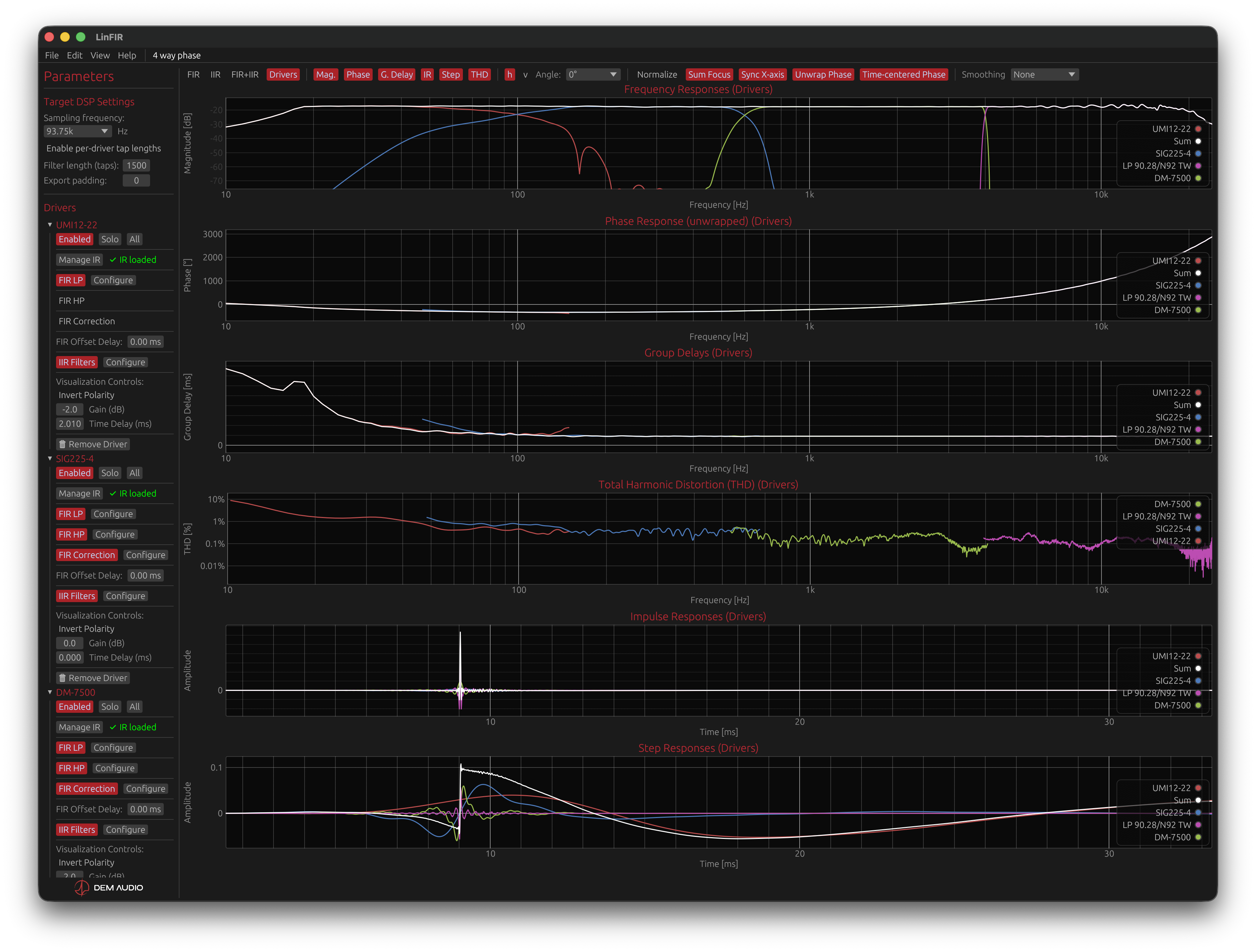

Design Philosophy
LinFIR is designed to be both a filter creation tool and a DSP-faithful system simulator. It shows what the filters will actually do when applied to your measurements, not an idealized version.
What You See Is What You Get: LinFIR operates with real DSP constraints—impulse timing, causality, delay, phase rotation, and resampling effects all matter. The application does not silently recenter impulses or adjust phase for prettier graphs. What is displayed is what a real DSP would produce.
This approach requires some understanding of signal processing fundamentals, but LinFIR automates most technical decisions under the hood to keep the workflow practical. The trade-off is that results may sometimes look less “clean” than in tools that abstract away these constraints, but they are physically accurate and predictable.
Different by Design: LinFIR does not replicate the workflows or interface conventions of other tools. The internal DSP-like architecture drives both the workflow and presentation. This is intentional, the goal is to bring a time-domain perspective into DIY loudspeaker and room-correction work, not to replace existing approaches.
Understanding what LinFIR shows and why helps avoid confusion and makes the tool more effective for its intended purpose.
Dual Operating Modes
LinFIR offers two distinct modes of operation, each optimized for different workflows:
Loudspeaker Design Mode
This mode is dedicated to designing and optimizing multi-way loudspeaker systems. Key applications include:
- Crossover design with multiple filter types
- Individual driver frequency response correction
- Phase and time alignment between drivers
- Directivity pattern analysis and optimization
- Complete system integration and tuning
Room Calibration Mode
Focused on in-room acoustic measurements and correction:
- Multiple measurement position capture and averaging
- Automatic temporal alignment using GCC-PHAT algorithm
- Room response correction filter generation
- Spatially-averaged frequency response optimization
- Integration with existing room correction workflows
The mode is selected when creating a new project and remains fixed throughout the project’s lifetime. To switch modes, simply create a new project with the desired configuration.
Core Features
FIR Filter Design
LinFIR implements sophisticated FIR filtering with:
- Configurable filter length: From 32 to 65536 taps for precise frequency resolution
- Causality control: Continuous adjustment from pure linear-phase (0.0) to minimum-phase (1.0)
- Multiple filter types: Brickwall (Sinc), Linkwitz-Riley, Butterworth, and Bessel characteristics
- Kaiser window shaping: Fine-tune transition band characteristics
Frequency Response Correction
Advanced magnitude and phase correction capabilities:
- Target curve options: Flat response, Harman in-room curve, or custom user-defined targets
- Independent correction modes: Separate control for magnitude and phase correction
- Frequency range limiting: Apply corrections only where needed
- Maximum attenuation control: Prevent over-correction of deep nulls
IIR Filtering
Complement FIR filters with cascaded IIR sections:
- Parametric EQ: Precise peak/notch filters for resonance control
- Shelving filters: Low-shelf and high-shelf for tonal balance
- Crossover filters: Butterworth, Linkwitz-Riley, and Bessel topologies
- All-pass filters: Dedicated phase shaping without magnitude changes
- Auto-EQ: Automatic optimization to target curves with configurable parameters
Measurement System
Built-in exponential sine sweep (ESS, Farina method) for high-quality impulse response capture:
- Harmonic distortion separation: Automatic extraction of H2-H4 through deterministic time positioning
- Driver protection: 4th-order Butterworth high-pass filter with configurable cutoff (-3 dB at fc, -24 dB/octave)
- Configurable sweep parameters: Duration, amplitude, frequency range (starting from 1 Hz)
- Quality validation: Automatic rejection of poor captures (clipping, low SNR)
- Microphone calibration: Import manufacturer calibration files for accurate measurements
Workflow Integration
LinFIR seamlessly integrates into professional audio workflows:
- Import/export WAV, txt, and specialized formats
- Direct export to Powersoft Armonia processors
- Export FIR coefficients in binary, text, WAV or CSV format
- Hypex FA Series amplifier configuration (HFD format)
- CamillaDSP filter export
- Comprehensive project management with auto-save
Platform Support
- Mac OS: Full feature support with low-latency audio
- Windows: Complete functionality with platform-specific audio optimizations
- Cross-platform projects: Projects are fully compatible across platforms
Project Modes
LinFIR offers three specialized operating modes, each designed for specific audio engineering workflows. The mode is selected during project creation and determines the available features and interface elements throughout the project’s lifetime.
Note on Hypex FusionAmp mode: The Hypex FusionAmp mode is a derivative of Loudspeaker Design mode. Everything documented for Loudspeaker Design — driver processing, crossover design, FIR/IIR filtering, measurement import, directivity analysis — applies equally to Hypex FusionAmp projects. The mode adds hardware-specific UI constraints (locked sample rate, fixed channel count, FIR tap limits, IIR biquad limit) that prevent invalid configurations and eliminate the need to manually track hardware limits during the design process.
Loudspeaker Design Mode
Purpose
This mode is optimized for designing and analyzing multi-way loudspeaker systems. It provides comprehensive tools for crossover design, driver integration, and directivity analysis.
Key Features
- Multi-driver support: Design systems with up to 50 drivers (subwoofers, woofers, midranges, tweeters)
- Crossover: FIR and IIR crossover filters with various types
- Driver correction: Individual magnitude and phase correction for each driver
- Directivity tools: Analyze off-axis response and polar patterns (license required)
- Complete export: Export individual driver filters, global filters, and HFD configurations

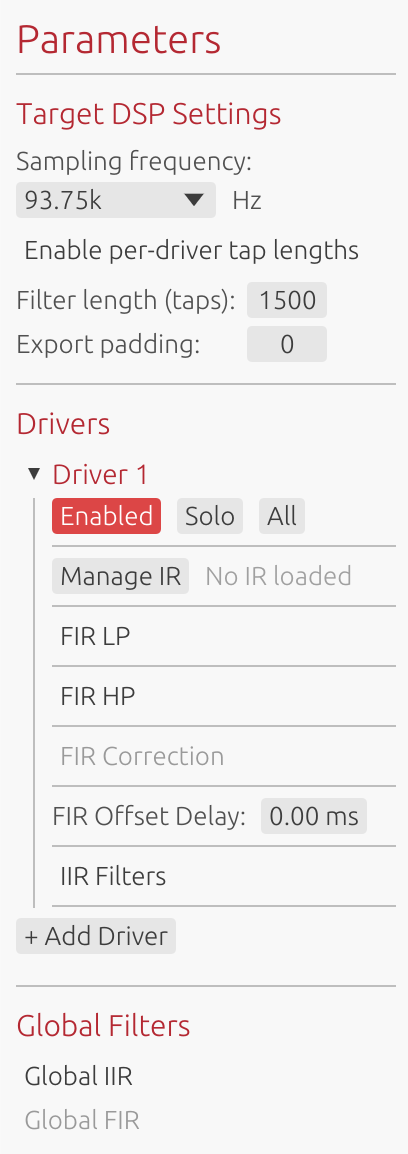
Typical Workflow
- Create a new Loudspeaker Design project
- Import or measure impulse responses for each driver
- Design crossover filters (low-pass, high-pass)
- Apply frequency response corrections
- Analyze summed system response
- Export filters for DSP implementation
When to Use
- Designing passive loudspeaker conversions to active DSP
- Optimizing existing multi-way systems
- Analyzing driver interactions and phase relationships
- Creating custom crossover
- Performing anechoic or quasi-anechoic measurements
- Aligning a complete sound reinforcement system (see below)
Sound Reinforcement System Alignment
The 50-driver capacity is not only meant for multi-way cabinets. It also covers sound reinforcement system alignment, where a driver slot represents a cabinet, an array section, or a zone rather than a transducer:
- Line array: each element, or each group of elements, as its own driver
- Subwoofers: cardioid or end-fire arrays, left/right stacks, sub zones
- Front fills / out fills / delays: one driver per fill position
Working this way, the same tools used for crossover design apply to system alignment: relative gain, delay and polarity per element, per-zone FIR or IIR correction, and the summed response of the complete system.
⚠️ Performance: with many drivers, the processing load scales with the drivers count and filter length. Long FIR filters (>8192 taps) applied across dozens of drivers make interactive adjustments sluggish — keep taps moderate during alignment.
This kind of project normally uses on-axis measurements only, so that’s the whole story. The one thing to avoid, even though it’s not something you’d run into by accident, is capturing full polar measurement sets across many drivers at once — that multiplies the cost rather than adding to it and can slow the UI down noticeably. See Large Multi-Driver Projects for details (not a concern in Room Calibration mode, where polar measurements aren’t available).
Room Calibration Mode
Purpose
Dedicated to in-room acoustic measurements and correction filter generation. This mode focuses on capturing multiple measurement positions, aligning them temporally, and creating averaged correction filters.
Key Features
- Multiple measurement positions: Capture IRs at different listening locations (up to 50 positions); reorder them by dragging their header (☰ grip or name) or with the ⬆ / ⬇ buttons on each position
- Automatic temporal alignment: GCC-PHAT algorithm aligns measurements
- Spatial averaging: Creates averaged response across measurement positions
- Global correction only: Simplified interface focused on room correction
- Streamlined export: Export only global correction filters
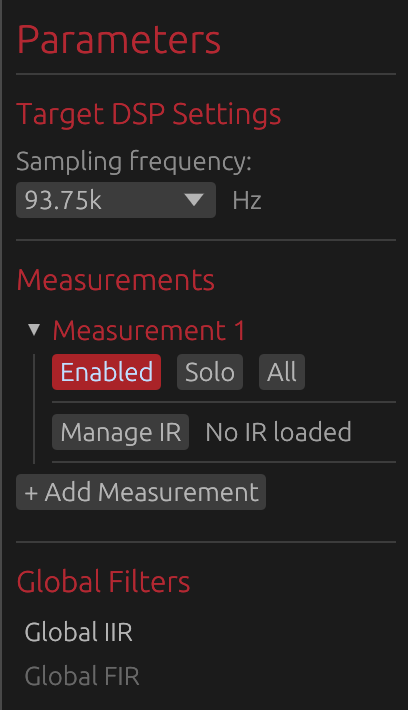
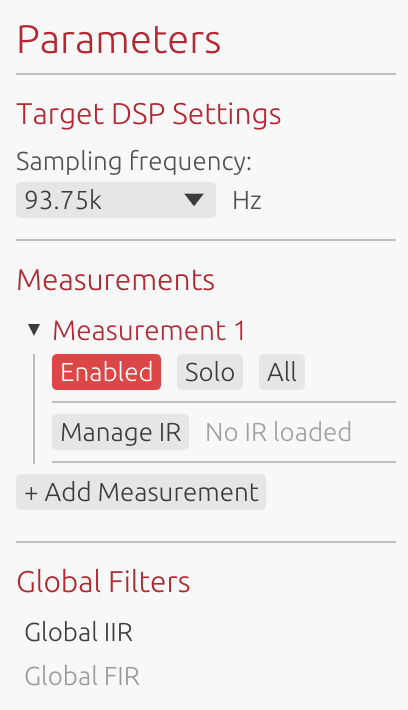
Typical Workflow
- Create a new Room Calibration project
- Configure sweep output channel
- Capture measurements at 3-5 different listening positions
- Measurements are automatically aligned using GCC-PHAT
- Design global correction filters (FIR and/or IIR)
- Export correction filters for room EQ implementation
UI Adaptations
When in Room Calibration mode, the interface adapts to focus on relevant features:
- Disabled: Directivity analysis tools (not applicable to room measurements)
- Simplified: Filter graphs show only global filters
- Restricted: Export options limited to global correction filters
- Hidden: Individual driver processing controls
Export Restrictions
Room Calibration projects export only:
- Global FIR correction filter (if enabled)
- Global IIR filters (Manual or Auto-EQ)
The following exports are disabled:
- HFD config export
- Detailed reports (TXT/PDF)
- Individual driver filters
This ensures clean, focused output for room correction workflows.
When to Use
- Correcting in-room frequency response
- Creating stereo-linked or mono room correction
- Working with existing loudspeaker systems
- Integrating with convolution engines
Hypex FusionAmp Mode
⚠️ License required: Creating Hypex FusionAmp projects requires a valid LinFIR license. See License for activation details.
Purpose
Hypex FusionAmp mode is a derivative of Loudspeaker Design mode tailored specifically for Hypex FusionAmp series amplifiers (FA122, FA123, FA251, FA252, FA253, FA501, FA502, FA503). All Loudspeaker Design features are available — driver processing, crossover design, FIR/IIR filtering, measurement import, directivity analysis — but several parameters are locked to match the DSP capabilities of the target hardware.
The goal is to eliminate manual bookkeeping: instead of counting biquads, tracking tap budgets, or checking compatibility after the fact, the UI enforces hardware limits in real time so the resulting configuration is always valid and ready to export.
Available Models
LinFIR supports all FusionAmp models:
- FA122: 2-channel amplifier (2 × 125W @ 4Ω)
- FA123: 3-channel amplifier (2 × 125W + 100W @ 4Ω)
- FA251: 1-channel amplifier (1 × 250W @ 4Ω)
- FA252: 2-channel amplifier (2 × 250W @ 4Ω)
- FA253: 2-channel amplifier (2 × 250W + 100W @ 4Ω)
- FA501: 1-channel amplifier (1 × 500W @ 4Ω)
- FA502: 2-channel amplifier (2 × 500W @ 4Ω)
- FA503: 3-channel amplifier (2 × 500W + 100W @ 4Ω)
Hardware Constraints
When in Hypex FusionAmp mode, several parameters are locked to match hardware specifications:
- Sample Rate: Fixed at 93.75 kHz (cannot be changed)
- Channel Count: Fixed by model (1, 2 or 3 channels, cannot add/remove drivers)
- IIR Filters: Maximum 15 biquads per channel
- FIR Filters: Fixed total tap count depends on FIR position (see below)
FIR Processing Modes
FusionAmp mode offers two mutually exclusive FIR processing configurations:
FIR IN (Input FIR)
Global FIR correction applied at the DSP input stage before channel processing.
- Location: Before IIR filters and channel routing
- Total taps: Fixed at 4500 (filter taps + padding)
- Use case: Global room correction, global speaker compensation
- Constraint: FIR Taps + Export padding = 4500 (always)
- UI behavior: Per-driver FIR controls are hidden; adjusting taps automatically adjusts padding to maintain 4500 total
FIR OUT (Output FIR)
FIR correction applied at the output stage, after IIR processing.
- Location: After IIR filters, per-channel or global
- Total taps: Fixed at 1500 per channel (filter taps + padding)
- Use case: Individual driver correction, per-channel equalization
- Constraint: Filter length (taps) + Export padding = 1500 (always, per driver or global)
- UI behavior: Adjusting taps automatically adjusts padding to maintain 1500 total
IIR Filter Constraints
FusionAmp DSP limits each channel to 15 biquads maximum. LinFIR enforces this through:
- Add Filter button: Automatically disabled when at 15 biquads
- Filter type restrictions: Types exceeding the limit are grayed out with tooltips
- Order limitations: Filter order sliders dynamically limited based on remaining capacity
- Auto EQ constraints: “Max Filters” parameter accounts for locked filters’ biquad usage
Note: For details on how biquad counts are calculated for different filter types, see the IIR Filtering section.
Key Features
- Hardware-matched UI: Interface adapts to show only applicable controls
- Automatic validation: Prevents configurations exceeding hardware limits
- Export compatibility: Direct HFD export for FusionAmp amplifiers
- Constraint warnings: Visual indicators when approaching limits
Typical Workflow
- Create new project: File → New Project → Hypex FusionAmp
- Select model (FA122, FA123, FA251, FA252, FA253, FA501, FA502, FA503)
- Choose FIR position (Input or Output)
- Import/measure impulse responses for each channel
- Design IIR filters (monitor biquad counter to stay within 15 biquad limit)
- Configure FIR correction (taps + padding always equals 4500 for IN or 1500 for OUT)
- Export HFD configuration file for amplifier
UI Adaptations
The interface automatically adjusts based on FIR position:
FIR IN mode:
- Global FIR section visible and active
- Per-driver FIR controls hidden
- Taps and padding controls linked to maintain 4500 total
- Adjusting taps automatically recalculates padding, and vice versa
FIR OUT mode with per-driver FIR:
- Per-driver FIR controls visible
- Each driver has linked taps/padding controls maintaining 1500 total
- Global FIR section hidden or disabled
FIR OUT mode without per-driver FIR:
- Taps and padding controls linked to maintain 1500 total
- Per-driver FIR controls hidden
Export Configuration
Hypex FusionAmp projects support:
- HFD export: Native configuration format for FusionAmp amplifiers
- FIR filter export: Individual channel FIR filters
- IIR filter export: Biquad coefficients per channel
When to Use
- Configuring Hypex FusionAmp series amplifiers
- Ensuring DSP configuration fits hardware constraints
- Exporting ready-to-use HFD configuration files
- Working within strict real-time processing limits
Limitations
⚠️ Hardware constraints cannot be bypassed:
- Sample rate is locked at 93.75 kHz
- Channel count is fixed by model (1, 2, or 3 channels)
- FIR total tap count is fixed (4500 for IN, 1500 for OUT) - taps and padding sum must always equal this value
- IIR biquad limit (15 per channel) is strictly enforced
- Cannot use both FIR IN and FIR OUT simultaneously
Mode Selection
Creating a New Project
Project mode is selected via File → New Project:
- Click “New Project”
- Choose between “Loudspeaker Design”, “Room Calibration”, or “Hypex FusionAmp”
- For Hypex FusionAmp: Select model (FA122/FA123/FA251/FA252/FA253/FA501/FA502/FA503) and FIR position (IN/OUT)
- For other modes: Configure initial project settings (sample rate, filter length, etc.)
- Begin working in the selected mode
Mode Permanence
⚠️ Important: Once a project is created, its mode cannot be changed. The mode is permanently associated with the project file.
To work in a different mode:
- Save your current project (if needed)
- Create a new project with the desired mode
- Import measurements or data as required
Choosing the Right Mode
Use Loudspeaker Design Mode when:
- Designing crossovers for multi-driver systems
- Analyzing individual driver characteristics
- Performing directivity analysis
- Working with anechoic or quasi-anechoic data
- Aligning a sound reinforcement system (line array + subs + front fills)
- Need flexible configuration options
Use Room Calibration Mode when:
- Correcting in-room frequency response
- Creating averaged room correction filters
- Working with existing complete loudspeaker systems
- Focusing on global system correction only
Use Hypex FusionAmp Mode when: (license required)
- Configuring Hypex FusionAmp series amplifiers
- Exporting HFD configuration files
- Need to ensure configurations match hardware limits (93.75 kHz, fixed taps, 15 biquads)
Best Practices
Room Calibration Mode
- Measurement count: Capture 3-5 measurements at different positions (up to 50 are supported, but more positions rarely improve a domestic correction)
- Position spacing: Keep positions within 30-50 cm of main listening area
- Height consistency: Use consistent microphone height across measurements
- Reference position: First measurement should be at primary listening position
- Correction philosophy: Apply gentle correction, avoid over-equalization
- Deep nulls: Don’t attempt to fill room mode nulls below 300 Hz
- Phase type: Consider minimum-phase FIR for reduced latency
- Acoustic treatment: Combine with room treatment for best results
Loudspeaker Design Mode
- Measurement quality: Use anechoic or quasi-anechoic measurements when possible
- Windowing: Gate reflections using IR time windowing
- Alignment: Align drivers using time delay controls, not FIR compensation delay
- Crossover design: Start with appropriate crossover frequencies and filter slopes
- Phase analysis: Monitor phase relationships between drivers
- Directivity: Capture multiple angles for comprehensive analysis (license required)
Sound Reinforcement Systems (Loudspeaker Design Mode)
- Slot mapping: Decide upfront what a driver slot represents (cabinet, array section, zone) and name the drivers accordingly
- Filter length: Stay at or below 4096 taps during alignment; raise it only at the end if low-frequency resolution requires it
- Polar measurements: not part of a typical alignment workflow (on-axis is normally enough); if you do capture them, restrict full polar sets to a few representative cabinets rather than every driver
- Section by section: Use Solo / Enable-Disable to align subs, array and fills separately before evaluating the full sum
- Copy / Paste parameters: Use the 📋 / 📥 buttons to replicate identical settings across identical cabinets instead of configuring each one manually
Mode Comparison Table
| Feature | Loudspeaker Design | Room Calibration | Hypex FusionAmp (license) |
|---|---|---|---|
| Multi-driver support | ✅ (up to 50) | ❌ (single “system”) | ✅ (1-3 fixed) |
| Driver / measurement slots | 50 | 50 (positions) | 1-3 (model-locked) |
| Individual driver filters | ✅ | ❌ | ✅ |
| Global filters | ✅ | ✅ | ✅ |
| Directivity analysis | ✅ (license) | ❌ | ✅ (license) |
| Multiple measurements | ✅ | ✅ | ✅ |
| Automatic alignment | ❌ | ✅ (GCC-PHAT) | ❌ |
| HFD export | ✅ | ❌ | ✅ |
| IIR filter export | ✅ | ✅ | ✅ (15 biquad limit) |
| Detailed reports | ✅ | ❌ | ✅ |
| THD analysis | ✅ | ❌ | ✅ |
| Sample rate | Configurable | Configurable | 93.75 kHz (locked) |
| Channel count | Configurable | 1 (mono/avg) | 1-3 (model-locked) |
| FIR total taps | Configurable | Configurable | Fixed: 4500 (IN) or 1500 (OUT) |
| IIR biquad limit | None | None | 15 per channel |
Hypex FusionAmp is a superset of Loudspeaker Design: all ✅ features from Loudspeaker Design are available, with the hardware constraints in the last rows added on top.
Graph Interaction & Display
This section covers all interactive features, display controls, and analysis tools available when working with LinFIR’s graphs.
Graph Toolbar
The graph toolbar provides comprehensive controls for selecting which data to display and how to visualize it. The toolbar adapts based on the project mode (Loudspeaker Design vs Room Calibration).
Loudspeaker Design Mode:


Room Calibration Mode:


Display Mode Selection
Purpose: Choose which stage of the signal processing chain to visualize.
Available modes:
- FIR - FIR filter responses only (crossovers, magnitude/phase correction)
- IIR - IIR filter responses only (parametric EQ, shelves, crossovers)
- FIR+IIR - Combined FIR and IIR responses
- Drivers (Loudspeaker Design) / Measurements (Room Calibration) - Full signal chain applied to driver or room measurements (theoretical system response)
Keyboard shortcuts:
- Press F to cycle through filter modes (FIR → IIR → FIR+IIR)
- Press D to switch to Drivers/Measurements mode
Mode behavior:
- Loudspeaker Design mode: Shows individual driver filters plus global filters
- Room Calibration mode: Shows only global filters in FIR/IIR/FIR+IIR modes
See Display Modes section below for detailed explanations of each mode.
Graph Visibility Toggles — “Graphs” Dropdown
Purpose: Show or hide specific graph types and magnitude overlay curves.
The Graphs dropdown in the toolbar has two sections, separated by a divider.
Main plots - which graph panels are shown:
- Magnitude (M) - Frequency response in dB
- Impulse Response (I) - Impulse response in time domain
- Step Response (T) - Step response in time domain
- Group Delay (G) - Group delay in milliseconds
- Phase (P) - Phase response in degrees
- Harmonic Distortion (K) - (Loudspeaker Design / Hypex mode only)
Letters in parentheses indicate keyboard shortcuts. The dropdown stays open when toggling items, allowing multiple graphs to be shown or hidden without reopening it.
Note: Harmonic Distortion is only available in Loudspeaker Design / Hypex mode with Drivers display mode active, as harmonic distortion analysis is not applicable to in-room measurements.
License Feature: The HD graph displays the total harmonic distortion for all users. Individual harmonic curves (\(h_2\), \(h_3\), \(h_4\), \(h_5\)) are only available with a valid license.
Overlays - which curves are drawn on the frequency graph itself:
- Sum / Average - the summed (Loudspeaker Design) or averaged (Room Calibration) response; labelled to match the mode. Available in both project modes, no license required.
- Listening Window - (Loudspeaker Design mode only, license required) the ±30°H / ±10°V spatial average, shown when off-axis measurements exist.
- Predicted In-Room Response - (Loudspeaker Design mode only, license required) the CEA-2034-A curve, shown when there’s enough Early Reflections angle coverage - see Directivity Analysis.
- Directivity Index - (Loudspeaker Design mode only, license required) shown when off-axis measurements exist.
Each project remembers its own choice for these four toggles. Settings → Graphs → Default Overlays sets what a new project starts with (see Graphs Settings).
Angle Selector (Loudspeaker Design / Hypex mode only)
Purpose: Select which off-axis measurement angle to display when drivers have directivity data.
- Horizontal angles: Typically ±15°, ±30°, ±45°, ±60°, ±75°, ±90°
- Vertical angles: Same as horizontal
- Toggle H/V: Switch between horizontal and vertical axis selection
Only available when at least one driver has off-axis measurements. The selector is hidden in Room Calibration mode as directivity analysis is specific to anechoic/quasi-anechoic loudspeaker measurements.
See Directivity Analysis for complete details on polar measurements and analysis.
Time Domain Options — “Time Domain” Dropdown
The Time Domain dropdown groups options that affect impulse and step response display.
Normalize
Purpose: Scale impulse and step responses to ±1 range for easier comparison.
When enabled:
- Impulse responses normalized to peak amplitude = 1
- Step responses normalized to maximum value = 1
- Useful for comparing relative timing and shape without amplitude differences
Focus on Summed Response
Purpose: Use the time boundaries of the summed impulse response for all IR and step response plots.
- Loudspeaker Design: All time-domain plots are framed around the summed driver output
- Individual curves remain visible within those boundaries
- Useful for evaluating overall system timing alignment
Phase Options — “Phase Options” Dropdown
The Phase Options dropdown is enabled only when the Phase graph is visible. It contains two options:
Unwrap Phase
Purpose: Display continuous phase response without ±180° wrapping discontinuities.
- Disabled: Phase wraps at ±180° (sawtooth pattern)
- Enabled: Phase continues beyond ±180° showing true accumulated phase shift
- Essential for analyzing linear phase filters and group delay
- Makes phase response easier to interpret across wide frequency ranges
Remove time of flight rotations
What is a time of flight? A pure propagation delay — the time it takes for sound to travel from the driver to the measurement microphone — appears in the phase response as a constant linear slope: the further the impulse response peak is from t = 0, the steeper the slope, and the more the phase accumulates rotations across the frequency range. This linear ramp carries no useful information about the filter or driver behaviour; it just reflects the physical distance between source and mic.
This option removes that linear component, leaving only the non-linear phase rotations introduced by the filters and the acoustics of each driver. The result is a much flatter, easier-to-read phase curve, and — when multiple drivers are shown — it becomes straightforward to compare their phase alignment without the bulk delay dominating the picture.
- Disabled: Phase includes the full linear delay component (steep slope proportional to time of flight)
- Enabled: Linear component subtracted, phase flattens around 0° — non-linear deviations stand out clearly
HD Display Mode (Loudspeaker Design mode only)
Purpose: Select how harmonic distortion values are displayed on the HD plot.
Available display modes:
- Percent (%) - Traditional percentage representation
- dB (relative) - Relative level compared to fundamental
- dB (absolute) - Absolute RMS level of harmonics
Percent (%) Mode:
Displays harmonic distortion as a percentage relative to the fundamental (\(h_1\)). Values above 100% are possible when harmonic components exceed the fundamental level (e.g., below the driver’s resonance frequency).
dB (relative) Mode:
Expresses harmonic distortion relative to the fundamental (\(h_1\)) in decibels. Negative values indicate harmonics are quieter than the fundamental; positive values indicate harmonics exceed the fundamental. For example:
- -40 dB ≈ 1% distortion
- -60 dB ≈ 0.1% distortion
- -80 dB ≈ 0.01% distortion
- 0 dB = 100% distortion (harmonics equal the fundamental)
Useful for evaluating signal-to-distortion ratio.
dB (absolute) Mode:
Shows the absolute level of the harmonics alone, without normalization. This mode is useful for comparing distortion levels across different SPL measurements, as it shows the actual acoustic power in harmonic components regardless of the fundamental level.
Individual Harmonics:
All three modes also display individual harmonic curves (\(h_2\), \(h_3\), \(h_4\), \(h_5\)) with dashed/dotted line styles. The selected mode applies to both the total HD curve and individual harmonics.
License Feature: Individual harmonic curves (\(h_2\)-\(h_5\)) are only available with a valid license.
Smoothing
Purpose: Apply smoothing to magnitude, HD, directivity, group delay and phase plots.
Smoothing options:
- None - No smoothing (raw response)
- 1/48 octave - Very fine smoothing
- 1/24 octave - Fine smoothing
- 1/12 octave - Moderate smoothing
- 1/6 octave - Coarse smoothing
- 1/3 octave - Very coarse smoothing
- ERB - Perceptually-motivated variable smoothing (see below)
Applies to:
- Magnitude (frequency response)
- Group delay
- Phase (preserves driver alignment via trend removal method)
- HD (Harmonic Distortion)
- Directivity Analysis (sonogram)
Does not affect: Time-domain plots (impulse, step response)
ERB Smoothing:
ERB (Equivalent Rectangular Bandwidth) smoothing uses a variable bandwidth that corresponds to the frequency resolution of the human auditory system. The smoothing bandwidth follows the formula: (107.77f + 24.673) Hz, where f is frequency in kHz.
This results in:
- Heavy smoothing at low frequencies (~1 octave at 50Hz, 1/2 octave at 100Hz, 1/3 octave at 200Hz)
- Moderate smoothing at mid frequencies (approximately 1/6 octave above 1kHz)
- Natural perceptual weighting that reflects how the ear integrates frequency information
ERB smoothing is particularly useful for:
- Understanding what a listener actually perceives
- Comparing measurements to subjective listening impressions
- Evaluating whether fine response details are audible
Note: Smoothing is cosmetic and does not affect filter calculations or exports. See Fractional Octave Smoothing section below for detailed behavior.
Mouse & Trackpad Controls
Zoom Controls
Zoom In - Multiple methods:
- Box zoom: Right-click and drag to select a region
- Trackpad pinch: Pinch gesture to zoom in/out
- Mouse wheel: Scroll to move the view within a graph
Zoom Out:
- Double-click anywhere on a graph to reset to auto-calculated bounds
- Double-click re-enables auto-bounds mode (graphs automatically adjust to data range)
Pan
Left-click and drag to move the view within a zoomed graph.
Legend Interaction
Legends list the curves in plotting order - the drivers in their order in the left column, then the sum and the other curves - read from top to bottom whatever corner the legend sits in.
Click on color dots in the legend to show/hide individual curves:
- Hidden curves are grayed out in the legend
- Click again to show the curve
- Useful for isolating specific drivers or filters
Reorder Graphs
Drag a graph’s title (the ☰ grip or the title text) and drop it above or below another graph to change the order of the graph stack:
- While dragging, the title follows the pointer and a line shows where the graph will land
- Releasing away from the graphs, or pressing Esc, cancels the move
- Only the graphs currently shown take part; hidden graphs keep their place in the order, so they reappear where they were when toggled back on
- The new order is the same one as Settings → Graphs → Graph Order (see Graph Order): it applies to every display mode and is kept for new projects
- Detached graph windows have a plain title and are not part of the stack
Detach Graphs
Right-click on any graph to open it in a separate window:
- All graph types supported (Frequency, Phase, Group Delay, Impulse, Step, HD)
- Detached windows render in real-time following the active display mode
- Multiple graphs can be opened simultaneously for side-by-side comparison
- Ideal for multi-monitor setups and detailed analysis workflows
- Close detached windows: Cmd+W (macOS) / Ctrl+W (Windows)
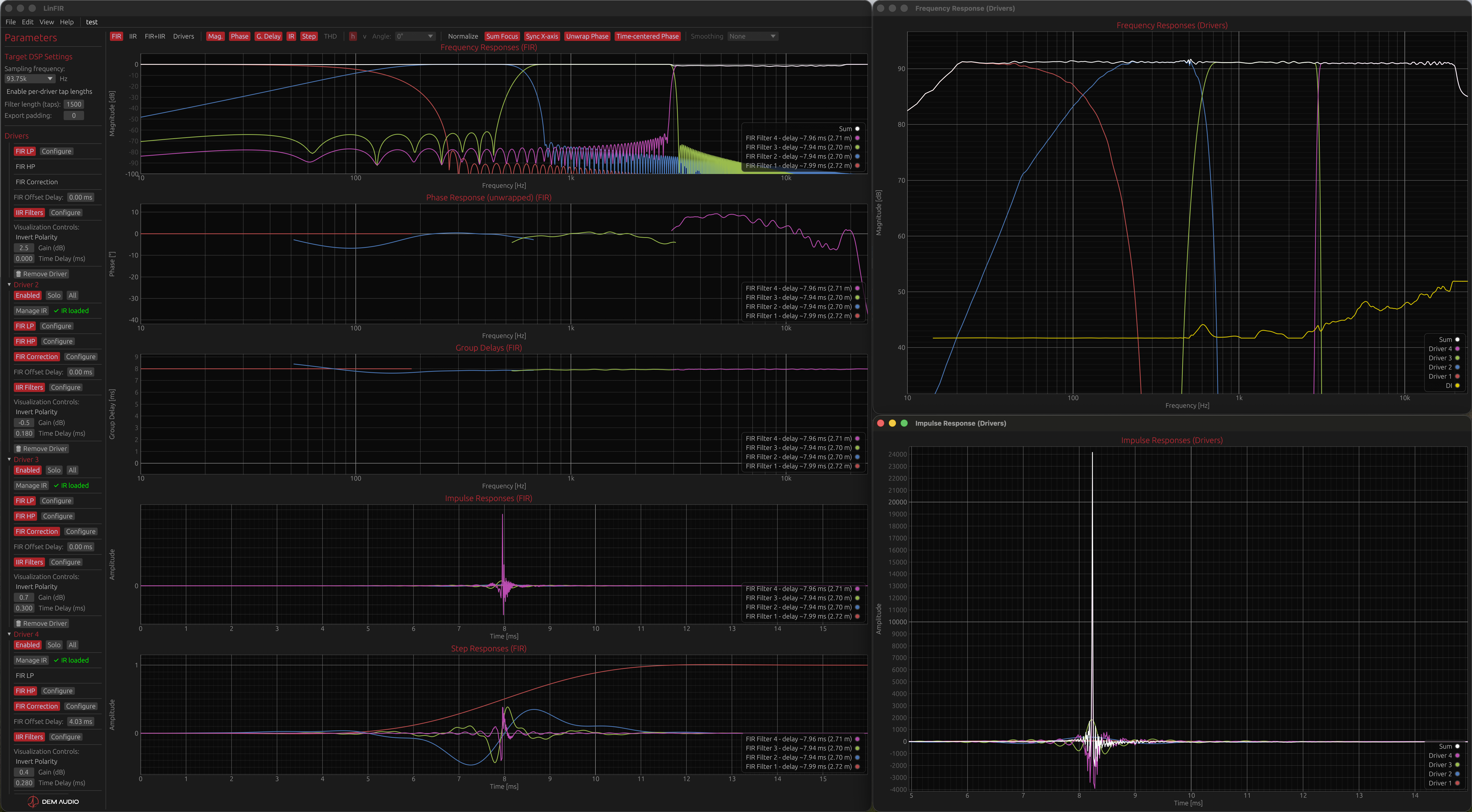
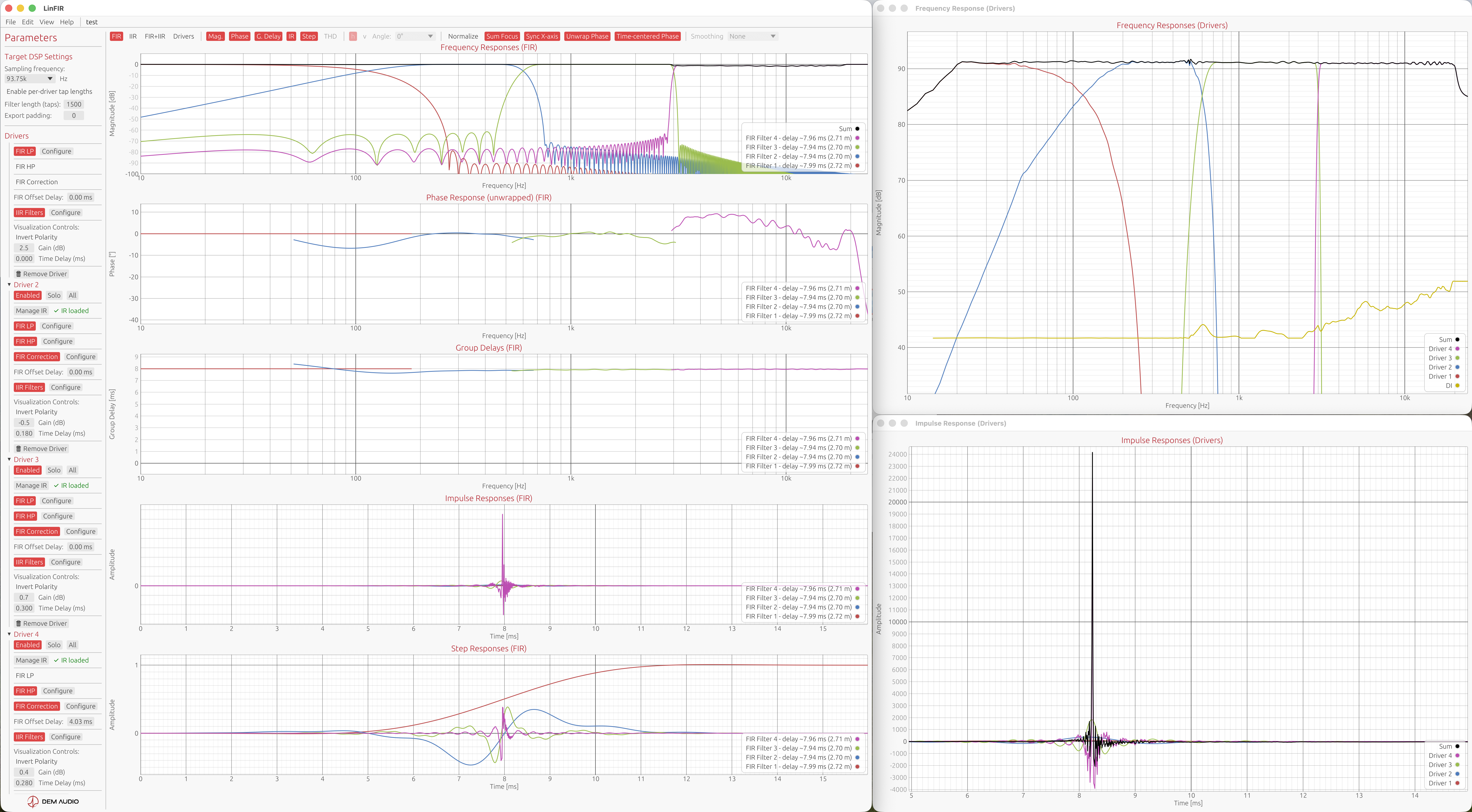
Display Modes
Project Mode Impact
LinFIR supports two project modes that affect display terminology:
- Loudspeaker Design - Speaker design with drivers
- Room Calibration - Multi-position measurements for room correction
In Room Calibration mode:
- “Drivers” mode is renamed to “Measurements”
- Individual measurement curves are shown in Measurements mode
- Filter modes (FIR/IIR/FIR+IIR) display only global filters
In Loudspeaker Design mode:
- “Drivers” mode displays individual drivers
- Filter modes show both per-driver filters and global filters
Filters vs. Drivers/Measurements Mode
Filters Mode (Keyboard: F):
- Shows individual filter responses (FIR, IIR, or FIR+IIR combined)
- Press F multiple times to cycle through filter submodes:
- FIR Filters - Shows only FIR filter responses
- IIR Filters - Shows only IIR filter responses
- FIR+IIR Filters - Shows combined FIR and IIR responses
- Loudspeaker Design: Per-driver crossover and correction filters displayed separately
- Room Calibration: Only global filters are shown
- Global filters shown as additional curves
- Useful for analyzing filter design and frequency response shaping
Drivers/Measurements Mode (Keyboard: D):
- Loudspeaker Design: Shows combined driver + filter responses (acoustic output)
- Each curve represents the complete signal chain for that driver
- Sum curve shows the total system response at listening position
- Room Calibration: Shows individual measurement positions and averaged response
- Each curve represents a raw measurement location (no filters applied)
- Sum curve shows the averaged response with global filters applied
- Useful for analyzing final acoustic performance
Graph Visibility Toggles
Show/hide individual graph types using keyboard shortcuts:
- M - Toggle Magnitude (Frequency Response) plot
- P - Toggle Phase Response plot
- G - Toggle Group Delay plot
- I - Toggle Impulse Response plot
- T - Toggle Step Response plot
- K - Toggle HD (Harmonic Distortion) plot
X-Axis Synchronization
Toggle: X key or toolbar button
When enabled, Sync X-axis synchronizes the horizontal axis across related plots:
Frequency Plots (Magnitude, Phase, Group Delay, Directivity Analysis):
- All plots share the same frequency range
- Zooming any plot updates all frequency plots simultaneously
- Double-click resets all frequency plots to full range — set by Settings → Graphs → Frequency Axis (default 10 Hz – 24 kHz)
Time Plots (Impulse, Step Response):
- All time-domain plots share the same time range
- Zooming any plot updates all time plots simultaneously
- Double-click resets all time plots to full range
Independent Y-Axes:
- Each plot maintains its own vertical scale
- Y-axis auto-bounds independently for each graph type
Use Cases:
- Compare magnitude and phase behavior at the same frequency
- Analyze impulse and step response in the same time window
- Maintain consistent zoom across multiple graph types
Impulse & Step Response Normalization
Toggle: N key or toolbar button
Normalizes impulse and step responses to peak amplitude = 1.0:
Purpose:
- Allows visual comparison between responses with different amplitudes
- Focuses on filter shape and time-domain characteristics
- Eliminates gain differences for easier visual analysis
Effect:
- All IR and SR curves are scaled to the same peak height
- Does not affect magnitude or phase plots
- Purely visual - does not modify underlying data
Use Cases:
- Compare filter shapes between drivers with different sensitivity
- Analyze time-domain behavior without gain differences obscuring details
- Identify pre-ringing or timing issues across multiple drivers
Focus on Summed Response
Toggle: S key or Time Domain dropdown (Drivers/Measurements mode only)
Synchronizes the time window of all temporal plots (Impulse & Step Response) to the Sum/Average curve boundaries:
How it Works:
- Analyzes the Sum/Average impulse response to find its energy boundaries
- Detects first and last samples above -60 dB threshold (1/1000th of peak)
- Adds configurable margins before and after the detected energy region
- Applies the same time window to all temporal plots (both Impulse and Step Response)
- Enables auto-bounds for all time plots
Behavior:
- Requires at least 2 active curves to activate (otherwise ignored)
- Focuses all temporal plots on the main acoustic energy of the Sum/Average response
- Individual driver/measurement curves are zoomed to the same time window as the sum
- Easier to compare arrival times and transient behavior across all curves
- Works with adaptive display mode margins (configurable in Settings)
Use Cases:
- Loudspeaker Design: Quickly identify timing alignment issues across drivers
- See if all drivers arrive within the sum’s main energy window
- Detect delays or misalignment relative to system response
- Room Calibration: Focus on the averaged room response energy region
- Compare individual measurement positions to the average response timing
- Identify room reflections within the main energy window
- Eliminate clutter from pre-ringing or tail noise outside the main energy region
Only available in Drivers/Measurements Mode (not applicable to individual filters).
Note: Works in both Loudspeaker Design and Room Calibration project modes when display mode is set to Drivers/Measurements.
Phase Display Options
Unwrap Phase
Toggle: U key or toolbar button
Controls phase display format:
Wrapped Phase (default):
- Phase values constrained to ±180°
- Shows discontinuities (phase wraps) at ±180° boundaries
- Easier to read for simple filters
- Standard display format for most audio applications
Unwrapped Phase:
- Continuous phase values extending beyond ±180°
- Shows total accumulated phase shift
- Useful for analyzing group delay trends and overall phase shift
Note: Group delay is always computed from unwrapped phase internally. The Unwrap toggle only affects phase display, not group delay accuracy.
Remove time of flight rotations
Toggle: C key or Phase Options dropdown (next to Unwrap Phase)
A pure propagation delay translates into a linear slope in the phase response — the further the impulse response peak is from t = 0, the steeper the slope, and the more rotations accumulate across the frequency range. This linear ramp is entirely determined by the physical distance between the driver and the microphone and does not reveal anything about filter behaviour or driver characteristics.
This option removes that linear component via a linear regression on the IR peak position, leaving only the non-linear phase introduced by the filters and acoustics. Phase curves become much flatter, easier to read, and directly comparable across drivers regardless of their physical placement.
Removes the linear phase component (constant group delay) from phase responses:
Algorithm:
- Computes linear phase slope from IR peak position for all curves (drivers and filters)
- Subtracts the constant group delay (linear phase shift)
- Flattens phase around 0° while preserving relative phase differences
- Works with both wrapped and unwrapped phase display modes
In Loudspeaker Design Mode (Drivers):
When multiple speakers are active:
- Removes the linear delay of the Sum curve from all responses
- Centers all driver phases around 0° relative to the system response
- Highlights phase alignment issues between drivers
- Makes phase differences visible without bulk delay obscuring them
When single driver is active:
- Removes the linear component of that driver’s phase
- Flattens phase around 0° to show only non-linear phase shifts
In Room Calibration Mode (Measurements):
- Independent correction: Removes the linear phase component of each individual measurement independently
- No shared reference - each measurement position is treated separately
- Flattens each measurement’s phase around 0°
- Useful for comparing phase behavior across different room positions without timing offsets
- The averaged curve also has its own linear component removed
In Filters Mode (FIR, IIR, FIR+IIR):
- Per-filter correction: Removes the linear phase component of each individual filter
- Flattens each filter’s phase around 0°
- Reveals only non-linear phase rotations introduced by the filter
- Useful for analyzing filter phase behavior independent of bulk delay
Use Cases:
- Identify phase alignment issues between drivers without delay obscuring differences
- Visualize phase rotations introduced by filters (independent of linear delay)
- Compare filter phase characteristics across different designs
- Verify minimum-phase vs. linear-phase behavior
Fractional Octave Smoothing
Control: Dropdown menu in toolbar (None, 1/48 oct to 1/3 oct, or ERB)
Apply smoothing to reduce measurement noise and reveal trends:
Fixed Fractional-Octave Smoothing:
- No smoothing - Show raw response (no averaging)
- 1/48 octave - Very fine smoothing (highest detail)
- 1/24 octave - Fine smoothing
- 1/12 octave - Moderate smoothing (default)
- 1/6 octave - Coarse smoothing
- 1/3 octave - Very coarse smoothing (lowest detail)
ERB (Equivalent Rectangular Bandwidth) Smoothing:
ERB smoothing uses a frequency-dependent bandwidth that models the human auditory system’s frequency resolution. Unlike fixed fractional-octave smoothing, ERB adapts its bandwidth at each frequency according to psychoacoustic research.
Bandwidth formula: (107.77f + 24.673) Hz, where f is in kHz
Frequency-dependent behavior:
- 50 Hz → ~1 octave bandwidth (heavy smoothing)
- 100 Hz → ~1/2 octave bandwidth
- 200 Hz → ~1/3 octave bandwidth
- 1 kHz and above → ~1/6 octave bandwidth (leveling out)
When to use ERB smoothing:
- To see what the ear actually perceives (perceptually accurate)
- When evaluating audibility of response features
- To match listening test results with measured data
- For publication-quality graphs that reflect human hearing
When to use fixed fractional-octave smoothing:
- For equalization and correction work (1/6 or 1/12 octave recommended)
- When analyzing crossover behavior in detail
- To maintain consistent resolution across all frequencies
- For technical comparisons between drivers
Effect:
- Wider smoothing = smoother curves, less detail
- Narrower smoothing = more detail, more noise visible
- ERB = perceptually-weighted smoothing (variable with frequency)
Applies to:
- Frequency response (magnitude), HD, Directivity Analysis (sonogram), group delay and phase plots
- Does not affect time-domain plots (impulse responses)
Note: Smoothing is applied after all processing (filters, crossovers, correction). It affects display only, not exported data. It can also alter crossover slopes on the graphs.
Impulse Response Analysis
Automatic Pre-Ringing Detection
When hovering over impulse response curves, LinFIR displays additional analysis information:
Pre-ring Level (in dB relative to peak):
- Weighted RMS measurement of signal energy before the main peak
- Analysis stops at the last zero-crossing before peak (excludes rising edge)
- Uses Hilbert envelope to capture perceptible energy regardless of phase
- Perceptually weighted: energy closer to the peak is less penalized (temporal masking)
- Displayed as:
Pre-ring: -50.0 dB (Likely masked)
Algorithm Details:
- Find the impulse peak position and amplitude
- Find the last zero-crossing before the peak (to exclude the rising edge)
- Extract the pre-ringing region (from start to zero-crossing)
- Calculate the Hilbert envelope of the pre-ringing region
- Apply sigmoid weighting (closer to peak = less perceptual penalty)
- Masking time at 50% penalty: 0.6 ms (default)
- Weight floor: 0.2 (minimum weight for distant pre-ring)
- Weight ceiling: 1.0 (maximum weight for near-peak pre-ring)
- Calculate weighted RMS of the envelope
- Convert to dB relative to peak amplitude
Weighting Rationale:
- Pre-ringing close to the peak is masked by the main transient (temporal masking)
- Pre-ringing far from the peak is more audible (less masking)
- Sigmoid function models gradual transition from masked to unmasked
Risk Assessment Labels
Pre-ringing levels are classified based on typical perceptual thresholds (indicative):
| Level (dB) | Risk Assessment | Description |
|---|---|---|
| ≤ -36 dB | Likely masked | Generally inaudible, masked by main transient |
| -36 to -24 dB | Low risk | May be perceptible in some cases (quiet passages) |
| -24 to -12 dB | Moderate risk | Likely perceptible depending on program material |
| > -12 dB | High risk | Potentially objectionable, consider reducing filter length |
Important Notes:
- These are indicative estimates, not absolute rules
- Actual audibility depends on:
- Program material (transient-rich vs. sustained tones)
- Listening level
- Individual hearing sensitivity
- Room acoustics and background noise
- Use as a guideline for filter design, not strict limits
- Shorter FIR filters or increased causality reduce pre-ringing at the cost of magnitude and phase accuracy
Trade-offs:
- Longer FIR filters → More pre-ringing, better magnitude/phase accuracy
- Shorter FIR filters → Less pre-ringing, reduced correction capability
- Higher causality (e.g., minimum-phase) → Less pre-ringing, potential phase distortion
- Linear-phase (causality = 0) → Maximum pre-ringing, linear phase
Auto-Bounds Behavior
LinFIR automatically adjusts graph bounds to fit data:
Auto-Bounds Enabled (default):
- Graphs automatically scale to show all data
- Y-axis adjusts when switching between drivers or display modes
- X-axis adjusts based on data range (frequency or time)
Auto-Bounds Disabled (after user interaction):
- Manual zoom/pan disables auto-bounds for that axis
- Graph retains user-specified bounds
- Switching modes preserves manual bounds
- Double-click re-enables auto-bounds and resets to calculated range
Per-Axis Independence:
- X-axis and Y-axis auto-bounds are independent
- Dragging vertically disables Y auto-bounds, preserves X auto-bounds
- Dragging horizontally disables X auto-bounds, preserves Y auto-bounds
- Box zoom (right-click drag) disables both X and Y auto-bounds
Per-Graph Independence:
- Each graph type has independent auto-bounds state
- Zooming Frequency plot does not affect Impulse plot
- Switching between display modes preserves per-graph bounds
Keyboard Shortcuts Summary
Display Modes
- F - Switch to Filters display mode
- D - Switch to Drivers/Measurements display mode
Display Controls
- X - Toggle X-axis synchronization
- N - Toggle normalize impulse and step responses
- U - Toggle unwrap/wrap phase response
- C - Toggle time of flight rotation removal
- S - Toggle focus on summed impulse response (Drivers/Measurements mode only)
- R - Toggle Directivity Analysis window (Loudspeaker Design mode only, requires license)
Graph Visibility
- M - Toggle Magnitude Response plot
- P - Toggle Phase Response plot
- G - Toggle Group Delay plot
- I - Toggle Impulse Response plot
- T - Toggle Step Response plot
- K - Toggle HD (Harmonic Distortion) plot
Related Documentation
- Settings - Graph resolution, titles, colors
- Keyboard Shortcuts - Complete shortcut reference
- Driver Processing - Filters affecting graph display
- System Processing - Global filters and sum calculation
Keyboard Shortcuts
This is a comprehensive reference of all keyboard shortcuts available in LinFIR.
Note: On macOS, use Cmd (⌘). On Windows/Linux, use Ctrl.
File Operations
| Shortcut | Action | Description |
|---|---|---|
| Cmd+S / Ctrl+S | Save Project | Saves the current project to disk. If no file path exists, prompts for location (Save As). |
| Cmd+E / Ctrl+E | Save Project As | Opens a file dialog to save the project as a new .lnf file, then keeps working on that new file (same as File → Save as…). |
Context:
- Works in main window and all detached windows
- Disabled when text input fields have focus (to avoid conflicts)
- Auto-save runs every 60 seconds in the background (if enabled)
Window Operations
| Shortcut | Action | Description |
|---|---|---|
| Cmd+, / Ctrl+, | Open Settings | Opens the Settings window. If already open, brings it to front. |
| Cmd+W / Ctrl+W | Close Window | Closes the currently focused window (detached graphs, dialogs, etc.). Does not close main window. |
| H | Toggle Documentation | Opens/closes the embedded documentation browser (localhost:3030). |
Context:
- Cmd+W works in detached graph windows, driver IR windows, HFD export window, etc.
- Cmd+, is a system-wide shortcut to access application settings
- H toggles documentation visibility globally
Display Modes
| Shortcut | Action | Description |
|---|---|---|
| D | Drivers Mode | Switches to Drivers display mode (combined driver + filter responses). |
| F | Filters Mode | Cycles through filter display modes: FIR → IIR → FIR+IIR → FIR. |
Behavior:
- D: Shows acoustic output (driver impulse + all filters applied)
- F: Shows individual filter responses
- First press: FIR filters only
- Second press: IIR filters only
- Third press: FIR+IIR combined
- Fourth press: Back to FIR filters
Context: Only active when no text input has focus.
Display Controls
| Shortcut | Action | Description |
|---|---|---|
| X | Sync X-Axis | Toggles X-axis synchronization across related plots (frequency plots and time plots). |
| N | Normalize IR/SR | Normalizes impulse and step responses to peak amplitude = 1.0 for visual comparison. |
| U | Unwrap Phase | Toggles between wrapped (±180°) and unwrapped (continuous) phase display. |
| C | Remove time of flight rotations | Removes linear phase component (constant group delay) from phase responses. |
| S | Focus on Summed Response | Focuses all time-domain plots on the boundaries of the summed impulse response (Drivers mode only). |
Details:
-
X (Sync X-Axis):
- Frequency plots (Magnitude, Phase, Group Delay) share X-axis
- Time plots (Impulse, Step) share X-axis
- Y-axes remain independent
-
N (Normalize):
- Visual only - does not affect exported data
- Useful for comparing filter shapes with different gains
-
U (Unwrap Phase):
- Wrapped: phase constrained to ±180° (discontinuities)
- Unwrapped: continuous phase beyond ±180° (smooth)
-
C (Remove time of flight rotations):
- Removes linear phase (constant group delay) via linear regression
- Flattens phase around 0° to show only non-linear behavior
- In Drivers mode: removes Sum curve delay from all responses
- In Filters mode: per-filter linear phase removal
-
S (Focus on Summed Response):
- Only available in Drivers mode
- Calculates time boundaries from summed impulse
- Auto-enables auto-bounds for all time plots
Context: Only active when no text input has focus.
Graph Visibility Toggles
| Shortcut | Action | Description |
|---|---|---|
| M | Toggle Magnitude | Shows/hides frequency response (magnitude) plot. |
| P | Toggle Phase | Shows/hides phase response plot. |
| G | Toggle Group Delay | Shows/hides group delay plot. |
| I | Toggle Impulse | Shows/hides impulse response plot. |
| T | Toggle Step | Shows/hides step response plot. |
| K | Toggle Harmonic Distortion | Shows/hides Harmonic Distortion plot. |
Behavior:
- Each toggle is independent
- State persists across sessions (saved in project)
Context: Only active when no text input has focus.
Advanced Features
| Shortcut | Action | Description |
|---|---|---|
| R | Toggle Directivity Analysis | Opens/closes directivity analysis window (Loudspeaker Design mode only, valid license required). |
| W | Toggle Spectrogram | Opens/closes the Spectrogram window (valid license required). |
| J | Toggle Distortion IR | Opens/closes the Distortion Impulse Responses window (Loudspeaker Design mode only, valid license required). |
Requirements:
- R and J only work in Loudspeaker Design and Hypex FusionAmp modes (not Room Calibration)
- R, W, and J require a valid license
Context: Only active when no text input has focus.
Undo/Redo
| Shortcut | Action | Description |
|---|---|---|
| Cmd+Z / Ctrl+Z | Undo | Reverts the last change (filter, gain, delay, etc.). |
| Cmd+Shift+Z / Ctrl+Shift+Z | Redo | Re-applies the last undone change. |
Behavior:
- Full project state snapshots (parameters + shared references to the measurement data, so each step costs little memory)
- Undo history keeps the last 50 steps
- Works in main window and all viewport windows (Driver IR, HFD export, etc.)
Context: Disabled when text input fields have focus.
Dialog-Specific Shortcuts
Shortcut Contexts
LinFIR disables shortcuts based on context to avoid conflicts:
When Text Input Has Focus
The following shortcuts are disabled when typing in text fields (IR names, filter frequencies, etc.):
- All single-letter shortcuts (D, F, J, M, K, G, I, T, P, U, C, X, S, N, R, W, H)
- Undo/Redo (Cmd+Z, Cmd+Shift+Z)
- Save/Save As (Cmd+S, Cmd+E)
- Settings (Cmd+,)
Still active:
- Close window (Cmd+W)
When Any Input Window is Open
Certain shortcuts are disabled when modal dialogs or input windows are open:
- Save (Cmd+S)
- Save As (Cmd+E)
This prevents accidental saves while configuring settings or importing files.
Platform-Specific Notes
macOS
- Use Cmd (⌘) for all modifier shortcuts
- Cmd+W closes windows but not the main application window
- Cmd+Q quits the application (system shortcut)
- Cmd+, is the standard macOS shortcut for Preferences/Settings
Windows/Linux
- Use Ctrl for all modifier shortcuts
- Ctrl+W closes windows
- Alt+F4 quits the application (system shortcut)
Quick Reference Card
File
- Cmd+S - Save
- Cmd+E - Save As
Window
- Cmd+W - Close Window
- Cmd+, - Settings
- H - Documentation
Display
- D - Drivers Mode
- F - Cycle Filters Mode
- X - Sync X-Axis
- N - Normalize IR/SR
- U - Unwrap Phase
- C - Remove time of flight rotations
- S - Focus on Summed Response
Graphs
- M - Magnitude
- P - Phase
- G - Group Delay
- I - Impulse
- T - Step
- K - Harmonic Distortion
Advanced
- R - Directivity Analysis (license required)
- W - Spectrogram (license required)
Edit
- Cmd+Z - Undo
- Cmd+Shift+Z - Redo
Related Documentation
- Graph Interaction - Mouse controls, zoom, pan, detach graphs
- Settings - Configure default display modes and preferences
- Driver Processing - Filter controls affected by shortcuts
- System Processing - Global filters and display modes
- Directivity Analysis - Directivity Analysis window (R key)
- Spectrogram - Spectrogram window (W key)
General Settings
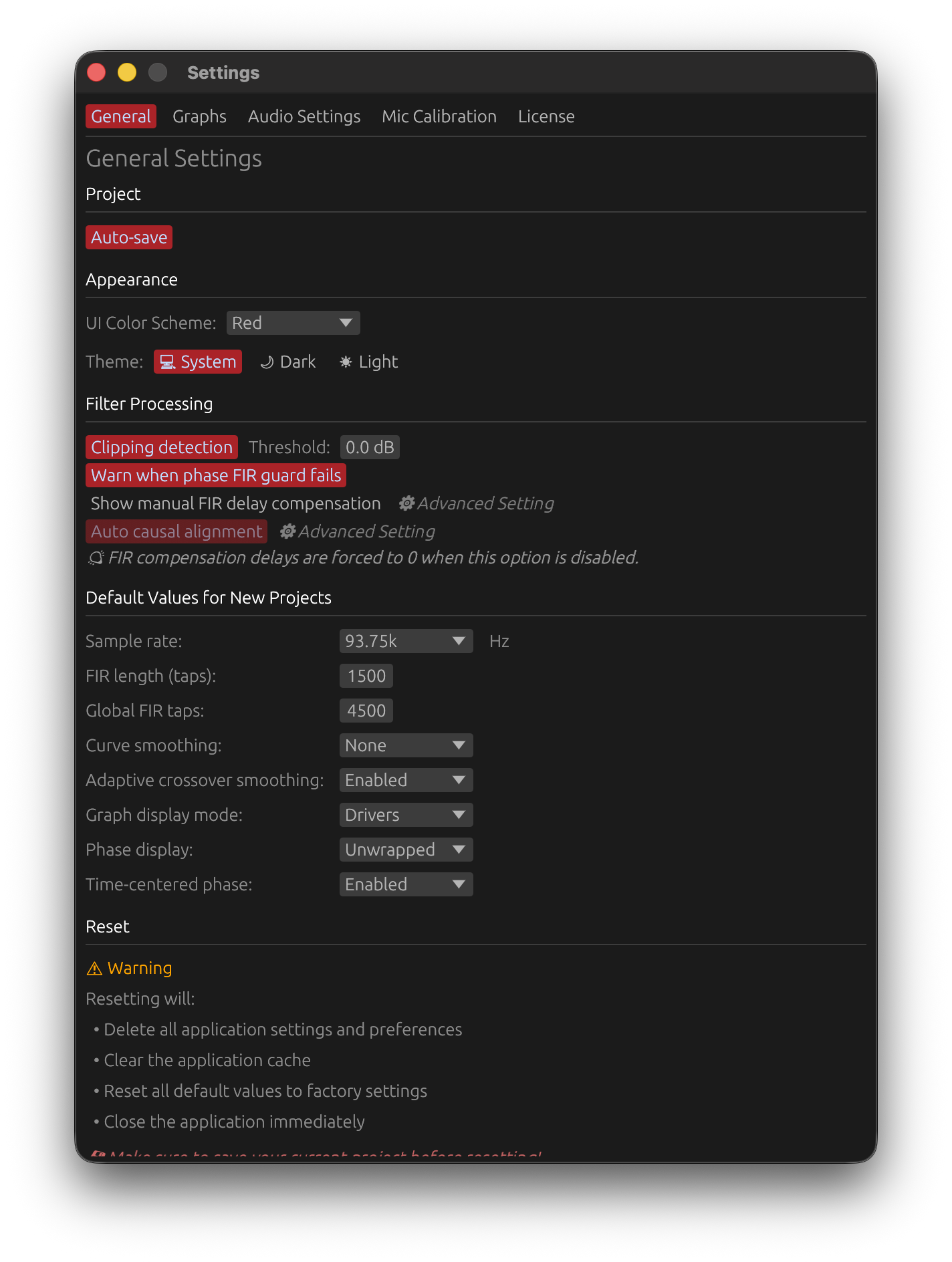
The General tab holds application-wide preferences, filter-processing behaviour, and the defaults applied to new projects. Changing a default here does not touch projects that already exist.
The tab is organised into: Project, Appearance, Filter Processing, Measurement & Import Quality, Default Values for New Projects, Diagnostics, and Reset.
Project
Auto-save
Automatically saves the project after a committed change (a capture, a filter edit, an undo/redo…).
- Requires a project path — auto-save only activates once the project has been saved to disk at least once. Until then a hint reminds you that “Auto-save will activate after first manual save”.
- When off, a “(disabled)” label appears next to the toggle and you save manually with File → Save / Ctrl / Cmd + S.
Appearance
UI Color Scheme
- Red (default) — custom red accent for section headers, graph titles, active buttons and selection highlights.
- Blue — the standard egui theme with blue accents.
Applies immediately, no restart.
Theme
The standard light / dark / follow-system buttons. “Follow system” tracks your OS appearance setting.
Language
The language of the user interface: Automatic (default), English or Français.
- Automatic follows the language of your operating system - French when the OS is set to French, English otherwise. The entry shows which language it currently resolves to, e.g. Automatic (Français).
- The change applies immediately, without restarting, and is remembered between sessions.
- Only the interface is translated: this documentation, exported files (reports, filter files), log files and bug reports stay in English.
Filter Processing
Settings that change how filter chains are computed and validated. These apply to the current session, not just new projects.
Clipping detection
Default: enabled · Threshold: 0 dB (range −5 to +2 dB)
Applies every active filter to a deterministic pink-noise test signal and warns when the output exceeds the threshold, suggesting a gain reduction.
The test runs in the background: it never slows down the graphs, even with long filters, and its warnings appear a moment after a change. Each filter chain is only re-tested when it actually changes — dragging one driver’s slider re-tests that driver alone — and a warning always stays attached to the right driver, even after reordering drivers.
Test signal: periodic pink noise, 20 Hz – 20 kHz, −3 dB/oct slope, band-shaped (12 dB/oct high-pass at 20 Hz, 24 dB/oct low-pass at 20 kHz), RMS ≈ −24 dBFS, peak = −6 dBFS.
Threshold (relative to 0 dBFS):
| Value | Behaviour |
|---|---|
| 0 dB (default) | Warn when the output reaches full scale — the standard safety level |
| −1 to −5 dB | Conservative — warn before full scale, keeping headroom |
| +1, +2 dB | Lenient — only warn well above full scale. ⚠️ Real clipping can then go unreported |
⚠️ The threshold field is only editable while clipping detection is on. Above 0 dB, a “⚠ Threshold above 0 dBFS” warning is shown. With detection off, “⚠ Safety warnings disabled” is shown.
Notes
- Measurement levels are not tested — the warning is purely about filter processing; the test signal is synthetic and independent of your measurement amplitude.
- Phase processing can clip even with a flat magnitude response — phase-correction FIRs, all-pass filters, and multiple FIRs with different causality can align components in time and push the temporal peak past 0 dBFS.
- Disabling removes the per-update test-signal processing (a small performance gain) and all safety warnings — always test with real content afterwards.
Warn when phase FIR guard fails
Default: enabled
The phase-correction auto-guard always runs: it raises f_min / f_max in 1/3-octave steps (up to 100 iterations) until the FIR’s magnitude deviation falls within the per-filter Guard Tolerance (0.1–15 dB, default 0.5 dB, set in each Phase Correction / Global FIR Phase Correction window).
When this toggle is on and the guard still gives up, a warning toast is shown. Turning it off silences the toast only — the guard keeps running. To fix the underlying failure: reduce the phase-correction amount, lower the Kaiser β, increase the tap count, or raise the Guard Tolerance.
Show manual FIR delay compensation ⚙ Advanced
Default: disabled (hidden)
Shows the FIR Offset Delay field in each driver’s FIR section and the FIR compensation delay field in the Global FIR Correction window. When disabled, every FIR compensation delay is forced to 0.
Keep this off unless you need manual control over FIR impulse alignment — incorrect values cause filter truncation and frequency-response ripples.
Auto causal alignment ⚙ Advanced
Default: enabled · Forced on whenever Show manual FIR delay compensation is off (there would otherwise be no way to correct a crop misalignment).
Optimises the crop-window position of the combined FIR impulse response when several filters with non-zero causality are active. The log-energy distribution around the IR peak is used to place the window proportionally, so causal pre-ringing or post-ringing isn’t disproportionately truncated at the tap boundary.
Active only when at least 2 FIR filters are enabled (LP / HP / correction / phase) and at least one has non-zero causality.
Leave it enabled unless you have solid DSP experience and want to position the impulse manually with the FIR delay-compensation fields.
Measurement & Import Quality
Always keep low-SNR measurements
Default: disabled
A sweep measurement or an imported impulse response with a peak level below −25 dB has a poor signal-to-noise ratio. By default, LinFIR pops up an always-on-top Low Signal Level Warning dialog when this happens, asking whether to Keep Anyway or Discard it — see Quality Validation and Import Signal Level Check for the full behaviour.
Turning this on skips that dialog: low-level captures and imports are kept automatically, with only a toast as a reminder.
⚠️ Correction filter quality strongly depends on measurement quality. A low signal-to-noise ratio means noisier data, which can produce inaccurate correction filters and skew phase visualization. Leave this disabled unless you specifically want to bypass the check — for example when re-importing a known-good but intentionally low-level measurement.
This setting does not affect clipping, which is always rejected outright regardless of this toggle — clipped data is corrupted, not just noisy, so there’s nothing to usefully keep. It also doesn’t affect an unattended auto-scan (off-axis sweep automation): a low level there still aborts the scan automatically rather than popping up a dialog nobody is there to answer, unless this setting is enabled, in which case the scan keeps going.
Default Values for New Projects
A two-column grid. Every row seeds a new project only.
| Setting | Options | Default |
|---|---|---|
| Sample rate | 44.1, 48, 88.2, 93.75, 96, 176.4, 192 kHz | 48 kHz |
| FIR length (taps) | 32 – 65536 | 512 |
| Global FIR taps | 32 – 65536 | 512 |
| Curve smoothing | None, 1/48, 1/24, 1/12, 1/6, 1/3 octave | None |
| Graph display mode | FIR, IIR, FIR+IIR, Drivers/Measurements | Drivers/Measurements |
| Phase display | Wrapped, Unwrapped | Wrapped |
| Time-centered phase | Disabled, Enabled | Disabled |
| Sync X-axis | Disabled, Enabled | Enabled |
Sample rate
Match your target DSP.
- 44.1 kHz — compact DSP platforms with limited processing power
- 48 kHz — professional-audio standard, most DSP platforms
- 88.2 / 96 kHz — high-resolution audio
- 93.75 kHz — Hypex FA-series amplifiers (FA123, FA253, FA502…)
- 176.4 / 192 kHz — only when the DSP platform requires it (higher CPU load, larger filters)
FIR length (taps) · Global FIR taps
Default tap count for per-driver FIR filters (LP / HP / correction) and for the global correction FIR.
- 512 – 2048 — enough for most crossover and correction work
- 4096 — typical maximum for standard loudspeaker design
- 8192 – 16384 — sub-bass phase / magnitude correction at very low frequencies
- More taps → finer resolution and steeper slopes, but higher latency (taps/2 samples for a linear-phase filter) and more DSP load
Curve smoothing
Fractional-octave smoothing applied to frequency-response curves. None by default — the raw response with all detail. 1/12 octave is a good balance of detail and readability; 1/3 octave shows overall trends only.
Graph display mode
Which curves a new project shows first. Drivers/Measurements (the fully-processed driver or measurement responses) by default. The other modes show filter responses only. Press F / D to switch modes at any time; the label reads “Drivers” in Loudspeaker Design mode and “Measurements” in Room Calibration mode.
Phase display
Wrapped (values in [−180°, 180°]) or Unwrapped (continuous). Group delay is always computed from unwrapped phase regardless of this setting. Press U to toggle.
Time-centered phase
Seeds the phase graph’s “Remove time of flight rotations” toggle (the toolbar and the C shortcut use that name; Settings calls the default “Time-centered phase”). When on, the linear-phase component (a constant group delay) is removed so the phase sits around 0°:
- Loudspeaker Design — removes the Sum curve’s linear delay from every driver (or the driver’s own delay for a single driver), so you can see phase alignment between drivers relative to the system
- Room Calibration — removes each measurement’s own linear phase independently (no shared reference)
- Filters mode — removes each filter’s own linear phase
Sync X-axis
Whether zooming one plot zooms all related plots. When on, every frequency plot (Magnitude, Phase, Group Delay, Directivity) shares one horizontal range and every time-domain plot (Impulse, Step) shares one time range. Enabled by default; toggle with X or the toolbar button.
Diagnostics
Verbose logging
Default: disabled · not persisted — always starts off.
Raises the log filter to debug at runtime, no restart or terminal needed. Enable it only when support asks, reproduce the issue, then submit Help → Report a Bug (the log file is attached automatically). Turn it back off afterwards — verbose logs are larger and rotate more often. See Bug Reports.
Reset
Reset Application Settings
⚠️ Cannot be undone.
Deletes every application setting and preference, clears the app cache, resets all new-project defaults to factory values, and closes LinFIR immediately (relaunch manually). The license activation is kept. Existing project files are untouched — save your current project first.
Graphs Settings
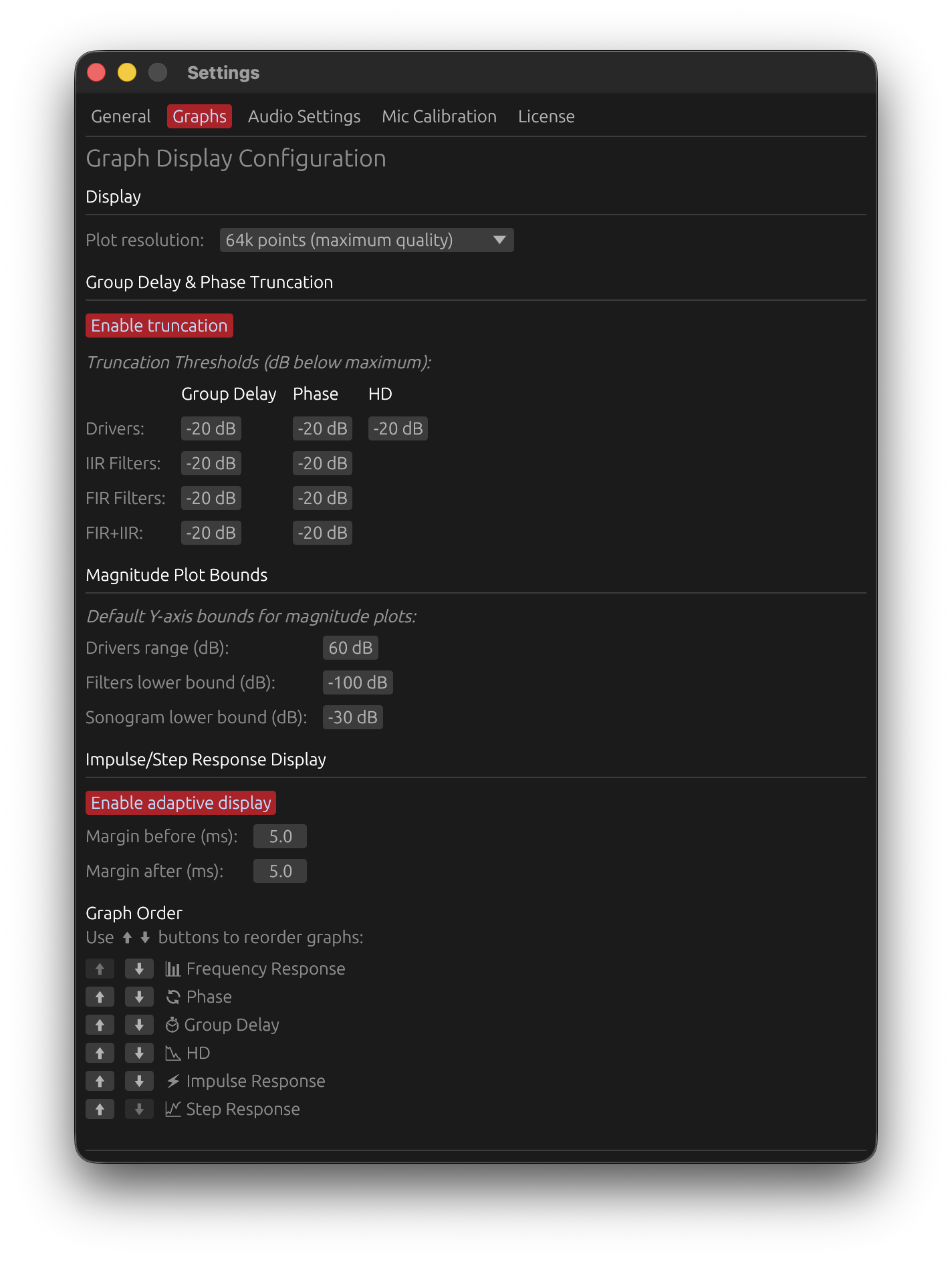
The Graphs tab controls how the plots are computed and displayed. Some rows act on the current project (crossover smoothing, truncation, plot bounds); others are defaults for new projects (graph order and visibility).
Sections, in tab order: Display, Group Delay & Phase Truncation, Frequency Axis, Magnitude Plot Bounds, Directivity Sonogram, Spectrogram, Impulse/Step Response Display, Response Overlays, Graph Order, Default Visibility, Default Overlays.
Appearance, filter-processing and new-project value defaults live on the General tab, not here.
Display
Plot resolution
Options: 16k points (faster), 32k points (balanced), 64k points (maximum quality) Default: 64k points
Number of frequency points used to compute filter and driver responses.
- Higher resolution → finer low-frequency detail in the magnitude, phase and group-delay plots
- Affects computation time for filter and measurement responses, not filter quality
- Drop to 16k or 32k on slower systems or with very long filters
Steep crossover smoothing
Default: enabled · acts on the current project (adaptive_crossover_smoothing).
Reduces the frequency-response smoothing near crossover frequencies so a steep filter’s true slope stays visible instead of being rounded off.
Reduction vs. effective acoustic slope — linear from 12 to 36 dB/oct, then held at 100 %:
| Effective slope | Smoothing reduction |
|---|---|
| ≤ 12 dB/oct (1st / LR2 / 2nd-order Butterworth) | none |
| 18 dB/oct (3rd-order Butterworth) | ~25 % |
| 24 dB/oct (LR4 / 4th-order Butterworth) | ~50 % |
| 30 dB/oct (5th-order Butterworth) | ~75 % |
| ≥ 36 dB/oct (LR6 and steeper) | 100 % |
| Brickwall FIR, or an IIR-derived cutoff (slope unknown) | 100 % |
At full reduction the smoothing drops to 1/96 octave at the cutoff. The reduction fades in over the 0.5 octave of passband next to the cutoff (smoothstep), reaching its minimum at the cutoff itself. Only the magnitude display curves are affected — phase, group delay and filter generation are untouched.
When disabled: uniform smoothing everywhere, matching external tools that use constant smoothing (which then show gentler crossover slopes than LinFIR’s adaptive mode).
Group Delay & Phase Truncation
Hide the group-delay and phase curves outside the active magnitude region.
Enable truncation
Default: enabled
When on, a curve is drawn only where its reference magnitude exceeds max + threshold. When off, the full curves are shown (“(showing full curves)” appears next to the toggle). Purpose: keep phase / GD out of stop-bands and cut visual clutter.
Truncation thresholds
A grid of DragValues, dB below the maximum, range −120 to 0 dB, all defaulting to −20 dB:
| Context | Group Delay | Phase | HD |
|---|---|---|---|
| Drivers | −20 dB | −20 dB | −20 dB |
| IIR Filters | −20 dB | −20 dB | — |
| FIR Filters | −20 dB | −20 dB | — |
| FIR+IIR | −20 dB | −20 dB | — |
- −20 dB means “show the curve only where magnitude > (max − 20 dB)”
- The reference magnitude matches the context — FIR curves use the FIR magnitude, drivers use the driver magnitude, etc.
- HD (harmonic distortion) truncation exists for the Drivers context only
Frequency Axis
The frequency range shown on every frequency-axis graph in the app (current project).
Min frequency (Hz)
Range: 1 Hz to (Max frequency − 1 Hz) · Default: 10 Hz
Max frequency (Hz)
Range: (Min frequency + 1 Hz) to 96 000 Hz · Default: 24 000 Hz
Reset
Restores both fields to 10 Hz / 24 000 Hz.
These two values replace what used to be a fixed range hardcoded per graph. They now drive:
- Magnitude, Phase, Group Delay, HD — the default/reset X-axis range, and which data points are drawn at all (a point outside
[Min, Max]is dropped, not just scrolled off-screen) - Directivity Sonogram — both the frequency range the heatmap image is sampled over and its on-axis overlay plot’s default range; a change regenerates the sonogram image
- Spectrogram — only the range its own window opens with. It has an independent Frequency Range control with its own Reset button — once opened, it no longer tracks changes made here except when that Reset is clicked.
Narrowing the range does not change how filters or the FIR/IIR chain are computed — it only affects what the graphs draw. It is independent of Sync X-axis: synced or not, “full range” now means this setting instead of a fixed 10 Hz – 24 kHz.
Magnitude Plot Bounds
Default Y-axis bounds for magnitude plots (current project).
Drivers range (dB)
Range: 20 – 200 dB · Default: 60 dB
Y-axis span for driver / measurement magnitude plots, drawn from max_response − range to max_response + 5 dB.
- 20–40 dB — zoomed, emphasises small variations
- 60–80 dB — good for most designs
- 100–200 dB — wide view of the full range
Filters lower bound (dB)
Range: −200 to −20 dB · Default: −100 dB
Lower Y-axis bound for filter magnitude plots (FIR, IIR, FIR+IIR).
- −40 dB — focus on the pass-band
- −100 to −200 dB — show deep stop-band attenuation
Directivity Sonogram
License-gated analysis window. These rows sit just below the magnitude-bound rows in the tab. The sonogram’s frequency range itself is set by Frequency Axis above, not here.
Sonogram lower bound (dB)
Range: −100 to −10 dB · Default: −30 dB
Bottom of the directivity-sonogram colour scale. Narrowing it exposes low-level decay / room modes; a change regenerates the sonogram image.
Highlight sonogram clipping
Default: enabled
Draws sonogram levels above the colormap maximum in off-white (fading from red over about 1 dB) instead of letting them saturate to the same red as the loudest in-range energy — so it is obvious where per-band normalization pushes the response over the reference level. Turn it off to have over-range values saturate to red.
Sonogram normalization
Options: Global max., Normalize to 0°, Normalize to 0° (per freq), Normalize to ±10° avg (per freq) Default: Global max.
The normalization mode the directivity sonogram opens with. It can still be changed per-session from the sonogram’s own toolbar. See Directivity Analysis.
Spectrogram
License-gated analysis window. See Spectrogram. Its frequency range is seeded by Frequency Axis above but adjustable independently from its own window — see Frequency Range.
Spectrogram lower bound (dB)
Range: −120 to −10 dB · Default: −30 dB
The Min dB value the spectrogram opens with, and what its Reset button restores. It also drives the time crop. It can still be changed per-session from the spectrogram’s own toolbar.
Spectrogram axes
Options: Time × Freq (time on X), Freq × Time (frequency on X) Default: Time × Freq
The axis layout the spectrogram opens with. The spectrogram’s toolbar button still swaps it per-session. See Spectrogram.
Spectrogram detail
Options: Standard (2048), High (4096), Ultra (8192) · Default: High (4096)
The size of the spectrogram compute grid — the number of frequency bins and time points the transform runs on before it is sampled onto the image. Higher is sharper but slower and more memory (Ultra ≈ 4× the compute time and ~256 MB per recompute). See Spectrogram → Detail.
Impulse/Step Response Display
Enable adaptive display
Default: enabled
Detects the signal boundaries (threshold 1/1000 of peak amplitude) and shows only that portion of the impulse and step responses, plus the margins below. When off, the complete impulse response (full tap length) is always shown — useful to inspect zero-padding, awkward with long IRs.
Margin before (ms)
Range: 0 – 50 ms · Default: 5 ms — keeps pre-ringing and early arrivals visible.
Margin after (ms)
Range: 0 – 100 ms · Default: 10 ms — captures the decay tail and late reflections.
Response Overlays
The Listening Window, Predicted In-Room Response and Directivity Index overlay toggles moved to the Graphs dropdown in the graph toolbar, alongside a new Sum / Average toggle - see Graph Visibility Toggles. Each project now remembers its own choice for these four; this tab only sets what a new project starts with - see Default Overlays below.
Show raw response when filter windows are open
Requires a valid license — without one the toggle is greyed out and the overlay isn’t drawn.
Default: enabled
When a filter window is open and in the foreground, a dashed overlay of that driver’s pre-filter response (gain + windowing only, no FIR/IIR) is drawn on the frequency, phase and group-delay graphs.
- Triggered by any per-driver LP / HP / correction / IIR window, or the Global FIR Correction / Global IIR window (the latter show the unfiltered sum / average)
- Only the window in the foreground counts: with several filter windows open, only the driver (or sum) of the window you are working in is overlaid, and nothing is shown when all filter windows are in the background
- Coloured to match the driver’s curve; the global overlay is white (dark mode) / black (light mode)
Use it to see how much correction a filter applies without toggling it off.
Graph Order
Drag a graph by its ☰ grip or its name and drop it above or below another one, or use the ⬆ ⬇ buttons to move it one step. The order applies to the graph stack immediately and is saved as the default layout for new projects.
The graphs can also be reordered directly in the main window, by dragging their title — see Reorder Graphs.
Default Visibility
A toggle per graph type (Frequency, THD, Group Delay, Phase, Impulse, Step) choosing which graphs are shown by default in new projects.
Default Overlays
A toggle per magnitude overlay curve (Sum / Average, Listening Window, Predicted In-Room Response, Directivity Index) choosing which are shown by default in new projects. Each project then remembers its own choice from the Graphs dropdown in the graph toolbar - see Graph Visibility Toggles.
Performance Considerations
Real-Time Filter Processing Architecture
LinFIR differs from traditional FIR design software in how it processes and displays results.
Real-time (“online”) filter generation:
- Filters are generated and applied to driver impulse responses in real time as you interact with the UI
- The complete signal-processing chain is computed immediately as you adjust parameters
- You see the true response of the entire chain instantly, including every windowing artifact
Why this matters:
- Immediate feedback — no “generate” / “apply” button
- Transparency — shows exactly what the filters can and cannot do, with all artifacts visible
- Accuracy — no approximation or preview mode
Filter Application Methods
FIR filters — applied via fast convolution (multiplication in the Fourier domain); cost scales with filter length and measurement count.
IIR filters — applied via recursive difference equations (time domain); extremely efficient regardless of complexity.
Performance Impact Factors
Filter length:
- Up to 4096 taps — negligible impact on modern CPUs
- 4096 – 8192 taps — slight delays on slower systems
- > 8192 taps — can noticeably slow interactive adjustments
Off-axis measurements: each angle re-runs the full filter chain — many angles + long filters means longer updates.
Driver count: every enabled driver adds a filter chain that must be summed; cost grows roughly linearly with driver count and multiplies with angles per driver.
Large Multi-Driver Projects (Sound Reinforcement)
Loudspeaker Design mode accepts up to 50 drivers, which makes it suitable for aligning a complete sound-reinforcement system — a line array, its subwoofer arrays, and the front fills, each cabinet or zone captured as a separate driver.
This is a supported workflow. Drivers are normally measured on-axis only (one measurement per cabinet or zone), so the load stays close to driver count × filter length:
- A 50-driver project recomputes 50 full convolution chains on every parameter change
- With filters of 8192 taps or more, dragging a crossover or sweeping a gain can become sluggish
- Recommendation: keep filter lengths at or below 4096 taps while setting up and aligning a large system, and only raise the tap count at the end if low-frequency resolution genuinely requires it
Edge case — polar measurements on many drivers at once
Capturing full polar (off-axis) sets for many drivers at the same time multiplies the cost rather than adding to it: 30 drivers × 19 angles is 570 complete filter chains per update. If you need directivity data alongside a large alignment project, capture polar sets for a few representative cabinets only, or keep that analysis in a separate, smaller project.
Room Calibration mode is unaffected. Polar measurements are not available there, so a 50-measurement room project only carries the linear cost of the measurement count.
Additional measures for large systems:
- Reduce plot resolution to 16k or 32k points
- Clipping detection runs in the background and doesn’t slow the graphs down; disabling it (Settings → General) only frees some CPU time on very large projects
Background Processing for Responsiveness
Priority (synchronous, immediate): the on-axis (0°, 0°) measurement, the currently displayed angle, and filter parameters.
Background (asynchronous, non-blocking): the remaining off-axis measurements, the directivity index, multi-driver sum calculations, and clipping detection.
The main graph always updates immediately for the selected angle, and the UI stays responsive during background work.
Optimization Recommendations
For slower systems or very long filters (> 8192 taps):
- Reduce plot resolution — Settings → Graphs → Plot resolution (16k or 32k)
- Limit off-axis measurements — reasonable angle increments (10 or 15°); on a large multi-driver project, capture polar sets only for the drivers that need directivity analysis
Performance is always good for: projects with standard filter lengths (≤ 4096 taps), IIR-only filtering, single on-axis measurements, and modern multi-core CPUs.
Best Practices
Performance
- Slower systems — reduce plot resolution to 16k / 32k points
- Large systems — keep FIR lengths moderate and work section by section with Solo / Disable
Filter design
- Keep Auto causal alignment enabled unless you need precise manual IR positioning
- Keep Show manual FIR delay compensation disabled unless you are experienced with FIR alignment
- Keep Clipping detection on during design; test with real content before deploying
Graph display
- Enable truncation for cleaner phase / GD plots
- Enable Steep crossover smoothing to read true crossover slopes
Audio Configuration
Before performing measurements or analyzing audio, LinFIR needs to be configured with the correct audio devices and parameters. This section covers the audio settings available in the application.
Accessing Audio Settings
Audio settings are accessed via:
- Menu: View → Settings → Audio Settings
- Keyboard: Cmd+, (macOS) or Ctrl+, (Windows), then select Audio Settings tab
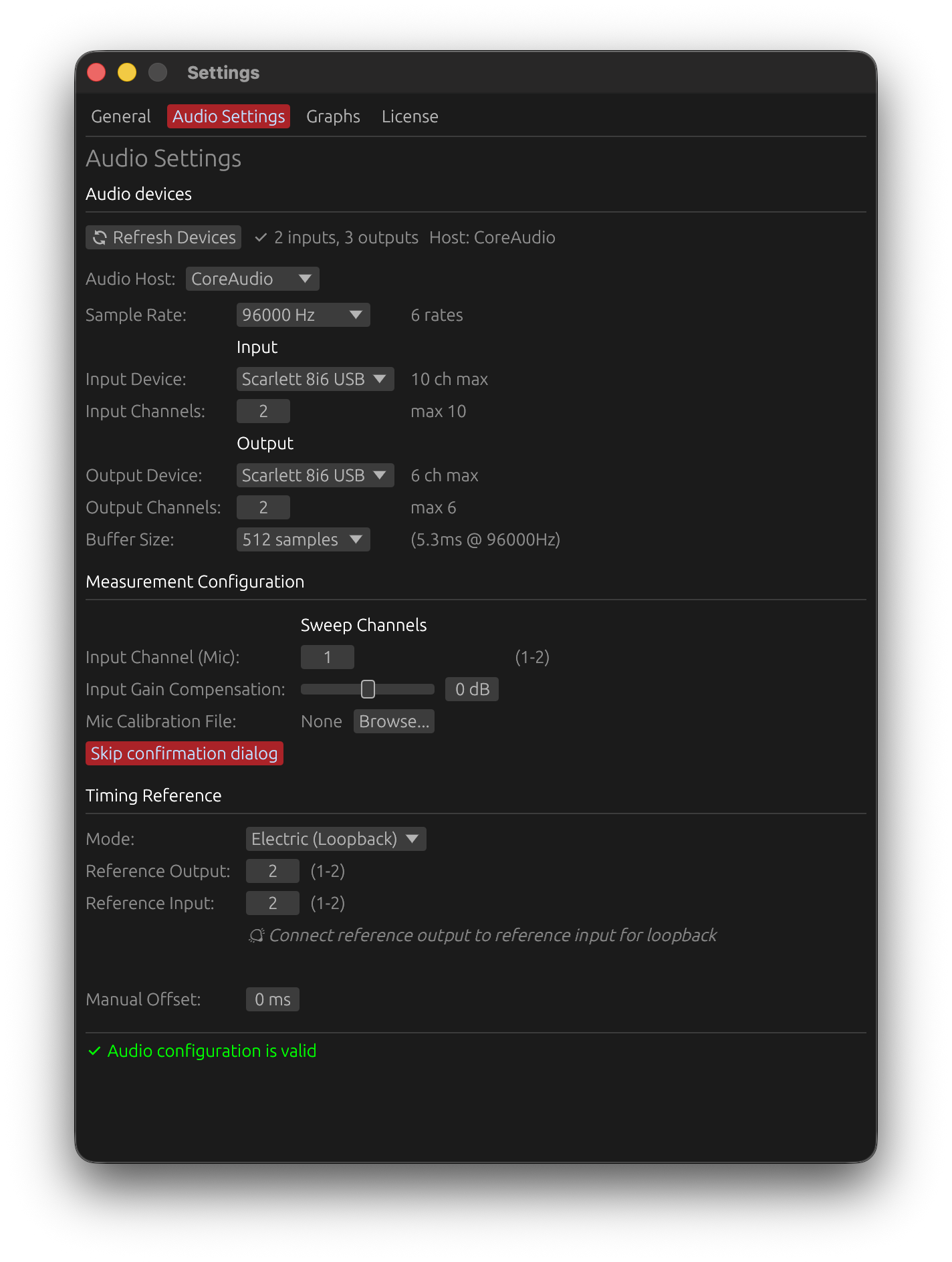

Device Selection
Input Device
The input device captures audio from microphones or measurement equipment:
- Click the dropdown to see available input devices
- Select your measurement microphone or audio interface input
- Verify the device shows the correct channel count
- Ensure the device isn’t in use by another application
Output Device
The output device plays back sweep signals or test tones:
- Select the audio interface connected to your loudspeaker system
- Verify the device supports the desired sample rate
- Check that the device has sufficient channels for your application
Refreshing Devices
If your audio device doesn’t appear:
- Click “Refresh Devices” to rescan available hardware
- Ensure the device drivers are properly installed
- Check that the device is powered on and connected
- Try restarting the application if the device remains unavailable
Sample Rate Configuration
Choose a sample rate matching your needs:
- 44.1 kHz: CD quality, most common for consumer audio
- 48 kHz: Professional audio standard, video production
- 88.2/96 kHz: High-resolution audio, improved time-domain precision
- 176.4/192 kHz: Ultra-high resolution (use only when necessary for THD analysis)
⚠️ Note: The sample rate must be supported by both your input and output devices. If a rate is unavailable, try a different value.
Sample Format Detection
LinFIR automatically detects and selects the best compatible audio sample format between your input and output devices:
- 16-bit integer (I16): Standard for most consumer audio devices
- 24-bit integer (I24): Professional audio interfaces (e.g., Dante Virtual Soundcard, RME, MOTU)
- 32-bit float (F32): High-end interfaces, ASIO and Core Audio devices
- 32-bit integer (I32): Some professional hardware
The format is automatically negotiated during measurement setup - no manual configuration required. If LinFIR cannot find a compatible format, try:
- Using ASIO drivers (Windows) for better professional interface support
- Updating your audio interface drivers
- Checking device sample rate compatibility
Buffer Size
Buffer latency is compensated internally and has no effect on measurement accuracy. The only criterion for choosing a buffer size is avoiding underruns (audio dropouts caused by the buffer emptying before it can be refilled).
- Smaller buffers (128-256 samples): More demanding on the CPU — increase the risk of dropouts on slower systems
- Recommended (512-1024 samples): Reliable on most systems
- Larger buffers (2048+ samples): Maximum stability, useful if dropouts persist
If you experience audio dropouts during measurements, increase the buffer size. Otherwise, any value works.
Input Gain Compensation
Software-based gain adjustment applied to the input signal:
- Range: -32 dB to +32 dB
- Purpose: Compensate for fixed or unavailable hardware gain controls
- Use case: Particularly useful for USB microphones like UMIK-1 on Mac OS
- Clipping: always detected on the raw converter level, before this compensation - a positive compensation no longer triggers false clipping alarms, and a negative one no longer hides real clipping
Why Use Input Gain Compensation?
Some measurement microphones have fixed gain or no hardware gain control, particularly on certain platforms:
- Mac OS USB microphones: Mac OS enforces very low fixed gain for USB microphones
- UMIK-1 example: No hardware control available in Mac OS system settings
- Solution: Use positive gain compensation (+18 to +24 dB) to achieve optimal recording levels
Important Notes
- Input gain compensation does not improve signal-to-noise ratio
- It’s a convenience feature for level matching, not a replacement for proper gain staging
- Optimal SNR still requires appropriate acoustic levels and microphone positioning
- Use hardware gain controls when available for best results
Default Sweep Parameters
Configure default settings for the built-in sweep measurement system. These apply to new measurement captures and can be accessed in the Audio Settings tab under Measurement Configuration.
Sweep Duration
Range: 1.0 to 10 seconds Default: 5 seconds
Default length of exponential sine sweep (ESS) for impulse response measurements.
- Shorter (1.0-2s): Faster measurements, lower frequency resolution
- Longer (5-10s): Better low-frequency resolution, improved signal-to-noise ratio, better harmonic distortion measurement
Benefits of longer sweeps:
- Improved signal-to-noise ratio for harmonic distortion analysis
- Better frequency resolution at low frequencies
- More reliable detection and separation of weak harmonics
⚠️ Important: Longer sweeps deliver more energy to the driver at low frequencies (exponential sweeps spend more time in the bass region). For drivers with limited excursion capability, this may require raising the start frequency or reducing the sweep level to avoid over-excursion.
Recommendation: 5-7 seconds for full-range measurements, 2-3 seconds for quick driver checks.
Sweep Level
Range: -40 to 0 dBFS Default: -6 dBFS
Default output level for sweep signals.
Adjust this to match your amplifier’s input sensitivity and desired acoustic level. Lower values provide headroom for systems with high gain.
Start Frequency
Range: 1 to 5000 Hz Default: 1 Hz
Default cutoff frequency for the 4th-order Butterworth high-pass filter applied to the sweep signal for driver protection.
Filter Characteristics:
- Attenuation at Start Frequency: -3 dB (Butterworth characteristic)
- Roll-off below cutoff: -24 dB/octave (deterministic, 4th order)
Frequency Guidelines:
- 1 Hz: Lowest configurable frequency, captures near-DC response
- 20 Hz: Typical for full-range loudspeaker measurements
- 60-70 Hz: Example for 80 Hz passband (accounts for -3 dB at cutoff)
- >1000 Hz: Tweeter protection (above resonance frequency)
⚠️ Critical: Position Start Frequency slightly below your desired passband start to compensate for the -3 dB attenuation at cutoff, but always above driver safety limits. Setting too low can cause mechanical or thermal damage.
See Start Frequency: Driver Protection for detailed guidance on driver-specific settings.
End Frequency
Range: Auto, or a value from half an octave above Start Frequency up to the Auto value Default: Auto
End of the sweep’s full-amplitude band.
- Auto: 1/48 octave below Nyquist (~23.4 kHz at 48 kHz, ~47.3 kHz at 96 kHz) — the historical fixed behaviour. Keep it here for normal measurements.
- Lower value: the sweep is flat up to this frequency, then a sin² fade-out to
min(Nyquist, ×2), and nothing above. There is no filter and no roll-off — the response stays flat right up to the End Frequency (unlike the Start Frequency, which is a −3 dB filter cutoff).
When to lower it: a driver with severe cone breakup can have a resonance so loud that you must reduce the sweep level to avoid clipping, which ruins the SNR of the useful band. Setting End Frequency below the resonance keeps it out of the capture entirely.
See End Frequency for the full explanation, including why the top is not symmetric with the bottom.
Using Default Values
These default values are applied when:
- Opening a new measurement window for the first time
- Clicking the Reset Start Freq button in the measurement window
- Creating a new driver without saved sweep parameters
Changing these defaults affects only future measurements - existing measurements retain their configured parameters.
Platform-Specific Considerations
Mac OS
- Timing stability: Excellent (< 0.01ms typical jitter)
- Timing reference: Optional when the same device is used as input and output but recommended for best accuracy
- Multi-interface: Highly reliable even with different input/output devices
- USB microphones: May require input gain compensation due to OS-enforced low gain with usb devices
Windows
- Timing stability: Variable (1-150ms jitter due to scheduler instability)
- Timing reference: Strongly Recommended (Electric or Acoustic mode) for absolute timing accuracy
- Timing inconsistency: IR arrival time may vary without timing reference
- ASIO drivers: Provide improved stability compared to WASAPI
- Measurement averaging: Works with or without timing reference (continuous capture method)
A timing reference on Windows improves absolute timing consistency when comparing measurements across drivers.
Configuration Checklist
Before starting measurements, verify:
- Input device selected and recognized
- Output device selected and functional
- Sample rate matches project settings
- Buffer size set to 256 or 512 samples
- Input gain compensation configured (if needed)
- Microphone calibration loaded (if available)
- Timing reference configured (see Reference Timing below)
- Devices not in use by other applications
Reference Timing for Sweep Measurements
Accurate timing is critical for consistent impulse response measurements, especially when capturing multiple measurements for averaging or multi-position analysis. LinFIR provides three timing reference modes to accommodate different hardware configurations and platform requirements.
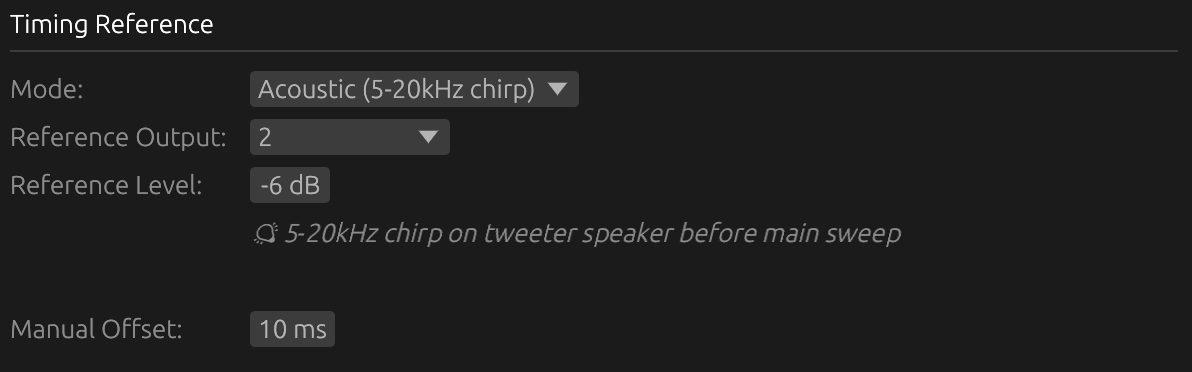
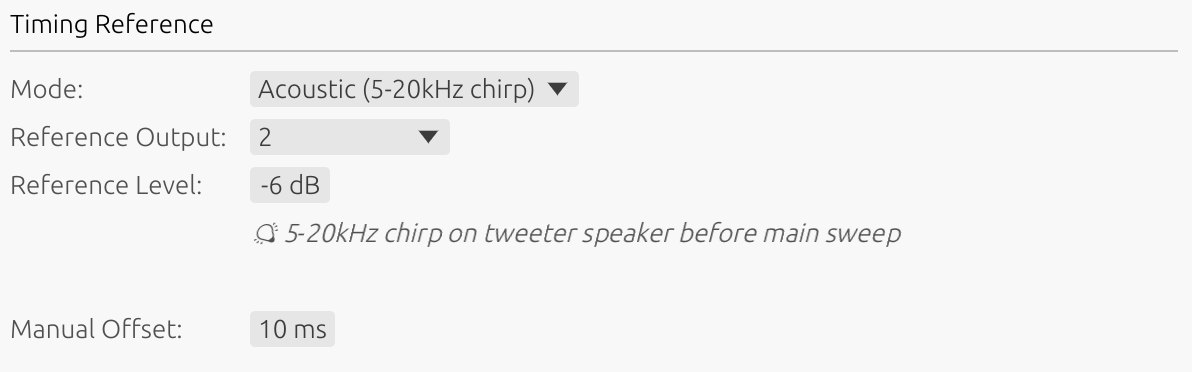
Why Timing Reference Matters
Audio playback and recording systems introduce latency from:
- Digital-to-analog conversion (output)
- Analog-to-digital conversion (input)
- Buffer processing delays
- Operating system scheduler variability
Without a stable timing reference, each measurement may have slightly different latency, making:
- Driver alignment unreliable
- Directivity analysis inaccurate (time-of-flight variations)
Timing Reference Modes
None
No timing reference - relies solely on system scheduler timestamps.
How it works:
- Uses operating system audio clock
- Timestamps based on buffer callback timing
- No additional hardware or connections required
When to use:
- Mac OS systems (low scheduler jitter, typically < 0.01 ms)
- Single-shot measurements without averaging
- Simple setups where high precision isn’t critical
Limitations:
- Windows: Not recommended due to significant scheduler jitter (1-150 ms)
- IR arrival time may vary between captures
Mac OS: Reliable and accurate for most applications when using the same device as input and output. Windows: Avoid for professional work - use Electric or Acoustic mode instead.
Electric (Loopback)
Uses a physical cable connection between output and input to provide a stable timing reference.
How it works:
- Connect line output to line input with a cable
- Loopback signal captures exact OS and electrical latency
- Combined electrical and conversion latency measured
- Provides sample-accurate timing reference
Setup:
- Connect output channel to spare input channel with audio cable
- Select “Electric” timing reference mode in Audio Settings
- Ensure loopback channel is not the measurement input channel, and that the sweep and the timing reference use different output channels (a measurement with both on the same output is refused)
- Run sweep - loopback captures timing automatically
Advantages:
- Most accurate timing reference
- Platform-independent reliability
- Compensates for interface-specific latency
- Eliminates scheduler jitter completely
When to use:
- Windows systems (strongly recommended)
- Designing crossovers
- Professional applications requiring highest accuracy
- Different input/output devices (aggregate devices)
Limitations:
- Requires spare input channel for loopback
- Requires physical cable connection
- May not be available on simple USB audio interfaces
Acoustic
Uses another driver (reference driver) as a timing microphone.
How it works:
- Reference driver captures sweep output acoustically
- Provides stable timing reference based on acoustic arrival
- Measures relative timing between reference and measured driver
- Does not capture true absolute acoustic + electrical travel time
Setup:
- Select a reference driver (must reproduce high frequencies > 5 kHz)
- Position reference driver microphone to capture sweep clearly
- Select “Acoustic” timing reference mode in Audio Settings
- Reference driver captures timing on each sweep
Advantages:
- No loopback cable required
- Works when electrical loopback unavailable
- Good alternative for Windows users without spare input channels
- Suitable for multi-driver directivity measurements
When to use:
- Loopback hardware not available
- Windows systems (recommended alternative to None)
Limitations:
- Only measures relative timing (not absolute acoustic delay)
- Reference driver must reproduce high frequencies cleanly
- Acoustic path must be clear and consistent
- Less accurate than Electric mode
Important: Reference driver should be full-range or at least capable of reproducing 5-10 kHz cleanly for reliable timing detection.
Manual Offset (Preferences)
Adjustable time offset to shift the impulse response position.
- Range: ±4000 ms
- Applies to: All timing reference modes (None, Electric, Acoustic)
- Purpose: Shift the IR forward or backward in time
Use in all modes (convenient)
The offset can be used in any timing mode to position the IR at a convenient location in the window — for example, to center it or add pre-delay before a gate. This is optional and has no impact on accuracy.
⚠️ Caution: A positive offset shifts the IR earlier in the window. If the offset is too large (positive), the impulse peak may move before t=0 and be clipped. Keep the offset small enough to leave sufficient pre-delay in front of the impulse.
Use in Acoustic mode (required in certain cases)
In Acoustic mode, the timing reference is based on the acoustic arrival at the reference driver. If the reference driver is at a similar or shorter distance from the microphone than the measured driver, the IR of the measured driver will appear at time zero or even before it — making it impossible to capture the full impulse response.
In this case, a positive offset must be applied to shift the IR forward and restore the expected relative delay.
Example — reference closer than measured driver:
- Reference driver is 150 cm from the microphone
- Measured driver is 200 cm from the microphone
- Acoustic delay difference ≈ 1.5 ms (50 cm / 343 m/s)
- Apply a positive offset just above ~1.5 ms — large enough to place the impulse response after t=0 with a safety margin
- Use the same offset, mic distance, and reference driver for all measurements in the project — since the offset is constant, the relative acoustic delay between drivers is preserved, enabling accurate temporal alignment when designing crossovers
Fine-tuning:
- Run test measurement
- Check impulse response time alignment
- Adjust offset in small increments
- Re-measure to verify alignment
Platform Requirements
Windows
- Averaging: Works with or without timing reference (continuous capture eliminates jitter issues)
- Scheduler jitter: Significant (1-150 ms variable latency) for initial timing only
- Recommendation: Timing reference still recommended for absolute timing accuracy across sessions
- Single measurements: Work with “None” mode but may have timing variation
Without timing reference on Windows:
- Each measurement has unpredictable latency
- Directivity analysis compromised
- Time and phase alignment between drivers will lead to wrong results
Mac OS
- Scheduler jitter: Minimal (< 0.01 ms typical)
- Recommendation: Timing reference optional but still beneficial for best accuracy
- Multi-interface: More stable than Windows even without reference
Choosing the Right Mode
| Situation | Recommended Mode |
|---|---|
| Windows + single shots | Acoustic or Electric (None acceptable) |
| Mac OS + single shots | None acceptable, Electric for best accuracy |
| Different input/output devices | Electric strongly recommended |
| Directivity measurements | Electric or Acoustic |
| Crossover design | Electric or Acoustic |
| No spare input channel | Acoustic (Windows) or None (Mac OS) |
Configuration Workflow
-
Assess requirements:
- Single measurement or averaging?
- Mac OS or Windows?
- Spare input channel available?
-
Select mode:
- Windows averaging → Electric or Acoustic
- Mac OS → None acceptable, Electric for best results
- No loopback → Acoustic (if reference driver available)
-
Setup hardware (if Electric):
- Connect output to spare input channel
- Verify loopback signal path
-
Setup reference driver (if Acoustic):
- Select driver with good high-frequency response
- Position reference microphone to capture sweep clearly
-
Configure in Audio Settings:
- Select timing reference mode
- Adjust timing offset if needed (Acoustic mode)
-
Test:
- Run test measurement
- Verify timing consistency
- Adjust offset if required
Timing Reference Troubleshooting
Inconsistent Measurements
Symptom: Each measurement has different arrival time Cause: No timing reference active Solution: Enable Electric or Acoustic mode
Reference Signal Not Detected
Symptom: Error message saying the timing reference could not be detected (the measurement is not aligned on a guessed timestamp instead) Cause: Loopback not connected or reference driver not capturing sweep Solution:
- Electric: Verify cable connection and input channel selection
- Acoustic: Ensure reference driver can reproduce sweep frequencies
Timing Offset Not Working
Symptom: Impulse still misaligned after offset adjustment Cause: Incorrect offset direction or magnitude Solution:
- Try opposite sign (positive ↔ negative)
- Increase offset magnitude
- Verify reference driver is capturing sweep correctly
Best Practices
- Windows users: Always use Electric or Acoustic mode for professional work
- Loopback preferred: Most accurate, eliminates all timing variables
- Acoustic alternative: Good fallback when loopback unavailable
- Test before session: Verify timing consistency with test measurements
- Document settings: Record timing mode and offset in project notes
- Consistent hardware: Use same interface for all measurements in a session
Troubleshooting
Device Not Listed
- Click “Refresh Devices” to rescan
- Ensure device drivers are installed
- Check that device isn’t in use by another application
- Try different sample rates or buffer sizes
- Restart LinFIR
Configuration Invalid
- Selected devices may have been disconnected
- Sample rate may not be supported by device
- Channel count may exceed device capabilities
- Try selecting default devices and refreshing
Audio Dropouts
- Increase buffer size
- Close other applications using audio
- Check for system resource constraints
- Update audio interface drivers
No Sound During Sweep
- Verify output device is selected and powered on
- Check system audio settings
- Ensure exclusive mode isn’t blocking access (Windows)
- Try different buffer sizes
- Verify output channel selection in IR Management window
Measurement Calibration
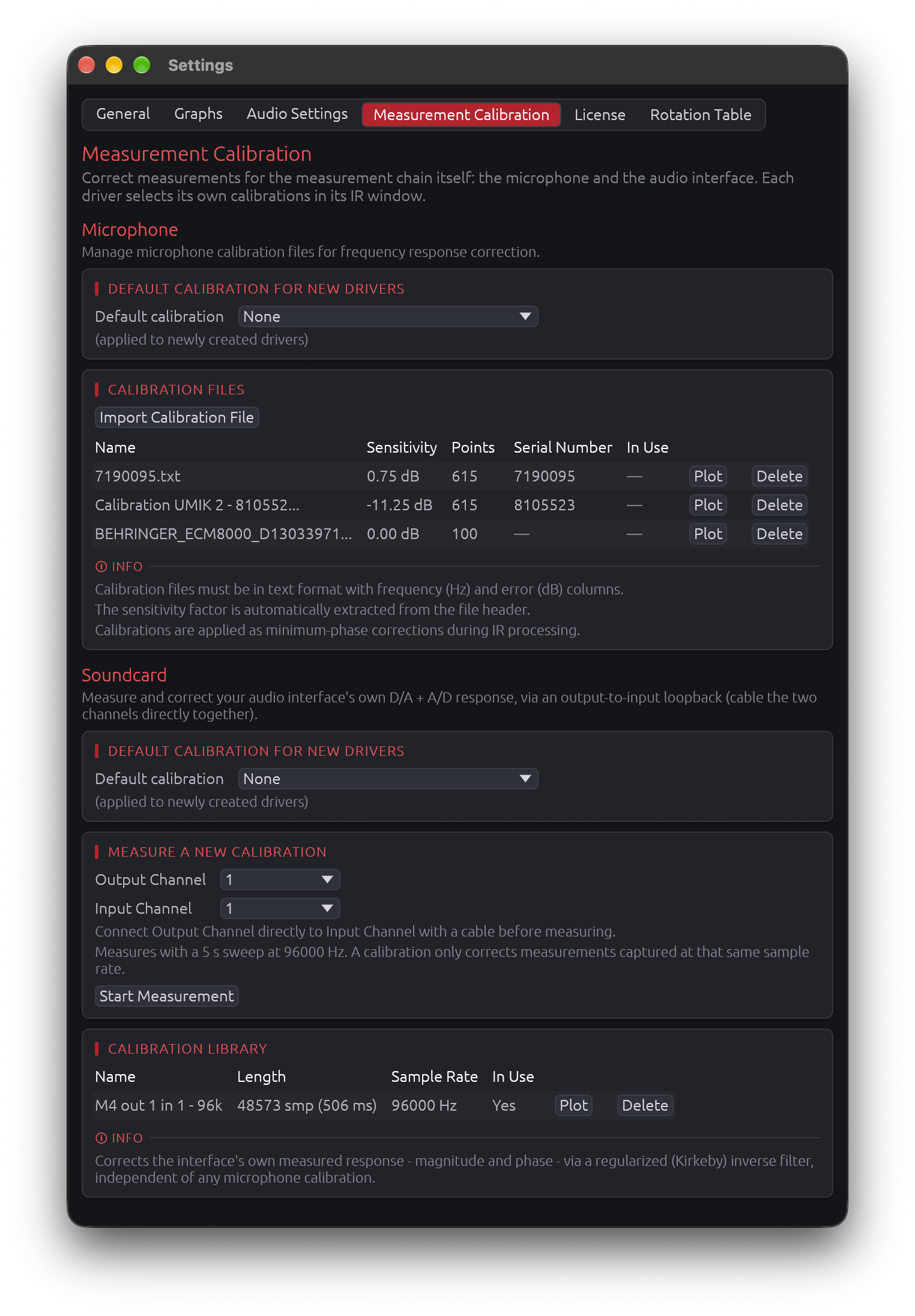
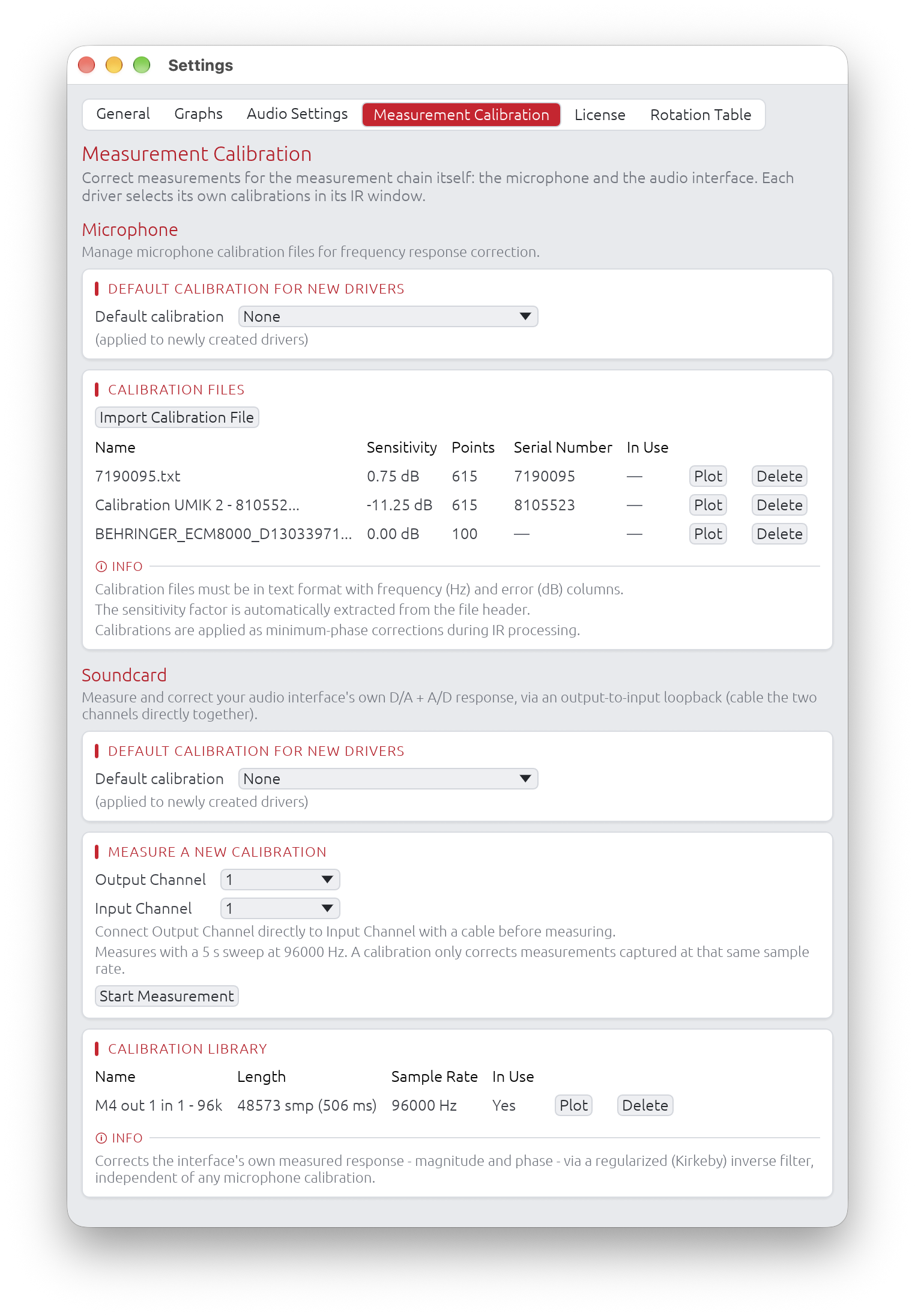
Correct measurements for the measurement chain itself, in two independent parts:
- Microphone: the measurement microphone’s frequency response and sensitivity, from its calibration file
- Soundcard: the audio interface’s own response, measured through a loopback cable
Each part keeps a library of calibrations in application settings, with a default for newly created drivers. Each driver then selects its own microphone and soundcard calibration (or none) in its IR window - see IR Management → Measurement Calibration.
Microphone
Manage calibration files for measurement microphones and define default calibrations for new drivers.
Overview
Microphone calibration compensates for the frequency response and sensitivity of your measurement microphone. LinFIR supports:
- Multiple calibration files stored in application settings
- Per-driver calibration selection in the IR Management window (see IR Management)
- Default calibration for newly created drivers
- Automatic application to new projects when a default is set
- Minimum-phase correction computed in real-time from calibration data
Calibration scope:
- Calibration data is embedded in project files (
.lnf) for portability - Calibrations from projects are also stored in application settings for reuse
- Each driver can use a different calibration file or none at all
Calibration File List
The main section displays all imported calibration files in a scrollable grid:
| Column | Content |
|---|---|
| Name | Calibration name, from the imported file (hover for the full name when truncated) |
| Sensitivity | Microphone sensitivity factor in dB |
| Points | Number of frequency/magnitude pairs in the file |
| Serial Number | Microphone serial number (if present in file), — otherwise |
| In Use | Yes if used in current project (hover to see driver names), — otherwise |
| Plot | Shows the calibration’s frequency response |
| Delete | Removes the calibration |
Automatic driver updates:
- When you delete a calibration file that’s currently assigned to one or more drivers, those drivers are automatically reset to “None”
- A warning toast will notify you which drivers were affected
- This prevents broken references and ensures project stability
Default Calibration
Select a calibration file to automatically apply to newly created drivers.
Dropdown selector:
- Shows “None” when no default is set
- Lists all imported calibration files by name
- Changes apply immediately to new drivers and projects
When the default is applied:
- Manual driver creation: When you add a new driver via the Drivers toolbar
- New Loudspeaker Design project: All initial drivers receive the default calibration
- New Room Calibration project: The initial measurement receives the default calibration
Note: Changing the default does not affect existing drivers in the current project or previously saved projects. Only new drivers created after the change receive the new default.
Import Calibration File
Click “Import Calibration File” to load a microphone calibration file.
Supported file format:
- Plain text files with two or three columns: Frequency (Hz), Magnitude (dB), and optionally Phase (degrees)
- Whitespace or comma-separated
- Lines starting with non-numeric characters are treated as comments/headers
- Optional header line with sensitivity factor and serial number
Note on phase column: If a third column (phase) is present, it is intentionally ignored. Phase data exported by calibration software is typically smoothed, wrapped, or otherwise processed in ways that make it unsuitable for direct use in transfer function reconstruction. Since measurement microphones exhibit predominantly minimum-phase behavior, reconstructing the phase from the magnitude alone (via Hilbert transform) is both accurate and more robust than relying on the exported phase values.
Example file format:
# Sens Factor = -2.5dB, SERNO: 41486651
# Frequency (Hz)  Magnitude (dB)
20.0              -0.5
50.0              -0.3
100.0             -0.1
200.0              0.0
500.0              0.1
1000.0             0.0
2000.0            -0.2
5000.0            -0.5
10000.0           -1.0
20000.0           -2.0
Sensitivity factor and serial number:
- Sensitivity factor (in dB) is automatically extracted from the file header if present (line containing “Sens Factor”)
- Serial number is automatically extracted if present (SERNO: field in header)
- If no sensitivity factor is found in the file, it defaults to 0 dB
- Serial number is used to differentiate calibrations with identical filenames when sharing projects
Storage:
Calibration data (frequency response, sensitivity, and serial number) is embedded in project files (.lnf) to ensure portability:
- Projects can be shared without requiring recipients to have the calibration files
- When loading a project, calibrations are automatically added to application settings if not already present
- If a calibration with the same name exists:
- With serial number: differentiated using serial number (e.g.,
filename (SN:7016078)) - Without serial number: differentiated using numeric suffix (e.g.,
filename (1),filename (2))
- With serial number: differentiated using serial number (e.g.,
- You can also manually import calibrations to your settings library for reuse across projects
How Calibration is Applied
Minimum-phase correction: LinFIR converts the imported frequency response correction into a minimum-phase FIR filter applied during IR processing.
Processing steps:
- Frequency filtering: Bins below 5 Hz are removed to prevent phase distortion at very low frequencies
- Interpolation: Calibration data is interpolated to match your IR’s sample rate and FFT size
- Minimum-phase conversion: Magnitude correction is converted to minimum-phase using Hilbert transform
- Sensitivity compensation: The sensitivity factor (dB) is applied as a gain adjustment
- IR application: The resulting correction filter is convolved with the driver’s impulse response
Phase behavior: LinFIR does not use phase data from calibration files, even when present. Instead, the correction filter’s phase is reconstructed from the magnitude response via the Hilbert transform (cepstral minimum-phase lifting). This is intentional:
- Phase columns in calibration files are typically smoothed, wrapped, or quantized by the calibration software, and directly applying such data would introduce artifacts.
- Measurement microphones exhibit predominantly minimum-phase behavior in their frequency response deviations, meaning the phase is largely determined by the magnitude — making reconstruction accurate without measured phase.
The resulting correction therefore affects both magnitude and phase of the measurement, with the phase derived from minimum-phase theory rather than read from the file.
Per-Driver Calibration Selection
Each driver can use a different calibration file (or none). To assign a calibration to a specific driver, use the Microphone dropdown of the Measurement Calibration section in the IR Management window.
See: IR Management → Measurement Calibration
Best Practices
File organization:
- Use descriptive filenames that include microphone model and serial number
- Example:
UMIK-1_SN123456.txtorEarthworks_M30_SN789.txt
Calibration maintenance:
- Import calibration files for all your measurement microphones
- Set your most frequently used microphone as the default
Project workflow:
- Assign calibrations in the IR Management window after importing measurements
- Use “None” for measurements taken with already-flat reference microphones
- Different drivers in the same project can use different calibrations (useful when combining measurements from multiple sessions)
Frequency range:
- Ensure calibration files cover the full measurement bandwidth
- LinFIR interpolates between provided points, but extrapolation beyond the calibration range may produce inaccurate results
- Most measurement microphones provide calibration data from 20 Hz to 20 kHz
Sensitivity factor:
- Use the value from your microphone’s calibration certificate
- This is typically a negative dB value (e.g., -0.5 dB, -2.4 dB)
- If unsure, use 0 dB and rely solely on the frequency response correction
Soundcard
Measure your audio interface’s own response once, and remove it from every measurement taken through it.
Overview
An audio interface is not perfectly transparent: its converters and their filters shape the magnitude and phase of everything you measure, mostly at the frequency extremes (phase rotation in the low bass, roll-off and phase shift near Nyquist). A soundcard calibration measures that response through an output-to-input loopback cable and corrects it with a regularized (Kirkeby) inverse filter:
- Magnitude and phase are both corrected, from the measured response itself
- Timing is preserved: the corrected impulse response stays where it was, so window positions and delays are unaffected
- Overall level is unchanged: only the response’s shape is corrected
- Correction range follows the sweep the calibration was measured with; outside it, measurements are left untouched
- Independent of the microphone calibration: a driver can use either, both, or neither
Default Calibration
Select a calibration to automatically assign to newly created drivers. As for microphones, changing the default does not affect existing drivers.
Measure a New Calibration
- Connect the Output Channel directly to the Input Channel with a cable - no amplifier, no microphone
- Select both channels, then click Start Measurement
- When the measurement completes, give it a Name and click Save (or Discard)
The measurement uses a 5 s sweep at the sample rate currently set in Audio Settings.
Sample rate matters. A soundcard calibration only corrects measurements captured at the sample rate it was measured at: an interface’s response changes from one sample rate to another, so a calibration is never resampled. Measure one calibration per sample rate you work at. In a driver’s IR window, calibrations measured at another sample rate than the driver’s measurements are greyed out, and a warning is shown if the selected one doesn’t match.
Calibration Library
| Column | Content |
|---|---|
| Name | Name given when saving the measurement |
| Length | Impulse response length, in samples and milliseconds |
| Sample Rate | Sample rate the calibration was measured at |
| In Use | Yes if used in the current project (hover to see driver names) |
| Plot | Shows the calibration’s frequency response |
| Delete | Removes the calibration; drivers using it are reset to “None”, with a warning |
Storage: like microphone calibrations, soundcard calibrations are embedded in project files and added to application settings when a project is loaded.
How the Correction is Applied
- Applied to every measurement of the driver, on its impulse response (or its near-field / far-field spliced response) before the time window
- Computed once per measurement and reused: changing the window or other settings doesn’t recompute it
- Harmonic distortion is analyzed on the uncorrected capture, since a correction would shift the harmonics’ positions; the calibration is then applied as a gain to the fundamental and to each harmonic at its own frequency
Best Practices
- Measure through the same interface, channels, and sample rate as your driver measurements
- Measure again after changing the interface, its routing, or the sample rate you work at
- On a loopback, the interface’s own distortion is part of both the measurement and the calibration: interpret the THD of a loopback measurement with care
License
The License tab allows you to activate and manage your LinFIR license.
License Features
A valid LinFIR license unlocks advanced analysis features:
- Off-axis measurements: Import and analyze measurements at angles other than 0° (horizontal and vertical)
- Directivity Index (DI): Calculate and visualize directivity patterns across frequency
- Directivity Analysis: Access the Directivity Analysis window (sonogram and overlay plot) for detailed directivity visualization
- Spectrogram: Access the Spectrogram window (shortcut W) for time-frequency visualisation of the impulse response
- Multi-angle visualization: View multiple measurement angles simultaneously in graphs
- Pre-filter response overlays: When a FIR or IIR filter configuration window is open and in the foreground, a dashed overlay of that driver’s (or the sum’s) unfiltered response (magnitude, phase, and group delay) is displayed on the corresponding graph, making it easy to compare the raw and filtered curves without toggling filters on and off
- Auto EQ — Auto-generate: The Auto-generate toggle in the IIR Auto EQ tab (per-driver and global) automatically re-runs the EQ optimization whenever any parameter in the Auto EQ tab changes, removing the need to manually trigger a recalculation
- Harmonic distortion details: View individual harmonic levels (THD breakdown by harmonic)
- Near-field / far-field splicing: The splicing wizard, which synthesizes a full-range anechoic response from near-field element captures and far-field polar measurements (see Near-Field / Far-Field Splicing)
- Hypex FusionAmp mode: Create projects for Hypex FA series amplifiers with hardware-locked parameters and HFD export
Without a license, LinFIR operates with full functionality for on-axis measurements only (0°, 0°). The following features are unavailable without a license: off-axis analysis, directivity tools (DI, sonogram and overlay plot), spectrogram, pre-filter response overlays, Auto EQ auto-generate, harmonic distortion breakdown by harmonic, near-field / far-field splicing, and Hypex FusionAmp project creation.
Activating Your License
If you don’t have an active license, the License tab will display an activation form.
Activation Process
-
Enter your license key
- Format:
xxxxxxxx-xxxx-xxxx-xxxx-xxxxxxxxxxxx - Provided in your purchase confirmation email
- Format:
-
Enter your email address
- Must match the email used for purchase
- Used for license validation
-
Click “Activate License”
- Creates a new activation tied to this specific machine
- Each activation is identified by a unique instance name and ID
Important:
- Each license allows one activation at a time
- Each activation is machine-specific
- You must deactivate one machine before activating another
- You can manage activations from the License tab
License Status
When a license is active, the License tab displays:
Current License Information
- Customer name: License holder’s name
- Email: Email address associated with the license
- Product: LinFIR license type
- Status: Current license status (active, expired, etc.)
- Activations: Number of active machines (e.g., “1 / 1”)
- Last checked: Date and time of last validation
This Machine
- Instance Name: Automatically generated name for this activation
- Instance ID: Unique identifier for this machine’s activation
Managing License Activations
Validate License
Click “Validate License” to check the current status of your license with the licensing server.
Use cases:
- Verify license is still active
- Update activation count
- Check for license changes
Deactivate This Machine
Click “Deactivate This Machine” to free up this activation slot.
When to use:
- Switching to a different computer
- Freeing up an activation for another machine
- System reinstall or hardware change
Effect:
- Removes this machine’s activation
- Frees one activation slot
- License features will no longer be available on this machine
- You can reactivate on this or another machine later
Managing Other Activations
The “All License Activations” section displays all machines where the license is currently active.
For each activation:
- Name: Instance name
- Instance ID: Unique identifier
- Created: Activation date
Actions:
- This Machine: Marked with ✓ (cannot be deactivated from this view)
- Other machines: Click “Deactivate” to remove that activation remotely
Use case: If you activated LinFIR on a machine you no longer have access to, you can deactivate it from here to free up that slot.
Troubleshooting
Unable to reach the license server
Symptoms: Activation fails with a message about a network proxy, firewall, or “temporarily unavailable”.
Causes: The license server is protected by Cloudflare. A corporate firewall, VPN, proxy, or content filter may intercept the request and return an HTML page instead of a valid response.
Solutions:
- Disable VPN or proxy temporarily and try again
- Check firewall rules: ensure outgoing HTTPS connections to
api.lemonsqueezy.comare not blocked - Try a different network: switch to a mobile hotspot or home network to rule out corporate filtering
- Wait and retry: Cloudflare rate limiting is temporary — try again after a few minutes
- Check your internet connection: ensure basic web browsing works before activating
“No Active License” but I activated
Symptoms: The License tab shows no active license despite a previous activation.
Solutions:
- Click “Validate License” to refresh status from the server
- Check internet connection
- The activation may have been lost (e.g., after a system reinstall) — activate again using your license key and purchase email
Too many activation attempts (rate limited)
Symptoms: Activation fails with a message about too many requests or rate limiting.
Solution: Wait a few minutes and try again. Repeated failed attempts (e.g., due to a network issue) can temporarily trigger rate limiting on the server.
Activation limit reached
Symptoms: Activation fails with “Activation limit reached”.
Cause: Your license is already activated on the maximum number of machines allowed.
Solutions:
- Scroll down to the “All License Activations” section in the License tab
- Identify machines you no longer use and click “Deactivate” next to them
- Then try activating this machine again
- If you no longer have access to the machine listed, use “Deactivate” to free up that slot remotely
- Contact support if you need additional activation slots
Wrong email or license key
Symptoms: Activation fails with an error about an invalid key or email mismatch.
Solutions:
- Use the exact email address from your purchase confirmation (check for typos, extra spaces)
- Copy and paste the license key directly from the confirmation email to avoid transcription errors
- If you cannot find your purchase email, contact support
License deactivated on this machine
Symptoms: A toast appears saying “License has been deactivated for this machine”.
Cause: The license was revoked, expired, or deactivated remotely (e.g., from another device).
Solutions:
- Click “Validate License” to confirm the current status
- If the license is still valid, re-enter your license key and email to reactivate
License not validating
Symptoms: Background validation silently fails (no toast) or shows a warning about license status.
Solutions:
- Ensure internet connection is active
- Check firewall settings (HTTPS access to
api.lemonsqueezy.comrequired) - Verify your license has not expired by checking the status in the License tab
- Click “Validate License” to trigger a manual check
Privacy & Data
What is stored:
- License key (encrypted)
- Email address
- Instance name and ID (machine identifier)
- Activation timestamps
What is sent to licensing server:
- License key
- Email address
- Instance information (for activation/validation)
No project data, measurements, or filter designs are transmitted during license operations.
Rotation Table
The Rotation Table settings panel lets you connect and control a motorized turntable for automated polar measurements. Once connected, the table integrates with the IR Management window to drive the auto-scan feature, which rotates the speaker and captures impulse responses at each angle without any manual intervention.
Requires a valid LinFIR license. All rotation table features — connection, manual jog controls, position dial, and auto-scan — are available to license holders only. Without a valid license the Settings → Rotation Table tab is displayed grayed out.
Supported Hardware
LinFIR supports two families of rotation table controllers:
| Controller | Interface | Detection | Example hardware |
|---|---|---|---|
| Pololu Tic (T500, T834, T825, T249, 36v4) | USB (native) | Automatic via USB VID/PID | Any stepper with a Tic controller |
| GRBL (Arduino) | USB-serial | Serial port enumeration | Audiomatica Medusa, DIY Arduino build |
Pololu Tic controllers are identified automatically by their USB vendor ID. GRBL boards appear as serial ports; LinFIR probes them with a status query to confirm the firmware.
Accessing the Settings
Open Edit → Settings (or Cmd+, / Ctrl+,) and select the Rotation Table tab.
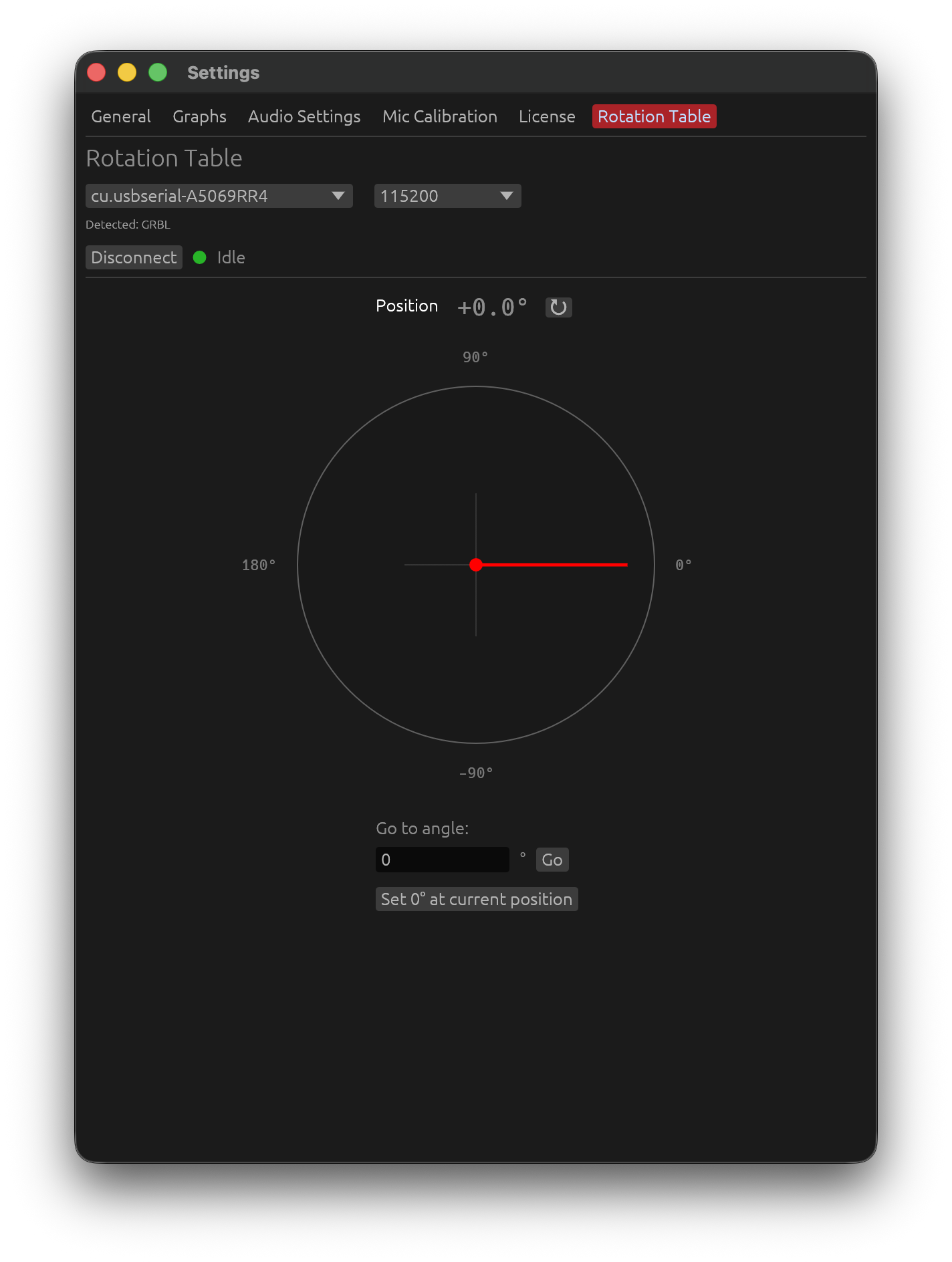
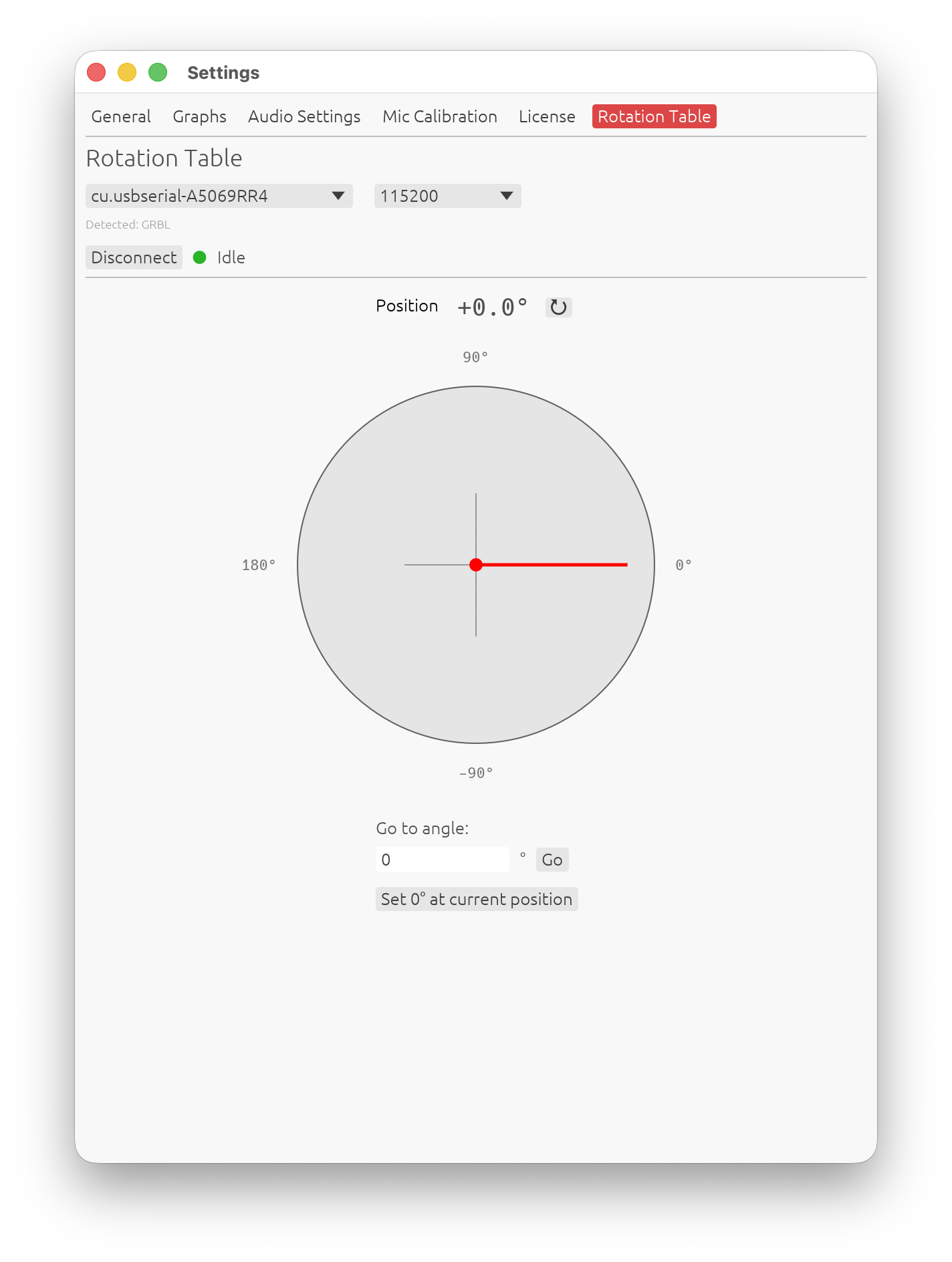
Connecting a Table
1. Port and Baud Rate
LinFIR scans available ports each time the settings panel is drawn. Use the port combobox to select the device; the detected controller type is shown next to each entry (e.g. COM3 — GRBL or /dev/cu.usbmodem… — Pololu Tic).
For GRBL boards, choose the baud rate that matches your firmware (typically 115200). Pololu Tic controllers connected over USB do not use a baud rate.
A small label below the combobox confirms the auto-detected type:
Detected: GRBL
or
Detected: Pololu Tic
2. Connect / Disconnect
Click Connect to open the connection. LinFIR probes the controller and updates the detected type if needed. A status indicator appears to the right of the Disconnect button:
| Dot colour | Meaning |
|---|---|
| 🟢 Green | Connected — table idle |
| 🟡 Yellow | Table is moving |
Click Disconnect to cleanly close the serial/USB connection.
Position Dial
After connecting, a dial shows the current table angle:
- Red needle points to the current position (−180° to +180°)
- Cardinal labels: 0°, 90°, 180°, −90°
- ↻ button — sends a position query and refreshes the display immediately
The angle is updated automatically whenever the table moves or reports its position.
Manual Controls
GRBL Controllers
| Control | Description |
|---|---|
| Go to angle field + Go | Sends G1X<angle>F360 — moves to the specified angle at 360 deg/min |
| Set 0° at current position | Sends G92X0 — redefines the current position as the zero reference |
LinFIR reads the GRBL angle as the work position (machine position minus the
G92offset), so after Set 0° the displayed angle and the auto-scan targets count from the new zero, with GRBL 1.1 as with older firmware.
The Go button is disabled while the table is moving.
Pololu Tic Controllers
| Control | Description |
|---|---|
| Range — min / max steps | Defines the microstep positions that correspond to −180° and +180°. Drag-adjust or type a value. |
| Steps/° info label | Computed from the range: (max − min) / 360. Shown in grey below the range fields. |
| Go to angle field + Go | Converts the angle to microsteps using the range and sends SET_TARGET_POSITION (energizing the motor first if it isn’t) |
| Set 0° at current position | Sends HALT_AND_SET_POSITION 0 — resets the current position to 0 steps / 0° |
| Energize / De-energize | Toggles the stepper driver power. The button names the action: green Energize while the motor turns freely, red De-energize while it holds. A Go energizes the motor first if needed, and the button follows. |
| De-energize motor after auto-scan | Toggle (off by default). When enabled, the motor is automatically de-energized once an auto-scan finishes returning to 0° — see Auto-Scan with a Rotation Table. |
Tic range calibration: Set the range so that the min and max step values span a full 360° rotation. For example, if your Tic is configured for 200 steps/rev × 16 microsteps = 3200 steps/rev, use −1600 to +1600 for ±180°.
Workflow: Manual Polar Measurement
If you prefer to position the table by hand and measure angle-by-angle without auto-scan:
- Connect the table in Settings → Rotation Table.
- Open the IR Management window for a driver.
- Use Go to angle to move the table to the desired off-axis angle.
- Set the Measurement angle field in the IR window to match.
- Click 🎤 Measure to capture.
- Repeat for each angle.
For a fully automated workflow, see Auto-Scan with a Rotation Table in the Sweep Measurements documentation.
Tips and Best Practices
- Set zero before scanning — use “Set 0° at current position” with the speaker pointing directly at the microphone, so 0° = on-axis.
- Always capture on-axis (0°) first — LinFIR requires a 0° reference before allowing off-axis measurements. If 0° is in the scan range it will be measured first automatically.
- Use a timing reference — for accurate phase relationships between angles, configure an Electric (loopback) or Acoustic timing reference in Audio Settings. This is critical for Directivity Analysis.
- Keep the mic at constant distance and height for all angles.
- Note where the rotation axis is relative to the front baffle (depth, and any sideways offset): if it isn’t at the baffle, enter those offsets under the measurement lists of the IR Management window - see Rotation Center Correction.
- 10° step or finer gives good sonogram and DI resolution. 5° is ideal.
- For the Pololu Tic, calibrate the step range carefully: a wrong range shifts all angle positions.
Troubleshooting
| Symptom | Likely cause | Fix |
|---|---|---|
| No port detected | Device not connected or driver missing | Plug in, install drivers, click away and back to refresh |
| “Auto-scan: rotation table timed out” | Table didn’t reach target in 30 s | Check wiring, reduce load, increase motor current |
| Table moves but angle stays 0° | Tic range is 0 (min = max) | Set correct min/max steps in Settings → Rotation Table |
| GRBL: table doesn’t respond to “Go” | Wrong baud rate | Try 9600 or 115200; match your firmware setting |
| Auto-scan skips some angles | Those angles already have a measurement | Delete existing measurements at those angles first |
Related Documentation
- Directivity Analysis — using polar measurements for DI and sonograms
- Sweep Measurements — sweep parameters and capture workflow
- Audio Setup — timing reference configuration
IR Management
The IR (Impulse Response) Management window provides comprehensive tools for obtaining, processing, and managing impulse responses for each driver or measurement position in your system.
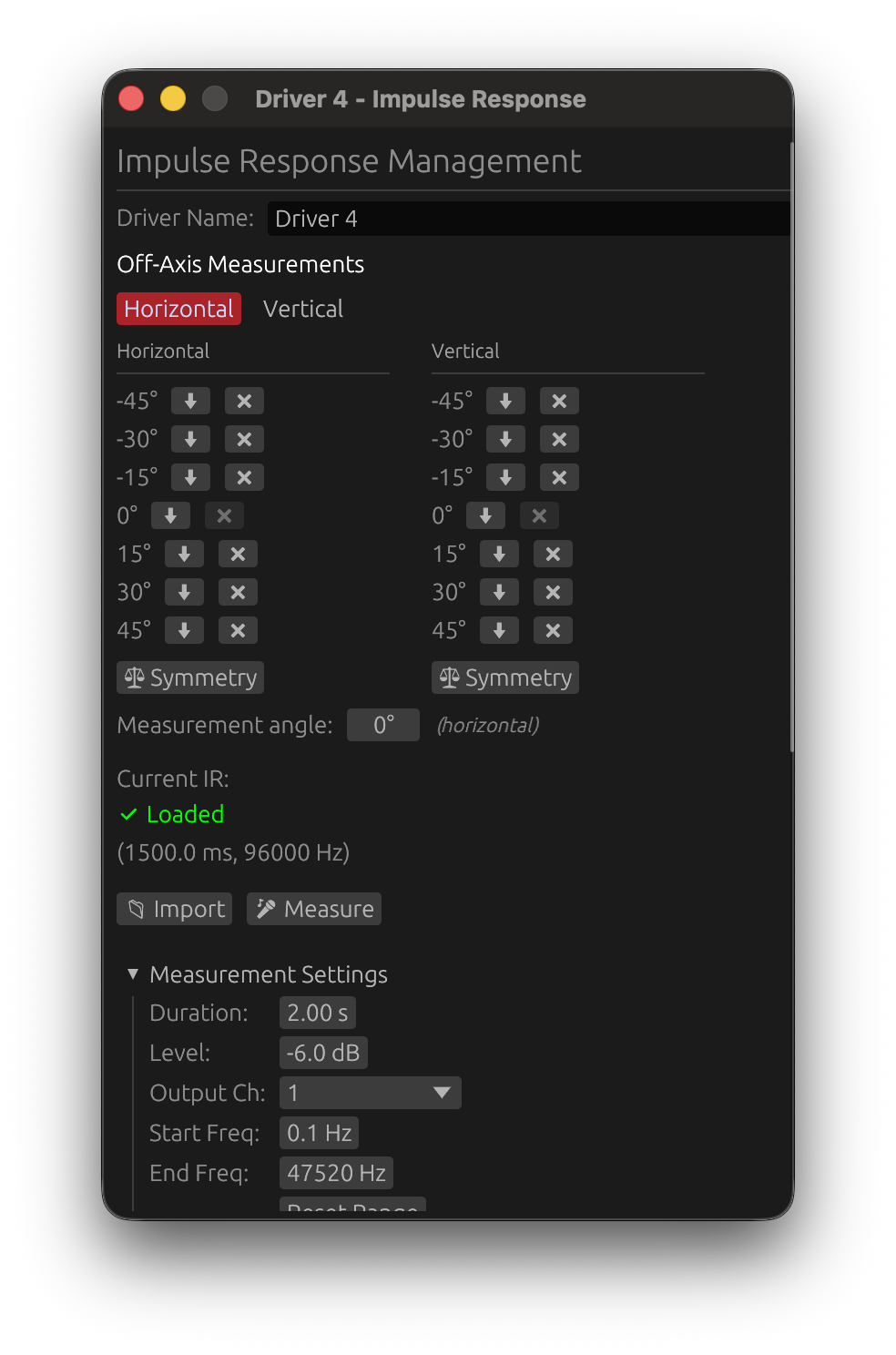
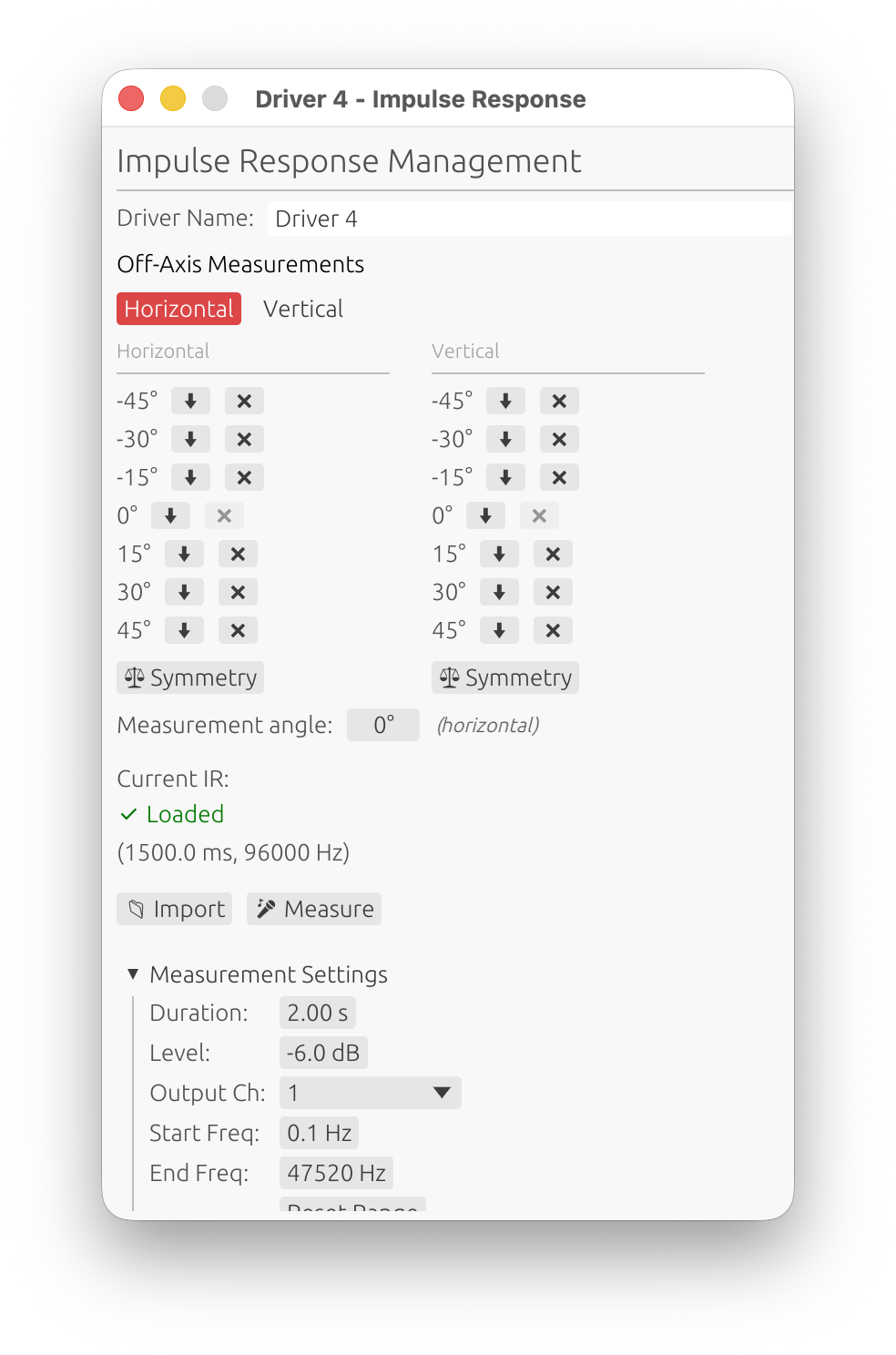
Accessing IR Management
Loudspeaker Design Mode:
- To open: Driver → Manage IR
- Purpose: Import, capture, and process driver impulse responses at multiple angles
Room Calibration Mode:
- To open: Measurements → Manage IR
- Purpose: Capture IR at a given in room position
Window Layout
The top of the window holds the controls you use on every capture — the name field, the axis / angle selectors (Loudspeaker Design mode), and the 📁 Import, 🎤 Measure and ▶ Scan buttons.
Everything below is organized into collapsible sections, in this order:
- Measurement Settings — sweep parameters (duration, level, start / end frequency, …). Open by default. These configure the capture buttons above, not the list below. See Sweep Measurements.
- Measurements — the captured / imported angles, in two columns (horizontal, vertical), with per-measurement actions. Open by default. Not shown in Room Calibration mode.
- Near-field measurements (splicing) 🔒 — element status and the Open splicing wizard… button. Collapsed by default. Not shown in Room Calibration mode. See below.
- Measurement Calibration — per-driver microphone and soundcard calibration selection. Collapsed by default.
- IR Windowing — time window, adaptive window, delay compensation.
- Measurement Notes — free-text notes saved with the project. Collapsed by default.
- IR Information — read-out of the current measurement’s properties.
Driver/Measurement Name
Manually enter a descriptive name for the impulse response.
- Label: “Driver Name” (Loudspeaker Design) or “Measurement Name” (Room Calibration)
- Purpose: Identify IRs in project and exports
- Persistence: Names are saved with the project
- Optional: Empty names default to “Driver X” or “Measurement X”
- Best practice: Use descriptive names like “Woofer_Left”, “Tweeter_RefXYZ”, “Position_Center”
Capturing IR
Button: 🎤 Measure
Triggers a measurement sweep with the configured parameters to capture the impulse response.
Features:
- Exponential sine sweep generation with configurable parameters
- Automatic harmonic distortion analysis (THD)
- Timing reference support for multi-driver measurements
For complete documentation on sweep parameters, driver protection, measurement workflow, and best practices, see Sweep Measurements.
Off-Axis Measurements 🔒
Available in: Loudspeaker Design mode only License required: Valid LinFIR license needed for off-axis measurements
Overview
Off-axis measurements enable directivity analysis by capturing impulse responses at different horizontal and vertical angles. These measurements are essential for understanding speaker radiation patterns and optimizing crossover design for consistent off-axis response.
Measurement Organization
Measurements are displayed in two columns:
-
Horizontal column: Measurements with vertical angle = 0°, varying horizontal angle
- Example: -90°, -60°, -30°, 0°, +30°, +60°, +90°
-
Vertical column: Measurements with horizontal angle = 0°, varying vertical angle
- Example: -60°, -40°, -20°, 0°, +20°, +40°, +60°
On-axis reference: The (0°, 0°) measurement appears in both columns.
Axis Selection
Before importing or capturing an off-axis measurement, select the measurement axis:
- Horizontal button: Measurements along horizontal axis (left/right)
- Vertical button: Measurements along vertical axis (up/down)
The selected axis determines whether the angle applies to horizontal or vertical position.
Measurement Angle
Field: “Measurement angle” Range: -180° to +180° Indicates: Angle for next import or capture operation
How it works:
- If Horizontal axis selected: angle applies to horizontal position (vertical = 0°)
- If Vertical axis selected: angle applies to vertical position (horizontal = 0°)
- The field shows which axis is active: “(horizontal)” or “(vertical)”
Restrictions:
- Disabled until on-axis (0°, 0°) measurement exists
- Requires valid LinFIR license
- Must import on-axis measurement first before adding off-axis angles
Per-Measurement Actions
Each measurement in the table has two action buttons:
Export Button (⬇)
Click to export this specific measurement:
- Opens export format dialog
- Choose WAV or TXT format
- Option to include distortion metadata
- File is saved with angle suffix (e.g.,
Driver1_v0h30.wav,Driver1_v-15h0.wav)
Delete Button (❌)
Remove a measurement from the driver:
- Off-axis measurements: Can be deleted freely
- On-axis (0°, 0°) measurement: Can only be deleted if all off-axis measurements are removed first
- This restriction exists because the on-axis measurement serves as the reference for all filter calculations
Tooltip guidance:
- Enabled: “Delete measurement”
- Disabled: “Delete all off-axis measurements first”
Export All Button
Button: ⬇ Export All Location: Above “Measurement angle” field Purpose: Export all measurements in a single operation
How it works:
- Click “⬇ Export All”
- Select output directory in file dialog
- All measurements are exported as WAV files
- Files use consistent naming:
DriverName_v{vertical}h{horizontal}.wav
File naming examples:
- On-axis:
Driver 1_v0h0.wav - Horizontal +30°:
Driver 1_v0h30.wav - Vertical -15°:
Driver 1_v-15h0.wav - Horizontal -45°:
Driver 1_v0h-45.wav
Format:
- All files exported as WAV (32-bit float, mono)
- Sample rate matches original measurement or importation sample rate
- Distortion metadata option applies to all files
- No individual format selection (always WAV)
Benefits:
- Fast export of complete measurement sets
- Consistent naming for re-import or external processing
- Files can be re-imported via batch import with automatic angle detection
Use cases:
- Archiving complete measurement sets
- Sharing measurements with collaborators
- Processing measurements in external tools (FIR Designer, Matlab, etc.)
Symmetry Tool
Button: ⚖ Symmetry Location: Below each column Purpose: Automatically duplicate measurements to opposite angles
How it works:
- Horizontal Symmetry: If you have +30°, creates -30° by mirroring the measurement
- Vertical Symmetry: If you have +20°, creates -20° by mirroring the measurement
Use case: Save measurement time by capturing one side and mirroring to the other side, assuming the speaker has symmetric radiation.
Rotation Center Correction
Location: Below the measurement lists (shown once the driver has off-axis measurements) Purpose: Rebuild the off-axis measurements as if the speaker had turned about its front baffle, when the turntable axis was behind the baffle or off to the side
A polar measurement is meant to turn the speaker about a reference point on its front baffle, so the microphone stays at the same distance from it at every angle. On most turntables the rotation axis is somewhere under the cabinet instead, so off axis the microphone is actually further away and sees the driver at a wider angle than the nominal one. With the baffle 150 mm in front of the axis and the microphone at 1 m, the 90° measurement is really taken 16 cm further away - 0.47 ms late and 1.3 dB low - and 97° off the driver’s axis; at 180° it arrives 0.88 ms late. These timing errors go straight into the off-axis sums of a multi-way speaker (and into the Listening Window, the predicted in-room response and the directivity index), since the drivers’ relative timing is what makes the lobes.
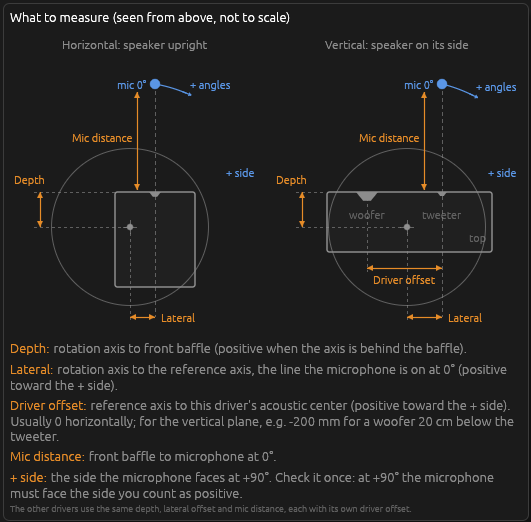
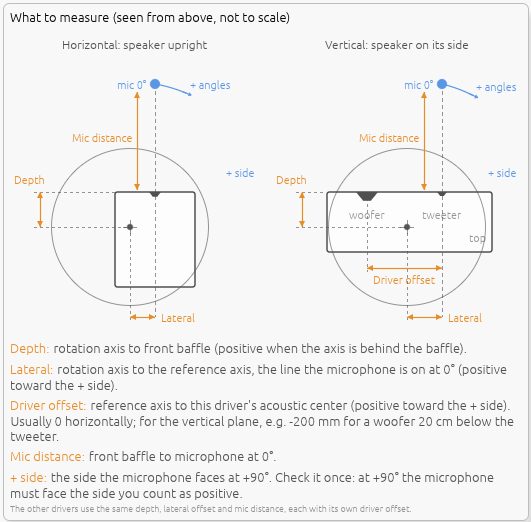
Settings (in millimeters, one column per plane - the ℹ icon shows the drawing above):
| Setting | What to measure |
|---|---|
| Depth | From the rotation axis to the front baffle. Positive when the axis is behind the baffle (the usual case). |
| Lateral | From the rotation axis to the reference axis - the line the microphone is on at 0°. Positive toward the + side. |
| Driver offset | From the reference axis to this driver’s acoustic center, positive toward the + side. Usually 0 in the horizontal plane; in the vertical plane, for example -200 mm for a woofer 20 cm below the tweeter (when positive vertical angles are up). |
| Mic distance | From the front baffle to the microphone at 0°. |
The + side is the side the microphone faces at +90°. Check it once on your setup: if the microphone faces the other side at +90°, flip the signs of Lateral and Driver offset for that plane. The horizontal column applies to the measurements with a 0° vertical angle, the vertical column to those with a 0° horizontal angle - for the vertical plane, the speaker is laid on its side on the turntable, so its height becomes the “lateral” direction. Measurements off both planes are left as they are.
Apply placement to all drivers copies the depth, lateral offset and mic distance of both planes (and the on/off switch) to every driver; each driver keeps its own driver offset, which is the one value that differs between drivers. Copy/paste of driver parameters does the same.
How it works:
For each nominal angle, LinFIR rebuilds the response the microphone would have picked up on the ideal circle around the reference point:
- Geometry, per driver. From the offsets, the real microphone positions (the 0° position turned about the turntable axis) and the ideal ones are known, so is the direction and distance at which each measurement saw the driver, and the direction and distance each nominal angle needs. The driver offset matters: correcting a woofer 20 cm below the tweeter as if it were at the reference point would still leave 20-55 µs of timing error, about 20-56° of phase at 3 kHz.
- Distance: time of flight and level. Around the driver, changing the distance only delays and scales the sound: each measurement is moved to the target distance with a fractional delay of (target distance − measured distance) / 343 m/s and a gain of measured distance / target distance (1/r law).
- Angle: interpolation. The response in the needed direction is interpolated between the two measurements whose directions bracket it - after both were moved to the target distance, so they arrive together and blend without comb filtering. Beyond the measured range the nearest measurement is used; a full 360° set wraps around.
The on-axis measurement is the reference and is never changed. The correction applies after the IR time window and before resampling, so everything downstream (filters, sums, directivity graphs, Listening Window, DI) uses the corrected responses; the measurement files themselves are not modified, and turning the correction off restores the original responses. Symmetry copies are recognized and treated as the mirror image of the measurement they were copied from.
Requirements and limits:
- The measurements must keep their relative timing (a fixed acoustic or loopback timing reference, the same for every angle - see Impulse Response Timing Requirements). Measurements whose delay was removed one by one can’t be corrected.
- The driver is treated as a point source on the baffle: the acoustic center’s recess behind the baffle and the driver’s own near field are ignored. At 1 m and beyond this is accurate for typical drivers; very close measurements of large drivers are less so.
- The correction moves the microphone, not the diffraction: when the microphone distance is small, the baffle diffraction seen at the real and ideal positions differ slightly, and that difference is not corrected.
Workflow for Off-Axis Measurements
- Import or capture on-axis measurement (0°, 0°) first
- Select axis (Horizontal or Vertical)
- Set measurement angle (e.g., +30°)
- Import file or capture measurement
- Repeat for additional angles
- Use Symmetry tool to fill opposite angles (optional)
- Enter the turntable offsets under the measurement lists if the rotation axis wasn’t at the front baffle (see Rotation Center Correction)
- Analyze directivity patterns in main application graphs
🔄 Automated workflow: If you have a motorized turntable (Pololu Tic or GRBL/Arduino), use the ▶ Scan button to rotate and measure all angles automatically. See Auto-Scan with a Rotation Table and Rotation Table Settings.
Near-Field / Far-Field Splicing 🔒
Available in: every mode except Room Calibration (Loudspeaker Design, Hypex FusionAmp) License required: Valid LinFIR license
Section: Collapsible header Near-field measurements (splicing), directly under the measurement list. Collapsed by default.
Splicing synthesizes a full-range anechoic response by combining near-field captures of each radiating element (driver, vent, passive radiator) with this driver’s far-field polar measurements — the Don Keele method. The near field covers the bass, where a gated far-field measurement can’t; the far field covers everything above the transition, with its real diffraction and directivity. Once applied, the spliced IR replaces the raw capture for every measured angle throughout LinFIR.
The section shows each near-field element’s capture status and the Open splicing wizard… button (enabled once an on-axis far-field measurement exists).
The wizard is documented on its own page: Near-Field / Far-Field Splicing — prerequisites, the seven steps, and step-by-step advice.
When a spliced IR is active, the IR Windowing section below applies the driver’s time window on top of the spliced (anechoic) response rather than the raw capture — a note in that section flags this.
Import from File
Load impulse responses from external files.
LinFIR works internally with impulse responses (IRs). All imported files are ultimately converted to an IR before being used for filter design. Two import paths exist:
- Direct IR formats (WAV, TXT, TMD): Files already contain time-domain impulse response samples. They are resampled to the project sample rate and loaded directly.
- Frequency-domain format (FRD): Files contain frequency response data (magnitude + phase). LinFIR reconstructs an impulse response via the FRD to IR Converter window before proceeding.
All the measurements of a driver share one sample rate. A file, an FRD conversion or a capture at a different rate than the driver’s existing measurements is refused with a message: import or re-measure it at the driver’s rate, or start a new driver. Files containing NaN or infinite samples are refused as well.
Supported Formats
WAV Files
- Channels: Mono or stereo (left channel used for stereo files)
- Bit depth: 16-bit, 24-bit, or 32-bit PCM
- Automatic resampling: The IR is resampled to match the project sample rate for processing. The original samples are preserved internally at their native rate, so changing the project sample rate later does not cause quality loss from successive resamplings. This is handled transparently in the background.
With distortion metadata:
- If WAV contains custom ‘dist’ chunk (exported from LinFIR with “Include dist.” option)
- Enables THD (Total Harmonic Distortion) computation
Without distortion metadata:
- Standard WAV import
- Only practical/cropped IR available
- THD computation not available
TXT Files
Plain text files containing impulse response samples, one value per line or space/comma-separated. LinFIR auto-detects this format.
Note: .txt files containing FRD-formatted data (3 columns: frequency, magnitude, phase) are automatically detected and processed as FRD files (see FRD Files section below).
TMD Files
MATAA (Mat’s Audio Analyzer) time-domain data format. Each line encodes a sample with its timestamp, allowing the sample rate to be derived from the data itself.
- Format: Two-column text file (time in seconds, amplitude)
- Comments: Lines starting with
*are metadata/comments - Sample rate: Inferred from the time intervals between samples. If the result is within 1% of a standard rate (44.1, 48, 88.2, 96, 176.4, 192, 384 kHz, etc.), LinFIR snaps to that exact rate to correct for the systematic sample rate error introduced by limited timestamp precision.
- Timestamp precision: Timestamps must have enough decimal places for accurate sample rate inference (e.g. 9 digits for 96 kHz). Insufficient precision can produce a slightly off sample rate that will still be corrected if it falls within the 1% snapping tolerance.
- Precision: Full floating-point precision (no bit-depth limitations)
Example TMD file:
* TMD data written by MATAA
* Measurement description
0.000000000	0.000000
0.000020833	0.125000
0.000041667	0.850000
...
CLIO Files
Time-domain impulse response exports from CLIO (Audiomatica) measurement software. These are plain .txt files with three columns.
- Format: Text file with a header row followed by data rows
- Column 1 —
Time[s]: sample timestamp in seconds - Column 2 —
Real[Pa]: signal amplitude (used as the IR) - Column 3 —
Imag[Pa]: imaginary part (ignored by LinFIR)
- Column 1 —
- Header line: the first non-empty line must start with
Time(case-insensitive) - Sample rate: inferred from the time intervals between samples, then snapped to the nearest standard rate within 1% tolerance (same algorithm as TMD)
- Precision: full floating-point precision
Example CLIO file:
Time[s]         Real[Pa]        Imag[Pa]
0.000000E+00    -4.790139E-03   -4.583853E-10
2.083333E-05     4.526122E-03   -8.076313E-10
4.166667E-05     3.454284E-04    1.007265E-10
...
FRD Files
Frequency response data files (commonly exported by REW, VituixCAD, or provided by manufacturers). These files do not contain an impulse response directly—LinFIR reconstructs one via the FRD to IR Converter window (see dedicated section below).
Format:
- 3 columns per line: Frequency (Hz), Magnitude (dB), Phase (degrees)
- Text-based, space or tab delimited
- Can use either
.frdextension or.txtextension (auto-detected)
Processing:
- Automatic interpolation to required frequency points using PCHIP (Piecewise Cubic Hermite Interpolating Polynomial)
- Configurable magnitude extrapolation for DC and high-frequency regions
- Phase handling with group delay compensation
Extrapolation Modes:
When importing FRD files, LinFIR opens the FRD to IR Converter window with the following extrapolation controls:
-
DC Extrapolation: Controls how magnitude is extended below the lowest measured frequency
- Constant: Flat extrapolation (holds the lowest measured value)
- Roll-off: Applies a 12 dB/octave high-pass roll-off for realistic loudspeaker behavior
- Default: Roll-off
-
High Frequency Extrapolation: Controls how magnitude is extended above the highest measured frequency toward Nyquist
- Constant: Flat extrapolation (holds the highest measured value)
- Roll-off: Applies a 12 dB/octave low-pass roll-off, automatically compensates for upward slopes
- Default: Constant
Benefits of Roll-off mode:
- More realistic impulse responses from incomplete FRD data
- DC roll-off mimics natural loudspeaker low-frequency limitations
- HF roll-off prevents artifacts from measurements that don’t extend to Nyquist
- Adaptive: compensates for incorrect slope trends in measured data
Important notes:
- FRD files are sparse (often logarithmically spaced frequency points)
- Requires complex interpolation, potentially introducing artifacts
- Generally do not contain the time of flight required to properly time align drivers
- Recommendation: Prefer importing impulse responses (WAV) whenever possible
Automatic Noise Truncation
Once an impulse response has been imported or reconstructed (from any format), LinFIR automatically truncates it to optimize file length and processing performance. This is an internal post-processing step applied uniformly to all IR data before it is stored in the project.
Truncation Algorithm:
- Peak detection: Locates the main impulse peak (maximum absolute value in the IR)
- 5-second limit: Truncates the IR to 5 seconds maximum after the peak
- Corresponds to approximately 1.7 km acoustic distance
- Sufficient for capturing full decay in most practical scenarios
- Noise threshold: Removes trailing samples below 0.1% of peak amplitude
- Adaptive threshold based on the actual signal level
- Eliminates noise floor without affecting useful signal
- Minimum duration: Always preserves at least 1.0 seconds of the IR
- Ensures sufficient data for low-frequency analysis
Benefits:
- Reduces processing load for FFT operations and convolutions
- Decreases file sizes for project saving and export
- Removes unnecessary noise floor that doesn’t contribute to filter design
What gets removed:
- Excessive silence beyond 5 seconds after the main impulse
- Noise floor below the 0.1% threshold (≈ -60 dB relative to peak)
- Applies to both anechoic and in-room measurements
What is preserved:
- The complete main impulse and initial decay
- At least 1.0 seconds of IR data regardless of noise level
- All frequency content relevant for crossover design
- Sufficient time-domain information for phase analysis
Impulse Response Timing Requirements
Peak delay limit: LinFIR rejects impulse responses where the main peak is located more than 200 ms after the start of the file.
Why this limit exists:
LinFIR performs extensive signal processing operations—FFT transformations, convolutions, resampling, and real-time filter preview—that must remain responsive. These operations scale with impulse response length, and excessive zero padding before the actual signal significantly impacts performance without adding useful information.
Physical context:
A 200 ms delay corresponds to approximately 68 meters of acoustic travel distance. In practical loudspeaker measurement and room calibration scenarios, such excessive delays indicate that no timing reference method was used during capture (loopback trigger, electrical reference, or pre-alignment in the measurement software).
Impact on workflow:
Without proper timing reference, relative time alignment between drivers becomes unreliable, as the arbitrary delays vary unpredictably between measurements. This compromises crossover phase coherence and summation accuracy—core functions of LinFIR.
Best practice:
When capturing impulse responses, use measurement software that provides:
- Loopback triggering (audio interface output → input reference)
- Electrical reference triggering (synchronized start)
- Pre-alignment features that position the IR peak near the beginning of the recording
These methods ensure minimal file length while preserving the precise time-of-flight information needed for accurate driver alignment and filter design.
If your measurement contains a valid signal buried in initial silence, pre-process the file to remove leading zeros before importing into LinFIR.
Import Signal Level Check
When importing a WAV/TXT impulse response that wasn’t captured by LinFIR’s own sweep engine, the frequency response level is checked: if its peak magnitude is below -25 dB, that’s usually a sign of a poor signal-to-noise ratio in the original measurement.
What happens:
- An always-on-top Low Signal Level Warning dialog appears, offering Keep Anyway or Discard
- Keep Anyway imports the file as usual
- Discard cancels the import — nothing is stored, and you can re-import a different file
- The file is not imported until you answer the dialog
Why this matters: correction filter quality strongly depends on measurement quality. A low signal-to-noise ratio means noisier data, which can produce inaccurate correction filters and skew phase visualization — see Quality Validation for the same check applied to LinFIR’s own captures.
💡 Settings → General → Always keep low-SNR measurements skips this dialog and imports low-level files automatically, with only a toast as a reminder. See General Settings.
This check only applies to files not captured via LinFIR’s own sweep engine — an IR that already carries LinFIR’s own capture metadata skips it, since its quality was already validated at capture time. It’s independent of the peak delay check above: a file can fail either, both, or neither.
Import Workflow
- Click “📁 Import” button
- Select WAV, TXT or FRD file
- File is automatically detected and processed:
- WAV: Resampled to project sample rate, metadata extracted
- TXT (impulse samples): Either auto-imported (with metadata) or user prompted for sample rate (the prompt proposes the driver’s sample rate)
- TXT/FRD (frequency data): Opens FRD to IR Converter window
- IR appears in impulse response graph
- Manually enter IR name in text field
- Apply windowing if necessary (see Time Windowing section)
Special case for FRD files: When importing .frd or FRD-formatted .txt files, the FRD to IR Converter window opens automatically. See the dedicated section below for details.
⚠️ Display Mode Check: If the imported impulse response does not appear in the graphs, verify that Drivers/Measurements display mode is selected in the graph toolbar (not FIR, IIR, or FIR+IIR modes which only show filter responses). The graph title and legend clearly indicate which mode is active.
Batch Import of Multiple Measurements
Available in: Loudspeaker Design mode (off-axis measurements) License required: Valid LinFIR license needed for off-axis measurements
Overview
Batch import enables importing multiple measurement files simultaneously with automatic angle detection from filenames. This significantly speeds up the workflow when importing multi-angle measurement sets from tools like VituixCAD, ARTA, or REW.
Filename Angle Parsing
LinFIR automatically detects measurement angles from filenames using conventions from other measurement software.
Important: Angle patterns must be at the end of the filename (before extension). If the axis marker (h/v) has a prefix format (like h30), it must not be preceded by a letter. This prevents false detection in cases like “Driverh30” while allowing “SIG270-4h30” or “Driver 2_h30”.
Format with single axis specification (H = Horizontal, V = Vertical):
H30,h30,H-20→ Horizontal axis, angles: +30°, +30°, -20°V15,v15,V-45→ Vertical axis, angles: +15°, +15°, -45°30H,30h,-20H→ Horizontal axis, angles: +30°, +30°, -20°15V,15v,-45V→ Vertical axis, angles: +15°, +15°, -45°
Format without axis (@ marker):
@30,@-20,Tweeter@15→ Angle detected, axis must be specified by user- When files use @ notation, a dialog prompts you to select Horizontal or Vertical axis
MF 2D format (both H and V in filename):
v0h30,V0H30,v000h030→ Horizontal +30° (horizontal plane: V=0)v30h0,V30H0,v030h000→ Vertical +30° (vertical plane: H=0)h30v0,H30V0,h030v000→ Horizontal +30° (order-independent)h0v30,H0V30,h00v030→ Vertical +30° (order-independent)v0h0,V0H0,v000h000→ On-axis (0°, 0°)v30h50→ Rejected (out-of-plane measurement)
Note: Leading zeros are supported (e.g., 030 = 30)
Note on MF 2D format: Only measurements in a plane are accepted (one angle must be 0). Files with both H and V non-zero are ignored as they represent oblique measurements that can’t be represented in LinFIR’s horizontal/vertical coordinate system. The order of h/v doesn’t matter.
Examples of valid filenames:
Tweeter_h0.wav→ On-axis (0°, 0°)Tweeter_h30.wav→ Horizontal +30°Tweeter_v-20.frd→ Vertical -20°Woofer@15.txt→ Angle +15° (user selects axis)measurement_30h.wav→ Horizontal +30°Left_-45v.frd→ Vertical -45°Driver_v0h45.frd→ Horizontal +45° (MF 2D format)Tweeter_v20h0.txt→ Vertical +20° (MF 2D format)SIG270-4h30.frd→ Horizontal +30° (number before axis letter is OK)SIG270-4v0h30.frd→ Horizontal +30° (MF 2D with number prefix)
Examples of rejected filenames:
Driverh30.wav→ Rejected (letter “r” directly before “h”)Testh30v0.frd→ Rejected (letter “t” directly before “h”)
Files without angle markers:
- A single file goes to the angle currently selected in the window’s angle controls, or to the on-axis (0°, 0°) slot while the driver has no on-axis measurement yet
- In a multi-file batch, it is imported as the on-axis (0°, 0°) measurement
Batch Import Workflow
1. Multi-File Selection
- Click “📁 Import” button
- Select multiple files in the file dialog (Ctrl+Click or Shift+Click)
- Click Open
2. Automatic Processing
LinFIR automatically analyzes all selected files:
If all files have explicit axis (H/V in filename):
- Files are processed immediately
- Each file imported at the angle specified in its filename
- No user interaction needed
If files use @ notation (ambiguous axis):
- Axis Selection Dialog appears
- Select either Horizontal or Vertical axis
- Click Continue
- Selected axis applies to all @ files in the batch
- Closing the dialog cancels the whole batch import
3. FRD Converter Integration
If the batch includes FRD files:
- LinFIR opens the FRD Converter for the on-axis FRD file (if present)
- Configure conversion parameters (sample rate, delay, extrapolation modes)
- Click “Use This Impulse Response”
- All remaining FRD files automatically use the same parameters
- No need to configure each file individually
How it works:
- Parameters are configured using the on-axis measurement (0°, 0°)
- Same delay and extrapolation settings applied to all off-axis FRD files
- Ensures consistent conversion across the measurement set
⚠️ Important Limitation - Missing Relative Time Delays:
FRD files contain frequency response data only (magnitude and phase) without encoding the relative time delays between different measurement angles. When importing multiple FRD files at different angles, all files use the same delay parameter configured on the on-axis measurement.
Why this matters for off-axis measurements:
In real loudspeakers, off-axis measurements have different acoustic path lengths and interference patterns compared to on-axis:
- Sound from tweeter and woofer arrives at different relative times depending on measurement angle
- These time differences create frequency-dependent interference (comb filtering)
- Proper time alignment between drivers varies with angle
Consequence:
- Batch-imported FRD files will have identical relative timing at all angles
- Phase relationships between drivers won’t reflect actual acoustic behavior
- Directivity analysis and crossover optimization will be inaccurate
- Simulated off-axis response won’t match real-world interference patterns
Recommendation:
- Prefer WAV impulse response files for multi-angle measurements whenever possible
- WAV files preserve the actual time-of-flight at each angle
- Only use FRD batch import for preliminary analysis or when WAV files aren’t available
- If using FRD files, be aware that off-axis crossover behavior won’t be accurately modeled
Valid use cases for batch FRD import:
- Quick magnitude response comparison across angles
- Preliminary directivity visualization
- Single-driver systems where relative timing isn’t critical
- When no impulse response measurements are available
Practical Example
Scenario: You have a set of horizontal measurements exported from REW:
Tweeter_h0.frd
Tweeter_h15.frd
Tweeter_h30.frd
Tweeter_h45.frd
Tweeter_h60.frd
Workflow:
- Select all 5 files in file dialog
- FRD Converter opens for
Tweeter_H0.frd(on-axis) - Set sample rate to 96000 Hz, delay to 5 ms
- Choose DC extrapolation: Roll-off
- Click “Use This Impulse Response”
- Files
H15,H30,H45,H60automatically converted with same settings - All 5 measurements appear in the horizontal column
Result:
- All angles have same delay (5 ms) configured on on-axis measurement
- ⚠️ Relative time-of-flight differences between angles are lost
- For accurate crossover modeling, prefer WAV impulse response files
Limitations
- Batch import only works with files having consistent format (all WAV, all FRD, or mixed)
- Files must follow supported angle naming conventions
- On-axis measurement (0°, 0°) should be included when importing FRD files for optimal parameter configuration
- If mixing WAV and FRD formats, FRD files must include on-axis or parameters will use defaults
- FRD files don’t preserve relative time delays between angles—prefer WAV files for multi-angle measurements
Tips
Consistent naming convention:
- Use descriptive base names:
Tweeter_h30.wavinstead of justh30.wav - Include driver name in filename for easier identification
- Use lowercase h/v for consistency with LinFIR exports
- MF 2D format is order-independent:
v0h30=h30v0
Large measurement sets:
- Import horizontal and vertical measurements separately if you have both
- Use Symmetry tool after batch import to fill missing opposite angles
- Verify measurement table after import to ensure correct angle assignment
FRD files:
- ⚠️ Not recommended for off-axis measurements (missing relative time delays)
- Always include on-axis (H0 or V0) measurement in batch for parameter reference
- Configure extrapolation modes carefully for first file—settings propagate to all
- Verify impulse response quality after batch conversion
- Consider this a preliminary workflow—prefer WAV files for accurate directivity analysis
Recommended format priority:
- WAV files: Best option—preserves all timing information
- TXT with metadata: Acceptable if exported from LinFIR
- FRD files: Only for magnitude analysis—timing not preserved
FRD to IR Converter
When importing FRD files, LinFIR opens a dedicated conversion window with advanced tools for interpolation, visualization, and quality assessment.
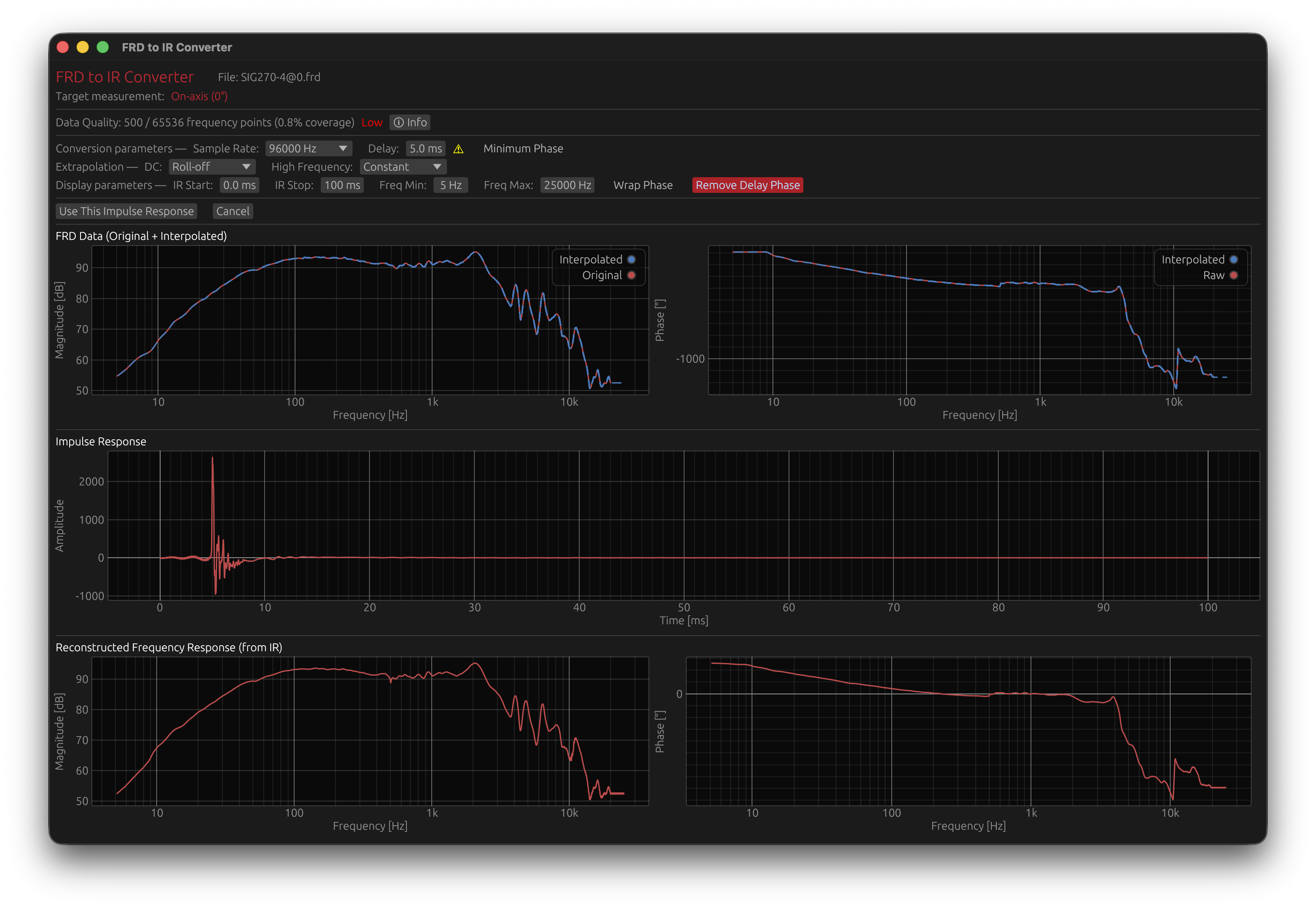
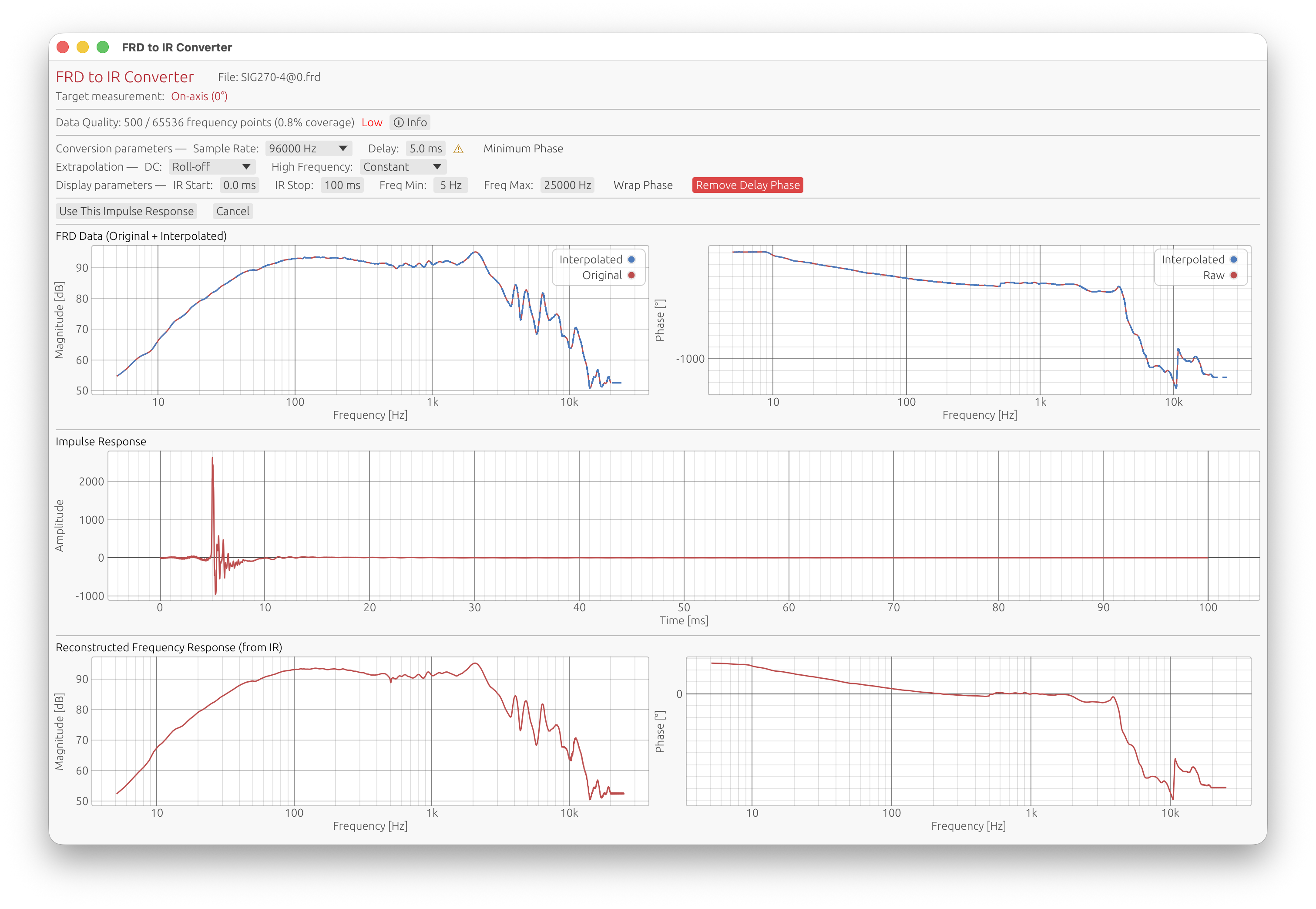
Overview
The FRD to IR Converter transforms sparse frequency-domain data into time-domain impulse responses using sophisticated interpolation and extrapolation techniques. It provides real-time visualization and quality metrics to help you assess the conversion quality.
Conversion Parameters
Sample Rate
Options: 44.1 kHz, 48 kHz, 88.2 kHz, 96 kHz, 176.4 kHz, 192 kHz Default: 96 kHz
Target sampling frequency for the resulting impulse response.
Considerations:
- Higher sample rates provide better frequency resolution
- Must match or exceed your project’s sample rate
- FRD data is interpolated to fill all frequency bins from DC up to Nyquist
Delay Compensation
Range: 0.0 to 100.0 ms Default: 5.0 ms
Time offset applied to the impulse response to allow for pre-ringing visualization and processing.
Purpose:
- Provides time buffer before the main impulse
- Essential when FRD data contains non-minimum phase characteristics
- Allows visualization of pre-ringing artifacts
Warning indicator: If pre-ringing duration exceeds the delay setting, a warning appears suggesting either:
- Increase delay to accommodate pre-ringing
- Enable Minimum Phase transformation
Minimum Phase Transformation
Default: Disabled
Applies Hilbert transform to convert the impulse response to minimum phase, eliminating all pre-ringing.
When to use:
- FRD data shows significant pre-ringing (> 5% energy before peak)
- Phase data is corrupted, smoothed, or contains wrapping errors
- You need a causal, physically realizable impulse response
- Time-domain alignment is critical
Effects:
- Removes all energy before the main peak
- Preserves magnitude response
- Changes phase response to minimum phase equivalent
- Results in a causal system (no pre-ringing)
Note: Pre-ringing in FRD-derived impulses is often an artifact of measurement or file creation, not a physical characteristic of the device.
DC Extrapolation
Modes: Constant, Roll-off Default: Roll-off
Controls how magnitude is extended below the lowest measured frequency toward DC (0 Hz).
Constant mode:
- Flat extrapolation using the lowest measured value
- Use when FRD data already reaches very low frequencies
Roll-off mode (recommended):
- Applies 12 dB/octave high-pass characteristic
- Mimics natural loudspeaker low-frequency roll-off
- More physically realistic for incomplete low-frequency data
High Frequency Extrapolation
Modes: Constant, Roll-off Default: Constant
Controls how magnitude is extended above the highest measured frequency toward Nyquist.
Constant mode (recommended):
- Flat extrapolation using the highest measured value
- Maintains adequate signal level to Nyquist
- Minimizes noise amplification
Roll-off mode:
- Applies 12 dB/octave low-pass characteristic
- Automatically compensates for upward slope trends
- Use when FRD data shows unrealistic high-frequency behavior
Driver Offset Compensation
The FRD to IR Converter provides Driver Offset controls to compensate for the physical displacement of the driver relative to the reference point (typically the front baffle center or another driver).
Parameters:
- X (Horizontal): Driver offset in the horizontal direction, in millimeters, positive toward positive horizontal angles (to the right when facing the baffle, as in the diagram below)
- Y (Vertical): Driver offset in the vertical direction, in millimeters, positive up, toward positive vertical angles
- Located below the Extrapolation controls in the converter window
If your measurements count positive horizontal angles toward the left when facing the baffle, enter X with the opposite sign: what matters is that a positive X is on the side the microphone is on at positive angles.
Coordinate System and Geometry:
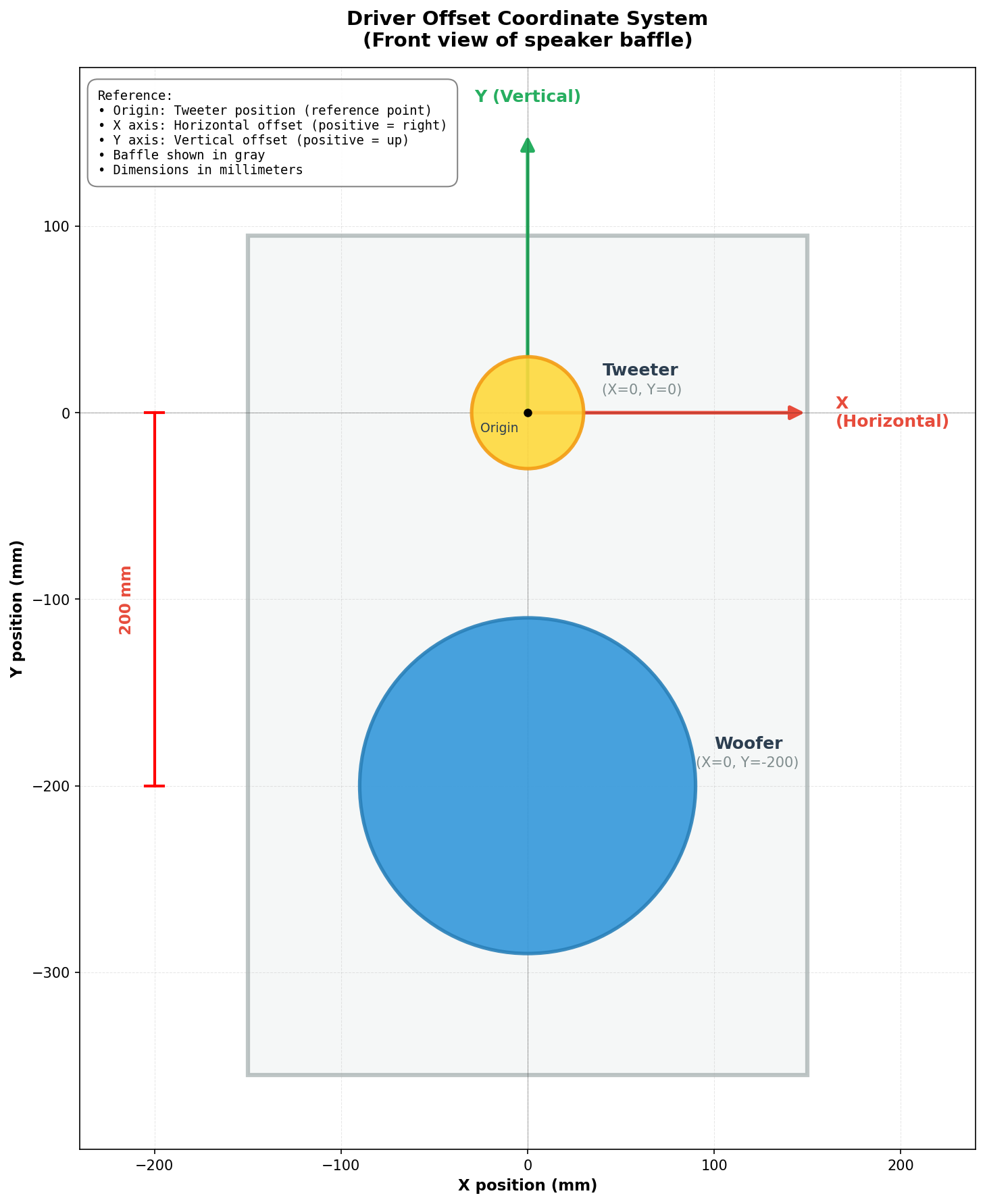
Reference Point (Origin):
The reference point (X=0, Y=0) represents the desired acoustic axis of the loudspeaker system. In the diagram example:
- The tweeter is positioned at the origin (0, 0) — it defines the acoustic axis
- The woofer is offset by -200 mm vertically (0, -200)
Note for designers: The choice of origin is not necessarily the center of a driver — it’s an engineering decision. You could choose:
- The acoustic center of a specific driver (as shown in the example)
- A point between drivers (e.g., midway between tweeter and woofer)
- Any other reference point that makes sense for your design goals
What matters is consistency: all driver offsets are measured relative to this chosen origin.
Important: For off-axis measurements, only a driver with offset (woofer in the example) will have a geometric delay added or subtracted. A driver at the origin (tweeter in the example) has no delay added or subtracted for off-axis angles — it remains the reference. This delay difference is then used to calculate interference patterns between drivers at off-axis angles.
How it works:
The driver offset introduces a geometric time-of-flight difference for off-axis measurements, calculated with the far-field approximation (parallel rays): the offset’s component along the direction of the microphone, divided by the speed of sound.
$$\Delta t = -\frac{x \cdot \sin\theta \cdot \cos\varphi + y \cdot \sin\varphi}{c}$$
Where:
- \(x\) = horizontal driver offset (mm), positive toward positive horizontal angles
- \(y\) = vertical driver offset (mm), positive up
- \(\theta\) = horizontal measurement angle (degrees)
- \(\varphi\) = vertical measurement angle (degrees), positive up
- \(c\) = speed of sound ≈ 343,000 mm/s
The sign matters: a driver on the same side of the reference point as the microphone is closer to it, so its sound arrives earlier (negative \(\Delta t\)); a driver on the opposite side is farther and arrives later. This is what makes the off-axis lobing of a multi-way speaker asymmetric between, say, above and below the axis.
In practice (measurements in a single plane):
Since LinFIR only supports measurements in the horizontal plane (\(\theta \neq 0\), \(\varphi = 0\)) or vertical plane (\(\theta = 0\), \(\varphi \neq 0\)), the formula simplifies:
- Horizontal plane: \(\Delta t = -\frac{x \cdot \sin\theta}{c}\) (only x offset matters)
- Vertical plane: \(\Delta t = -\frac{y \cdot \sin\varphi}{c}\) (only y offset matters)
This geometric delay is added to the user-configured Delay before converting the FRD data to an impulse response. Since it can be negative, the Delay must be at least the largest advance the offset can cause, \(\sqrt{x^2 + y^2} / c\) (0.58 ms for a 200 mm offset): otherwise the angles where the driver is closest would need to start before 0 ms: their delay is clamped at 0 ms and their timing is then wrong. A ⚠ icon next to the offsets warns when the Delay is too short. The default 5 ms Delay covers offsets up to 1.7 m.
Example:
- Tweeter at origin (0, 0): no geometric delay applied at any angle
- Woofer offset: X = 0 mm, Y = -200 mm (200 mm below the tweeter)
- Measurement at vertical -30° (microphone 30° below the axis, on the woofer’s side): the woofer is closer, \(\Delta t = -200 \times \sin(30°)/343000 \approx -0.291\) ms - it arrives 0.291 ms earlier
- Measurement at vertical +30° (microphone above the axis): the woofer is farther, \(\Delta t \approx +0.291\) ms - it arrives 0.291 ms later
- This delay difference creates the correct interference pattern between tweeter and woofer on both sides of the axis
Purpose and Far-Field Approximation:
⚠️ Purpose: Driver offsets are used to predict far-field interference patterns between drivers when the listener is in the far field (listening distance >> driver spacing).
Key insight: Since typical FRD data has its phase recalculated (constant delay removed), the original measurement conditions don’t matter. What matters is modeling the acoustic geometry at the listening position.
When to use driver offsets:
- Listening distance ≥ 10× driver spacing (far-field condition for the listener)
- Example: For drivers spaced 200 mm apart, listener at ≥ 2 meters
- Typical home listening (2-4m) and studio monitoring (2-3m) scenarios
- Predicting directivity and off-axis response in real-world use
Geometric assumption:
The formula assumes acoustic rays are parallel at the listening position:
- Valid when listener distance >> driver spacing
- Path difference depends only on driver offset and angle
Near-field listening considerations:
For close listening distances (< 1m), the parallel ray approximation becomes less accurate for the direct sound, and the predicted response will deviate more from reality as you get closer to the drivers.
However, the approximation remains valid for the reflected sound field since walls, floor, and ceiling are typically far enough that the acoustic path length is much larger than driver spacing. This is important because off-axis directivity affects how sound interacts with room boundaries.
Best practice:
- Use driver offsets in most scenarios, including near-field listening
- The approximation is excellent for far-field listening (≥ 2m)
- For near-field use (< 1m), understand that direct sound predictions will be approximate, but reflected field modeling remains valid
- Leaving offsets at 0 mm corresponds to a coaxial driver configuration (all drivers at the same point)
Display Parameters
These parameters control visualization only and do not affect the conversion.
IR Start / Stop Time
Range: 0.0 ms to impulse duration Purpose: Zoom into specific time region of the impulse response graph
Useful for examining:
- Pre-ringing characteristics
- Main peak detail
Frequency Min / Max
Range: 1 Hz to 48000 Hz Purpose: Set frequency range for magnitude and phase graphs
Allows focusing on:
- Specific frequency bands of interest
- Problem areas in the response
- Comparison between original and interpolated data
Wrap Phase
Default: Disabled
Toggles between wrapped (-180° to +180°) and unwrapped phase display.
Wrapped:
- Phase limited to -180° to +180° range
- Shows discontinuities at ±180° boundaries
- Familiar format for some users
Unwrapped:
- Continuous phase (can exceed ±180°)
- Shows true phase accumulation
- Better for assessing group delay trends
Remove Delay Phase
Default: Disabled
Removes the linear phase component corresponding to the delay setting.
When enabled:
- Subtracts linear phase = -360° × f × delay
- Reveals underlying phase structure
- Useful for comparing final phase response with the original one
Data Quality Assessment
The converter displays comprehensive quality metrics to help you evaluate the FRD data.
Coverage Metric
Format: “X / Y frequency points (Z% coverage)”
- X: Number of frequency points in FRD file (within 0 Hz to Nyquist)
- Y: Expected number of points for complete FFT coverage
- Z: Coverage percentage = (X / Y) × 100
Quality indicators:
- ✅ Good (≥ 50%): Green - Sufficient data density
- ⚠️ Moderate (20-50%): Yellow - Acceptable but sparse
- ❌ Low (< 20%): Red - Very sparse, heavy interpolation required
FFT bin calculation: Based on sample rate and FFT size (4× next power of 2)
Info Button - Detailed Diagnostics
Click the ℹ Info button to open the Data Quality Information window with detailed analysis.
Missing DC (0 Hz):
- Impact: Low-frequency extrapolation required
- Consequence: Uncertainty in bass response below lowest measured frequency
- Solution: Use Roll-off extrapolation for DC
Missing Nyquist Data:
- Impact: High-frequency extrapolation required
- Consequence: Uncertainty in high-frequency response
- Recommended: FRD should extend to at least Nyquist frequency
Sparse Frequency Data:
- Threshold: < 50% coverage
- Impact: Heavy interpolation between measured points
- Risk: Artifacts from PCHIP interpolation of widely-spaced points
- Note: Shows exact percentage of missing data points
Pre-ringing Detection:
Analyzed automatically after conversion. Three severity levels:
-
Minor (0.1% - 0.5% energy before peak):
- Blue indicator
- May indicate slight phase smoothing or measurement artifacts
- Usually acceptable for most applications
-
Moderate (0.5% - 1.0% energy before peak):
- Yellow/Orange warning
- Phase data likely smoothed or contains wrapping errors
- Consider minimum phase transformation
-
Significant (≥ 1.0% energy before peak):
- Red warning
- Severe phase corruption or non-physical characteristics
- Strongly recommended: Enable Minimum Phase transformation
- Will affect transient response and phase correction accuracy
Pre-ring duration: Time span from first significant energy to main peak
Physical interpretation: Real loudspeakers cannot produce energy before the stimulus arrives. Pre-ringing in FRD files indicates:
- Phase data smoothing in measurement software
- Phase wrapping/unwrapping errors
- File export artifacts
- Non-minimum phase processing applied to data
Impact Warnings
The Data Quality Information window provides context on how issues affect the conversion:
Missing Data Effects:
- Artifacts in reconstructed impulse response
- Estimated information through interpolation/extrapolation
- Final impulse may not fully represent original system
Best Practices for FRD Files:
- Include DC (0 Hz) measurement point
- Extend data to at least Nyquist frequency
- Aim for > 50% frequency coverage
- Prefer linear frequency spacing over logarithmic
- Avoid phase smoothing in export settings
Time-Domain Preference:
The converter emphasizes: When possible, import impulse responses (WAV files) instead of FRD.
Advantages of time-domain data:
- No interpolation artifacts
- Preserves time-of-flight information (with proper timing reference)
- Essential for proper driver alignment in crossover design
- Natural representation of system behavior
FRD limitations for crossover design:
- Often lacks time-of-flight data
- Driver motors may not be coplanar
- Diaphragm geometry affects acoustic center
- Horn loading adds group delay
- Relative delays between drivers are essential
Visualization Graphs
The converter displays three synchronized graphs:
1. FRD Data (Original + Interpolated):
- Left: Magnitude response
- Right: Phase response
- Red curve: Original FRD measurements
- Dashed blue curve: PCHIP interpolated curve
2. Impulse Response:
- Reconstructed time-domain impulse
- Zoom using IR Start/Stop controls
- Shows pre-ringing and overall IR structure
3. Reconstructed Frequency Response:
- Left: Magnitude computed from impulse via FFT
- Right: Phase computed from impulse via FFT
- Validation: Should closely match interpolated FRD (with Remove Delay Phase button enabled)
- Differences indicate reconstruction issues
Workflow
- Import FRD file - Converter window opens automatically
- Review quality metrics - Check coverage and warnings
- Adjust extrapolation - Set DC and HF modes as needed
- Set sample rate - Match or exceed project sample rate
- Configure delay - Ensure adequate pre-ringing buffer
- Enable minimum phase - If pre-ringing > 1% or phase corrupted
- Inspect graphs - Verify interpolation and reconstruction quality
- Click “Use This Impulse Response” - Apply to selected measurement angle
The converted impulse is automatically stored in the driver’s measurement at the specified horizontal/vertical angle.
Measurement Calibration
Correct this driver’s measurements for the measurement chain itself: a microphone calibration and a soundcard calibration, selected independently (either, both, or none).
Calibration management:
- Calibration libraries are managed in Settings → Measurement Calibration (see Measurement Calibration)
- A default calibration of each kind can be set for new drivers
- Each driver/measurement can use different calibrations or none at all
Microphone
Compensates for:
- Frequency response deviation from ideal flat response
- Sensitivity factor (dB conversion from microphone output to SPL)
Options:
- None: No calibration applied (use for reference microphones or pre-calibrated measurements)
- [Calibration file names]: All imported calibration files from Settings → Measurement Calibration
Soundcard
Compensates for the audio interface’s own response - magnitude and phase - measured through a loopback cable (see Measurement Calibration → Soundcard).
Options:
- None: No soundcard correction
- [Calibration names]: All calibrations measured in Settings → Measurement Calibration. Calibrations measured at another sample rate than this driver’s measurements are greyed out: a soundcard calibration only corrects measurements captured at its own sample rate. If the selected one doesn’t match, a warning is shown and it is not applied.
Behavior
- Selection is saved with the project file, calibration data included
- Changing the selection immediately recomputes the driver’s measurements and all filter responses
How Calibration is Applied
Processing pipeline:
- Calibration corrections applied (if selected) to each measurement’s impulse response, or to its spliced response - soundcard first, then microphone:
- Soundcard: regularized inverse of the loopback response, timing preserved
- Microphone: minimum-phase FIR filter created from frequency response data, sensitivity factor (dB) applied as gain adjustment, frequencies below 5 Hz filtered out before processing
- Measurement windowed (see Time Windowing)
- Corrected IR used for all subsequent filtering (crossovers, correction filters, etc.)
Phase behavior:
- Microphone correction uses minimum-phase reconstruction, affecting both magnitude and phase - physically accurate for measurement microphones, which exhibit mainly minimum-phase behavior
- Soundcard correction uses the interface’s measured phase
Real-time updates:
- Corrections are computed once per measurement and reused when you change the windowing parameters
- Filter responses update automatically when you change the calibration selection
When to Use Calibrations
Apply a microphone calibration when:
- Using consumer or measurement microphones with non-flat response
- You have calibration data from the manufacturer or third-party calibration service
- Measurements were taken with the same microphone used for the calibration file
Apply a soundcard calibration when:
- Measurements were taken through the interface, channels, and sample rate the calibration was measured with
Use “None” when:
- Measurements were taken with an already-flat reference microphone
- Importing measurements already compensated externally
Per-Driver vs. Default Calibration
Per-driver assignment (this window):
- Overrides any default set in Settings
- Useful when combining measurements from different microphones or interfaces in one project
- Saved with the project file
Default calibration (Settings → Measurement Calibration):
- Automatically applied to newly created drivers/measurements
- Does not affect existing drivers
- See Measurement Calibration for configuration
Time Windowing
Isolate the direct sound from an impulse response and exclude reflections or noise.
Note: Time windowing is not available in Room Calibration mode. This is intentional: Room Calibration mode is designed to capture the full speaker-plus-room response, including reflections and room decay. Applying a time window would produce an anechoic-like impulse response — corrections derived from it would be wrong for the actual listening environment — what you hear is the direct sound from the speakers combined with all the reflections that follow, and the correction filters must account for that full response.

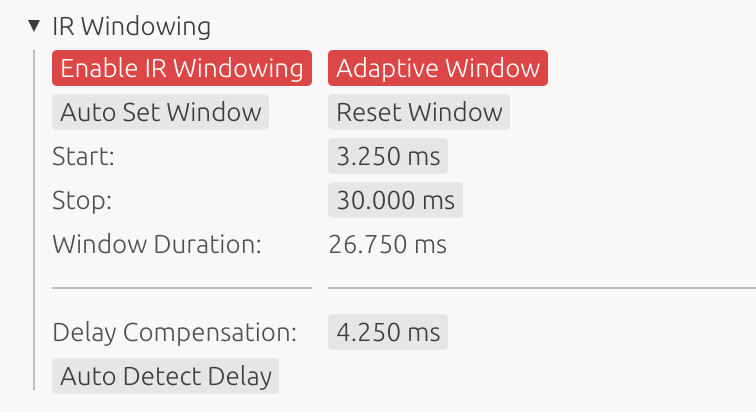
Parameters
Start Time
Beginning of the time window in milliseconds.
- Purpose: Remove pre-ringing or early noise
- Typical: 0.0 to 5.0 ms before main peak
- Effect: Sets the beginning of the extracted portion
Stop Time
End of the time window in milliseconds.
- Purpose: Exclude late reflections or room decay
- Typical: 5.0 to 100.0 ms after main peak
- Effect: Sets the end of the extracted portion
Duration Display
Window duration (Stop Time - Start Time).
Start and Stop are independent — neither one drags the other. If you bring them within a taper of each other (or cross them), the fade-in and the fade-out simply multiply: the window becomes a smooth sub-unity bump rather than a malformed shape. With the default 0.5 ms taper, 4.0 ms / 4.5 ms already gives a clean triangular window (the fade-in reaches full amplitude exactly where the fade-out starts).
Time Reference
Start Time and Stop Time are defined on the raw impulse response — the measurement exactly as captured or imported, before any gain, IIR/FIR filtering, physical time delay, or delay compensation. A Start of 0 means “keep the measurement from its very first sample”; the values never change meaning as you build up filters and delays on the driver.
The Impulse Response and Step Response graphs, on the other hand, show the processed driver signal, and the red window-envelope preview (see Preview) is drawn on top of that processed curve. Since processing shifts the signal along the time axis, the window’s position on the graph is offset from the number you entered:
| Processing applied to the driver | Where the window appears on the graph |
|---|---|
| Crossover / correction FIR filter | shifted later by the filter’s own delay (the position of its impulse peak) |
| Time Delay (see Driver Processing) | shifted later by that amount (real zero-padding of the response) |
| Delay Compensation (above) | shifted earlier by that amount (display-only offset) |
For example, with a 2 ms Time Delay on the driver and no delay compensation, a window Start of 0 ms shows its fade-in at the 2 ms mark: the window has not moved — the displayed impulse has been delayed by 2 ms, and the overlay follows it so the two stay aligned. Remove every filter and set both delays to zero and the overlay lines up exactly with the entered value.
The overlay is deliberately drawn relative to the curve beneath it, so it always shows what the window does to the response you are actually looking at rather than to an abstract time axis. Note also that with Adaptive IR display on (Graphs settings), the graph zooms to the signal and may crop the region before the impulse — if your Start sits in that cropped area, the overlay simply enters from the left edge already open.
No need to do the arithmetic yourself: hovering Start or Stop shows exactly where that value lands on the graph, with the shift broken down by cause (FIR delay / Time Delay / Delay Compensation). Whenever that shift is non-zero, an On Graph row also appears right under Window Duration, showing both shifted values at a glance — e.g. 2.00 ➡ 12.00 ms for a Start/Stop of 0 / 10 ms with a 2 ms Time Delay. This readout always uses the raw Start/Stop values as the source of truth (they never change meaning), it only translates where they currently show up.
Auto Set Window
Click “Auto Set Window” to automatically detect and configure optimal window boundaries.
How It Works:
The algorithm analyzes the on-axis measurement (0°, 0°) and automatically sets the start and stop times:
- Detect main peak: Locates the largest absolute amplitude in the impulse response
- Compute Hilbert envelope: Calculates the amplitude envelope for robust reflection detection
- Adaptive threshold: Adjusts detection sensitivity based on signal-to-noise ratio (3-8% of peak)
- Set start time: Places window start 3 ms before the main peak (clamped to 0.0 minimum)
- This margin accounts for off-axis measurements where the sound path may be shorter (gives a margin of ~1m)
- Prevents truncation of the direct sound in off-axis measurements
- Search for reflections: Scans the envelope for the first significant reflection/echo after the main peak:
- Must occur at least 3 ms after the main peak
- Must exceed the adaptive threshold
- Must be a local maximum in the envelope
- Set stop time: Places window stop 0.5 ms before the first detected reflection
If no significant reflection is detected, the stop time is set to the end of the search window or IR length.
Detection Method:
The algorithm uses Hilbert envelope analysis to detect reflections. This provides more robust detection than simple amplitude analysis by following the overall energy contour of the signal, making it less sensitive to oscillations within the waveform.
Window Margins:
- Start margin (3 ms): Ensures off-axis measurements are not truncated when rotating large loudspeakers. At the speed of sound (~343 m/s), 3 ms corresponds to approximately 1 meter of path length difference. During rotation, drivers may move closer to or further from the microphone—this margin provides sufficient safety for rotations of large cabinet.
- Stop margin (0.5 ms): Small margin before the detected reflection to avoid including the beginning of the echo.
Best Use Cases:
- ✅ Quasi-anechoic measurements: Ideal for measurements with clear, isolated reflections (e.g., outdoor, treated rooms, gated measurements)
- ✅ Controlled environments: Works well when the direct sound is clearly separated from reflections
- ✅ Multi-angle measurements: The 3ms start margin prevents truncation of off-axis measurements
- ✅ Time-saving: Quick initial window setup that can be manually refined if needed
Limitations:
- ❌ Reverberant environments: Not suitable for highly reflective rooms where reflections arrive continuously
- ❌ Dense reflection patterns: May not detect the first reflection correctly if multiple reflections arrive in quick succession
- ❌ Room measurements: For full-room measurements including reflections, manual windowing is more appropriate
Recommendation:
Use “Auto Set Window” as a starting point in quasi-anechoic conditions, then verify and adjust the window boundaries manually while observing the impulse response graph. In reverberant environments, set window parameters manually based on your measurement conditions.
Windowing Purpose
- Anechoic approximation: Simulate anechoic conditions from room measurements
- Reflection gating: Remove floor, ceiling, and wall reflections
- Crossover and correction design: Essential for accurate filter design using measured data
- Clean response: Isolate direct driver response
Window Function
LinFIR uses a Tukey window (tapered cosine/raised cosine) for smooth fade-in and fade-out transitions. This prevents spectral artifacts and high-frequency ringing caused by abrupt signal truncation.
Windowing Convention:
The fade-out starts at the stop parameter:
- Fade-in:
[start → start + taper] - Full signal:
[start + taper → stop] - Fade-out:
[stop → stop + taper]
The applied window is the product of the fade-in and the fade-out envelopes, so if start and stop are within a taper of each other the two overlap gracefully into a smooth sub-unity bump instead of a broken shape — no minimum gap is enforced.
No fade at the extremes: a fade exists only to smooth a discontinuity created by truncating real signal — a start of 0 truncates nothing before it (see Time Reference), so there is no fade-in at all in that case: the window opens at full amplitude from the very first sample. The stop side needs no equivalent special case: once stop reaches the measurement’s own duration (its maximum allowed value), every real sample already falls before it, so the fade-out ramp naturally has nothing left to attenuate.
Taper Duration: 0.5 ms fixed for simple windowing. For adaptive windowing, the taper is frequency-adaptive: each band gets a half-period taper centered on its center frequency (half of 1/frequency), with a floor at 0.5 ms. This means high frequencies use ~0.5 ms tapers while low frequencies use much longer tapers (e.g., 5 ms at 100 Hz, 10 ms at 50 Hz) to match the wavelength and avoid introducing ripples in the magnitude.
Preview
The impulse response graph shows the windowed result in real-time as you adjust start and stop times.
Whenever you change a windowing parameter (start/stop time, drag, “Auto Set Window”, “Reset Window”, or toggling Adaptive Window), the window envelope itself is briefly overlaid in red on both the Impulse Response and Step Response graphs, scaled to line up with the peak of the curve underneath. Alongside it, on the Impulse Response graph, the raw (un-windowed) impulse response of the measurement currently shown is drawn as a dashed line in the same colour as that driver’s impulse curve, so you can see directly what the window keeps and what it removes. Both fade together: fully visible for 3 seconds, then fading out over 2 seconds - changing a parameter again resets the timer. The overlay is only shown for the driver you’re currently editing, and only while its window is enabled.
You can also bring the overlay up at any time without changing anything by clicking the Show window button in the IR Windowing section.
The overlay (and the dashed reference) is positioned to match the processed curve on the graph, so its start/stop will not sit at the raw Start/Stop values you entered once the driver has filters or a time delay — see Time Reference above for why.
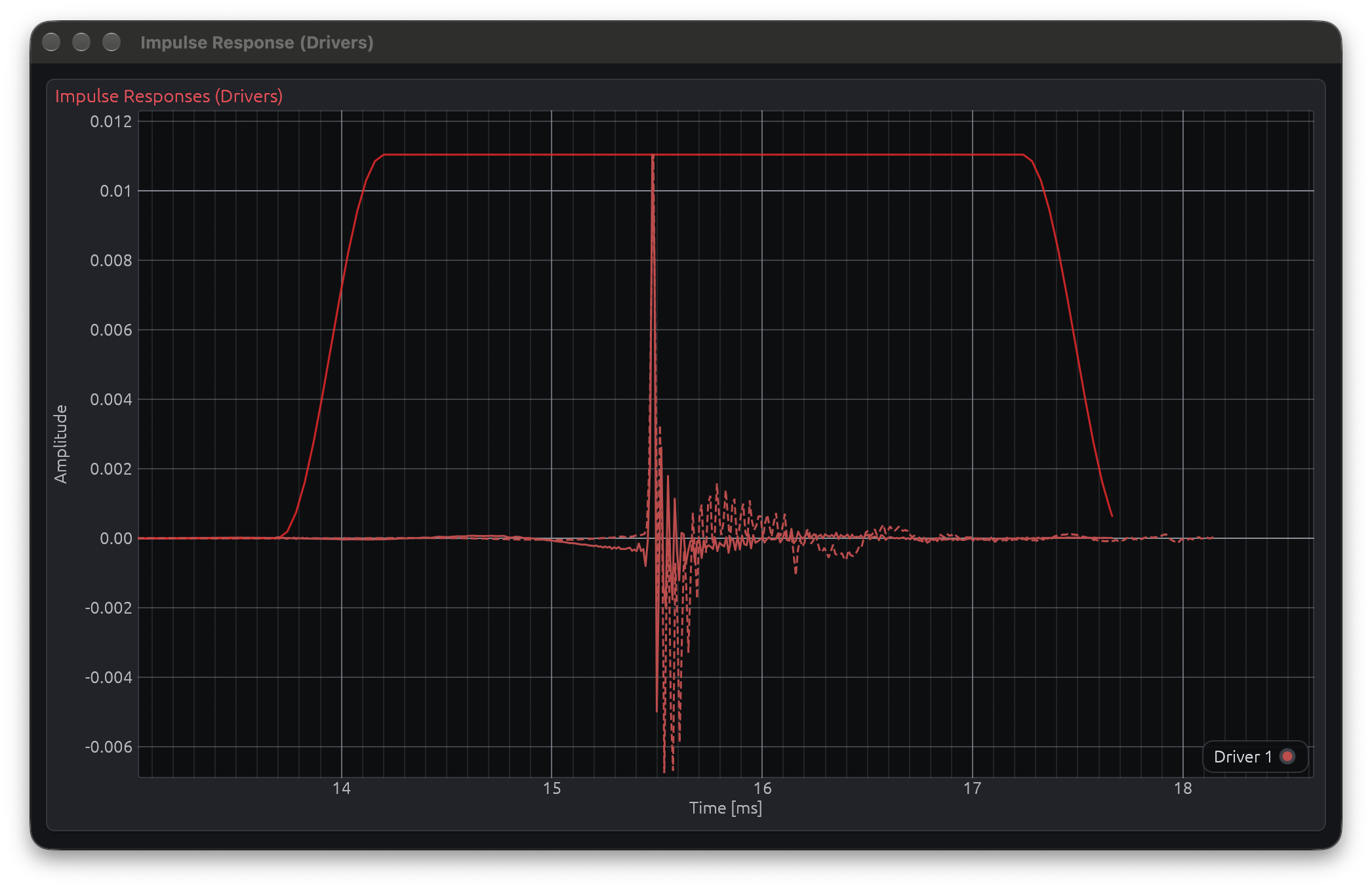
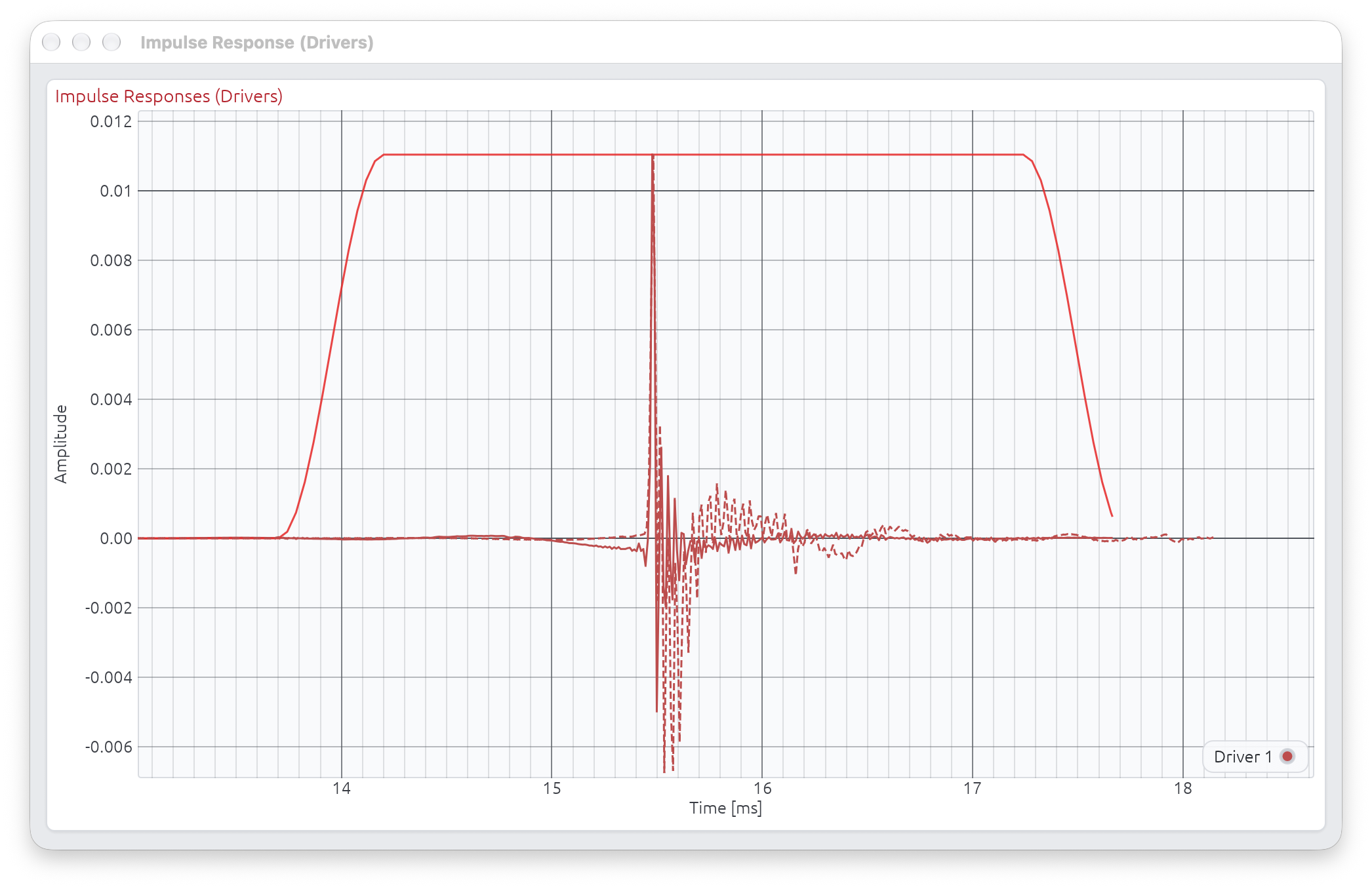
With Adaptive Window enabled, the overlay instead draws a telescoping sequence of fade-out curves, one per frequency band: the shortest (darkest, treble) band’s complete window is drawn first, and each following, longer band picks up exactly where the previous one’s plateau ends and extends the shape further out, growing lighter as frequency decreases. Because bass bands extend their fade-out much further in time than treble bands, you’ll often only see the first few (darkest) steps within the graph’s visible range - the lower-frequency ones continue further right, beyond the current time axis.
Adaptive Window
Advanced frequency-dependent windowing that preserves low-frequency response while gating high-frequency reflections.
How It Works
When enabled, LinFIR uses a wavelet transform to apply different window lengths for different frequencies:
- Start parameter: Applied uniformly to all frequencies
- Stop parameter: Applied with frequency-dependent extensions
- Lower frequencies get longer decay times
- Higher frequencies use shorter windows
Examples of automatic extensions:
- 30 Hz: +33 ms beyond stop time
- 480 Hz: +2 ms beyond stop time
- 7.5 kHz: +0.1 ms beyond stop time
- 18 kHz: +0.06 ms beyond stop time
This reflects the physical reality that longer wavelengths make it difficult to temporally separate direct sound from reflections.
Benefits
- Preserves bass response: Low frequencies automatically get the time they need
- Avoids bass roll-off: Short windows don’t unnaturally cut off bass
- Frequency-aware gating: Removes high-frequency reflections while keeping bass intact
- No phase distortion: Maintains natural phase relationships
When to Use
Use Adaptive Window when:
- Gating reflections but need to preserve bass response
- Using short measurement windows where bass would be compromised
- Simple windowing causes unnatural bass attenuation
- You want frequency-dependent decay times matching physical acoustics
Don’t use Adaptive Window when:
- Working with anechoic or quasi-anechoic measurements with very clean direct sound (simple window is cleaner)
- You have sufficient window length for all frequencies uniformly
- You prefer uniform windowing for consistency
Enabling
Check the “Adaptive Window” checkbox in the IR Windowing section.
Delay Compensation
Shift the impulse response earlier in time without truncating data.
How It Works
- Non-destructive: IR data remains intact in memory
- Display offset: Delay applied as metadata for display and calculations
- Purpose: Bring acoustic peak closer to time zero to flatten the phase
Auto Detect Delay
Click “Auto Detect Delay” to automatically detect and apply optimal delay compensation across all drivers:
Behavior:
- Detects the peak position for each driver (based on on-axis measurements)
- Finds the minimum detected delay across all drivers
- Applies this minimum delay to all drivers simultaneously
Advantages:
- Preserves temporal alignment: All drivers maintain their relative timing relationships
- Removes common delay: Eliminates the shared propagation delay from all measurements
- Prevents errors: Ensures consistent delay compensation across all drivers automatically
Detection Method:
- Locates the position of the main peak in the impulse response
- Uses on-axis measurement (0°, 0°) as reference for each driver
- Aligns all driver peaks precisely at time zero
Manual Adjustment
Manually enter delay value in milliseconds to fine-tune compensation for individual drivers.
Sync Toggle (enabled by default):
When the Sync toggle is enabled, any manual delay adjustment automatically applies to all drivers in the project. This ensures consistent compensation across all drivers without needing to adjust each one individually.
- Enabled: Changes to the delay parameter propagate to all drivers automatically
- Disabled: Changes only affect the current driver, allowing independent delay values
- Activating Sync: If Sync is currently disabled and you enable it, an automatic delay detection is triggered to ensure all drivers have coherent delay values
When to use independently (Sync disabled):
- Only when drivers were measured with significantly different microphone positions
- Even then, prefer fixing microphone position and re-measuring rather than relying on delay compensation
Purpose and Limitations
What delay compensation is FOR:
- Removing the time of flight of sound from the measurement (optional, depends on personal preference)
- Correcting for different microphone positions between measurements
What delay compensation is NOT for:
- ❌ Time-aligning drivers during crossover design (this is handled separately by the Time Delay parameter)
- ❌ A tool for precise multi-driver coherence (proper crossover phase design is required instead)
Important: Microphone Position Corrections
Delay compensation can correct for microphone position differences, but this method has significant limitations:
⚠️ High-frequency measurement errors scale with wavelength:
- 10 cm microphone position difference → Errors above ~3400 Hz
- 5 cm microphone position difference → Errors above ~6900 Hz
- Ultra-short wavelengths (high frequencies) amplify measurement uncertainties
Best practice:
- ✅ Prefer re-measuring with fixed microphone placement rather than compensating for position differences
- ✅ Maintain consistent microphone position across all measurements when possible
- ✅ Delay compensation cannot replace careful measurement technique
Off-Axis Measurements:
- The selected delay compensation applies uniformly to all off-axis measurements (cannot vary by angle)
- This affects the relative timing between different measurement angles consistently
Measurement Notes
Section: Collapsible header (default closed) Purpose: Document measurement conditions and hardware setup

Overview
The Measurement Notes field provides a space to record important information about your measurement setup, hardware configuration, environmental conditions, and any other relevant details.
Features
- Multi-line text editor: Supports up to 1000 characters
- Auto-save: Notes are saved with the project
- Hint text: Helpful placeholder text suggests what information to include
- Character counter: Live display of character count (e.g., “127/1000 characters”)
What to Document
Hardware configuration:
- Microphone model and serial number
- Audio interface model and settings
- Amplifier configuration
- Cable connections and routing
Measurement conditions:
- Date and time of measurement
- Room conditions (temperature, humidity if relevant)
- Microphone position and distance
- Driver orientation and mounting
Reference information:
- Calibration file version used
- Sample rate and sweep settings
- Any unusual conditions or observations
- Version of measurements for tracking
Example Notes
Microphone: UMIK-1 (S/N: 123456) with cal file v2.3
Interface: Focusrite Scarlett 2i2 (48kHz, 512 buffer)
Distance: 1m on-axis, driver mounted in baffle
Room: Semi-anechoic (windows gated at 10ms)
Date: 2025-12-14
Notes: First measurement after driver break-in period
Best Practices
- Be specific: Include model numbers and serial numbers when relevant
- Date your measurements: Track when measurements were taken
- Note calibration: Record which calibration file was used
- Document changes: If re-measuring, note what changed
- Reference conditions: Record anything that might affect comparisons
Exporting Impulse Responses
Impulse responses can be exported individually or in batch using two methods:
Spliced measurements: if a near-field / far-field splice is active (see Near-Field / Far-Field Splicing), the export dialog adds a Raw capture / Spliced (anechoic) choice. “Spliced” writes the blended anechoic IR (and adds a
_splicedmarker to the filename). “Include distortion” can be combined with either choice — it prepends the distortion tail measured at capture time to whichever main response you export (marker becomes_spliced_distwhen both apply). The choice defaults to “Spliced” when the measurement being exported has a spliced version.
Individual Export (Per-Measurement)
For each measurement (horizontal and vertical angles):
- Click the ⬇ (Export) button next to the measurement angle
- Export dialog appears with format options
- Choose export format (WAV or TXT) and options
- File is saved with automatic angle suffix
File naming format:
- Format:
DriverName_v{vertical}h{horizontal}.extension - Examples:
- On-axis (0°, 0°):
Driver 1_v0h0.wav - Horizontal +30°:
Driver 1_v0h30.wav - Vertical -15°:
Driver 1_v-15h0.wav - Horizontal -45°:
Driver 1_v0h-45.wav
- On-axis (0°, 0°):
Room Calibration mode (no angles):
- Format:
MeasurementName.extension - Example:
Measurement 1.wav
Batch Export (All Measurements)
Button: ⬇ Export All (above “Measurement angle” field)
Process:
- Click “⬇ Export All” button
- Select output directory in folder picker
- All measurements exported simultaneously as WAV files
- Files use consistent
v{vertical}h{horizontal}naming
Format (batch export):
- All files exported as WAV (32-bit float, mono)
- Sample rate matches project sample rate
- “Include distortion” option applies to all files
- No format selection (always WAV for batch)
Benefits:
- Fast export of complete measurement sets
- Consistent naming for re-import compatibility
- Files can be re-imported via batch import with automatic angle detection
- Compatible with external tools
Use cases:
- Archiving complete measurement sets
- Sharing measurements with collaborators
- External processing (FIR Designer, Matlab, REW)
- Backing up measurements before making changes
Export Format Options
When you click the export button, a dialog presents two format options:
WAV Format
File format:
- Channels: Mono
- Bit depth: 32-bit PCM float
- Sample rate: Project sample rate
Include Distortion Metadata option:
When checked:
- Exports full deconvolved IR plus custom ‘dist’ metadata chunk
- File name automatically gets
_dist.wavsuffix - Enables THD computation when re-imported into LinFIR
- Contains sweep parameters: start frequency, end frequency, duration
When unchecked:
- Exports only the active (cropped/windowed) working IR
- Standard WAV file without metadata
- Cannot be used for THD computation upon re-import
TXT Format
File format:
- One sample per line in scientific notation (e.g.,
1.234567e-03) - Metadata stored as comment lines starting with
#:# fs=<value>- Sample rate in Hz# IR data:- Marks the start of sample data
- Compatible with external tools (e.g., Matlab, Python)
- Can be re-imported into LinFIR
Include Distortion option:
TXT export does NOT support distortion export:
- The “Export as TXT” button is disabled when “Include distortion” is checked
- TXT format can only export the cropped IR (main impulse only)
- For distortion data export, use WAV format which supports embedded metadata
THD Availability
Total Harmonic Distortion (THD) graphs are only available when:
- IR was captured directly via LinFIR’s built-in sweep, or
- IR was imported from WAV with ‘dist’ metadata chunk (exported with “Include dist.” option in LinFIR)
Plain WAV files without ‘dist’ chunk or TXT files cannot produce THD curves.
Best Practices
For Captures
- Use proper gain staging to avoid clipping
- Monitor levels during sweep - aim for -6 dB to -12 dB peak
- Save captures with “Include dist.” for future THD analysis
For Windowing
- Use anechoic or quasi-anechoic measurements when possible
- Apply windowing before designing correction filters
- Check impulse response graphs to verify proper window placement
- Use Adaptive Window cautiously - verify bass response is realistic
For File Management
- Use descriptive IR names for organization
- Export with distortion metadata if you need THD analysis later
- Keep original unprocessed captures as backups
- Document measurement conditions (position, distance, etc.)
Quick Reference
| Action | Result |
|---|---|
| Import WAV | Load IR from WAV file (with or without ‘dist’ metadata) |
| Import FRD | Convert frequency response data to impulse response |
| Capture Sweep | Built-in measurement with automatic THD support |
| Time Windowing | Extract portion of IR, exclude reflections |
| Adaptive Window | Frequency-dependent windowing for bass preservation |
| Delay Compensation | Shift IR in time (non-destructive) |
| Export WAV | Save IR to WAV (with optional distortion metadata) |
| Export TXT | Export coefficients to text file |
Sweep Measurements
LinFIR features a built-in exponential sine sweep generator for impulse response capture. This system provides high-quality measurements with automatic quality validation.
Overview
The sweep measurement system generates an exponential sine sweep that excites the system across a specified frequency range. After playback and recording, deconvolution with the inverse sweep extracts the impulse response.
Accessing Sweep Controls
Sweep controls are located in the IR Management window:
- To open the window: Driver → Manage IR
- Section: Measurement Settings
- Start button: 🎤 Measure
Sweep Parameters
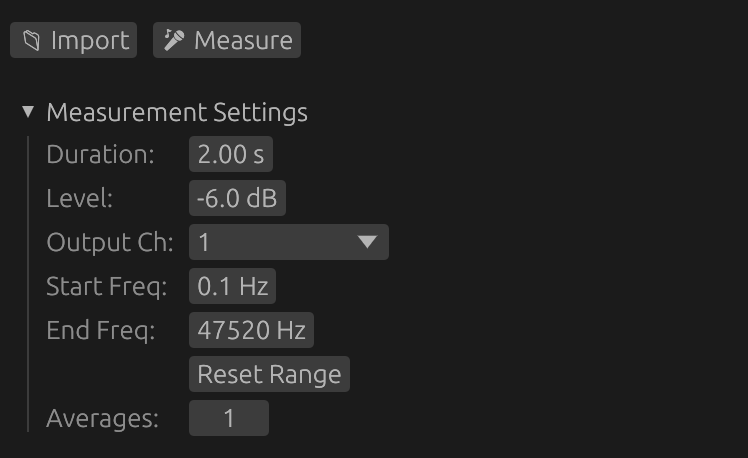
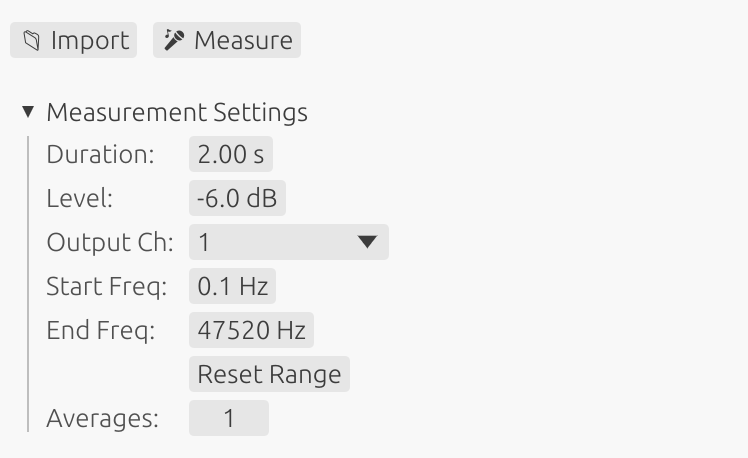
⚠️ Safety Warning
Low frequency content can damage small drivers:
- Sweeps starting below 100 Hz contain high-energy bass content
- Never measure unprotected tweeters or midrange drivers with full-range sweeps
- High excursion at low frequencies can cause mechanical damage or voice coil failure
- For tweeters: Use start frequency >1000 Hz
- For midrange: Use start frequency >200-500 Hz (depending on driver specs)
- Always verify your driver’s rated frequency range before measurement
When measuring individual drivers, adjust the start frequency to match the driver’s safe operating range.
Important note on driver protection methods:
If you use an external high-pass filter (physical or DSP) to protect a driver during measurement instead of adjusting the sweep start frequency, be aware that:
- The filter will affect the phase response and group delay of the measurement
- This phase shift will be captured in the impulse response
- If you later remove or change the protection filter, the driver alignment will be incorrect
- Recommendation: Protect drivers by setting the appropriate sweep start frequency rather than using external filters
- This ensures accurate phase and timing measurements without filter-induced artifacts
Duration
Length of the sweep signal in seconds.
- Range: 1 to 15 seconds
- Shorter (1-3s): Faster measurements, lower frequency resolution, reduced harmonic distortion accuracy
- Longer (5-15s): Better low-frequency resolution, improved SNR, better harmonic distortion measurement
- Recommended: 5-7 seconds for full-range measurements
Benefits of longer sweeps:
- Improved signal-to-noise ratio for harmonic distortion analysis
- More reliable detection and measurement of weak harmonics
- Better frequency resolution in the bass region
⚠️ Important: Longer sweeps deliver more energy to the driver at low frequencies because exponential sweeps spend more time in the bass region. For drivers with limited excursion capability, longer sweeps may require:
- Raising the start frequency to avoid the lowest frequencies
- Reducing the sweep level (amplitude) to limit excursion
- Monitoring the driver during measurement to ensure it doesn’t bottom out
Amplitude
Output level of the sweep signal.
- Range: -50 to 0 dB
- Purpose: Control the acoustic level of the measurement
- Typical: -12 to -6 dB for moderate levels
- Maximum (0.0): Full digital scale output
Adjust amplitude based on driver sensitivity and desired measurement level. Too low may result in poor SNR; too high may cause clipping, distortion or damage.
Start Frequency
Cutoff frequency for the 4th-order Butterworth high-pass filter applied to the sweep for driver protection.
- Default: 1 Hz (captures near-DC response)
- Range: 1 Hz to 20 kHz
- Full-range: 20 Hz (typical for full-bandwidth measurements)
- Subwoofers: 10-20 Hz for low-frequency drivers
- Tweeters: >1000 Hz for high-frequency analysis only (protect from low frequency damage)
- Midrange: >200-500 Hz depending on driver specifications
Understanding the Butterworth Filter Protection
LinFIR applies a 4th-order Butterworth high-pass filter to the sweep signal with cutoff frequency fc = Start Frequency. This provides:
- Attenuation at cutoff: -3 dB at the Start Frequency
- Roll-off below cutoff: -24 dB/octave (deterministic, frequency-independent)
- Minimal pre-ringing: Butterworth maximally-flat passband characteristic
- Continuous protection: Applied across the entire sweep duration
⚠️ Critical positioning guideline:
Because of the -3 dB attenuation at the cutoff frequency, set Start Frequency slightly below your desired passband start, but always above driver safety limits:
- Example: For 80 Hz passband → set Start Frequency to 60-70 Hz
- This accounts for the -3 dB attenuation while ensuring full response in the desired band
- For tweeters: position above resonance frequency (fs) to avoid damage
- For woofers: set at a frequency that limits excursion to safe levels
⚠️ Important: Setting the start frequency too low for small drivers can cause mechanical damage. Always verify your driver’s rated frequency range and adjust accordingly.
For full-range measurements of complete speaker systems, 20 Hz is appropriate. For individual driver measurements, adjust to the driver’s safe operating range.
End Frequency
End of the full-amplitude band of the sweep.
- Default: Auto - 1/48 octave below the Nyquist frequency (~23.4 kHz at 48 kHz, ~47.3 kHz at 96 kHz). This is the previous fixed behaviour; leave it here for normal full-bandwidth measurements.
- Range: from half an octave above the Start Frequency, up to the Auto value.
- Effect: the sweep is flat at full amplitude up to the End Frequency, then a sin² fade-out runs to
min(Nyquist, End Frequency × 2), and the sweep excites nothing above that. - No filter, no roll-off: unlike the Start Frequency (which is a Butterworth cutoff, −3 dB at the frequency), the response stays flat right up to the End Frequency. Setting it to, say, 20 kHz gives a flat measurement to 20 kHz — it does not under-read the treble.
When to lower it. On a driver with severe cone breakup, the breakup resonance can be so loud that you have to drop the sweep level to avoid clipping — which wrecks the signal-to-noise ratio of the band you actually care about. Setting the End Frequency below the resonance stops the sweep from exciting it at all, so you can run full level into the useful band.
Harmonic distortion is not lost. Even with a low End Frequency, the deconvolution filter is still built over the full range up to Nyquist, so a harmonic that lands above the End Frequency (e.g. the 2nd harmonic of a 6 kHz tone at 12 kHz) is still captured in full — see Exponential Sine Sweep under Technical Details. The THD curves stop at the highest fundamental that was actually swept.
Why is the top not symmetric with the bottom?
The Start Frequency has two full octaves of fade-in headroom below it (start_freq / 4), always available because there is no hard limit near DC, which lets its 4th-order Butterworth roll-off develop smoothly.
The End Frequency gets only one octave (× 2, clamped to Nyquist), for two reasons:
- Nyquist is a hard wall.
End × 4would be above Nyquist for any End above a quarter of it; even× 2is clamped once End is past half of Nyquist. A larger margin would simply be clamped away. - High-frequency pre-ringing is far less harmful — a brief artefact spanning a couple of samples, versus the millisecond-long low-end smear a sharp bass cutoff produces. One octave of sin² fade-out is plenty on top.
At the Auto (maximum) position the × 2 margin is fully clamped, so the sweep is byte-identical to the automatic behaviour of earlier versions.
Reset Start Freq / Reset End Freq Buttons
Quickly restore Start Freq or End Freq to their default values (configured in Audio Settings). Use them to return to defaults after a restricted-range measurement.
Driver Protection and Automatic Windowing
LinFIR applies a sophisticated combination of 4th-order Butterworth high-pass filtering and frequency-domain cosine windowing to protect drivers while ensuring clean measurements.
Butterworth High-Pass Filter for Driver Protection
A 4th-order Butterworth high-pass filter with cutoff frequency fc = Start Frequency is continuously applied across the entire sweep for deterministic driver protection:
Filter Characteristics:
- Cutoff frequency (fc): Set by the Start Frequency parameter
- Attenuation at fc: -3 dB (Butterworth characteristic)
- Roll-off: -24 dB/octave below cutoff (4th order)
- Pre-ringing: Minimal (Butterworth provides best balance)
Why Butterworth?
- Provides deterministic, frequency-independent protection slope
- Minimal pre-ringing compared to steeper filters
- Smooth passband without ripple
- Predictable behavior for all driver types
Protection Mechanism:
- Exponentially reduces energy below the cutoff frequency
- Protects tweeters from low-frequency voltage (thermal damage)
- Limits woofer excursion at sub-bass frequencies (mechanical damage)
- Applied in frequency domain for continuous, artifact-free protection
Understanding the Need for Windowing
When a sweep signal starts or ends abruptly at specific frequencies, it creates discontinuities in the time domain. These discontinuities manifest as Gibbs oscillations in the frequency domain near sharp cutoffs.
These artifacts are not physical - they’re mathematical consequences of abrupt spectral transitions and can mask real acoustic behavior.
How Automatic Windowing Works
LinFIR combines the Butterworth filter with smooth cosine windowing at the boundaries:
Low-Frequency: Butterworth + Cosine Fade-In:
- Butterworth filter (fc = Start Frequency) provides continuous -24 dB/octave protection
- First 1/8 octave uses cosine taper combined with Butterworth to force clean 0 dB at sweep start
- Smooth transition eliminates pre-ringing artifacts
- Combined protection: cosine windowing × Butterworth filtering
High-Frequency Fade-Out:
- Begins at the automatically calculated high frequency (1/48 octave before Nyquist)
- Gradually decreases amplitude using a cosine taper
- Physical sweep extends up to 1/96 octave before Nyquist frequency
- Optimized to maximize harmonic distortion SNR
Adaptive Behavior:
- Fade-out is always applied for optimal high-frequency behavior
- This ensures the sweep always covers its full intended bandwidth with continuous protection
Benefits of Combined Protection
Driver Safety:
- Deterministic -24 dB/octave roll-off below Start Frequency
- Continuous protection without sudden energy changes
- Suitable for all driver types with appropriate frequency selection
Clean Impulse Responses:
- Well-defined peaks without oscillations
- Minimal pre-ringing and post-ringing
- Accurate representation of system behavior
Optimized for Distortion Analysis:
- High frequency chosen to maximize harmonic separation
- Better signal-to-noise ratio for harmonic distorsion detection
No Configuration Required:
- Works optimally for all measurement scenarios
- Eliminates need for user windowing decisions
- Consistent, predictable behavior
Best Practices for Frequency Range Selection
Start Frequency: Driver Protection
The Start Frequency is critical for protecting drivers from damage. Loudspeakers can be damaged by two mechanisms:
1. Over-excursion (mechanical damage)
- Occurs when the cone reaches its physical limits and “bottoms out”
- Results in distortion, mechanical stress, and potential permanent damage
- Most critical for medium to large woofers with high motor force
2. Voice coil overheating (thermal damage)
- Low frequencies behave like DC current, causing excessive heat buildup
- Most critical for midrange drivers and tweeters
- Sending bass frequencies to a tweeter is equivalent to feeding it DC current, which can burn the voice coil
- Small voice coils have limited thermal mass and dissipate heat poorly
Recommended approach by driver type:
Woofers and Subwoofers:
- Adjust Start Frequency to avoid over-excursion
- Use driver simulations to predict excursion limits (e.g., VituixCAD, WinISD)
- Start frequency should be below or at the driver’s resonance frequency for accurate measurement
- Example: 12“ woofer with 15mm Xmax → start at 20-30 Hz to avoid mechanical limits
Tweeters:
- Place Start Frequency well above the driver’s resonance frequency
- Avoid exciting the resonance peak which causes extreme excursion and heat
- Must still measure the useful passband including the crossover region
- Example: Tweeter with 800 Hz resonance and 2 kHz crossover → start at 1000-1500 Hz
- This captures the crossover transition while protecting against resonance excitation
Midrange drivers:
- Balance between capturing low-frequency rolloff and avoiding resonance excitation or over-excursion
- Typically start 100-300 Hz below the intended crossover frequency
- Monitor excursion if measuring near resonance frequency
- Example: Midrange crossing at 500 Hz with 200 Hz resonance → start at 300-400 Hz
General rule:
- Always verify your driver’s specifications before measurement
- When in doubt, start conservative (higher frequency) and lower gradually while monitoring
Starting a Measurement
Measure Button (🎤 Measure)
Clicking the 🎤 Measure button initiates the sweep measurement process.
Default behavior (confirmation enabled):
- Click 🎤 Measure
- Confirmation dialog appears with warnings:
- Check microphone and speaker positioning
- Set appropriate gain levels to avoid clipping
- The sweep will be audible
- Windows-specific timing warning (if applicable)
- Click Start Measurement to proceed or Cancel to abort
- Sweep plays and records automatically
- IR is processed and validated
Direct mode (confirmation disabled):
- Measurement starts immediately when clicking 🎤 Measure
- No confirmation dialog shown
- Useful for quick repeated measurements
Disabling Confirmation Dialog
To disable the confirmation dialog:
- Open Settings (Cmd/Ctrl + ,)
- Navigate to Audio Settings
- Enable “Skip confirmation dialog” option
- Measurements will now start immediately
Warning: Disabling confirmation means sweeps start instantly. Ensure your setup is ready before clicking the button to avoid unexpected loud sweeps.
Stopping a Measurement
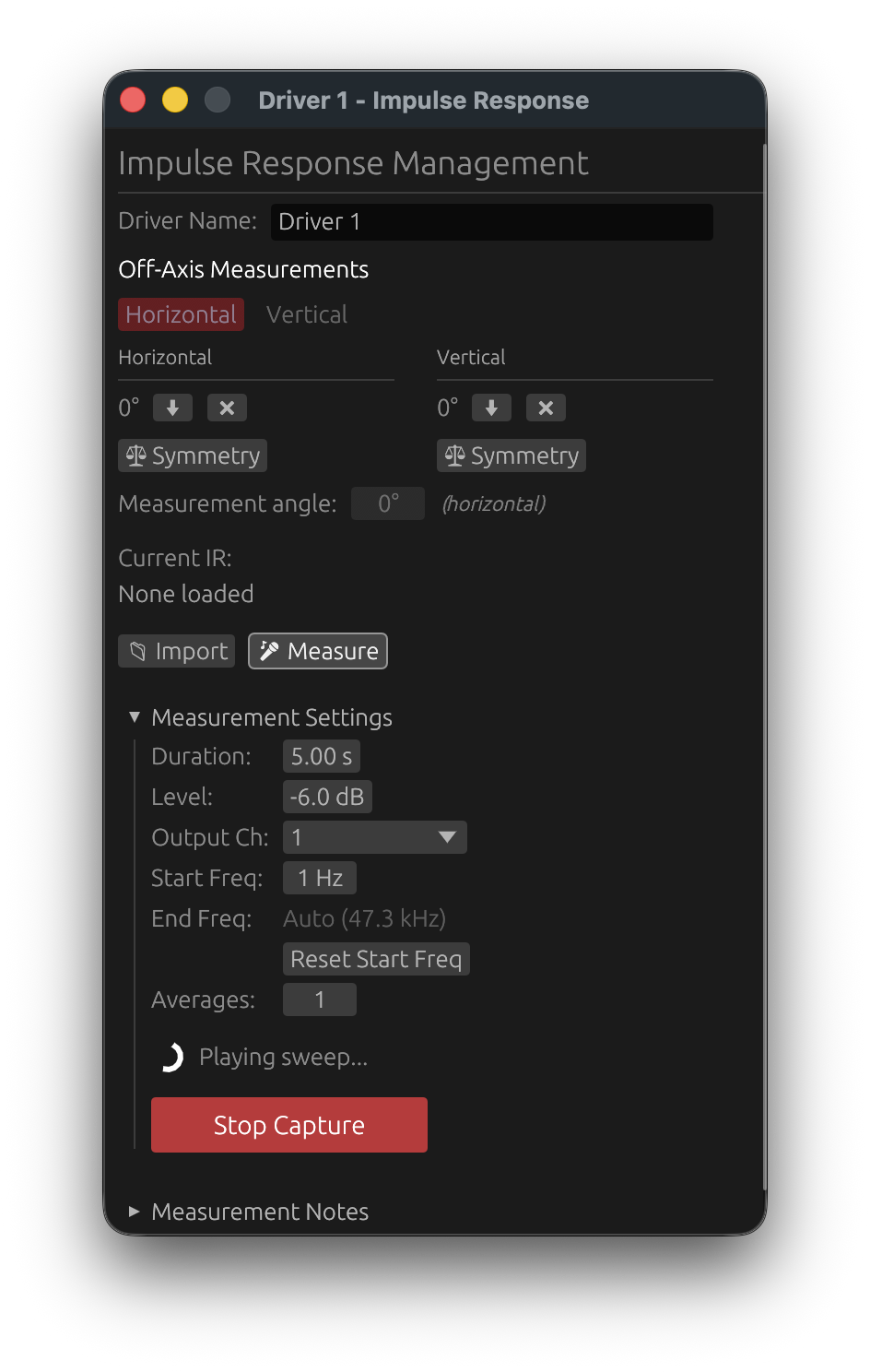
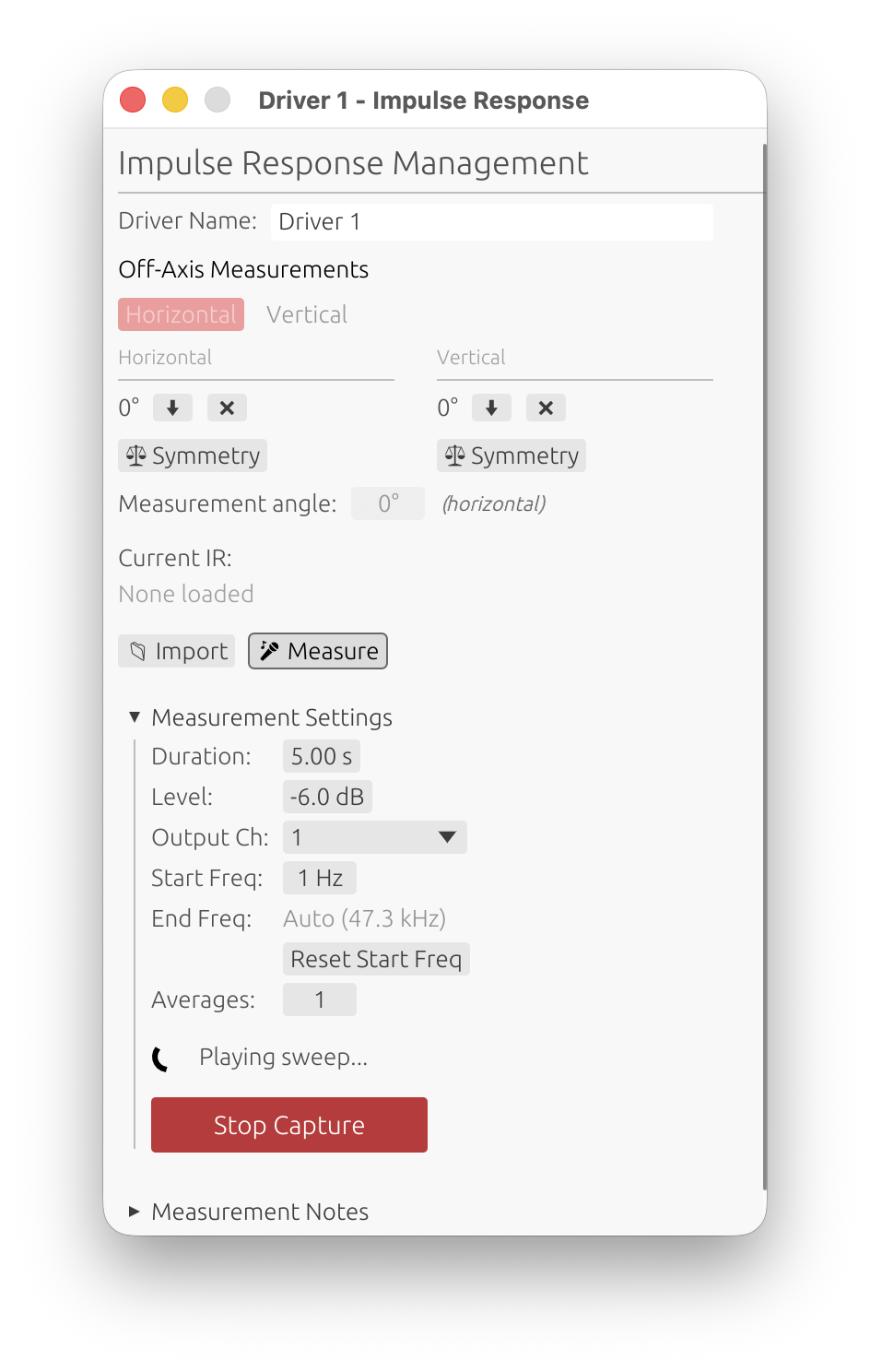
Emergency Stop
You can interrupt a sweep at any time during capture:
- Stop Capture button: Click the red button that appears during measurement
- Spacebar: Press the spacebar key for instant interruption
When to use emergency stop:
- Incorrect parameters: Realized the frequency range or level is inappropriate for the driver
- Excessive gain: Input signal is clipping or distorting
- Driver protection: Driver showing signs of stress (unusual sounds, excessive excursion)
- Environmental issues: Unexpected noise or interference occurred
The measurement will stop immediately when interrupted. You can then adjust parameters and start a new measurement.
Automatic Stop on Clipping
LinFIR monitors the input signal in real time during the entire sweep and will automatically cancel the measurement the moment clipping is detected — without waiting for the sweep to finish.
What happens:
- The input callback continuously tracks the peak level of every audio buffer
- As soon as any sample reaches digital full-scale (±1.0) - measured on the raw converter value, before the input gain compensation - the sweep is immediately faded out and stopped
- A notification toast identifies the cancellation as clipping-triggered
Toast messages:
- “Measurement cancelled: clipping detected! Reduce the output level or input gain and try again.” — clipping occurred on the main measurement channel
- “Measurement cancelled: clipping on the timing reference channel! Reduce the timing reference output level.” — clipping occurred on the timing reference channel (Electric or Acoustic mode); detected in the first ~1.2 s of the sweep, before the main sweep begins
Why this matters:
- Without real-time detection, clipping is only discovered at the end of the sweep after wasting the full measurement duration
- Immediate stop prevents unnecessary acoustic exposure of the driver to a potentially damaging clipped signal
- The automatic stop uses the same graceful fade-out as the manual Stop Capture button — no abrupt clicks
What to do:
- Reduce the audio interface input gain
- Lower the sweep amplitude
- Move the microphone farther from the driver
- For timing reference clipping: lower the timing reference output level in Audio Settings
Automatic Early Stop on Weak Timing Reference Signal
When a timing reference is active (Electric or Acoustic mode), LinFIR checks the level recorded on the timing reference channel shortly after the chirp ends, and cancels automatically if the signal was too weak to be reliable.
What happens:
- During the chirp window, the peak level on the timing reference input channel is continuously tracked
- After the end of the chirp, the accumulated peak is evaluated
- If the peak never exceeded −25 dBFS, the measurement is cancelled immediately (before the main sweep even begins)
- Toast message: “Measurement cancelled: timing reference signal too low (X.X dBFS < −25 dBFS). Check the timing reference channel connection and level.”
Why this matters:
- A weak timing reference signal makes latency detection unreliable or impossible
- Catching the problem immediately — before the full sweep — avoids wasting the measurement time
What to do:
- Check that the timing reference channel is connected correctly
- Increase the timing reference output level in Audio Settings
- For Acoustic mode, verify that the microphone can capture the high-frequency chirp (5–20 kHz)
Automatic Early Stop on Low Signal (Multi-Average)
When a measurement is configured with 2 or more averages, LinFIR checks the signal level at the end of the first sweep — before the second sweep begins — and cancels automatically if the signal was too weak.
What happens:
- During the first sweep, the peak input level is continuously tracked
- ~200 ms into the post-sweep silence (after the sweep signal has ended), the accumulated peak is evaluated
- If the peak never exceeded −25 dBFS, the measurement is cancelled before the second average starts
- Toast message: “Measurement cancelled: signal too low on first sweep (< −25 dBFS). Increase input gain or move the microphone closer.”
Why this matters:
- A low-level signal produces a poor signal-to-noise ratio; averaging more sweeps will not fix it
- Stopping after the first sweep avoids wasting time on subsequent averages that would yield unusable results
What to do:
- Increase the audio interface input gain
- Move the microphone closer to the driver
- Increase the sweep amplitude (Output Level in Sweep Parameters)
Note: The multi-average level check requires ≥ 2 averages. For single-sweep measurements (and for the final average of a multi-average one), the level check occurs after the full capture completes — see Quality Validation below for what happens then, which is no longer an automatic rejection. The timing reference level check (above) and the multi-average early-stop (above) are unaffected by this and still cancel the capture immediately, before a usable result even exists.
Window Behavior During Capture
To ensure reliable interruption, the IR Management window:
- Remains on top of all other windows during measurement
- Maintains keyboard focus throughout the capture
- Returns to normal window behavior when measurement completes or is stopped
This prevents accidental loss of control during the sweep. The spacebar shortcut will always work, even if you accidentally click elsewhere during measurement.
Level Recommendations
Target levels for best measurement quality:
- Optimal: -6 dB to -12 dB
- Acceptable: -12 dB to -20 dB
- Too low: Below -25 dB (poor SNR, noisy measurements — triggers the Low Signal Level Warning dialog, see Quality Validation)
- Too high: Above -3 dB (risk of clipping)
Quality Validation
LinFIR automatically validates each capture as it completes.
Clipping Detection
- Criteria: Any sample reaching digital full-scale (±1.0)
- Result: Capture rejected immediately, unconditionally
- Reason: Clipping introduces harmonic distortion that corrupts the impulse response — there’s nothing usable to keep
Solution: Reduce input gain or lower acoustic level (move microphone farther or reduce driver volume).
Level Check
- Criteria: Peak level must be ≥ -25 dB
- Result: An always-on-top Low Signal Level Warning dialog appears, offering Keep Anyway or Discard. Unlike clipping, a low level doesn’t corrupt the data — it’s just a poor signal-to-noise ratio — so the choice is left to you instead of the capture being discarded automatically.
- Reason: Low levels result in poor signal-to-noise ratio, which can produce inaccurate correction filters and skew phase visualization
Solution: Increase input gain, raise driver volume, or move microphone closer — then click Discard and re-measure. Or click Keep Anyway if the level is acceptable for your purposes (e.g. a quick reference capture).
💡 Settings → General → Measurement & Import Quality → Always keep low-SNR measurements skips this dialog entirely and keeps low-level captures automatically. See General Settings.
This check only applies on-axis — off-axis polar measurements are expected to be weaker (that’s the point of measuring directivity roll-off) and are never flagged.
During an unattended auto-scan, a low level still aborts the scan immediately instead of showing the dialog (nobody would be there to answer it) — unless the setting above is enabled, in which case the scan keeps going.
Best Practices
Microphone Positioning
- On-axis measurements: Position microphone directly in front of driver at typical listening distance
- Listening position: For room measurements, place microphone at primary listening position
- Height: Maintain consistent height, typically at seated ear level (90-150 cm)
- Distance:
- Farfield recommended: 0.5-1.5 meters with windowing (quasi-anechoic technique)
- Don’t use a raw near-field measurement as a driver’s response: on its own, a near-field capture (mic a few cm from the cone) is not a substitute for a far-field measurement — see below. The near-field / far-field splicing wizard is the supported way to use near-field captures, to extend a gated far-field measurement down into the bass.
- Consistency critical: Use the same microphone position for all drivers to maintain correct relative phase and amplitude relationships
Why a Raw Near-Field Measurement Isn’t a Driver Response
Physical limitations:
- A near-field capture is only valid below
c / (2·√(π·Sd))(a few hundred Hz for a large woofer, ~1 kHz for a small driver). Above that, the mic reads the reactive/evanescent field — air sloshing back and forth near the cone whose energy never radiates — so the response no longer matches what a far microphone would measure. - It carries no directivity and no baffle information: diffraction and the baffle step, which shape the real system response, are absent.
- The near-field pressure depends on the mic-to-cone distance and the cone’s emissive area, so captures of drivers of different sizes are not directly comparable without correcting for
Sdand distance.
Practical consequences of using it directly:
- Phase relationships corrupted: crossover alignment becomes unreliable when drivers are measured at different (near-field) distances.
- Baffle effects missed: the near field ignores the diffraction and baffle step that dominate the actual response.
- Wrong above the validity limit: the mid and high band reflect the reactive field, not the radiated one.
Recommended approach:
- For crossover design: measure at 0.5-1 m (same position for all drivers) and use time windowing (quasi-anechoic). This captures the correct far-field radiation, baffle interactions and inter-driver phase.
- When the far-field window is too short to trust the bass (almost always indoors): use the near-field / far-field splicing wizard. It captures each radiating element in the near field, corrects for
Sdand distance, caps the near-field contribution below its validity limit, and blends it with the far-field measurement in a physics-bounded transition band — addressing every limitation above by construction.
Acoustic Environment
- Minimize noise: Turn off HVAC, fans and noisy appliances during measurement
- Reduce reflections: For anechoic-like measurements, gate reflections using time windowing
- Room measurements: Accept reflections, use time windowing to exclude late reflections only
- Outdoor measurements: Recommended to avoid room gain and obtain better results at low frequencies
Measurement Microphone
- Type: Use calibrated measurement microphone (e.g., UMIK-1, Earthworks M23, Beyerdynamic MM-1)
- Calibration: Load manufacturer calibration file before measurements
- Quality: Consumer microphones lack flat frequency response and will give inaccurate results
Gain Staging
- Start with moderate input gain
- Run a test sweep
- Check peak level indicator
- Adjust gain to achieve -6 dB to -12 dB peaks
- Re-measure if clipping or too low
Sweep Duration
- Full-range (20 Hz - 20 kHz): 5-7 seconds recommended
- Limited bandwidth: Shorter sweeps acceptable (2-3 seconds)
- Very low frequencies (< 20 Hz): Use longer sweeps (7-10 seconds)
Capture Rejection Messages
“Capture Rejected - Clipping Detected”
Cause: Input signal exceeded digital full-scale.
Solutions:
- Reduce audio interface input gain
- Lower driver volume
- Move microphone farther from driver
- Check gain staging in signal chain
“Low Signal Level Warning” dialog (peak below -25 dB)
Cause: Peak level below -25 dB threshold.
A single measurement no longer gets discarded automatically for this — an always-on-top dialog appears with Keep Anyway / Discard instead (see Quality Validation). Click Discard and apply the solutions below, or Keep Anyway to accept the capture as-is.
During an unattended auto-scan, this still produces the old Capture rejected: Signal too low (...)! toast and aborts the scan automatically instead of showing the dialog — unless Settings → General → Always keep low-SNR measurements is enabled.
Solutions:
- Increase audio interface input gain
- Raise driver volume
- Move microphone closer to driver
- Verify microphone connection and phantom power
- Check audio routing and device selection
“h2 contamination detected”
Cause: The second harmonic (h2) of the exponential sine sweep falls inside the h1 (main impulse response) zone due to an excessive Manual offset setting or an audio interface with excessive latency. This means the total round-trip latency (audio interface + software buffer + manual offset) is too large, causing the deconvolution result to overlap distortion harmonics into the linear impulse response.
In an ESS measurement, distortion harmonics (h2, h3, etc.) appear at predictable time offsets before the main peak (h1). If the Manual offset is set too high, the truncation point that separates the distortion zone from the clean IR moves past h2, leaving it inside the h1 zone. The resulting impulse response is contaminated and unusable.
Solutions:
-
Reduce the Manual offset in the audio settings (IR Management → Audio Settings). The error message displays exactly how many milliseconds h2 protrudes into h1. Reduce the Manual offset by at least that amount.
Example: If the Manual offset is set to 100 ms and the toast shows “h2 is 25 ms past the truncation point”, set the Manual offset to 75 ms or less (100 ms − 25 ms = 75 ms).
-
Use an audio interface with lower latency — interfaces with smaller buffer sizes and lower driver latency produce cleaner results
-
For Airplay / wireless streaming devices: these introduce significant network latency (often 2+ seconds). The application automatically detects Airplay devices and adjusts timing constants (extended pre-silence, extended post-silence, and a 2500 ms delay for timing reference detection). If you still get h2 contamination, reduce the Manual offset further to compensate.
“Capture Rejected - h1 arrives before the truncation point”
Cause: The h1 peak (main impulse response) falls before the truncation point, meaning the start of the clean impulse response is cut off. This can happen for two reasons:
1. Manual offset too low — the Manual offset has been set to a value that is too low (e.g. close to 0 or a large negative value), so the truncation point is positioned after H1.
2. Acoustic distance mismatch (Acoustic timing reference mode) — the measured driver is farther from the microphone than the reference driver. In Acoustic mode, the timing reference is based on the acoustic arrival at the reference driver. If the measured driver is farther away, its IR arrives after the reference, but if the Manual offset isn’t large enough to compensate for this distance difference, the truncation point can still fall after H1.
When h1 is truncated, the resulting “H1” zone starts after the actual peak, capturing only the tail of the impulse response instead of the complete signal.
Solutions:
- Increase the Manual offset in the audio settings (IR Management → Audio Settings). Increase it in steps of 5-10 ms and retry the measurement
- Check acoustic distances when using Acoustic timing reference — if the measured driver is farther, increase the Manual offset to compensate for the distance difference (approximately 2.9 ms per 100 cm of additional distance)
Advanced Topics
Sweep Output Channel
In the IR Management window, you can select which output channel plays the sweep:
- Purpose: Direct sweep to specific amplifier channel
- Room Calibration: Select channel connected to main loudspeaker (excluding timing reference)
- Multi-way systems: Measure each driver individually by routing to appropriate channel
Multiple Measurements
For averaging or multi-position captures in Room Calibration mode:
- Configure timing reference (Electric or Acoustic) in Audio Settings
- Capture first measurement (this becomes the timing reference)
- Capture subsequent measurements at different positions or conditions
- In Room Calibration mode, measurements are automatically aligned using GCC-PHAT
Measurement Averaging
Averaging works on all platforms without requiring a timing reference:
- LinFIR uses a continuous capture approach: one recording containing N consecutive sweep segments
- After alignment, segments are extracted and averaged to reduce noise
- Operating system scheduler jitter only affects the initial timing, not the relative timing between segments
Timing reference recommendation:
- Not required for averaging (continuous capture eliminates timing inconsistency between segments)
- Still recommended on Windows for absolute timing accuracy if comparing measurements across drivers
- Mac OS: System clock is already reliable for all timing needs
Auto-Scan with a Rotation Table 🔒
Requires: a valid LinFIR license and a connected rotation table (Pololu Tic or GRBL/Arduino — see Rotation Table).
The auto-scan feature drives the rotation table through a configurable angle range and measures an impulse response at each step — fully automatically.
Starting Auto-Scan
In the IR Management window, when a rotation table is connected and a license is active, a ▶ Scan button appears alongside the standard 📁 Import and 🎤 Measure buttons.
Before clicking ▶ Scan, configure:
- Axis selector (Horizontal / Vertical) — determines whether measurements are stored as horizontal or vertical off-axis
- Auto-scan range — min angle, max angle (e.g. −90° to +90°)
- Step — angular increment between measurements (e.g. 10°)
| Parameter | Default | Description |
|---|---|---|
| Min angle | −90° | First off-axis angle (negative side) |
| Max angle | +90° | Last off-axis angle (positive side) |
| Step | 10° | Angular increment between captures |
What Happens
- If the table is a Pololu Tic and its motor isn’t already energized, LinFIR energizes it automatically so it can hold position while scanning (no-op for GRBL, which has no energize/de-energize concept)
- LinFIR builds a queue of angles:
0°, +step, +2×step, …, max, −step, −2×step, …, min - Already-measured angles are skipped automatically
- For each remaining angle:
- The table moves to the target angle
- LinFIR waits 500 ms for the table to settle after it stops moving
- A sweep capture starts (with your current sweep parameters)
- If the capture is rejected (clipping, signal too low — unless Always keep low-SNR measurements is enabled, in which case a low level no longer aborts the scan — or h1/h2 harmonic contamination), the whole scan is aborted immediately instead of continuing to the next angle — the underlying problem would very likely make every remaining angle fail the same way
- Otherwise, the next angle is queued
- A “Auto-scan complete” toast is shown when all angles are done
- Whatever the outcome — complete, aborted, or stopped (see below) — the table is sent back to 0°. Once it actually arrives there (not merely once the move command is sent), the motor is de-energized too, but only if De-energize motor after auto-scan is enabled in Settings → Rotation Table (see Rotation Table) — off by default.
State Machine
stateDiagram-v2
    [*] --> Moving : ▶ Scan clicked (energizes motor if needed)
    Moving --> Settling : table stopped at target
    Moving --> Homing : timeout (30 s)
    Settling --> Capturing : 500 ms elapsed
    Capturing --> Moving : capture done, angles remain
    Capturing --> Homing : all angles done, or capture rejected
    Homing --> [*] : table back at 0° (de-energize if enabled)
Progress Display
While auto-scan is running, a spinner and status line appears below the buttons:
⟳  Moving to 30°… (7 remaining)
⟳  Settling at 30°… (7 remaining)
⟳  Measuring 30°… (7 remaining)
Stopping Auto-Scan
- Click the ■ Stop button (replaces ▶ Scan while active)
- Press Space (also stops any capture in progress)
Both methods immediately halt the current capture and cancel the remaining queue, then trigger the same return-to-0°/de-energize sequence described above.
Timeout
If the table takes more than 30 seconds to reach a target angle, auto-scan is cancelled with an error toast. Check mechanical issues or increase the move speed on your controller.
For hardware setup, controller configuration, and troubleshooting, see Rotation Table.
Technical Details
Exponential Sine Sweep (Farina Method)
LinFIR uses an exponential sine sweep (ESS) for impulse response measurements, based on Angelo Farina’s method:
Basic ESS Properties:
- Frequency distribution: Equal energy per octave
- Low-frequency emphasis: More time spent at low frequencies
- Deconvolution: Analytical inverse filter applied to extract impulse response
Harmonic Distortion Detection:
The exponential sweep provides natural time separation of harmonic distortion products:
- Deterministic harmonic positions: All harmonic distortion products (H2, H3, H4) appear at predictable time positions in the deconvolved impulse response
- Time separation formula: Δt(Hₙ) = (T/ln(f₂/f₁)) × ln(n)
- h2 (2nd harmonic) appears at: Δt × ln(2) ≈ 0.693 Δt before the main peak
- H3 (3rd harmonic) appears at: Δt × ln(3) ≈ 1.099 Δt before the main peak
- H4 (4th harmonic) appears at: Δt × ln(4) ≈ 1.386 Δt before the main peak
End Frequency and harmonics. When you lower the End Frequency, the played sweep stops early, but the inverse (deconvolution) filter is still built over the full range up to Nyquist, at the same sweep rate. The n-th harmonic of a fundamental f sits at n·f — above the End Frequency — and a filter limited to the End Frequency would cut it off there. Extending the filter keeps every harmonic at full bandwidth. Because the sweep rate is unchanged, the harmonic time offsets Δt(Hₙ) are identical; only the main peak lands later, by the amount the filter was extended, and LinFIR compensates for that automatically. The THD curves themselves stop at the highest fundamental frequency that was actually swept.
Deconvolution
After recording the sweep response LinFIR automatically:
- Compute the inverse sweep signal
- Convolve recorded response with inverse sweep
- Extract impulse response from convolution result
- Apply microphone calibration (if loaded)
- Validate quality (clipping and level check)
Quality Criteria
- Clipping: Zero tolerance - any sample at ±1.0 rejects capture, unconditionally
- Minimum level: -25 dB peak threshold flags the capture for confirmation (Keep Anyway / Discard) rather than rejecting it outright — see Quality Validation
- These are conservative: Ensure high-quality measurements by default
Workflow Example
- Configure Audio: Set input/output devices, sample rate, buffer size
- Load Calibration: Import microphone calibration file (if available)
- Position Microphone: Place at measurement location
- Set Sweep Parameters: Duration = 5s, Amplitude = -6 dB, Full range (20 Hz - 22 kHz)
- Test Sweep: Run a test to check levels
- Adjust Gain: Aim for -6 dB to -12 dB peak levels
- Measure: Click 🎤 Measure button to record impulse response
- Confirm: Click Start Measurement in the confirmation dialog (or skip if disabled in settings)
- Verify: Check impulse response graph for quality
- Repeat: Capture additional measurements as needed
Driver Processing
Each driver in LinFIR can be individually processed with a comprehensive signal chain combining FIR crossovers, FIR correction filters, IIR equalization, polarity inversion, and time/gain adjustments.
The processing chain for each driver follows this order:
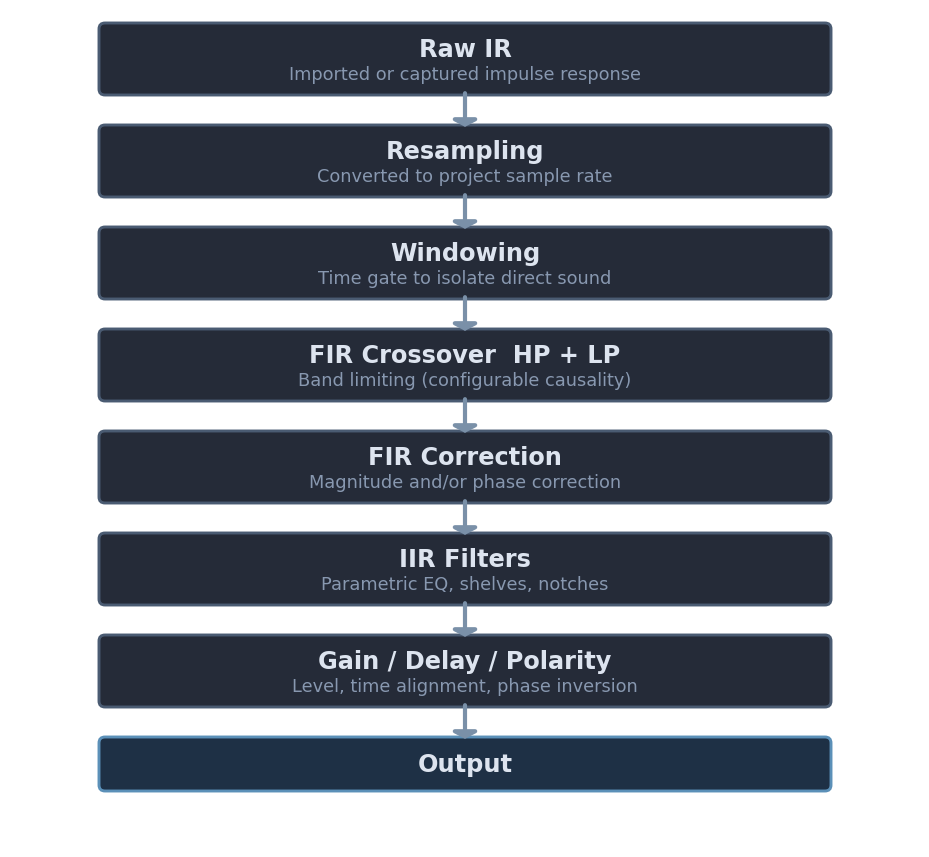
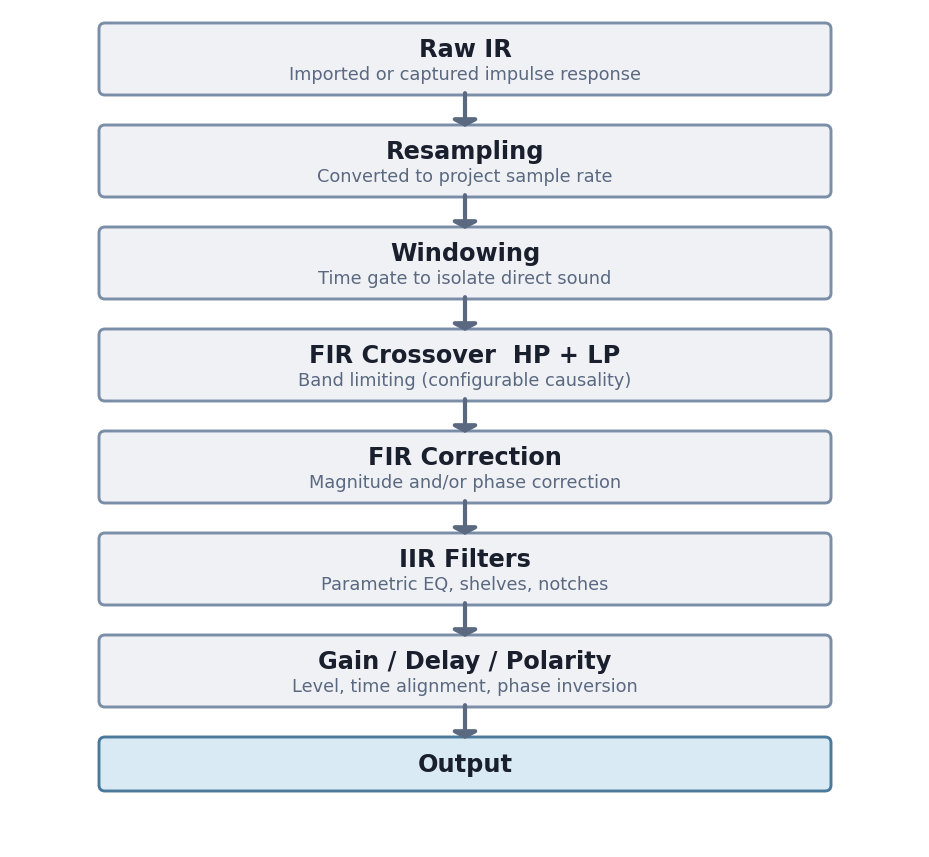
Driver Management
Adding and Removing Drivers
Add Driver:
- Maximum: 50 drivers per project (50 measurement positions in Room Calibration mode)
- Click ➕ Add Driver button in the Drivers toolbar
- New driver initialized with default settings
Working with many drivers: The 50-slot capacity is primarily intended for sound reinforcement system alignment — line array + subwoofers + front fills, where each cabinet, section or zone is captured as its own driver. Large driver counts have real performance implications in Loudspeaker Design mode; see Large Multi-Driver Projects before building such a project.


Remove Driver:
- Click 🗑 button in the driver’s bottom action bar
- Only visible when more than one driver is present
- Hidden in Hypex mode (driver count is locked by the selected model)
Copy / Paste Driver Parameters:
- Click 📋 to copy all parameters of a driver to the clipboard
- IRs and driver name are not copied — only filter and DSP settings
- Copied parameters include: FIR/IIR filters, gain, time delay, polarity, tap lengths, windowing, correction settings, mic calibration, and sweep parameters
- Click 📥 to paste the clipboard parameters onto another driver
- The target driver’s IRs and name are preserved
- The 📥 button is grayed out when no parameters have been copied yet
- Useful for duplicating crossover or EQ settings across multiple drivers without redoing each one manually
Driver Organization:
- Each driver has its own collapsible card in the left column, edged with the driver’s colour, with its FIR filters, IIR filters and speaker settings grouped under small section titles
- Each card’s header shows the driver name (or “Driver 1”, “Driver 2”, etc. if unnamed), its on/off toggle and the IR status badge
- Driver names are automatically set when importing impulse responses
Reorder Drivers:
- Drag and drop: grab a driver by its header — the ☰ grip or its name — and drop it above or below another driver
- While dragging, the driver follows the pointer and a line shows where it will land
- Releasing away from the driver list, or pressing Esc, cancels the move
- A simple click on the name still folds and unfolds the driver’s section
- Buttons: the ⬆ / ⬇ buttons in the driver’s bottom action bar (between 📥 and 🗑) move the driver up or down one step
- Either way, the driver’s position changes everywhere — the parameter list, every graph and legend, the directivity index, and exports — and everything tied to it follows: its open filter windows, its IR management window, its settings
- A small gap separates the arrows from the 🗑 button so the remove button isn’t hit by accident
- In Room Calibration mode measurement positions are reordered the same way, by drag and drop or with their ⬆ / ⬇ buttons
Driver Controls
Enable/Disable and Solo
Enable Toggle:
- Button to enable/disable individual drivers
- Disabled drivers are excluded from calculations and the summed response
- Useful for A/B testing or isolating specific drivers
Solo Button:
- Instantly disables all other drivers and enables only the selected driver
- Quick way to review individual drivers in isolation
All Button:
- Re-enables all drivers simultaneously
- Convenient after using Solo mode
Driver Interface Overview
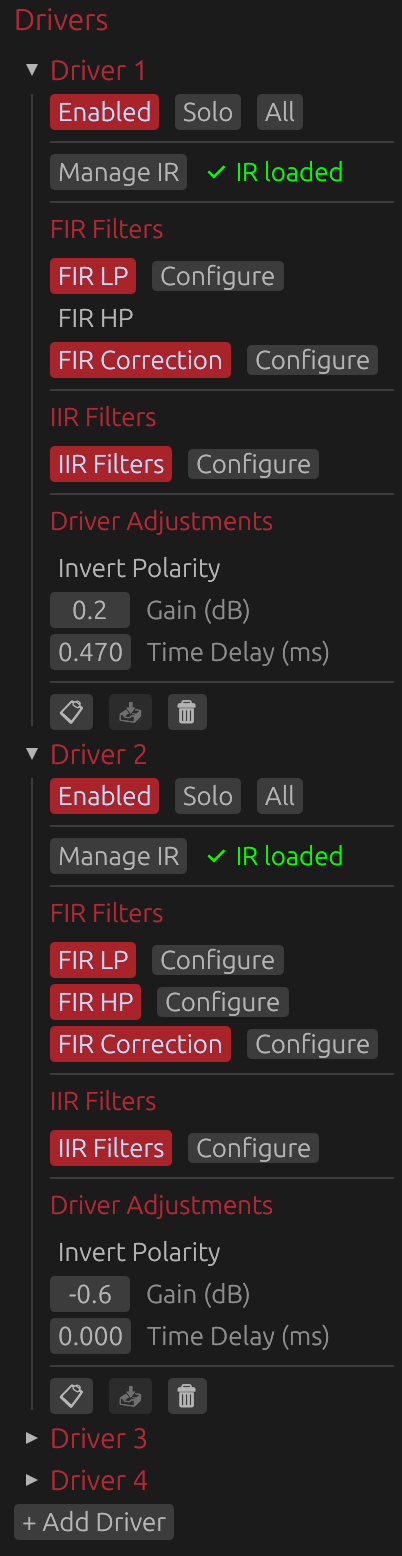
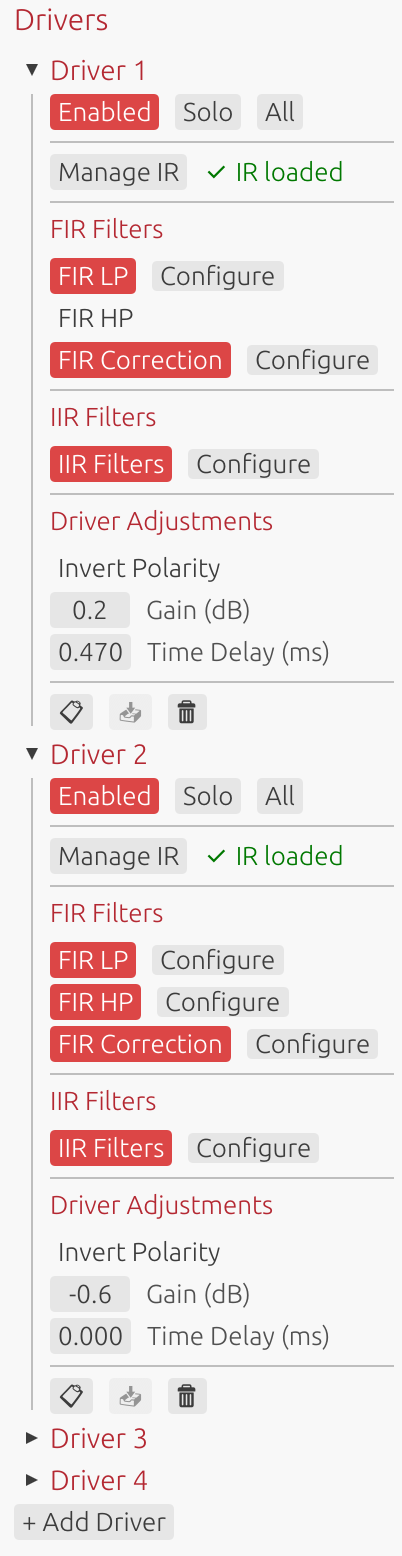
Each driver’s interface provides access to all processing and configuration options, organized into three main sections:
- Manage IR: Import/capture impulse responses and configure windowing
- FIR Filters: Low-pass, high-pass, correction filters, and FIR offset delay (if enabled in global settings)
- IIR Filters: Parametric EQ and filter design
- Driver Adjustments: Polarity inversion, gain, and time delay adjustments
The following sections detail each of these components.
Impulse Response Management
Loading Impulse Responses
Click Manage IR to open the impulse response management window for:
- Importing pre-recorded impulse responses
- Capturing new measurements via audio interface
- Configuring IR windowing parameters
- Managing off-axis measurements for directivity analysis
See IR Management for detailed documentation.
IR Status Indicator:
- Gray “No IR loaded”: Driver has no impulse response
- Green “✅ IR loaded”: Valid impulse response loaded
⚠️ Note: A loaded impulse response is required for filter design and correction. Without an IR, only theoretical filter responses can be displayed.
Target DSP Settings
The Target DSP Settings section configures fundamental parameters that determine filter design constraints and export characteristics. These settings directly impact frequency resolution, latency, and compatibility with your target DSP platform.
⚠️ Note: You can change these settings at any time to match different DSP characteristics, but doing so will affect the precision, effectiveness, delays, and slopes of any FIR filters you have already set.
Sample Rate
Options: 44.1 kHz, 48 kHz, 88.2 kHz, 93.75 kHz, 96 kHz, 176.4 kHz, 192 kHz Current project: Fixed at project creation
The sample rate is set when creating a new project and cannot be changed afterward. It determines:
- Nyquist frequency: Maximum representable frequency (sample rate / 2)
- Filter frequency resolution: Higher rates provide finer resolution
- Latency: For a given tap count, higher sample rates have lower latency in milliseconds
- DSP compatibility: Must match your target DSP platform’s operating sample rate
Common choices:
- 44.1 kHz: Compact DSP platforms with limited processing power
- 48 kHz: Professional audio standard, most DSP platforms
- 88.2 kHz: High-resolution audio (2× CD rate, relatively uncommon for DSP)
- 93.75 kHz: Hypex DSP platforms (FA123, FA253, FA502, etc.)
- 96 kHz: High-resolution audio, some professional DSP platforms
- 176.4/192 kHz: Ultra-high resolution - only when DSP platform specifically requires it
Enable per-driver tap lengths
Default: Disabled (shared tap length applies to all drivers)
When disabled (default):
- Single Filter length (taps) control in Target DSP Settings applies to all drivers
- Single Export padding control in Target DSP Settings applies to all drivers
- Simpler configuration for uniform systems
- All drivers use the same FIR filter length
When enabled:
- Filter length (taps) and Export padding controls move from Target DSP Settings to individual driver sections
- Each driver gets its own controls in its card
- Allows optimization: fewer taps for tweeters, more for woofers/subwoofers
- Useful for minimizing DSP load while maintaining quality where needed
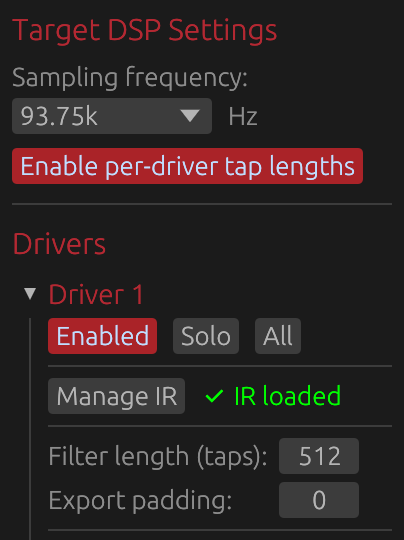
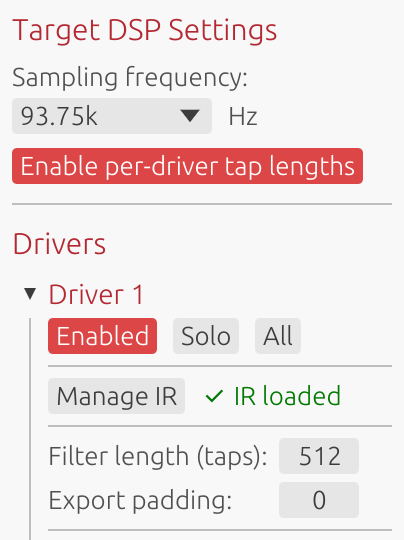
Example use case: Use 2048 taps for subwoofer (needs low-frequency resolution), 512 taps for tweeter (high frequencies need less resolution).
⚠️ Note: Linear phase FIR filters and phase-correction FIR filters introduce noticeable delays that depend on the number of taps. Different tap lengths between drivers will likely introduce time misalignments, which you can correct using the Time Delay parameter in the Driver Adjustements section.
Filter Length (Taps)
Range: 32 to 65536 taps Default: 512 taps Location:
- Shared mode (per-driver tap lengths disabled): In Target DSP Settings section - applies to all drivers
- Per-driver mode (per-driver tap lengths enabled): In each driver’s card
Controls the length of all FIR filters for this driver (crossover and correction filters).
Frequency Resolution:
- Resolution (Hz) = Sample Rate / Tap Count
- Example at 48 kHz: 512 taps = 93.75 Hz resolution, 4096 taps = 11.72 Hz resolution
- Lower frequencies need more taps for precise control
Latency (Linear-Phase):
- Latency = (Taps / 2) / Sample Rate
- Example at 48 kHz: 512 taps = 5.33 ms, 4096 taps = 42.67 ms
- Can be reduced using Causality control at the cost of phase linearity
Practical guidelines:
- 256-512 taps: Tweeters, minimal latency applications
- 512-2048 taps: Most crossover and correction applications
- 2048-4096 taps: Typical maximum for full-range loudspeaker designs
- 4096-8192 taps: Subwoofer correction, room correction
- 8192-16384 taps: Specialized low-frequency correction below 20 Hz
- >16384 taps: Rarely needed (extreme cases, research purposes)
Trade-offs:
- ✅ More taps = better frequency resolution, steeper filter slopes, more precise correction
- ❌ More taps = higher latency (for linear-phase), increased DSP load, larger export files
Export Padding
Range: 0 to 65536 taps Default: 0 Location:
- Shared mode (per-driver tap lengths disabled): In Target DSP Settings section - applies to all drivers
- Per-driver mode (per-driver tap lengths enabled): In each driver’s card
Adds zero-padding only to exported files, without affecting internal processing or design.
Purpose:
- Some DSP platforms require specific filter lengths (e.g., powers of 2: 512, 1024, 2048, 4096)
- Padding allows meeting DSP requirements without changing internal design
- Does not affect latency, delay, or any graph displays
How it works:
- Internal design: Uses configured tap count
- Export: Appends zeros to reach (Taps + Padding) length
- Frequency response remains identical (zero-padding doesn’t alter frequency content)
Example scenario:
- Design with 3000 taps, DSP requires power-of-2 → Set padding to 1096 → Exports 4096 taps
When not needed: If your DSP accepts arbitrary filter lengths, leave padding at 0.
FIR Crossover Filters
FIR Low-Pass Filter
Enable: Toggle FIR LP button Configure: Click Configure button (only available when enabled)
Applies a linear-phase low-pass filter to limit the driver’s high-frequency response.
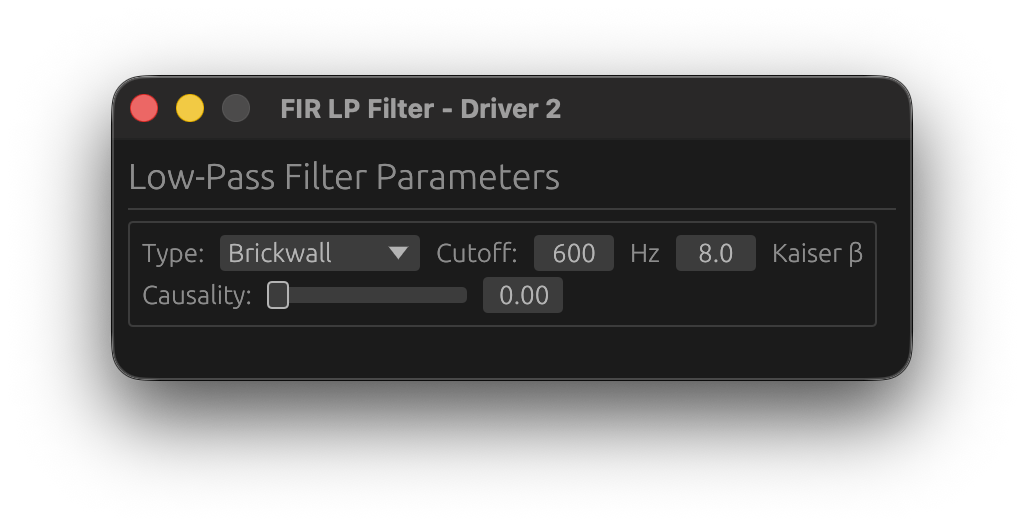
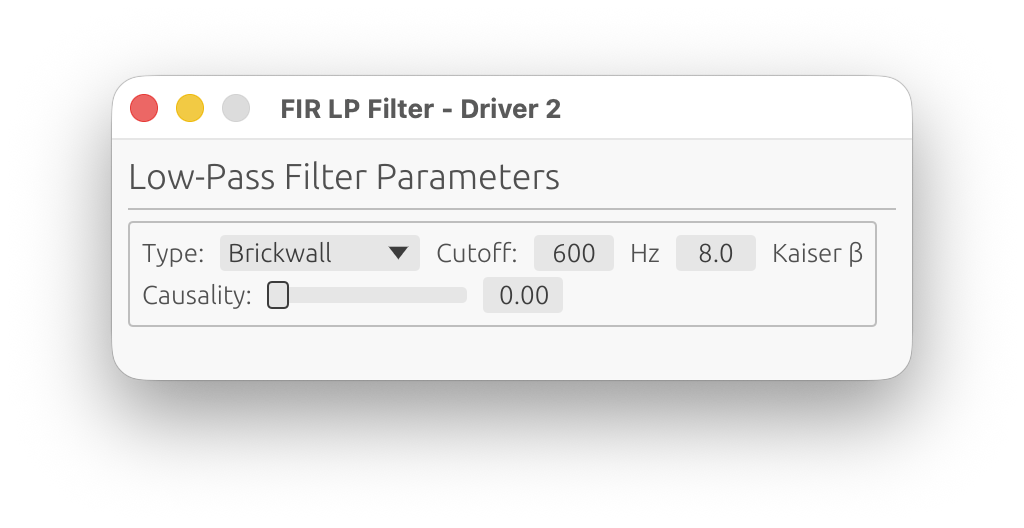
Parameters:
Filter Type
Choose the crossover filter design:
-
Brickwall: Ideal brickwall (Sinc) filter using Kaiser window
- Sharpest possible slope
- Controlled transition width via Kaiser β parameter
-
Linkwitz-Riley: Linkwitz-Riley aligned response
- -6 dB at crossover frequency (sums to 0 dB when paired with matching HP)
- Constant power summing when combined with complementary HP filter
- Order: 2, 4, 6, 8, or 10 (even orders only)
-
Butterworth: Classic analog-style Butterworth response
- Maximally flat magnitude in passband
- Order: 1 to 10
-
Bessel: Bessel/Thomson response
- Originally optimized for linear phase response and minimal group delay variation
- Gentler roll-off than Butterworth
- Order: 1 to 10
Cutoff Frequency
Range: 1 Hz to Nyquist frequency Step: 1 Hz
The -6 dB point for brickwall filters, or the characteristic frequency for Butterworth/Linkwitz-Riley filters.
Typical values:
- Woofer-Midrange: 300-800 Hz
- Midrange-Tweeter: 2-4 kHz
Kaiser β
Range: 0.0 to 500.0 Default: 8.0
Controls the Kaiser window applied to the FIR filter impulse response. This parameter adjusts the trade-off between transition width and stopband ripple:
For Brickwall filters:
- Lower values (3-5): Narrower transition BUT higher stopband ripple (higher sidelobe levels)
- Moderate values (6-10): Balanced transition width and stopband attenuation
- Higher values (12-20): Wider transition BUT lower stopband ripple (better attenuation)
For Butterworth, Linkwitz-Riley and Bessel filters:
- Controls FIR windowing to suppress ringing and ripple in the stopband
- Lower values (3-5): Sharper response BUT higher ripple/ringing in stopband
- Moderate values (6-10): Good balance between sharpness and ripple suppression
- Higher values (12-20): Gentler response BUT maximum ripple suppression
Common choices:
- β = 5: Narrow transition with noticeable ripple (not necesarrily audible as the complementary driver will mask it)
- β = 8-9: Standard crossover design, good compromise
- β = 12-15: Wide transition with excellent stopband attenuation
Order (Butterworth/Linkwitz-Riley/Bessel only)
Butterworth/Bessel Range: 1, 2, 3, 4, 5, 6, 7, 8, 9, 10 Linkwitz-Riley Range: 2, 4, 6, 8, 10 (even only)
Higher order = steeper slope (more dB/octave attenuation).
- 2nd order: 12 dB/octave (gentle slope)
- 4th order: 24 dB/octave (most common for LR designs)
- 6th order: 36 dB/octave
- 8th order: 48 dB/octave (steep slope)
Causality
Range: 0.0 (linear-phase) to 1.0 (minimum-phase) Default: 0.0 (linear-phase)
Interpolates between linear-phase and minimum-phase behavior for the FIR crossover filter.
Purpose: Limits the delay introduced by the FIR filter while maintaining steeper slopes than IIR filters, at the cost of phase distortion.
Linear-Phase (0.0):
- Symmetric pre- and post-ringing
- Constant group delay across all frequencies
- No phase distortion
- Highest latency (taps/2 samples)
- Best for high-fidelity applications
Minimum-Phase (1.0):
- No pre-ringing (all energy is causal)
- Variable group delay
- Phase follows magnitude via Hilbert transform
- Minimal latency
- Best for low-latency applications
Intermediate values:
- Blend between linear and minimum phase
- Reduced pre-ringing compared to linear-phase
- Some phase distortion compared to linear-phase
- Lower latency than full linear-phase
Typical values:
- 0.0: High-fidelity systems, studio monitors, reference designs
- 0.5: Balanced compromise
- 1.0: Low-latency systems, live sound, PA applications
Trade-off: Increasing causality reduces latency but introduces phase distortion. For multi-driver systems, matching causality settings across all drivers maintains phase coherence.
FIR High-Pass Filter
Enable: Toggle FIR HP checkbox Configure: Click Configure button (only available when enabled)
Applies a linear-phase high-pass filter to limit the driver’s low-frequency response.
Parameters: Identical to FIR Low-Pass (Type, Cutoff, Kaiser β, Order, Causality)
Linkwitz-Riley and Brickwall Crossover Design: When using complementary LR filters (e.g., woofer LP at 500 Hz + midrange HP at 500 Hz, both 4th order), the combined magnitude response is flat at the crossover point.
FIR Correction Filter
Enable: Toggle FIR Corr button Configure: Click Configure button (only available when enabled)
Applies frequency-domain magnitude and/or phase correction using the loaded impulse response.
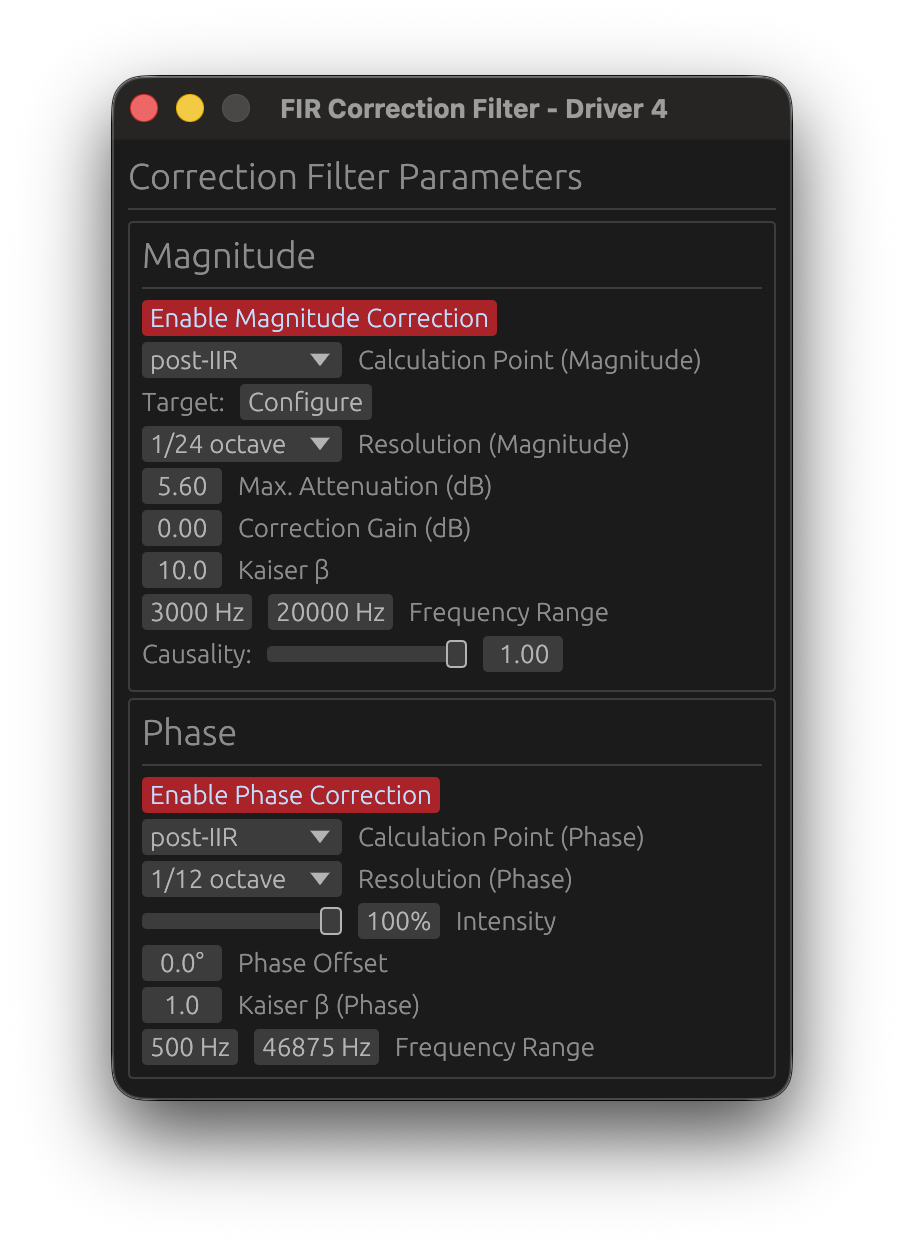
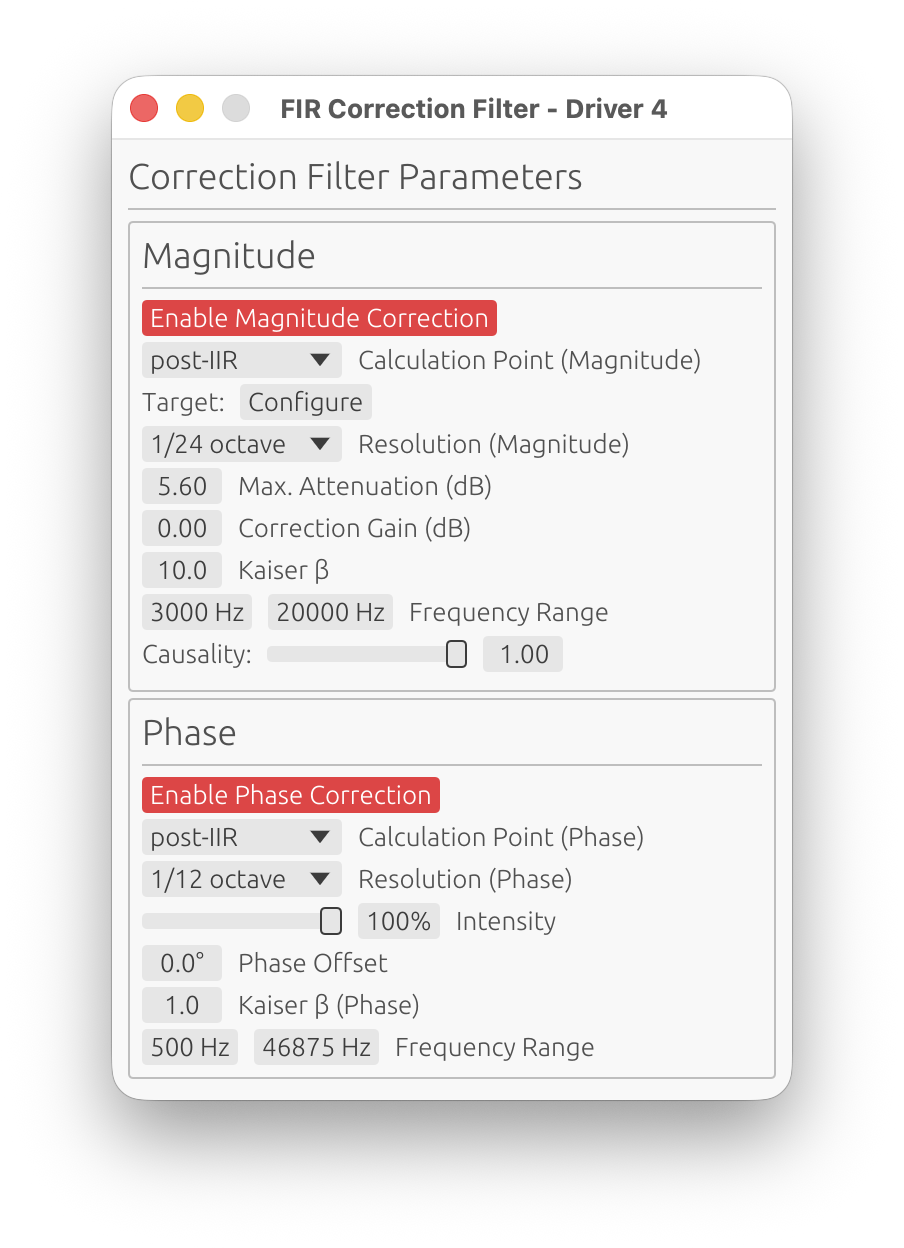
The correction filter window has two main sections: Magnitude and Phase.
Magnitude Correction
Enable Magnitude Correction
Toggle to enable/disable magnitude response correction independently from phase.
Reference (Magnitude)
- Options:
On-axis,Listening WindoworPredicted In-Room - Default:
On-axis - Requires: A valid LinFIR license
Selects which response is used as input for computing this driver’s own correction FIR filter, from this driver’s own polar measurements only - see Global FIR Correction’s Reference (Magnitude) for the system-level equivalent this mirrors.
On-axis:
- Uses this driver’s on-axis response
- Standard behavior
Listening Window:
- Uses the spatial average of this driver’s own polar measurements within ±30° horizontal and ±10° vertical as the correction input
- Falls back to On-axis silently if fewer than 2 qualifying angles are available on this driver
Predicted In-Room:
- Uses this driver’s own CEA-2034-A Predicted In-Room Response (see Directivity Analysis) as the correction input, computed from this driver’s own measurements before this very filter
- Falls back to On-axis silently if there isn’t enough Early Reflections angle coverage on this driver (at least 3 of its 5 standard sub-curves)
⚠️ Note: Both alternate references are computed from this driver alone - they cannot see the interference pattern created once this driver’s output sums with a neighboring driver in a crossover overlap region. That system-level interaction is what the Global FIR Correction’s own Listening Window / Predicted In-Room reference is for. Use the driver-level reference to voice each driver’s own directivity trends (beaming, diffraction) and the global reference to correct the crossover region’s summed behavior.
Calculation Point
Choose where correction is calculated in the processing chain:
-
pre-IIR: Correction computed from raw IR before IIR filters
- Use when IIR filters are for fine-tuning only
- Simpler, doesn’t account for IIR response
-
post-IIR: Correction computed after IIR filter application
- Accounts for IIR filter effects in the correction calculation
- Use when IIR filters significantly alter the response
- More accurate for complex filter chains
Target Curve
Click Configure to open the target curve configuration window.
Purpose: Define the desired magnitude response for this driver.
See Target Curves for detailed configuration.
Frequency Range
Start Frequency:
- Range: 1 Hz to Nyquist
- Default: 20 Hz
- Lower limit for magnitude correction
End Frequency:
- Range: 1 Hz to Nyquist
- Default: Nyquist
- Upper limit for magnitude correction
Purpose: Restrict correction to a specific frequency range, avoiding correction where measurements are unreliable or correction is undesirable.
Important: Magnitude correction applies a smooth taper (transition zone) at the frequency range boundaries to prevent discontinuities:
- Taper width: Quarter-octave (1/4 octave) above and below the correction range
- Taper function: Raised cosine (smooth fade-in/fade-out)
- Below Start Frequency: Correction weight fades from 0% at
Start / 2^(1/4)to 100% atStart - Above End Frequency: Correction weight fades from 100% at
Endto 0% atEnd × 2^(1/4) - Example: For Start = 200 Hz, the taper begins at 168 Hz. For End = 10 kHz, the taper extends to 11.9 kHz
- Purpose: Ensures smooth transitions without abrupt magnitude steps or phase artifacts
Critical Understanding: Correction Source Signal
The magnitude correction filter is computed from the driver’s impulse response without FIR low-pass or high-pass filters applied (those are applied later in the signal chain). The correction sees:
- ✅ IIR filters (if “post-IIR” calculation mode is enabled)
- ❌ FIR LP/HP crossovers (not applied yet)
Practical Implications:
1. With IIR Crossovers (post-IIR mode):
- The correction attempts to flatten the IIR crossover rolloff
- ⚠️ This removes your crossover slope, which is usually undesirable
- Solution: Limit the frequency range to roughly your driver’s final passband
- Example: For a tweeter with IIR HP at 2 kHz, set correction range to 2.5 kHz - 20 kHz
2. With pre-IIR mode or FIR crossovers:
- The correction sees the driver’s raw natural rolloff
- Risk: Amplifying rolloff increases noise and distortion outside the intended band
- Sometimes helpful: Can improve summation in the crossover transition region
- Solution: Set frequency range to where summation matters, don’t extend further
- Example: For a midrange crossing at 500 Hz and 3 kHz, limit to 400 Hz - 4 kHz
Best Practice: Configure the frequency range to match your driver’s intended operating band considering your crossover strategy, not just where the measurement looks good.
Resolution
Options: 1/48 oct, 1/24 oct, 1/12 oct, 1/6 oct, 1/3 oct Default: 1/12 octave
Fractional-octave smoothing applied to the measured response before computing the correction filter. This determines the resolution of features that will be corrected.
Purpose: Avoid correcting measurement artifacts (reflections, diffraction ripples, noise) that are not inherent to the speaker’s response.
- 1/48 oct to 1/24 oct: Minimal smoothing - risks correcting artifacts and creating excessive filter complexity
- 1/12 oct: Recommended balance - corrects real speaker behavior while ignoring fine ripples
- 1/6 to 1/3 oct: Heavy smoothing - corrects only broad trends
Key principle: The correction filter resolution should match the reliability of your measurement, not its raw resolution. Narrow features (<1/12 oct) are often artifacts, not real acoustic properties worth correcting.
Recommendation: Use 1/12 octave for typical speaker correction, 1/6 octave for room measurements or when measurement quality is uncertain.
Use legacy FIR correction tuning
Location: Settings → General → Filter Processing Default: Off
One project-wide setting that switches every magnitude correction filter (every driver and the global one) between the two tuning models described below. Off by default, including for a project saved by an older LinFIR version - existing Max. Attenuation/Correction Gain values are reinterpreted under the new Strength model rather than converted, which is a deliberate breaking change (see the Release Notes): re-check your correction filters after upgrading, and turn this on if you’d rather get the exact old filters back. Flipping it re-wires every open correction window between the two UIs immediately, live.
Strength
Range: 0 to 100% Default: 50%
How far to correct, expressed as a fraction of the way from “untouched” to “response fully matches the target” within the configured frequency range: 0% leaves the response as measured; 100% collapses it onto the target curve (flat, if none is configured).
How it works: Response and target are each measured as a deviation from their own average level within the correction’s frequency range - not from their peak - so correction is symmetric: bumps get tamed and dips get filled in, instead of the filter only ever boosting. A target curve’s shape is what matters; its absolute level is normalized away and has no effect - the corrected response stays anchored at its own original average level (use Correction Gain to shift that). Content outside the frequency range never influences the reference, so Strength always has an immediate, visible effect the moment you move the slider, regardless of what a peak or dip elsewhere in the response happens to be doing.
Typical values:
- 20-40%: Conservative, mostly leaves the response’s own character intact
- 50%: Balanced starting point
- 70-100%: Aggressive, chases the target curve closely - inspect the filter’s final response (press F, see Display Mode Selection) for excessive local gain before committing
⚠️ Note: How closely the response can actually collapse onto the target depends on the filter having enough taps (Filter Length) to resolve the correction. A linear-phase FIR’s frequency resolution is
sample_rate / n_taps, so with too few taps for a given correction, low frequencies - where each octave spans far fewer Hz-per-tap than in the treble - are the first to fall short: even at 100% Strength, bass correction can end up noticeably weaker than what the slider promises. Increase the tap count if the FIR display mode shows the low end isn’t reaching the target.
Correction Gain (dB)
Range: -20 to +20 dB Default: 0 dB
A plain, uniform gain applied on top of the Strength correction, within the configured correction frequency range (with the same smooth taper at the range boundaries as the correction itself). Since Strength’s own reference is already level-matched (see above), this field is a simple, independent broadband offset - not a compensation for anything Strength does on its own.
⚠️ Warning: Excessive correction gain can cause clipping in the internal DSP signal chain or damage your drivers. Keep gain reasonable to maintain headroom. If LinFIR’s clipping detection is enabled (see Settings), you’ll receive warnings about potential clipping.
Correction target overlay
While the correction filter window is open and in the foreground, a green overlay on the frequency response graph shows what the response converges to at 100% Strength: the target curve’s shape, level-matched to the driver’s own average response level within the configured frequency range, plus Correction Gain. It is hidden when the window goes to the background or is closed, so with several drivers only the curve of the window you are working in is shown. Not shown with Use legacy FIR correction tuning enabled - the legacy Max. Attenuation model has no equivalent fixed curve to converge to.
Legacy tuning (Max. Attenuation + Correction Gain)
With Use legacy FIR correction tuning on, the Strength slider is replaced by the original two-field model:
Max. Attenuation (dB) (range 0-30 dB, default 10 dB): the correction filter works by “cutting from the top” - it attenuates peaks in the measured response to bring them down toward the target curve, referenced to the whole measured spectrum’s own peak (not just the configured frequency range). This limits how much attenuation is applied, preventing excessive notching of narrow peaks (which may be measurement artifacts) and keeping the filter smooth and stable.
Correction Gain (dB) in this mode is the sole gain control (there is no separate internal compensation): since the filter primarily attenuates rather than boosts, this restores the level lost to that attenuation. The gain is multiplied into the correction filter’s response, so it scales the filter’s local gain across the whole band - in regions where the correction already needs significant boost, the final local gain can become very large with aggressive settings. Values of 4-6 dB are a typical starting point; keep an eye on the FIR display mode for any given frequency band before going much higher.
Kaiser β (Magnitude)
Range: 0.0 to 50.0 Default: 8.0
Kaiser windowing parameter for the magnitude correction FIR filter.
Effect:
- Lower values (3-5): Sharper correction BUT may amplify ripple from crossover filters (LP/HP) if active
- Moderate values (6-10): Good balance between precision and ripple suppression
- Higher values (12-20): Smoother correction, reduced ripple amplification, but less precise
When to adjust:
- If you see excessive ripple in the stopband after applying correction with active crossover filters, increase Kaiser β
- If correction seems too gentle or imprecise, decrease Kaiser β
Recommendation: Start with default 8.0, increase to 12-15 if ripple is problematic with crossover filters active.
Causality (Magnitude)
Range: 0.0 (linear-phase) to 1.0 (minimum-phase) Default: 1.0 (minimum-phase)
Controls the phase characteristic of the magnitude correction filter.
- 0.0 (Linear-phase): Symmetric pre- and post-ringing, constant group delay
- 1.0 (Minimum-phase): No pre-ringing, all energy is causal, variable group delay
Typical choice: 1.0 (minimum-phase) to avoid pre-ringing artifacts.
Why minimum-phase is preferred: Most acoustic and electronic systems are minimum-phase (magnitude and phase are coupled via Kramers-Kronig relations). Correcting magnitude with a minimum-phase filter automatically corrects the associated phase deviation, providing physically accurate correction. Use 0.0 (linear-phase) only if you specifically need constant group delay with a non-flat target curve and can tolerate pre-ringing.
Phase Correction
Enable Phase Correction
Toggle to enable/disable phase response correction independently from magnitude.
🚫 Non-anechoic measurements: phase correction is strongly discouraged
Phase correction requires clean, accurate phase data. In-room measurements contain reflections, room modes, and position-dependent artifacts that pollute the phase response. Applying phase correction to such data produces unpredictable — and often worse — results.
Only use phase correction with anechoic or near-anechoic measurements (e.g., measurements gated to remove reflections, or made in an anechoic chamber). For in-room measurements, restrict correction to magnitude only.
⚠️ Critical Limitation: Phase Correction vs. Low Latency
You cannot have both near-zero latency FIR filters AND active phase correction. This is a fundamental limitation, not a software bug.
Why this incompatibility exists:
Even if you configure your FIR crossover filters (HP/LP) and FIR magnitude correction with causality = 1.0 (minimum-phase, low latency), which positions the FIR impulse peak near t=0 (left-aligned), enabling phase correction will shift the combined FIR impulse peak to the center (around ntaps/2), introducing significant latency.
The reason is fundamental:
- Phase correction = temporal correction: Phase distortion is fundamentally a time-domain problem (different frequencies arriving at different times)
- To correct temporal defects, you need time: The filter needs temporal “space” before and after the main impulse to reposition frequency components correctly
- This requires centering the impulse: Phase correction filters must have headroom both before (pre-ringing) and after (post-ringing) the main signal to perform time-domain manipulations
- Result: The combined FIR impulse peak moves from t≈0 (low latency) to t≈ntaps/2 (high latency)
Practical impact:
- Without phase correction: Causality=1.0 filters → impulse peak at t≈0 → latency ≈ 0 samples
- With phase correction enabled: Impulse peak moves towards t≈ntaps/2 → latency ≈ ntaps/2 samples (e.g., 2048 samples at 48kHz = 42.7ms)
Recommended approach:
- For low-latency applications (live sound, PA, monitoring): Use causality = 1.0 on crossover/magnitude filters, disable phase correction, accept phase as-is
- For high-fidelity applications (studio monitors, reference systems): Use causality = 0.0 on crossover, 1.0 on magnitude filters, enable phase correction if needed, accept the latency
- For hybrid approach: Use moderate causality (0.3-0.7) for reduced latency with some phase correction capability (but still expect significant latency when phase correction is active)
Calculation Point
Same as magnitude: pre-IIR or post-IIR calculation mode.
pre-IIR: Phase correction computed from raw IR before IIR filters post-IIR: Phase correction computed after IIR filter application
In both cases, when Magnitude Correction is enabled the phase correction is computed from the response with the magnitude correction FIR already applied (morphed by its Causality setting), i.e. in the same order the filters run in the chain. The phase FIR therefore linearises the phase the driver actually has after magnitude correction, including any excess phase a minimum-phase (Causality > 0) magnitude correction introduces.
Resolution (Phase)
Options: 1/48 oct, 1/24 oct, 1/12 oct, 1/6 oct, 1/3 oct Default: 1/12 octave
Fractional-octave smoothing applied to the measured phase response before computing the correction filter.
Recommendation: Use heavier smoothing (1/6 to 1/3 octave) for phase correction to avoid chasing measurement noise and room reflections.
Intensity
Range: 0% to 100% Default: 100%
Controls the amplitude/strength of the phase correction.
Purpose:
- Allows partial phase correction for smoother transitions
- Reduces phase correction aggressiveness if full correction creates artifacts
- Useful for blending between corrected and uncorrected phase
Typical values:
- 100%: Full phase correction (default)
- 50-80%: Partial correction for gentler results
- 0%: No phase correction (disabled)
Phase Offset
Range: -180° to +180° Default: 0°
Phase offset applied to the filter’s phase response.
Without an offset, the correction filter never inverts the driver: its step response ends above where it starts (a positive gain at 0 Hz) and its main peak is positive. When needed, the whole filter is turned over by 180°, which keeps the corrected impulse response as symmetric as before. Use the offset, or the driver’s polarity toggle, to invert on purpose.
Purpose: Controls the symmetry of the impulse response by adjusting the phase offset. This allows fine-tuning the balance between pre-ringing and post-ringing in the time-domain response.
How it works:
- 0°: Default even symmetric behavior
- Positive/Negative offset: Shifts impulse response characteristics towards odd symmetry
Use case: Advanced parameter for optimizing impulse response symmetry in multi-driver systems.
Recommendation: Leave at 0° unless you have specific symmetry requirements and understand impulse response trade-offs.
Kaiser β (Phase)
Range: 0.0 to 50.0 Default: 1.0
Kaiser windowing parameter for the phase correction FIR filter.
Effect:
- Lower values (1-5): Less aggressive windowing — the correction filter’s oscillations (pre- and post-ringing) are preserved more fully, allowing accurate phase correction at the cost of slower roll-off at the filter edges
- Moderate values (6-10): Balanced windowing — trade-off between accuracy and artifact suppression
- Higher values (12-20): Aggressive windowing — strongly attenuates the filter’s pre- and post-ringing; if correction energy is clipped by the window, this introduces magnitude deviations
When to adjust:
- If the guard warning appears (the auto-guard has already narrowed the Start/End Frequencies as far as it can): decrease Kaiser β — see Phase Correction Magnitude Artifacts below
- If phase correction seems imprecise or creates excessive ringing, increase Kaiser β
Recommendation: Start with default 1.0. If the guard warning still appears after the guard’s automatic frequency adjustments, try reducing β toward 0.
Guard Tolerance
Range: 0.1 dB to 15 dB Default: 0.5 dB
Maximum magnitude deviation the auto-correction guard will tolerate before narrowing the correction band. Above this threshold, the guard automatically raises the Start Frequency in 1/3-octave steps (and eventually lowers the End Frequency) until the phase FIR stays within tolerance — see Phase Correction Magnitude Artifacts.
- Tighter (0.1–0.5 dB): Stricter — the guard narrows the band more aggressively. Recommended for high-fidelity correction.
- Looser (1–5 dB): More permissive — allows a wider correction band at the cost of some magnitude coloration.
Frequency Range (Phase)
Start Frequency:
- Range: 0 Hz to Nyquist
- Default: 0 Hz
End Frequency:
- Range: 0 Hz to Nyquist
- Default: Nyquist
Limits the frequency range over which phase correction is applied.
Use cases:
- Focus correction on the driver’s primary operating band (e.g., 200 Hz – 10 kHz for a midrange)
- Exclude deep bass where phase rotations would require very long filters
- Anchor the correction band manually when the auto-guard’s automatic adjustments are not desirable
Note: The auto-correction guard already raises the Start Frequency automatically when artifacts are detected. Only set it manually to intentionally anchor the correction start frequency.
Phase Correction Magnitude Artifacts
A phase correction FIR filter is designed to be magnitude-neutral — it should modify only the phase of the signal, leaving energy at each frequency unchanged. However, in practice, magnitude deviations can appear after applying phase correction. LinFIR includes an auto-correction guard that detects and corrects these automatically.
Why artifacts occur
Phase correction works in the time domain: correcting a phase rotation at a given frequency means shifting energy from one moment in time to another. This produces an impulse response with oscillations extending both before and after the central peak (pre- and post-ringing). The lower the frequency being corrected, the longer these oscillations extend, because a given phase rotation translates to a longer time shift at lower frequencies.
Two mechanisms can cause the filter to deviate from magnitude-neutral behavior:
1. Insufficient tap count
If the number of taps allocated to the phase correction filter is too small, the filter’s oscillations extend beyond the available window — they are truncated at the boundaries. Truncating a non-zero portion of the filter’s impulse response distorts its frequency response, introducing magnitude ripples proportional to the energy that was cut off.
This is analogous to abruptly cutting off a signal in the time domain and observing Gibbs-like ringing in the frequency domain.
2. Overly aggressive Kaiser windowing (high β)
The Kaiser window tapers the filter’s impulse response toward zero at both ends. A high β value applies a strong taper. This strongly attenuates the pre- and post-ringing of the phase correction filter — even if those oscillations were within the allocated tap window.
Attenuating oscillations that carry real correction energy distorts the filter’s frequency response, producing magnitude deviations — typically attenuations that grow stronger as the window becomes more aggressive.
Auto-correction guard
LinFIR includes an auto-correction guard that runs automatically every time the phase correction FIR is computed — it is always active. The guard:
- Computes the phase correction FIR with the current Start and End Frequencies
- Measures the maximum magnitude deviation within the active passband, on a finely sampled response (4× the FIR length), so the ripple between frequency points is caught too
- If the deviation exceeds Guard Tolerance, raises the Start Frequency by 1/3-octave steps and retries
- Once the Start Frequency reaches its ceiling (~15 kHz, or 1/3 octave below the End Frequency), raises the End Frequency instead (up to ~18 kHz)
- Repeats up to 100 iterations until the deviation stays within the Guard Tolerance threshold
The guard silently narrows the effective correction band until the phase FIR becomes magnitude-neutral. Under normal circumstances no warning appears — the guard resolves artifacts transparently.
When the guard warning appears
If the guard exhausts all 100 iterations without reducing the deviation below Guard Tolerance, it gives up and — if Warn when phase FIR guard fails is enabled in Settings — shows a warning. At this point the guard has already narrowed the frequency band as far as it can, yet the FIR still deviates. Manual intervention may help:
-
Reduce Kaiser β (most effective) High β aggressively clips filter oscillations, directly causing magnitude deviations. Since the guard only adjusts frequency boundaries and not Kaiser β, reducing β is the first thing to try. → Reduce from the current value toward 1.0 or lower.
-
Increase the tap count More taps give the filter more temporal “space” to express its oscillations without truncation. This is especially important for corrections at low frequencies. → Double the tap count and check if the warning disappears.
-
Raise Guard Tolerance If the residual deviation is small enough to be acceptable, relax the threshold. → Set Guard Tolerance to 1–2 dB and assess whether the audible impact is acceptable.
-
Reduce the phase correction intensity Lower intensity reduces filter complexity and correction energy. → Try setting Intensity to 70–80%.
⚠️ Before adjusting filter parameters, inspect the phase and group delay plots first.
A guard warning that resists all of the above is often a symptom of a measurement quality problem, not a filter configuration problem. Accumulated phase rotations caused by reflections or resonances in the impulse response force the phase correction filter to work on chaotic, non-monotonic data — producing an unstable, artifact-prone FIR regardless of the parameters chosen.
In Loudspeaker Design mode: Measurements must be taken with the least possible room influence. Use time windowing (Start/Stop Time in IR Management → Time Windowing) to gate out reflections before applying phase correction. Use the Auto Set Window function as a starting point, then review the phase and group delay plots — they should be smooth and monotonic in the driver’s passband. Irregular phase jumps or group delay peaks indicate reflections or resonances that windowing should remove.
In Room Calibration mode: Impulse windowing is intentionally not available — this mode is designed to capture the full speaker-plus-room response. Applying a temporal window would yield an anechoic-like response, which would be misleading: corrections derived from it would be wrong for the actual listening environment, because your ears do not apply a time window. To reduce spatial variability and limit the influence of isolated reflections on the measured phase, capture at least 5 or 6 measurements at different listening positions and rely on spatial averaging — see Room Calibration Mode.
Even so, phase correction is strongly discouraged in room calibration mode. The room dominates the phase response — modal resonances, flutter echo, and comb filtering from reflections produce chaotic phase behavior that varies dramatically across the listening area. Even with spatial averaging, a phase correction filter derived from in-room data is likely to be spatially unstable: it may improve the phase at the measurement positions while worsening it elsewhere, and may introduce audible coloration or artifacts. No DSP technique can substitute for acoustic treatment when it comes to correcting room-induced phase problems.
FIR Correction Best Practices
-
Start conservative:
- Begin with 1/6 or 1/3 octave smoothing
- Limit maximum gain to 6-12 dB
-
Narrow frequency range:
- Only correct the driver’s intended operating band
- Don’t correct below woofer resonance or above tweeter range
- Avoid correcting crossover stopband region
-
Magnitude before phase:
- Get magnitude response flat first
- Then add phase correction if needed
- Phase correction is most effective with flat magnitude
-
Check impulse response:
- Excessive pre-ringing indicates too aggressive correction
- Increase smoothing or reduce max gain if pre-ringing is severe
-
Combine with IIR:
- Use FIR correction for broad trends
- Use IIR filters for narrow notches and fine adjustments
IIR Filtering
Enable: Toggle IIR Filters checkbox Configure: Click Configure button (only available when enabled)
Apply cascaded biquad IIR filters for parametric equalization and precise frequency shaping.
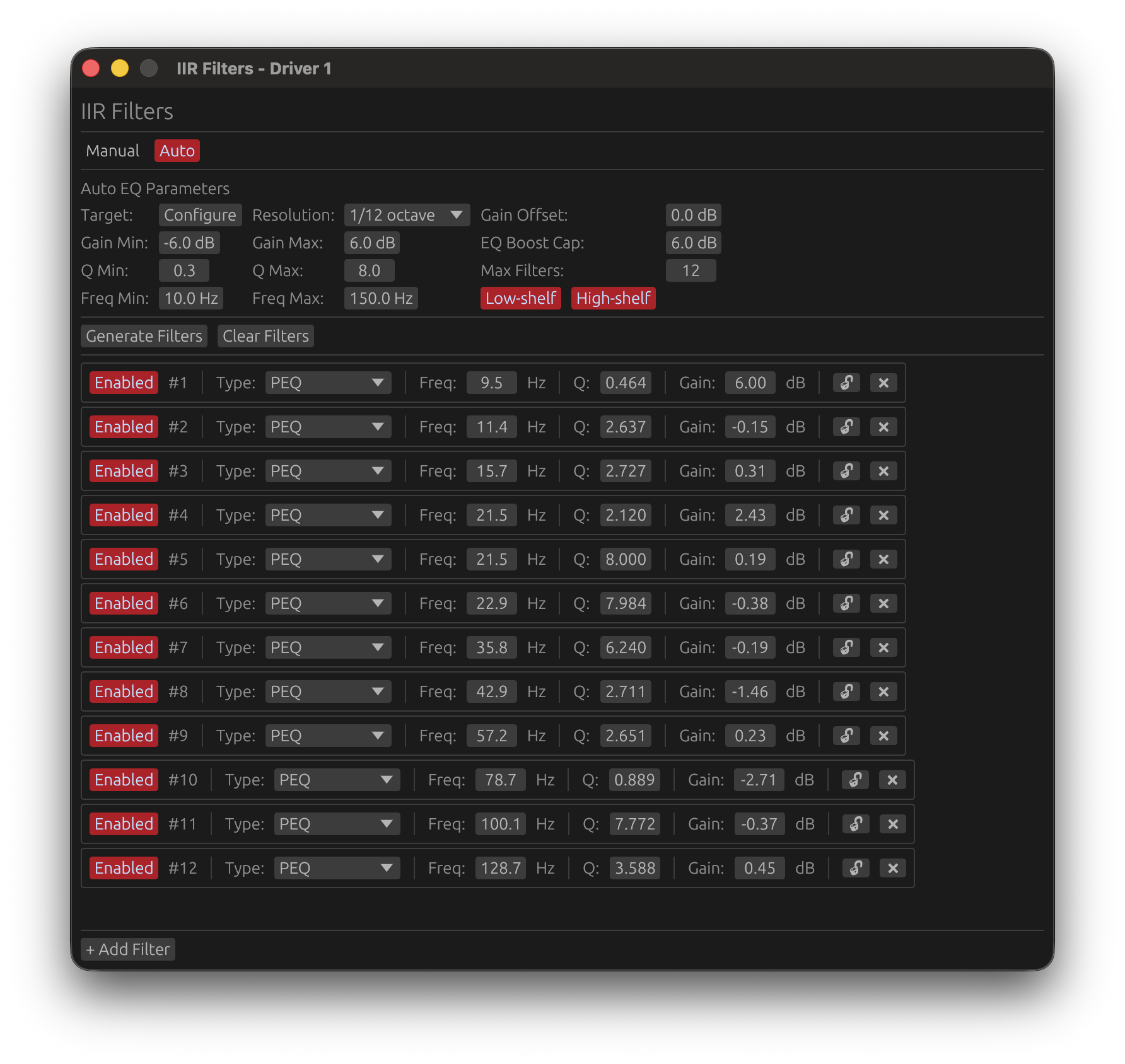
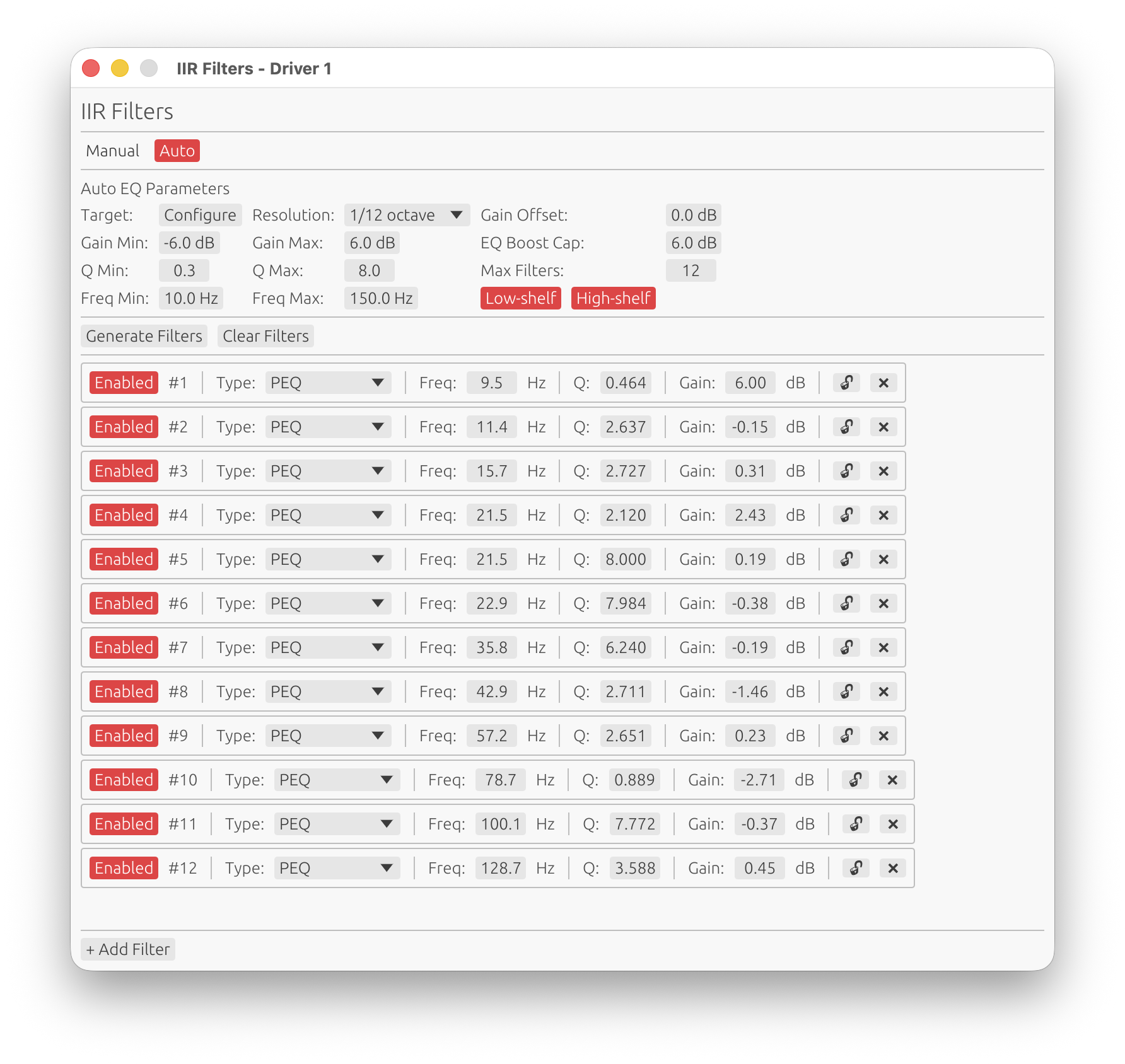
IIR Filter Tabs
The IIR window has two tabs:
Manual Tab
Design custom IIR filter chains with up to 50 filters.
Add Filter: Click ➕ Add Filter button Remove Filter: Click ❌ button next to filter
Available Filter Types:
- Peak/Notch: Parametric EQ (boost/cut at specific frequency)
- Low Shelf: Boost/cut below shelf frequency
- High Shelf: Boost/cut above shelf frequency
- Low-Pass: Frequency-selective attenuation (high frequencies)
- High-Pass: Frequency-selective attenuation (low frequencies)
- All-Pass: Phase adjustment without magnitude change
Filter Parameters:
Frequency:
- Center frequency for Peak/Notch
- Cutoff frequency for LP/HP/Shelves
- Corner frequency for All-Pass
Gain (dB):
- Boost (+) or cut (-) amount
- Only for Peak/Notch and Shelving filters
- Range: -40 to +40 dB
Q Factor:
- Filter bandwidth/sharpness
- Higher Q = narrower bandwidth
- Typical range: 0.5 to 20
- Low Q (0.5-2): Wide, gentle curves
- Medium Q (2-5): Standard parametric EQ
- High Q (10-20): Narrow notches for resonance control
Order (LP/HP only):
- Filter slope steepness
- Range: 1 to 10 (depending on filter type)
- Each order adds 6 dB/octave slope
Pass Type:
- Low-Pass, High-Pass: Frequency-selective filtering
- Peak/Notch: Standard parametric EQ
Locked Filters (🔒):
Individual filters can be locked to preserve them during operations:
- Lock toggle: Click the 🔓/🔒 icon next to any filter to lock/unlock it
- Protected from Clear: Locked filters are not deleted when clicking “Clear Filters”
Use Cases:
- Lock protective filters (high-pass, low-pass) to preserve them when clearing other filters
- Preserve manually tuned filters when experimenting with different EQ approaches
- Protect critical filters (driver protection, subsonic filters) from accidental deletion
Auto Tab
Automatically generated equalization with manual control.
Adding Filters:
- Click ➕ Add Filter to manually add filters in Auto EQ tab
- Add protective filters (high-pass, low-pass, notches) before running Auto EQ
- Lock them with 🔒 icon to preserve during Auto EQ generation
Manual Editing:
- All filters in Auto EQ tab are editable (frequency, gain, Q)
- Adjust auto-generated filters directly without cloning
- Lock important filters to prevent removal during regeneration
Applying a locked filter to the response (🎯/➖):
Locking a filter only protects it from being cleared or replaced - by itself it has no effect on what new filters get generated alongside it. To also have it inform the optimization:
- Once a filter is locked, a second button appears next to the padlock: 🎯 (applied) or ➖ (ignored)
- 🎯 Applied: this filter is applied to the driver’s response before Auto EQ designs new filters, so they’re computed to build around it instead of ignoring it
- ➖ Ignored (default): the filter stays locked and preserved, but new filters are generated as if it weren’t there
- Toggling this button regenerates immediately if Auto-generate is on
Generate Auto EQ:
- Click Generate to automatically create corrective filters
- Locked filters are always preserved; only those also set to 🎯 influence what the new filters do
- Unlocked filters are replaced with new auto-generated corrections
Copy to Manual:
- Click Clone from Auto EQ to copy the entire filter set to Manual tab
- Useful for preserving a working Auto EQ configuration while experimenting in Manual
Auto-generate (requires license)
- Enable the Auto-generate toggle to automatically re-generate filters whenever any parameter in the Auto EQ tab changes — frequency range, gain limits, resolution, shelves, etc.
- When first activated, a generation is immediately triggered with the current parameters
- Only parameter changes within the Auto EQ tab trigger regeneration; changes in the Manual tab or other driver settings have no effect
- Changing the target curve does not trigger auto-generation. To apply a new target curve, click Generate Filters manually or change any parameter in the Auto EQ tab after selecting the new curve
🔑 License required: The Auto-generate toggle requires a valid LinFIR license. Without a license, it is disabled and greyed out.
Target curve overlay
When the IIR filter window is open and in the foreground with the Auto EQ tab selected, the configured target curve is displayed as a blue overlay directly on the frequency response graph. The curve is level-matched to the driver’s smoothed response over the configured frequency range, and truncated to [Freq Min, Freq Max]. It disappears automatically when the IIR window is sent to the background.
Auto EQ Parameters
When you click Generate in the Auto EQ tab, the optimizer uses the following parameters to create corrective filters:
Reference:
- Options:
On-axis,Listening WindoworPredicted In-Room - Default:
On-axis - Requires: A valid LinFIR license
- Purpose: Selects which response Auto EQ measures, from this driver’s own polar measurements only - see Global IIR’s own Reference
- Listening Window: spatial average of this driver’s own measurements within ±30°H / ±10°V; the level reference (absolute dB anchor) stays on-axis regardless, so Auto EQ corrects shape only
- Predicted In-Room: this driver’s own CEA-2034-A Predicted In-Room Response (see Directivity Analysis); same level-reference and fallback behavior as Listening Window
- Use case: Voice this driver’s own off-axis trends (e.g. tweeter beaming, baffle diffraction) instead of just its on-axis response. Like the FIR correction’s own driver-level reference, this only sees this driver alone - it cannot correct a crossover region’s interference with a neighboring driver; use the Global IIR Auto EQ’s Reference for that
Gain Offset:
- Range: -20 to +20 dB
- Default: 0 dB
- Purpose: Adjusts the overall target level before EQ optimization
- Use case: Compensate for overall system level shifts without changing filter gains
Gain Min / Gain Max:
- Range: -20 to +20 dB
- Default: -6 to +6 dB
- Purpose: Limits the boost/cut range for each individual filter
- Use case: Prevent excessive corrections that could cause clipping or sound unnatural
EQ Boost Cap:
- Range: 0 to +20 dB
- Default: 6 dB
- Purpose: Soft-clips the correction target to prevent filter stacking at the same frequency
- Use case: Set lower values (e.g., 4 dB) for more conservative corrections
Q Min / Q Max:
- Range: 0.1 to 20.0
- Default: 0.3 to 8.0
- Purpose: Controls the bandwidth/sharpness of generated filters
- Use case: Lower Q = wider corrections, higher Q = narrow notches for resonances
Max Filters:
- Range: 1 to 30
- Default: 12
- Purpose: Maximum number of filters to generate (including shelves if enabled)
- Use case: More filters = more precise correction, but more phase impact
Freq Min / Freq Max:
- Range: 10 to 22,000 Hz
- Default: 20 to 20,000 Hz
- Purpose: Defines the frequency range for filter placement and correction
- Important: Auto EQ applies a quarter-octave taper (1/4 octave) above and below these frequency limits to ensure smooth transitions without discontinuities in the correction
- How the taper works:
- Below
Freq Min: Correction weight gradually reduces from 100% atFreq Minto 0% atFreq Min / 2^(1/4)(quarter-octave below) - Above
Freq Max: Correction weight gradually reduces from 100% atFreq Maxto 0% atFreq Max * 2^(1/4)(quarter-octave above) - Outside taper zones: No correction applied (weight = 0%)
- Below
- Use case: Focus correction on the driver’s operating band, exclude problematic regions (e.g., below resonance, room modes, or above useful bandwidth)
Low Shelf / High Shelf:
- Toggle: Enable/disable shelf filters
- Purpose: Allow AutoEQ to include shelving filters for broad tonal adjustments
- Use case: Enable for better overall tonal balance, disable for peaking-only corrections
Resolution:
- Options: 1/48, 1/24, 1/12, 1/6, 1/3 octave
- Default: 1/12 octave
- Purpose: Smoothing applied to the current response before optimization
- Use case: Higher smoothing (1/3 oct) = broader corrections, lower smoothing (1/48 oct) = more detailed corrections
IIR Filter Applications
Parametric EQ (Peak/Notch):
- Boost/cut specific frequencies
- Correct narrow resonances or notches
- Fine-tune response after FIR correction
Shelving Filters:
- Broad treble/bass adjustments
- Tilt EQ for overall tonal balance
- Baffle step compensation
- Psychoacoustic tuning
Notch Filters:
- Suppress driver resonances
Low-Pass/High-Pass:
- Additional crossover filtering (complements FIR)
- Subsonic/ultrasonic filtering
All-Pass:
- Phase correction without affecting magnitude
- Time alignment adjustments
- Advanced multi-driver phase matching
IIR Best Practices
-
Use sparingly:
- Fewer filters = cleaner phase response
- Each biquad adds phase rotation
- Prefer FIR correction for broad magnitude shaping
-
Narrow adjustments:
- IIR excels at narrow peaks/notches
- Use Q > 5 for resonances
- Use Q < 2 for broad tonal adjustments
-
Check phase impact:
- View phase plot when adding IIR filters
- High-Q filters create significant phase rotation
- Consider if phase impact is acceptable
-
Combine with FIR:
- FIR correction for broad trends (1/3 to 1/6 oct smoothing)
- IIR filters for narrow resonances and fine details
- Best of both worlds
Driver Adjustments
Polarity Inversion
Toggle: Polarity button
Inverts the driver’s signal (180° phase shift across all frequencies).
Use cases:
- Correct out-of-phase drivers
- Optimize multi-driver summation (especially for dipole/bipole designs)
- Fix inverted wiring
- Align asymmetric crossovers
How to check:
- Observe step response: positive step should have initial positive rise
- Check summed magnitude: in-phase drivers sum coherently (+6 dB), out-of-phase drivers cancel
Gain Adjustment
Range: -40 to +40 dB Step: 0.1 dB Default: 0 dB
Adjusts the driver’s output level.
Use cases:
- Compensate for driver sensitivity differences
- Set target SPL for each driver
- Balance multi-driver systems
- Fine-tune summed response
Time Delay
Range: 0.0 to 100.0 ms Step: equivalent to 1 sample (depends on target sampling frequency) Default: 0.0 ms
Adds pure time delay to the driver’s output.
Use cases:
- Align drivers physically offset from each other
- Compensate for acoustic center differences
- Time-align multi-way systems for coherent summation
- Correct for DSP processing delays
Calculation:
- Distance (m) to delay (ms): delay = distance / 0.343 m/ms
- Example: 10 cm offset = 0.291 ms delay
Delay Step Size:
- Automatically adjusted based on sample rate
- Higher sample rates allow finer delay precision
- Use fine adjustments for critical time alignment
Auto-align delays
A button below ➕ Add Driver in the Parameters toolbar, shown when at least two drivers are enabled. It sets every active driver’s Time Delay so their post-filter phase curves cross at the middle of every crossover overlap:
- Each driver’s “reliable band” is where its magnitude is within a fixed −20 dB of its own maximum — the same idea the plots use for truncation, but with the threshold fixed here rather than the Graphs setting.
- For every pair of drivers whose bands overlap, it works on the phase difference
φᵢ − φⱼover the overlap. A pure delay only tilts a phase curve, it can’t bend it, so with one delay per driver the target is: the two phase curves cross at the geometric midpoint of the overlap (the crossover, where the drivers contribute equally). It first removes the coarse delay from the weighted slope ofφᵢ − φⱼacross the band (slope, not a single point, so there is no ±½-wavelength ambiguity), then reads the small residual at the midpoint as a magnitude-weighted median over a short window (so a phase spike at a null doesn’t move it) and adds the delay that zeroes it there. Working on the phase directly — not its derivative, the group delay — avoids the noise that made a group-delay fit jumpy. - All the pairwise mismatches are combined by weighted least squares, the smallest delay is pulled to 0 (delays can only be positive), and every delay is snapped to a whole sample at the project rate — the same resolution the manual Time Delay control uses.
- Disabled drivers are ignored. A driver that shares no band with the rest keeps its current delay and is named in the confirmation toast.
It is a starting point, not a substitute for listening — check the phase / group-delay and step-response plots and fine-tune by hand.
Auto-level
A button to the right of Auto-align delays, shown under the same condition. It sets every active driver’s Gain so that the summed on-axis response is as flat as possible across the system’s pass band — through the crossover regions too, which is where matching each driver’s own pass-band level is not enough: how two drivers sum at a crossover depends on their relative level and on their phase relationship.
- Time alignment for the calculation only. The drivers are first aligned exactly like Auto-align delays does, and the fit is made on the aligned responses — a crossover dip caused by a timing error is not compensated with gain. Your Time Delay values are not changed: run Auto-align delays separately if you want them aligned too.
- What is fitted. The level of the summed response, power-averaged in 1/12-octave bands, from the frequency where the lowest driver reaches its pass band to the frequency where the highest one leaves it (each driver’s pass band being where it is within −3 dB of its own plateau). The system’s natural roll-offs at both ends — the woofer’s low end, the tweeter’s top end — are left out: no gain could flatten them, and trying would set the levels wrong. Everything in between is fitted, crossover regions included.
- Robust fit. The criterion is the absolute deviation from flat (not its square), so a driver’s natural ripple, a diffraction bump or the edge of a roll-off has little influence on the result.
- Never louder. Only the relative levels change, and they are shifted so that no driver is ever raised: the largest change is 0 dB, so the headroom against clipping never shrinks. Gains are rounded to 0.1 dB.
- The confirmation lists the gain changes and the deviation from flat of the summed response before and after, over the fitted range. It works on the on-axis measurement with all current filters applied; disabled drivers are ignored.
Like Auto-align delays, it is a starting point: check the summed response, and adjust by ear if you voice the system on purpose (a gentle tilt, a baffle-step choice).
FIR Compensation Delay
Range: 0.0 to 100.0 ms Step: equivalent to 1 sample (depends on target sampling frequency) Default: 0.0 ms
Additional delay applied only to the FIR filter chain, not the entire signal.
Purpose:
- Manual control over FIR filter impulse positioning
- Fine-tune FIR filter alignment when Auto Causal Alignment is disabled
- Shift FIR maximum to optimal crop window position
Use case: When combining multiple causal FIR filters, the impulse maximum may shift. FIR Compensation Delay allows manually repositioning the combined FIR response to avoid truncation. It is not the primary timing alignment tool—use the Time Delay feature for that.
Recommendation: Use Auto Causal Alignment unless you need precise manual control.
Processing Chain Summary
The complete driver processing chain:
-
Raw Impulse Response
- Loaded via IR Management window
- Windowed with configurable start/stop times
-
FIR Crossover Filters
- High-pass filter (if enabled)
- Low-pass filter (if enabled)
- Applied in time domain
-
FIR Correction Filter
- Magnitude correction (if enabled)
- Phase correction (if enabled)
- Applied in time domain
-
Combined FIR Filters
- All FIR filters convolved into single impulse response
- Cropped to configured tap length
- Causality interpolation applied
-
IIR Filtering
- Cascaded biquad sections
- Applied in time domain (as SOS transfer function)
-
Driver Adjustments
- Polarity inversion (if enabled)
- Gain adjustment
- Time delay
-
Final Output
- Processed driver response
- Summed with other drivers for system response
💡 Visualising filter impact: When a filter window (LP, HP, correction FIR, or IIR) is open and in the foreground, LinFIR can overlay that driver’s dashed pre-filter curve on the frequency, phase, and group delay graphs. This shows the driver response at step 1 (after windowing, before any filtering), letting you see exactly how much correction a filter is applying without switching views. Enable this in Settings → Graphs → Response Overlays → Show raw response when filter windows are open (requires a valid license).
Workflow Recommendations
Starting a New Driver
- Load impulse response via Manage IR
- Configure windowing to isolate direct sound
- Set filter length (512-4096 taps for most designs)
- Add FIR crossover (LP/HP) if needed
- Apply FIR correction (start conservative: 1/6 oct smoothing, 12 dB max gain)
- Check summed response, adjust gain/delay for coherent summation
- Add IIR filters for fine-tuning (narrow resonances, shelves)
- Optimize causality if latency is critical
- Export filters for DSP deployment
Multi-Way Design
- Load all driver IRs (woofer, midrange, tweeter)
- Set crossover frequencies based on driver capabilities
- Apply complementary crossovers (e.g., LR4 at matching frequencies)
- Check phase alignment and IR (step) summation in phase and IR (step) plots
- Adjust time delays to align acoustic centers
- Check summed magnitude for flat on-axis response
- Fine-tune with IIR for final voicing
- Verify step response for correct polarity and alignment
Keyboard Shortcuts
- Cmd+W / Ctrl+W: Close configuration windows (LP, HP, Correction, IIR)
- F: Switch to Filters display mode
- D: Switch to Drivers display mode
- U: Toggle wrapped/unwrapped phase
- C: Toggle time of flight rotation removal
See Keyboard Shortcuts for complete reference.
Related Documentation
- IR Management: Detailed impulse response loading and windowing
- System Processing: Global FIR correction and system-level processing
- Export: Exporting filters for DSP platforms
- Settings: Application-wide settings and defaults
System Processing
LinFIR provides global (system-wide) processing that applies corrections to the summed system response after all individual driver filters. This is available in both Loudspeaker Design and Room Calibration modes.
Global processing consists of two main components:
- Global FIR Correction Filter: Magnitude and phase correction of the summed system response
- Global IIR Filters: System-wide parametric EQ for room correction and final tuning
This page documents the global FIR correction filter. For global IIR filtering, see the corresponding section below.
Loudspeaker Design
Driver responses are summed to form the combined system response before correction.
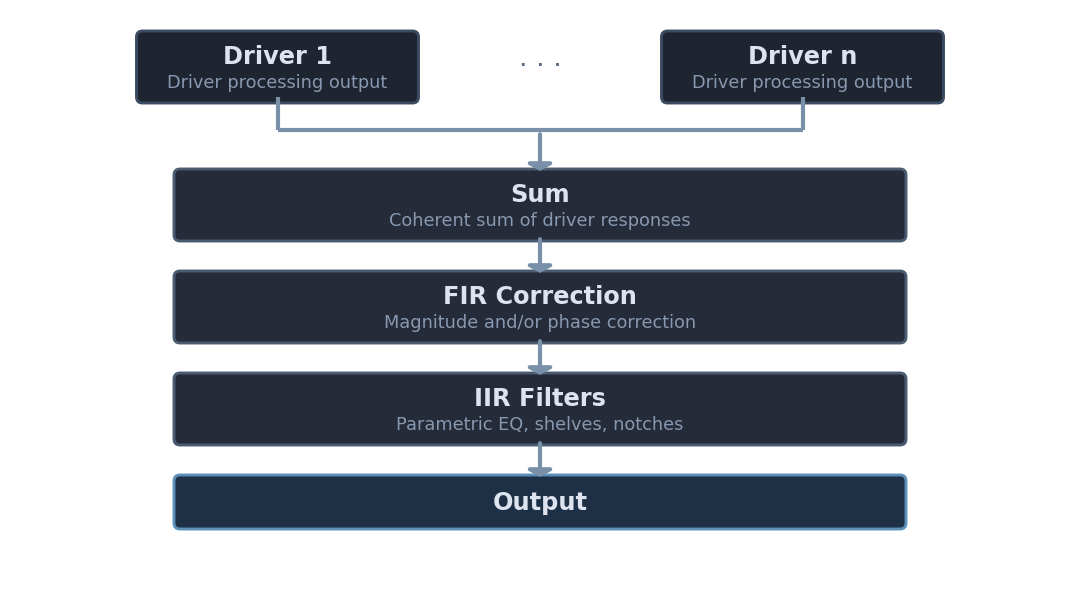
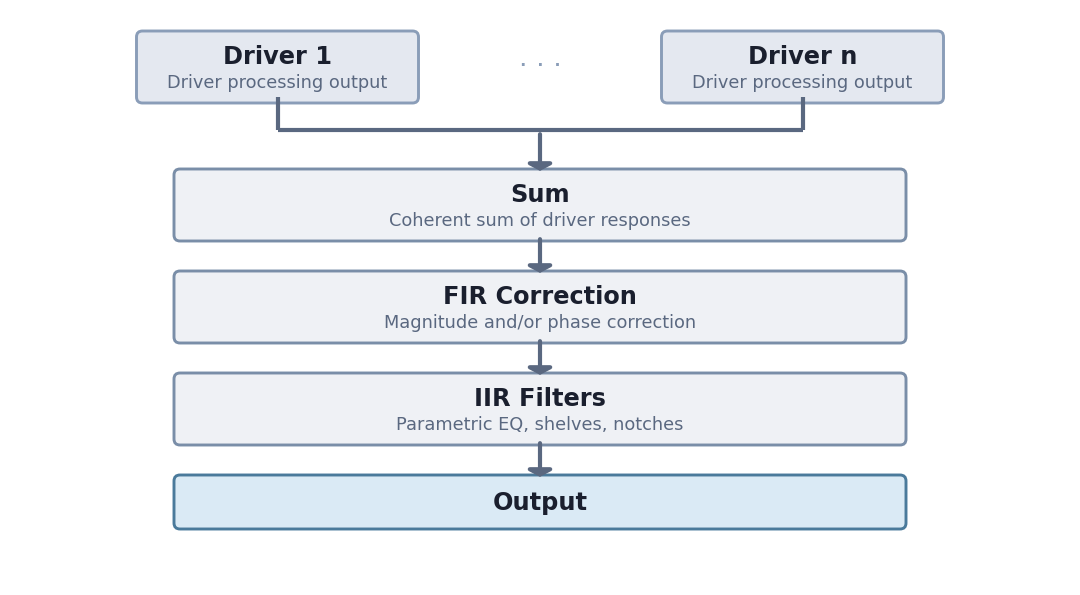
Room Calibration
Driver responses are averaged across measurement positions before correction.
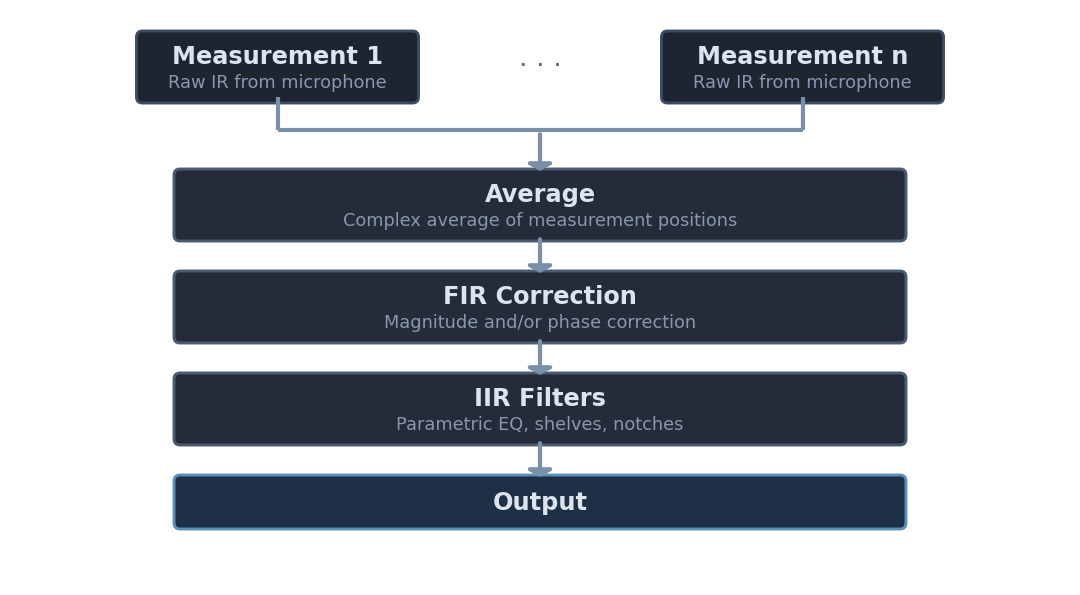
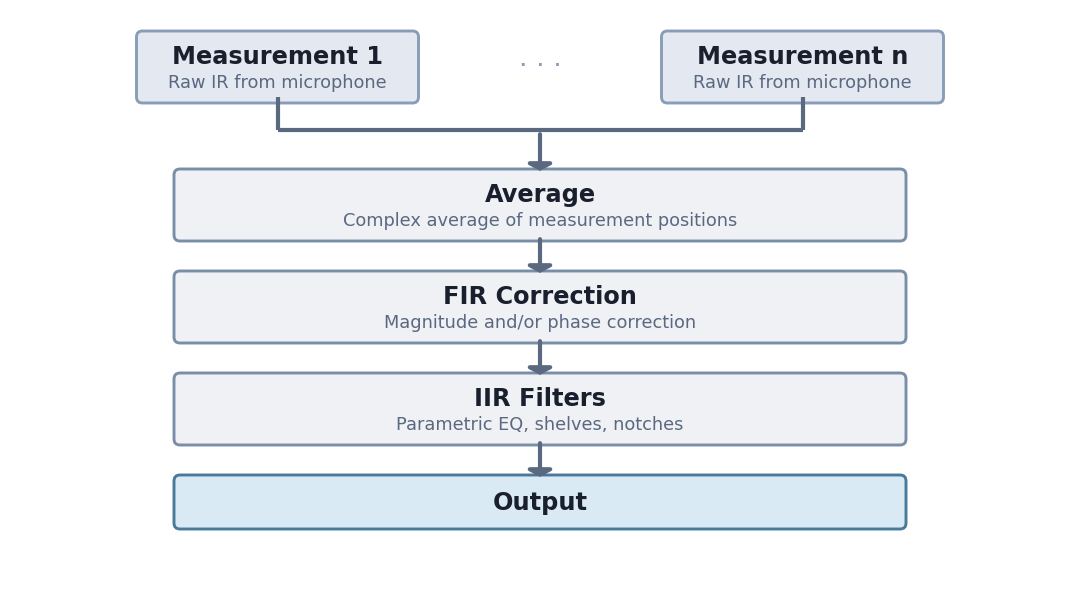
Global FIR Correction Filter
The Global FIR Correction Filter corrects the summed system response using FIR filters. It applies after all individual driver filters are combined, providing final system-level magnitude and phase correction.
Access the global FIR correction window from the Drivers/Measurements column (Global FIR button in the Global Filters section).
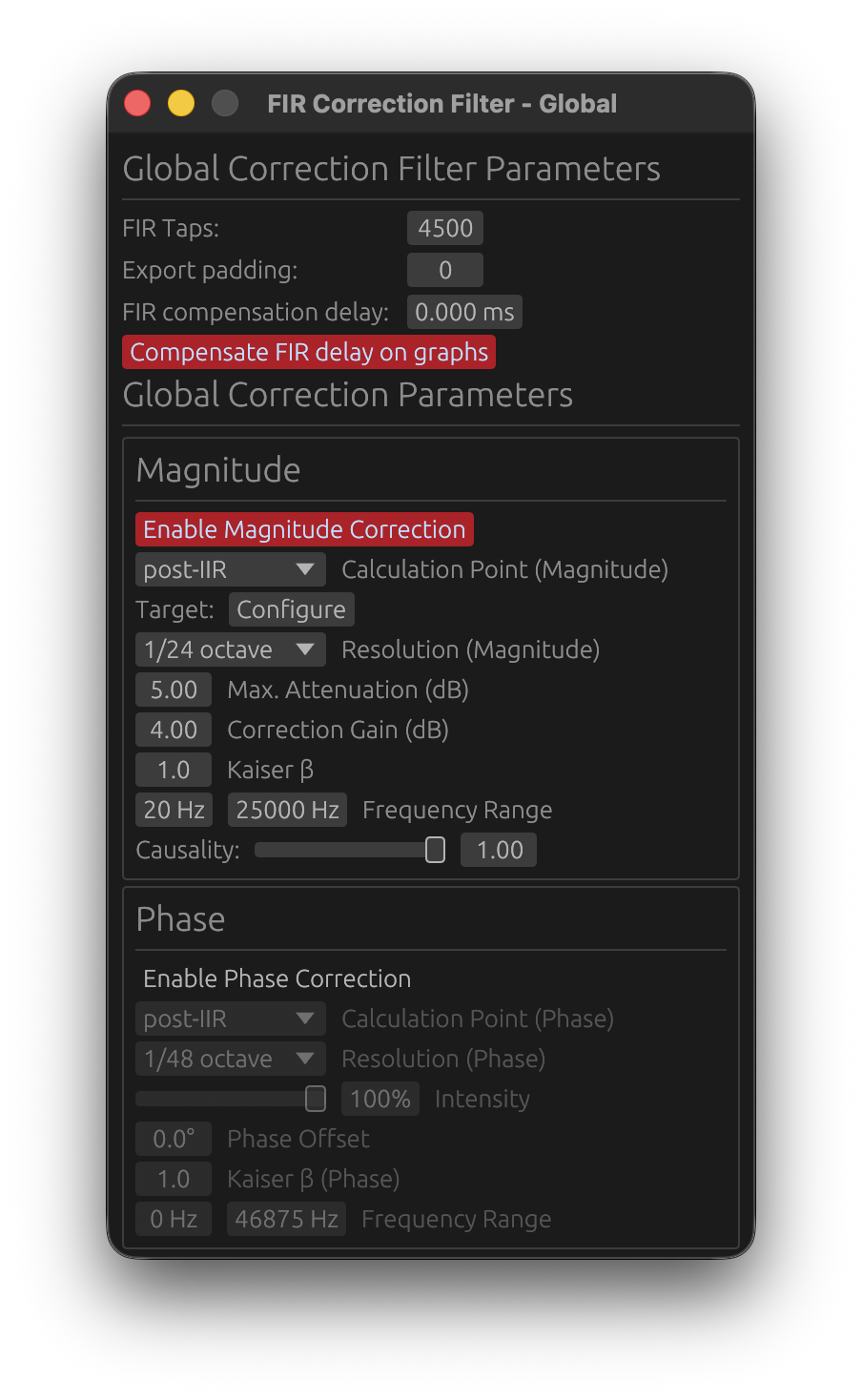
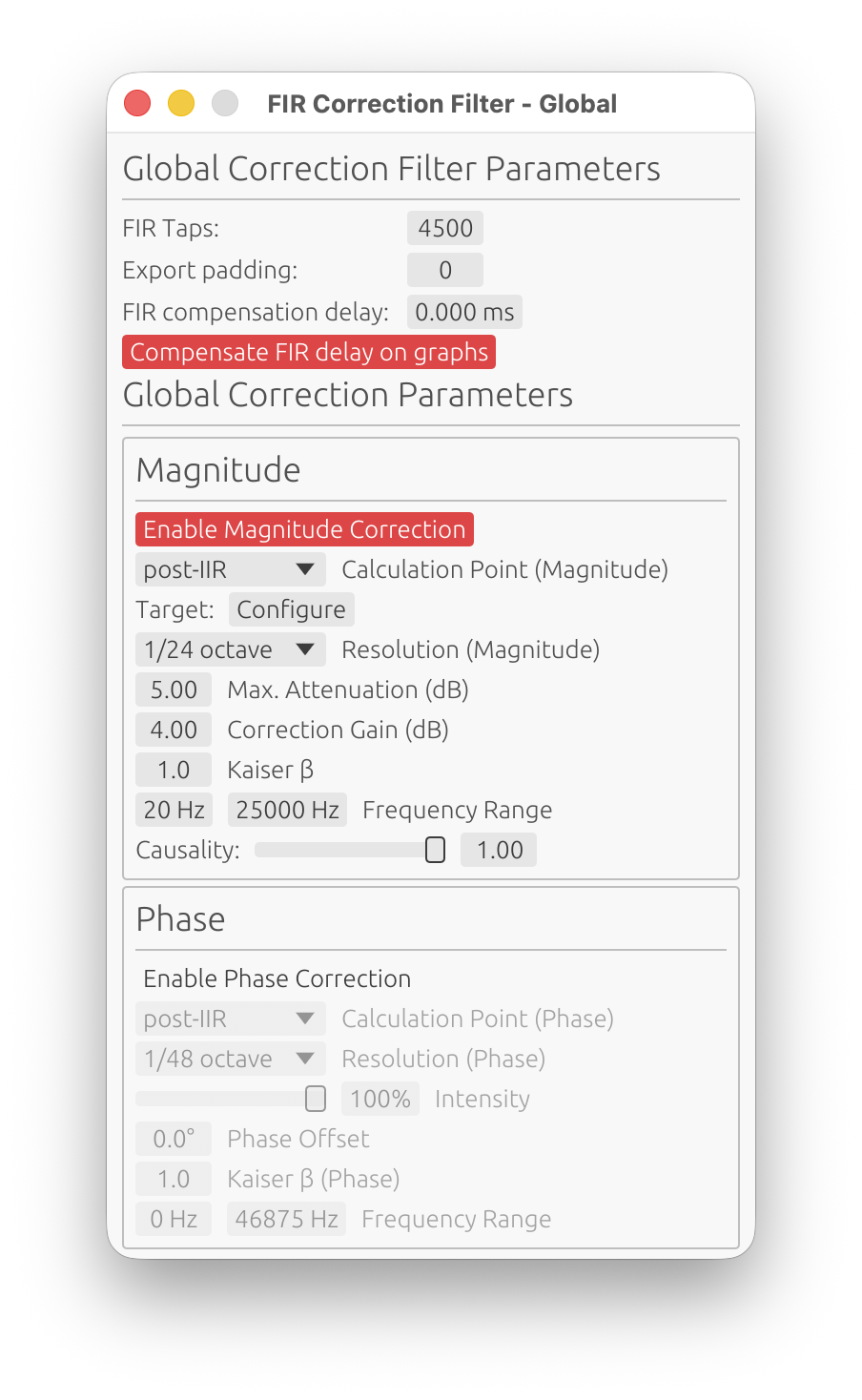
When to Use Global Correction
Loudspeaker Design Mode:
- Correct summed driver response/entire loudspeaker
- Align final system response to target curves (Flat, Harman, Custom)
- Compensate for baffle diffraction effects on the combined response
- Final system voicing and tuning
Room Calibration Mode:
- Room correction applied to the averaged measurements
- Correct combined room + speaker response
- Export global correction for integration into DSP processors
💡 Tip: Use global correction for overall tonal balance, and system-wide frequency response issues. Use per-driver correction (in Loudspeaker Design mode) for individual driver resonances, breakup modes, or response irregularities.
Global FIR Filter Length
FIR Taps
- Range: 32 to 65,536 taps
- Controls: the length (and thus frequency resolution) of the global FIR correction filter
How to choose:
- Higher tap counts → better low-frequency resolution, longer processing latency
- Lower tap counts → lower latency, reduced low-frequency precision
⚠️ Latency Note: The global FIR filter’s latency depends on tap count, magnitude causality, and phase correction:
- Causality = 1.0 (minimum-phase) + no phase correction: ~0 latency (impulse at t ≈ 0)
- Causality = 0.0 (linear-phase): ~
ntaps/2samples latency (impulse centered)- Phase correction enabled: adds latency regardless of causality (shifts impulse to center)
For low-latency applications, use Causality = 1.0 and disable phase correction.
Export Padding
- Range: 0 to 65,536 taps
- Purpose: Add zero-padding to the exported FIR filter files only
Export padding does not affect internal processing—it only extends the exported FIR coefficients with zeros. This is useful for:
- Meeting minimum FIR length requirements of external DSP platforms
- Aligning export formats across multiple filters
Example: If the global FIR filter is 4096 taps and you set export padding to 512, the exported file will contain 4608 coefficients (4096 actual + 512 zeros).
FIR Compensation Delay
- Range: -100 to +100 ms
- Purpose: Fine-tune the alignment of the global FIR filter in the processing chain
This parameter shifts the global FIR filter in time relative to the taps window.
Use Cases:
- Compensate for small timing misalignments introduced by FIR processing
- Adjust global FIR placement when mixing minimum-phase and linear-phase filters
💡 Tip: In most cases, leave this at 0 ms. Only adjust if you observe timing issues and ringing truncation in the impulse response.
Compensate FIR Delay on Graphs
- Toggle: Shift the impulse response left in plots to remove visual delay
When enabled:
- The impulse response plot shifts left by approximately
ntaps/2samples - The phase and group delay plots are also affected
- Exported filters are not modified
Purpose:
- Provides a clearer view of the aligned impulse response across drivers
- Useful for comparing driver responses without the visual offset from FIR latency
When to enable:
- When visually analyzing impulse alignment between drivers
- When comparing group delay and phase between the individual drivers and the sum
When to disable:
- When you need to see the true latency of the system
Magnitude Correction
The Magnitude Correction section corrects the frequency response (magnitude) of the summed system.
Enable Magnitude Correction
Toggle to enable/disable magnitude response correction independently from phase.
When disabled, magnitude correction settings are grayed out.
Reference (Magnitude)
- Options:
On-axis,Listening WindoworPredicted In-Room - Default:
On-axis - Requires: A valid LinFIR license
Selects which response is used as input for computing the magnitude correction FIR filter.
On-axis:
- Uses the on-axis summed system response
- Standard behavior
Listening Window:
- Uses the spatial average of all polar measurements within ±30° horizontal and ±10° vertical as the correction input
- Corrects the tonal balance experienced across the listening zone, not just on-axis
- When selected, pre-IIR / post-IIR calculation point still applies normally
- Falls back to On-axis silently if fewer than 2 qualifying angles are available
Predicted In-Room:
- Uses the CEA-2034-A Predicted In-Room Response (see Directivity Analysis) as the correction input, computed the same way as the displayed PIR curve but from the driver-filtered response only (no global IIR/FIR - this is the input to the filter being designed)
- Corrects toward a broader, room-weighted average (direct sound + early reflections + total radiated power) rather than just the listening zone
- Falls back to On-axis silently if there isn’t enough Early Reflections angle coverage (at least 3 of its 5 standard sub-curves)
💡 When to use Listening Window or Predicted In-Room correction: When your listening position varies slightly off-axis (e.g., multiple listeners, wide seating arrangement), or when the speaker has significant directivity — the on-axis response may not be representative of what is actually heard. Listening Window narrows the correction to the immediate sweet spot; Predicted In-Room widens it to the whole room’s likely spectral balance.
⚠️ Note: Both alternate references require off-axis measurement data - Listening Window at least 2 qualifying polar measurements, Predicted In-Room enough Early Reflections angle coverage. Either falls back to On-axis automatically when its own data isn’t available.
Calculation Point (Magnitude)
- Options:
pre-IIRorpost-IIR - Purpose: Choose where to measure the system response for magnitude correction
pre-IIR:
- Measures the system before global IIR filters
- Corrects the summed driver response (FIR crossovers + driver FIR corrections + driver IIR)
- Use when you want to correct the raw driver summation before applying IIR EQ
post-IIR:
- Measures the system after global IIR filters - the active global IIR chain, i.e. the manual IIR filters or the Auto-EQ filters, whichever tab is active
- Corrects the final system response (drivers + global IIR)
- Use for final system tuning or room correction that accounts for global IIR EQ
💡 Tip: For room calibration, use
post-IIRto correct the final room + speaker response. For loudspeaker design, usepre-IIRto correct driver interactions before applying global voicing EQ.
Target Curve
- Button:
Configure - Purpose: Select and configure the target curve for magnitude correction
Clicking Configure opens the Target Curve Window where you can:
- Select Flat or Harman as base curves
- Add inflection points and shape the curve
The magnitude correction FIR filter will match the response to this target curve.
See the Target Curves section in the documentation for details on curve types and customization.
Resolution (Magnitude)
- Options:
1/48 octave,1/24 octave,1/12 octave,1/6 octave,1/3 octave - Purpose: Control the smoothing applied to the magnitude correction
Lower fractions (e.g., 1/48 oct) → finer detail, corrects small ripples
Higher fractions (e.g., 1/3 oct) → broader smoothing, corrects only major trends
How to choose:
- Room correction: Use
1/6 octaveor1/3 octaveto avoid over-correcting room modes (which vary with position) - Loudspeaker design: Use
1/12 octaveor1/24 octavefor detailed driver correction
⚠️ Warning: Very fine smoothing (1/48 oct) can lead to excessive correction of measurement noise. Use with caution.
Use legacy FIR correction tuning
- Location: Settings → General → Filter Processing
- Default: Off
One project-wide setting that switches every magnitude correction filter (the global one and every driver’s) between the two tuning models described below. Off by default, including for a project saved by an older LinFIR version - its existing Max. Attenuation/Correction Gain values are reinterpreted under the new Strength model rather than converted, a deliberate breaking change (see the Release Notes): re-check your correction filters after upgrading, and turn this on if you’d rather get the exact old filters back. Flipping it re-wires every open correction window between the two UIs immediately, live.
Strength
- Range: 0 to 100%
- Default: 50%
- Purpose: How far to correct, from “untouched” (0%) to “summed system response fully matches the target within the configured frequency range” (100%)
Response and target are each measured as a deviation from their own average level within the frequency range - not their peak - so correction is symmetric: bumps get tamed and dips get filled in, instead of the filter only ever boosting. A target curve’s shape is what matters; its absolute level is normalized away and has no effect - the corrected response stays anchored at its own original average level (use Correction Gain, below, to shift that deliberately). Content outside the frequency range never influences the reference, so Strength always has an immediate, visible effect the moment you move the slider.
Recommended values:
- Room correction: 60–100% (room modes benefit from more aggressive flattening)
- Loudspeaker design: 30–50% (driver peaks are typically smaller, and over-correcting narrow resonances may not be audible)
⚠️ Note: How closely the response can actually collapse onto the target depends on the filter having enough taps (FIR Taps) to resolve the correction. A linear-phase FIR’s frequency resolution is
sample_rate / n_taps, so with too few taps for a given correction, low frequencies - where each octave spans far fewer Hz-per-tap than in the treble - are the first to fall short: even at 100% Strength, bass correction can end up noticeably weaker than what the slider promises. Increase the tap count if the FIR display mode shows the low end isn’t reaching the target.
Correction Gain
- Range: -20 to +20 dB
- Default: 0 dB
- Purpose: A plain, uniform gain applied on top of the Strength correction, within the configured frequency range
Since Strength’s own reference is already level-matched (see above), this field is a simple, independent broadband offset - not a compensation for anything Strength does on its own.
⚠️ Use with care: Excessive correction gain can cause clipping in the internal DSP signal chain or driver damage. Check the final response in the graph bar’s FIR display mode (press F; see Display Mode Selection) before committing to a large value.
Correction target overlay
While the global correction filter window is open and in the foreground, a green overlay on the frequency response graph shows what the summed system response converges to at 100% Strength: the target curve’s shape, level-matched to the system’s own average response level within the configured frequency range, plus Correction Gain. It is hidden when the window goes to the background or is closed. Not shown with Use legacy FIR correction tuning enabled - the legacy Max. Attenuation model has no equivalent fixed curve to converge to.
Legacy tuning (Max. Attenuation + Correction Gain)
With Use legacy FIR correction tuning on, the Strength slider is replaced by the original two-field model:
Max Attenuation (range 0–30 dB, default 10 dB): this parameter “cuts from the top” - it limits how much the correction filter can reduce peaks in the frequency response, referenced to the whole measured spectrum’s own peak (not just the configured frequency range). Prevents excessive cuts that waste headroom and over-correcting narrow resonances. Example: a +15 dB peak with Max Attenuation set to 10 dB is only cut by 10 dB (leaving a +5 dB peak).
Correction Gain in this mode is the sole gain control (there is no separate internal compensation): since the filter primarily attenuates rather than boosts, this restores the level lost to that attenuation - set it to approximately match the average attenuation applied. The gain multiplies the correction filter’s response, so it scales the filter’s local gain across the whole band; check the FIR display mode before going much higher than 4-6 dB.
Kaiser β (Magnitude)
Range: 0.0 to 50.0
Default: 8.0
Kaiser windowing parameter for the magnitude correction FIR filter.
Effect:
- Lower values (3-5): Sharper correction BUT may increase ringing
- Moderate values (6-10): Good balance between precision and ringing suppression
- Higher values (12-20): Smoother correction, reduced ringing, but less precise
Recommendation: Start with default 8.0, decrease to 1-2 if ringing is not problematic.
Frequency Range (Magnitude)
- f_min (minimum frequency): Starting point for magnitude correction
- f_max (maximum frequency): Ending point for magnitude correction
- Fade-in/Fade-out: Smooth transitions at the boundaries
Purpose: Limit magnitude correction to a specific frequency range.
Example:
- Set
f_min = 40 Hzandf_max = 12,000 Hzto correct only mid-bass through mid-treble, leaving deep bass and extreme treble unaffected
💡 Tip: Avoid correcting frequencies outside the measurement’s reliable range. Measurement noise dominates at the extremes.
Causality (Magnitude)
Range: 0.0 (linear-phase) to 1.0 (minimum-phase)
Default: 1.0 (minimum-phase)
Controls the phase characteristic of the magnitude correction filter.
- 0.0 (Linear-phase): Symmetric pre- and post-ringing, constant group delay
- 1.0 (Minimum-phase): No pre-ringing, all energy is causal, variable group delay
Typical choice: 1.0 (minimum-phase) to avoid pre-ringing artifacts.
Why minimum-phase is preferred: Most acoustic and electronic systems are minimum-phase (magnitude and phase are coupled via Kramers-Kronig relations). Correcting magnitude with a minimum-phase filter automatically corrects the associated phase deviation, providing physically accurate correction. Use 0.0 (linear-phase) only if you specifically need constant group delay with a non-flat target curve and can tolerate pre-ringing.
Phase Correction
The Phase Correction section corrects the group delay and phase response of the summed system.
Enable Phase Correction
Toggle to enable/disable phase response correction independently from magnitude.
🚫 Non-anechoic measurements: phase correction is strongly discouraged
Phase correction requires clean, accurate phase data. In-room measurements contain reflections, room modes, and position-dependent artifacts that pollute the phase response. Applying phase correction to such data produces unpredictable — and often worse — results.
Only use phase correction with anechoic or near-anechoic measurements (e.g., measurements gated to remove reflections, or made in an anechoic chamber). For in-room measurements, restrict correction to magnitude only.
Exception — Room Calibration mode with spatially averaged measurements: When the corrected response is the result of averaging several measurements taken at different listening positions, the influence of room modes and position-dependent reflections is drastically reduced. In this specific case, phase correction becomes more acceptable, as the averaged phase data is significantly less polluted than any single-point measurement.
Even so, spatial averaging is not a perfect substitute for anechoic conditions. A final verification measurement and critical listening session are recommended to confirm that no audible artifacts or regressions have been introduced by the phase correction.
⚠️ Critical Limitation: Phase Correction vs. Low Latency
You cannot have both near-zero latency FIR filters AND active phase correction. This is a fundamental limitation, not a software bug.
Why this incompatibility exists:
Even if you configure your FIR magnitude correction with causality = 1.0 (minimum-phase, low latency), which positions the FIR impulse peak near t=0 (left-aligned), enabling phase correction will shift the combined FIR impulse peak to the center (around ntaps/2), introducing significant latency.
The reason is fundamental:
- Phase correction = temporal correction: Phase distortion is fundamentally a time-domain problem (different frequencies arriving at different times)
- To correct temporal defects, you need time: The filter needs temporal “space” before and after the main impulse to reposition frequency components correctly
- This requires centering the impulse: Phase correction filters must have headroom both before (pre-ringing) and after (post-ringing) the main signal to perform time-domain manipulations
- Result: The combined FIR impulse peak moves from t≈0 (low latency) to t≈ntaps/2 (high latency)
Practical impact:
- Without phase correction: Causality=1.0 filters → impulse peak at t≈0 → latency ≈ 0 samples
- With phase correction enabled: Impulse peak moves towards t≈ntaps/2 → latency ≈ ntaps/2 samples (e.g., 2048 samples at 48kHz = 42.7ms)
Recommended approach:
- For low-latency applications (live sound, PA, monitoring): Use causality = 1.0 on crossover/magnitude filters, disable phase correction, accept phase as-is
- For high-fidelity applications (studio monitors, reference systems): Use causality = 0.0 on crossover, 1.0 on magnitude filters, enable phase correction if needed, accept the latency
- For hybrid approach: Use moderate causality (0.3-0.7) for reduced latency with some phase correction capability (but still expect significant latency when phase correction is active)
Calculation Point (Phase)
- Options:
pre-IIRorpost-IIR - Purpose: Choose where to measure the system response for phase correction
pre-IIR:
- Measures phase before global IIR filters
- Corrects driver phase interactions (crossover phase shifts, driver delays)
- Use when global IIR has minimal phase impact
post-IIR:
- Measures phase after global IIR filters
- Corrects final system phase (including IIR phase shifts)
- Use for complete system phase linearization
💡 Tip: Phase and magnitude correction can use different calculation points. For example, use
pre-IIRfor magnitude (correct drivers) andpost-IIRfor phase (linearize final system).
Note: When Magnitude Correction is enabled, the phase correction is computed from the summed response with the global magnitude correction FIR already applied (morphed by its Causality setting), regardless of the Calculation Point. The phase FIR therefore linearises the phase the system actually has after magnitude correction — including any excess phase a minimum-phase (Causality > 0) magnitude correction introduces. This matches the per-driver behaviour.
Resolution (Phase)
- Options:
1/48 octave,1/24 octave,1/12 octave,1/6 octave,1/3 octave - Purpose: Control the smoothing applied to phase correction
Same principle as magnitude resolution:
- Finer smoothing (1/48 oct) → corrects small phase variations
- Coarser smoothing (1/3 oct) → corrects only major phase trends
Recommended values:
- Room correction: 1/6 or 1/3 octave
- Loudspeaker design: 1/12 or 1/24 octave
Intensity
- Range: 0% to 100%
- Default: 100%
- Purpose: Control the strength of phase correction
100%: Full phase correction (matches measured phase to target)
0%: No phase correction
50%: Half-strength correction (blend between measured and target phase)
Use Cases:
- Reduce intensity (e.g., 70–80%) if full phase correction introduces audible artifacts
- Use partial correction to preserve some driver phase characteristics
💡 Tip: Start with 100% and reduce intensity if the correction sounds unnatural.
Phase Offset
Range: -180° to +180°
Default: 0°
Phase offset applied to the filter’s phase response.
Purpose: Controls the symmetry of the impulse response by adjusting the phase offset. This allows fine-tuning the balance between pre-ringing and post-ringing in the time-domain response.
How it works:
- 0°: Default even symmetric behavior
- Positive/Negative offset: Shifts impulse response characteristics towards odd symmetry
Use case: Advanced parameter for optimizing impulse response symmetry in multi-driver systems.
Recommendation: Leave at 0° unless you have specific symmetry requirements and understand impulse response trade-offs.
Kaiser β (Phase)
Range: 0.0 to 50.0
Default: 1.0
Kaiser windowing parameter for the phase correction FIR filter.
Effect:
- Lower values (1-5): Less aggressive windowing — the correction filter’s oscillations (pre- and post-ringing) are preserved more fully, allowing accurate phase correction
- Moderate values (6-10): Balanced windowing — trade-off between accuracy and artifact suppression
- Higher values (12-20): Aggressive windowing — strongly attenuates pre- and post-ringing, which can introduce magnitude deviations if correction energy is clipped
When to adjust:
- If the guard warning appears (the auto-guard has already narrowed the Start/End Frequencies as far as it can): decrease Kaiser β — see Phase Correction Magnitude Artifacts
- If phase correction creates excessive ringing, increase Kaiser β
Recommendation: Start with default 1.0. If the guard warning still appears after its automatic frequency adjustments, try reducing β toward 0.
Frequency Range (Phase)
- Start Frequency: Starting point for phase correction
- End Frequency: Ending point for phase correction
Purpose: Limit phase correction to a specific frequency range.
Use Cases:
- Avoid correcting phase at frequencies where group delay measurements are unreliable
- Avoid correcting phase outside speaker’s frequency response
- Reduce magnitude artifacts: low frequencies require the longest correction filters; the auto-correction guard raises the Start Frequency automatically when artifact warnings occur — see Phase Correction Magnitude Artifacts for a full explanation and resolution procedure
Global IIR Filtering
In addition to global FIR correction, LinFIR provides Global IIR Filters for system-wide parametric EQ.
When to Use Global IIR
- Room correction EQ: Parametric filters to address specific room modes
- Final system tuning: Overall tonal balance adjustments (bass/treble tilt, voicing)
- Low taps count: IIR filters require less processing power, allowing easier low end correction with small DSP processors
💡 Tip: Use global IIR for low end corrections and global FIR for high frequencies correction.
Access Global IIR Window
Access the global IIR window from the Drivers/Measurements column (Global IIR button in the Global Filters section).
Manual vs. Auto EQ Tabs
The Global IIR window has two tabs, identical to the per-driver IIR system:
Manual Tab:
- Manually add/edit parametric filters (PEQ, low shelf, high shelf, etc.)
- Full control over frequency, gain, Q
- Lock individual filters to prevent Auto EQ from modifying them
Auto EQ Tab:
- Automatically generates IIR filters to match the system to a target curve
- Same parameters as driver Auto EQ:
- Gain Offset: Adjust overall target level
- EQ Boost Cap: Prevent excessive boost
- Frequency range, Q range, Filter count
- Auto-generate toggle (requires license): see Auto-generate in the driver IIR documentation — same behaviour applies here; note that changing the target curve does not trigger auto-generation
Target curve overlay
When the Global IIR window is open and in the foreground with the Auto EQ tab selected, the configured target curve is displayed as a blue overlay directly on the frequency response graph. The curve is level-matched to the summed system response over the configured frequency range, and truncated to [Freq Min, Freq Max]. It disappears automatically when the window is sent to the background.
Auto EQ (Global)
Global Auto EQ works on the summed system response after driver processing:
- Measures the final system (drivers + global FIR + global IIR)
- Generates IIR filters to match the selected target curve (Flat, Harman, Custom)
- Applies to the entire system (not per-driver)
Reference
- Options:
On-axis,Listening WindoworPredicted In-Room - Default:
On-axis - Requires: A valid LinFIR license
Selects which response is measured to generate the Auto EQ filters.
On-axis:
- Uses the on-axis summed system response
- Standard behavior
Listening Window:
- Uses the spatial average of all polar measurements within ±30°H / ±10°V as the response being equalized
- Optimizes the IIR filter shape to correct the Listening Window response towards the target curve
- The level reference (absolute dB anchor) is always taken from the on-axis response, regardless of this setting — this prevents a net gain offset from being introduced by the LW averaging
- Falls back to On-axis if fewer than 2 qualifying angles are available
Predicted In-Room:
- Uses the CEA-2034-A Predicted In-Room Response (see Directivity Analysis) as the response being equalized, computed from the driver-filtered response only (no global IIR/FIR)
- Same level-reference and fallback behavior as Listening Window, anchored to on-axis
- Falls back to On-axis if there isn’t enough Early Reflections angle coverage (at least 3 of its 5 standard sub-curves)
💡 Tip: Using Listening Window or Predicted In-Room for Auto EQ is particularly effective when the speaker has audible directivity variations. Listening Window targets imbalances within the immediate ±30° sweet spot; Predicted In-Room targets the broader tonal balance a real room would produce.
Use Cases:
- Room correction: Auto EQ generates filters to correct room + speaker response
- Final voicing: Quick tonal adjustments without regenerating FIR filters
Locked Filters (🔒):
Individual filters can be locked to preserve them during operations:
- Lock toggle: Click the 🔓/🔒 icon next to any filter to lock/unlock it
- Protected from Clear: Locked filters are not deleted when clicking “Clear Filters”
- Protected from Auto EQ: Locked filters are not removed when regenerating Auto EQ
- Applying it to the response (🎯/➖): once a filter is locked, a second button appears next to the padlock
- 🎯 Applied: the filter is applied to the system response before Auto EQ designs new filters, so they build around it instead of ignoring it
- ➖ Ignored (default): the filter stays locked and preserved, but has no influence on the new filters
- Toggling it regenerates immediately if Auto-generate is on
Use Cases:
- Set a protective high-pass filter, lock it and set it to 🎯, then let Auto EQ optimize the rest around it
- Lock a low-pass filter for driver protection while auto-correcting midrange
- Preserve manually tuned filters while regenerating Auto EQ corrections
- Combine manual protective filters with automatic room correction
Example Workflow:
- Switch to Auto EQ tab
- Add protective filters (e.g., -24 dB/oct HP at 60 Hz, room mode notches) using ➕ Add Filter
- Lock them using the 🔒 icon, then click 🎯 so Auto EQ builds around them
- Configure target curve (Flat, Harman, Custom)
- Click “Generate” to run Auto EQ optimization
- Review and adjust: Edit any auto-generated filter directly (frequency, gain, Q)
- Lock refined filters: Lock manually adjusted filters to preserve them
- Iterate: Regenerate Auto EQ as many times as needed—locked filters stay in place, and any set to 🎯 keep shaping what gets generated
- Result: Auto EQ creates corrective filters while respecting locked protective filters
📖 For detailed Auto EQ parameter descriptions, see the Driver Processing page (Auto EQ section). Global Auto EQ uses identical parameters.
Workflow Recommendations
Loudspeaker Design Mode
- Design individual driver filters (FIR crossovers, FIR corrections, IIR EQ)
- Verify summed system response (check for phase cancellations, comb filtering)
- Apply global FIR correction if needed:
- Correct driver interaction issues (dips, peaks from crossover summing)
- Match system to target curve (Flat, Harman)
- Add global IIR filters for final voicing (bass/treble tilt, room-specific adjustments)
- Export filters for DSP platform
Room Calibration Mode
- Measure room response at listening position
- Apply global FIR correction:
- Set resolution to 1/6 or 1/3 octave (avoid over-correcting room modes)
- Limit frequency range (e.g., 500–18,000 Hz)
- Set Max Attenuation to 10–15 dB
- Add global IIR filters for specific room modes (parametric notches)
- Re-measure and iterate if needed
- Export global correction filters for room DSP processor
💡 Best Practice: In room calibration mode, avoid excessive correction of room modes and deep nulls. Boosting these regions by more than 6-10 dB risks clipping, increased distortion, driver overexcursion, and potential damage. Use acoustic treatment for problematic modes instead of EQ.
Related Documentation
- Driver Processing: Per-driver FIR/IIR filtering (loudspeaker design mode)
- Settings: Application-wide filter processing defaults
- Target Curves: Configuring Flat, Harman, and Custom curves
- Export: Exporting filters for DSP platforms (input FIR vs. output FIR)
Summary
Global FIR Correction provides system-level magnitude and phase correction for:
- Loudspeaker Design: Correcting summed driver interactions and final system voicing
- Room Calibration: Correcting room + speaker response at the listening position
Key Features:
- Independent magnitude and phase correction with separate calculation points (pre-IIR/post-IIR)
- Adjustable resolution, frequency range, and causality for flexible correction strategies
- FIR compensation delay and graph compensation for fine-tuning alignment and visualization
Global IIR Filtering complements FIR correction with:
- Manual parametric EQ for precise corrections
- Auto EQ for automatic target curve matching
- Locked filters for hybrid manual/automatic workflows
Use global processing after per-driver processing to achieve final system performance targets.
Target Curves
Target curves define the desired frequency response for FIR correction and Auto EQ optimization. LinFIR provides built-in curves (Flat, Harman) and supports fully customizable user-defined curves.

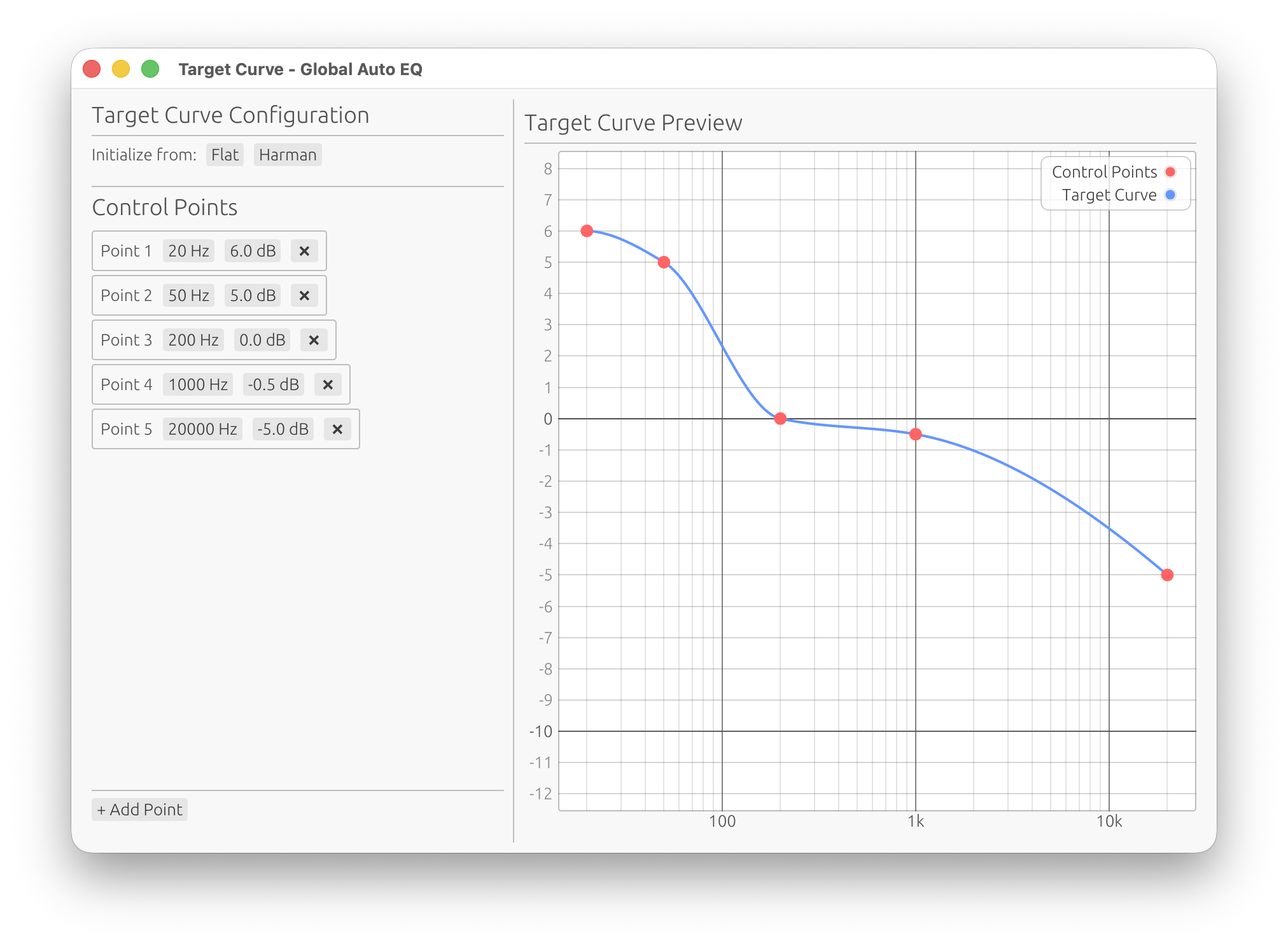
Target curves are used by:
- FIR Correction filters (per-driver and global)
- Auto EQ (per-driver and global IIR optimization)
Each filter type has its own independent target curve configuration.
Accessing Target Curve Configuration
Target curve windows are accessed from configuration buttons in the corresponding filter windows:
Per-Driver:
- FIR Correction: Driver → FIR Correction → Magnitude Correction section → Configure button
- Auto EQ: Driver → IIR Filters → Auto EQ tab → Target Curve section → Configure button
Global:
- Global FIR Correction: Global FIR → Magnitude Correction section → Configure button
- Global Auto EQ: Global IIR → Auto EQ tab → Target Curve section → Configure button
Built-in Target Curves
Import / Export
Control points can be saved to and loaded from plain-text files using the 📂 Import and 💾 Export buttons, located just below the Initialize from buttons in the toolbar.
File Format
A simple two-column text file:
# LinFIR target curve
# Frequency (Hz)	Gain (dB)
20.00	0.00
200.00	-2.50
1000.00	-4.00
20000.00	-8.00
Rules:
- One point per line:
frequency<sep>gain - Separator: tab, space or comma (mixed is fine)
- Lines starting with
#are ignored (comments) - Empty lines are ignored
- Decimal separator:
.(a,is also accepted and converted automatically) - Frequency must be strictly positive; gain can be any finite value
- At least 2 valid points are required for a successful import
- On import, points are sorted by ascending frequency automatically
Import (📂)
- Click 📂 Import
- Select a
.txtfile in the file picker - LinFIR parses the file and replaces the current control points
- The target curve preview updates immediately
If the file contains fewer than 2 valid points the import is silently ignored — the current points are preserved.
Export (💾)
- Click 💾 Export
- Choose a destination and file name (
.txtextension is added automatically if omitted) - The file is written with a commented header and tab-separated columns
Exported files can be shared between different target curve windows or projects, and edited with any text editor or spreadsheet application.
Flat Curve
Description: 0 dB gain across all frequencies (20 Hz to 20 kHz)
Use Cases:
- Anechoic measurements requiring no psychoacoustic compensation
- Verification/troubleshooting (no tonal bias)
- Starting point for custom curves
Initialization:
- Click Flat button
- Creates 2 control points: (20 Hz, 0 dB) and (20 kHz, 0 dB)
Harman Target Curve
Description: Psychoacoustically optimized frequency response based on Harman research
Curve Shape:
- +6 dB at 20 Hz: Enhanced deep bass presence
- +5 dB at 50 Hz: Bass warmth
- 0 dB at 200 Hz: Neutral lower midrange
- -0.5 dB at 1 kHz: Slight midrange dip (reference frequency)
- -5 dB at 20 kHz: Treble roll-off (reduces harshness)
Use Cases:
- In-room listening: Compensates for typical room gain and psychoacoustic preferences
- Room calibration: Starting point for subjective tuning
Initialization:
- Click Harman button
- Creates 5 control points with Harman curve shape
Customization:
- Adjust bass tilt by modifying low-frequency points
- Adjust treble slope by changing high-frequency points
- Add intermediate points for detailed shaping
⚠️ Critical: Max. Attenuation vs. Curve Amplitude
FIR correction filters work primarily by attenuation (cutting peaks). The Max Attenuation parameter must be large enough to accommodate the amplitude of the target curve within the configured frequency range.
Example (full Harman curve, 20 Hz - 20 kHz): The default Harman curve has an amplitude of 11 dB (from +6 dB at 20 Hz to -5 dB at 20 kHz). If you set Max Attenuation to only 6 dB, the FIR filter cannot apply the full curve—specifically, the treble roll-off (-5 dB at 20 kHz) will not be applied.
Example (limited range, 200 Hz - 20 kHz): If you set Frequency Range from 200 Hz to 20 kHz, the effective amplitude is only 5 dB (from 0 dB at 200 Hz to -5 dB at 20 kHz). In this case, Max Attenuation ≥ 5 dB is sufficient.
Rule: Set Max Attenuation ≥ curve amplitude within f_min to f_max.
- Calculate amplitude: Find max and min gain within your configured frequency range
- Harman (20 Hz - 20 kHz): Use Max Attenuation ≥ 11 dB (recommend 12-15 dB)
- Harman (200 Hz - 20 kHz): Use Max Attenuation ≥ 5 dB (recommend 6-8 dB)
- Custom curves: Calculate max - min within your f_min/f_max range
Applies to: FIR Correction filters (per-driver and global). Auto EQ uses IIR filters (can boost and cut freely).
Custom Target Curves
Create fully custom target curves with unlimited control points.
Control Points
Each control point defines a (frequency, gain) pair:
Frequency:
- Range: 1 Hz to 21,000 Hz
- Log-scale distribution recommended (e.g., 20, 50, 100, 200, 500, 1k, 2k, 5k, 10k, 20k Hz)
- Drag value to adjust
Gain:
- Range: -20 dB to +20 dB
- Positive values = boost, negative = cut
- Drag value to adjust
Minimum Points: 2 (required for interpolation)
Adding Points
- Click + Add Point button
- New point created at 1 kHz, 0 dB
- Adjust frequency and gain as needed
Removing Points
- Click ❌ button next to the control point
- Cannot remove if only 2 points remain (minimum requirement)
Curve Interpolation
LinFIR automatically interpolates between control points to create a smooth curve:
Interpolation Process:
- Generate 5,000 log-spaced frequencies across the full range
- Log interpolation between user control points onto these 5,000 frequencies
- Linear interpolation from 5,000 points to target frequencies (filter FFT bins)
Result: Smooth, natural curve without artifacts even with few control points
Preview: Real-time graph shows interpolated curve (blue line) and control points (red dots)
Target Curve Preview Graph
The right panel shows a real-time preview of the target curve.
Elements:
- Blue line: Final interpolated target curve (used by correction algorithms)
- Red dots: User-defined control points
Axes:
- X-axis: Frequency (Hz, logarithmic scale)
- Y-axis: Gain (dB, linear scale)
Auto-scaling: Y-axis automatically adjusts to fit data range
Workflow Recommendations
Creating a Custom Curve from Scratch
- Click Flat to start with a neutral baseline
- Add control points at key frequencies:
- 20 Hz: Deep bass level
- 50-100 Hz: Bass warmth
- 200-500 Hz: Lower midrange body
- 1 kHz: Reference point (usually 0 dB or slightly negative)
- 2-5 kHz: Presence region
- 10 kHz: Air/sparkle
- 20 kHz: Extreme treble roll-off
- Adjust gains to shape desired response
- Preview in graph and test with measurements
Modifying Harman Curve
- Click Harman to load default curve
- Adjust existing points:
- Reduce 20-50 Hz gains for less bass
- Increase 20 kHz gain for more treble extension
- Add points at 2-5 kHz for presence adjustment
- Use as starting point for room-specific tuning
Room Calibration Workflow
- Measure in-room response without any FIR or IIR EQ
- Start with Harman curve (accounts for typical room gain)
- Apply correction and re-measure
- Fine-tune target curve:
- Reduce bass points if room has excessive low-frequency gain
- Adjust treble roll-off based on room absorption
- Add notches at problematic room modes (if using Auto EQ)
- Iterate until subjectively satisfying
Loudspeaker Design Workflow
- Use Flat curve for anechoic FIR correction (individual drivers)
- Measure on-axis response and apply correction
- Verify off-axis response maintains reasonable shape
Best Practices
Control Point Placement
- Use logarithmic spacing: Match human auditory perception (e.g., 20, 50, 100, 200, 500 Hz…)
- Avoid excessive points: 5-10 points typically sufficient for smooth curves
- Anchor bass and treble: Always define endpoints (20 Hz, 20 kHz)
- Reference at 1 kHz: Many conventions use 1 kHz as 0 dB reference
Curve Shape Considerations
- Avoid steep transitions: Can cause ringing in FIR filters and excessive Q in Auto EQ
- Match measurement reliability: Don’t define detailed curve below measurement noise floor
- Account for driver capabilities: Don’t demand excessive bass from small drivers
- Psychoacoustic balance: Consider Fletcher-Munson curves at typical listening levels
FIR Correction: Max Attenuation vs. Curve Amplitude
Critical requirement for FIR correction filters:
FIR correction works primarily by attenuation (cutting peaks in the frequency response). The Max Attenuation parameter limits how much the filter can cut.
Problem: If the target curve has a large amplitude (difference between highest and lowest points), and Max Attenuation is set too low, the filter cannot apply the full curve shape.
Solution: Set Max Attenuation ≥ curve amplitude within the configured frequency range
Calculating Curve Amplitude:
- Find the highest gain in your target curve within f_min to f_max (configured Frequency Range)
- Find the lowest gain in your target curve within f_min to f_max
- Amplitude = highest - lowest within that range
Examples:
Harman curve, full range (20 Hz - 20 kHz):
- Highest: +6 dB at 20 Hz
- Lowest: -5 dB at 20 kHz
- Amplitude: 6 - (-5) = 11 dB
- Required: Max Attenuation ≥ 11 dB (recommend 12-15 dB)
Harman curve, limited range (200 Hz - 20 kHz):
- Highest: 0 dB at 200 Hz
- Lowest: -5 dB at 20 kHz
- Amplitude: 0 - (-5) = 5 dB
- Required: Max Attenuation ≥ 5 dB (recommend 6-8 dB)
Flat curve (any range):
- Amplitude: 0 dB (curve is flat)
- Any Max Attenuation works
Custom +10 dB bass, -8 dB treble, full range:
- Amplitude: 10 - (-8) = 18 dB
- Required: Max Attenuation ≥ 18 dB (recommend 20 dB)
What happens if Max Attenuation is too low:
- The filter clips the attenuation at the maximum value
- Parts of the curve are not applied (typically treble roll-off is lost)
- Result: Incomplete correction, unbalanced tonal response
Recommendation:
- Calculate amplitude only within your configured f_min/f_max range
- Add 1-3 dB margin above calculated amplitude
- Monitor corrected frequency response to verify full curve is applied
- If limiting frequency range (e.g., 200 Hz - 10 kHz), you may need much less Max Attenuation
💡 Tip: This only applies to FIR correction filters. Auto EQ uses IIR filters which can boost and cut freely, so this limitation does not apply.
Testing and Validation
- Preview before applying: Check interpolated curve makes sense
- Apply to measurement: Use with FIR correction or Auto EQ
- Measure result: Verify corrected response matches target
- Iterate: Refine target based on measurements and listening tests
Technical Details
Interpolation Algorithm
Step 1: Log-space interpolation
- Creates 5,000 log-spaced frequencies from minimum to maximum input frequency
- Uses logarithmic interpolation between user control points
- Preserves smooth transitions in log-frequency domain
Step 2: Linear resampling
- Resamples 5,000-point curve to target frequencies (FFT bins)
- Linear interpolation ensures smooth curve on target grid
- No artifacts or discontinuities
Result: High-quality curve suitable for both FIR convolution and IIR optimization
Frequency Range
- Minimum: 1 Hz (typically clamp to 20 Hz in practice)
- Maximum: 21,000 Hz (or Nyquist frequency, whichever is lower)
- Interpolation: Extends user points across full range
Gain Limits
- Range: -20 dB to +20 dB per control point
- No hard limit on curve: Interpolation can produce values outside this range between points
- Practical limit: Avoid extreme gains to prevent filter artifacts
Common Use Cases
Studio Monitoring
Target: Custom curve with gentle tilt (or modified Harman)
- Modern practice uses in-room curves rather than flat anechoic response
- Gentle treble roll-off (-1 to -3 dB at 20 kHz) reduces listening fatigue
- Slight bass lift (+1 to +3 dB below 100 Hz) compensates for room interaction
- Purely flat curves are rarely used in practice—can sound harsh and fatiguing
- Start with Harman and adjust to taste for extended listening sessions
Home Theater
Target: Harman curve (or modified)
- Preferred tonal balance for movies and music
- Accounts for room gain
- Adjust bass/treble tilt to taste
Hi-Fi Listening
Target: Custom curve based on Harman
- Start with Harman, adjust to preference
- Reduce bass if room is overly boomy
- Adjust treble based on speaker and room brightness
Car Audio
Target: Custom curve (elevated bass and treble)
- Compensate for road noise (boost bass and treble)
- Account for small cabin gain
- Highly subjective—tune by ear
Headphone Compensation
Target: Diffuse-field or Harman headphone curve
- Compensate for headphone frequency response
- Simulate speaker-like tonality
Related Documentation
- Driver Processing: FIR correction and Auto EQ using target curves
- System Processing: Global FIR correction and Auto EQ
Summary
Target curves define the desired frequency response for correction algorithms:
- Built-in curves: Flat (0 dB) and Harman (psychoacoustic optimized)
- Custom curves: Unlimited control points with automatic interpolation
- Independent configuration: Each FIR correction and Auto EQ has its own target
- Real-time preview: Interactive graph shows interpolated curve
Workflow:
- Open target curve window from filter configuration (Configure button)
- Initialize from Flat or Harman, or create custom
- Add/edit control points (frequency, gain)
- Import an existing curve from a text file, or export the current curve for reuse
- Preview interpolated curve in real-time
- Apply correction and measure results
- Iterate based on measurements and listening tests
Use target curves to shape your system’s tonal balance, compensate for room effects, and achieve your desired sound signature.
Export & Project Management
This section covers exporting filters, total impulse responses, and managing your LinFIR projects.
Filter Export
Overview
LinFIR allows you to export processed FIR filter coefficients for use in external DSP systems, hardware amplifiers, or room correction software. You can export:
- Individual Driver FIR Filters: Per-driver crossover and correction filters (Loudspeaker Design mode only)
- Global FIR Correction: System-wide magnitude and phase correction filters
- Total Impulse Response: The complete processed system impulse at the listening position
Access: Menu > Export Filters
Important: Driver Adjustments Are Not Exported
⚠️ Critical Note: Filter exports (FIR and IIR) do NOT include Driver Adjustments (gain, time delay, and polarity inversion).
What’s Exported:
- FIR filter coefficients (crossovers + correction)
- IIR filter coefficients (parametric EQ, shelving, etc.)
What’s NOT Exported:
- 🔊 Gain adjustment (-40 to +40 dB)
- ⏱️ Time delay (0 to 100 ms)
- 🔄 Polarity inversion (180° phase flip)
Why?
These parameters are intentionally excluded for both technical and practical reasons.
Gain Embedding a gain offset directly into FIR coefficients (scaling all taps) seems harmless, but can silently cause internal clipping in some DSP architectures — particularly fixed-point or integer pipelines where the headroom available after the FIR stage is limited. DSP platforms provide dedicated gain controls for precisely this reason: they operate at the right stage in the signal chain and respect the hardware’s dynamic range constraints.
Time delay
Baking a time delay into a FIR filter is a costly misuse of resources. It works by translating the filter impulse response within its tap window: the filter is shifted right by N samples, zeros are prepended on the left, and the same number of meaningful taps are truncated on the right. This has two consequences:
- Filter truncation introduces artefacts — the discarded taps carry real filter information (typically the ringing or low-frequency content of the impulse). Losing them degrades the filter’s frequency and phase response.
- Convolving zeros is wasteful — a DSP has to compute multiplications on those leading zeros at every sample, consuming CPU cycles or DSP MAC operations to produce nothing. By contrast, every DSP platform offers dedicated delay lines (circular buffers, integer sample delay blocks) that implement delay at essentially zero computational cost. They are the right tool for the job.
Polarity inversion A simple sign flip on all coefficients works mathematically, but like gain, it is directly available as a single-bit inversion in every DSP, with no processing overhead.
In short: each of these adjustments has a dedicated, efficient, and precise implementation in your DSP. Keeping them separate from the FIR data gives you full control and avoids hard-to-debug artefacts.
What You Must Do: After exporting filters, you must manually configure these parameters in your target DSP:
- Set each driver’s output gain/level
- Configure time delay/alignment for each channel
- Enable polarity inversion where needed
Exception:
- Hypex HFD Export (→ see HFD Export, available in Loudspeaker Design mode, no license required): Gain, delay, and polarity are automatically included in the
.hfdconfiguration file
Export File Formats
LinFIR supports multiple export formats to ensure compatibility with various DSP platforms:
Binary Formats
- FLOAT32LE (
.bin): IEEE 754 32-bit little endian float- Standard format for CamillaDSP and MiniDSP
- Raw binary data, no header
- Each sample is 4 bytes
- FLOAT64LE (
.bin): IEEE 754 64-bit little endian float- Higher precision for demanding applications
- Raw binary data, no header
- Each sample is 8 bytes
Text Formats
- CSV row (
.csv): Comma-separated values in a single row - CSV column (
.csv): One coefficient per line - Text decimal (
.txt): Decimal format, one coefficient per line:0.123456 - Text scientific (
.txt): Scientific notation format, one coefficient per line:1.2345600000000000e-01
Audio Formats
- WAV 16-bit (mono) (
.wav): 16-bit integer PCM- Auto-normalized: Coefficients are automatically normalized to prevent clipping if max(abs(value)) > 1.0
- Range: -32768 to 32767 (maps to -1.0 to 1.0)
- Single channel audio file
- WAV 24-bit (mono) (
.wav): 24-bit integer PCM- Auto-normalized: Coefficients are automatically normalized to prevent clipping if max(abs(value)) > 1.0
- Range: -8388608 to 8388607 (maps to -1.0 to 1.0)
- Single channel audio file
- WAV 32-bit float (mono) (
.wav): 32-bit floating point- Raw coefficients: No normalization, values preserved as-is (can exceed ±1.0)
- Same data as FLOAT32LE binary format, but with WAV header
- Single channel audio file
- WAV 16-bit (stereo) (
.wav): 16-bit integer PCM stereo- Auto-normalized: Coefficients are automatically normalized to prevent clipping if max(abs(value)) > 1.0
- Range: -32768 to 32767 (maps to -1.0 to 1.0)
- Dual channel audio file with identical left/right channels (mono signal duplicated)
- WAV 24-bit (stereo) (
.wav): 24-bit integer PCM stereo- Auto-normalized: Coefficients are automatically normalized to prevent clipping if max(abs(value)) > 1.0
- Range: -8388608 to 8388607 (maps to -1.0 to 1.0)
- Dual channel audio file with identical left/right channels (mono signal duplicated)
- WAV 32-bit float (stereo) (
.wav): 32-bit floating point stereo- Raw coefficients: No normalization, values preserved as-is (can exceed ±1.0)
- Dual channel audio file with identical left/right channels (mono signal duplicated)
Note on Normalization: FIR filter coefficients can have values outside the ±1.0 range. WAV PCM formats (16-bit, 24-bit) automatically normalize coefficients to fit their limited integer range while preserving the filter’s frequency response shape. WAV 32-bit float and binary formats (FLOAT32LE/FLOAT64LE) preserve raw coefficient values without normalization.
Note on Stereo Formats: Stereo WAV formats duplicate the mono FIR filter signal to both left and right channels. The actual filter data is identical in both channels.
Platform-Specific Formats
- Text - Powersoft Armonia (
.txt): Format for Powersoft amplifiers. Usually requires 48 kHz to be set as target sampling frequency.
FIR Export Process
When exporting FIR filters (Menu > Export Filters):
- Driver Selection: In Loudspeaker Design mode, LinFIR exports each enabled driver with active FIR filters (HP, LP, or correction)
- Only enabled drivers are exported (drivers with the Enabled button toggled on in the Drivers toolbar)
- Disabled drivers are automatically skipped during export
- Global Filter: If global FIR correction is enabled, it’s exported as a separate file
- Room Calibration Mode: Only global filters are exported (no per-driver files)
- File Naming: Each filter gets a descriptive name with complete parameter details by default
Filter Naming Convention
Exported filter names include all relevant parameters for complete traceability:
Driver FIR Example:
Tweeter_4096taps_96000Hz_HPLR4-2500Hz_CORR(MAG+PH_R30dB_G-2.5dB_MinPhase).wav
Components:
Tweeter: Driver name (from imported IR filename)4096taps: Filter length (including padding)96000Hz: Sample rateHPLR4-2500Hz: High-pass Linkwitz-Riley 4th-order at 2500 Hz- Format:
HPorLP+ filter type abbreviation + order (if not brick-wall) +-+ frequency - Types: Brick-wall (no order),
BW(Butterworth),LR(Linkwitz-Riley),BE(Bessel)
- Format:
CORR(...): Correction filter details (only if correction is enabled)MAG+PH: Both magnitude and phase correction enabledMAGorPH: Only one correction type enabledR30dB: 30 dB correction range (magnitude only)G-2.5dB: -2.5 dB post-gain (magnitude only, only if gain ≠ 0)MinPhase: Minimum-phase causality (causality ≥ 0.99)C75%: Mixed causality at 75% (causality 0.01-0.98)- No causality suffix = Linear-phase (causality = 0.0)
Global FIR Example:
GlobalFIR_8192taps_96000Hz_MAG_R40dB_C50%_200-18000Hz.wav
Components:
GlobalFIR: Global correction identifier8192taps: Filter length (including padding)96000Hz: Sample rateMAGorPHorMAG+PH: Correction type enabledR40dB: 40 dB correction range (magnitude only)G+2.5dB: Post-gain in dB (only if gain ≠ 0)MinPhase: Minimum-phase (causality ≥ 0.99)C50%: Mixed causality at 50% (0.01-0.98)- No causality suffix = Linear-phase (causality = 0.0)
200-18000Hz: Frequency range (only if f_min > 20 Hz or f_max < Nyquist - 100 Hz)
Padding and Filter Length
Exported filters include:
- Base taps: The configured filter length (N taps)
- Padding taps: Additional zero-padding if configured
Padding ensures compatibility with DSP systems that require a specific fixed tap count (e.g., Hypex amplifiers and DSPs require specific lengths).
Room Calibration Export Behavior
In Room Calibration mode:
- Only global filters are exported (no per-driver FIR files)
- The global FIR represents the averaged correction across all measurement positions
- Individual driver controls are disabled in this mode
- Export focuses on the overall room response correction
IIR Filter Export
Overview
LinFIR can export IIR filters (digital biquad coefficients) in four formats:
- FQG Format (
.txt): Text-based frequency/Q/gain lists - CamillaDSP Format (
.yml): YAML configuration for CamillaDSP - Q-SYS Format (
.csv): CSV biquad coefficients for Q-SYS IIR Custom Filter - MiniDSP Format (
.txt): Compact biquad coefficients for MiniDSP devices
Note: Only IIR filters from enabled drivers are exported. Disabled drivers are automatically skipped.
IIR export is available for:
- Global IIR filters (system-wide EQ and crossovers)
- Per-driver IIR filters (individual driver EQ, in Loudspeaker Design mode)
Export Formats
FQG Format (Text)
Simple text format listing filter parameters:
# Global IIR Filters (FQG Format)
# Sample Rate: 96000 Hz
# Format: Type [Pass] Frequency [Order] [Q] [Gain]

Butterworth HP 80.0 4
Butterworth LP 20000.0 4
PEQ 1200.0 2.500 -3.50
LowShelf 200.0 0.707 2.00
HighShelf 10000.0 0.707 -1.50
Allpass2 3000.0 1.414
Allpass1 500.0
Format Details:
- Butterworth/LR/Bessel:
Type Pass Frequency Order- Pass:
HP(high-pass) orLP(low-pass)
- Pass:
- PEQ:
PEQ Frequency Q Gain - Low/High Shelf:
LowShelf/HighShelf Frequency Q Gain - Allpass2:
Allpass2 Frequency Q(second-order) - Allpass1:
Allpass1 Frequency(first-order)
CamillaDSP Format (YAML)
Full YAML configuration with native CamillaDSP filter types:
# Global IIR Filters (CamillaDSP Format)
# Sample Rate: 96000 Hz
filters:

  filter_1:
    type: BiquadCombo
    parameters:
      type: ButterworthHighpass
      freq: 80.0
      order: 4

  filter_2:
    type: Biquad
    parameters:
      type: Peaking
      freq: 1200.0
      gain: -3.50
      q: 2.500

  filter_3:
    type: Biquad
    parameters:
      type: Lowshelf
      freq: 200.0
      gain: 2.00
      q: 0.707
CamillaDSP Native Types:
ButterworthLowpass/ButterworthHighpassLinkwitzRileyLowpass/LinkwitzRileyHighpassPeaking(PEQ)Lowshelf/HighshelfAllpass(second-order)AllpassFO(first-order)
Bessel Filters: CamillaDSP doesn’t natively support Bessel filters, so they’re exported as Free biquad sections with explicitly calculated coefficients:
  filter_1_1_bessel:
    type: Biquad
    parameters:
      type: Free
      b0: 0.9876543210123456
      b1: -1.9753086420246912
      b2: 0.9876543210123456
      a1: -1.9750000000000000
      a2: 0.9755086580370370
Q-SYS Format (CSV)
CSV format for Q-SYS IIR Custom Filter components. Each line represents one biquad section with coefficients in the order: b0, b1, b2, a0, a1, a2.
0.0040888760000000, 0.0081777519000000, 0.0040888760000000, 1.0000000000000000, -1.8954199260000000, 0.9117754299000000,
0.0040888760000000, 0.0081777519000000, 0.0040888760000000, 1.0000000000000000, -1.8954199260000000, 0.9117754299000000,
0.0033894348000000, 0.0067788696000000, 0.0033894348000000, 1.0000000000000000, -1.7990948390000000, 0.8126525782000000,
Format Specification:
- One biquad section per line
- Coefficients:
b0, b1, b2, a0, a1, a2,(trailing comma optional) - Coefficient
a0must be non-zero (normalized to 1.0 by LinFIR) - 16 decimal places precision for maximum accuracy
- Compatible with Q-SYS Designer IIR Custom Filter component
Usage in Q-SYS:
- Export filters from LinFIR in Q-SYS format
- In Q-SYS Designer, add an IIR Custom Filter component
- Set the component’s Section Count property to match the number of lines in your CSV file
- Close and reopen the component’s control panel
- Load the CSV file using the Coefficient File property
Important Notes:
- Each filter in LinFIR may generate multiple biquad sections (see Biquad Count Reference below)
- High-order filters (e.g., Butterworth 8th order) will create multiple CSV lines
- Total biquad count = sum of all lines in the CSV file
MiniDSP Format (Text)
Compact text format with biquad coefficients for MiniDSP hardware processors. Each biquad section is labeled and coefficients are provided in normalized form.
biquad1,
b0=0.9876543210123456
b1=-1.9753086420246912
b2=0.9876543210123456
a1=1.9750000000000000
a2=-0.9755086580370370
biquad2,
b0=1.0123456789012345
b1=-2.0246913578024690
b2=1.0123456789012345
a1=1.9980000000000000
a2=-0.9960493580246914
Format Specification:
- Each biquad section starts with
biquadN,where N is the section number (1, 2, 3, …) - Coefficients are listed one per line in the order:
b0,b1,b2,a1,a2 - Note:
a0is omitted (assumed to be 1.0 after normalization) a1anda2use miniDSP’s sign convention (y = b0·x0 + b1·x1 + b2·x2 + a1·y1 + a2·y2): they are the negated standard denominator coefficients- Format:
coefficient_name=valuewith no spaces around the=sign - 16 decimal places precision for maximum accuracy
Important Notes:
- Each filter in LinFIR may generate multiple biquad sections (see Biquad Count Reference below)
- MiniDSP devices have limited biquad slots
- High-order filters will consume multiple biquad slots
- Check your device’s specifications for maximum biquad count before exporting complex filter chains
Biquad Count Reference
Understanding biquad counts is essential when exporting to hardware with limited DSP resources (e.g., Hypex FA series amplifiers with a 15-biquad limit):
| Filter Type | Order | Biquad Count |
|---|---|---|
| Butterworth/Bessel LP/HP | 1 | 1 |
| Butterworth/Bessel LP/HP | 2 | 1 |
| Butterworth/Bessel LP/HP | 3 | 2 |
| Butterworth/Bessel LP/HP | 4 | 2 |
| Butterworth/Bessel LP/HP | 5 | 3 |
| Butterworth/Bessel LP/HP | 6 | 3 |
| Butterworth/Bessel LP/HP | 7 | 4 |
| Butterworth/Bessel LP/HP | 8 | 4 |
| Butterworth/Bessel LP/HP | 9 | 5 |
| Butterworth/Bessel LP/HP | 10 | 5 |
| Linkwitz-Riley LP/HP | 2 (LR2) | 2 |
| Linkwitz-Riley LP/HP | 4 (LR4) | 2 |
| Linkwitz-Riley LP/HP | 8 (LR8) | 4 |
| Linkwitz-Riley LP/HP | 10 (LR10) | 5 |
| PEQ (Parametric EQ) | - | 1 |
| Low/High Shelf | - | 1 |
| Allpass2 (2nd-order) | - | 1 |
| Allpass1 (1st-order) | - | 1 |
Linkwitz-Riley Formula: LR filters are implemented as cascaded Butterworth sections:
- LR order = 2 × Butterworth order
- LR2 = 2× Butterworth 1st-order = 2 biquads
- LR4 = 2× Butterworth 2nd-order = 2 biquads
- LR8 = 2× Butterworth 4th-order = 4 biquads
Butterworth/Bessel Formula: Biquad count = ⌈order / 2⌉ (ceiling of order divided by 2)
Export Process
- Open Menu > Export IIR Filters
- Select export format (FQG, CamillaDSP, Q-SYS, or MiniDSP)
- LinFIR identifies all enabled IIR filter chains:
- Global IIR (if enabled)
- Per-driver IIR (if enabled, Loudspeaker Design mode only)
- For each filter chain, specify output filename
- Files are generated with complete filter specifications
Room Calibration Mode: Only global IIR filters are exported (no per-driver files).
Total Impulse Response Export
Overview
Export the complete processed impulse response at the listening position (acoustic sum of all enabled drivers + global filters).
This is useful for:
- External room correction systems (e.g., Audiolense, Acourate, etc.)
- Validation and measurement (import into REW, Matlab, etc.)
- Archival and comparison (document before/after tuning)
Export Options
Menu > Export Predicted Total IR (TXT/WAV)
WAV Export
- Format: 32-bit float WAV (single channel)
- Sample Rate: Choose target sample rate (can differ from project sample rate)
- LinFIR will resample automatically if needed
- Common rates: 44.1 kHz, 48 kHz, 96 kHz, 192 kHz
Example: Export at 48 kHz for compatibility with external room correction software, even if your project is at 96 kHz.
TXT Export
- Format: Plain text, one sample per line (decimal)
- Sample Rate: Choose target sample rate (with automatic resampling)
- Use Cases: Import into Matlab, Python (numpy), or custom DSP tools
Resampling Behavior
If the target sample rate differs from your project sample rate:
- LinFIR uses high-quality resampling (sinc interpolation)
- The exported impulse maintains accurate time-domain characteristics
- No manual resampling required
Example Workflow:
- LinFIR project at 96 kHz (high precision for design)
- Export total impulse at 48 kHz (target hardware sample rate)
- LinFIR handles resampling transparently
Project Management
Saving Projects
LinFIR projects are saved as .lnf files containing:
- Driver configurations (impulse responses, filters, gain, delay, polarity)
- Global FIR and IIR filter settings
- Display preferences and graph states
- Project mode (Loudspeaker Design or Room Calibration)
- Measurement data (including off-axis measurements)
Save Shortcut: Cmd+S (macOS) / Ctrl+S (Windows/Linux)
Save As Shortcut: Cmd+E (macOS) / Ctrl+E (Windows/Linux)
Save Options
- Menu File/Save (or Cmd+S): Overwrites the current project file (prompts for a location if the project has never been saved)
- Menu File/Save as… (or Cmd+E): Saves the project to a new file with a name and location you choose. LinFIR then keeps working on the new file - later saves and auto-saves go to it, and the original file is left as it was
- Auto-Save: Enabled by default
- Automatically saves every 60 seconds if changes detected
- Runs in background without blocking the UI
Loading Projects
Menu > File/Load Project
LinFIR supports:
- New format (
.lnf): Current project structure with full multi-angle measurement support - Legacy format: Older LinFIR project files (automatically migrated on load)
Legacy Migration: When loading an old project file:
- LinFIR converts the structure to the new format
- A notification confirms successful migration
- Re-save the project to preserve the new format
Drag & Drop
Drag .lnf files directly onto the LinFIR window to open projects.
Unsaved Changes Protection:
- If you have unsaved changes, LinFIR prompts:
You have unsaved changes. Save before opening?
[Save] [Don't Save] [Cancel]
Recent Projects
Access recently opened projects from Menu > Recent Projects:
- Up to 20 recent projects listed
- Click to open instantly
- List persists across sessions
Related Documentation
- Driver Processing - FIR crossovers and correction filters
- System Processing - Global FIR and IIR filters
- Keyboard Shortcuts - Complete shortcut reference
- HFD Export - Direct export to Hypex FA series amplifiers, no license required
HFD Export (Hypex FA Series)
Overview
LinFIR can generate Config.xml project files for Hypex FA series amplifiers:
- FA251, FA501 (1-channel with DSP)
- FA122, FA252, FA502 (2-channel with DSP)
- FA123, FA253, FA503 (3-channel with DSP)
About
Config.xml: This is the native project file format used by the Hypex Filter Design (HFD) software. HFD opens and uploadsConfig.xmlfiles directly to FA series amplifiers. LinFIR generates a ready-to-useConfig.xmlthat you can open in HFD immediately.
This integration enables direct deployment of your loudspeaker designs to Hypex amplifiers without manual coefficient transfer.
Availability: HFD export is available in Loudspeaker Design mode — no license required. It is not available in Room Calibration mode. The Hypex FusionAmp mode (license required) is a separate, optional project mode that also supports HFD export, with added hardware-matched guardrails (locked sample rate, tap limits, biquad limits).
✅ Driver Adjustments Included: Unlike standard FIR/IIR exports, HFD export automatically includes gain, time delay, and polarity settings for each driver. These are written directly into the
Config.xmlfile and applied by the amplifier.
Supported Device Models
| Model | Channels | Max FIR (Input) | Max FIR (Output/ch) | Max IIR (biquads/ch) |
|---|---|---|---|---|
| FA122 | 2 | 4500 taps | 1500 taps | 15 |
| FA123 | 3 | 4500 taps | 1500 taps | 15 |
| FA251 | 1 | 4500 taps | 1500 taps | 15 |
| FA252 | 2 | 4500 taps | 1500 taps | 15 |
| FA253 | 3 | 4500 taps | 1500 taps | 15 |
| FA501 | 1 | 4500 taps | 1500 taps | 15 |
| FA502 | 2 | 4500 taps | 1500 taps | 15 |
| FA503 | 3 | 4500 taps | 1500 taps | 15 |
Requirements
Sample Rate: HFD export requires 93.75 kHz sample rate
- FA series amplifiers operate at 93.75 kHz internally
- If your LinFIR project uses a different sample rate, you must change it before HFD export
- Set Sampling Frequency to 93.75 kHz in Target DSP Settings
Biquad Limit: Maximum 15 biquads per channel
- LinFIR automatically counts biquads when exporting
- Each driver’s IIR filters must not exceed 15 biquads per output channel
- The global IIR / Auto-EQ filters are not exported to HFD: the export refuses a project that uses them. Disable them, or move these filters to the drivers’ IIR filters
- See Biquad Count Reference for calculation details
FIR Position: Choose between two FIR filter placement options:
-
Input FIR (Global, 4500 taps maximum):
- Single FIR filter applied to the input signal before channel routing
- Suitable for global room correction or full-range equalization
- More efficient for shared corrections across all channels
-
Output FIR (Per-channel, 1500 taps maximum per channel):
- Independent FIR filters for each output channel
- Suitable for per-driver crossover and correction filters
Each position carries only one kind of FIR, and the export refuses a project that uses the other kind instead of dropping it without a word: with Input, a driver with its own FIR filters is refused (choose Output); with Output, an active global FIR correction is refused (disable it, or choose Input).
Export Workflow
1. Configure HFD Settings
Open Menu > Export HFD to access the HFD export window:
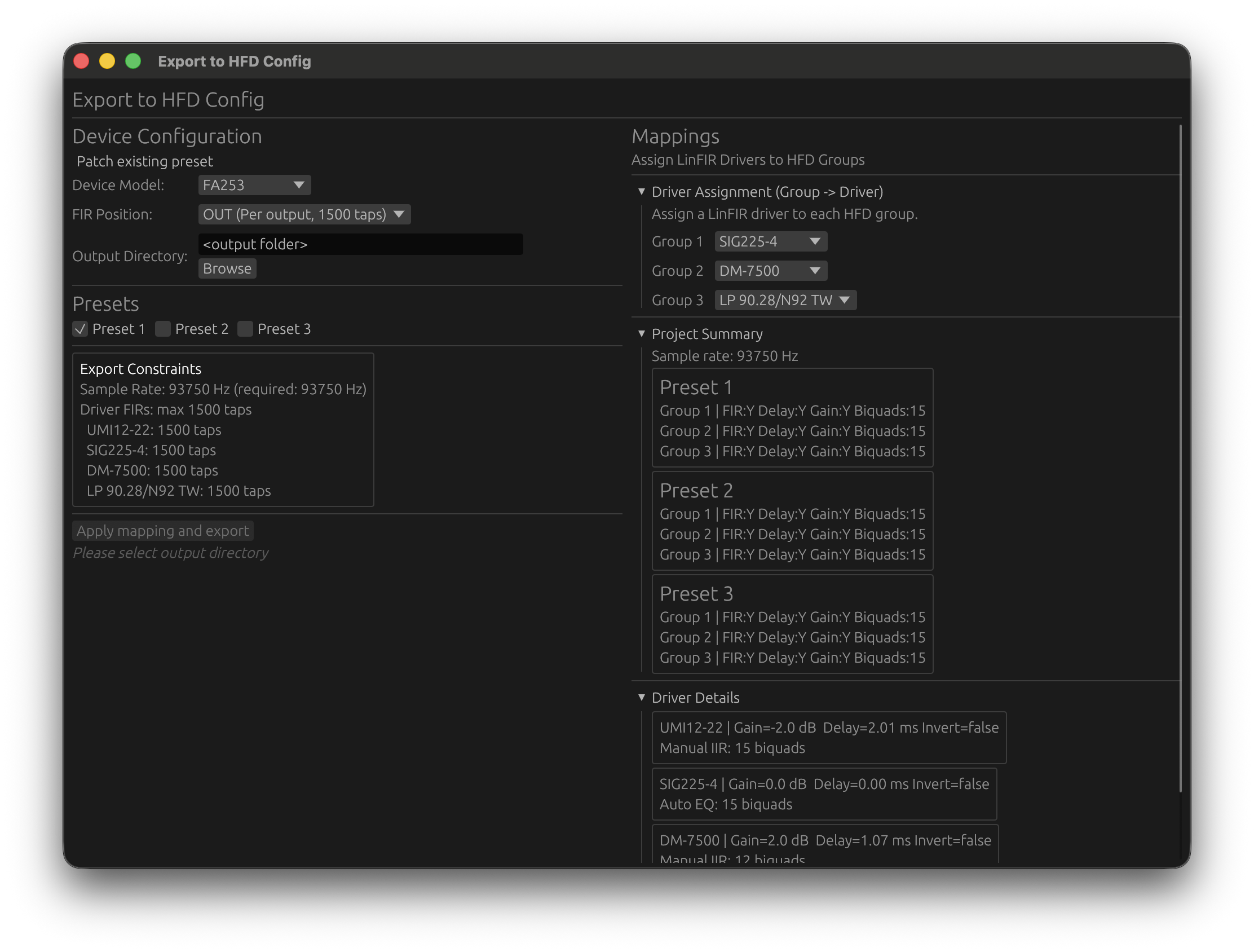

- Mode: Choose between Create from template or Patch existing Config.xml (see Patch Mode)
- Device Model: Select your Hypex FA amplifier model
- FIR Position: Choose Input (global) or Output (per-channel) FIR placement
- Channel-to-Driver Mapping: Assign the filters of each LinFIR driver to a FusionAmp output channel
2. Map Drivers to FusionAmp Channels
The mapping table assigns the FIR filters, IIR filters, gain, delay, and polarity computed for each LinFIR driver to a specific FusionAmp output channel. Channels are numbered as they appear in the HFD Config.xml.
By default, LinFIR assigns drivers sequentially: the first driver goes to Channel 1, the second to Channel 2, and so on. If there are fewer drivers than channels, the last driver is repeated for the remaining channels.
| FusionAmp Channel | LinFIR Driver | Notes |
|---|---|---|
| Channel 1 | Driver 1 (Woofer) | Output channel 1 |
| Channel 2 | Driver 2 (Mid) | Output channel 2 |
| Channel 3 | Driver 3 (Tweeter) | Output channel 3 |
Mapping Validation:
- LinFIR checks that all mappings are valid before export
- Warnings appear if biquad count exceeds 15 for any channel
- FIR length validation ensures compliance with Input (4500) or Output (1500) tap limits
3. Select Presets to Export
Hypex FA amplifiers support multiple configuration presets (typically 3). Choose which presets to include in the exported HFD file:
- ☑ Preset 1: Main tuning
- ☑ Preset 2: Alternate voicing
- ☐ Preset 3: (Skip)
Uncheck presets you don’t want to modify in the existing configuration.
4. Patch Mode (Update Existing Configuration)
Patch Mode allows you to update an existing Config.xml instead of creating one from scratch. Select Patch existing Config.xml in the Mode dropdown.
- Select Mode: Set the Mode dropdown to Patch existing Config.xml
- Browse: Click Browse… and select the
Config.xmlfile on your disk - LinFIR will:
- Auto-detect the FIR position (Input or Output) from the loaded file
- Parse existing presets and channel configurations
- Lock FIR position and device model to match the loaded file
- Update Selected Presets: Only the presets you’ve checked will be modified; others remain unchanged
- Click Apply mapping and export — the selected
Config.xmlis overwritten in place
Use Cases for Patch Mode:
- Update filter coefficients after design refinements
- Safely modify one preset without affecting others
- Create different presets (boosted bass, different voicing, etc.)
5. Validation and Export
Before exporting, LinFIR performs comprehensive validation:
Biquad Count Check:
Tweeter has 18 biquads but HFD supports max 15 biquads per channel
Reduce IIR or Auto-EQ filter count for this driver.
FIR Length Check - Position Input:
Global FIR has 6000 taps but Input position supports max 4500 taps
Reduce global FIR length or switch to Output position.
FIR Length Check - Position Output:
Woofer has 2000 taps but Output position supports max 1500 taps per channel
Reduce driver tap count or switch to Input position.
Sample Rate Check:
HFD export requires 93.75 kHz sampling rate. Current: 96000 Hz
Change sample rate to 93.75 kHz in Settings.
If validation passes, click Apply mapping and export:
- In Create from template mode: a Save As dialog opens — choose the location and filename (
Config.xmlis pre-filled) - In Patch mode: the selected
Config.xmlis overwritten in place immediately
A confirmation message is shown below the export button on success.
6. Load Configuration to Amplifier
Use Hypex Filter Design (HFD) (Windows only, the official Hypex software for configuring their DSPs) to upload the exported Config.xml to your FA series amplifier:
-
Connect amplifier via USB
-
Open Hypex Filter Design (HFD)
-
Go to File > Import Project
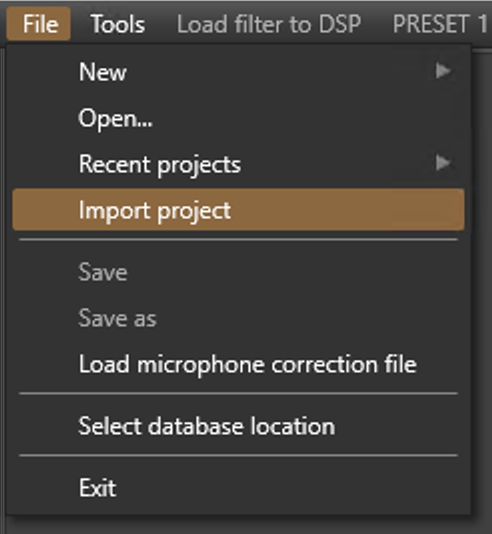
-
In the file dialog, switch the file type dropdown (bottom-right) to All files — otherwise HFD won’t show
.xmlfiles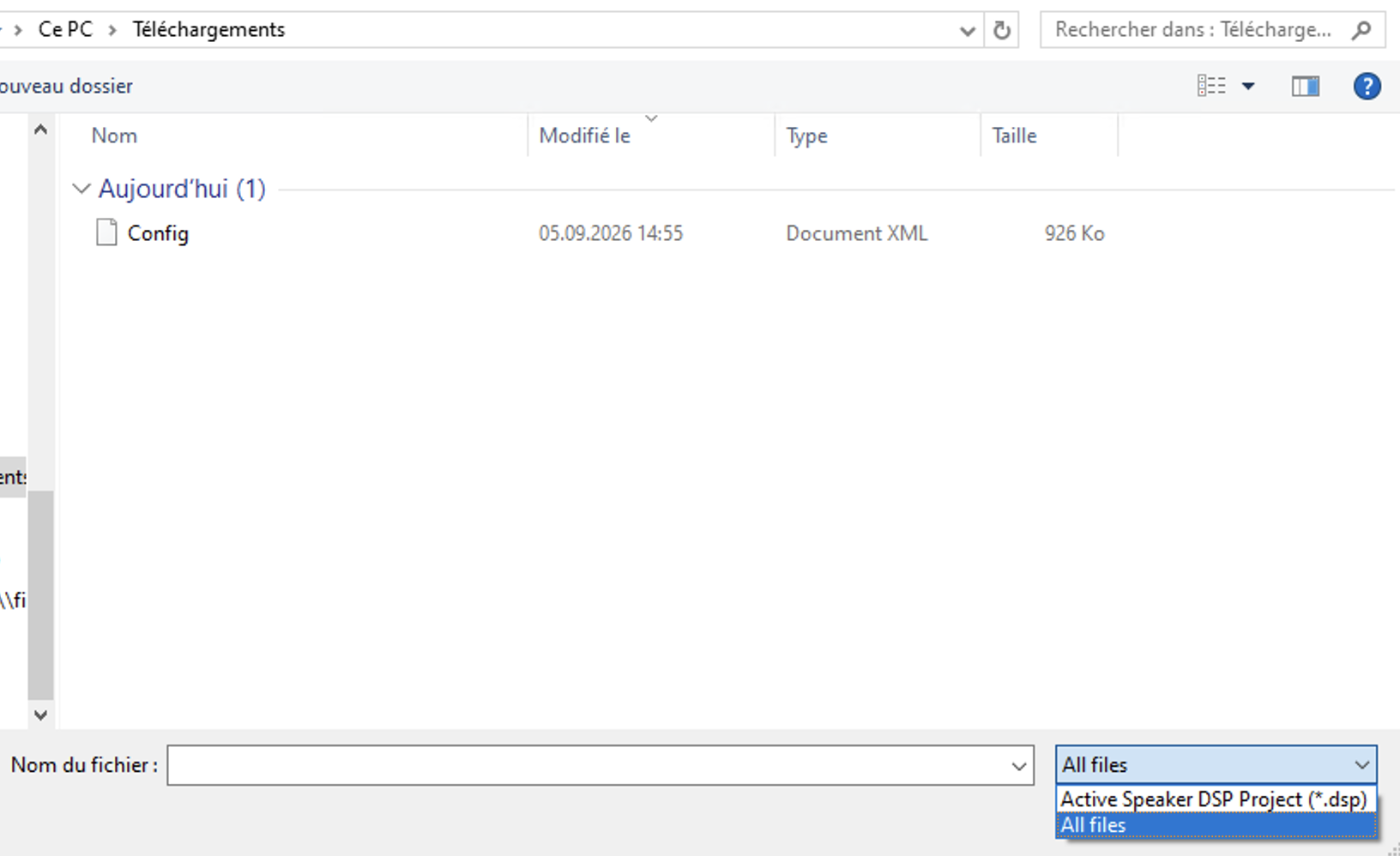
-
Select the exported
Config.xmlfile -
Click Upload to Device
Related Documentation
- Hypex FusionAmp Mode - Project mode with hardware-matched guardrails
- Export & Project Management - Standard FIR/IIR export, available in all project modes
Near-Field / Far-Field Splicing 🔒
License Required: The splicing wizard requires a valid LinFIR license.
The splicing wizard synthesizes a full-range anechoic response for a loudspeaker by combining near-field captures of each radiating element (driver, vent, passive radiator) with the far-field polar measurements you already have for the same driver. It follows the method popularized by Don Keele: near-field measurements are immune to the room but only valid at low frequencies, far-field measurements carry the real directivity and diffraction but can’t be gated long enough to stay clean in the bass — the wizard splices the two in a transition band so the strengths of each cover for the weaknesses of the other.
The result replaces the raw far-field capture, for every measured angle, everywhere it is used in LinFIR (response, DI, sonogram, exports).
This page describes the wizard step by step. For the window it lives in, see IR Management — the wizard is reached from the Near-field measurements (splicing) section there.
When to Use It
Use splicing when your far-field measurements are not anechoic down to the bottom of the passband — which is almost always the case indoors:
- A far-field measurement gated to keep the first room reflection out is only trustworthy above roughly
1000 / gate_msHz (a 5 ms gate → ~200 Hz). - Below that, the gate is shorter than one period and the low end is unusable.
- Near-field measurements fill that gap: with the mic almost touching the cone, the direct sound is ~40 dB above the room, so no gating is needed.
You do not need splicing if you measured outdoors / ground-plane / in an anechoic chamber and your far-field response is already clean to 20 Hz.
What You Need Before Starting
- An on-axis (0°, 0°) far-field measurement for this driver, imported or captured in IR Management. The wizard blends against it (and against every other stored angle when you finalize).
- Near-field access to every radiating element. For each one you’ll place the mic a few millimetres from:
- the dust cap / cone of each driver,
- the mouth of each vent (port),
- the diaphragm of each passive radiator.
- The element’s effective radiating area Sd (cm²) — from the datasheet, or
π·(effective radius)². - The enclosure dimensions and where each element sits on it.
- The same gain chain and sweep parameters for every near-field capture. The relative levels between elements are physically meaningful; changing input gain between captures silently invalidates them and cannot be corrected afterwards.
⚠️ Passive radiators and vents produce a weak near-field signal away from tuning. The wizard’s captures deliberately do not reject a low-level sweep — judge the level from the meter and the IR/FR preview instead.
Opening the Wizard
IR Management → Near-field measurements (splicing) → Open splicing wizard…
The button is disabled until an on-axis far-field measurement exists, and (with no license) shows “requires a valid license” on hover. The wizard opens in its own window with a step bar for the seven steps, on one row: each step shows a short name (Elements, Geometry, Positioning, Levels & sync, Far field, Blend, Done) and its full name on hover; in a narrow window only the current step keeps its name. Navigation is free — you can jump back to any earlier step and change something without redoing captures already taken; every later plot recomputes automatically.
Step 1 — Near-Field Elements
Add one element per radiating surface and capture its near-field impulse response.
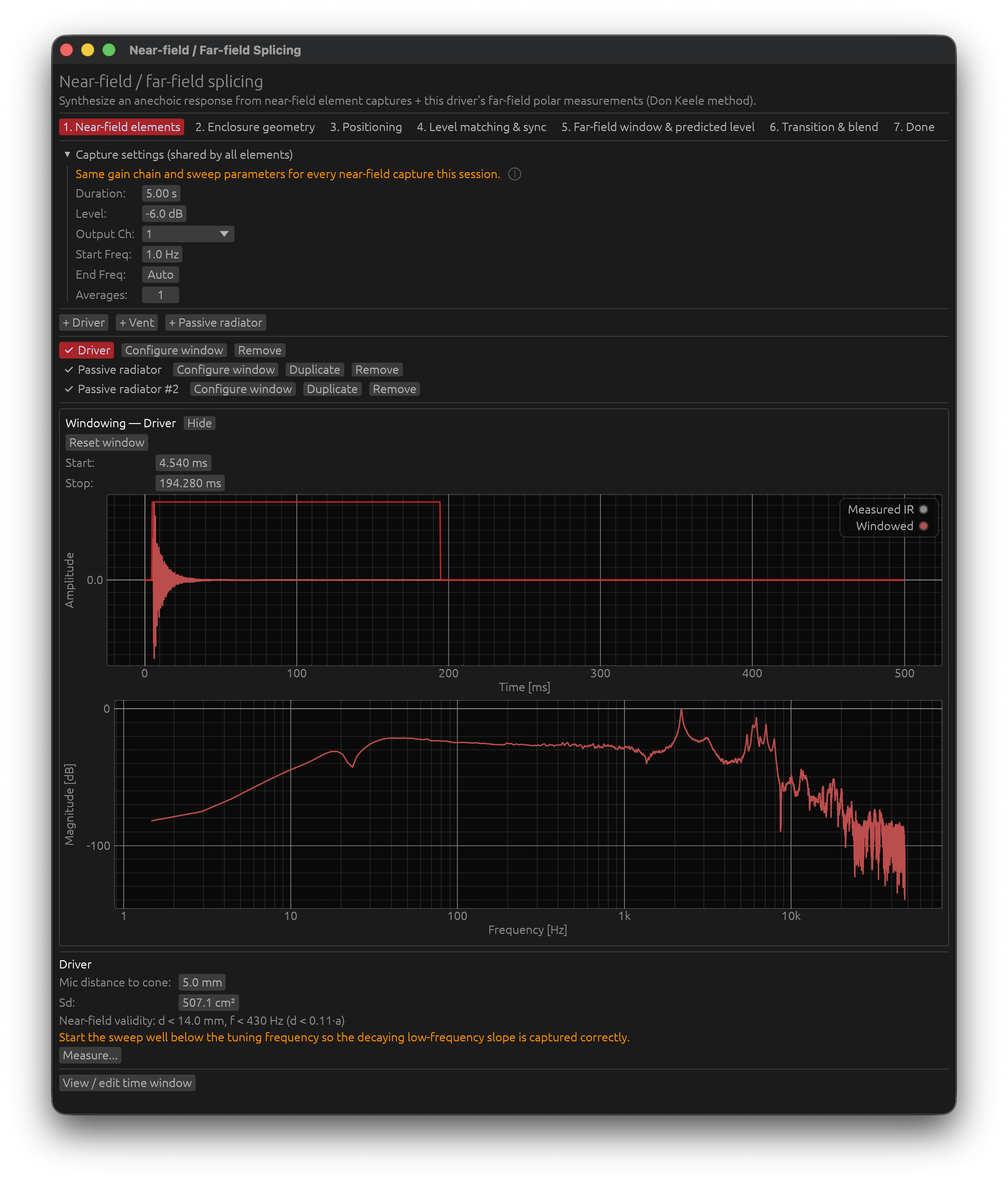
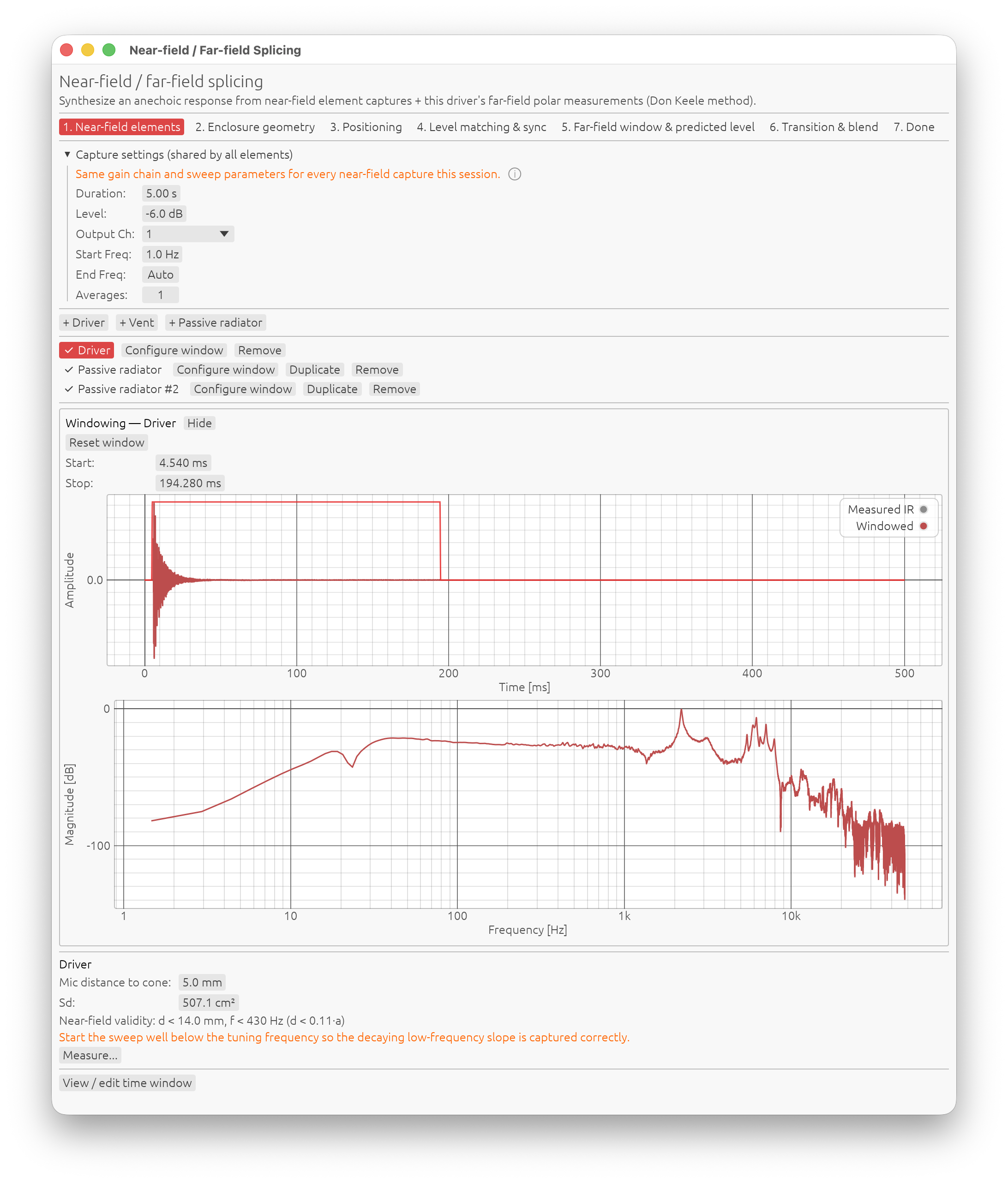
Adding elements
- + Driver, + Vent, + Passive radiator — one element per physical radiating part, not per way (a “way” is a frequency band, not a driver count): add one Driver for every driver unit on the enclosure, even if several share the same band — a 2-way MTM/D’Appolito (two identical woofers plus one tweeter, still only two ways) is three drivers. Add one Vent per port and one Passive radiator per drone. A sealed 2-way with a single woofer is two drivers, no vent; the same box ported is two drivers + one vent; an isobaric-loaded sub with two drones is one driver + two passive radiators.
- Each element gets a status marker: ○ not measured, ✅ measured.
Per-element settings
| Field | What to enter |
|---|---|
| Mic distance to cone / baffle surface | The actual measured distance, in mm. Keep it small. |
| Sd | Effective radiating area in cm². Required even for vents and passive radiators. |
Below the fields, the wizard shows the near-field validity limits for that Sd:
d < 0.11·a— the mic must be closer than this or the reading isn’t a true near-field pressure (a= equivalent piston radius from Sd).f < c / (2·√(π·Sd))— above this frequency the near-field assumption breaks down (it corresponds toka = 1; the appendix explains the physics). For a 6½″ driver this is around 1 kHz; for a 15″ woofer, around 350 Hz; for a large passive radiator, lower still. This is the ceiling of what the splice can take from the near field — the transition band must sit below it.
Capturing
Measure… runs a sweep with the shared parameters (set in the wizard’s Capture settings header — duration, level, start / end frequency, averages). Watch the level meter — aim for a healthy but unclipped level. For a passive radiator or an off-tuning vent, a low reading is normal and is not rejected.
The near field only feeds the splice below the ka = 1 limit above, so a full-bandwidth sweep is rarely needed here. If an element has a loud out-of-band resonance that forces you to drop the level, lower the End Freq below it (see Sweep Measurements) so the useful band gets full level.
Windowing each capture
After a capture, View / edit time window (also reachable any time via Configure window in the element list) opens the per-element windowing editor:
- Start / Stop in ms, with the same raised-cosine (Tukey) taper the main IR window uses.
- The measured IR is shown with the windowed result and a red window-envelope overlay that holds for 3 s then fades — exactly like the main window’s time graphs.
- Reset window restores the full length.
Advice: near-field captures are already clean, so window loosely. Keep the start at 0 ms (or just before the peak) and set the stop well after the decay has died — a near-field port resonance rings for a long time and you want all of it. Cutting the tail short rolls off the very bottom of that element’s response.
Step 2 — Enclosure Geometry
The geometry feeds the diffraction and time-of-flight model. It does not have to be a perfect 3-D replica — it has to get the baffle size, the element positions relative to the edges, and the mic direction right.
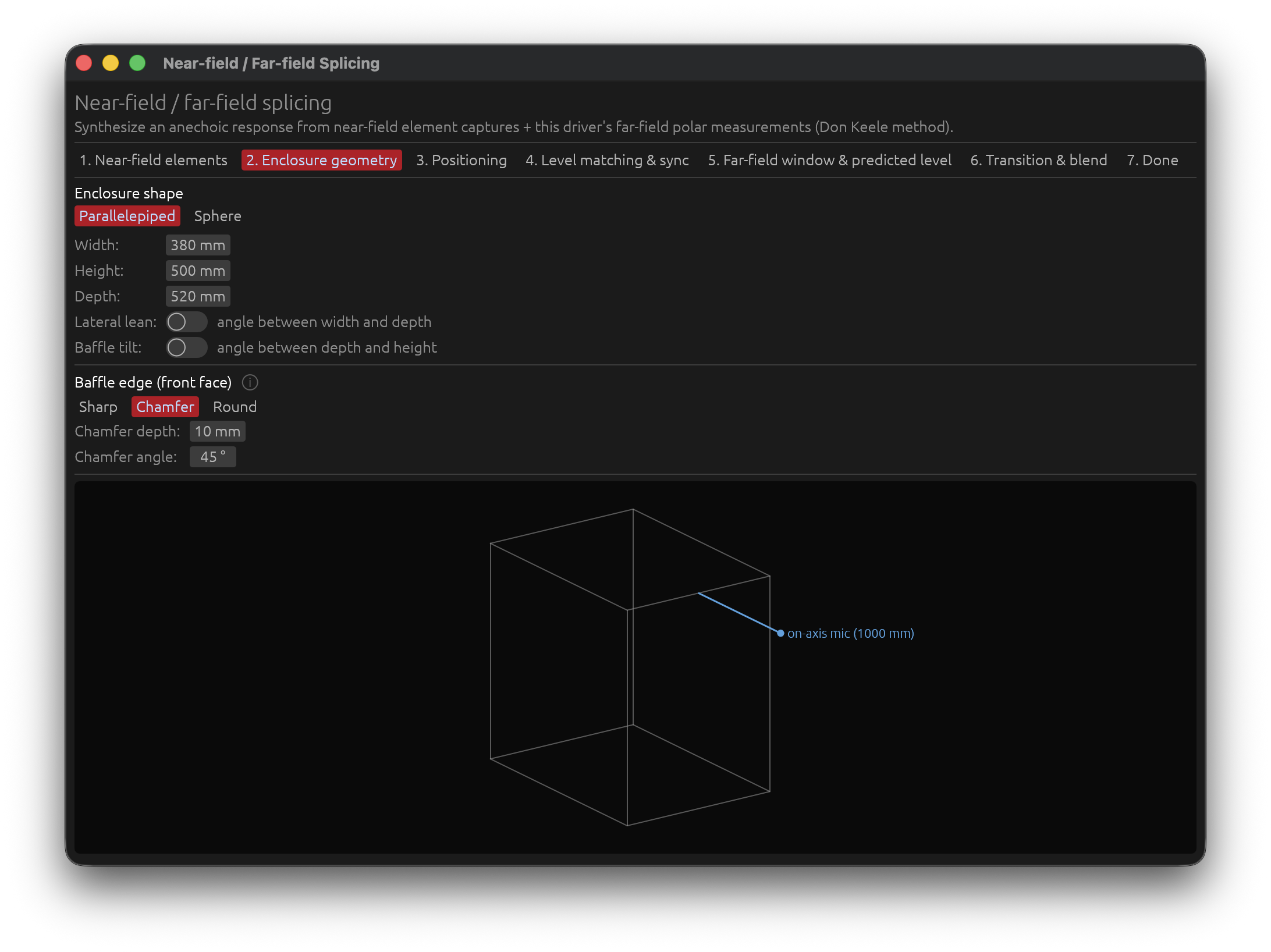
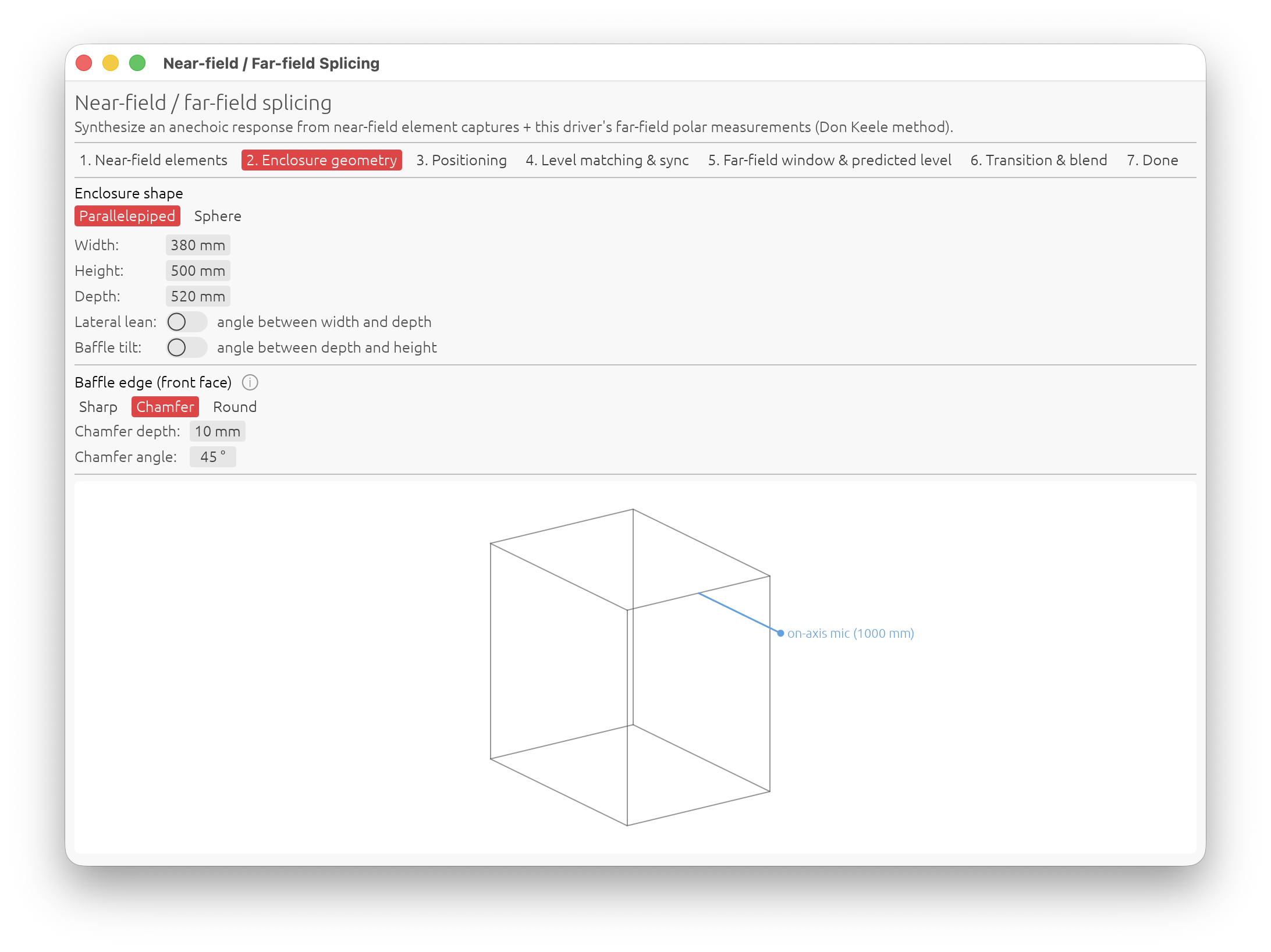
Enclosure shape
- Parallelepiped — width × height × depth in mm, with two optional shape angles:
- Lateral lean (angle between width and depth) — shears the box sideways. The front face stays perpendicular to the on-axis direction, so this does not change the acoustic axis; it mainly affects wrap-around diffraction to the sides.
- Baffle tilt (angle between depth and height) — rotates the front baffle about its horizontal centreline, so the baffle is inclined relative to the on-axis direction (a leaning cabinet). Positive = baffle aimed upward, top edge back. Your on-axis far-field measurement already saw the baffle at this angle, so entering it here keeps the predicted and measured responses consistent. The distance reference stays where the on-axis line meets the tilted face.
- Sphere — a single radius. No edges: the model uses a smooth 4π→2π radiation-loading transition instead of edge diffraction.
A more general enclosure shape (arbitrary hexahedron / tapered cabinet) is planned for a later version.
Baffle edge (front face)
- Sharp, Chamfer (depth + angle), or Round (radius).
- Chamfer / round are approximated as extra offset edges in the front-face diffraction model. The wireframe preview always draws a sharp edge regardless.
Advice: the baffle-step frequency and the diffraction ripple depend mostly on the baffle width and the driver’s offset from the nearest edges, so measure those carefully. Edge treatment is a second-order refinement — get it roughly right and move on.
Step 3 — Positioning
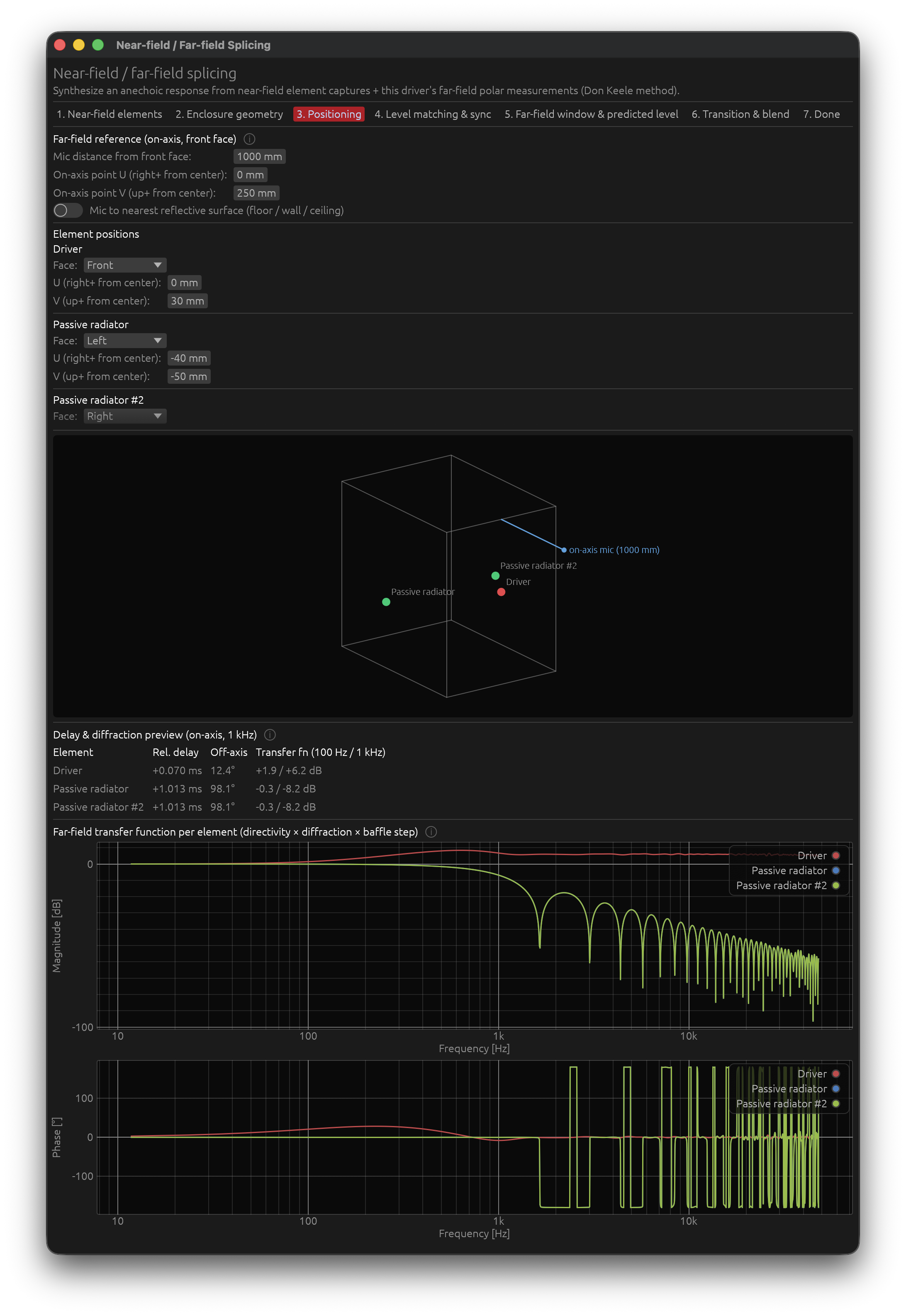
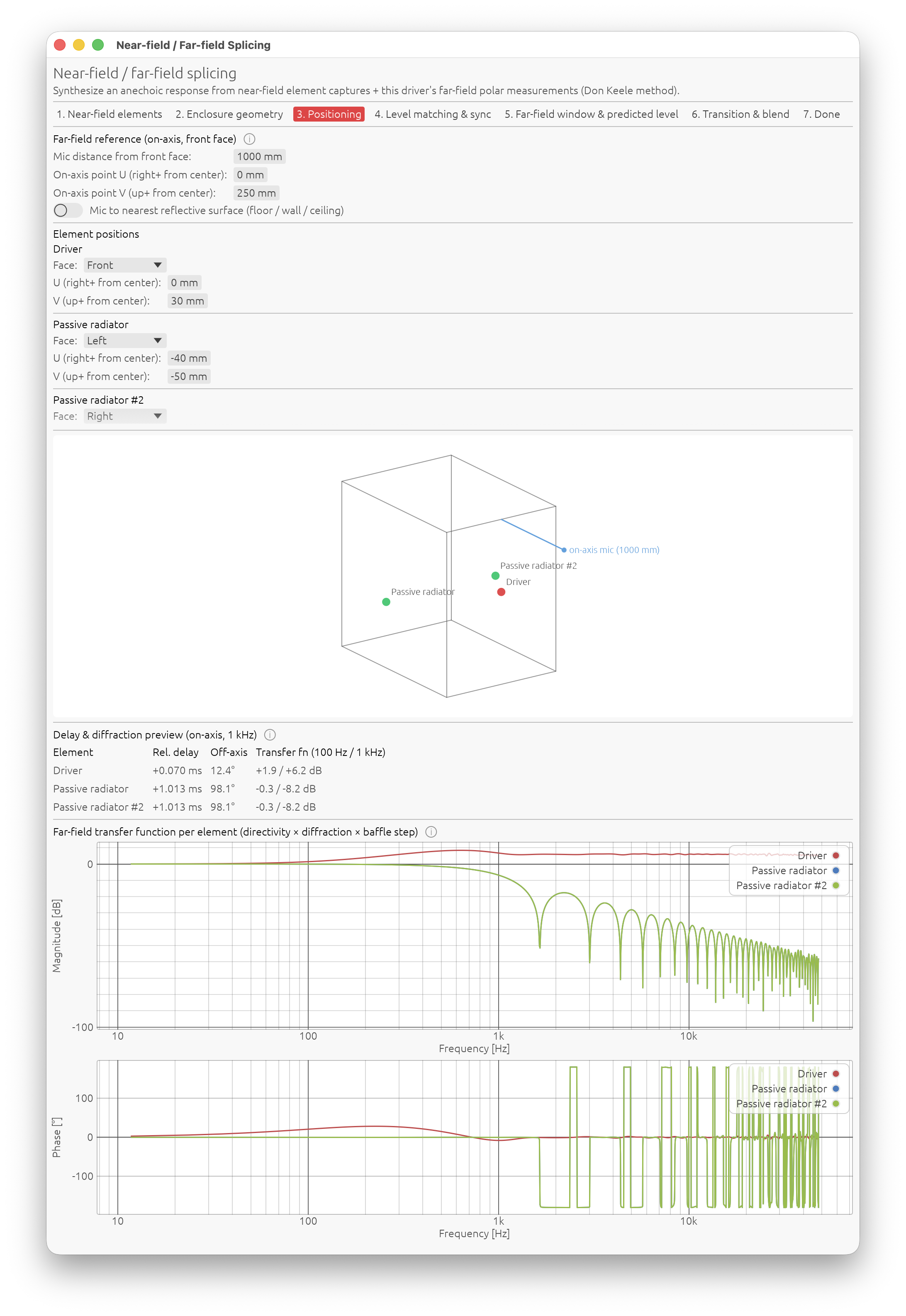
Far-field reference (on-axis, front face)
- Mic distance from front face — the distance your far-field polar set was measured at.
- On-axis point U / V — where the mic was aimed, relative to the front-face centre (0/0). This is normally 0/0, or the offset of an off-centre tweeter. It can be pushed outside the baffle for an off-axis or ground-plane sub measurement.
Mic to nearest reflective surface (image-source guard)
Optionally enter the perpendicular distance from the mic to the closest floor, wall or ceiling. From that plus the mic distance the wizard computes, via the image-source method, when the first room reflection arrives:
$$\Delta t = \frac{\sqrt{D^2 + 4h^2} - D}{c}$$
(D = mic distance, h = mic-to-boundary distance). It then:
- shows the arrival time and the lowest frequency the far-field capture stays reflection-free at,
- warns on Step 5 if your far-field window reaches past that gate,
- warns on Step 6 when the reflection — not the window length — is what prevents the near- and far-field bands from overlapping, and tells you to re-measure further from the walls.
Element positions
For each element, set its face (Front / Back / Left / Right / Top / Bottom) and its U / V position on that face in mm from the face centre. A vent or passive radiator on a side, top, bottom or rear panel is handled correctly — it diffracts around that panel’s edges, with its dipole axis perpendicular to that panel.
The oblique wireframe preview shows the box with coloured markers for each element and the mic.
Delay & diffraction preview
A table showing, per element, at the on-axis mic:
- Rel. delay — geometric time-of-flight relative to the rotation point.
- Off-axis — the angle from the element’s normal to the mic.
- Transfer fn (100 Hz / 1 kHz) — the diffraction + directivity gain in dB.
Far-field transfer function per element
Two plots (magnitude + phase) of the geometry-only shaping each element’s radiation undergoes on the way to the far-field mic — the Distributed Edge Dipole model: intrinsic piston directivity, driving-pressure obliquity, and edge dipoles. This is not multiplied by the element’s own measured response, gain or propagation delay — it is purely the per-element multiplier the predictor applies before summing.
DC-normalized to 0 dB (the standard diffraction-response convention): flat near 0 dB below the baffle-step corner, rising toward +6 dB with ripple above it. Phase excludes the geometric delay.
Advice: use these plots to sanity-check the geometry. On axis, an element centred on the baffle should sit near 0 dB in the bass and climb smoothly. A wildly rippled or lopsided curve usually means a wrong dimension or a mis-placed element.
Step 4 — Level Matching & Sync
This step only appears when there’s something to do on it: the enclosure has a vent or passive radiator (level matching), or more than one element was captured (sync alignment). A sealed, single-driver box has neither and skips straight to Step 5.
The relative level between the driver(s) and the vent(s) / passive radiator(s) is set from physics — each element’s Sd and its measured mic distance — not by curve-fitting. Following Keele, a capture taken at the surface is scaled by the element’s piston radius (derived from Sd), not by its area. If those were measured accurately, no adjustment is needed.
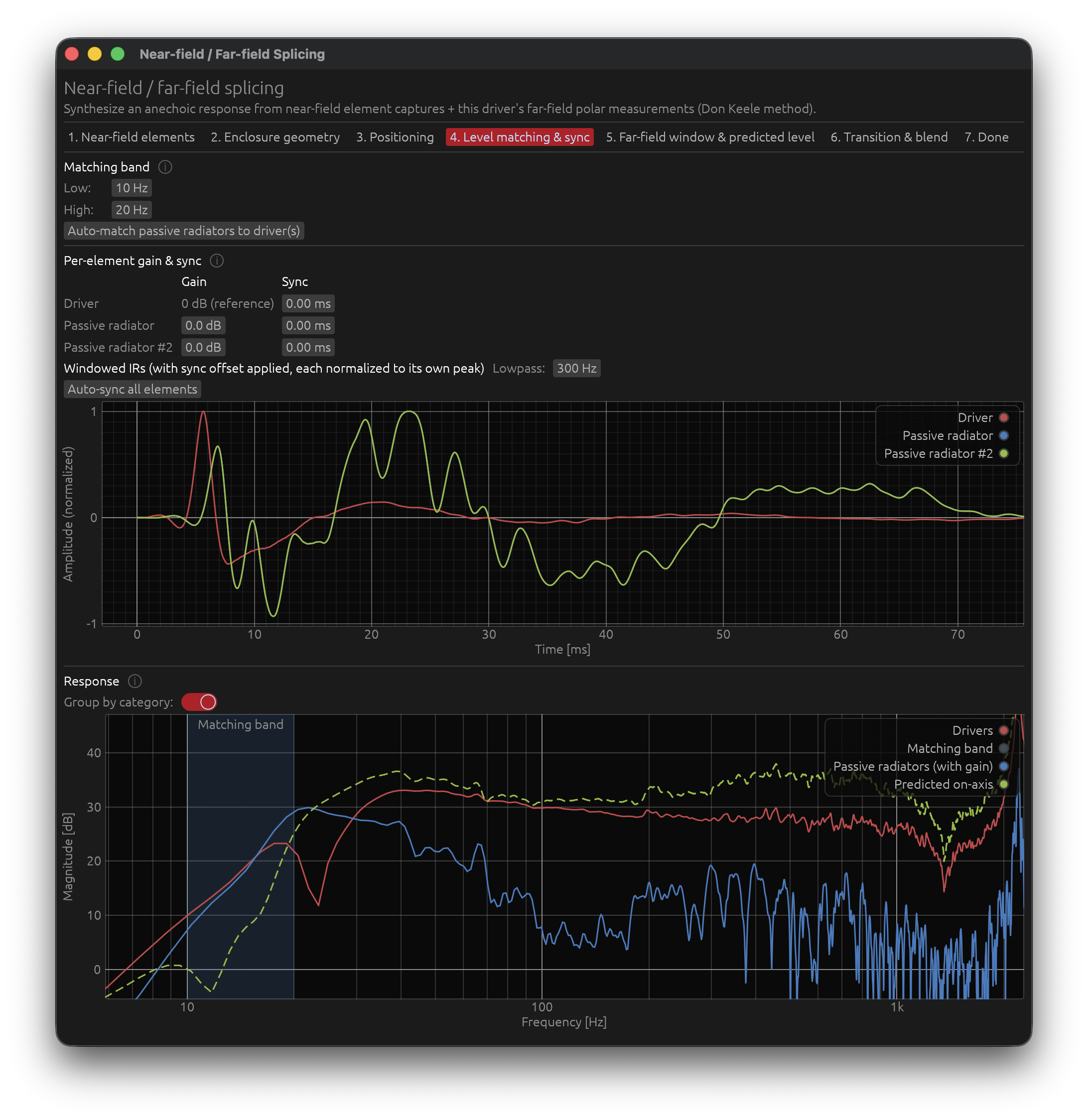
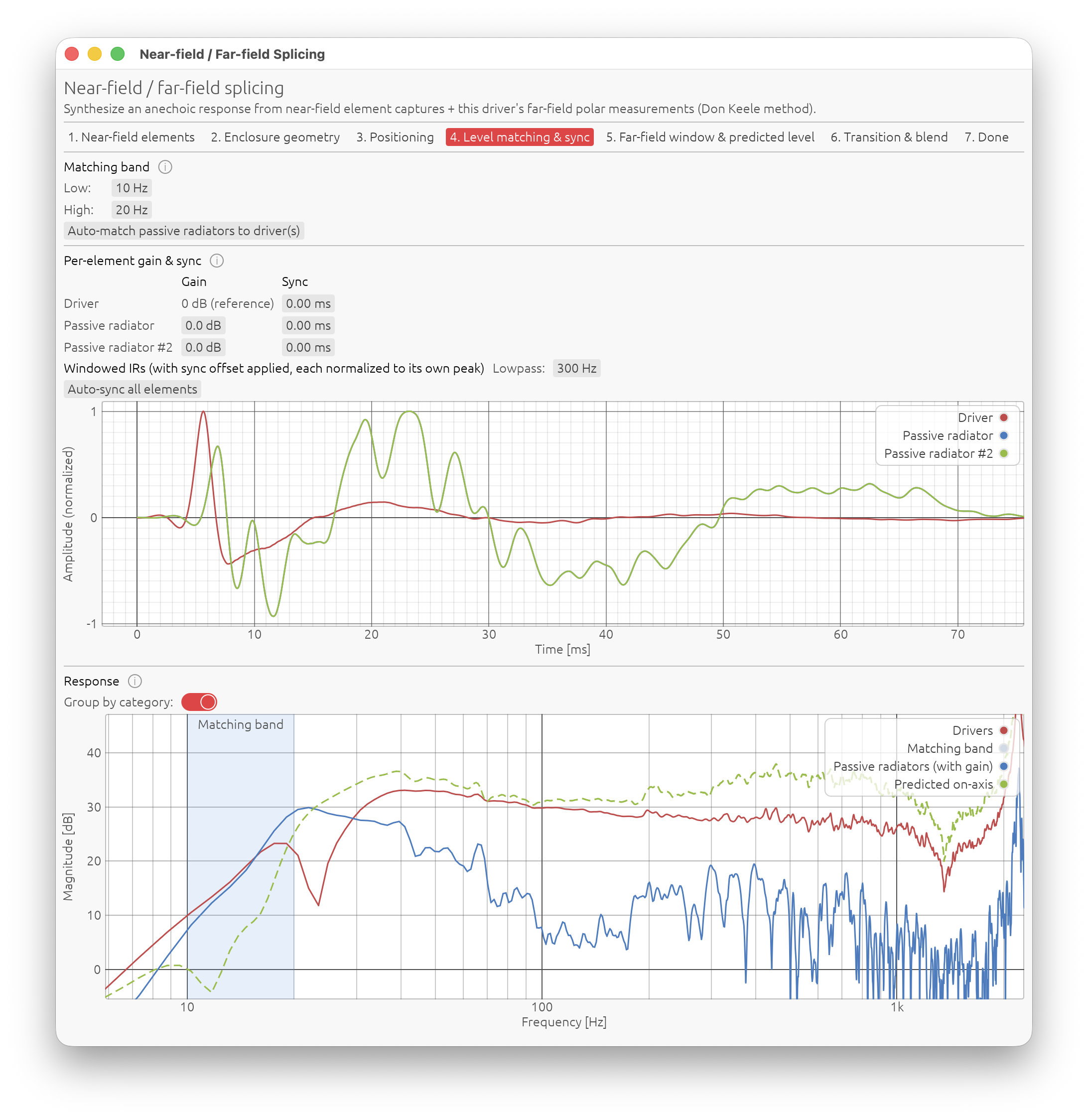
Matching band
Pick the lowest, straight-sloping part of the spectrum, below the box tuning frequency, with the Low / High fields. This band is used for the comparison and for auto-match.
Auto-match
Auto-match … to driver(s) shifts the non-driver elements’ gain so their combined level equals the driver level over the matching band.
⚠️ Auto-match fits the band by curve shape. That is valid for a vent (its near-field curve runs tangent to the driver’s near tuning) but not for a passive radiator — a PR’s near-field curve crosses the driver’s. Auto-matching a PR can paper over a real Sd / distance measurement error. For a PR, prefer the manual gain.
Per-element gain & sync
The sync column only appears when more than one element was captured.
One grid, two purposes:
-
Gain — a dB trim per non-driver element. 0 dB = trust the Sd / distance figures. Only touch it if you don’t trust those measurements (or after Auto-match above).
-
Sync — a timing correction (ms) per element, positive delays it further. Leave every offset at 0 if the measurement chain was correctly synchronized — a hardware (Electric) timing reference (see Audio Setup) for every capture — there’s nothing to fix.
Without Electric sync — most commonly because the measurement microphone is a USB device with its own independent clock, which precludes any electrical or acoustic loopback — elements are captured as separate sweeps with no shared clock between the output and the microphone’s own capture stream, so ordinary capture-chain jitter between one capture and the next can misalign them enough to corrupt the complex sum below: an artificial notch or bump appears where there shouldn’t be one, or an existing one is exaggerated. Lowpass and Auto-sync all elements, below, are the tools for fixing that.
Lowpass
Next to the Windowed IRs plot. Display only — it never touches the splice recipe: a 4th-order-Butterworth-shaped, linear-phase FIR (10 001 taps, exactly delay-compensated so the trace’s own timing doesn’t shift as you move the slider), for cleaning up the trace before aligning anything, whether by eye or with Auto-sync below.
Set it well above the box tuning frequency. The goal is to strip whatever masks the driver/vent-PR working zone — cone breakup, resonances, the part of the spectrum each element doesn’t share with the others — not to zoom into the sub-bass alone. Cutting too close to tuning throws away the very region you’re comparing.
Manual alignment
With the traces cleaned up by Lowpass, align the main peaks on the Windowed IRs plot by eye, by group:
- Several drivers — they’re driven identically, so their captured phase should coincide. Bring them into alignment with each other first.
- Several vents, or several passive radiators — same idea: align each one against another of its own kind.
- Driver(s) vs vent(s)/passive radiator(s) — once each group is internally aligned, shift the whole group against the other. Correct relative timing makes the summed magnitude smooth (even a slight rise) around the box tuning frequency; wrong timing punches an artificial notch there instead.
⚠️ With a correct Electric sync, don’t chase a pixel-perfect overlap for step 3. You’ll normally see the driver and vent/PR peaks very slightly offset yet still overlapping — that’s expected, not an error. It comes from the driver and the vent/PR being physically apart, combined with the passive element’s own reaction time (it isn’t driven electrically, so it genuinely takes a little longer to start moving). Forcing that residual to exactly zero would erase real, physical information from the splice.
Auto-sync all elements
Does the above automatically, in one click, for sessions with no reliable timing reference at all: aligns the first significant peak of every element’s lowpass-filtered IR to the first captured element’s, replacing each other one’s Sync offset with the result. The reference element is left untouched. Re-run after changing the Lowpass cutoff if the result looks off, or fall back to the manual steps above if it doesn’t.
It aligns everything, including driver against vent/PR — unlike doing step 3 by hand, it doesn’t leave the small physical residual from the warning above; that’s an accepted trade-off for a one-click bulk fix (jitter with no reference at all can run to many milliseconds, dwarfing that residual). Nudge the relevant Sync field afterward if it matters for your enclosure. With a correct Electric sync, don’t use this button at all - there’s nothing to fix.
Response
- Group by category — off by default (one curve per element); switch on to sum all drivers into one curve and all vents/passive radiators into another instead, matching the two contributions the matching band and Auto-match above actually compare — fewer curves, at the cost of losing the per-element detail.
- Individual element curves (default) — each element’s own near-field magnitude (Sd / distance-corrected and gained, no diffraction). They should be close to each other over the matching band; the band readout (shaded) gives the exact Δ in dB.
- Predicted on-axis (dashed) — every positioned, captured element delayed by its geometry, shaped by its directivity and baffle diffraction, then summed as complex responses, so the driver / vent phase relationship — anti-phase below tuning, in-phase through the passband — is preserved. Check it for a smooth transition (no artificial notch) around the box tuning frequency. A warning lists any element left out of the sum for want of a position or a capture.
Step 5 — Far-Field Window & Predicted Level
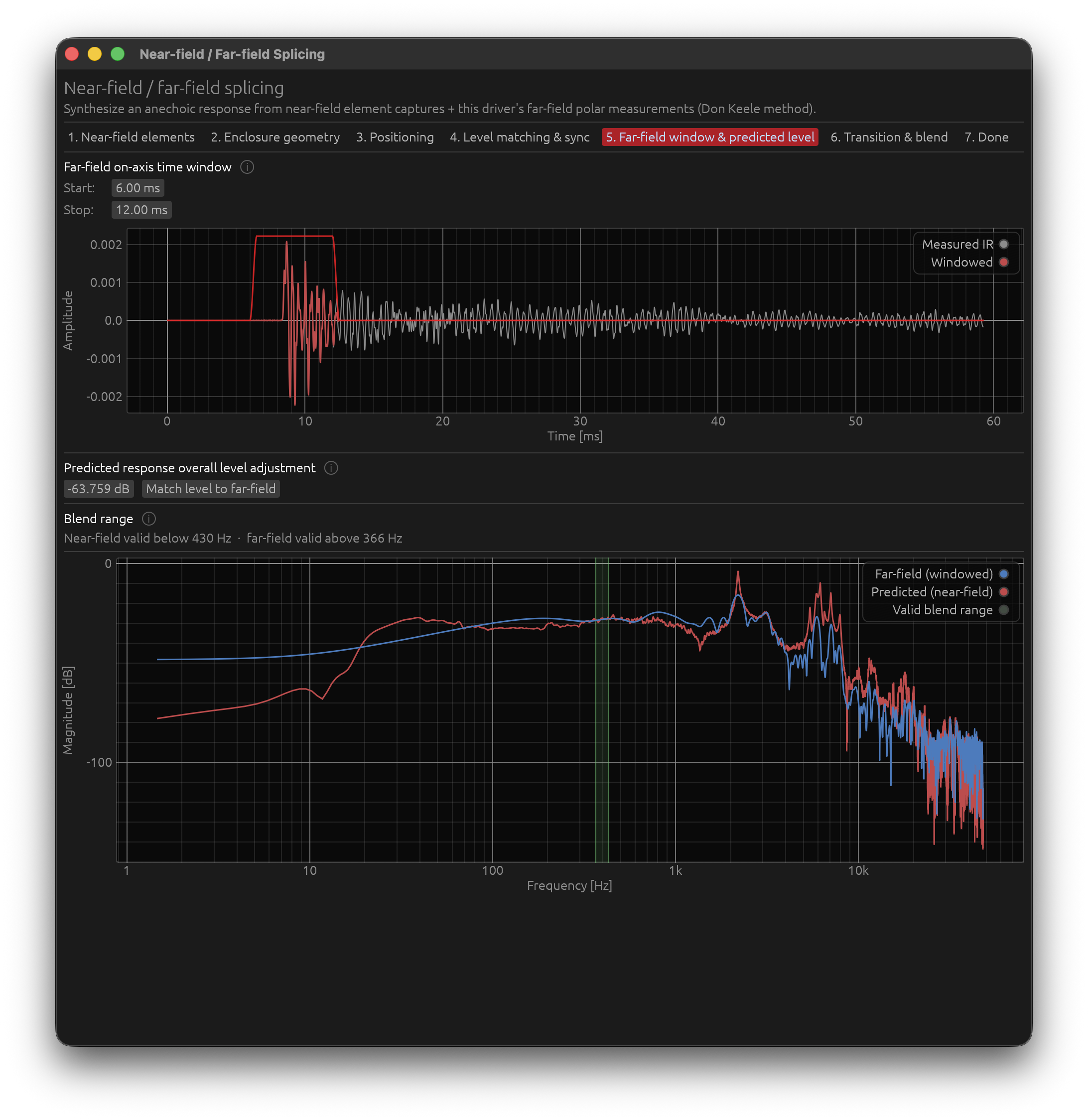
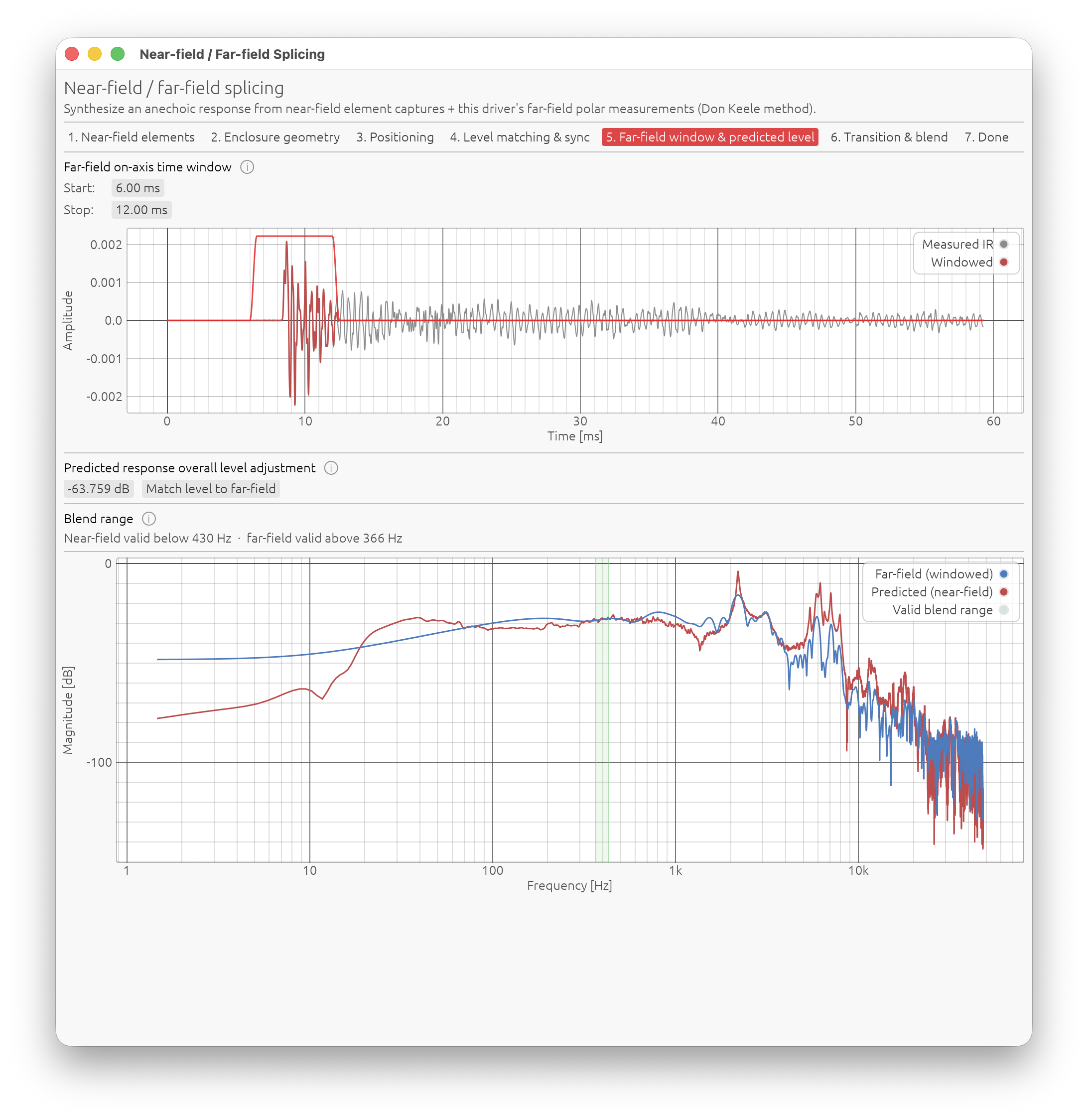
Far-field on-axis time window
A simple window on the raw far-field capture, bypassing the driver’s own configured windowing (which is tuned for the final crossover-ready response, not for this splice).
- Start / Stop in ms.
- The time-domain plot below shows the measured IR, the windowed result and — while you drag — a fading red window-envelope overlay, the same as the per-element view on Step 1. Room reflections show up as bumps after the direct-sound peak; set Stop just before the first one.
- If you entered a mic-to-boundary distance in Step 3, a dashed orange “First reflection” marker shows where the image-source model expects that reflection, and a red warning appears if the window runs past it (with the exact Stop time to use).
Advice: window as long as the room allows without letting a reflection in — a longer far-field window lowers the far-field floor, which widens the valid blend range. When a clean reflection isn’t visible, trust the marker.
Predicted response overall level adjustment
A dB offset that lines the predicted near-field curve up with the far-field measurement across the valid blend range (green).
There is no reliable absolute reference between the two sets — you typically change gain-chain settings between near- and far-field sweeps (to avoid saturating the mic up close) — and the Sd / distance physics already scales each element’s near-field capture by its radius and distance (tens of dB), so the value you need here can be far larger than a normal trim. That is expected.
Match level to far-field — next to the offset — sets it automatically: it shifts the predicted curve onto the windowed far-field measurement across the valid blend range, using the median of the per-bin level difference (median rather than mean so a diffraction ripple or a narrow notch near a band edge doesn’t drag the match off). Use it as a starting point, then nudge the offset by hand if the two curves still cross rather than run parallel. It needs a far-field window and at least one captured element; if there is no valid overlap it falls back to the configured transition band.
Blend range
The valid blend range is where the two measurements overlap and can be blended:
- the near field is valid below its ceiling
c / (2·√(π·Sd))(smallest element — see the appendix); - the far field is valid above its floor — the more restrictive of the window-length limit (
1000 / (window_stop − peak)) and the room-reflection limit.
A readout shows both limits, and the compare plot shades the overlap in green (“Valid blend range”). Lengthening the far-field window lowers the floor and widens the range; if the floor ends up above the ceiling there is no overlap and a red message tells you what to do.
The transition band itself (where inside this range the crossover sits) is set on the next step.
Advice: window the far field as long as the room allows and set the level so the two curves sit on top of each other across the green range. That is what makes Step 6 easy.
Step 6 — Transition & Blend
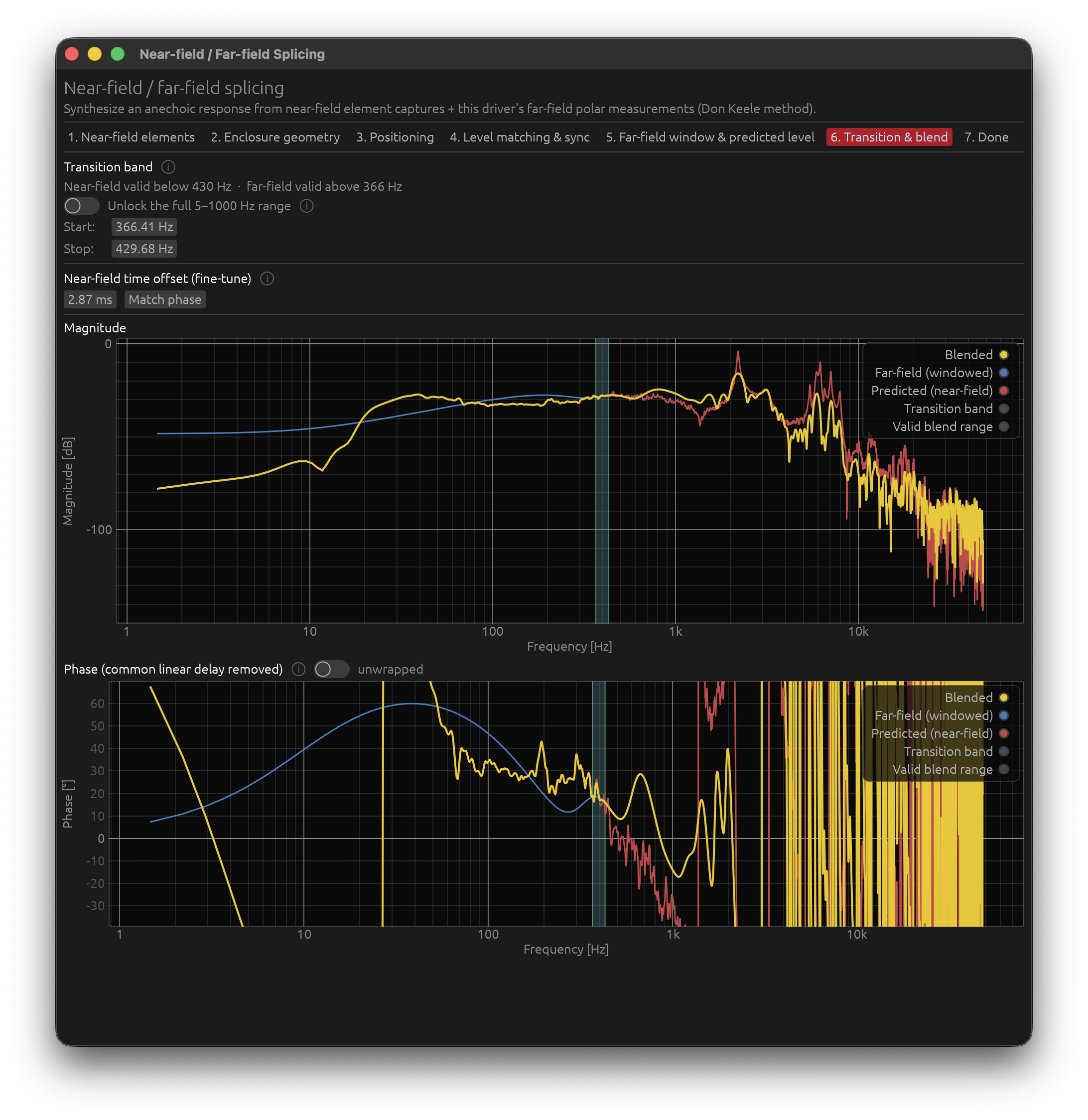
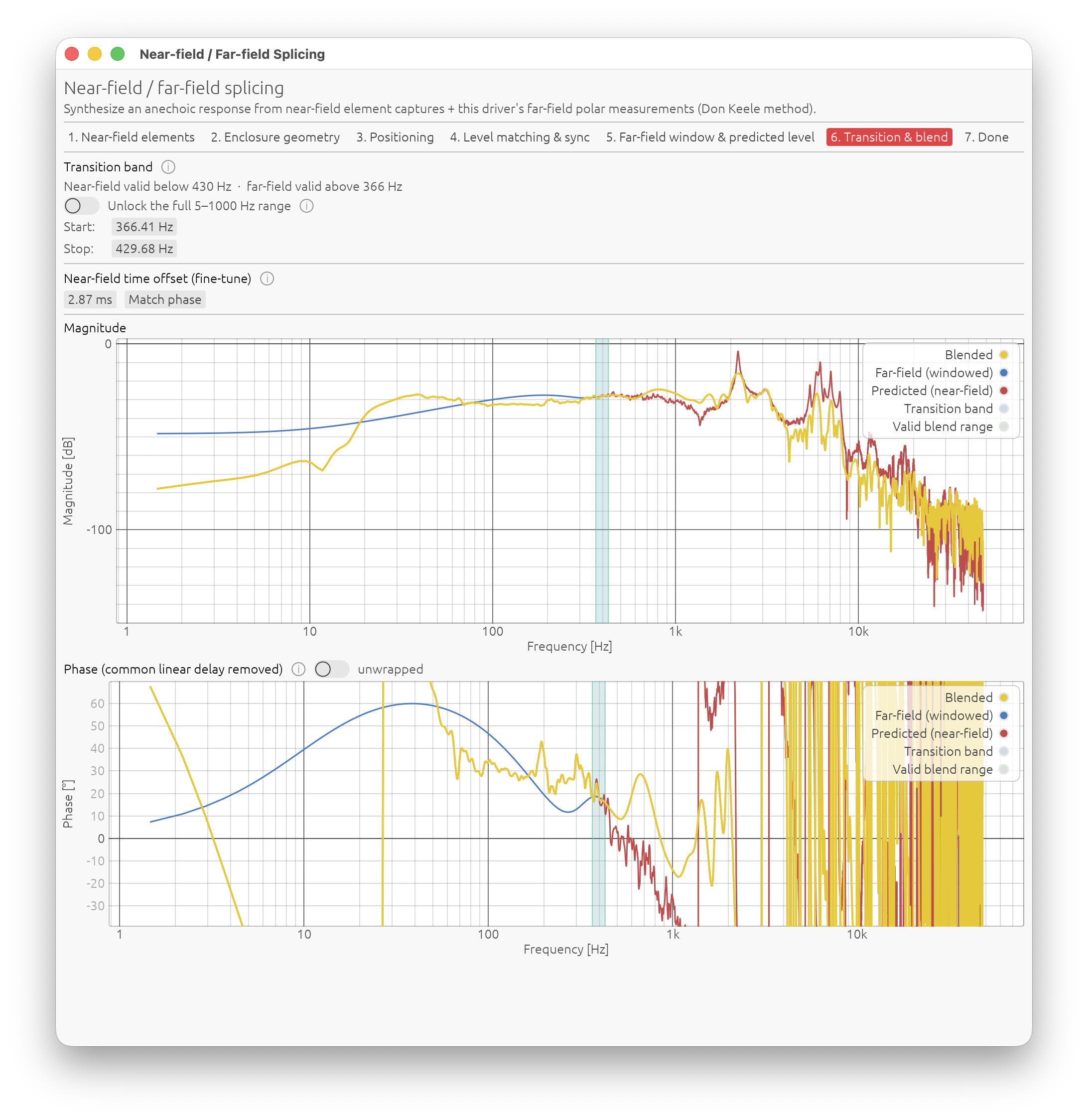
Transition band
Start / Stop in Hz — where the blend hands over from the near-field prediction to the windowed far-field measurement (raised-cosine crossfade in log frequency). By default it is bounded to the valid blend range from Step 5, shaded green on both plots; the transition band itself is shaded blue inside it.
If the valid range is empty (floor above ceiling) a red message tells you why — usually lengthen the far-field window or re-measure further from the walls.
Unlocking the range
The “Unlock the full 5–1000 Hz range” toggle lifts the physical limits and lets you place Start / Stop anywhere in 5–1000 Hz, subject only to Start < Stop. The finalize step (and the auto-re-splice) then use your values as-is rather than re-clamping them.
Use it when the valid band is too narrow or empty to work with — a big woofer whose gate can’t be made long enough — and a rough splice beats none, or when you know the far-field measurement is actually cleaner than its window-length limit suggests (measured outdoors, for example).
⚠️ Past the green range the estimate degrades:
- below the far-field floor you blend in far-field bass that is contaminated by a reflection or shorter than one period;
- above the near-field ceiling you blend in near-field data that no longer matches the radiated field (reactive/evanescent field, no directivity).
Expect level and phase errors in and around the transition, worse the further the blue band spills past the green.
Advice: with the range locked, put the band as low as the far-field data allows, and keep it narrow-to-moderate. Blending low keeps as much of the real, diffraction-carrying far-field data as possible. A very wide band smears any residual level or phase mismatch across a broad range instead of confining it.
If the level still looks off here, go back to Step 5 and use Match level to far-field (next to the level offset).
Near-field time offset (fine-tune)
A ±50 ms trim on the predicted near-field response, on top of the geometric delay model. Use it to null the residual phase mismatch with the far-field measurement in the transition band.
Match phase — next to the offset — sets it automatically: it smooths out per-bin phase noise, then picks the delay that makes the predicted and far-field phase curves cross at the middle of the transition band — the geometric mid-band, where the blend is 50/50 and a phase mismatch would show up as a step in the handover. It only nulls the phase at that one point; a residual slope across the band, or a whole-turn wrap, is left for you to read off the phase plot below and nudge out by hand. It needs a far-field window and at least one captured element.
Magnitude and phase plots
Both plots show Predicted (near-field), Far-field (windowed) and Blended, with the valid blend range shaded green and the transition band shaded blue inside it.
- Magnitude — the blended curve should pass smoothly from one to the other with no step or dip.
- Phase — a shared linear-delay slope is removed from all three curves, and Predicted / Blended are shifted by a whole turn if needed to overlay Far-field, so only the residual alignment is visible. Toggle wrapped / unwrapped as you prefer (wrapped by default). Use Match phase, then tune the near-field time offset by hand until Predicted and Far-field lie on top of each other across the shaded band — that is when the blend is phase-coherent.
Step 7 — Done
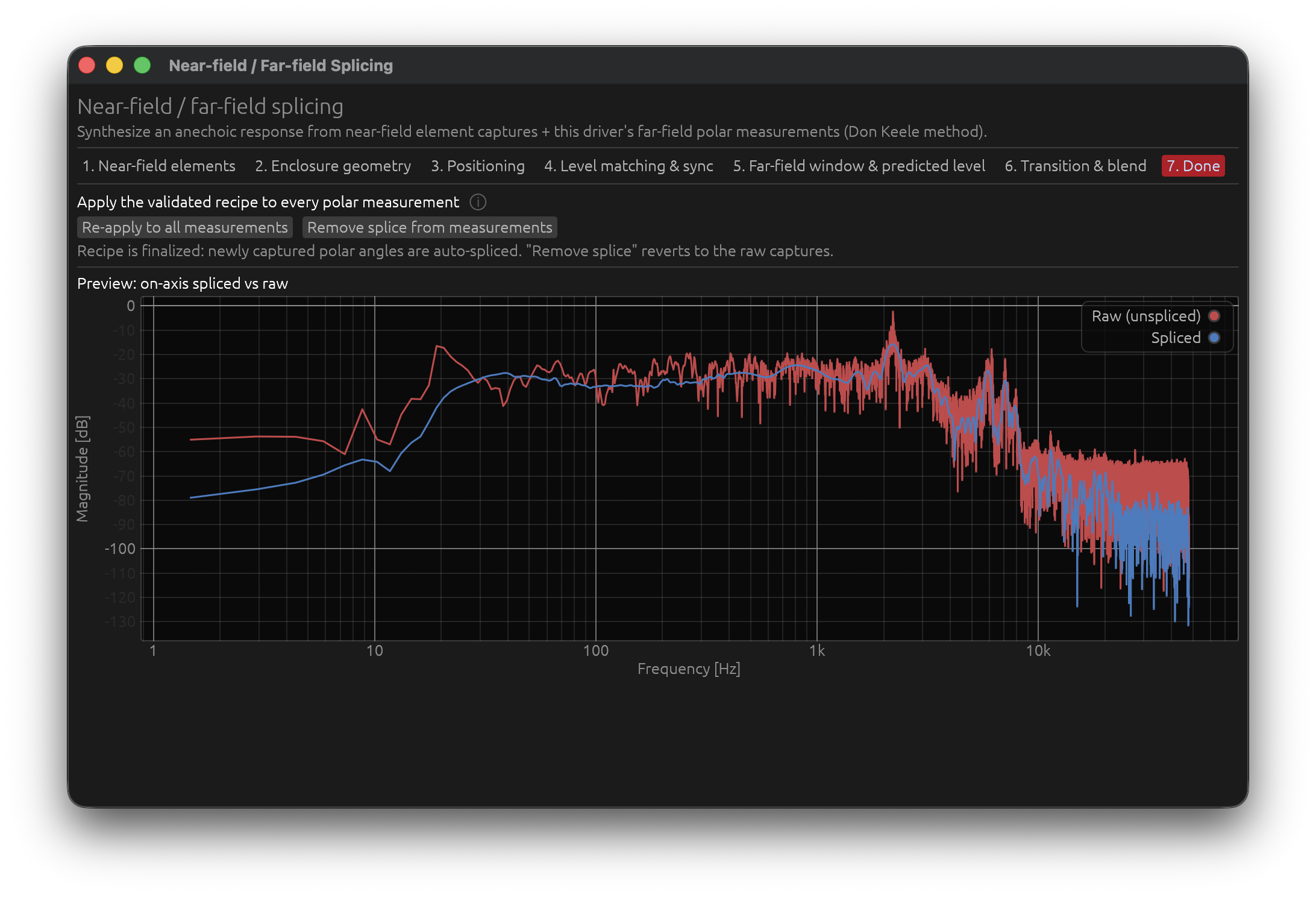
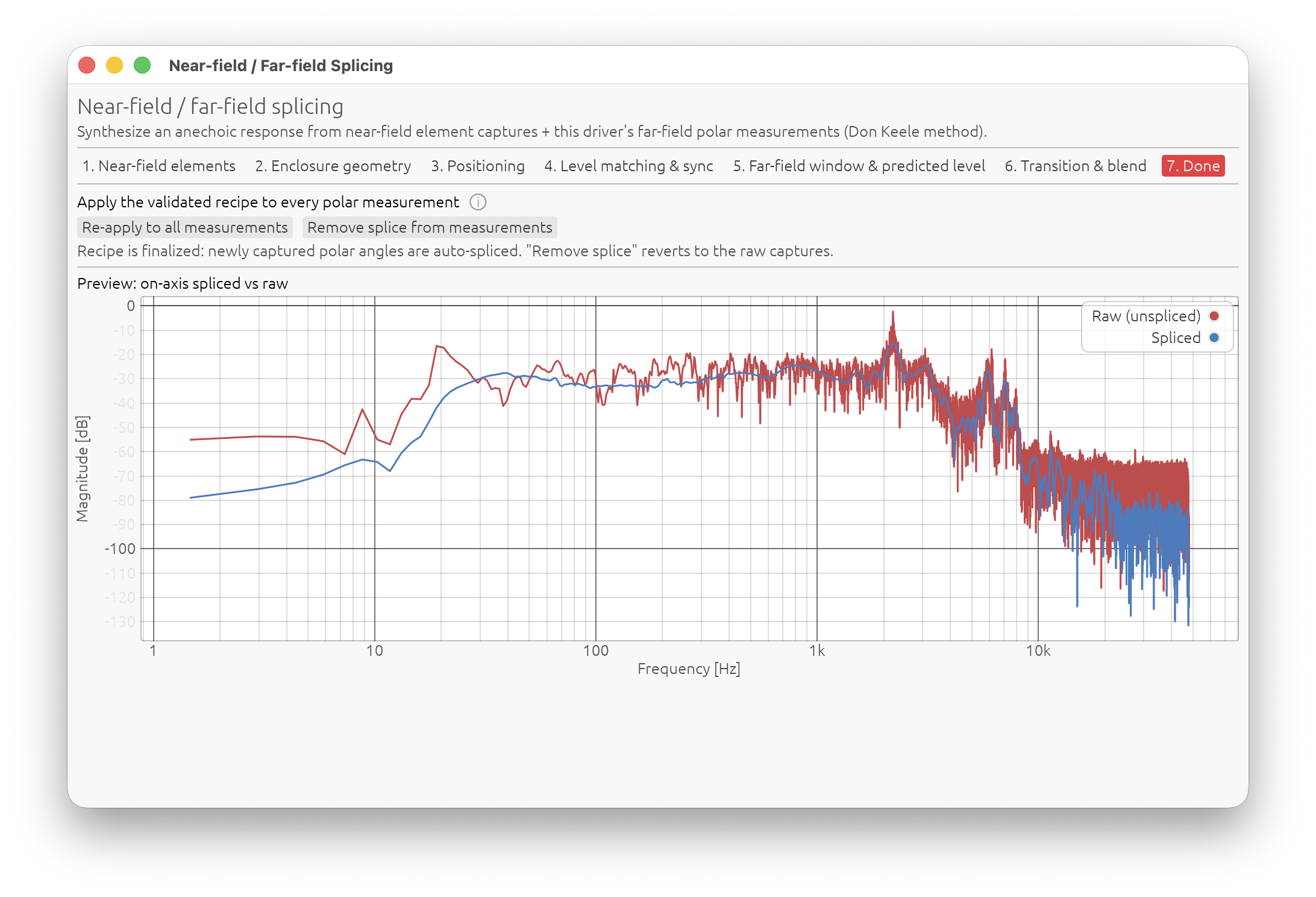
Apply the recipe to every polar measurement
Apply to all measurements takes the validated recipe and, for every stored angle:
- recomputes the geometric delay, piston directivity and edge diffraction for that angle (each polar angle sees a different diffraction path),
- blends with that angle’s own windowed far-field capture,
- reuses the far-field window, predicted level/offset and transition band from the earlier steps.
The spliced IR then replaces the raw capture everywhere in the app — response, DI, sonogram, export — for every angle that has one.
- Re-apply to all measurements — after changing anything in the recipe.
- Remove splice from measurements — reverts every angle to its raw capture.
- Preview: on-axis spliced vs raw — the before/after on axis.
Automatic re-splicing
Once the recipe is finalized, any newly captured polar angle is spliced automatically with the same recipe — you don’t have to reopen the wizard after each new measurement.
⚠️ Every polar measurement must use the same mic position and the same gain chain as the original on-axis far-field capture. The recipe reuses the mic distance / aim point from Step 3 and the far-field window and level offset from Steps 5–6 for every angle — it does not re-detect them per measurement. If you move the mic (only rotate the speaker), or change the mic preamp / interface gain between angles, the newer captures will be windowed and leveled wrong and the finalized splice will be inconsistent across angles.
How the Spliced Response Interacts with IR Windowing
A spliced IR behaves like a normal measurement. In IR Management → IR Windowing, the driver’s own time window applies on top of the spliced (anechoic) response, not on top of the raw capture.
Because the spliced response is already anechoic to the bottom of the passband, you can usually leave the driver’s IR window long or disabled for a spliced driver — its purpose (gating room reflections) has already been served by the splice.
Exporting
When you export a measurement that has a spliced version, the export dialog asks for Raw capture or Spliced (anechoic) (it defaults to spliced). Spliced exports get a _spliced marker in the filename. If the angle also has a harmonic distortion capture, Include distortion is available for either choice — it prepends the distortion tail measured at capture time to whichever main response you export, adding a _dist marker (_spliced_dist when combined with a spliced export).
Tips and Pitfalls
- Measure the mic distances and Sd carefully. They set the relative levels between elements directly. Since the level follows the piston radius (√Sd), a 20 % Sd error is a ~0.8 dB level error on that element.
- Same gain chain for every near-field capture. No exceptions. There is no way to recover from a mid-session change.
- Window near-field captures loosely, far-field captures tightly. Near-field has no room to gate out; far-field must exclude the first reflection.
- Blend as low as the far-field data allows. More real far-field data = better directivity and diffraction. The near field carries no directivity information.
- A deep notch in the transition region usually means a phase mismatch — tune the near-field time offset on Step 6, don’t reach for a polarity inversion (vents and passive radiators need none; their measured near-field response already carries the anti-phase-below-tuning behaviour).
- Predicted level far from 0 dB is normal (Step 5) — the physics pre-scales each element by its piston radius (from Sd) and mic distance.
- Re-measure away from walls if Step 6 says the room reflection prevents an overlap. No amount of tweaking fixes a far-field measurement that can’t be gated clean above the near-field ceiling.
- Large Sd + short far-field window = no valid band. A 15″ woofer’s near-field ceiling is ~350 Hz; if your far-field window only reaches down to 400 Hz there is nothing to splice. Lengthen the window.
- Use an Electric timing reference for near-field captures whenever the interface allows it. Without one — a USB measurement microphone in particular precludes it — capture-chain jitter between separately-captured elements can corrupt the sum; use Step 4’s manual sync alignment as the fallback.
Quick Reference
| Step | Purpose | Key advice |
|---|---|---|
| 1 — Near-field elements | Capture each radiator up close | Loose window, watch Sd validity ceiling |
| 2 — Enclosure geometry | Baffle size, edges | Get baffle width + edge offsets right |
| 3 — Positioning | Mic reference, element placement, room guard | Enter mic-to-wall distance |
| 4 — Level matching & sync | Relate vent/PR level to driver; fix capture jitter | Trust Sd/distance; sync only if no Electric reference |
| 5 — Far-field window & level | Gate the far-field, align levels | Window long, stop before first reflection; use Match level |
| 6 — Transition & blend | Choose the crossover band, null phase | Blend low and narrow; Match phase, then the time offset |
| 7 — Done | Apply to all angles | Re-apply after any recipe change |
Appendix: Why the Near-Field Has a High-Frequency Limit
A physicist’s / engineer’s aside. Not needed to use the wizard, but it explains where the ceiling \(f_\text{max}\) comes from and why the splice has to hand over to the far-field measurement above it.
The near-field technique in one line
The near-field method (Keele, 1974) measures the sound pressure a few millimetres in front of the diaphragm and treats it as a scaled copy of the far-field on-axis response. That works because, for an acoustically small source, the near-field pressure and the far-field pressure differ only by a frequency-independent constant.
For a rigid circular piston of radius \(a\) in an infinite baffle, the exact on-axis pressure at distance \(d\) is
$$ |p(d)| = 2 \rho c U_0 \left|\sin\left[\frac{k}{2}\left(\sqrt{d^2+a^2}-d\right)\right]\right| ,\qquad k=\frac{2\pi f}{c} $$
with \(U_0\) the piston surface velocity. Two limits:
- Near (\(d \to 0\)): \(|p_\text{near}| \approx 2 \rho c U_0 \sin(ka/2)\).
- Far (\(d = r \gg a\)): \(|p_\text{far}| \approx \rho c U_0 \dfrac{k a^2}{2r}\) — the ordinary \(p_\text{far} = \dfrac{j\omega\rho Q}{2\pi r}\) of a baffled source of volume velocity \(Q = U_0\pi a^2\).
Their ratio is
$$ \frac{|p_\text{near}|}{|p_\text{far}|} \approx \frac{2 \rho c U_0 \sin(ka/2)}{\rho c U_0 k a^2/(2r)} \xrightarrow{ka\ll 1} \frac{2r}{a} . $$
The \(\sin(ka/2)\to ka/2\) small-angle step is the whole game: it makes the rising \(\propto f\) trend cancel between numerator and denominator, leaving a constant \(2r/a\). Measure near, multiply by that constant, and you have the far-field magnitude response — as long as \(ka \lesssim 1\). LinFIR uses
$$ f_\text{max} = \frac{c}{2\pi a} = \frac{c}{2\sqrt{\pi S_d}} \qquad\Longleftrightarrow\qquad ka = 1 . $$
Above it, \(\sin(ka/2)\) leaves its linear region, the near-field pressure grows its own interference ripple, and the far field starts developing directivity — so the ratio is no longer a constant and the method breaks.
The reactive (evanescent) field
Why is a small source “special”? Decompose the diaphragm’s surface velocity into spatial Fourier components with transverse wavenumber \(k_\parallel\). Each component launches a plane wave at angle \(\sin\theta = k_\parallel/k\):
- \(k_\parallel < k\): a real angle exists — the component radiates.
- \(k_\parallel > k\): no real angle — the field is evanescent, decaying away from the surface as \(e^{-\gamma z}\) with \(\gamma = \sqrt{k_\parallel^{2}-k^{2}}\).
A feature of transverse size \(\ell\) carries \(k_\parallel \sim \pi/\ell\), so its evanescent field is gone within \(z \sim \ell\). The edge of the piston — where the velocity jumps from \(U_0\) to \(0\) — and any cone break-up inject large \(k_\parallel\); all of that is evanescent unless the feature is bigger than a wavelength.
When \(ka \ll 1\) the whole radiator is smaller than \(\lambda\): essentially none of its spatial content satisfies \(k_\parallel < k\), so the field right at the surface is dominated by the reactive/evanescent part — air being pushed sideways between regions of the cone and springing back, storing kinetic energy without radiating it. This shows up in the piston’s radiation impedance \(Z_\text{rad} = \rho c[R_1(2ka) + j X_1(2ka)]\):
$$ R_1(2ka) \approx \frac{(ka)^2}{2}, \qquad X_1(2ka) \approx \frac{8 ka}{3\pi}, \qquad \frac{X_1}{R_1} \approx \frac{16}{3\pi ka}. $$
For \(ka \ll 1\) the reactance swamps the resistance: the source is a poor radiator that mostly sloshes air around locally. The two become comparable — the radiation-impedance “knee” — at \(ka\) of order 1, the same place the near-field validity ends.
Crucially, in that reactive regime the on-axis near-field pressure is still the simple, position-tolerant quantity above (\(\propto U_0 \sin(ka/2)\)); the messy evanescent structure lives off-axis and in the tangential field. That is exactly why the trick works — and why it stops working once real radiation, with its own propagating interference, takes over.
Connection to directivity
Directivity is the angular shape of the radiating (\(k_\parallel < k\)) part of the field, seen in the far zone. Track it against \(ka\):
- \(ka \lesssim 1\): only the lowest-\(k_\parallel\) sliver of the source’s spectrum radiates, and it looks like a monopole — the speaker is omnidirectional.
- \(ka \sim 1\text{-}3\): more of the spectrum crosses below \(k\); the pattern starts to narrow.
- \(ka \gg 1\): the pattern locks into the piston beaming law \(D(\theta) = \dfrac{2 J_1(ka\sin\theta)}{ka\sin\theta}\).
So the near-field measurement is trustworthy precisely in the band where the loudspeaker has essentially no directivity. The onset of directivity and the breakdown of the near-field proxy are the same event, both governed by \(ka \approx 1\): directivity is the structure of the radiated field, and that structure only becomes well defined once the evanescent field — which decays exponentially with distance, \(e^{-\gamma z}\), over a few source dimensions — has faded relative to the propagating field.
Why the splice is built the way it is
- Below \(f_\text{max}\): the speaker is omnidirectional and the near-field pressure is a clean, scaled copy of the far-field response. The splice takes the near-field magnitude and phase here — there is no directivity to lose.
- Above \(f_\text{max}\): the near-field reading is corrupted by its own interference and the speaker is starting to beam. The splice must use the real far-field measurement, which carries the diffraction and directivity the near field never had.
- The transition band lives in the overlap where both are still acceptable. The wizard caps it at \(f_\text{max}\) (and at the far-field floor) for that reason; the unlock toggle lets you override it when no valid overlap exists, at a known cost to accuracy.
Spectrogram 🔒
License Required: The Spectrogram window requires a valid LinFIR license.
The Spectrogram visualises the time-frequency energy distribution of the impulse response as a 2-D colour map, making it easy to spot resonances, ringing, and temporal smearing that are difficult to see in a standard frequency response plot.
- Loudspeaker Design mode — shows the predicted sum impulse response for the currently selected angle (on-axis by default); when a non-zero angle is selected in the angle selector the spectrogram updates to reflect that off-axis response, and the window title shows the active angle (e.g. Spectrogram — Predicted Sum — +15°H +0°V)
- Room Calibration mode — shows the averaged measurement impulse response
Accessing the Spectrogram
Menu: View → Spectrogram Keyboard shortcut: W
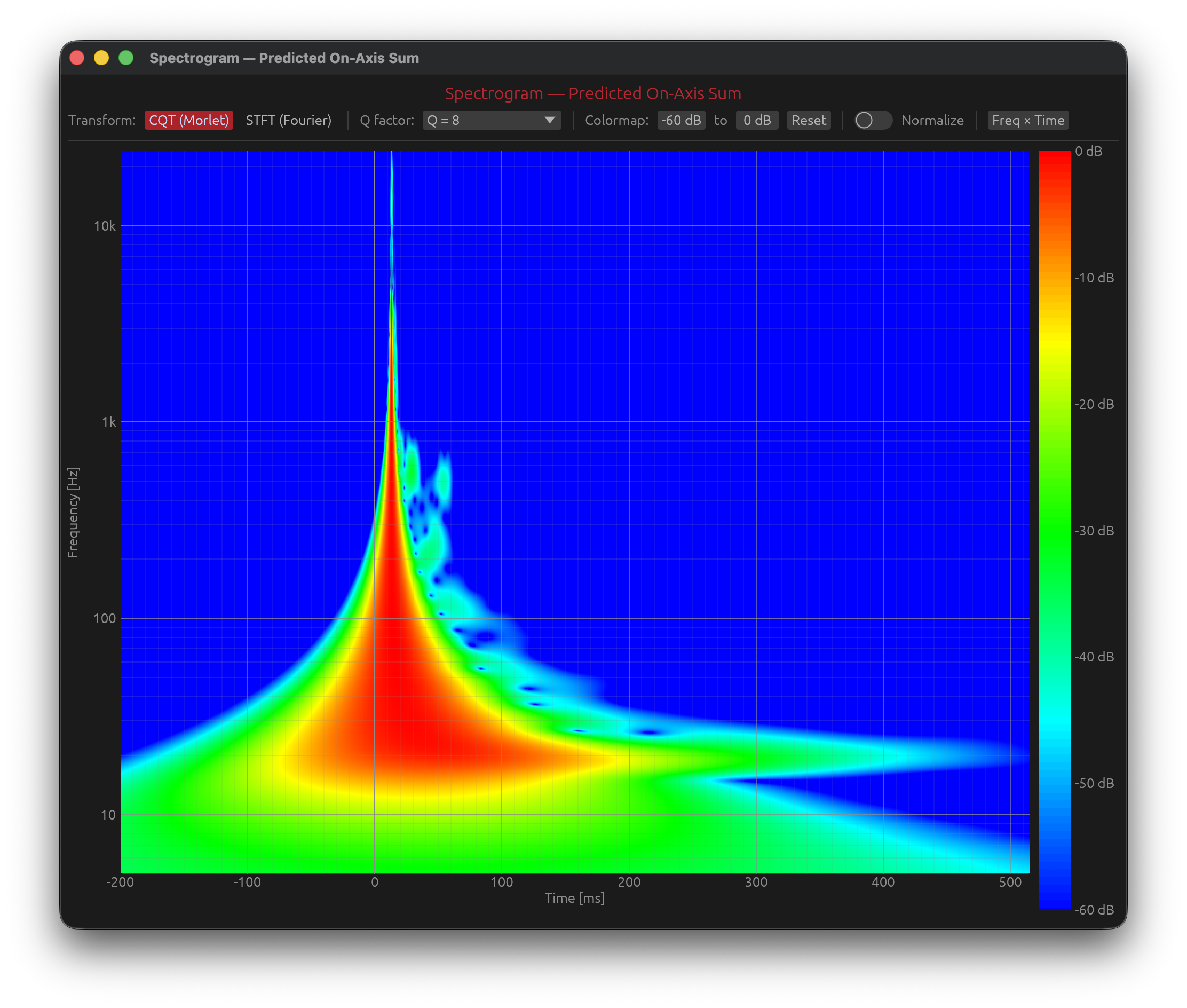
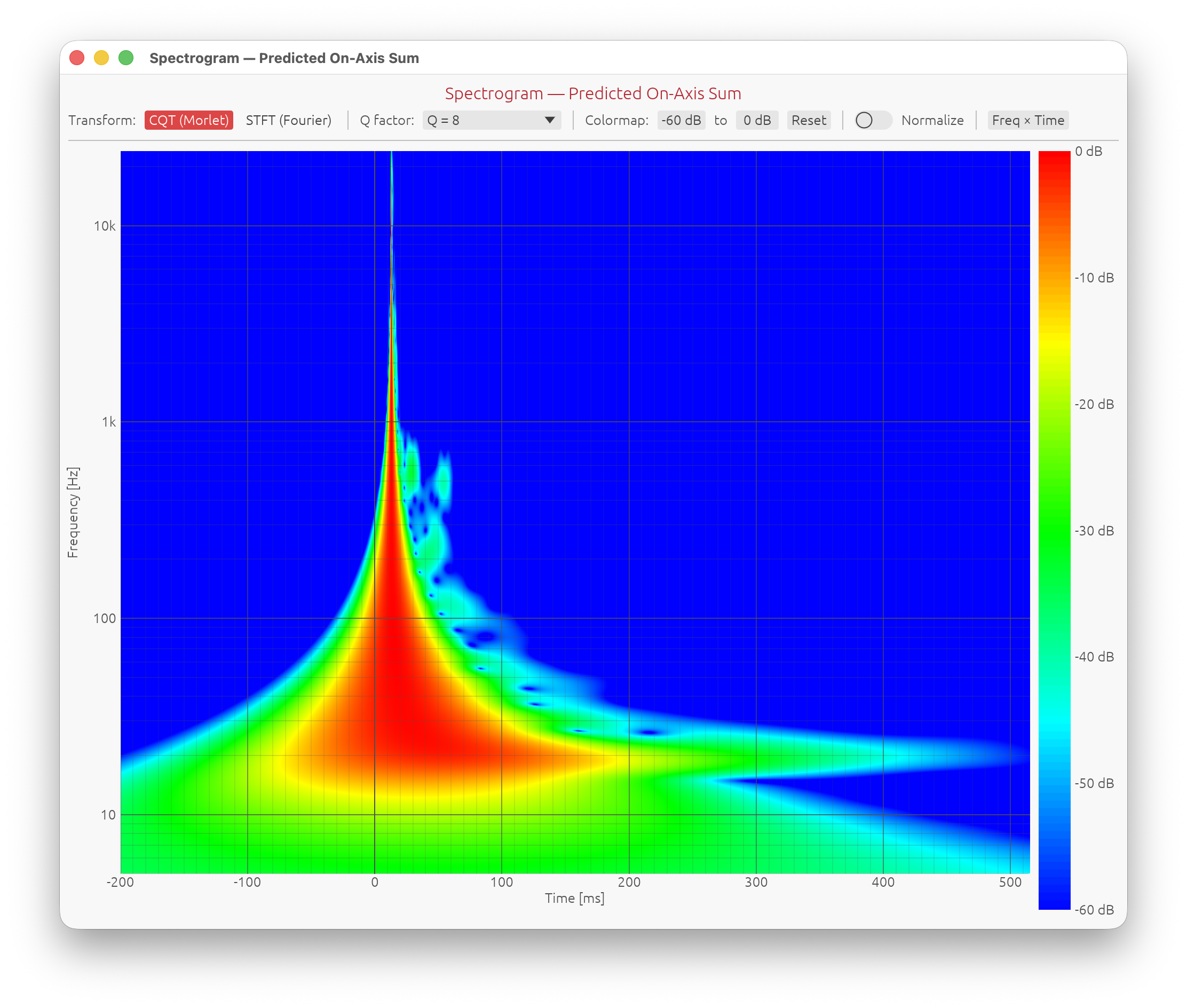
Layout
The window is divided into two panels:
- Main plot — the colour-mapped spectrogram
- Colorbar (right edge) — dB scale matching the current colormap range
A control bar above the plot exposes all parameters.
Controls
Transform Algorithm
Four algorithms are available, selectable from the Transform dropdown:
CQT — Constant-Q Transform (default)
Implemented as a frequency-domain Morlet (analytic Gaussian) filter bank:
- The IR is forward-FFT’d once into an analytic spectrum.
- For each log-spaced frequency f₀, the spectrum is multiplied by a Gaussian window of relative bandwidth 1/Q and inverse-FFT’d.
- The magnitude of the result is the instantaneous amplitude (envelope) at f₀.
This gives constant relative bandwidth — better frequency resolution at low frequencies and better time resolution at high frequencies — which matches the logarithmic frequency axis used throughout LinFIR.
STFT — Short-Time Fourier Transform
A windowed STFT (75% overlap) with linear frequency bins interpolated onto the log display grid. Provides uniform frequency resolution across the spectrum; the Window size controls the time/frequency trade-off and the Shape dropdown chooses the window function (see Window Type).
CSD — Cumulative Spectral Decay
The impulse response progressively truncated from the front: for each of a series of gate positions the IR from that point to the end is transformed, so each slice is the spectrum of the whole remaining tail (only the front of the window moves — a true cumulative decay). The gate’s leading edge is Blackman-Harris tapered. Shows how the spectrum decays over time in milliseconds — the classic tool for spotting loudspeaker resonances. See CSD.
Burst Decay
The same Morlet filter bank as the CQT, but each band’s decay is read on a period-based time axis (t·f). A resonance that rings for N cycles then looks identical at every frequency, so resonances are directly comparable regardless of where they sit — this matches how we hear them (Fryer & Toole). See Burst Decay.
All four modes get a 1 ms raised-cosine fade-out on the end of the impulse response before the transform, so the hard cut where the measurement stops doesn’t smear a broadband click across the last millisecond of the plot.
Resolution Preset
A ComboBox selects the resolution preset for the active algorithm:
| Algorithm | Preset controls | Effect |
|---|---|---|
| CQT | Q factor (4 – 64) | Higher Q → sharper frequency bands, longer time smear |
| STFT | Window size in samples (64 – 32768) | Larger window → better frequency resolution, worse time resolution |
| Burst Decay | Analysis bandwidth (1/3 – 1/24 oct) | Narrower → resolves closer resonances, but the wavelet itself rings longer, raising the analysis floor |
CSD has no resolution preset — its FFT is sized automatically to the length of the impulse-response tail, so low frequencies are never truncated (see CSD).
The Reset button at the end of the first control-bar row returns every mode’s processing parameters (Q factor, Window, Bandwidth, Shape, Rise, Freq res, Pts/period) to their defaults — it leaves the transform mode, the crop/Periods, the frequency range, colormap range, axis layout and toggles alone. The crop/Periods has its own separate Reset, on the row below (see Time crop).
The time–frequency trade-off
Any time-frequency transform faces a fundamental constraint: you cannot simultaneously have perfect time resolution and perfect frequency resolution. Improving one always degrades the other. This is the acoustic equivalent of the Heisenberg uncertainty principle.
CQT Q factor
The Q factor defines the ratio of centre frequency to bandwidth for each analysis band:
$$Q = \frac{f_0}{\Delta f}$$
A band centred at \(f_0=1000, \text{Hz}\) with \(Q = 10\) has a bandwidth of \(\Delta f = 100,\text{Hz}\). The corresponding time resolution (temporal smear) is approximately:
$$\Delta t \approx \frac{Q}{f_0} = \frac{1}{\Delta f}$$
| Q | Frequency resolution | Time resolution | Typical use |
|---|---|---|---|
| 4 – 8 | Coarse | Sharp — short smear | Transient analysis, impact events |
| 12 – 24 | Moderate | Moderate | General loudspeaker IRs (default Q = 12) |
| 32 – 64 | Fine | Blurred — long smear | Resonance identification, room modes |
Because the CQT uses a constant relative bandwidth, low frequencies always have more time smear than high frequencies — this is physically correct and matches how we perceive sound.
STFT window size
The STFT divides the IR into short overlapping frames of fixed length N (in samples). Within each frame, the spectrum is computed with a uniform frequency resolution of \(\Delta f = f_s / N\):
$$\Delta t = \frac{N}{f_s}, \quad \Delta f = \frac{f_s}{N}$$
| Window | Δf at 48 kHz | Δt | Typical use |
|---|---|---|---|
| 128 – 512 | 375 – 94 Hz | 1 – 11 ms | Fast transients, HF detail |
| 1024 – 2048 | 47 – 23 Hz | 21 – 43 ms | Balanced (default) |
| 4096 – 8192 | 12 – 6 Hz | 85 – 170 ms | Fine frequency detail, room modes (default 8192) |
Unlike the CQT, the STFT resolution is the same at all frequencies — which can make low-frequency detail easier to read at the cost of poor high-frequency time resolution.
Detail
Settings → Graphs → Spectrogram detail sets the size of the compute grid — the number of frequency bins and time points the transform is calculated on before it is sampled onto the image:
| Setting | Grid | Notes |
|---|---|---|
| Standard | 2048² | Lightest — the pre-1.4.x behaviour |
| High (default) | 4096² | ~2–4× the compute time, visibly sharper |
| Ultra | 8192² | ~4× the compute time and ~256 MB per recompute — fast machines only |
Higher detail matters most together with the time crop (below), which keeps that grid focused on the part of the response that actually carries signal.
Window Type
For STFT, the Shape dropdown chooses the window function applied to each frame before its FFT. It trades time localisation against spectral leakage (how much a single tone’s energy spreads into neighbouring bins):
| Shape | Character |
|---|---|
| Rectangular | No taper — sharpest time localisation, worst leakage (tall sidelobes) |
| Hann | Good general-purpose low-leakage window |
| Hamming | Like Hann with a raised floor — better nearest-sidelobe rejection |
| Blackman-Harris | Very low sidelobes, at the cost of a wider main lobe |
| Tukey | Flat middle, cosine-tapered ends — between Rectangular and Hann |
| Gaussian | Very low sidelobes (default) |
CQT has no Shape control — its Gaussian is a frequency-domain bandpass shape defining Q, not a time-domain analysis window.
Colormap Range
| Control | Description |
|---|---|
| Min dB (drag-value) | Lower saturation — anything at or below this level renders as cold blue |
| Max dB (drag-value) | Upper saturation — anything at or above this level renders as hot red |
| Reset button | Restores min to the configured default (−30 dB) and max to 0 dB |
Narrowing the range highlights low-level detail (resonances, room modes, late decay). Widening it shows the full dynamic range at a glance.
The Min dB value the window opens with (and that Reset restores) is set by Settings → Graphs → Spectrogram → Spectrogram lower bound, −30 dB by default. It also drives the automatic time crop.
Frequency Range
| Control | Description |
|---|---|
| Frequency (drag-values) | The Min / Max Hz the transform runs on |
| Reset button | Restores both to the current Settings → Graphs values |
This sits on its own control-bar row together with the time crop / Periods controls, below the transform / preset / processing-parameters row — its own Reset button is separate from that row’s processing-parameters one.
Changing either value forces a full recompute — unlike the colormap range, the frequency range is baked into the transform grid, not just the colour mapping. The recompute starts when you release the drag-value, not on every step of the drag.
When a spectrogram cannot be computed - for example an STFT window longer than the impulse response, a minimum frequency too close to the Nyquist limit, or an invalid (all-zero or NaN) response - the window says why instead of showing Computing indefinitely.
This control is independent of Settings → Graphs → Frequency Axis (10 Hz – 24 kHz by default) once set: it is seeded from there when the spectrogram window is first opened, but afterwards changing the Settings value does not silently override it — only its own Reset button pulls the Settings value back in. Every other frequency-axis graph (Magnitude, Phase, Group Delay, HD, the Directivity Sonogram) has no such override and always tracks the Settings value directly.
Normalize
The Normalize toggle scales each frequency band independently so its peak amplitude equals 0 dB. It applies to all four transforms and is a free re-render (no recompute).
- Off — the colormap is referenced to the single loudest point in the whole plot. True relative levels; bands with inherently low energy (deep bass, extreme treble) can appear entirely blue.
- On — every band fills the colormap from its own peak (0 dB) down to Min dB, so decay structure is visible across the whole spectrum regardless of each band’s SPL.
The Min dB / Max dB colormap controls still bound the dynamic range shown within the chosen reference.
Smooth
The Smooth dropdown averages the spectrogram across frequency in fractions of an octave — None (default), 1/48, 1/24, 1/12, 1/6, 1/3 octave, or ERB — the same choices as the main graph’s smoothing, but set here independently. It evens out spectral ripple and measurement noise so decay structure and resonances read more clearly; it applies to all four transforms and to both the 2D image and the 3D waterfall, and is a free re-render (no transform recompute). The window is symmetric in log-frequency, so features stay at their true frequency as the smoothing widens. The grey group-delay line is not affected.
Time crop
The time axis is cropped to the part that carries signal: the leading and trailing time columns in which every frequency sits at or below the Min dB level are dropped. It is measured on the rendered spectrogram itself — the exact grid you see — so the edges of the plot land right where the colour reaches the floor.
| Control | What it does |
|---|---|
| Crop | Start / end of the crop, in ms (CQT / STFT / CSD) — the Periods control doubles as this for Burst Decay, see below. |
| Reset | Goes back to auto-detected. Its own button, right next to Crop / Periods — separate from the processing-parameters Reset on the row above, and from Frequency’s own Reset on the same row. |
- Auto (default): recalculated on every recompute, so it follows Min dB and Normalize — lower the floor (or normalise per band) and more of the lead-in and decay tail is kept; raise the floor to crop tighter. Free (no transform recompute) for CQT / STFT / CSD.
- Manual: drag either Crop field (or Periods, for Burst Decay) and it stops auto-adjusting — the exact value you set is what shows, however Min dB or Normalize change, until you hit Reset. Same on/off-then-pinned idiom as a graph’s auto-bounds.
- A 2-column breathing margin is left on each side of the auto-detected range so the content doesn’t touch the very edge.
- The CQT’s low-frequency filter bank has a long impulse response (∝ Q/f), so its energy genuinely stays above the floor for a long time around the arrival — a CQT plot therefore crops far less tightly than an STFT one. For the tightest auto view of a decay, use STFT or raise Min dB (or just crop manually).
Group Delay overlay toggle
The Group delay toggle shows or hides the grey comparison line (see Group Delay Overlay) and its hover readout. It is only available for the CQT and STFT — the transforms that produce a genuine time-frequency map.
CSD
Cumulative Spectral Decay. For each of a sweep of gate positions the impulse response from the gate to its end is FFT’d, and the results are stacked to show the spectrum decaying over time. Gate 0 is the auto-detected acoustic arrival and the whole tail is shown. Only the gate (the front edge) moves — the far edge stays anchored at the end of the IR — so every slice is the spectrum of the whole remaining tail. The FFT is sized automatically to that tail, so low frequencies are never truncated.
| Control | What it does |
|---|---|
| Rise | The taper on the gate’s leading edge, 0.02–500 ms (default 1). It rises to full value at the gate (ramping up over the samples just before it) and trades time resolution for a smoother spectrum per slice. Short = sharp time resolution but more spectral splatter from the hard cut. |
The time axis is in milliseconds from gate 0 (re-zeroed to the arrival), cropped to where the spectrum clears Min dB. There is no group-delay overlay. Because the axis is in milliseconds, a low-frequency resonance with the same Q as a high-frequency one decays over far more of it and looks slower — which is exactly what Burst Decay fixes by switching to a period axis.
Burst Decay
Burst Decay on a period-based time scale. The same Morlet wavelet analysis as the CQT, but the decay of each frequency is read in cycles of that frequency rather than in milliseconds. On this axis a resonance’s decay slope reads its Q directly, identically at every frequency. Period 0 is locked to the peak of the first arrival.
| Control | What it does |
|---|---|
| Bandwidth | The wavelet’s −3 dB relative bandwidth: 1/3, 1/6 (default), 1/12 or 1/24 octave (Morlet q ≈ 7 / 14 / 29 / 58). Narrower resolves closer resonances but the wavelet itself rings for ≈ q/2π·4 periods, which sets the noise floor of the period axis. |
| Freq res | Frequency-grid density, in points per octave (12–96, default 48; 24–96 is the useful range). Fewer points → faster. |
| Periods | Extent of the period axis — this is the time crop for Burst Decay (default: auto). |
| Pts/period | Samples of the decay envelope per period — the smoothness of the period axis (1–96, default 24). Nearly free (just extra reads of the same wavelet output). |
The time axis is in periods; there is no group-delay overlay. The wavelet’s own ramp-up means each band’s energy peaks a few periods in — the decay is what follows. Caveats: below ~40 Hz the analysis is slow and can show artifacts unless the IR is long (≥ 128k samples); resonances with Q < 2 are hard to see; a reflection at delay \(t_d\) shows up as a decay pattern that slides toward higher frequencies (it sits at \(f \cdot t_d\) periods).
Periods is the crop. Unlike CQT / STFT / CSD, where the crop is a free image-level trim on top of a fixed compute range, here the crop is the compute range — periods are genuinely computed one at a time, so cropping earlier means computing less. While auto (the default), the transform runs out to a generous ceiling (120 periods) internally and Periods shows wherever the decay actually clears Min dB — so you’re not computing 120 periods just to look at 20 of them. Drag Periods to pin an exact extent (now a real compute-range change: expect a brief recompute); it stays there — through Min dB, Normalize, anything — until Reset.
Axis Swap
The Freq × Time / Time × Freq button swaps the horizontal and vertical axes:
- Time × Freq (default) — time on X (ms), frequency on Y (Hz, log)
- Freq × Time — frequency on X (Hz, log), time on Y (ms)
Swapping the axes resets the zoom to fit the new layout.
The layout the spectrogram opens with is set by Settings → Graphs → Spectrogram axes; the toolbar button then swaps it for the current session.
3D waterfall
The 2D / 3D button (start of the third control-bar row) switches the main area between the flat colour image and a rotatable 3D surface — the classic waterfall. It works for all four transform modes; the surface is the same time–frequency grid, with height and colour driven by level, using the same colormap and the same Min dB / Max dB, Normalize, and time crop settings as the 2D view — switching between 2D and 3D never changes what range of the decay is shown.
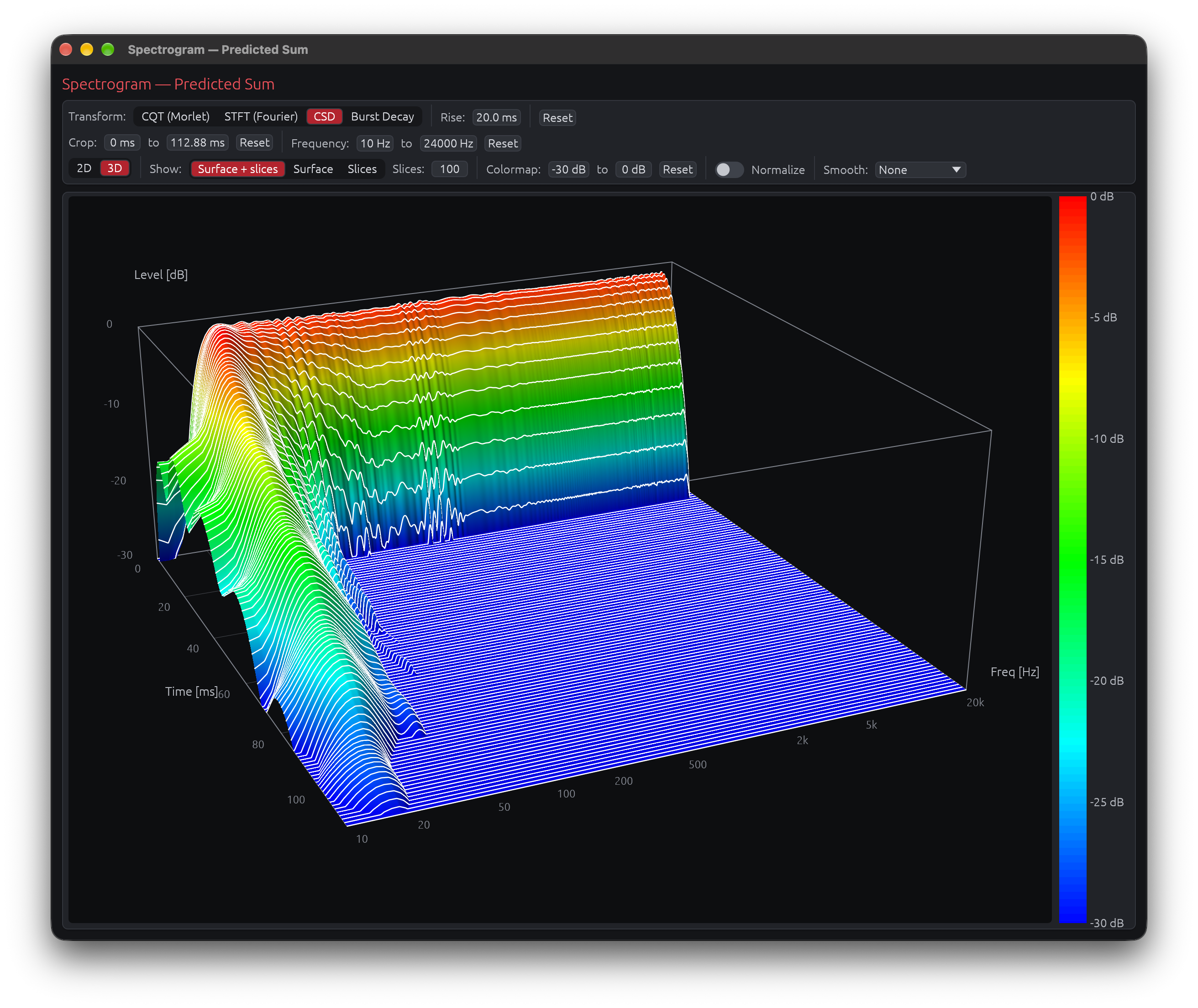
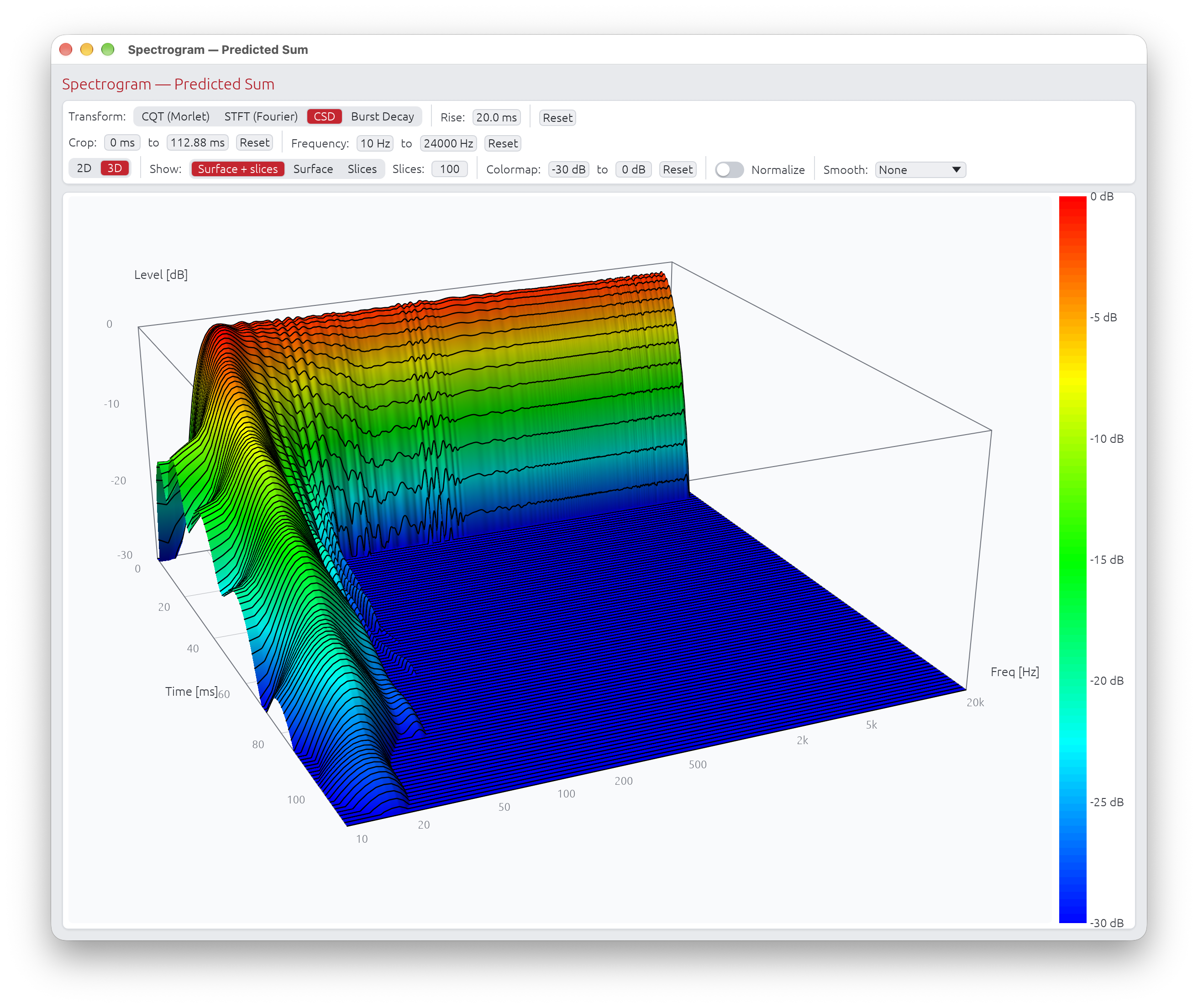
- Left-drag to rotate, right-drag to pan, scroll / pinch to zoom, double-click to reset the view.
- Hover the surface for a readout: the time-slice (spectrum at that instant) and frequency-slice (decay at that frequency) are drawn on the surface where they cross, with a time / frequency / level box at the cursor.
- Show picks what to draw: Surface + slices (default), Surface only, or Slices only — the slices are constant-time (or constant-cycle for burst decay) lines on the surface; Slices sets how many (default 100).
- Switching 2D ↔ 3D is instant — nothing is recomputed.
- In 3D the axis-swap and Group-delay controls are hidden (they don’t apply).
The surface is directionally shaded (a fixed light, upper-left) so ridges and valleys read clearly — colour still encodes level, so a shadowed slope looks darker than the colorbar for the same dB; the hover box gives the exact value. The leading and trailing silence is trimmed the same way as the 2D image (following Min dB).
Group Delay Overlay
A thin grey line traces the group delay across frequency on top of the colour map (toggle it with Group delay in the control bar). It uses the same Smoothing amount as the main window’s Group Delay graph and is shifted by the same Delay Compensation, computed directly from the same impulse response the spectrogram itself displays, so it lines up with the image’s time axis. (The smoothing here is applied per-octave symmetrically, so a bump in the grey line stays at its true frequency instead of drifting down as the smoothing widens.)
This lets you compare the two directly: a resonance or smear visible in the colour map that lines up with a bump in the grey line (e.g. cone breakup, a port or panel resonance) is a genuine group-delay anomaly at that frequency, not just an artifact of the time-frequency transform’s own resolution trade-off.
Hover Tooltip
Hovering the plot shows the time, frequency, and level in dB at the cursor, letting you read a precise value instead of estimating it from the colour.
The tooltip also reports the Group Delay value when the cursor is actually hooking the grey overlay line.
Plot Interaction
| Action | Effect |
|---|---|
| Drag | Pan |
| Scroll / pinch | Zoom |
| Box zoom (right-click drag) | Zoom to selection |
| Double-click | Reset to auto-fit |
After a double-click the view stays in auto-fit: it re-frames itself whenever the image changes (Min dB, transform, axis layout) until you next pan or zoom.
Related Documentation
- Graph Interaction — zoom, pan, and detached windows
- Directivity Analysis — directivity sonogram and overlay plot
- License — license features and activation
Directivity Analysis 🔒
License Required: Directivity analysis features require a valid LinFIR license. All other LinFIR features remain free to use.
Directivity analysis tools characterize how your speaker system radiates sound in different directions. These tools predict off-axis behavior, visualize interference patterns between drivers, and help optimize crossover design for consistent directivity.
Overview
Directivity analysis provides:
- Off-axis frequency response visualization at any measured angle
- Directivity Index (DI) prediction across the frequency spectrum
- Directivity sonograms (2D frequency vs. angle heatmaps)
- Crossover optimization insights based on radiation patterns
Key Applications:
- Identify directivity errors, beaming and dispersion characteristics
- Optimize crossover design for consistent off-axis response
- Assess room interaction based on directivity patterns
- Visualize interference patterns between drivers
Polar Measurements
Measurement Requirements
To use directivity tools, you need impulse responses at multiple angles:
Horizontal Axis:
- Measurements with vertical angle = 0°, varying horizontal angle
- Example: -90°, -60°, -30°, 0°, +30°, +60°, +90°
- More angles provide better accuracy (5° or 10° increments recommended)
Vertical Axis:
- Measurements with horizontal angle = 0°, varying vertical angle
- Example: -60°, -40°, -20°, 0°, +20°, +40°, +60°
- Particularly important for speakers with vertical array configurations
On-axis Reference:
- The (0°, 0°) measurement is the on-axis reference
- Must be captured first before off-axis measurements
- Appears in both horizontal and vertical columns in the IR Management window
⚠️ Critical: Time of Flight Must Be Preserved
DO NOT:
- Apply windowing that removes the acoustic delay
- Time-align measurements to the same start point
- Remove the relative delay between drivers
WHY:
- The relative delay between angles encodes interference patterns
- This delay represents the acoustic path length to the microphone
- Off-axis measurements have different path length ratios between drivers
- These delays create the directivity patterns we analyze
What happens if you remove time-of-flight:
- DI calculation assumes drivers are co-located (incorrect)
- Predicted interference patterns don’t match reality
- Off-axis nulls and peaks won’t appear
- Directivity sonograms show incorrect lobing patterns
⚠️ Critical: Use Proper Timing Reference
Configure a timing reference method in Audio Settings before capturing polar measurements:
Electric (loopback) - RECOMMENDED:
- Most reliable method
- Connect output to input with a cable
- Eliminates software scheduler variability
- See Reference Timing for setup
Acoustic (chirp):
- Uses another driver as timing reference microphone
- Good for setups where loopback is impractical
- Requires careful positioning
Avoid “None” timing mode:
- Relies on system audio scheduler (unreliable on Windows)
- Timing jitter corrupts phase relationships between drivers
- Can produce incorrect directivity analysis
💡 Tip: Stable timing is essential for accurate phase relationships between drivers. See Reference Timing for detailed setup instructions.
Automated Polar Measurements with a Rotation Table
For a fully automated polar measurement workflow, connect a motorized turntable (Pololu Tic or GRBL/Arduino) in Settings → Rotation Table. Once connected and a license is active:
- A ▶ Scan button appears in the IR Management window
- Configure the angle range and step (e.g. −90° to +90°, 10° step)
- Click ▶ Scan: the table rotates to each angle, settles, and captures automatically
- Already-measured angles are skipped
See Rotation Table for setup, hardware compatibility, and troubleshooting.
Measurement Tips
General Guidelines:
- Keep microphone-to-speaker distance constant for all angles
- Rotate the speaker (not the microphone) when possible
- Ideally the speaker turns about its front baffle; when the turntable axis is behind it (or off to the side), enter the offsets in the IR Management window so LinFIR rebuilds the off-axis responses at the right distance and angle - see Rotation Center Correction
- Ensure consistent room conditions for all measurements
- Use high SNR settings to capture clean off-axis data
Distance Recommendations:
- Farfield measurements (>1 meter) work best
- Distance should be at least 2-3× the largest driver spacing
- Too close = nearfield effects, inaccurate directivity
- Too far = room reflections dominate
Microphone Positioning:
- Ensure microphone height matches speaker acoustic center
- Keep microphone axis perpendicular to speaker front baffle
- Avoid obstructions in the measurement path
Off-Axis Curve Visualization
View off-axis frequency responses directly in the main graph window.
Accessing Off-Axis Display
Location: Main graph toolbar (Drivers/Speakers display mode only)
Axis Selection:
- Toggle between h (horizontal) and v (vertical) axis buttons
- Only available when viewing individual drivers or summed system
- Not available in Room Calibration modes
Angle Dropdown:
- Select from available measurement angles
- Only angles with actual measurement data are shown
- 0° always represents the on-axis reference
Interpreting Off-Axis Curves
Compare off-axis to on-axis:
- Smooth transitions across angles = good dispersion control
- Large deviations at certain angles = beaming or nulls
- Crossover region consistency = proper driver integration
What to look for:
- Beaming: Response drops off rapidly at off-axis angles (high-frequency issue)
- Comb filtering: Peaks and dips that vary with angle (driver interference)
- Crossover lobing: Nulls or peaks appearing at specific off-axis angles near crossover frequency
- Baffle diffraction: Ripples that change with angle at mid-to-high frequencies
Example Interpretation:
Good directivity:
- Off-axis curves smoothly roll off at high frequencies
- No sudden dips, peaks or steps through crossover region
- Consistent shape across ±30° angles
Poor directivity:
- Deep nulls appearing at ±20° near crossover frequency
- Off-axis step in frequency response near a crossover frequency, indicating directivity mismatch between drivers
- Dramatic level changes between neighboring angles
- Comb filtering visible at mid frequencies
Directivity Index (DI) Prediction
The Directivity Index (DI) quantifies how directional your speaker is across the frequency spectrum.
What is DI?
Definition:
\[ \text{DI} = 10 \times \log_{10}(Q) \]
where \(Q\) is the directivity factor
\(Q\) is calculated by spherical integration:
\[ Q = \frac{4\pi}{\int_0^{2\pi} \int_0^{\pi} |H(\theta,\phi)|^2 \sin(\theta) , d\theta , d\phi} \]
\(H(\theta,\phi)\) is the acoustic sum of all the active drivers at that angle - each with its filters, gain, delay and polarity, phase included - the same summed response the Listening Window, Sound Power and Predicted In-Room curves use. Interference between drivers is therefore part of the DI.
Interpretation:
- 0 dB = omnidirectional (radiates equally in all directions)
- Higher values = more directional (sound focused forward)
Typical DI Values
0-3 dB: Wide dispersion
- Subwoofers
- Large woofers at low frequencies
- Most speakers below 200 Hz
3-6 dB: Moderate directivity
- Most drivers at mid frequencies
- Typical 2-way speakers at 1-4 kHz
6-12 dB: Controlled directivity
- Waveguides and horns
- Well-designed constant directivity systems
- Ideal for controlled room interaction
12+ dB: Very directional
- Narrow dispersion (potential beaming issues)
- Extreme horns
- May sound disconnected from room in typical listening spaces
How DI Reflects Filtering
The DI curve shows:
- Combined effect of driver placement and crossover filtering
- Interference between drivers creates peaks/dips in the DI
- Crossover slopes affect how quickly directivity changes
- Time-of-flight differences encode driver spacing in the DI pattern
Example DI Behaviors:
Smooth DI transition:
- Gradual increase from 3 dB at 500 Hz to 6 dB at 4 kHz
- Indicates good driver integration through crossover
DI spike at crossover:
- Peak to 8-10 dB at 2.5 kHz, then drops to 6 dB at 3 kHz
- Indicates on-axis summing peak (lobing) at crossover frequency
- Off-axis response likely has nulls
DI dip at crossover:
- Dip to 0 dB at crossover frequency
- Indicates on-axis null (destructive interference)
- May sound better off-axis than on-axis
Using DI for Design
Target smooth DI transition:
- Avoid sudden changes (>3 dB) in DI through crossover region
- Gradual transitions indicate good driver integration
Avoid sudden DI changes:
- Peaks = on-axis lobing (hot spot)
- Dips = on-axis null (cancellation)
- Both indicate poor crossover alignment
Consider desired room interaction:
- Wider DI (3-6 dB) = more room sound (spacious, diffuse)
- Narrower DI (6-12 dB) = less room sound (direct, focused)
- Match DI to listening environment and preference
Match DI to listening environment:
- Near-field (desktop, mixing): Moderate DI acceptable (3-8 dB)
- Far-field (living room, theater): Wider DI preferred (3-6 dB) to engage room
- Treated rooms: Higher DI acceptable (6-10 dB) due to controlled reflections
Display Requirements
The DI curve is shown in the Frequency Responses (Drivers) graph when:
- A valid LinFIR license is active
- At least one enabled driver has off-axis measurements
- The Directivity Index toggle is enabled, in the Graphs dropdown’s Overlays section (per-project; Settings → Graphs → Default Overlays sets what a new project starts with)
- The Drivers display mode is selected in the graph toolbar
Listening Window
The Listening Window curve represents the average frequency response over the angular range that matters most for typical listening positions — the region a listener’s ears are likely to be within.
What is the Listening Window?
The Listening Window is defined as the spatial average of all measured frequency responses within ±30° horizontal and ±10° vertical (inclusive). It captures the sound power arriving at listeners seated slightly off-axis, which is more representative of real-world listening conditions than the strict on-axis response alone.
Display Requirements
The Listening Window curve is shown in the Frequency Responses (Drivers) graph when:
- A valid LinFIR license is active
- At least 2 polar measurements fall within the ±30° horizontal / ±10° vertical window
- The Drivers display mode is selected in the graph toolbar
Visual Appearance
| Property | Value |
|---|---|
| Color | Royal blue (fixed) |
| Line style | Dashed |
| Label | LW |
The dedicated color and dashed style let the Listening Window be picked out at a glance among the Sum, DI, Predicted In-Room Response and per-driver curves on the same plot. The Sum curve is always drawn on top, so it’s never hidden underneath. Hovering the curve shows its full name, “Listening Window”, in the tooltip - the legend stays compact (“LW”).
Interpreting the Listening Window
LW ≈ Sum (on-axis):
- The speaker’s balance changes little within the listening window
- Indicates excellent controlled directivity in the ±30°H / ±10°V region
- High confidence that off-axis listeners experience a similar tonal balance
LW rolls off above Sum at high frequencies:
- Normal and expected behaviour (drivers beam at high frequencies)
- The high-frequency roll-off shape indicates how quickly the speaker narrows
- A gentle, smooth roll-off indicates controlled directivity
LW has dips or irregularities not present on-axis:
- Lobing, comb filtering or directivity discontinuities within the listening window
- May indicate a crossover alignment issue affecting near-axis radiation
- A sudden dip at a specific frequency often points to interference between drivers
Comparing LW with DI:
- As DI rises, the LW typically diverges from the on-axis Sum (more directional → more off-axis loss)
- A flat DI with a flat LW indicates a well-controlled constant-directivity design
Predicted In-Room Response
The Predicted In-Room Response (PIR) curve estimates what a typical domestic room’s in-room measured response would look like, computed entirely from the anechoic (or gated) polar measurements already used for DI and the Listening Window — no actual in-room measurement is required.
This curve, together with the Listening Window and DI above, follows the ANSI/CTA-2034-A standard (formerly CEA-2034, the “spinorama” measurement suite) — the same standard used by AES/Harman loudspeaker research and by third-party spinorama tools, so PIR curves produced here are directly comparable to published third-party spinoramas built to the same standard.
What is PIR?
CTA-2034-A defines PIR as a fixed-weight combination of three curves, each itself an energy-representative average over a standard set of measurement angles:
\[ \text{PIR} = 0.12 \cdot \text{LW} + 0.44 \cdot \text{ER} + 0.44 \cdot \text{SP} \]
-
LW — Listening Window: the same ±30°H / ±10°V average described above.
-
ER — Early Reflections: the average of the five standard first-reflection paths a listener’s room would generate — Floor Bounce, Ceiling Bounce, Front Wall, Side Wall and Rear Wall — each itself the average of the standard angles for that path:
Sub-curve Angles Floor Bounce Vertical −20°, −30°, −40° Ceiling Bounce Vertical 40°, 50°, 60° Front Wall Horizontal 0°, ±10°, ±20°, ±30° Side Wall Horizontal ±40°, ±50°, ±60°, ±70°, ±80° Rear Wall Horizontal ±90°, 180° A sub-curve with no matching measurement is left out of the average entirely (not treated as silence) — a driver measured out to only ±60° still produces a partial Early Reflections curve (Floor/Ceiling/Front/Side), just without the Rear Wall contribution. At least 3 of the 5 sub-curves must have data for Early Reflections — and therefore PIR — to be computed at all.
-
SP — Sound Power: the same full-sphere, solid-angle-weighted energy integral used for the Directivity Index, expressed as a level rather than a ratio (
Sound Power (dB) = On-Axis (dB) − DI (dB)). Sampled log-spaced in frequency (48 points/octave) rather than at every bin — full resolution in the bass, where the raw grid is already coarser than that; progressively fewer points in the treble, where a dense scan would add computation without changing what’s visible on a log-frequency plot. Before combining it into PIR, this sparser curve is interpolated back onto the Listening Window/Early Reflections’ full-resolution grid, so the resulting PIR curve stays dense and evenly-spaced — required both for a smooth plot and for using PIR as a correction/Auto-EQ reference.
The 0.12 / 0.44 / 0.44 weighting reflects, on average, how much of a typical listening room’s measured response is dominated by direct sound versus early reflections versus the reverberant field — the same figures published in the CTA-2034-A standard and the Olive/Harman AES research behind it.
Display Requirements
The Predicted In-Room Response curve is shown in the Frequency Responses (Drivers) graph when:
- A valid LinFIR license is active
- Early Reflections data is available (at least 3 of the 5 sub-curves above have a matching measurement)
- The Predicted In-Room Response toggle is enabled, in the Graphs dropdown’s Overlays section (per-project; Settings → Graphs → Default Overlays sets what a new project starts with)
- The Drivers display mode is selected in the graph toolbar
Visual Appearance
| Property | Value |
|---|---|
| Color | Cherry red (fixed) |
| Line style | Dashed |
| Label | PIR |
PIR reflects the currently active global IIR/FIR correction filters, unlike DI, whose ratio a uniformly-applied filter cancels out of - so PIR moves when you adjust global filters, the same way the Sum curve does. Hovering the curve shows its full name, “Predicted In-Room Response”, in the tooltip - the legend stays compact (“PIR”).
PIR can also be selected as the Reference for the global magnitude correction filter and global Auto EQ, alongside On-axis and Listening Window - see System Processing.
Interpreting PIR
PIR close to LW:
- The speaker’s off-axis energy tracks its near-axis balance closely
- Indicates well-controlled directivity across a wide angular range, not just the narrow listening window
PIR rolls off faster than LW at high frequencies:
- Expected for most speakers: as directivity narrows with frequency, less high-frequency energy reaches the room as a whole
- A smooth, gradual roll-off (rather than a sharp step) generally reads as more natural in a real room
PIR dips or bumps not present in LW or DI individually:
- Usually an Early Reflections effect specific to the floor/ceiling/side/rear angle sets — check the per-sub-curve angles if measurements are sparse there
- A partial Early Reflections curve (missing the Rear Wall sub-curve, for instance) can shift PIR slightly versus a full-coverage measurement; wider polar coverage narrows this
Early Reflections, Sound Power and Early Reflections DI
Early Reflections and Sound Power are the two sub-curves PIR combines above — each can also be shown on its own, alongside a third curve, Early Reflections DI, which isn’t part of the PIR formula but completes the standard spinorama’s set of directivity-index curves. Unlike Sum, Listening Window, PIR and DI, all three are hidden by default — turn them on individually from the Graphs dropdown’s Overlays section if you want them.
Early Reflections (ER)
The average of the five standard first-reflection sub-curves described under Predicted In-Room Response above — Floor Bounce, Ceiling Bounce, Front Wall, Side Wall, Rear Wall. Same availability rule as PIR: at least 3 of the 5 sub-curves need a matching measurement.
Sound Power (SP)
The same full-sphere, solid-angle-weighted integral used for DI, expressed as a level curve (Sound Power (dB) = On-Axis (dB) − DI (dB)) instead of a ratio — see Predicted In-Room Response above for how it’s sampled.
Early Reflections DI (ERDI)
On-Axis (dB) − Early Reflections (dB) — the same kind of ratio as DI (which, by construction, is what spinorama tools call “Sound Power DI”), but referenced to the Early Reflections curve instead of the full-sphere Sound Power integral. This is the third directivity-index panel of the standard CTA-2034-A spinorama plot, alongside DI/SPDI.
Display Requirements
Each curve is shown in the Frequency Responses (Drivers) graph when:
- A valid LinFIR license is active
- The underlying data is available (Early Reflections and Early Reflections DI need at least 3 of the 5 sub-curves above; Sound Power needs the same spherical measurement coverage as DI)
- Its own toggle is enabled, in the Graphs dropdown’s Overlays section (per-project; Settings → Graphs → Default Overlays sets what a new project starts with — all three default to off)
- The Drivers display mode is selected in the graph toolbar
Visual Appearance
| Curve | Color | Line style | Label |
|---|---|---|---|
| Early Reflections | Purple (fixed) | Dashed | ER |
| Sound Power | Teal (fixed) | Dashed | SP |
| Early Reflections DI | Dark orange (fixed) | Solid | ERDI |
Early Reflections and Sound Power are linear-magnitude curves, plotted the same way as Listening Window/PIR. Early Reflections DI, like DI, is already a dB ratio — it’s offset upward into the same band of the plot as DI so both stay readable together, and the hover tooltip subtracts the offset back out to show the real value. Hovering any of the three shows its full name in the tooltip — the legend stays compact (“ER”/“SP”/“ERDI”).
Directivity Analysis Window
The Directivity Analysis window displays two complementary visualizations of how sound radiates across frequency and angle. It is organized into two tabs:
- Sonogram — colour-mapped 2D heatmap (frequency × angle)
- Overlay Plot — all off-axis curves superimposed on a single frequency-response graph
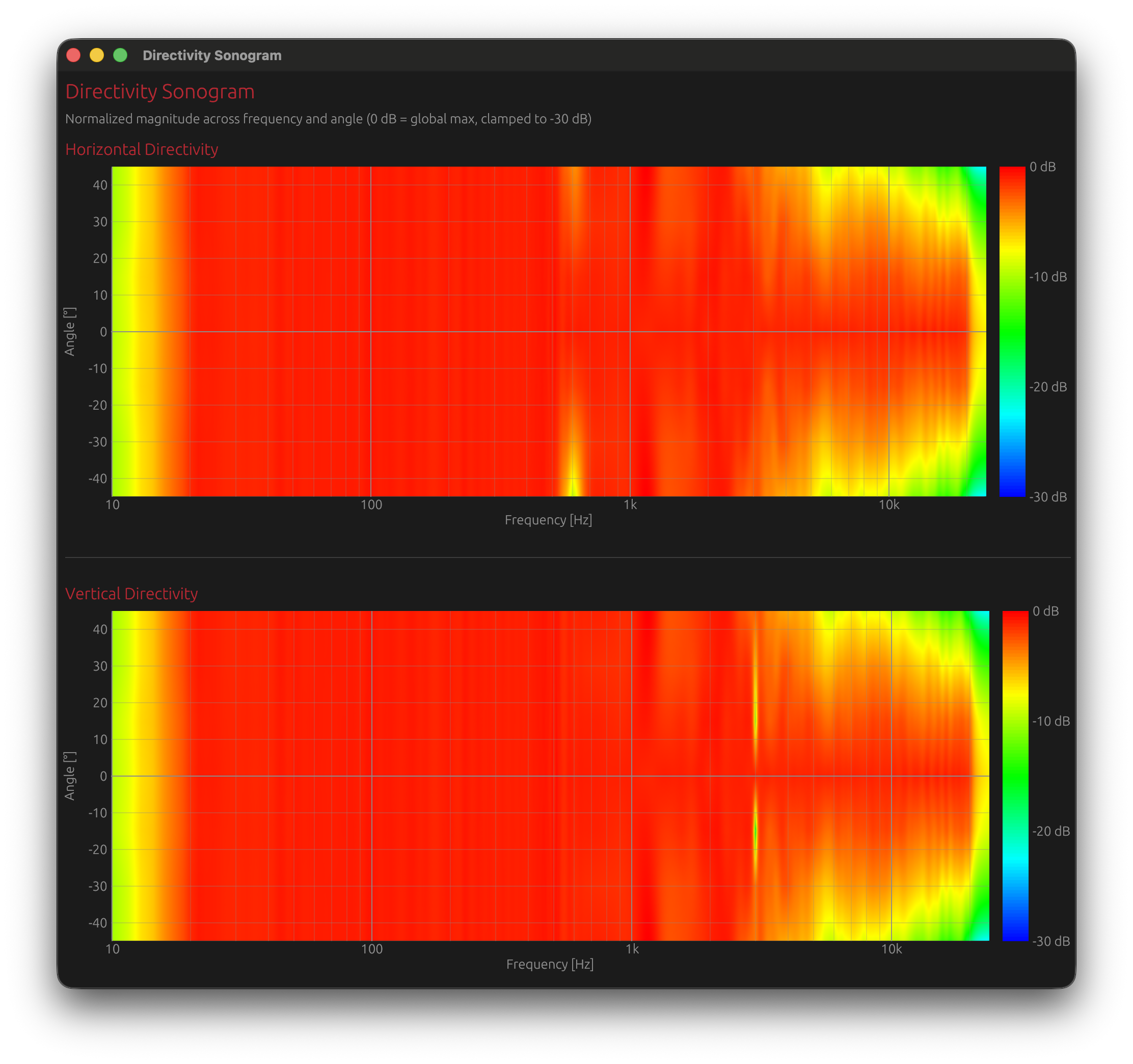
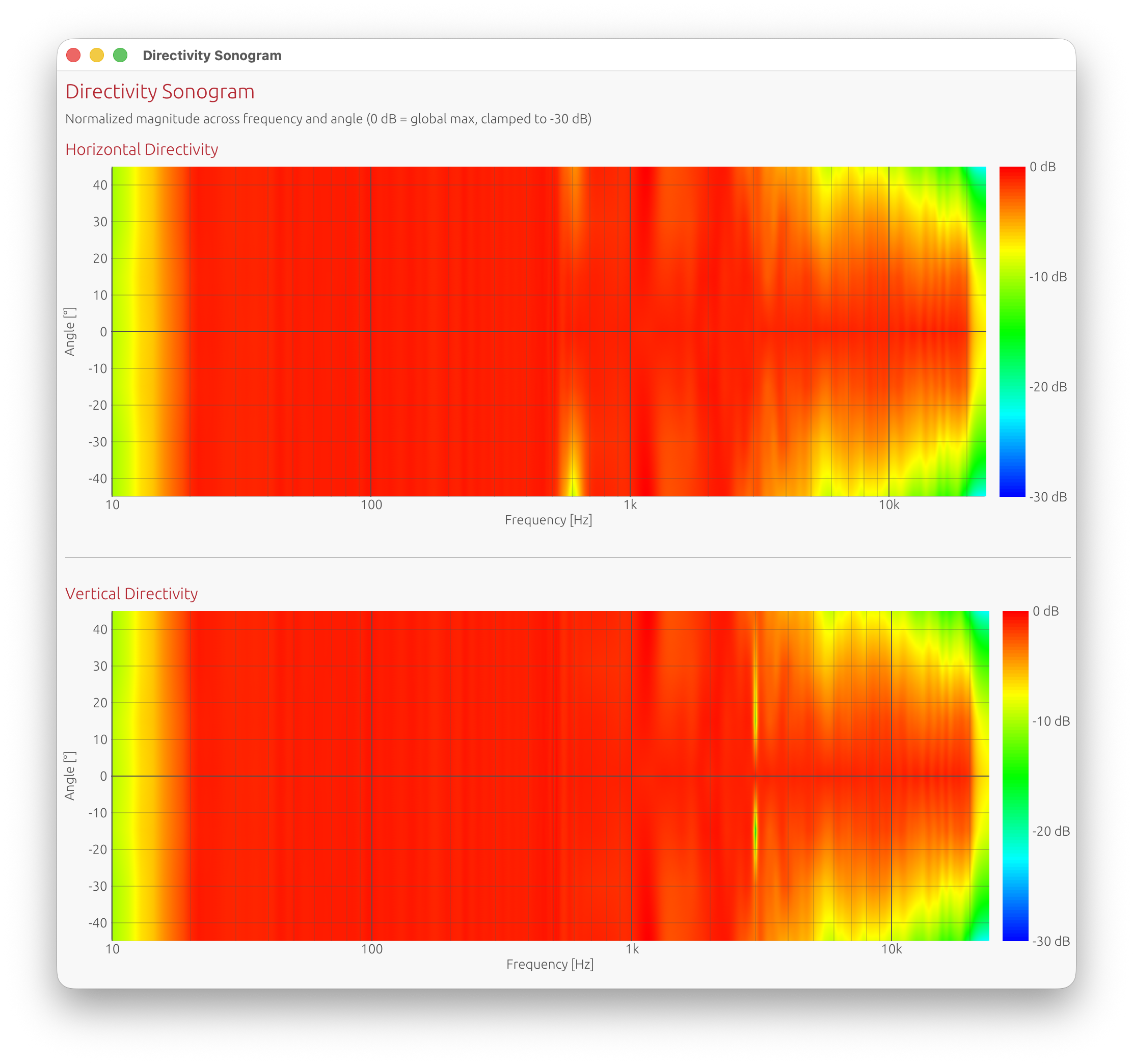
Accessing the Window
Menu: View → Directivity Analysis Requires: Valid LinFIR license and polar measurements loaded
Sonogram Tab — Layout
Two separate sonogram plots:
- Horizontal directivity: Vertical angle = 0°, varying horizontal angle
- Vertical directivity: Horizontal angle = 0°, varying vertical angle
Axes:
- X-axis: Frequency (Hz, logarithmic scale)
- Y-axis: Measurement angle (degrees)
- Color: Normalized magnitude in dB (0 dB = reference level, depending on normalization mode)
-6 dB Directivity Curves:
Thin grey overlay lines trace the -6 dB point on both sides of boresite (positive and negative angles) across frequency. These curves mark the angular width where the response stays within 6 dB of the on-axis maximum — a standard measure of directivity or “beamwidth.”
- Wider grey-line separation at a given frequency → wider dispersion (omnidirectional behaviour)
- Narrower separation → more focused, beamed radiation
These curves make it easy to spot frequency ranges where the speaker narrows its dispersion (beaming) or where directivity becomes asymmetric between left/right and up/down.
Color Scale
Hot colors (red/yellow): Higher magnitude (0 dB and above)
- On-axis or near-axis energy
- Focused radiation
- With normalization modes, values above 0 dB indicate angles/frequencies stronger than the reference
Warm colors (orange): Moderate attenuation (-6 to -12 dB)
- Moderate off-axis output
- Typical dispersion
Cool colors (blue/purple): Significant attenuation (-12 to -30 dB and below)
- Heavily attenuated off-axis
- Beaming or nulls
Range clamped to -30 dB by default for clarity (adjustable in settings). The color scale always stops at 0 dB by default — increase the max dB threshold to extend it.
By default, values above the max threshold are drawn in off-white rather than saturating to the same red as the loudest in-range energy, so it stays obvious where a normalization mode pushes the response over the reference level. The shift is progressive — over-range pixels fade from red into off-white across about 1 dB above the threshold rather than switching colour on a hard edge, so there is no abrupt line in the image. Turn this off in Settings → Graph Settings → Highlight sonogram clipping to have over-range values saturate to red instead.
Colormap Range Controls
The Colormap range row in the sonogram toolbar lets you saturate the colour scale to reveal low-amplitude detail without reloading any measurement data.
| Control | Description |
|---|---|
| Min dB (drag-value) | Lower saturation threshold — anything at or below this value is rendered in cold blue |
| Max dB (drag-value) | Upper saturation threshold — anything at or above this value is rendered in hot red (or off-white when Highlight sonogram clipping is on, see Color Scale) |
| Reset button | Restores min to the configured magnitude lower bound and max to 0 dB |
How to use it:
- Widen the range (e.g. −60 dB to 0 dB) to get a broad overview of the full dynamic range
- Narrow the range (e.g. −15 dB to −5 dB) to zoom in on mid-level detail and expose subtle lobing or diffraction artefacts that would otherwise blend into a unique color
- Changing either value triggers an immediate image regeneration; the previous image remains visible while the new one is computed
The colorbar on the right of each sonogram always reflects the current min/max values and its grid step adapts automatically to the selected range.
Normalization Mode
The Normalization dropdown on the right side of the toolbar controls how sonogram magnitudes are normalised before applying the colour map. Four modes are available. The mode the sonogram opens with is set by Settings → Graph Settings → Sonogram normalization; the toolbar dropdown then overrides it for the current session.
| Mode | Description |
|---|---|
| Global max. | The entire sonogram is normalised to the single strongest magnitude found anywhere in the data, capped at 20 kHz to avoid tweeter resonance peak. Every pixel is expressed relative to that one global maximum — the brightest point in the whole image is always ≥0 dB. |
| Normalize to 0° | A single reference value is computed from the 0° (on-axis) row: the maximum magnitude found on-axis across all frequencies (capped at 20 kHz to avoid tweeter resonance peak). Every pixel is then expressed relative to that one value. With this mode, angles stronger than the on-axis reference will show positive dB values (displayed in red, saturated at the top of the color scale). |
| Normalize to 0° (per freq) | For each frequency independently, the response is normalised to the magnitude at 0° for that same frequency. Each frequency column therefore has its own 0 dB reference, which makes relative directivity patterns within each band immediately visible. On-axis at every frequency will appear at 0 dB, and off-axis deviations are shown relative to the on-axis response at that exact frequency. Positive dB values can appear where off-axis response exceeds on-axis at a given frequency. |
| Normalize to ±10° avg (per freq) | For each frequency independently, the response is normalised to the average magnitude between −10° and +10° at that frequency. Like “Normalize to 0° (per freq)” each column has its own 0 dB reference, but the reference is an average over a small angular window rather than a single on-axis point. This is more robust when the on-axis response has narrow peaks or dips caused by interference or diffraction. |
When to use which:
- Global max. — Quick overview of the full dataset
- Normalize to 0° — Comparing on-axis vs. off-axis directivity with a single reference. Useful for checking dispersion consistency
- Normalize to 0° (per freq) — Detailed analysis of angular directivity patterns per frequency band; removes the dependency on the driver’s frequency response to compare with FEM/BEM simulations
- Normalize to ±10° avg (per freq) — Same as “Normalize to 0° (per freq)” but more robust against narrow on-axis anomalies. Prefer this when the 0° measurement has sharp peaks or nulls from interference patterns (e.g. driver spacing comb filtering) that would distort the per-frequency reference
Note on the 20 kHz cap: The reference maximum is always computed from frequencies at or below 20 kHz. This avoids tweeter resonance peaks in the ultrasonic range from skewing the normalization reference, which would otherwise compress the visible dynamic range in the audible band.
Interpreting Sonograms
Horizontal bands:
- Similar spectral balance across angles
- A band remaining coherent from about −60° to +60° indicates a well-designed driver with controlled directivity and no excessive beaming
Angular width and color spread:
- Warm colors extending from −90° to +90° in the bass / low-midrange are normal (low frequencies are inherently near-omnidirectional)
- Progressive narrowing at high frequencies is expected, but confinement to < −45° to +45° suggests excessive beaming
Symmetry around 0°:
- Geometrical and acoustical symmetry
- Proper driver placement and reliable measurements
Asymmetric patterns:
- Potential baffle diffraction
- Room reflections contaminating measurements
- Driver offset or asymmetric waveguides (intentional in most 3 way monitor designs)
Interference patterns (diagonal/complex):
- Driver interaction visible
- Crossover region summing effects
- Time-of-flight encoding driver spacing
What to Look For
Good Patterns:
Smooth color transitions:
- Gradual change from hot (on-axis) to cool (off-axis)
- Indicates controlled directivity
Symmetric patterns:
- Equal radiation to left/right (horizontal) or up/down (vertical)
- Indicates Symmetric design
Horizontal bands in crossover region:
- Consistent radiation pattern through crossover
- Good driver integration
Bad Patterns:
Narrow bright vertical regions:
- Beaming (concentrated energy on-axis)
- Excessive directivity at that frequency
- Often caused by large drivers at high frequencies
Dark spots off-axis / Diagonal stripes:
- Nulls or cancellations between drivers
- Indicates poor crossover alignment or lobing
- May be acceptable if smooth and symmetric
- Often caused by driver spacing and time-of-flight
- Crossover regions with insufficient acoustic slope, producing off-axis lobing
Crossover Design Insights
Compare on-axis and off-axis patterns:
- Check for consistent summing across all angles
- Look for lobing (bright spots appearing at off-axis angles)
Verify driver summing:
- Crossover frequency should show smooth transition in sonogram
- Moderate nulls or peaks appearing at specific angles
Adjust crossover if needed:
- Lobing visible: Try different crossover slopes or frequency
- Nulls visible: Check driver polarity and time alignment
Example Adjustments:
Problem: Bright and wide lobe at +30° near crossover frequency Solution: Lower crossover frequency or increase slope to reduce overlap
Problem: Null at 0° (on-axis) at crossover frequency Solution: Check driver polarity, adjust time delay, or change crossover type
Problem: Vertical bright bands alternating with dark bands Solution: Driver spacing issue (comb filtering) - may require physical redesign
Overlay Plot Tab
The Overlay Plot tab shows all measured off-axis frequency responses superimposed on a single graph, one coloured line per angle. It complements the sonogram by making it easier to read precise frequency-domain differences between angles.
Horizontal and vertical directivity are displayed one above the other, each with its own set of controls.
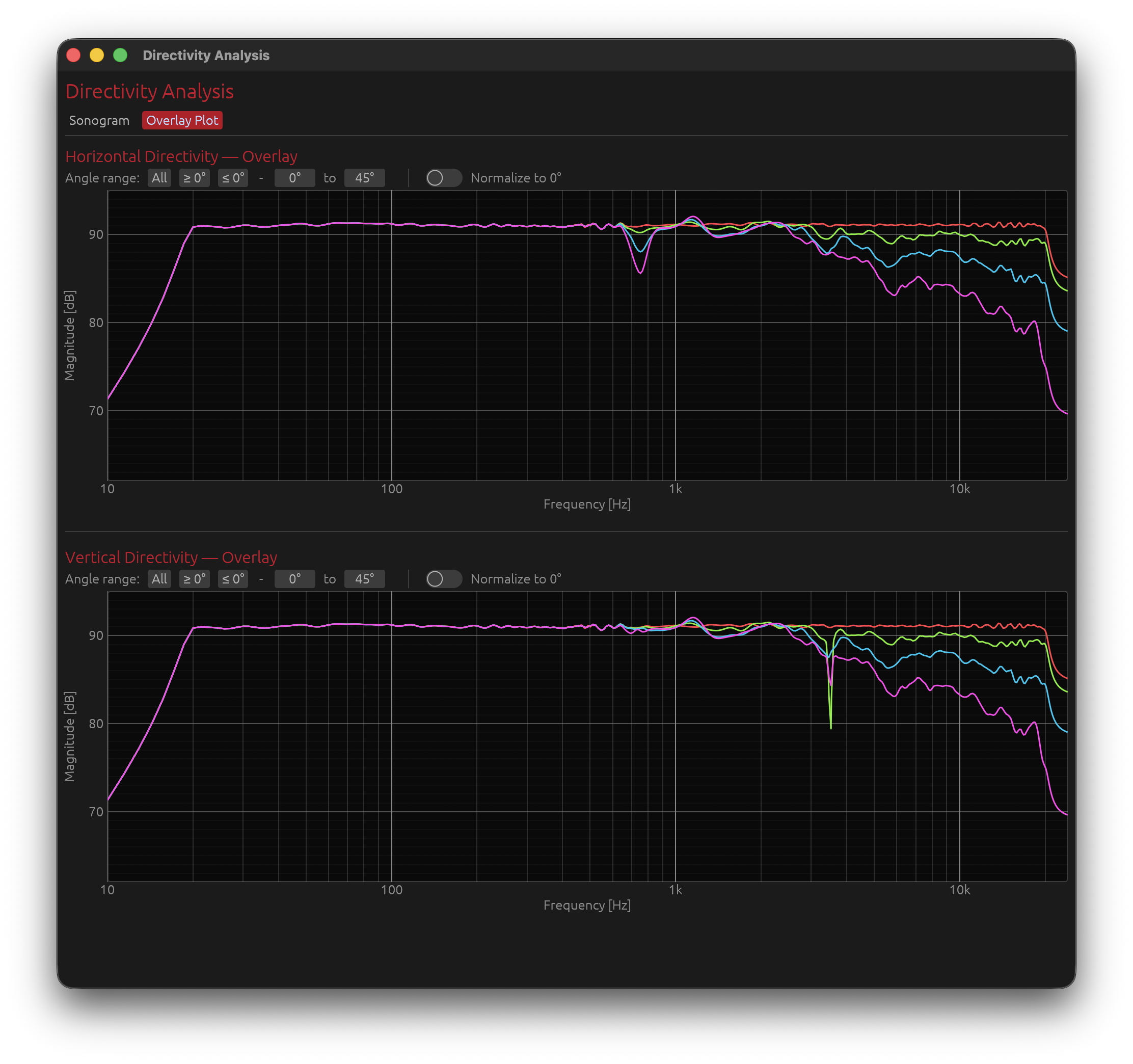
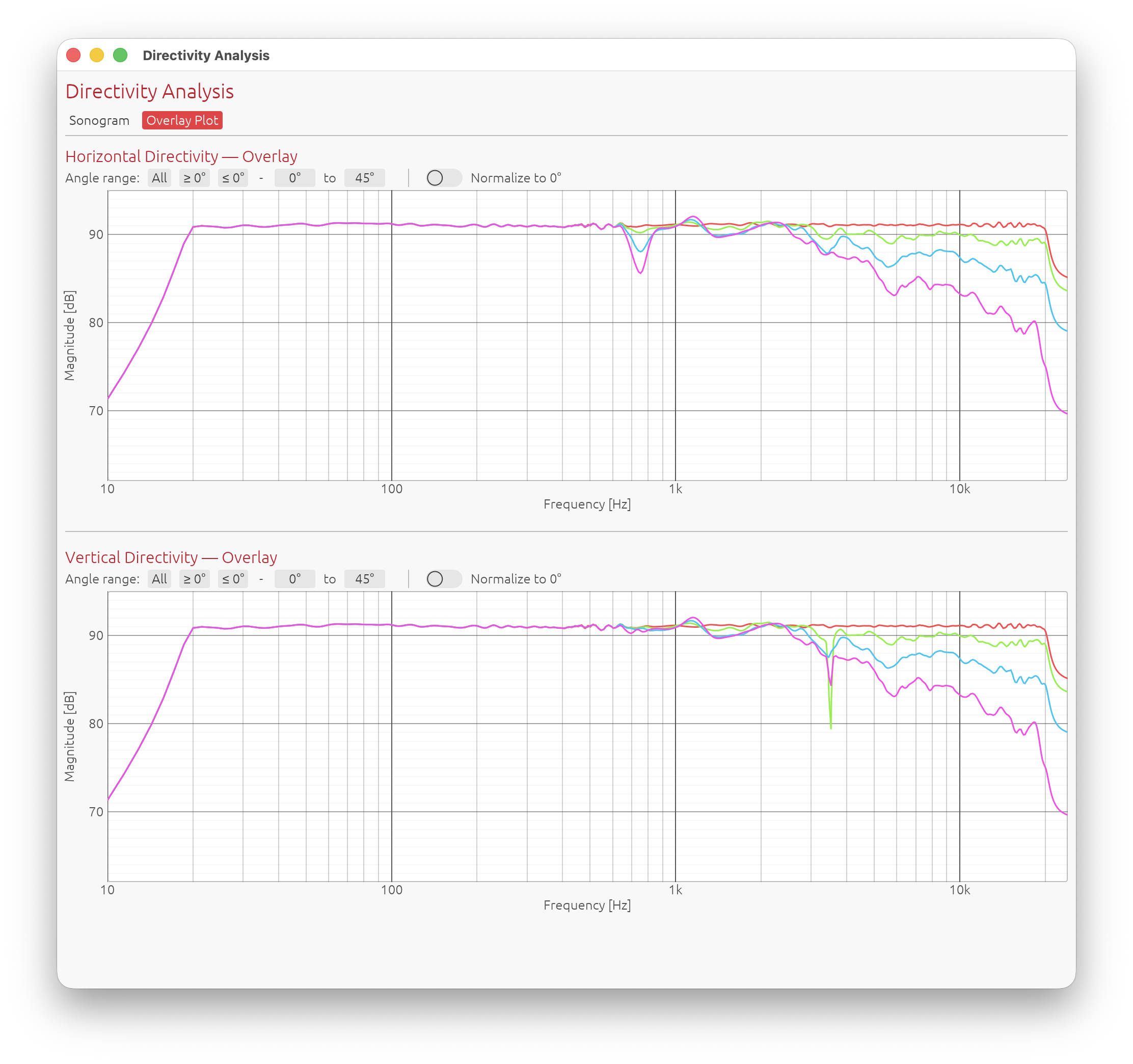
Curve Colours
Angles are mapped to a rainbow colour scale (red → yellow → green → cyan → blue → violet) from the minimum to the maximum angle in the current filter selection.
The angle, frequency, and magnitude are shown in a tooltip when hovering over a curve.
Angle Range Filter
Three preset buttons restrict which angles are plotted:
| Button | Effect |
|---|---|
| All | Show all measured angles |
| ≥ 0° | Positive angles only (0° to max) — default |
| ≤ 0° | Negative angles only (min to 0°) |
A drag-value min/max selector allows fine-grained control of the displayed range. The Y-axis auto-scale updates whenever the selection changes.
Normalize to 0°
The Normalize to 0° toggle divides each curve by the on-axis (0°) response (reference computed up to 20 kHz to avoid tweeter resonance peaks):
- The on-axis curve becomes flat at 0 dB
- All other curves show their deviation relative to on-axis at each frequency
- The Y-axis label changes to Relative Magnitude [dB]
- The vertical range is anchored to the configured magnitude lower bound (e.g. −30 dB to +3 dB)
- Curves can show positive dB values where the off-axis response exceeds the on-axis reference at a given frequency
Interpreting the Overlay Plot
Tightly clustered curves:
- Similar response at all angles → well-controlled directivity
- Especially important in the crossover region
Curves spreading at high frequencies:
- Normal behaviour — drivers beam as frequency rises
- A gradual, smooth spread indicates controlled directivity
Sudden divergence at a specific frequency:
- Possible crossover lobing or driver interference at that frequency
- Cross-reference with the sonogram to confirm
With Normalize to 0° enabled:
- Flat normalized curves (near 0 dB) across ±30° indicate a speaker whose tonal balance is consistent within the listening window
- A normalized curve that drops sharply above a certain frequency indicates the onset of beaming
- Positive dB values on off-axis curves indicate angles where the response exceeds the on-axis reference — this can occur with wider dispersion drivers or in crossover regions
Why Time-of-Flight Matters
Physics of Multi-Driver Interference
When multiple drivers reproduce the same frequency range, their outputs combine in space. The phase relationship between drivers depends on:
- Physical separation between drivers (geometry)
- Acoustic path length differences to the measurement point
- Crossover filter phase shifts
How Time-of-Flight Encodes This
Each driver’s impulse arrives at a slightly different time:
- This delay represents the acoustic path length to the microphone
- At the on-axis position, path lengths may be similar
- At off-axis positions, path length ratios change
Off-axis measurements capture geometry:
- Driver A might be 1.0 meters away on-axis
- Driver B might be 1.05 meters away on-axis (5 cm path difference)
- At +30° off-axis, Driver A might be 0.95 m and Driver B might be 1.15 m (20 cm difference)
- This changing path length ratio creates interference patterns
These delays create directivity:
- At some frequencies, drivers sum constructively (in phase)
- At other frequencies, drivers sum destructively (out of phase)
- The frequency where this happens depends on the angle (because path lengths change with angle)
- This is the fundamental physics of directivity
What Happens If You Remove TOF without keeping relative delays
Time-aligning removes geometric delay information:
- All drivers appear to arrive at the same time
- DI calculation assumes drivers are co-located (all at the same point in space)
- This is physically incorrect for real speakers
Predicted interference patterns don’t match reality:
- Off-axis nulls and peaks won’t appear
- Directivity sonograms show incorrect lobing
- DI curve does not reflect actual radiation pattern
Example:
With TOF preserved:
- Tweeter and woofer are 15 cm apart vertically
- At 2.3 kHz (wavelength ≈ 15 cm), expect null at certain off-axis angles
- DI curve shows this correctly
With TOF removed (time-aligned):
- Software thinks drivers are co-located
- Predicts no null at 2.3 kHz
- DI curve is smooth (incorrect)
- Real speaker still has null at 2.3 kHz off-axis
Proper Workflow
1. Capture IR with full time-of-flight intact
- Use proper timing reference (electric loopback or acoustic chirp)
- Do not apply windowing that removes acoustic delay
- Preserve the natural arrival time differences
2. Import into LinFIR preserving the delay
- Keep the raw impulse peak positions as captured or remove the same amount of time across all measurements
- Each angle will have slightly different delay values (this is correct)
3. Apply crossover filters
- Crossovers add their own phase shifts
- These combine with geometric delays
4. LinFIR predicts directivity
- Calculation includes both geometry (TOF) and filtering (crossover phase)
- Spherical integration over all measured angles
- Result: realistic DI and sonograms
5. Sonogram shows realistic interference
- Interference patterns reflect both driver spacing and crossover design
- Allows optimization of crossover for desired directivity
Limitations and Best Practices
Measurement Density
More angle measurements = more accurate prediction
- Minimum recommended: 7 angles per axis (±90° in 30° steps)
- Good: 13 angles per axis (±90° in 15° steps)
- Ideal: 19 angles per axis (±90° in 10° steps) or finer
Why density matters:
- DI calculation uses spherical integration
- Sparse measurements = poor integration accuracy
- Fine measurements = more accurate directivity prediction
Room Reflections
Directivity analysis is most accurate in anechoic conditions
- Room reflections distort off-axis measurements
- Early reflections appear as interference in the sonogram
- Can create false lobing patterns
Mitigation strategies:
- Measure outdoors (less reflections)
- Measure in large room with speaker away from walls
- Use gating/windowing carefully:
- Remove late reflections (>10 ms after main arrival)
- Use Adaptive Window to preserve bass while gating reflections
Microphone Position
Keep measurement distance constant:
- Same distance for all angles
- Ensures consistent SPL normalization
- Eliminates distance-related level variations
Farfield measurements (>1 meter) work best:
- Avoids nearfield effects
- Drivers behave as coherent sound sources
- More accurate directivity prediction
Microphone height:
- Should match speaker acoustic center
- For 2-way speaker, typically between tweeter and woofer
- Ensures symmetric vertical measurements
Computational Notes
DI calculation uses spherical integration:
- Computationally intensive (integrates over all angles and frequencies)
- May take a few seconds for dense polar data
Sonogram generation:
- Creates high-resolution 2D images (frequency × angle)
- Parallel processing used for speed
- Results are cached to improve performance
Getting a License
To unlock Directivity Analysis tools:
- Visit the LinFIR website: https://demaudio.com/linfir/
- Purchase a license key
- Enter your e-mail and key in LinFIR: Settings → License
- All directivity features will be enabled immediately
Your license supports:
- Ongoing development
- New features
- Bug fixes and improvements
Related Documentation
- IR Management: Capturing and managing off-axis measurements
- Audio Setup: Configuring audio interface, measurement settings, and timing reference for accurate polar measurements
- Driver Processing: Crossover design and optimization
Summary
Directivity Analysis tools characterize how your speaker radiates sound in different directions:
Features:
- Off-axis frequency response visualization at any angle
- Directivity Index (DI) prediction across the spectrum
- Listening Window, Predicted In-Room Response (PIR), Early Reflections, Sound Power and Early Reflections DI curves, following the ANSI/CTA-2034-A (“CEA-2034”) spinorama standard
- Directivity sonograms (2D colour-mapped heatmaps, frequency × angle)
- Overlay Plot (all off-axis curves superimposed, with angle range filter and normalize to 0° toggle)
Requirements:
- Valid LinFIR license
- Polar measurements at multiple angles (horizontal and vertical)
- Preserved time-of-flight
- Proper timing reference (electric loopback or acoustic chirp)
Key Concepts:
- Time-of-flight encodes driver geometry (must be preserved)
- DI quantifies how directional the speaker is (0 dB = omni, higher = more directional)
- Sonograms visualize radiation patterns (hot colors = on-axis energy, cool = off-axis attenuation)
- Overlay Plot superimposes all off-axis curves for precise frequency-domain comparison; normalize to 0° shows deviation relative to on-axis
- Crossover optimization based on directivity for consistent off-axis response
Workflow:
- Configure timing reference (electric loopback recommended)
- Capture polar measurements for each drivers (preserve time-of-flight)
- Design crossovers and apply filters
- View off-axis curves, DI, sonograms, and overlay plots
- Optimize crossover for desired directivity pattern
- Iterate based on measurements
Use directivity analysis to understand and optimize your speaker’s radiation pattern for better room interaction and consistent sound across the listening area.
Distortion Impulse Responses 🔒
License Required: The Distortion IR window requires a valid LinFIR license.
The Distortion IR window visualises the time-domain harmonic impulse responses (\(h_2\) through \(h_5\)) extracted from an ESS (Exponential Sine Sweep) Farina measurement. It shows the same windowed slices used to compute the THD spectrum.
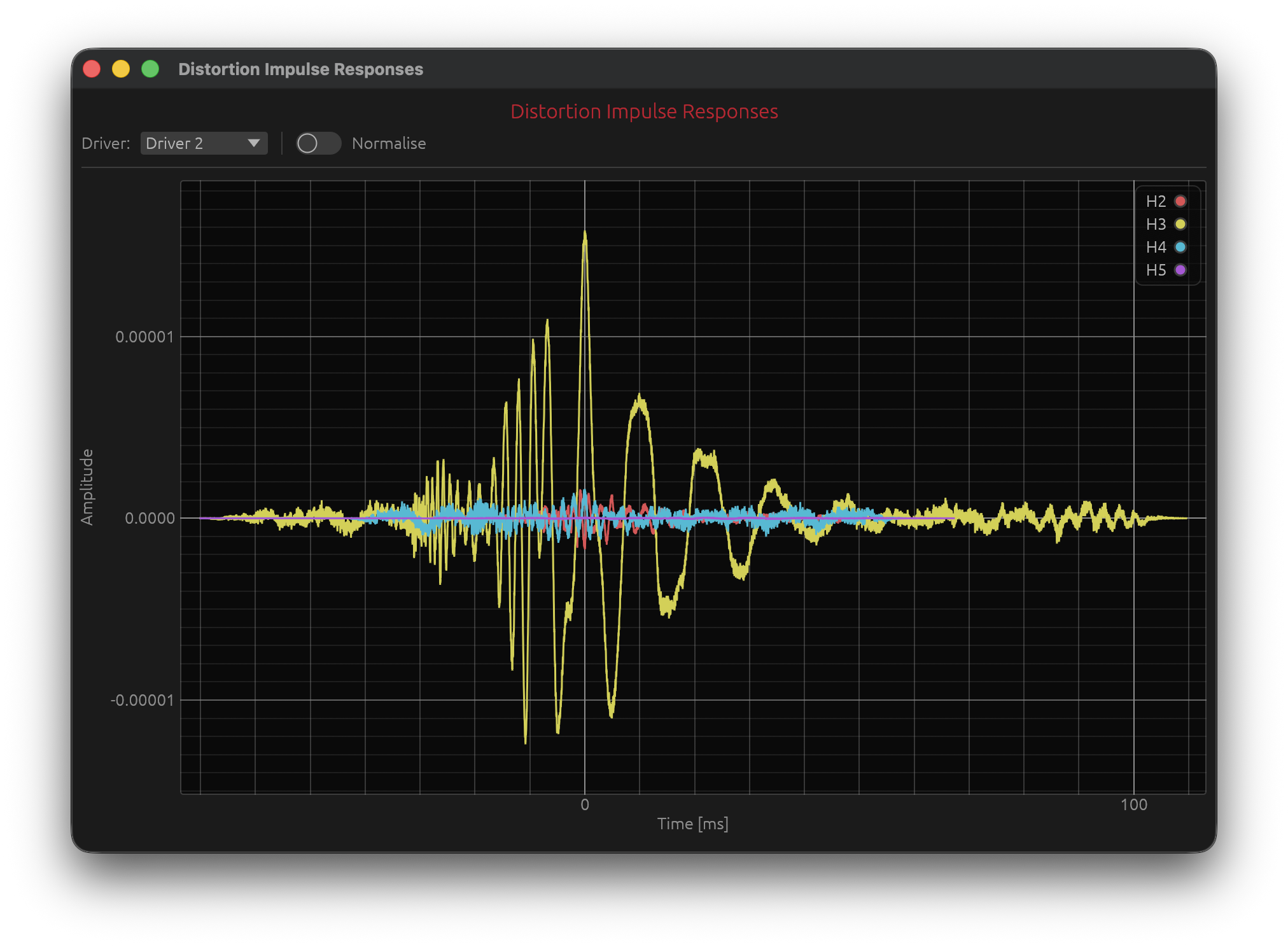
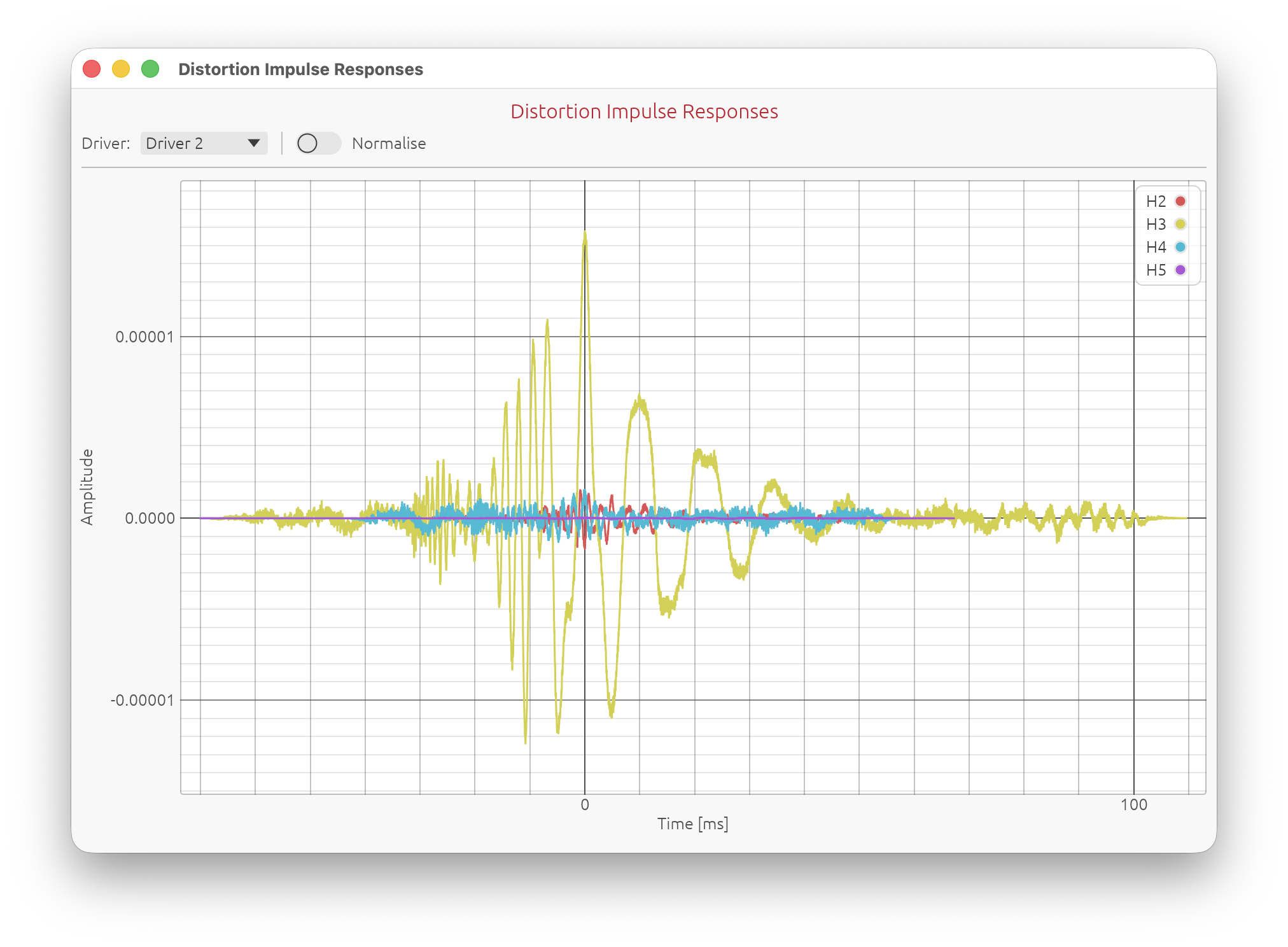
Accessing the Distortion IR Window
Menu: View → Distortion IR
Keyboard shortcut: J
The window is available in Loudspeaker Design and Hypex FusionAmp modes, and requires that at least one driver has a valid ESS harmonic measurement.
What It Shows
When a driver is measured using the Sweep Measurements system (ESS method), LinFIR separates the harmonic components of the impulse response using the Farina deconvolution technique. Each harmonic order (k) arrives at a distinct, predictable time offset before the fundamental:
$$\Delta t_k = \frac{T_s \cdot \ln(k)}{\ln(f_2 / f_1)}$$
where \(f_1\), \(f_2\) are the sweep start and end frequencies and \(T_s\) the sweep duration.
The Distortion IR window displays these separated impulse response slices — \(h_2\), \(h_3\), \(h_4\), \(h_5\) — on a shared time axis, with all peaks aligned to the same time origin so the shape of each harmonic can be compared directly.
Angle Dependence
The displayed measurement follows the global angle selector. When a non-zero horizontal or vertical angle is selected, the window shows the harmonic impulse responses from the matching off-axis measurement (if one exists). The window title and header update to indicate the active angle, e.g.:
Distortion Impulse Responses — +15°H +0°V
If no measurement exists for the selected angle, the window automatically falls back to the on-axis (0°H 0°V) measurement.
Controls
Driver Selector
A ComboBox at the top of the control bar selects which driver’s harmonic slices are displayed.
Normalise
The Normalise toggle scales each harmonic curve independently so its peak amplitude equals 1.0. This makes the shape of each impulse response directly comparable regardless of the absolute distortion level.
With normalisation disabled, the amplitudes are proportional to the actual distortion levels.
Note: Normalise is a purely visual operation. It does not affect the underlying computation or the THD/distortion values in the main graphs.
Extraction and Windowing
Each harmonic slice is extracted as follows:
- Theoretical peak positions for \(h_2\)–\(h_{MAX}\) are computed from the ESS parameters.
- Cut points are located at the minimum of the smoothed Hilbert envelope between each pair of adjacent theoretical peaks, with a 5 % margin on each side to avoid touching either peak. This maximises the separation between harmonics and adapts automatically to any sweep duration or sample rate.
- Each slice is extracted between its two cut points — no overlap between adjacent harmonics.
- Sub-sample fractional delay correction is applied to align each harmonic to its exact theoretical position.
- Phase offset correction removes the constant phase bias introduced by the Farina deconvolution for each harmonic order.
- DC removal is applied.
- A 5 % raised-cosine fade-in / fade-out is applied to both ends of the slice before peak alignment. This windowing is independent for each harmonic and does not depend on the \(h_1\) IR window settings, because harmonic impulse responses can extend significantly further in time than the fundamental.
- All slices are zero-padded at the front so their peaks are aligned to a common time reference.
Distortion IR window shows the slices exactly as they enter the THD spectrum computation.
Requirements
- Driver must have an ESS sweep capture (exponential sine sweep measurement via Sweep Measurements).
- A valid LinFIR license is required to open the window.
Related Documentation
- Sweep Measurements — ESS measurement procedure and parameters
- Driver Processing — IR windowing for the fundamental \(h_1\)
- Spectrogram — time-frequency view of the full impulse response
- Directivity Analysis — off-axis frequency response visualisation
- License — license features and activation
Updating LinFIR
LinFIR checks for new releases automatically. How the update is actually applied depends on the platform.
Windows
Windows builds are distributed through the Microsoft Store. Updates are handled entirely by the Store — LinFIR does not check for or install updates itself on Windows. No action is needed: the Store updates the app automatically according to your Windows update settings.
macOS
On macOS, LinFIR checks for new releases in the background and, when one is available, shows a notification window in the bottom-right corner of the screen:
- Update available: the window reads “Update available — vX.X.X (current: vX.X.X)”, with an Install vX.X.X button.
- Click Install to download and install the update. A progress bar tracks the download; the app stays fully responsive while it downloads.
- Once installed, the window switches to “Update vX.X.X installed” with a 🔄 Restart Now button.
- Click Restart Now to relaunch LinFIR with the update applied. The current instance closes and the updated one starts automatically — no need to quit and reopen manually.
The window can be dismissed (x, top-right of the window) at any point before the download starts. Dismissing only skips it for the current session — it reappears the next time you launch LinFIR, or immediately if a newer release than the one you dismissed becomes available.
⚠️ Do not force-quit LinFIR while an update is downloading or installing (i.e. while the progress bar is showing). Interrupting it partway through — killing the process, a system shutdown, a crash — can leave the application bundle in a corrupted, unusable state, since the update replaces the running executable on disk.
If that happens: download the latest version directly from demaudio.com/linfir/ and reinstall over the corrupted copy. No project data is at risk — your .lnf project files live independently of the application itself and are unaffected either way.
Troubleshooting
This guide covers common issues and their solutions when using LinFIR.
For issues with the update process itself (interrupted update, corrupted install), see Updating LinFIR.
Sweep Measurement Issues
Capture Rejected - Clipping Detected
Error Message: Capture rejected: Clipping detected! Reduce input gain and try again.
Cause: The recorded signal exceeded 0 dBFS (digital full scale), causing clipping/distortion.
Solutions:
- Reduce input gain on your audio interface
- Lower driver volume or move microphone further away from the speaker
- Check gain staging throughout the signal chain:
- Audio interface preamp gain
- Mixer/console levels (if used)
- Microphone sensitivity
- Verify microphone input isn’t overloading (check interface clip indicators)
- Use pad/attenuation if your microphone or interface has this option
Prevention: Start with low input gain and gradually increase while monitoring level meters during test sweeps.
Low Signal Level Warning
What you’ll see: An always-on-top Low Signal Level Warning dialog with Keep Anyway / Discard buttons, instead of the capture being discarded automatically.
Cause: The recorded signal is below -25 dBFS, resulting in poor signal-to-noise ratio. This no longer rejects the capture outright — click Keep Anyway if the level is acceptable for your purposes, or Discard and apply the solutions below. Settings → General → Always keep low-SNR measurements skips this dialog and keeps low-level captures automatically (see General Settings).
During an unattended auto-scan, a low level still produces the
Capture rejected: Signal too low (-XX.X dB)! Increase input gain and try again.error and aborts the scan immediately, unless the setting above is enabled — see Auto-Scan with a Rotation Table.
Solutions:
- Increase input gain on your audio interface
- Raise driver volume or move microphone closer to the speaker
- Check microphone connection:
- Ensure cable is properly connected
- Verify phantom power is enabled (for condenser microphones)
- Test microphone with other software to confirm it’s working
- Verify audio routing:
- Confirm correct input channel is selected in Audio Settings
- Check that no mute or pad switches are engaged
- Ensure audio interface is set as the active input device
Target Level: Aim for peak levels between -12 dBFS and -6 dBFS for optimal signal-to-noise ratio.
Timing Reference Issues
Error Message: Timing reference not detected (correlation too low: -XX.X dB). Check channels and levels.
Cause: LinFIR cannot detect the timing reference signal (Acoustic or Loopback mode).
Solutions:
For Acoustic Timing Reference:
- Verify microphone positioning: Timing reference speaker must be within the microphone’s field
- Check timing reference level: Signal should be audible
- Increase output level of the timing reference channel
- Verify channel routing: Ensure timing reference is sent to the correct output
For Loopback Timing Reference:
- Verify physical loopback cable is properly connected
- Check loopback input channel selection in Audio Settings
- Ensure loopback signal isn’t attenuated (no pads, no gain reduction)
- Test loopback path independently (send signal and monitor input)
Error Message: Timing reference signal is CLIPPING (≥ 0 dBFS). Reduce timing reference output level or input gain to prevent distortion.
Solution: Reduce output level or input gain for the timing reference channel until clipping stops.
No Audio During Sweep
Symptoms: Sweep doesn’t play, or plays but no sound is heard.
Solutions:
- Verify device selection in Audio Settings tab:
- Output device is correct
- Input device is correct
- Channels are properly mapped
- Check hardware connections:
- Audio interface is powered on
- Speakers/amplifiers are connected and powered
- Cables are properly seated
- System audio settings:
- Ensure audio interface is not muted in system settings
- Check exclusive mode settings (Windows)
- Verify sample rate compatibility
- Try different buffer sizes:
- Start with 512 or 1024 samples
- Increase if experiencing dropouts
- Test with another application to confirm audio interface is functioning
Windows Specific: Disable exclusive mode for the audio device in Windows Sound Settings if LinFIR cannot access it.
Poor Quality Measurements
Symptoms: Noisy frequency response, irregular impulse response, inconsistent results.
Solutions:
- Use longer sweep duration:
- Minimum 5 seconds for small rooms
- 10+ seconds for large rooms or outdoor measurements
- Longer sweeps improve signal-to-noise ratio
- Minimize background noise:
- Turn off HVAC systems during measurement
- Close windows and doors
- Avoid traffic noise or other environmental sounds
- Choose quiet times of day
- Ensure stable microphone positioning:
- Use a sturdy microphone stand
- Avoid vibrations from speakers at high SPL
- Mark microphone position for repeatability
- Check for electrical interference:
- Use balanced cables (XLR) where possible
- Avoid running audio cables parallel to power cables
- Check for ground loops (hum at 50/60 Hz and harmonics)
- Use isolated/clean power for sensitive equipment
- Use multiple averages:
- 3-5 averages reduce random noise
- More averages improve consistency at the cost of time
- Verify measurement environment:
- Avoid highly reflective surfaces near microphone
- Ensure speaker is properly positioned
- Check for loose objects that might rattle
Unstable Audio Scheduling (Windows)
Error Message: Recording rejected: unstable Windows audio scheduling.
Cause: Windows audio subsystem experienced excessive timing jitter during capture.
Solutions:
- Close other applications using audio or consuming CPU
- Increase buffer size in Audio Settings (try 1024 or 2048 samples)
- Disable audio enhancements in Windows Sound Settings
- Update audio interface drivers to latest version
- Use ASIO drivers if available for your interface (more stable than WASAPI)
- Disable background services:
- Windows Update
- Antivirus real-time scanning
- Other system services during measurement
- Check power settings: Set to “High Performance” mode
IR Management Issues
File Import Problems
Symptoms: Cannot import WAV or TXT files, or imported data appears incorrect.
Solutions:
WAV Files:
- Verify file format: Only WAV files are supported (16/24/32-bit PCM or float)
- Check file integrity: Ensure file isn’t corrupted or truncated
- Try opening in another audio application
- Re-export from source if needed
- Sample rate must be reasonable: 44.1 kHz to 192 kHz
- Stereo files: LinFIR uses left channel only (mono conversion)
- Check file permissions: Ensure LinFIR has read access to the file
TXT (IR) Files:
- Format must be simple: One sample per line, decimal values
- Sample rate prompt: LinFIR will ask for sample rate (not stored in TXT)
- Check for non-numeric characters: Remove headers, comments, or invalid data
- Use proper decimal separator: Period (
.) not comma (,)
FRD (.frd or .txt) Files (REW format):
- Two-column format: Frequency (Hz) and Magnitude (dB)
- Tab or space delimited
- Check frequency range: Should cover at least 20 Hz to 20 kHz
- Phase column: Optional third column for phase (degrees)
Windowing Not Working
Symptoms: IR windowing doesn’t change the impulse response, or produces unexpected results.
Solutions:
- Verify time values:
- Stop Time must be > Start Time
- Times must be within IR duration
- Window times are in milliseconds, not samples
- Preview impulse response to verify window placement:
- Open Driver IR window
- Check impulse response plot
- Adjust Start/Stop times visually
- Common windowing scenarios:
- Early reflections removal: Set Stop Time before first strong reflection
- Noise truncation: Set Stop Time when IR decays into noise floor
- Leading silence removal: Set Start Time just before main impulse peak
IR Names Not Showing
Symptoms: Imported or measured impulse responses don’t have names, or show default names.
Explanation: LinFIR does not automatically set IR names based on filenames or measurements.
Solutions:
- Manually enter IR name:
- Open Driver IR window
- Type name in “IR Name” field
- Press Enter or click outside field to confirm
- Import and measurement operations:
- WAV import: No automatic naming
- Sweep measurement: No automatic naming
- FRD import: No automatic naming
- Save project to persist custom names:
- Use Cmd+S / Ctrl+S to save
- IR names are stored in project file
Best Practice: Name impulses immediately after import/measurement to avoid confusion later.
Audio Settings Issues
Device Not Listed
Symptoms: Expected audio interface doesn’t appear in device dropdown menus.
Solutions:
- Click “Refresh Devices” to rescan audio hardware
- Check audio interface:
- Ensure interface is powered on
- Verify USB/Thunderbolt connection is secure
- Try different USB port or cable
- Verify drivers are installed:
- Mac OS: Core Audio drivers (usually automatic)
- Windows: ASIO or manufacturer-specific drivers
- Close other applications using the audio interface:
- DAWs (Pro Tools, Logic, Ableton, etc.)
- Media players
- Communication apps (Zoom, Microsoft Teams, etc.)
- Try different sample rates or buffer sizes in LinFIR settings
- Restart LinFIR after connecting/disconnecting devices
- System permissions (Mac OS):
- Go to System Settings > Privacy & Security > Microphone
- Ensure LinFIR has microphone access
Configuration Invalid
Error: Audio configuration shows as invalid or cannot be applied.
Causes and Solutions:
-
Device disconnected:
- Selected input/output device is no longer available
- Click “Refresh Devices” and reselect devices
-
Channel count exceeds device capabilities:
- Verify device has enough input/output channels
- Check channel mapping (e.g., selecting channel 8 on a 2-channel interface)
-
Sample rate not supported:
- Audio interface may not support selected sample rate
- Try common rates: 48 kHz, 96 kHz, 44.1 kHz
- Check interface specifications
-
Buffer size incompatible:
- Some devices have minimum/maximum buffer size limits
- Try 512 or 1024 samples as a safe default
-
Exclusive mode conflicts (Windows):
- Another application may have exclusive control
- Disable exclusive mode in Windows Sound Settings
- Close competing applications
Recovery Steps:
- Click “Refresh Devices”
- Select “Default” input and output devices
- Choose a common sample rate (48 kHz)
- Set buffer size to 1024 samples
Filter Processing Issues
FIR Correction Not Applying
Symptoms: Enabling FIR correction doesn’t change frequency response.
Solutions:
- Check correction is enabled:
- Magnitude and/or Phase correction must be toggled ON
- Verify correction range (Max. Attenuation) is non-zero (e.g., 10 dB)
- Check frequency range covers desired bandwidth
- Verify target curve:
- Check that your reference points are defined correctly
- Reference shouldn’t be identical to measurement (no correction needed)
- Check causality setting:
- Linear phase (causality = 0): Maximum pre-ringing
- Minimum phase (causality = 1): No pre-ringing, phase distortion
- Mixed causality (0 < causality < 1): Balanced trade-off
- Increase filter length if correction is insufficient:
- Longer FIR = better correction accuracy
- Try doubling N taps (e.g., 2048 → 4096)
- View FIR filter response in Filters mode (F key):
- Switch to display mode “FIR Filters”
- Verify correction filter shape matches expectation
- Check FIR time alignment:
- Verify that the FIR coefficients are properly centered within the available taps
- Try changing FIR Offset Delay value to recenter FIR’s energy
- Enable Auto Causal Alignment in Settings and let LinFIR handle this process for you
Cannot See IIR Filter Effects
Symptoms: IIR filters are defined but don’t affect the frequency response.
Causes and Solutions:
-
IIR toggle is disabled:
- Click the “IIR Filters” toggle in the driver toolbar to enable it
- Both Manual IIR and Auto-EQ tabs share this same master toggle
-
Wrong tab is active:
- LinFIR has two separate IIR filter tabs: Manual and Auto-EQ
- Only the active tab’s filters are applied
- Click the tab you want to use to make it active
- You can have filters in both tabs, but only one tab is active at a time
-
No filters are enabled:
- In the active tab, verify that individual filters have their “Enabled” toggle ON
- Disabled filters are ignored even if the tab is active
-
Switching between Manual and Auto-EQ:
- Manual IIR tab: Manually configured filters (HP, LP, PEQ, shelves, etc.)
- Auto-EQ tab: Auto-generated or manually tweaked parametric EQ filters
- Use “Clone from Auto EQ” button to copy Auto-EQ filters to Manual tab
- Both tabs can coexist with different filter sets, but only one is active
Auto-EQ Not Matching Target
Symptoms: Auto-EQ result doesn’t match target curve well.
Solutions:
- Increase max filters allowed:
- More filters = better target matching
- Try 8-12 filters for complex targets
- Check frequency range:
- Auto-EQ only operates within specified f_min to f_max
- Reduce range if needed (e.g., 80 Hz to 16 kHz)
- Verify target curve is reasonable:
- Avoid extreme target shapes requiring >20 dB boost
- Use smooth target curves for better results
- Check smoothing:
- Over-smoothed measurements may prevent accurate matching
- Try 1/12 or 1/24 octave smoothing
- Run Auto-EQ again:
- Click “Run Auto EQ” to recompute
- Different starting conditions may produce better results
HFD Export Issues
Sample Rate Error
Error: HFD export requires 93.75 kHz sampling rate. Current: 96000 Hz
Solution: Hypex FA series amplifiers operate at 93.75 kHz internally.
Steps:
- Go to Target DSP Settings in the left column of the main window
- Change Sampling Frequency to 93.75 kHz
- Retry HFD export
Note: Changing sample rate will trigger re-processing of all filters.
Biquad Limit Exceeded
Error: Tweeter has 18 biquads but HFD supports max 15 biquads per channel
Cause: The sum of global IIR + driver IIR exceeds 15 biquads per output channel.
Solutions:
- Reduce IIR filter count:
- Remove unnecessary PEQ filters
- Combine shelves into broader adjustments
- Use fewer global IIR filters
- Reduce Auto-EQ filter count:
- Lower “Max Filters” setting in Auto-EQ
- Simplify target curve to require fewer filters
- Move filters to FIR domain:
- FIR crossovers instead of IIR (if tap budget allows)
- FIR correction instead of many PEQ filters
- Check biquad count for each filter type (see table in Export documentation)
Example:
- Driver IIR: LR4 HP, LR4 LP, 12× PEQ
- Total: 16 biquads ❌ Exceeds limit
Solution: Reduce PEQs to 11 filters → Total: 15 biquads ✅
FIR Length Exceeded
Error:
Global FIR has 6000 taps but Input position supports max 4500 tapsWoofer has 2000 taps but Output position supports max 1500 taps per channel
Cause: FIR filter length exceeds Hypex hardware limits.
Solutions:
For Input FIR (Global, 4500 taps max):
- Reduce Global FIR N taps in Global FIR Correction settings
For Output FIR (Per-channel, 1500 taps max):
- Reduce Driver N taps in driver settings
Decision Guide:
- Input FIR: Best for global room correction shared across all channels
- Output FIR: Best for per-driver crossovers and correction
Performance Issues
Slow Processing / UI Lag
Symptoms: LinFIR feels sluggish, filters take long to compute, UI updates are delayed.
Solutions:
- Reduce filter complexity:
- Lower FIR tap count (e.g., 4096 → 2048)
- Fewer IIR filters
- Disable unused filters
- Reduce graph resolution:
- Settings > Graphs > Plot Resolution
- Lower resolution = faster rendering
- Disable unnecessary graphs:
- Hide graphs you’re not using (M, P, G, I, T, K keys)
- Fewer visible graphs = less computation
- Close detached graph windows when not needed
- Check system resources:
- Close other CPU-intensive applications
- Ensure sufficient RAM available
- Reduce angle step in polar measurements:
- Try 10° or 15° steps instead of 5°
High Memory Usage
Symptoms: LinFIR consumes excessive RAM, system becomes slow.
Causes:
- Many drivers with long IRs: Each driver stores full impulse responses
- Many polar measurements: Full impulse responses are also stored for each measurement angle
- High-resolution graphs: More points = more memory
Solutions:
- Reduce IR length re-import externally generated IRs with proper windowing and truncation
- Use lower sample rates if 192 kHz is not needed
- Reduce N taps for FIR filters
- Reduce graph resolution Settings > Graphs > Plot Resolution
Project File Issues
Cannot Load Project
Error: Failed to load project or similar error when opening .lnf file.
Solutions:
- Check file integrity:
- Verify file size is reasonable (not 0 bytes)
- Legacy format migration:
- Older LinFIR versions may use incompatible format
- LinFIR attempts automatic migration, but may fail
- Try opening in latest LinFIR version
- Corrupted project:
- If file was saved during a crash, it may be incomplete
- Restore from a backup
- File permissions:
- Ensure LinFIR has read access to the file
- Try copying file to a different location
Prevention: Enable auto-save to save every 60 seconds.
Auto-Save Not Working
Symptoms: Projects don’t auto-save, or auto-save notifications don’t appear.
Verification:
- Auto-save is enabled by default
- Auto-save runs every 60 seconds in the background
- Auto-save only works if project has a saved path (use Cmd+S first time)
Troubleshooting:
- Save project manually first (Cmd+S) to establish a file path
- Check for errors: Look for error notifications in top-right corner
- Verify file permissions: Ensure LinFIR can write to project directory
- Check disk space: Ensure sufficient free space on drive
Note: Auto-save interval cannot be configured (fixed at 60 seconds).
License & Activation Issues
Directivity Features Locked
Symptoms: Cannot access the directivity analysis window (R key doesn’t work), directivity features grayed out.
Cause: Directivity analysis requires a valid license.
Solutions:
- Verify license status: Settings > License tab
- Activate license: Enter license key if you have one
- Check license expiration: Licenses may have time limits (trial)
- Mode requirement: Directivity is only available in Loudspeaker Design mode (not Room Calibration)
- Check internet connectivity: First activation (or deactivation) requires internet connectivity
Note: Free version includes all core loudspeaker design features but excludes advanced directivity analysis.
Getting Help
Bug Reports
LinFIR includes a built-in bug report feature to help diagnose issues:

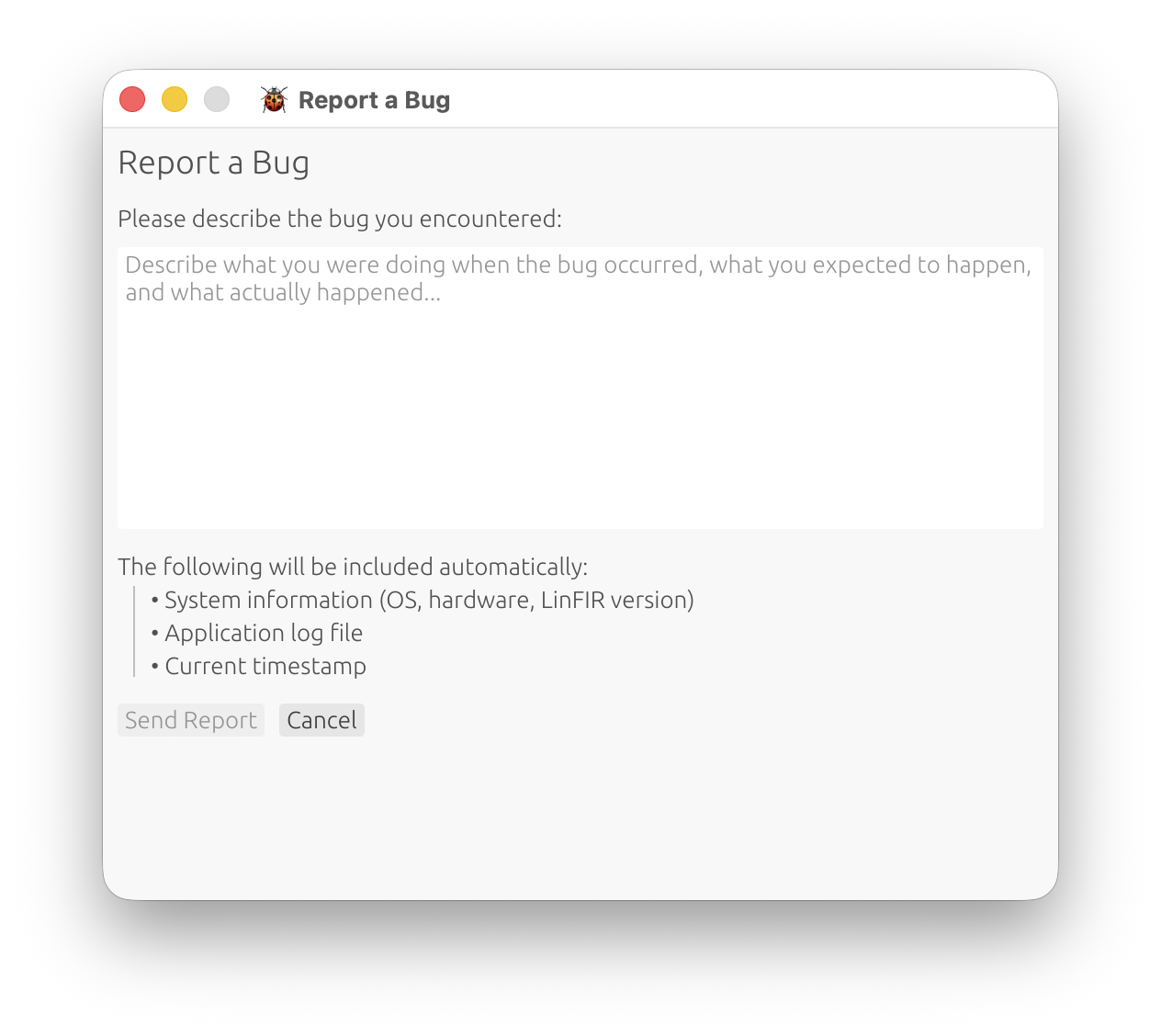
To Submit a Bug Report:
- Go to Help > Report a Bug
- Enter your email address - required, so we can follow up with you about the report
- Describe the issue clearly:
- What you were doing when the problem occurred
- What you expected to happen
- What actually happened
- Include steps to reproduce (if possible)
- Click “Submit”
For intermittent or hard-to-describe issues: if support asks for more detail than the default log captures, enable Verbose Logging (Settings → General → Diagnostics) first, reproduce the issue, then submit the bug report — the attached log file will include the extra detail. This setting isn’t saved between sessions (it always starts disabled), so there’s no need to remember to turn it off - though it’s still worth disabling once you’re done if you keep working in the same session, since it increases the log file’s size and how often it rotates.
Privacy:
- Your email address is transmitted, so we can reply to your report - no other personal information is
- No project data is included
- Only your email, relevant log information and system details are sent
What to Include:
- Clear description of the bug or unexpected behavior
- Exact steps to reproduce the issue
- Expected vs. actual outcome
- System information: OS version, audio interface model (if relevant)
- Error messages (if any appear)
Community & Support
Additional Resources:
- User Manual: Press H to open embedded documentation
- Release Notes: Check for known issues and recent fixes
- Email Support: Contact developer for persistent issues
Before Reporting:
- Check this troubleshooting guide
- Verify you’re using the latest LinFIR version
- Test with a fresh project to isolate the issue
- Try restarting LinFIR and your audio interface
Related Documentation
- Audio Configuration - Detailed audio settings and device configuration
- Sweep Measurements - Measurement procedures and best practices
- IR Management - Importing, windowing, and managing impulse responses
- HFD Export - HFD export requirements and validation
- Keyboard Shortcuts - Quick reference for all shortcuts
Acoustic Advisory
This section provides important guidance on the physical limitations of DSP-based room correction and loudspeaker design.
The Limits of DSP Correction
Understanding Physical Nulls
Deep cancellations (nulls) from room modes or driver boundary interference (SBIR - Speaker Boundary Interference Response) are physical destructive interference patterns and generally cannot be “fixed” by boosting with FIR correction or IIR PEQ.
Why Nulls Cannot Be Corrected:
- Destructive Interference: Nulls occur when direct sound and reflected sound arrive out of phase, canceling each other
- Spatial Dependency: The cancellation exists at specific locations but not everywhere in the room
- Energy Conservation: You cannot add energy where none exists due to phase cancellation
- Headroom Waste: Boosting into nulls consumes massive headroom without improving the actual acoustic situation
Example: A 20 dB null at 80 Hz cannot be filled by adding 20 dB boost at 80 Hz. The boost will:
- Waste amplifier power
- Increase distortion
- Worsen the response at other listening positions
- Create excessive excursion demands on drivers
EQ Best Practices
What EQ Can Fix
Effective Uses of EQ:
- Broad, minimum-phase peaks: Driver resonances, baffle diffraction effects
- Overall target shaping: House curve, tilt, broad spectral balance
- Crossover integration: Blending drivers at crossover region
- Driver mismatch correction: Sensitivity differences between drivers
Example: A 5 dB broad peak at 3 kHz from a tweeter resonance is an ideal candidate for PEQ correction.
What EQ Cannot Fix
Ineffective Uses of EQ:
- Deep, narrow nulls (> 6-8 dB depth): Room modes, SBIR, comb filtering
- Path length cancellation: Nulls from multiple drivers or reflections
- Non-minimum-phase dips: Cannot be corrected without introducing pre-ringing
- Spatial nulls: Cancellations that vary significantly with listener position
Example: A 15 dB null at 50 Hz from a room mode should be addressed with:
- Subwoofer repositioning
- Multiple subwoofers (spatial averaging)
- Bass traps and acoustic treatment
- Listener position adjustment
Not with: A 15 dB PEQ boost at 50 Hz
Boost Guidelines
Conservative Boost Limits
General Recommendations:
- Avoid large boost into deep nulls: Limit boost to ~6-8 dB maximum
- Focus on peaks, not nulls: Cutting peaks is acoustically sound, boosting nulls is not
- Relatively broad adjustments: Wide Q filters (0.5-6.0) for gentle shaping
- Preserve headroom: Every dB of boost reduces available headroom
Why 6-8 dB Limit?:
- Beyond this level, you’re likely boosting into a physical null
- Distortion increases exponentially with excursion (especially at low frequencies)
- Power requirements increase by 2× per 3 dB boost
- Thermal compression reduces actual output gain
Boost vs. Cut Philosophy
Prefer Cutting over Boosting:
- Cut peaks: Removes excess energy without headroom penalty
- Boost sparingly: Only for broad, gentle shaping
- Net gain reduction: Apply global gain to compensate for cuts
Example Workflow:
- Identify a broad peak at 2 kHz (+4 dB)
- Cut with PEQ: -4 dB at 2 kHz, Q = 1.0
Room Correction Strategies
Spatial Averaging (Multiple Mic Positions)
Why Multiple Positions Matter:
- Room modes and nulls vary significantly with position
- Single-point measurements can be misleading
- Averaging reduces emphasis on position-specific anomalies
- Produces more robust correction that works across a larger listening area
Recommended Approach:
- Measure at 3-5 positions within the listening area
- Use Room Calibration mode in LinFIR to average responses
- Apply correction based on averaged response
- Focus on fixing common peaks across all positions
- Ignore position-specific nulls (cannot be fixed for all positions)
Physical Solutions First
Order of Priority:
-
Speaker and Listener Placement:
- Wall distance: Keep speakers 5 cm to 1 m from rear wall
- Avoid placing directly against walls (especially with rear-ported designs)
- Don’t exceed ~1 m distance to prevent comb filtering issues in bass/low-midrange
- Closer placement (<50 cm) shifts SBIR null higher in frequency (less problematic with speaker directivity)
- Farther placement (50-100 cm) shifts SBIR null lower in frequency (more problematic for bass)
- Adjust listening position to avoid room mode nulls
- Use the “rule of thirds” as a base for room placement
- Experiment with toe-in and speaker spacing
- Wall distance: Keep speakers 5 cm to 1 m from rear wall
-
Bass Management:
- Multiple subwoofers for spatial averaging
- Distributed Bass Array (DBA) for modal smoothing
- Subwoofer crawl technique to find optimal placement
- Phase and time alignment between subs and mains
-
Acoustic Treatment:
- Bass traps in corners for low-frequency modal control
- Absorption at first reflection points
- Diffusion on rear wall for controlled reflections
-
DSP Correction (Last Step):
- Correct broad, minimum-phase peaks
- Apply target curve shaping
- Light smoothing of overall response
- Do not aggressively boost nulls
Frequency Region Strategies
Below Room Transition (Schroeder Frequency)
Characteristics:
- Strong modal behavior (room modes dominate)
- Deep nulls and sharp peaks
- Response varies dramatically with position
- Typically 80-200 Hz depending on room size
Recommended Approach:
- Repositioning and treatment are most effective
- Use multiple subwoofers for spatial averaging
- Apply bass traps to control modal ringing
- Light EQ for broad peaks only (avoid boosting nulls)
- Expect imperfect results (physics limits DSP)
Why EQ Struggles:
- Nulls are spatial (different at every position)
- Boosting nulls creates problems at other positions
- Time-domain ringing (long decay times) cannot be fixed with EQ
Above Room Transition Frequency
Characteristics:
- Direct sound dominates
- Room modes are no longer the primary issue
- Speaker-room interaction remains important (perceived sound = direct + reflections)
- Two design philosophies emerge:
- Wide directivity: Uses room reflections for spaciousness (requires good crossover design)
- Controlled directivity: Limits room interaction for consistency across spaces
- Typically 200-300 Hz and above
Recommended Approach:
- Gate/window measurements to emphasize direct sound
- Focus on crossover design and driver integration
- EQ for target curve shaping and driver correction
- Time-align drivers for proper summation
Measurement Technique:
- Use impulse response windowing to exclude reflections
- Set window to capture direct sound only (e.g., 5-10 ms after arrival)
- This removes room influence and focuses on loudspeaker design
Speaker Boundary Interference Response (SBIR)
What is SBIR?
SBIR occurs when direct sound from a speaker combines with its reflection from a nearby boundary (floor, wall, ceiling).
Characteristics:
- Deep null at \(f_{null} = \frac{c}{4d}\) where \(c\) = speed of sound (343 m/s), \(d\) = distance to boundary
- Example: Speaker 1 meter from wall → null at ~86 Hz
- Cannot be fixed with EQ (phase cancellation)
Solutions:
- Move speaker closer to boundary: Drecreases \(d\), shifts null to higher frequency (less problematic with speaker directivity)
- Subwoofer integration: Crossover below SBIR null frequency
- Accept and avoid: Don’t boost the null, work around it
Why EQ Doesn’t Work:
- Null is caused by phase cancellation (180° out of phase)
- Adding energy (boost) cannot fix phase relationship
- Boosting wastes headroom and creates distortion
LinFIR Design Intent
Primary Use Case: Loudspeaker Design
LinFIR is optimized for:
- Driver and crossover design using anechoic or quasi-anechoic data
- Windowed measurements to isolate direct sound
- Crossover filter design (HP, LP, correction)
- Driver integration and phase alignment
- Target curve shaping
Best Results With:
- Outdoor measurements (no room reflections)
- Anechoic chamber measurements
- Gated far-field measurements (remove reflections)
Secondary Use Case: Room Correction
LinFIR can be used for room correction with realistic expectations:
Appropriate:
- Broad spectral balancing (house curve, tilt)
- Correction of broad peaks from room modes
- Light smoothing of overall response
- Spatial averaging across multiple measurement positions
Inappropriate:
- Aggressive boosting of deep nulls
- Single-point correction without spatial averaging
- Expecting perfect flat response in a typical room
- Relying solely on DSP instead of acoustic treatment
Realistic Expectations:
- DSP has fundamental limits
- Room acoustics require multi-faceted approach (placement + treatment + modest EQ)
- Perfect correction is impossible in modal region
- Best results come from combining all techniques
Common Mistakes to Avoid
1. Boosting Nulls Aggressively
Mistake: Applying 15 dB boost to fill a room mode null at 80 Hz.
Why It’s Wrong:
- Null is caused by destructive interference (cannot add energy where none exists)
- Boost increases distortion and thermal compression
- Worsens response at other listening positions
- Wastes amplifier headroom
Correct Approach:
- Reposition subwoofer or listening position
- Add second subwoofer for spatial averaging
- Use bass traps to dampen modal ringing
- Accept a small null (better than aggressive boost)
2. Single-Point Measurement for Room Correction
Mistake: Measuring at one position and correcting for that spot only.
Why It’s Wrong:
- Room response varies dramatically with position (especially below 200 Hz)
- Correction optimized for one spot often worsens others
- Modal nulls and peaks are position-dependent
Correct Approach:
- Measure at 3-5 positions within listening area
- Use Room Calibration mode for spatial averaging
- Correct only features common across all positions
- Ignore position-specific nulls
3. Ignoring Physical Solutions
Mistake: Relying only on DSP to fix all acoustic problems.
Why It’s Wrong:
- Physical placement and treatment are more effective for many issues
- DSP cannot fix phase cancellation, time-domain ringing, or spatial nulls
- Some problems have no DSP solution
Correct Approach:
- Optimize speaker and listener placement first
- Add acoustic treatment (bass traps, absorption, diffusion)
- Use multiple subwoofers if needed
- Apply DSP as final polish (not primary solution)
4. Over-Damping the Room
Mistake: Covering all walls with absorption to eliminate reflections.
Why It’s Wrong:
- Rooms need some reflections for spaciousness and envelopment
- Over-damping creates a “dead” sound
- Low frequencies are unaffected (absorption ineffective below 200 Hz without massive thickness)
Correct Approach:
- Treat first reflection points only
- Use bass traps in corners for low-frequency control
- Add diffusion (not just absorption) for controlled reflections
- Preserve room liveliness (some reflections are good)
5. Excessive FIR Correction Gain
Mistake: Applying FIR correction with 15 dB boost at low frequencies to “flatten” response.
Why It’s Wrong:
- FIR correction amplifies everything, including distortion and noise
- Massive boost wastes headroom
- Likely boosting into nulls that cannot be fixed
- Thermal compression reduces actual gain achieved
Correct Approach:
- Limit FIR correction to reasonable ranges (±6-8 dB)
- Focus on correcting broad peaks (cutting, not boosting)
Summary: Best Practices
DO:
✅ Focus EQ on broad, minimum-phase peaks
✅ Use spatial averaging (multiple mic positions) for room correction
✅ Combine placement, treatment, and modest DSP
✅ Window measurements above transition frequency to isolate direct sound
✅ Limit boost to ~6-8 dB maximum
✅ Prefer cutting peaks over boosting nulls
✅ Use LinFIR for driver and crossover design (primary use case)
DON’T:
❌ Boost deep, narrow nulls (> 6-8 dB)
❌ Rely solely on DSP for room correction
❌ Expect perfect flat response in modal region
❌ Apply single-point correction without spatial averaging
❌ Ignore physical solutions (placement, treatment)
❌ Over-damp the room (preserve some reflections)
❌ Boost nulls caused by SBIR or room modes
Physical Acoustics Primer
Speed of Sound
\(c = 343 \text{ m/s}\) (at 20°C, sea level)
Wavelength Formula: \(\lambda = \frac{c}{f}\)
Examples:
- 20 Hz → 17.15 m wavelength
- 100 Hz → 3.43 m wavelength
- 1 kHz → 0.343 m (34.3 cm)
- 10 kHz → 0.034 m (3.4 cm)
Implications:
- Low frequencies have long wavelengths → difficult to control with treatment
- High frequencies have short wavelengths → easy to absorb, control
Room Modes
Axial Mode Formula (between parallel walls):
\[f_n = \frac{nc}{2L}\]
where \(n\) = 1, 2, 3… (mode number), \(L\) = room dimension
Example (5m room length):
- 1st mode: \(f_1 = \frac{343}{2 \times 5} = 34.3 \text{ Hz}\)
- 2nd mode: \(f_2 = \frac{2 \times 343}{2 \times 5} = 68.6 \text{ Hz}\)
- 3rd mode: \(f_3 = \frac{3 \times 343}{2 \times 5} = 102.9 \text{ Hz}\)
Modal Density: Number of modes per Hz increases with frequency. At high frequencies, modes overlap (modal smoothing).
Schroeder Frequency (Room Transition)
Approximate Formula:
\[f_s \approx 2000 \sqrt{\frac{RT_{60}}{V}}\]
where \(RT_{60}\) = reverberation time (seconds), \(V\) = room volume (m³)
Typical Living Room (50 m³, RT60 = 0.4s):
\[f_s \approx 2000 \sqrt{\frac{0.4}{50}} \approx 179 \text{ Hz}\]
Below \(f_s\): Modal behavior dominates (discrete modes, deep nulls/peaks)
Above \(f_s\): Statistical behavior (modal overlap, smoother response)
Related Documentation
- Room Calibration - Multi-position measurement workflow
- Sweep Measurements - Measurement techniques and best practices
- IR Management - Windowing impulse responses to isolate direct sound
- System Processing - Global FIR correction parameters and limits
- Troubleshooting - Common measurement and processing issues