General Settings
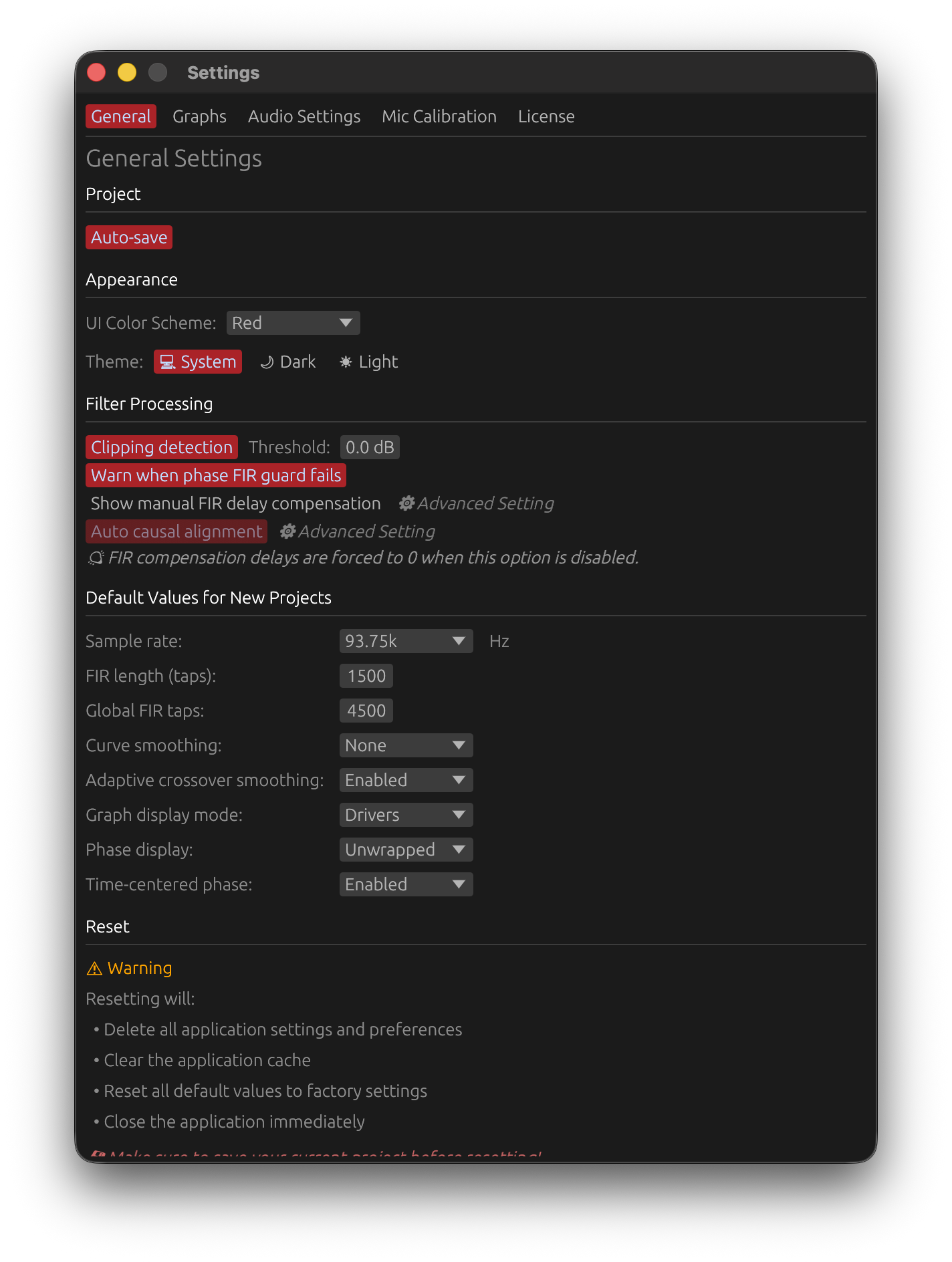
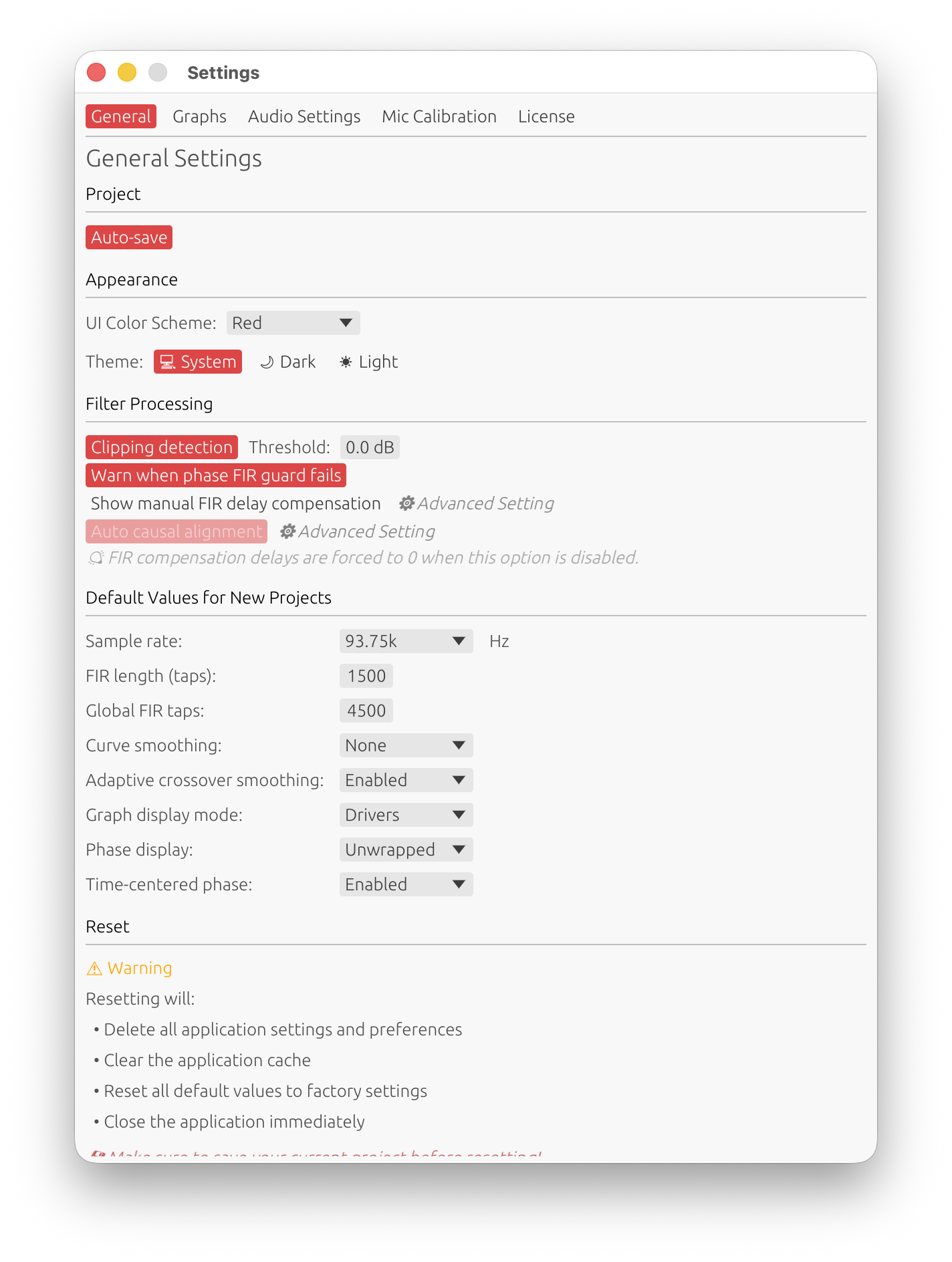
The General tab holds application-wide preferences, filter-processing behaviour, and the defaults applied to new projects. Changing a default here does not touch projects that already exist.
The tab is organised into: Project, Appearance, Filter Processing, Measurement & Import Quality, Default Values for New Projects, Diagnostics, and Reset.
Project
Auto-save
Automatically saves the project after a committed change (a capture, a filter edit, an undo/redo…).
- Requires a project path — auto-save only activates once the project has been saved to disk at least once. Until then a hint reminds you that “Auto-save will activate after first manual save”.
- When off, a “(disabled)” label appears next to the toggle and you save manually with File → Save / Ctrl / Cmd + S.
Appearance
UI Color Scheme
- Red (default) — custom red accent for section headers, graph titles, active buttons and selection highlights.
- Blue — the standard egui theme with blue accents.
Applies immediately, no restart.
Theme
The standard light / dark / follow-system buttons. “Follow system” tracks your OS appearance setting.
Language
The language of the user interface: Automatic (default), English or Français.
- Automatic follows the language of your operating system - French when the OS is set to French, English otherwise. The entry shows which language it currently resolves to, e.g. Automatic (Français).
- The change applies immediately, without restarting, and is remembered between sessions.
- Only the interface is translated: this documentation, exported files (reports, filter files), log files and bug reports stay in English.
Filter Processing
Settings that change how filter chains are computed and validated. These apply to the current session, not just new projects.
Clipping detection
Default: enabled · Threshold: 0 dB (range −5 to +2 dB)
Applies every active filter to a deterministic pink-noise test signal and warns when the output exceeds the threshold, suggesting a gain reduction.
The test runs in the background: it never slows down the graphs, even with long filters, and its warnings appear a moment after a change. Each filter chain is only re-tested when it actually changes — dragging one driver’s slider re-tests that driver alone — and a warning always stays attached to the right driver, even after reordering drivers.
Test signal: periodic pink noise, 20 Hz – 20 kHz, −3 dB/oct slope, band-shaped (12 dB/oct high-pass at 20 Hz, 24 dB/oct low-pass at 20 kHz), RMS ≈ −24 dBFS, peak = −6 dBFS.
Threshold (relative to 0 dBFS):
| Value | Behaviour |
|---|---|
| 0 dB (default) | Warn when the output reaches full scale — the standard safety level |
| −1 to −5 dB | Conservative — warn before full scale, keeping headroom |
| +1, +2 dB | Lenient — only warn well above full scale. ⚠️ Real clipping can then go unreported |
⚠️ The threshold field is only editable while clipping detection is on. Above 0 dB, a “⚠ Threshold above 0 dBFS” warning is shown. With detection off, “⚠ Safety warnings disabled” is shown.
Notes
- Measurement levels are not tested — the warning is purely about filter processing; the test signal is synthetic and independent of your measurement amplitude.
- Phase processing can clip even with a flat magnitude response — phase-correction FIRs, all-pass filters, and multiple FIRs with different causality can align components in time and push the temporal peak past 0 dBFS.
- Disabling removes the per-update test-signal processing (a small performance gain) and all safety warnings — always test with real content afterwards.
Warn when phase FIR guard fails
Default: enabled
The phase-correction auto-guard always runs: it raises f_min / f_max in 1/3-octave steps (up to 100 iterations) until the FIR’s magnitude deviation falls within the per-filter Guard Tolerance (0.1–15 dB, default 0.5 dB, set in each Phase Correction / Global FIR Phase Correction window).
When this toggle is on and the guard still gives up, a warning toast is shown. Turning it off silences the toast only — the guard keeps running. To fix the underlying failure: reduce the phase-correction amount, lower the Kaiser β, increase the tap count, or raise the Guard Tolerance.
Show manual FIR delay compensation ⚙ Advanced
Default: disabled (hidden)
Shows the FIR Offset Delay field in each driver’s FIR section and the FIR compensation delay field in the Global FIR Correction window. When disabled, every FIR compensation delay is forced to 0.
Keep this off unless you need manual control over FIR impulse alignment — incorrect values cause filter truncation and frequency-response ripples.
Auto causal alignment ⚙ Advanced
Default: enabled · Forced on whenever Show manual FIR delay compensation is off (there would otherwise be no way to correct a crop misalignment).
Optimises the crop-window position of the combined FIR impulse response when several filters with non-zero causality are active. The log-energy distribution around the IR peak is used to place the window proportionally, so causal pre-ringing or post-ringing isn’t disproportionately truncated at the tap boundary.
Active only when at least 2 FIR filters are enabled (LP / HP / correction / phase) and at least one has non-zero causality.
Leave it enabled unless you have solid DSP experience and want to position the impulse manually with the FIR delay-compensation fields.
Measurement & Import Quality
Always keep low-SNR measurements
Default: disabled
A sweep measurement or an imported impulse response with a peak level below −25 dB has a poor signal-to-noise ratio. By default, LinFIR pops up an always-on-top Low Signal Level Warning dialog when this happens, asking whether to Keep Anyway or Discard it — see Quality Validation and Import Signal Level Check for the full behaviour.
Turning this on skips that dialog: low-level captures and imports are kept automatically, with only a toast as a reminder.
⚠️ Correction filter quality strongly depends on measurement quality. A low signal-to-noise ratio means noisier data, which can produce inaccurate correction filters and skew phase visualization. Leave this disabled unless you specifically want to bypass the check — for example when re-importing a known-good but intentionally low-level measurement.
This setting does not affect clipping, which is always rejected outright regardless of this toggle — clipped data is corrupted, not just noisy, so there’s nothing to usefully keep. It also doesn’t affect an unattended auto-scan (off-axis sweep automation): a low level there still aborts the scan automatically rather than popping up a dialog nobody is there to answer, unless this setting is enabled, in which case the scan keeps going.
Default Values for New Projects
A two-column grid. Every row seeds a new project only.
| Setting | Options | Default |
|---|---|---|
| Sample rate | 44.1, 48, 88.2, 93.75, 96, 176.4, 192 kHz | 48 kHz |
| FIR length (taps) | 32 – 65536 | 512 |
| Global FIR taps | 32 – 65536 | 512 |
| Curve smoothing | None, 1/48, 1/24, 1/12, 1/6, 1/3 octave | None |
| Graph display mode | FIR, IIR, FIR+IIR, Drivers/Measurements | Drivers/Measurements |
| Phase display | Wrapped, Unwrapped | Wrapped |
| Time-centered phase | Disabled, Enabled | Disabled |
| Sync X-axis | Disabled, Enabled | Enabled |
Sample rate
Match your target DSP.
- 44.1 kHz — compact DSP platforms with limited processing power
- 48 kHz — professional-audio standard, most DSP platforms
- 88.2 / 96 kHz — high-resolution audio
- 93.75 kHz — Hypex FA-series amplifiers (FA123, FA253, FA502…)
- 176.4 / 192 kHz — only when the DSP platform requires it (higher CPU load, larger filters)
FIR length (taps) · Global FIR taps
Default tap count for per-driver FIR filters (LP / HP / correction) and for the global correction FIR.
- 512 – 2048 — enough for most crossover and correction work
- 4096 — typical maximum for standard loudspeaker design
- 8192 – 16384 — sub-bass phase / magnitude correction at very low frequencies
- More taps → finer resolution and steeper slopes, but higher latency (taps/2 samples for a linear-phase filter) and more DSP load
Curve smoothing
Fractional-octave smoothing applied to frequency-response curves. None by default — the raw response with all detail. 1/12 octave is a good balance of detail and readability; 1/3 octave shows overall trends only.
Graph display mode
Which curves a new project shows first. Drivers/Measurements (the fully-processed driver or measurement responses) by default. The other modes show filter responses only. Press F / D to switch modes at any time; the label reads “Drivers” in Loudspeaker Design mode and “Measurements” in Room Calibration mode.
Phase display
Wrapped (values in [−180°, 180°]) or Unwrapped (continuous). Group delay is always computed from unwrapped phase regardless of this setting. Press U to toggle.
Time-centered phase
Seeds the phase graph’s “Remove time of flight rotations” toggle (the toolbar and the C shortcut use that name; Settings calls the default “Time-centered phase”). When on, the linear-phase component (a constant group delay) is removed so the phase sits around 0°:
- Loudspeaker Design — removes the Sum curve’s linear delay from every driver (or the driver’s own delay for a single driver), so you can see phase alignment between drivers relative to the system
- Room Calibration — removes each measurement’s own linear phase independently (no shared reference)
- Filters mode — removes each filter’s own linear phase
Sync X-axis
Whether zooming one plot zooms all related plots. When on, every frequency plot (Magnitude, Phase, Group Delay, Directivity) shares one horizontal range and every time-domain plot (Impulse, Step) shares one time range. Enabled by default; toggle with X or the toolbar button.
Diagnostics
Verbose logging
Default: disabled · not persisted — always starts off.
Raises the log filter to debug at runtime, no restart or terminal needed. Enable it only when support asks, reproduce the issue, then submit Help → Report a Bug (the log file is attached automatically). Turn it back off afterwards — verbose logs are larger and rotate more often. See Bug Reports.
Reset
Reset Application Settings
⚠️ Cannot be undone.
Deletes every application setting and preference, clears the app cache, resets all new-project defaults to factory values, and closes LinFIR immediately (relaunch manually). The license activation is kept. Existing project files are untouched — save your current project first.