
HFD Export (Hypex FA Series)
On this page
Overview
LinFIR can generate Config.xml project files for Hypex FA series amplifiers:
- FA251, FA501 (1-channel with DSP)
- FA122, FA252, FA502 (2-channel with DSP)
- FA123, FA253, FA503 (3-channel with DSP)
About
Config.xml: This is the native project file format used by the Hypex Filter Design (HFD) software. HFD opens and uploadsConfig.xmlfiles directly to FA series amplifiers. LinFIR generates a ready-to-useConfig.xmlthat you can open in HFD immediately.
This integration enables direct deployment of your loudspeaker designs to Hypex amplifiers without manual coefficient transfer.
Availability: HFD export is available in Loudspeaker Design mode — no license required. It is not available in Room Calibration mode. The Hypex FusionAmp mode (license required) is a separate, optional project mode that also supports HFD export, with added hardware-matched guardrails (locked sample rate, tap limits, biquad limits).
✅ Driver Adjustments Included: Unlike standard FIR/IIR exports, HFD export automatically includes gain, time delay, and polarity settings for each driver. These are written directly into the
Config.xmlfile and applied by the amplifier. How the delays are written depends on the HFD version.
Supported Device Models
| Model | Channels | Max FIR (Input) | Max FIR (Output/ch) | Max IIR (biquads/ch) |
|---|---|---|---|---|
| FA122 | 2 | 4500 taps | 1500 taps | 15 |
| FA123 | 3 | 4500 taps | 1500 taps | 15 |
| FA251 | 1 | 4500 taps | 1500 taps | 15 |
| FA252 | 2 | 4500 taps | 1500 taps | 15 |
| FA253 | 3 | 4500 taps | 1500 taps | 15 |
| FA501 | 1 | 4500 taps | 1500 taps | 15 |
| FA502 | 2 | 4500 taps | 1500 taps | 15 |
| FA503 | 3 | 4500 taps | 1500 taps | 15 |
Requirements
Sample Rate: HFD export requires 93.75 kHz sample rate
- FA series amplifiers operate at 93.75 kHz internally
- If your LinFIR project uses a different sample rate, you must change it before HFD export
- Set Sampling Frequency to 93.75 kHz in Target DSP Settings
Biquad Limit: Maximum 15 biquads per channel
- LinFIR automatically counts biquads when exporting
- Each driver's IIR filters must not exceed 15 biquads per output channel
- The global IIR / Auto-EQ filters are not exported to HFD: the export refuses a project that uses them. Disable them, or move these filters to the drivers' IIR filters
- See Biquad Count Reference for calculation details
Delays: depend on the HFD version, see HFD 5.2 or HFD 5.3.
FIR Position: Choose between two FIR filter placement options:
Input FIR (Global, 4500 taps maximum):
- Single FIR filter applied to the input signal before channel routing
- Suitable for global room correction or full-range equalization
- More efficient for shared corrections across all channels
Output FIR (Per-channel, 1500 taps maximum per channel):
- Independent FIR filters for each output channel
- Suitable for per-driver crossover and correction filters
Each position carries only one kind of FIR, and the export refuses a project that uses the other kind instead of dropping it without a word: with Input, a driver with its own FIR filters is refused (choose Output); with Output, an active global FIR correction is refused (disable it, or choose Input).
Export Workflow
1. Configure HFD Settings
Open Menu > Export HFD to access the HFD export window:
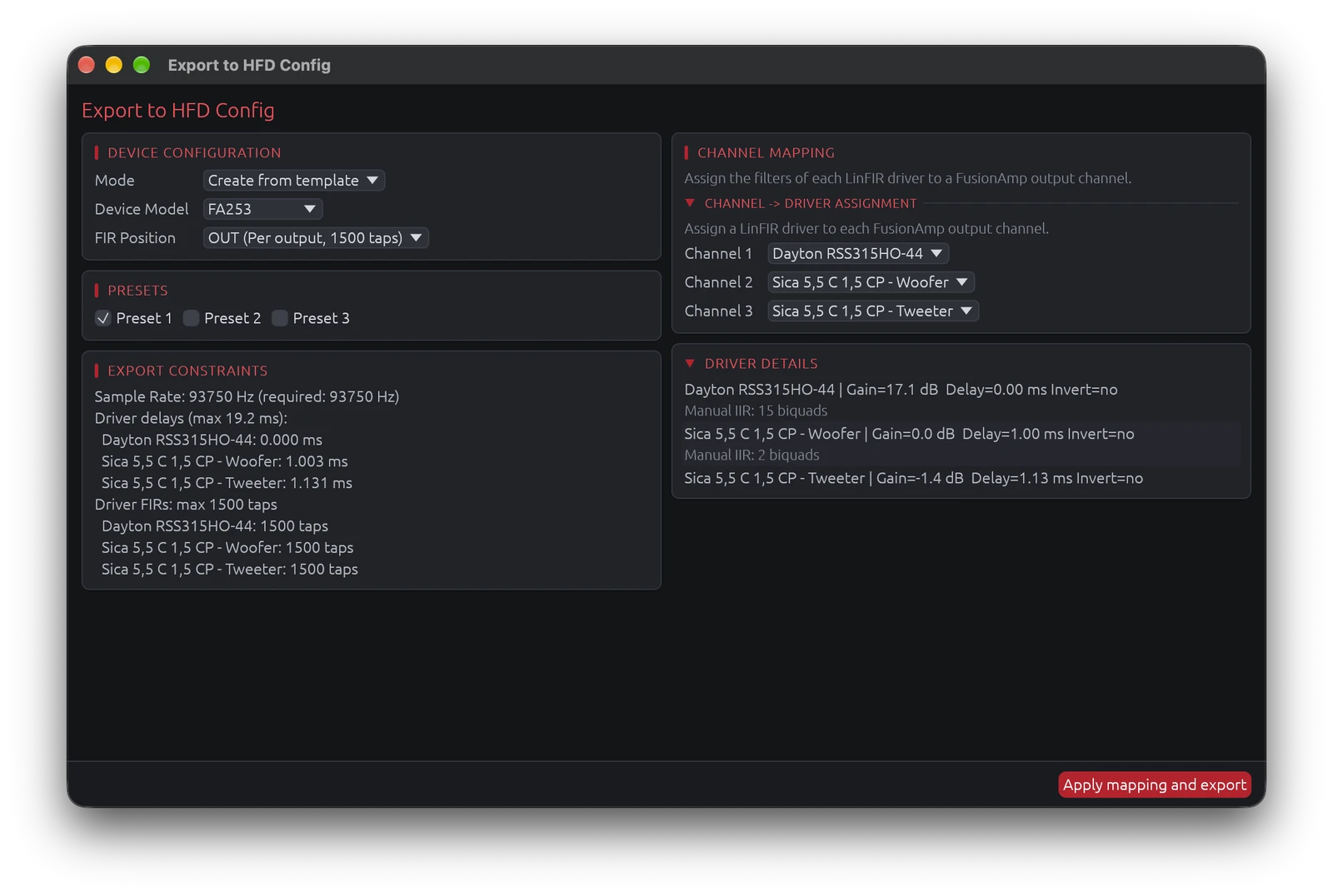
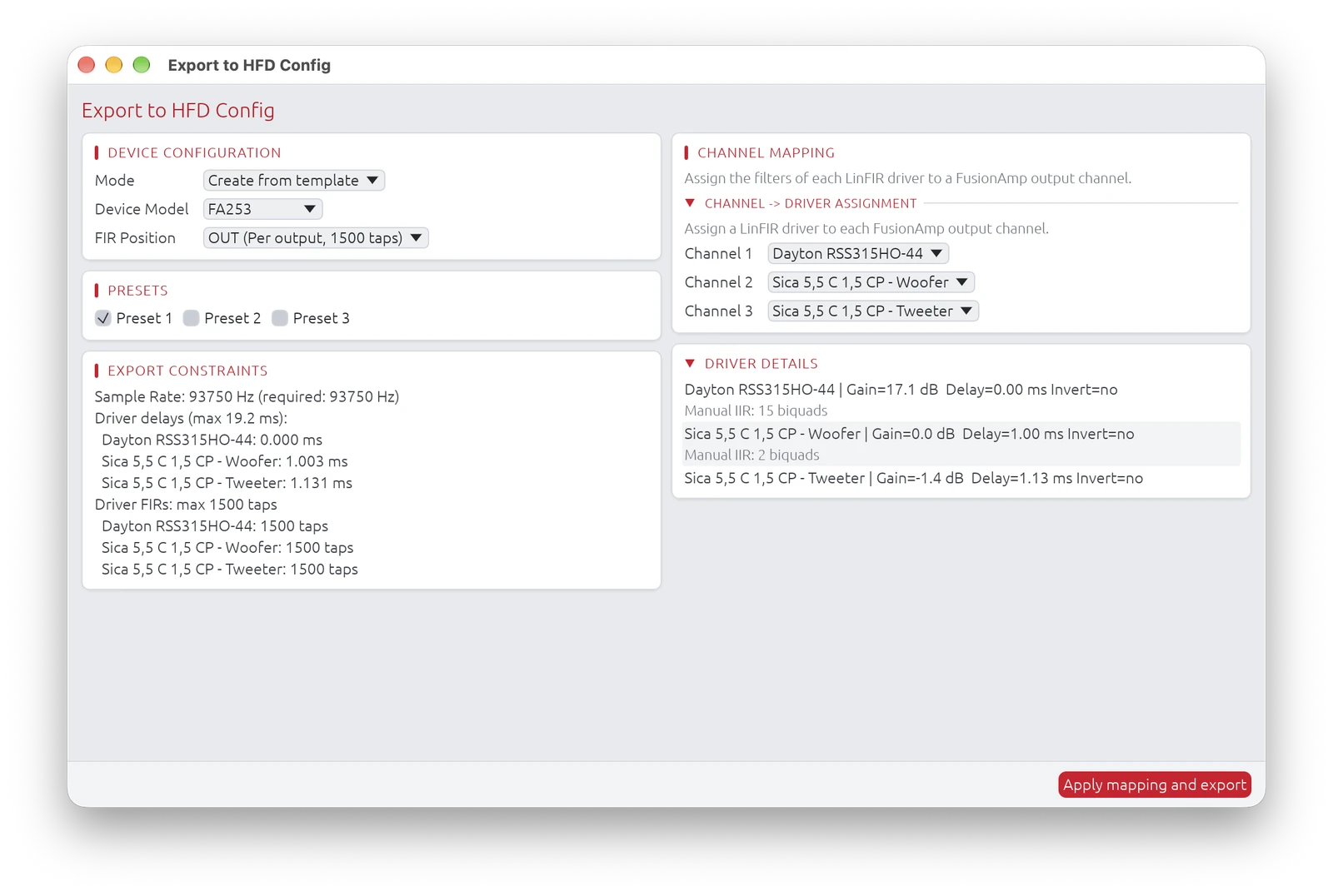
- Mode: Choose between Create from template or Patch existing Config.xml (see Patch Mode)
- HFD Version: HFD 5.2 or HFD 5.3, the Hypex Filter Design version (and amplifier firmware) the file is for: they do not handle the delays the same way (see HFD 5.2 or HFD 5.3). The choice is kept from one export to the next.
- Device Model: Select your Hypex FA amplifier model
- FIR Position: Choose Input (global) or Output (per-channel) FIR placement
- Channel-to-Driver Mapping: Assign the filters of each LinFIR driver to a FusionAmp output channel
2. Map Drivers to FusionAmp Channels
The mapping table assigns the FIR filters, IIR filters, gain, delay, and polarity computed for each LinFIR driver to a specific FusionAmp output channel. Channels are numbered as they appear in the HFD Config.xml.
By default, LinFIR assigns drivers sequentially: the first driver goes to Channel 1, the second to Channel 2, and so on. If there are fewer drivers than channels, the last driver is repeated for the remaining channels.
| FusionAmp Channel | LinFIR Driver | Notes |
|---|---|---|
| Channel 1 | Driver 1 (Woofer) | Output channel 1 |
| Channel 2 | Driver 2 (Mid) | Output channel 2 |
| Channel 3 | Driver 3 (Tweeter) | Output channel 3 |
Mapping Validation:
- LinFIR checks that all mappings are valid before export
- Warnings appear if biquad count exceeds 15 for any channel
- FIR length validation ensures compliance with Input (4500) or Output (1500) tap limits
3. Select Presets to Export
Hypex FA amplifiers support multiple configuration presets (typically 3). Choose which presets to include in the exported HFD file:
- ☑ Preset 1: Main tuning
- ☑ Preset 2: Alternate voicing
- ☐ Preset 3: (Skip)
Uncheck presets you don't want to modify in the existing configuration.
4. Patch Mode (Update Existing Configuration)
Patch Mode allows you to update an existing Config.xml instead of creating one from scratch. Select Patch existing Config.xml in the Mode dropdown.
- Select Mode: Set the Mode dropdown to Patch existing Config.xml
- Browse: Click Browse... and select the
Config.xmlfile on your disk - LinFIR will:
- Auto-detect the FIR position (Input or Output) from the loaded file
- Select the HFD version that saved the file (it can still be changed)
- Parse existing presets and channel configurations
- Lock FIR position and device model to match the loaded file
- Update Selected Presets: Only the presets you've checked will be modified; others remain unchanged
- Click Apply mapping and export — the selected
Config.xmlis overwritten in place
Use Cases for Patch Mode:
- Update filter coefficients after design refinements
- Safely modify one preset without affecting others
- Create different presets (boosted bass, different voicing, etc.)
5. Validation and Export
Before exporting, LinFIR performs comprehensive validation:
Biquad Count Check:
Tweeter has 18 biquads but HFD supports max 15 biquads per channel
Reduce IIR or Auto-EQ filter count for this driver.
Delay Check - HFD 5.2:
Tweeter has a delay of 21.000 ms but HFD supports max 19.2 ms per channel
Delay Check - HFD 5.3:
Tweeter has 12.000 ms more delay than the least delayed driver but HFD 5.3 supports max 10.67 ms per channel on top of the global delay
Reduce the spread of the delays, or use HFD 5.2 with the firmware 5.82.
FIR Length Check - Position Input:
Global FIR has 6000 taps but Input position supports max 4500 taps
Reduce global FIR length or switch to Output position.
FIR Length Check - Position Output:
Woofer has 2000 taps but Output position supports max 1500 taps per channel
Reduce driver tap count or switch to Input position.
Sample Rate Check:
HFD export requires 93.75 kHz sampling rate. Current: 96000 Hz
Change sample rate to 93.75 kHz in Settings.
If validation passes, click Apply mapping and export:
- In Create from template mode: a Save As dialog opens — choose the location and filename (
Config.xmlis pre-filled) - In Patch mode: the selected
Config.xmlis overwritten in place immediately
A confirmation message is shown below the export button on success.
6. Load Configuration to Amplifier
Use Hypex Filter Design (HFD) (Windows only, the official Hypex software for configuring their DSPs) to upload the exported Config.xml to your FA series amplifier:
Connect amplifier via USB
Open Hypex Filter Design (HFD)
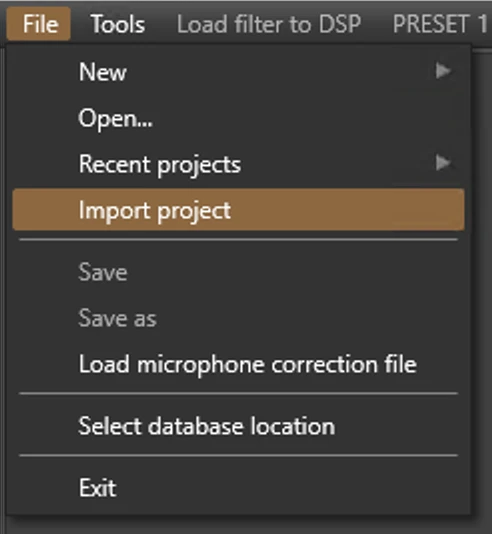
Go to File > Import Project
In the file dialog, switch the file type dropdown (bottom-right) to All files — otherwise HFD won't show
.xmlfiles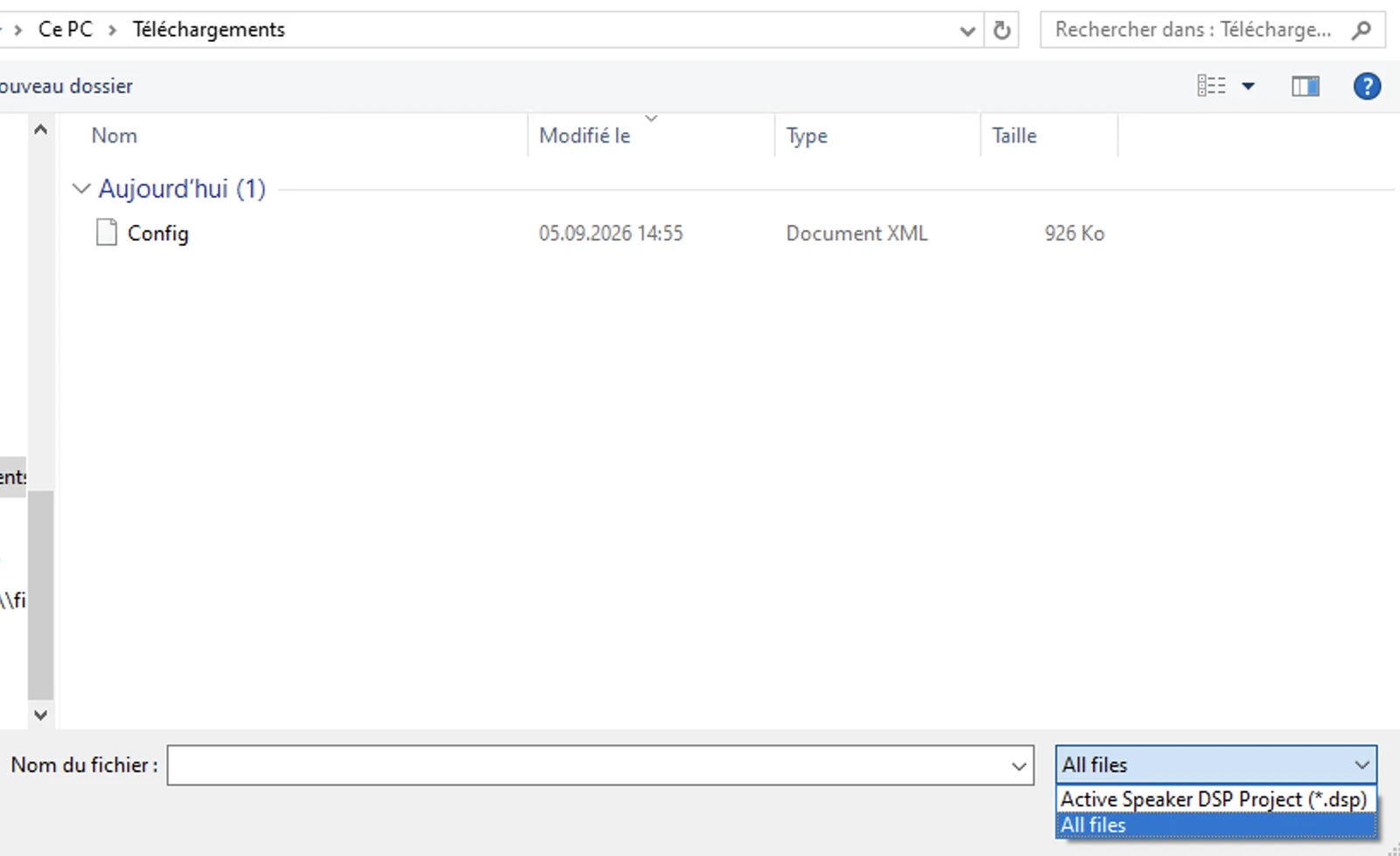
Select the exported
Config.xmlfileClick Upload to Device
HFD 5.2 or HFD 5.3: delays
HFD 5.3 comes with a new amplifier firmware (DSP3-213 / FusionAmp v5.83) that changes how delays work. The Config.xml format itself is the same - each channel has a global delay (GlobalDelay n) and its own delay (Delay n), in µs - but they are not used the same way:
| HFD 5.2 (firmware 5.82) | HFD 5.3 (firmware 5.83) | |
|---|---|---|
| Global delay | Not supported by the firmware (HFD drops it) | One per preset, common to all outputs, max 149.33 ms |
| Delay per output | Max 19.2 ms in LinFIR (32 ms with 3 channels, 48 ms with 2 in the firmware) | Max 10.67 ms (1000 samples), on top of the global delay |
| What LinFIR writes | Each driver's delay on its output; global delay 0 | The delay all the exported drivers share as the global delay; the rest on each output |
<project version> | 524 | 531 |
With HFD 5.3, a driver can therefore be at most 10.67 ms later than the least delayed driver: the common part has no such limit. For example, with drivers delayed 2, 5 and 12 ms, LinFIR writes a global delay of 2 ms, and 0, 3 and 10 ms on the outputs. The Export Constraints panel shows the split.
HFD 5.3 keeps a single global delay per preset: when it opens or saves a project, it copies channel 1's global delay to the other channels. LinFIR writes the same value on all of them.
Choose HFD 5.2 if your amplifier still runs firmware 5.82: its global delay would be lost, and its outputs accept longer delays.
⚠ With the amplifier connected, HFD 5.3 stores the delays in the amplifier, and its graphical filter design screen loads the delays stored in the amplifier in place of those of the opened file. Check the delays in HFD before uploading the preset.
Related Documentation
- Hypex FusionAmp Mode - Project mode with hardware-matched guardrails
- Export & Project Management - Standard FIR/IIR export, available in all project modes