
AI Assistant License
On this page
An AI assistant such as Claude can read the project open in LinFIR, check it for problems, guide you step by step, and make the changes you agree to, with LinFIR's documentation at hand. You ask in your own words ("Check my project", "Why is there a dip at 2.5 kHz?", "Align the drivers"); the assistant asks LinFIR, answers, and works in the window you see.
You keep the hand: every change the assistant makes shows at once in LinFIR, and is a step of its history: Edit > Undo (⌘Z / Ctrl+Z) takes it back. What goes beyond the project (a file overwritten, a project closed with unsaved changes) waits for your Allow in LinFIR. And Allow changes, in the settings, keeps the assistant to reading and advising.
Requires: an assistant that works with MCP servers: Claude Desktop (macOS and Windows), Claude Code, or another MCP client. On Linux, where there is no Claude Desktop, use Claude Code or another assistant.
Setting It Up
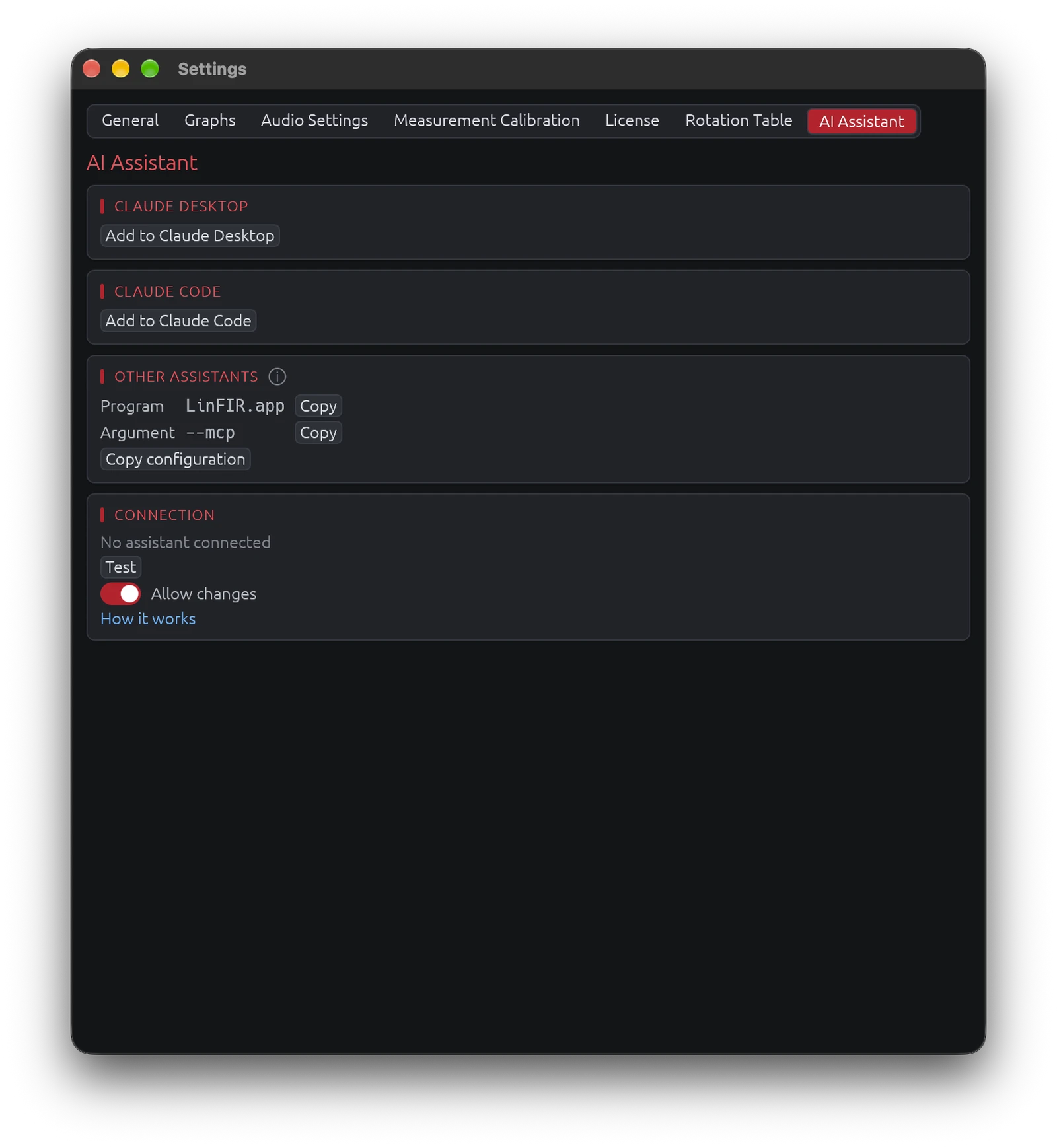
Open Settings > AI Assistant. Everything is done with buttons: there is nothing to type in a terminal and no file to edit.
Claude Desktop
- Click Add to Claude Desktop. LinFIR prepares its extension and opens it in Claude Desktop.
- In Claude Desktop, click Install.
The tab then shows Added. To remove LinFIR from Claude Desktop: Claude Desktop, Settings, Extensions.
If you move LinFIR to another folder, LinFIR says so when it starts, and the tab shows Added for another copy of LinFIR: click Update and install again.
Claude Code
Click Add to Claude Code: LinFIR registers itself in Claude Code for your user account. Remove takes it out. If you move LinFIR (on Linux, its AppImage), click Remove, then Add to Claude Code again. In Claude Code, /mcp shows linfir and its state.
If Claude Code is not installed, the tab says so, with a link to install it.
Other Assistants
Any assistant that works with MCP servers can use LinFIR. Give it the Program (LinFIR's own location) and the Argument (--mcp), each with its Copy button, or click Copy configuration and paste the block where the assistant lists its MCP servers.
Checking the Connection
Test starts LinFIR as an assistant would and asks for its tools: "LinFIR answers: 6 tools" means the assistant will find it.
Using It
Ask the assistant in a new conversation. For example:
- "Check my LinFIR project."
- "Why does the summed response dip at the crossover between the woofer and the tweeter?"
- "Explain the Kaiser β of my low-pass."
- "Compare the measured and filtered response of driver 2."
You don't need to open LinFIR first: the assistant opens it when it needs it. It always works on the project open in the LinFIR window, the one you see.
While an assistant uses LinFIR, its name shows next to the project name, at the top of the window. Click it to open the AI Assistant settings.
What the Assistant Can Do
Everything you do in LinFIR, the assistant can do too, through the same functions; it reads what LinFIR computes and draws.
| Area | What it reads and does |
|---|---|
| Project | Where the project stands and the next step, a check of its problems; a new project (each mode), opening and saving, recent projects; the sample rate and FIR lengths, auto-align and auto-level, how Room Calibration averages its positions |
| Drivers | Adds, removes, moves, renames and solos drivers (measurement positions in Room Calibration), copies one driver's settings to others; gain, delay, polarity, notes |
| Filters | Crossovers and their links, FIR corrections (all their settings, reference and target curve), IIR filters, Auto EQ and its parameters, the global filters; Auto-align, Auto-level, Auto EQ; undo and redo |
| Curves | Any curve LinFIR computes: magnitude, phase, group delay, impulse and step, total, per driver or the global filters, at any angle; listening window, early reflections, sound power, predicted in-room response, directivity index, beamwidths; distortion; target curves |
| Measurements | Imports IR files (WAV, TXT, FRD...), deletes measurements, completes them by symmetry; the IR window, delay compensation, calibrations, sweep settings, SPL calibration values; the enclosures and how they stood on the turntable, the calculation distance; the near-field splice |
| View | What the graphs show (curves, smoothing, angle), and any window, opened to show you something |
| Files | Every export: FIR filters in any format, IIR filters (FQG, CamillaDSP, Q-SYS, MiniDSP), the predicted total IR, the report (TXT, PDF), the HFD configuration (new or patched, with its output mapping), a measurement's IR, target curves; microphone calibrations imported |
| Setup | Audio devices and channels, timing reference, default sweep, general and graph settings, the soundcard calibration |
| Hardware | Measures a driver (IR Management), scans a plane on the rotation table and moves it, sends the project to the Hypex DSP3 and runs its live controls (filter preset, volume, mutes, inputs, equalizer, soft-clip limiter, settings) and copies a module's settings to another (clone) in the Hypex DSP Manager |
Changes are steps of LinFIR's history, announced with the assistant's name. The assistant does not touch your license, its own settings, LinFIR's factory reset or a DSP3 password.
A measurement or a DSP3 send is answered once it is done. A turntable scan can take an hour: the assistant follows it and tells you how far it is, and LinFIR keeps the computer awake while it measures (the display may sleep).
Included, and With a License
The assistant is included with LinFIR: it reads your project and its on-axis curves, checks it, tells you the next step, explains with this documentation, shows you a curve or a window, and can undo, redo, save and open projects. With a license, it also applies the settings for you, measures, exports, drives the Hypex DSP3 and the turntable, and reads the off-axis measurements and the directivity, as LinFIR does with a license.
Without a license, when a step needs it, the assistant guides you through it in LinFIR (where to click, which values) instead of doing it.
Your Yes in LinFIR
LinFIR shows what the assistant wants and waits, each time, before:
- overwriting a file, or closing a project with unsaved changes (opening another, starting a new one);
- a measurement, with the sweep's level, duration and frequencies and the output and microphone it uses: check the microphone and the level before allowing;
- a turntable scan, once at its start, with the number of angles (stop it with Space or Stop in the IR Management window); moving the table;
- the soundcard calibration;
- a send to the DSP3, with the presets and the driver on each output of each module, and any change to a DSP3 (lowering a volume and muting excepted).
Allow does it, Refuse tells the assistant no. Nothing happens if you don't answer within five minutes.
Allow Changes
Settings > AI Assistant > Allow changes (on by default). Off, the assistant still reads, checks and advises, and tells you what to change instead of changing it: no change to the project, no measurement, nothing written to a device or to the audio setup. It may still export files, on your yes if they would be overwritten, and change what the graphs show.
Ready-Made Requests
Assistants that offer them (Claude Desktop: the + menu of a conversation) list LinFIR's: Check my LinFIR project, Guide me through my project, Prepare the export.
The assistant also reads this documentation, to explain and advise.
Privacy
LinFIR itself sends nothing anywhere: the assistant talks to LinFIR on your computer. What the assistant reads from LinFIR (settings, responses, problems found) becomes part of your conversation with it, and goes where the assistant sends your conversations, as anything you type would. Your measurement files themselves are not sent: only the settings, curves and figures the tools return.
Troubleshooting
- The assistant guides you instead of applying a change: applying it needs a license (Settings > License).
- The assistant does not find LinFIR: click Test in the AI Assistant tab. If LinFIR answers, restart the assistant; in Claude Desktop, check that the extension is enabled (Settings, Extensions).
- "Another LinFIR window answers the assistant": two LinFIR windows are open; the assistant works with the first one.
- "The link with the assistant could not start": quit LinFIR and open it again; LinFIR's log says why.